
 by
by
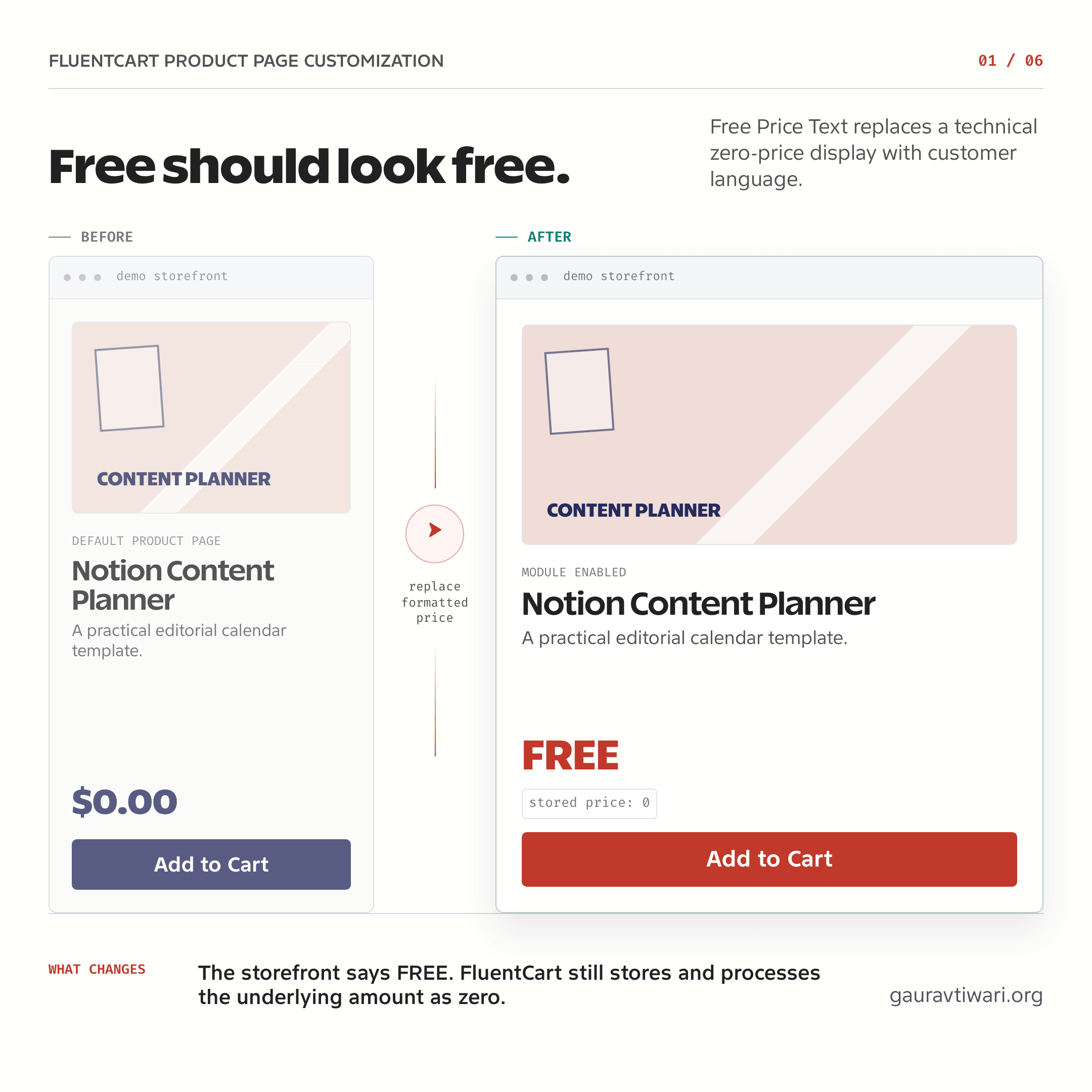
FluentCart product page customization is useful when the default output is technically correct but unclear to the buyer. A free product should not look like it costs $0.00, and a subscription button should say what the click will do.

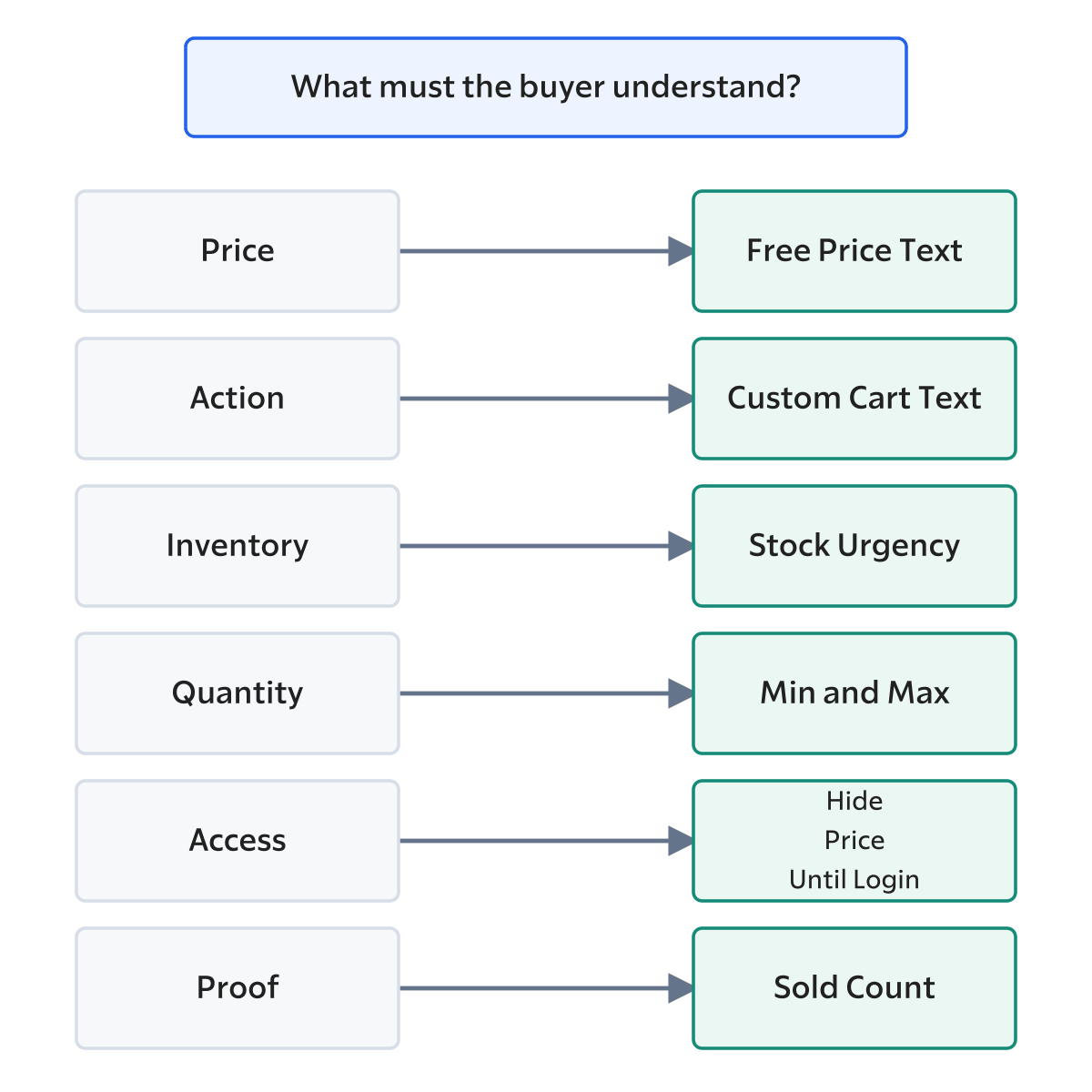
GT Extensions for FluentCart includes six focused storefront modules for those gaps, among its 18 modules: free-price text, sold count, stock urgency, minimum and maximum quantities, prices hidden until login, and custom add-to-cart text. Enable only the modules that describe a real product state.
On WooCommerce? Stackless for WooCommerce, my plugin for WooCommerce stores, has the same kind of storefront modules there, including Sold Count, Stock Urgency Labels, Custom Add to Cart Text and a Product Details Table that feeds product schema.
Which FluentCart Product Page Customization Options Matter?
Quick answer: use GT Extensions for FluentCart to replace zero-price output, show units sold from valid orders, display inventory-based stock alerts, enforce quantity limits, gate prices by login, and give products clearer purchase buttons.
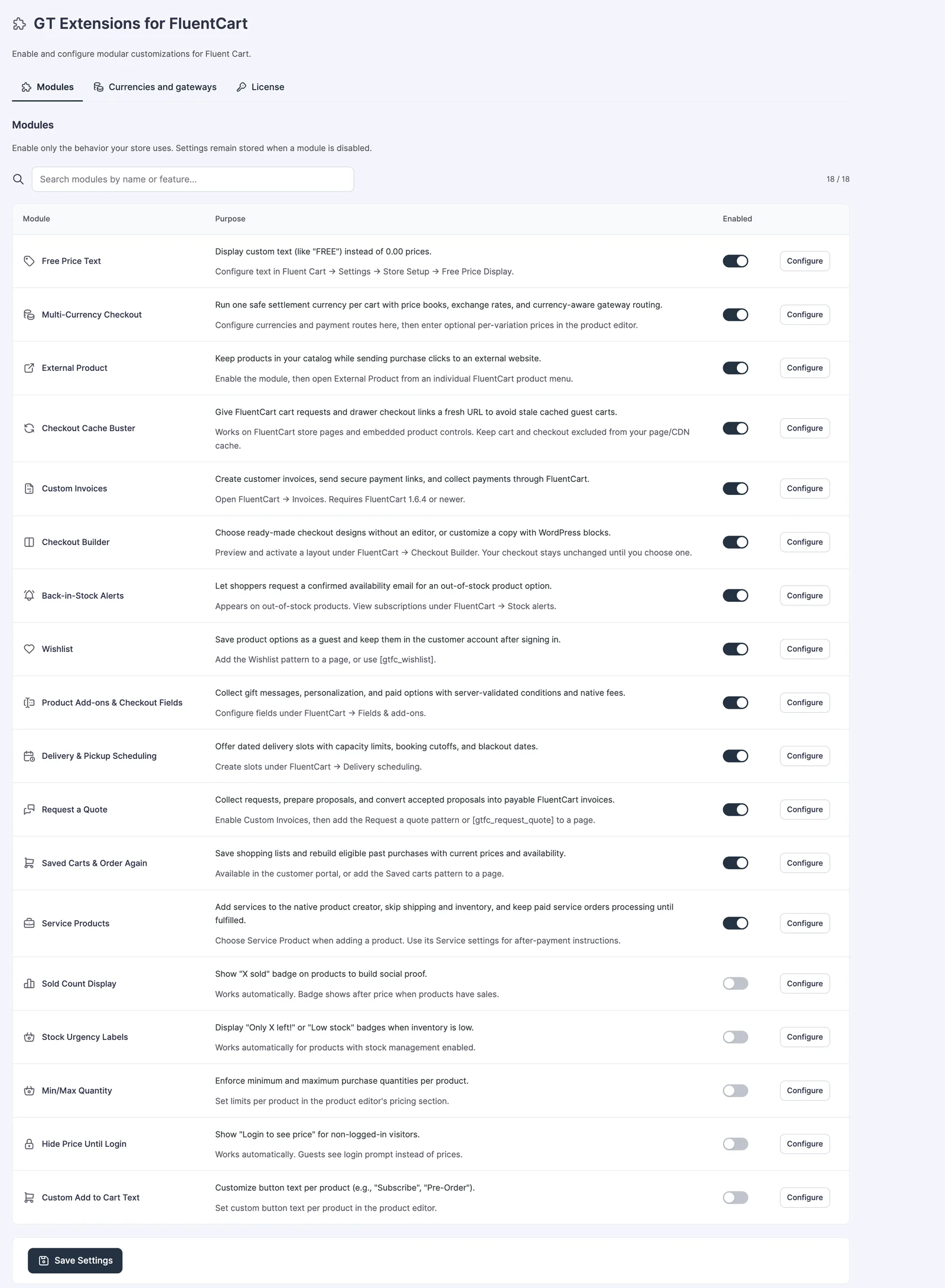
| Module | Problem it solves | Good example |
|---|---|---|
| Free Price Text | $0.00 reads like raw system output | Free or Included |
| Sold Count Display | A popular product has no visible proof | 247 sold |
| Stock Urgency Labels | Buyers cannot see genuinely low inventory | Only 3 left |
| Min/Max Quantity | The cart accepts an invalid order size | Minimum 12 |
| Hide Price Until Login | Guest pricing should stay gated | Log in to see price |
| Custom Add to Cart Text | One generic button does not fit every product | Subscribe or Pre-Order |
Replace $0.00 and Generic Buttons
For a zero-priced product, GT Extensions can replace the formatted amount with text such as “Free,” “Free Download,” or “Included.” The underlying FluentCart price remains zero for the cart and order.
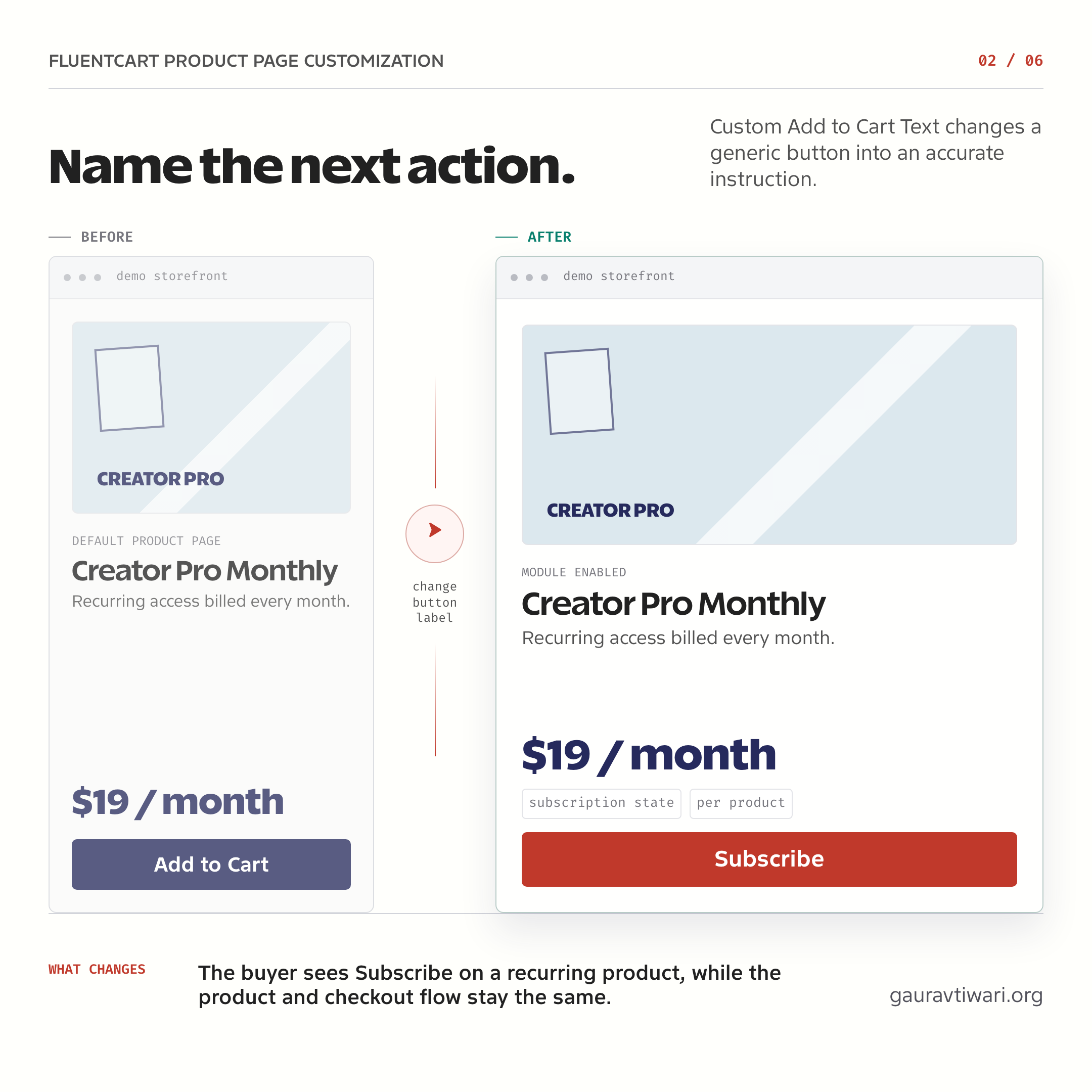
Pair the label with a button that describes the next action. The custom text module supports product- and variation-level labels and useful defaults for states such as free, subscription, preorder, and out of stock.
| Product | Price text | Button text |
|---|---|---|
| Free download | Free | Get It Free |
| Subscription | Show the billing interval | Subscribe |
| Preorder | Show the actual price | Pre-Order |
| Course | Show the actual price | Enroll Now |
| Normal store product | Show the actual price | Add to Cart |
Do not promise “Download Now” if the buyer must first create an account or wait for approval. The button should describe the immediate next step, not the eventual outcome.
Show Sold Counts and Stock Alerts Honestly
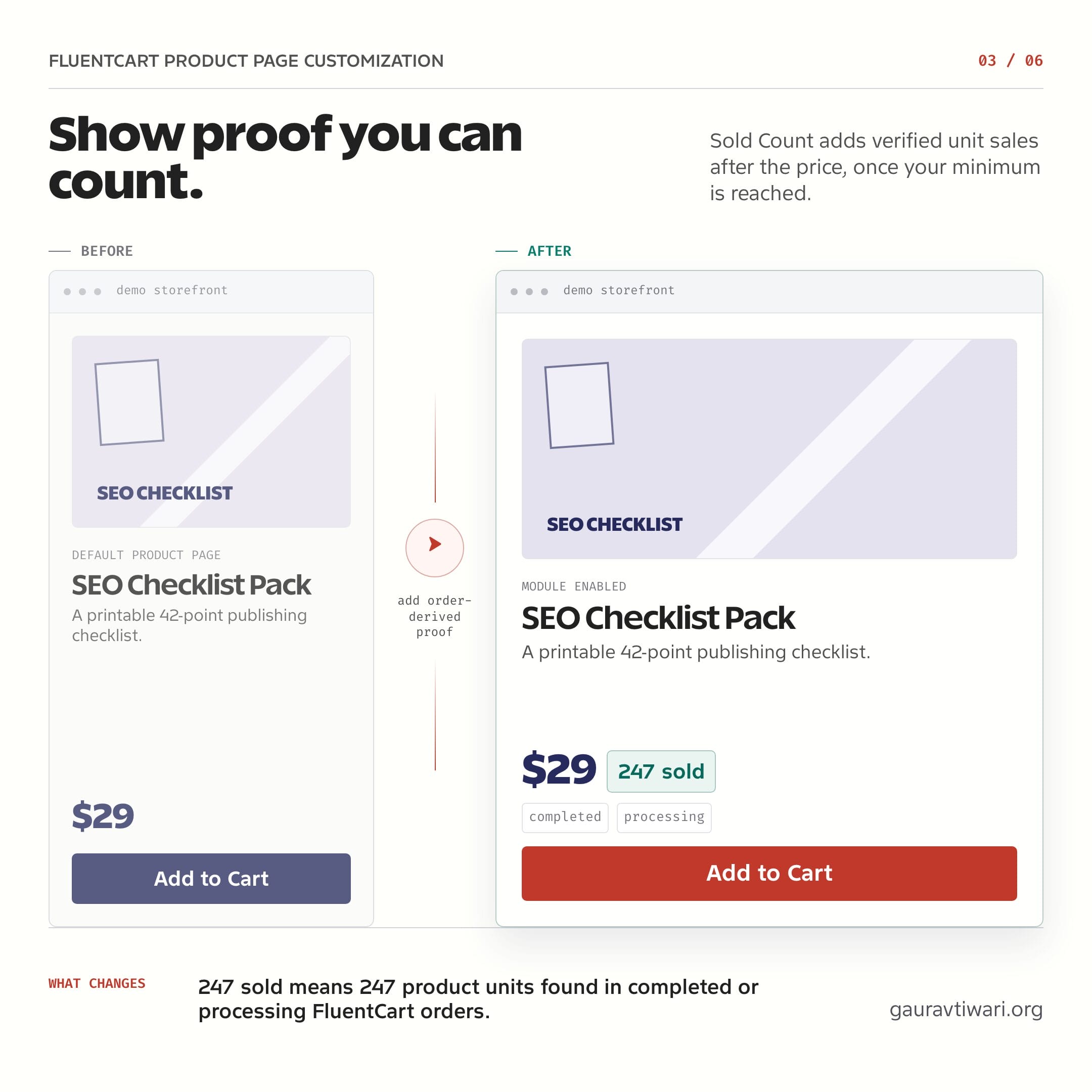
The Sold Count module adds the product quantities found in FluentCart orders with completed or processing status. That means “247 sold” represents units, not 247 unique customers.
- Set a minimum count so a new product does not display weak social proof.
- Use a label that says sold, not customers or companies.
- Do not type a fake starting number into the design.
- Check whether processing orders make sense for the store’s fulfillment flow.
Stock Urgency uses the selected variation’s inventory. It can show low, very low, in-stock, or out-of-stock text with configurable thresholds. Use numeric urgency only when FluentCart is managing a real available quantity.
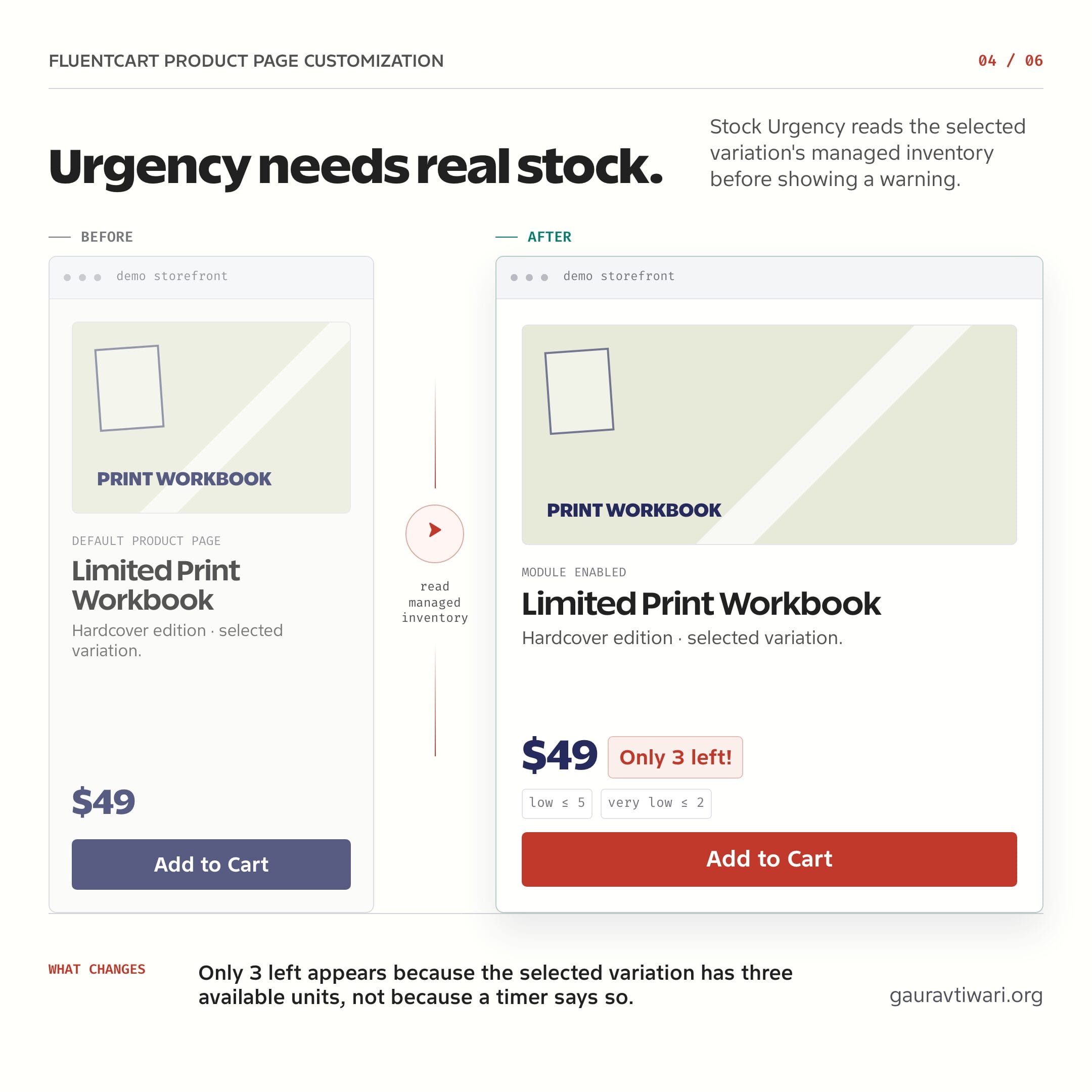
Skip stock urgency for unlimited downloads and services. A permanent “Only 2 left” message is false scarcity, not FluentCart product page customization.
Enforce Quantity and Login Rules
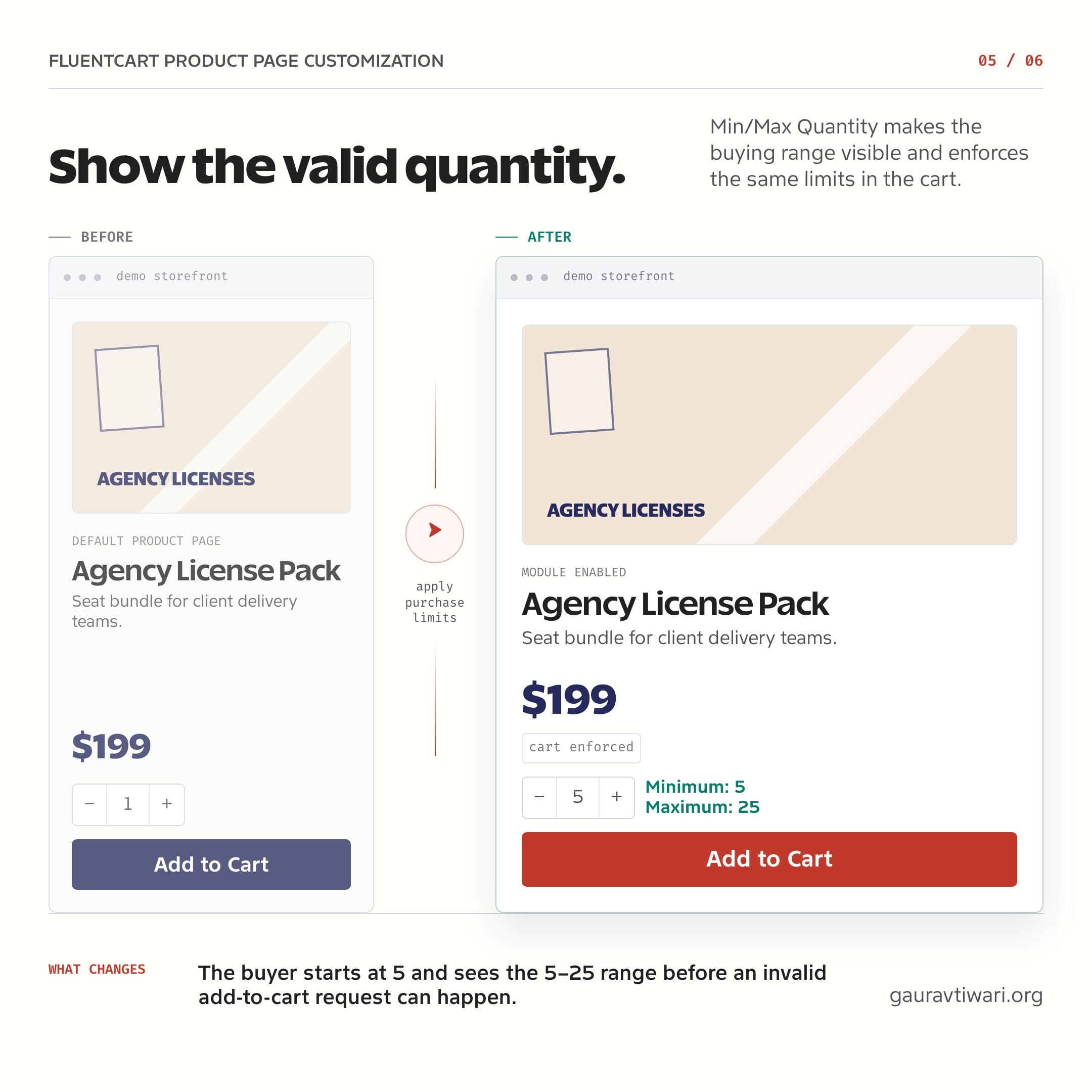
A quantity note is useful only when the cart follows it. GT Extensions can set default or variation-level minimum and maximum quantities, display the limits, and reject an invalid add-to-cart or cart update.
- Minimum 12: require a carton or wholesale order.
- Maximum 2: cap a limited release or free sample.
- Variation limit: apply a different rule to each size or pack.
- Managed stock: keep the maximum within the available amount.
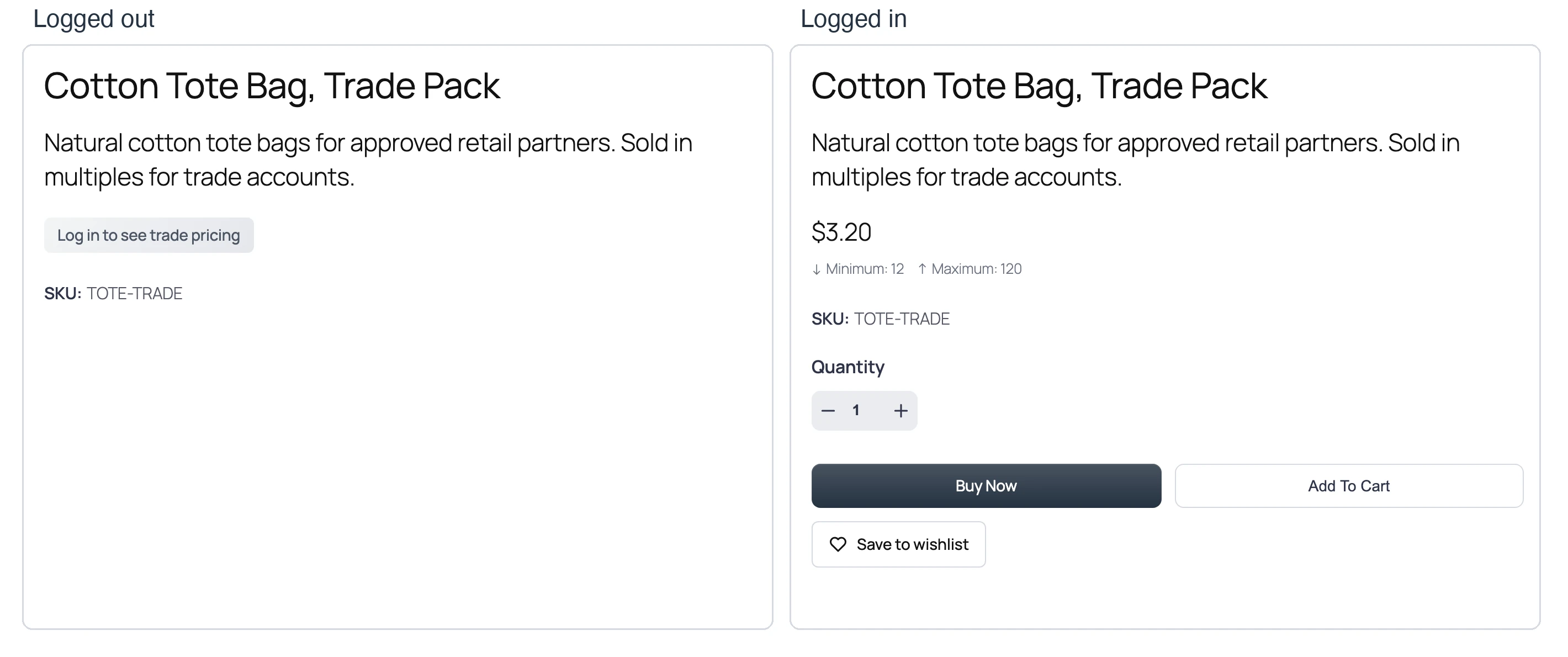
For a member or dealer catalog, the Hide Price Until Login module can replace the price with a login prompt, hide the purchase action, return the customer to the product after login, and reject unauthorized cart requests. It controls access to an existing price; it does not create different prices for each customer role. It can cover the whole store or only the products you mark with Login to purchase, so a trade range can sit behind login next to a public retail range. My guide to hiding prices until login in FluentCart covers the full private-catalog setup.
How to Configure the Modules
Treat every module as an answer to a specific product problem. Start with one change and confirm it across variations before enabling another.
- Enable the required module in GT Extensions.
- Write the shortest label that accurately describes the product state.
- Set product- or variation-level values where the module supports them.
- Open the product as a logged-out visitor and switch every variation.
- Test valid and invalid quantities where limits are enabled.
- Add the product and compare the product page, cart, checkout, and FluentCart order.
- Repeat the main path on mobile.
The most common mistake is checking only the default variation. Price text, stock, quantity, and button state can all change after the buyer selects another option.
Which Customizations Should You Enable?
My order is simple: accurate price language, clear button text, enforceable purchase rules, real availability, then truthful social proof. Clarity deserves priority over persuasion.
| Your store | Start with |
|---|---|
| Free downloads | Free Price Text and Custom Add to Cart Text |
| Physical inventory | Stock Urgency and Min/Max Quantity |
| Subscriptions or preorders | Custom Add to Cart Text |
| Member or dealer catalog | Hide Price Until Login and Min/Max Quantity |
| Established popular products | Sold Count after confirming the data |
GT Extensions for FluentCart costs $39 a year or $99 for a lifetime license and lets you enable each module independently. If you still need the store platform, get FluentCart through my affiliate link.
For a product template, checkout flow, or custom module beyond these settings, use my FluentCart development service.
FluentCart Product Page Customization FAQs
These answers clarify what each storefront module changes.
Can I replace $0.00 with Free in FluentCart?
Yes. GT Extensions for FluentCart can replace the formatted price of zero-priced products and variations with text such as Free or Included. The underlying FluentCart amount remains zero.
Can I change the Add to Cart text in FluentCart?
Yes. GT Extensions supports product- and variation-level add-to-cart text, buy-now text, and useful defaults for product states such as free, subscription, preorder, and out of stock.
How does the FluentCart sold count work?
The Sold Count module sums product quantities from completed and processing FluentCart orders. The result represents units sold, not unique customers. You can set a minimum count before the badge appears.
Can FluentCart show an Only X left message?
Yes. GT Extensions reads the selected variation’s managed inventory and can show configurable low, very low, in-stock, or out-of-stock text. Do not use numeric urgency when the store is not tracking a real quantity.
Can I set minimum and maximum quantities in FluentCart?
GT Extensions can set default or variation-level minimum and maximum quantities and validate them on add-to-cart and cart updates. When stock is managed, the maximum stays within available inventory.
Will these modules improve conversion?
They can reduce confusion when they explain a real price, action, stock level, quantity rule, or access requirement. Enabling every badge at once can distract buyers, so start with the problem that most directly blocks a purchase.
Tell Google you want more of this.
Add Gaurav Tiwari as a preferred sourceOne tap, and this site shows up more often in your own Top Stories, AI Overviews and AI Mode. Remove it any time.
Disclaimer: This site is reader-supported. If you buy through some links, I may earn a small commission at no extra cost to you. I only recommend tools I trust and would use myself. Your support helps keep gauravtiwari.org free and focused on real-world advice. Thanks. - Gaurav Tiwari