by
by
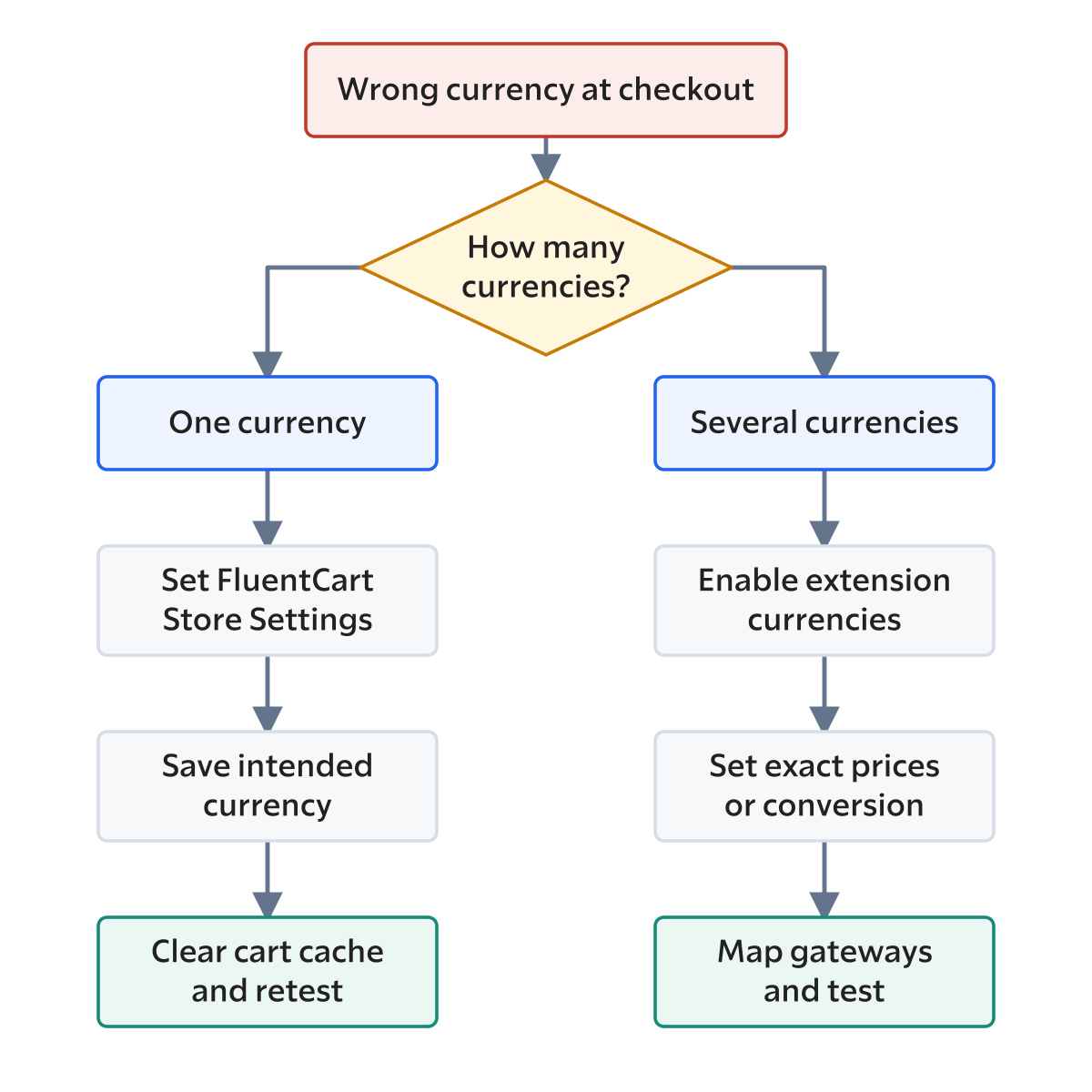
A FluentCart checkout currency problem usually shows up in one of two ways. Checkout charges in dollars when your store should charge in rupees, or the Checkout Currency field in Store Setup shows a currency you never saved. Either way the buyer sees a total that doesn’t match the product page, and a gateway such as Razorpay may refuse the payment.
The fix depends on which layer holds the wrong currency: the saved setting, a cart or page that remembers an older state or a multi-currency add-on doing exactly what it was told. You should check them in that order, because the first check takes a minute and it fixes most single-currency stores.
If your store runs GT Extensions for FluentCart, my add-on that gives FluentCart multi-currency checkout, there are a few more causes to rule out. I cover those below, including the admin display bug that version 2.6.3 fixed.
On WooCommerce? The same mismatch shows up there, and the Currency-Aware Payment Gateways module in Stackless for WooCommerce, my plugin for WooCommerce stores, removes any gateway that doesn’t support the cart’s currency at checkout and rejects it on the server too.
Check the FluentCart Checkout Currency Setting
FluentCart runs one currency for the whole store, and it lives in FluentCart > Settings > Store Settings > Store Setup. The Checkout Currency field at the bottom of that screen sets the currency for every product price, cart and payment.
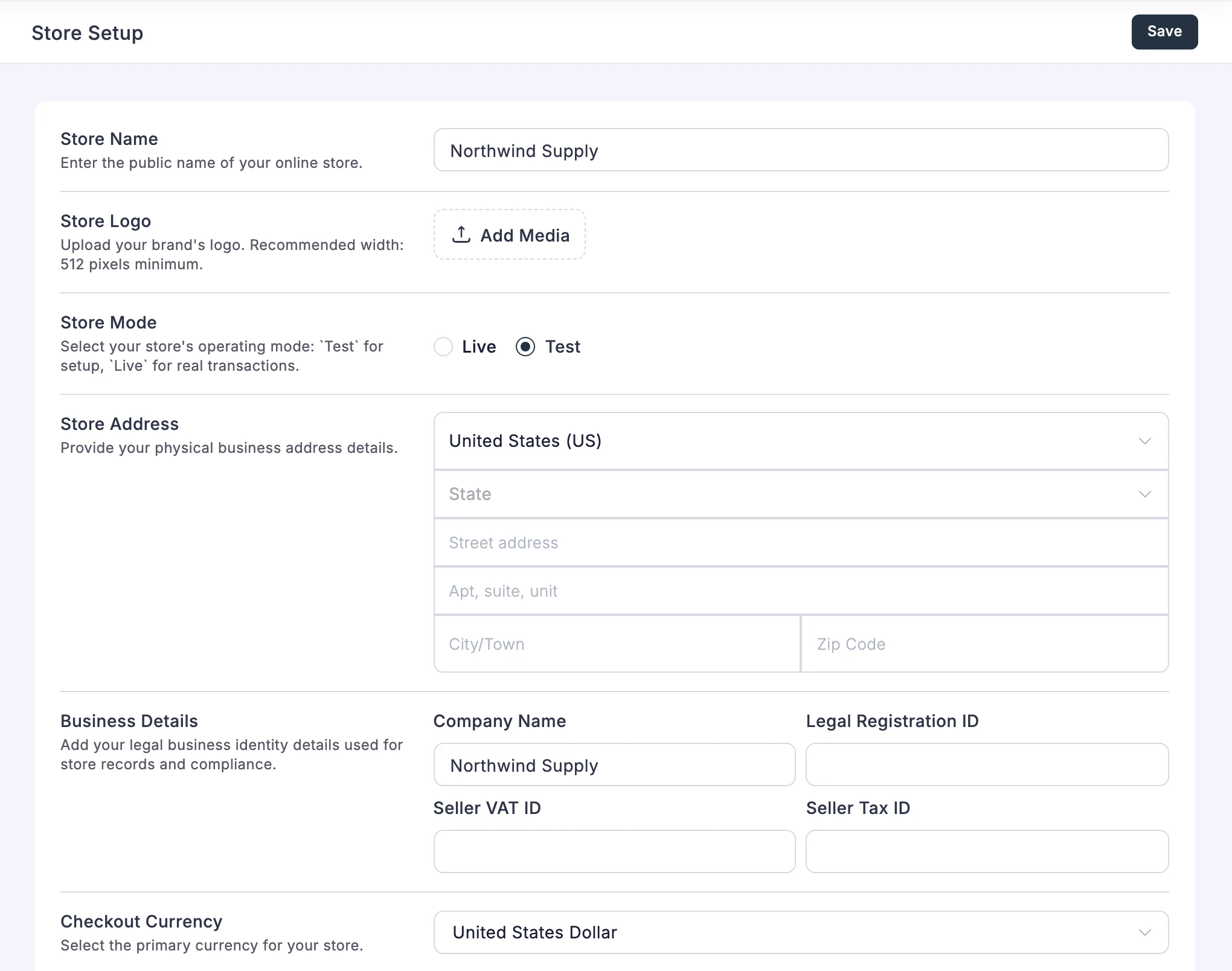
The FluentCart Store Settings documentation calls it the primary currency your products are priced in and payments are processed in. There’s one per store, and visitors can’t change it. To fix it:
- Open Store Setup and choose the correct Checkout Currency.
- Save the settings.
- Open each product and review its price.
- Place a test order in a new private window.
FluentCart doesn’t convert your prices when the currency changes. A product saved at 199 becomes ₹199 after a switch from USD to INR, which is a little over 2 dollars at September 2026 rates. Every price should be re-entered deliberately after the switch.
Why the Old Currency Still Shows
If the setting is right and checkout still shows the old currency, something is still holding the old state. These are the usual holders:
- a cart created before you changed the setting
- a page or CDN cache serving an old product, cart or checkout page
- a cart drawer link that was cached with its old cart parameters
- a checkout tab left open from before the change
- a theme snippet or another plugin that formats prices on its own
Start with a new private window, empty the cart and add the product again. Then purge the page cache and make sure cart, checkout, account and payment-return pages are excluded from full-page and CDN caching.
GT Extensions includes a Checkout Cache Buster module that gives FluentCart cart requests and cart drawer checkout links a fresh URL, so a cached response can’t hand a guest an outdated cart. It works alongside your cache exclusions and doesn’t replace them. If another plugin or snippet already does the same job, keep only one of them.
Stores Running GT Extensions
With multi-currency checkout on, the store has two currencies to keep apart: the base currency saved in Store Setup and the currency each buyer’s cart uses. Most wrong-currency reports on these stores come from one of the cases below.
Store Setup Shows the Buyer’s Currency
GT Extensions 2.6.2 and older could show the Checkout Currency field in Store Setup as the currency you had last picked on your own storefront, for example INR after you saved USD. Admin settings and reports could read that value too. Version 2.6.3 keeps admin screens and admin API requests on the saved store currency while the storefront keeps converting.
If you save Store Setup while it shows the wrong value, you save that value. So update GT Extensions first, reload the screen and only then decide whether the setting needs changing.
Checkout Picks a Different Currency
Checkout follows a fixed order when it decides the currency:
- A currency the buyer chose with the selector wins, for as long as the remember-selection setting keeps it.
- Automatic local currency uses the billing country, then the shipping country, then Cloudflare’s visitor-country header.
- When any item in the cart can’t be priced in the local currency, checkout uses the default storefront currency.
A buyer who once picked USD will keep seeing USD in India until that remembered choice expires or they switch back. That’s the selector working as designed, and a fresh private window shows what a new visitor gets.
The Price Is Wrong in the Right Currency
When the currency is right and the amount isn’t, check how that product is priced:
- A fixed price in the product’s Currency price book overrides conversion for that variation and currency.
- A converted price uses your rate, markup and rounding settings.
- Missing-price behavior can block a purchase instead of converting it.
- An issued invoice keeps the currency and prices agreed when it was issued.
A Payment Method Is Missing
A gateway appears at checkout only when three things are true:
- It’s active in FluentCart’s Payment Settings.
- It’s allowed for the cart’s currency in GT Extensions.
- The gateway account supports that currency.
Razorpay starts as an INR-only suggestion in GT Extensions, so it won’t show for USD until you allow it. My FluentCart payment gateways guide covers which gateways need Pro and how routing by currency works, and the checkout currency troubleshooting lesson walks through each of these cases with the exact settings to open.
FluentCart Updates That Fixed Currency Bugs
Some currency mismatches were FluentCart bugs, and updating FluentCart fixes them. These are the releases that matter here:
- 1.4.0 (June 11, 2026): fixed order screens showing the store currency instead of the order’s own currency.
- 1.6.2 (August 20, 2026): fixed the dashboard and admin screens showing order currency instead of store currency, and fixed Mollie checkout using the wrong cart amount and currency.
- 1.6.4 (September 11, 2026): fixed PayPal checkout, subscriptions, renewals and refunds in zero-decimal currencies such as JPY.
If the admin shows one currency and the order record shows another, check the FluentCart version before you change anything else.
When You Need More Than One Currency
If buyers should be able to choose their currency, no setting fixes that, because FluentCart core runs one store currency. The right fix depends on what the store actually needs:
| Requirement | Fix |
|---|---|
| Every buyer pays in INR | Set INR as the Checkout Currency |
| Every buyer pays in USD | Set USD as the Checkout Currency |
| Buyers choose between INR and USD | A multi-currency add-on such as GT Extensions |
| India gets a set price instead of a converted one | A fixed INR price in the product’s price book |
| Razorpay for INR and Stripe or PayPal for USD | Gateway routing by currency |
My guide on adding multi-currency checkout to FluentCart covers that setup from start to finish. GT Extensions costs $39 a year or $99 for a lifetime license and covers unlimited sites. When the currency problem is tangled up with a migration, a custom checkout template or a gateway integration, my FluentCart store development service is the faster route.
For a single-currency store, the Store Setup screen and a private window solve this in minutes. Keep the product prices in mind when you change the currency, because FluentCart will happily sell your $199 product for ₹199.
Tell Google you want more of this.
Add Gaurav Tiwari as a preferred sourceOne tap, and this site shows up more often in your own Top Stories, AI Overviews and AI Mode. Remove it any time.
Disclaimer: This site is reader-supported. If you buy through some links, I may earn a small commission at no extra cost to you. I only recommend tools I trust and would use myself. Your support helps keep gauravtiwari.org free and focused on real-world advice. Thanks. - Gaurav Tiwari