by
by
A long tutorial asks readers to scroll past everything they don’t need before they reach the one section they came for, and a reader on a phone feels every screen of it.
A hand-built list of jump links helps until the headings change. Then links point at anchors that no longer exist, and nobody notices until a reader clicks one.
A WordPress table of contents gives readers direct links to each section. You can build one with a core List and heading anchors, or let an automatic block build the list from your saved headings.
I built GT ACF Blocks, a free plugin that adds 29 ACF blocks to the editor, including the Table of Contents block used below. It collects the headings and renders the navigation, but the result is only as good as your headings, your anchors and your theme.
Choose Manual or Automatic Navigation
A manual list is reasonable for a short, stable page. An automatic block is more convenient when the headings change frequently or many posts use the same structure.
| Method | Benefit | Limitation |
|---|---|---|
| Core List with manual anchors | No dedicated TOC dependency | You maintain links and labels yourself |
| GT ACF Blocks TOC | Collects supported headings and offers display controls | Generated anchors, dynamic headings and theme styles need testing |
| An existing TOC integration | Avoids installing another provider | Its heading rules and styling may differ from this tutorial |
WordPress’s core TOC reference still marks core/table-of-contents experimental. It isn’t in every WordPress install, and adding the Gutenberg plugin to a live site just to get it isn’t worth the risk.
Build a Manual Table of Contents With Core Blocks
Start with actual Heading blocks, not bold paragraphs that merely look like headings. Choose levels from the article’s outline.
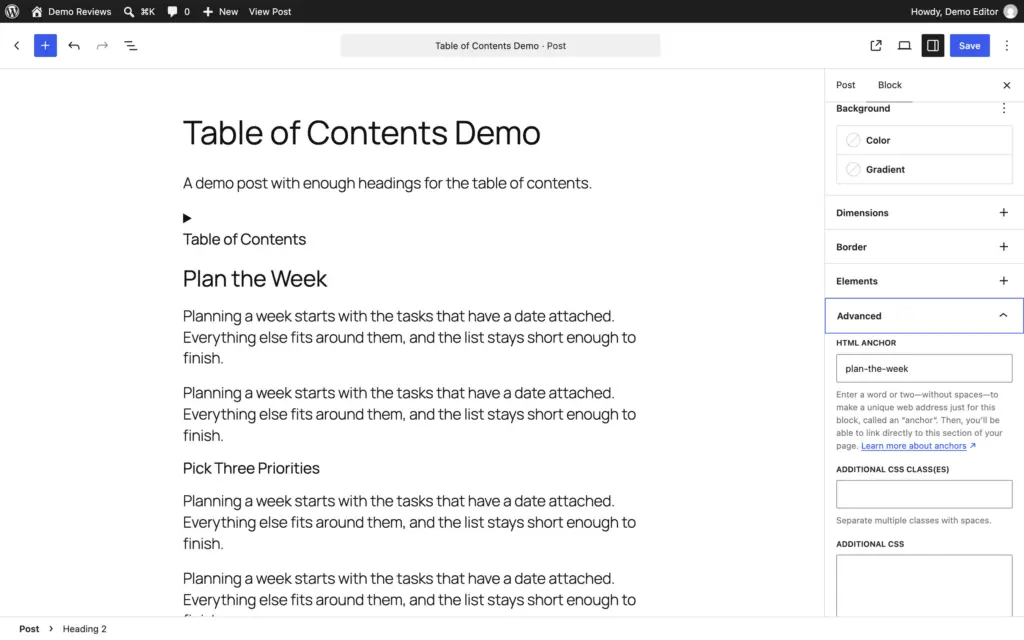
- Select a section Heading and open its Advanced settings. Enter a short, unique HTML anchor such as
installation, without the leading hash. - Repeat for the sections readers should be able to reach directly. Keep anchor names meaningful and avoid duplicates on the same page.
- Add a List near the beginning and give each item a useful section label.
- Link that label to the fragment, such as
#installation. - Save and preview. Follow every link, then open a full page URL with the fragment to check a direct arrival.
- If the visible heading changes later, keep the existing anchor when it still makes sense. A label and its anchor don’t have to be identical.
An unsynced pattern saves the layout, but each page still needs its own anchors and link targets. Inserting the pattern twice on one page duplicates its IDs.
Add the Automatic TOC Block
Install the plugin from the GT ACF Blocks product page, ideally on a test site first. It needs ACF Pro or Secure Custom Fields active; the plugin tries to install Secure Custom Fields for you, so check that it worked.
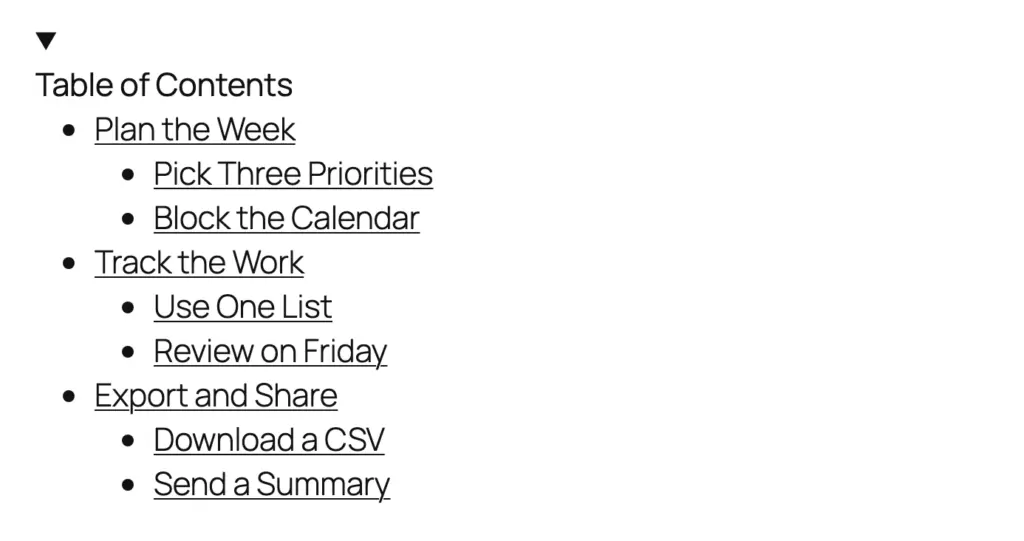
Add several meaningful Heading blocks, save the draft and insert Table of Contents from the ACF block category. Select the block to see its fields.
The TOC template reads saved post content when it builds the list. If a new heading is missing from the preview, save the draft before assuming something broke. With no matching headings, the block prints nothing.
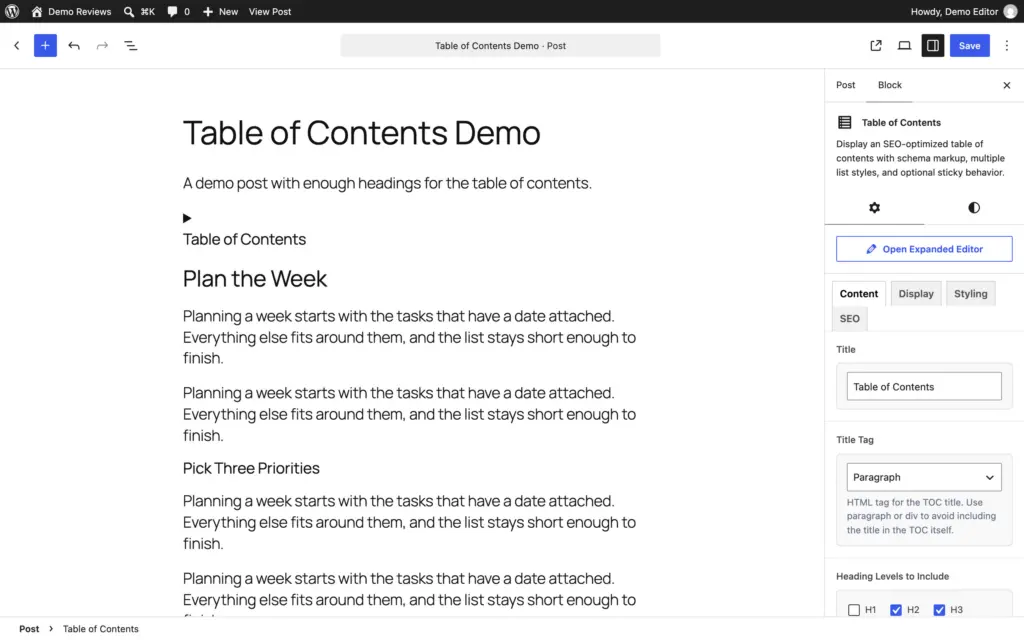
Set the Title and Heading Coverage
Use a short title such as “On this page” and a descriptive ARIA Label on the SEO tab. A paragraph title is a useful default when another heading would clutter the document outline.
Start with H2 headings. Include H3 when readers benefit from those additional destinations. H4 is fine when the page really has that depth, as long as the list stays easier to scan than the article.
The option to include ACF block headings is separate. Turn it on only when those headings belong in the navigation, then inspect the result. With it on, the block may render individual ACF blocks to find their headings, so check both the result and the page speed.
Choose a Useful Display State
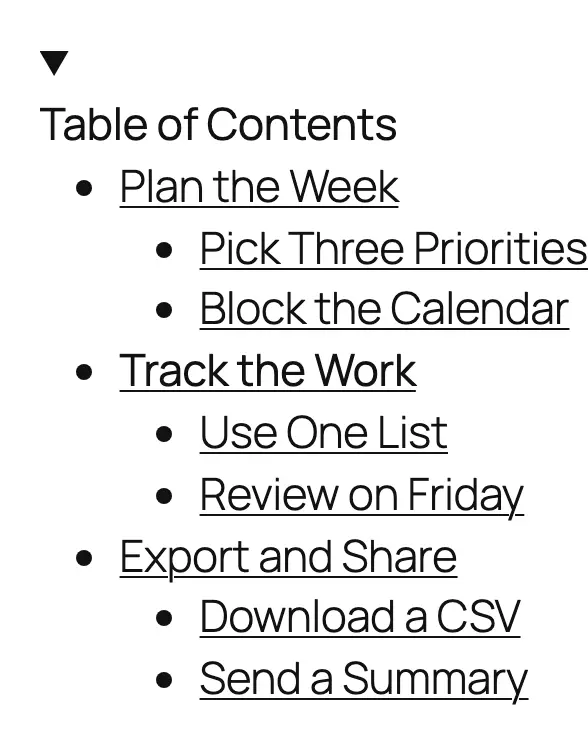
Use an ordered list when its numbering helps and an unordered list when it doesn’t. Keep the list expanded when it is short enough to scan comfortably. Collapsed helps on a small screen when the list is long.
The collapsible version uses native details and summary, so check your theme’s focus outline and spacing on it.
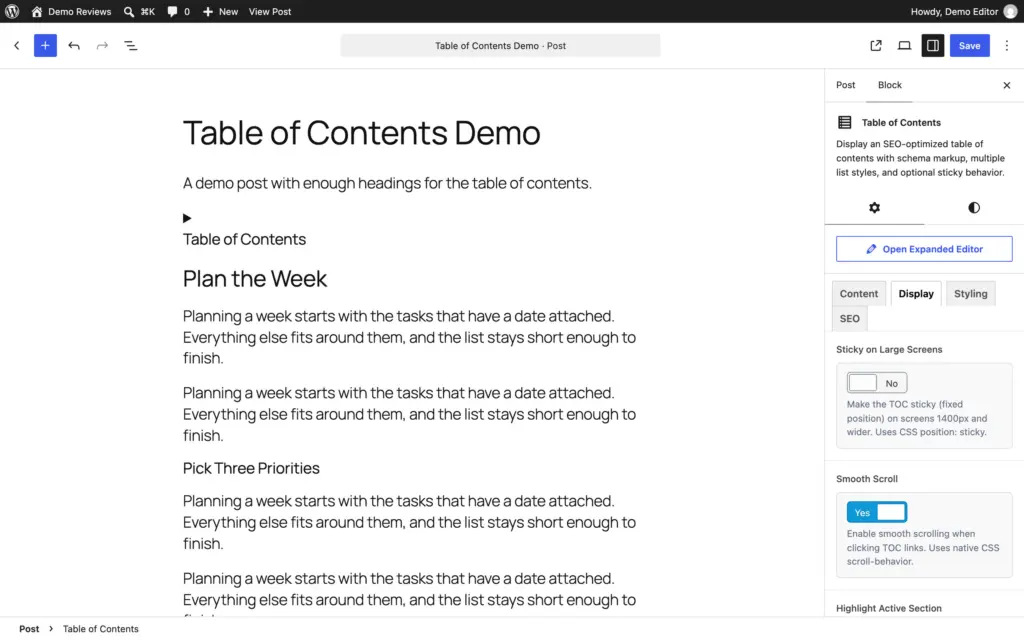
Sticky on Large Screens only kicks in at 1400px and wider. Its help text mentions position: sticky, but the block pins the list with position: fixed to the right edge of the screen, at most 220px wide. The top edge sits at your theme’s --header-height value plus the admin bar plus the Sticky Top Offset, 20px by default. A theme that doesn’t set --header-height can end up with its sticky header over the list, so test against the real header and switch stickiness off when it gets in the way.
Smooth Scroll is on by default and falls back to an instant jump for readers who ask their system for reduced motion. Highlight Active Section is off by default; switched on, it draws the current section’s link bolder, with a thicker underline. Test both with a keyboard and with reduced motion turned on. A static jump that reliably lands on a visible heading is better than an animated one that doesn’t.

Check Anchors Before Trusting the Navigation
Test the article as a reader would: follow the first and last links, open a deep link directly, use browser Back and navigate with a keyboard.
In a private test post, add two sections with the same heading, such as “Examples”. Check that each link reaches its own section and that the page has no duplicate IDs. Also test a heading with an explicit manual anchor and one generated from text.
Generated IDs can depend on heading text and order. A generated fragment may not be saved in the post, so it can change when headings move or disappear when you switch TOC plugins. Give sections that other pages link to a manual anchor, and check migrations on staging.
Headings in classic content, Custom HTML, synced patterns or templates need a check of their own, and bold text never counts as a heading.
Avoid Duplicate Navigation and Schema Promises
Use one primary TOC unless there is a clear accessibility or navigation reason for another. If the site already inserts a TOC, don’t add a second block merely because this tutorial names a different provider.
The block’s Include Schema Markup setting, on the SEO tab, is on by default and prints ItemList and SiteNavigationElement JSON-LD. That isn’t a Google rich result for tables of contents or a promise of jump links in search. I would switch it off unless something specific reads that markup.
Don’t remove unrelated Article or breadcrumb data while checking the TOC.
Troubleshoot the Result
| Symptom | First check |
|---|---|
| No TOC on the front end | Saved content, actual Heading blocks, included levels and enabled provider |
| Recent headings are missing | Save the draft, then compare collected headings with the current output |
| A link lands behind the header | Header height, anchor offset and theme styles |
| Repeated labels reach the wrong section | Duplicate IDs, generated suffixes and old fragment links |
| ACF headings are missing or duplicated | The include-ACF setting and actual dynamic-block output |
| Two TOCs appear | Theme, SEO plugin, block plugin and manual block insertion |
| Sticky navigation consumes the phone screen | Disable or redesign the sticky behavior at that width |
An existing Kadence TOC workflow may be sufficient when that ecosystem is already installed. The block-plugin guide covers broader choices; avoid adding an entire suite for a feature your site already handles well.
Questions About a WordPress Table of Contents
Does WordPress have a standard automatic TOC on every site?
No. The core Table of Contents block is still experimental, so a manual List with anchors or a plugin block is the dependable route.
Should I include every heading?
No. Include the levels that help readers navigate the actual document. That may be H2 only or a deeper outline.
Will generated anchors survive a plugin change?
Not necessarily. Check which IDs are saved and which are produced at render time, then preserve important deep links during migration.
Should a TOC always be collapsed?
No. A short list reads best expanded; collapse it when it’s long or the screen is small.
Make the Headings and Links Worth Using
A TOC can’t rescue unclear section names. Write an outline that answers the reader’s questions, then ensure every navigation item reaches the correct visible section.
Keep the anchors other pages link to stable, and turn on sticky or highlighting only when they help on your theme. For supporting detail that should stay on the page without lengthening it, the accordions and tabs tutorial covers the layouts that fold it away.
Tell Google you want more of this.
Add Gaurav Tiwari as a preferred sourceOne tap, and this site shows up more often in your own Top Stories, AI Overviews and AI Mode. Remove it any time.