by
by
A reader who lands on a coupon post wants the code and the catch in seconds. When the code is hard to copy on a phone or the offer line hides a first-year-only condition, the reader finds out at checkout.
That’s the moment they stop trusting the page, and an expired code left in place does the same damage to every visitor after them.
You can add coupon codes to WordPress posts with a Group and a Button from core blocks, or with a click-to-copy Coupon Code block. I’ll show both, then how to write the condition, check the destination and retire an expired offer.
I built GT ACF Blocks, a free plugin that adds 29 ACF blocks to the editor, including Coupon Code. The block displays an offer; it doesn’t create a WooCommerce discount, check whether a code works or expire it.
The walkthrough uses the sample code DEMO20. It isn’t a real discount, so replace it only with an offer you have permission to promote.
What a Coupon Box Needs
A reader who lands on a coupon post wants 3 things in 5 seconds: what the deal is, the code and the button that takes them to the place where the code works. Everything else on the page is there to tell them whether the deal is worth it.
So a coupon box carries:
- the offer in 1 line, “20% off the first year on any plan”
- the code, in a shape that can be copied without selecting text
- the catch, which is the part most coupon posts leave out: new customers only, first year only, ends on a date, excludes renewals
- the button to the checkout or landing page where the code applies
The catch is the line that decides whether a reader trusts the rest of your site. A “SAVE 50%” box that turns out to be first-year-only at checkout costs more than it earns, and the fix is to write the condition into the offer line where the reader sees it before they click.
A deal box is the bigger cousin: the same offer with the product’s image, the original price struck through, the current price and a badge. It is a product box with a deal in it, and it belongs where the reader is deciding what to buy rather than only looking for a code.
Before You Start
- for a real offer, you’ve checked the source and eligibility and, where the vendor allows it, tested the code without placing an order
- know the exact condition on it, because “20% off” and “20% off the first year for new customers” are different promises
- know the landing page the code applies on, since many codes only work from a specific link
- know which links pay you, because those buttons carry
nofollow noopener sponsored - for an Amazon deal, you leave the retail price out and use your approved link; showing prices needs an integration that follows Amazon’s current rules
- for the plugin route, have ACF Pro 6.0 or newer or the free Secure Custom Fields installed. GT ACF Blocks attempts to install Secure Custom Fields when neither supported dependency is installed; check that one of them is active
Add a Coupon Code With Core Blocks
You can put a usable coupon in a post with 2 core blocks and no plugin, and it is worth knowing the shape before the block version.
- Add a Paragraph block with the offer line, then the code on its own line formatted with the inline code style from the toolbar, so it is easy to spot and a reader can double-click to select it: “Sample code: DEMO20. No real discount.”
- Add a Buttons block under it with the button text naming the action, “Activate the deal”, linked to the landing page, with the link rel set to
nofollow sponsoredin the button’s Advanced panel if the link pays you. - Wrap both in a Group block, give it a light background and a border from the Styles tab and save the group as an unsynced pattern named “Coupon”. Insert two copies in a test draft and edit one code to confirm the other stays unchanged.
This layout has no copy button, so readers select the code by hand. Test that on a phone. It also has no place for the code to live as data, so a post with 6 coupons is 6 paragraphs to find and edit when the codes change.
Add a Coupon Code Block With GT ACF Blocks
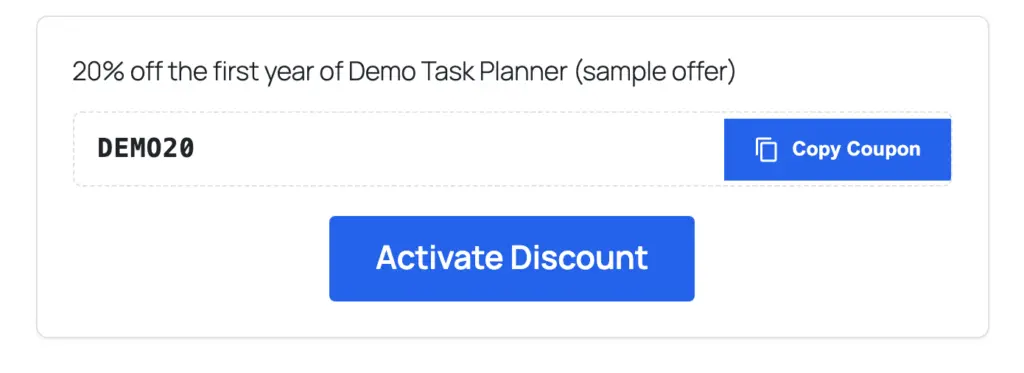
The Coupon Code block in GT ACF Blocks shows:
- the offer line
- the code in a highlighted box
- a copy button that puts the code on the clipboard
- an activate button to the landing page
Get the plugin from the GT ACF Blocks product page, upload the ZIP and activate it. It needs ACF Pro or Secure Custom Fields active; if your site already runs one of them, keep it.
Open the inserter, expand ACF Blocks and click Coupon Code, or type /coupon in an empty paragraph.
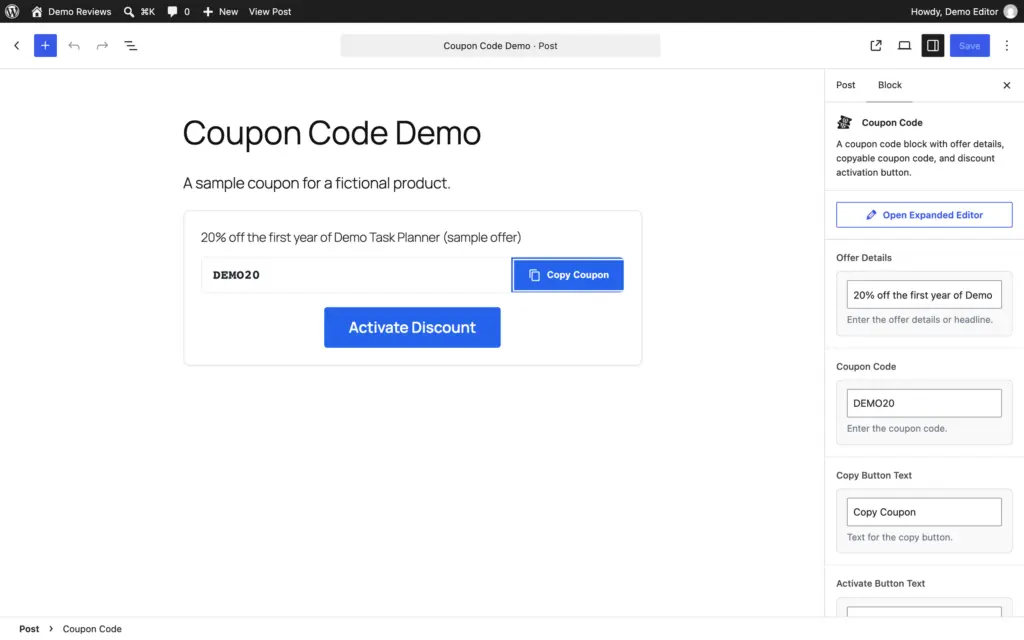
The 5 fields:
- Offer Details is the offer line, and the catch goes here too: “50% off the first 3 months of managed VPS, new accounts only”.
- Coupon Code is the code, exactly as the checkout expects it, including case.
- Copy Button Text is the label on the copy button, “Copy code”.
- Activate Button Text is the label on the link button, “Activate the deal” or “Go to checkout”.
- Activate URL is the landing page where the code applies. Check the link-output limitation below before using an affiliate destination.
Check the Link and Clipboard Limitations
The current coupon template renders the activation link with rel="noopener", not sponsored, and exposes no link-rel field. That doesn’t mark an affiliate link. For a paid destination, use a core Button with sponsored instead, or build the whole coupon with core blocks. An empty Activate URL can still leave a non-clickable styled label, so preview that state too.
The copy script is emitted once per page. It uses the Clipboard API when available, but the script doesn’t handle a rejected clipboard promise. Its older fallback also doesn’t check whether copying succeeded before displaying confirmation. Test it by pasting into a text field, because the word “Copied!” can appear even when the copy failed. Keep the code selectable by hand too.
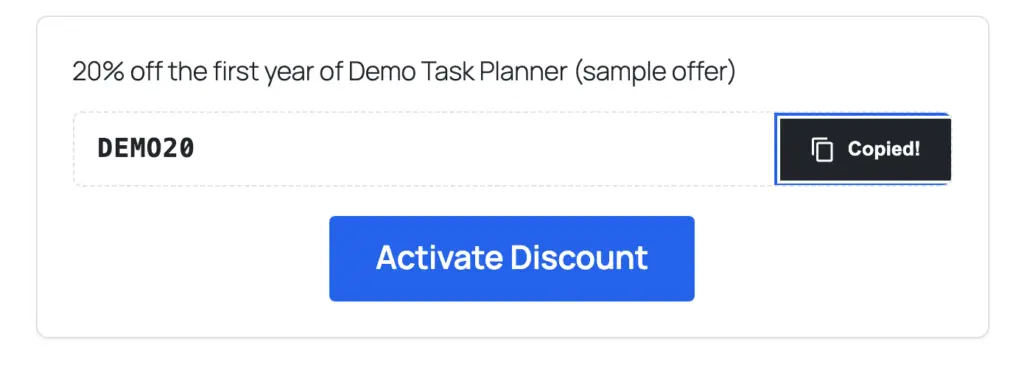
DEMO20 is a sample code for the fictional Demo Task Planner, so the block above copies a code that discounts nothing, and its activate label links nowhere. After clicking, paste it somewhere to check the exact code, capitals and spaces included.
Save the draft, preview it and check 3 things: the offer line carries the condition, the code copies on a phone and the activate button opens the page where the code applies. A working copy button says nothing about whether the offer is still valid, so check the eligibility on the vendor’s page too.
Add a Deal Box
When the reader is choosing whether to buy rather than only looking for a code, the coupon block is too small. The deal box is the Product Box block with its deal fields filled. These are the ones that matter:
- Sale Badge Text carries the saving or the word “DEAL”, and it is the first thing a reader sees, so it is also the first thing that dates
- Original Price, Discount Percentage and Current Price are 3 fields, so the strikethrough draws itself
- Price Note can carry the conditions when a price is displayed. The Product Box template hides this note when both price fields are empty, so put essential eligibility, renewal and expiry terms in the visible description as well.
- the button goes to the deal page, with
nofollow noopener sponsoredwhen the link pays you
For a page that lists deals across many products, the Product List block also has a coupons repeater, 1 code and 1 offer line per row, so each product in a ranked list can carry its own codes. The deals on WordPress hosting page on this site is one example of the offer and the catch written together for each entry, with the renewal price next to the introductory one.
Keeping Coupons Honest
Treat each published offer as a record you maintain, with:
- its source and the date you checked it
- the eligible plans or customers
- the destination
- the expiry and timezone, when stated
- the next review date
Short-lived promotions need more frequent checks, and the block doesn’t schedule any of it. A few rules keep the page honest:
- write the condition into the offer line, not into a footnote, because the reader decides on the offer line
- write the expiry into the offer line too, “ends September 30”, when the vendor has published one, and give a code with no published end date the words “no end date published” and a check every month
- when a code expires, take down its promotion and button promptly. A short note that it ended is fine where the program allows it, but the expired offer shouldn’t stay live for a grace period
- never call a code “exclusive” unless the vendor gave it to you and nobody else, since readers search the code and find out
- never stack a coupon on a price that already includes it. “20% off” on a page that shows the discounted price as the original is the trick readers remember
- for Amazon promotions, check the current agreement for the relevant marketplace and promptly remove expired promotional references. Leave Amazon price fields empty rather than copying retail prices
For a larger coupon library, assess a dedicated plugin such as WP Coupons and Deals. Before choosing one, check how it handles expiry, what the free edition leaves out, how recently it was updated and what an expired coupon looks like on the page.
The Limits
The Coupon Code block has no expiry field. A code stays on the page until you edit the block, so the expiry lives in the offer line and in your calendar, and a site with hundreds of codes wants a dedicated coupon plugin for that reason alone.
It doesn’t verify anything. The code is what you typed, and whether it still works is something only the checkout knows. Test before publishing and on a schedule after.
It doesn’t track clicks. Click counts come from your link manager or your analytics, not from the block.
And it depends on ACF Pro or Secure Custom Fields. Remove the field plugin and the block stops rendering until it is back, with the codes still stored in the post.
What Quietly Ruins It
Leaving “SAVE 50%” in the badge after the sale ended. The badge is the first thing a returning reader sees, and the second thing is the checkout that says otherwise.
Writing the offer without the condition. “20% off” that turns into “20% off the first month, then full price” at checkout is the line readers quote when they warn each other about a site.
Copying a marketplace’s retail price into a static deal box. Amazon’s rules on showing prices are strict, and a typed price is wrong the day it changes.
Calling every code exclusive. A reader who searches the code and finds it on 40 other sites now doubts the rest of the page.
Leaving an expired offer live. Take the promotion and its button down as soon as the code dies.
Keeping 30 codes on one page with no dates. A page of undated codes reads as a page nobody maintains, and 1 dead code makes the reader assume the other 29 are dead too.
Checklist Before a Coupon Post Goes Live
- every real offer has a dated source and eligibility check, and sample codes are labeled as samples
- every offer line carries the condition and, where published, the end date
- every activate button opens the page where the code applies, not the vendor’s homepage
- every paid link carries
sponsoredin the saved HTML, through a core Button where the coupon block can’t add it - static Amazon examples omit retail prices; any separate pricing integration has its own current marketplace-specific checks
- no code is called exclusive unless it is
- the post has a date in your calendar for the next check
FAQs on Coupon Codes in WordPress
Can I add a click-to-copy coupon in WordPress without a plugin?
Not with core blocks alone, because they have no copy button. A Paragraph with the code in inline code formatting and a Buttons block to the deal page is a working coupon. A plugin block adds the copy button, which is the part that matters on phones.
Does the Coupon Code block handle expiry dates?
No, the expiry goes in the offer line and the block stays on the page until you edit it. A dedicated coupon plugin such as WP Coupons and Deals has an expiry date field in its free version.
Can I show Amazon deal prices in a deal box?
Not by typing them. Amazon’s Associates policies restrict how you show prices, and a typed price goes stale, so an Amazon deal box carries the button and no price.
Where should the coupon box sit in a post?
Near the top for a post that exists to deliver the code, so the reader gets it without scrolling. After the reasoning for a review or a buying guide, where the reader decides first and copies second.
Final Remarks
A coupon post makes a promise on the vendor’s behalf, and the offer line is where you keep it.
Two habits make coupon posts survive their codes. Write the condition and the end date into the offer line every time, because that is the only line a reader reads before clicking. And when a code dies, take its promotion down promptly and leave a short note that it ended if readers still arrive looking for it, because they deserve the truth from you rather than from the checkout.
Tell Google you want more of this.
Add Gaurav Tiwari as a preferred sourceOne tap, and this site shows up more often in your own Top Stories, AI Overviews and AI Mode. Remove it any time.