
 by
by
A WordPress backup plugin is the cheapest insurance you will ever buy for your website, and most people only understand that the day they need it and don’t have it. I’ve rebuilt sites for clients who lost three years of work to a bad plugin update, a hosting account that got suspended, and one genuinely awful afternoon involving a hacked database and no recent copy anywhere. Every one of those was avoidable with software that costs less than a monthly coffee budget.
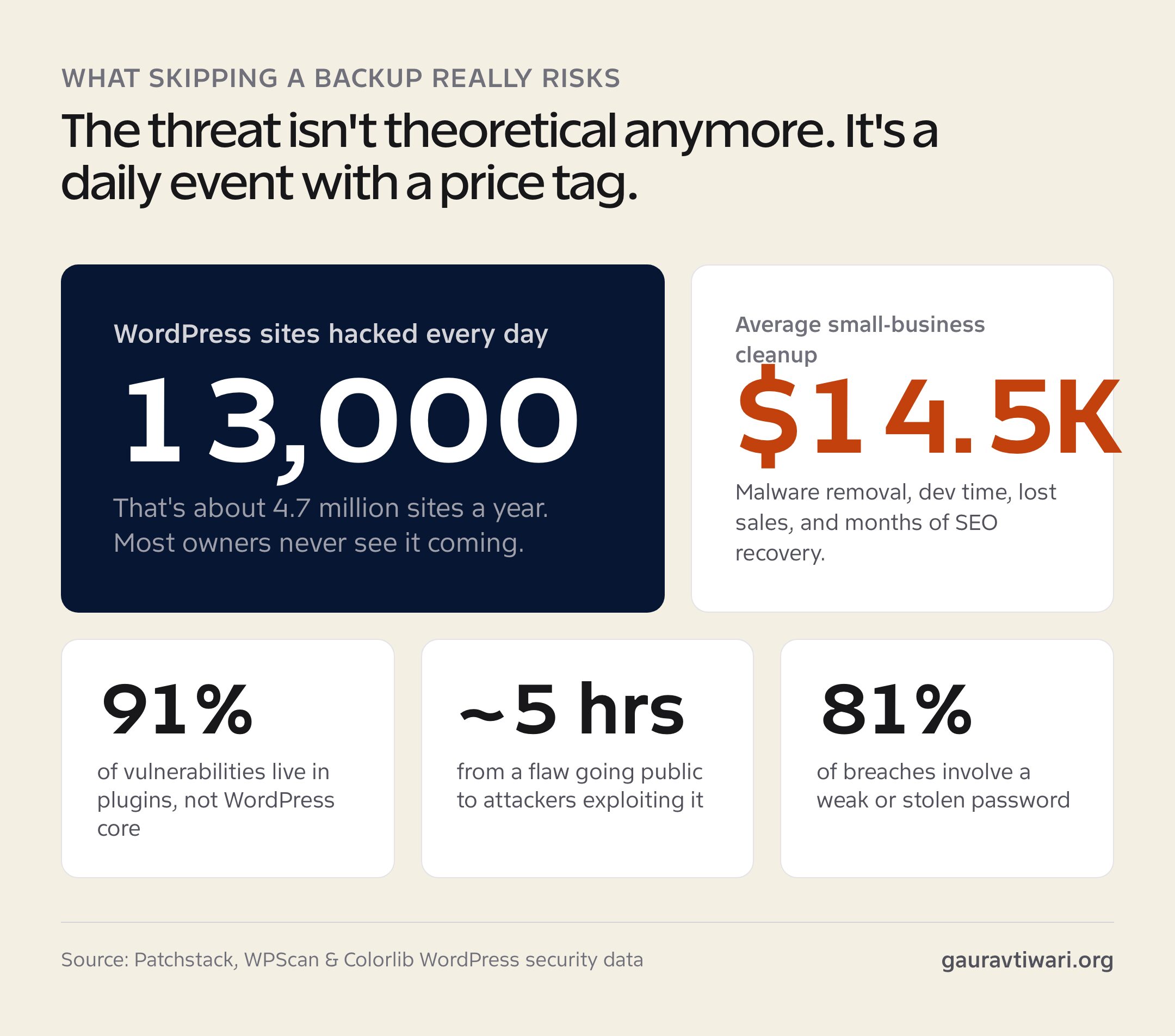
So let’s settle the question this whole article exists to answer. In 2026, you don’t run a WordPress site without a backup plugin, the same way you don’t drive without a seatbelt. The risk is no longer theoretical. Around 13,000 WordPress sites get hacked every single day, the average small-business cleanup runs about $14,500, and the threats are growing faster than the patches. A backup turns a disaster into an inconvenience.
What a WordPress Backup Plugin Actually Does
A WordPress backup plugin makes a complete copy of your website, your files, your database, your themes, your plugins, and your uploads, then stores that copy somewhere safe so you can put everything back exactly as it was. That’s the whole job. Good ones do it automatically on a schedule, send the copy off your server, and let you restore with a click instead of a support ticket.
The part people miss is the “somewhere safe” bit. Your site lives in two pieces. The files (PHP, images, CSS) sit in your hosting account, and the content (posts, settings, users, WooCommerce orders) lives in a MySQL database. A backup has to capture both, in sync, or the restore won’t work. If you’ve ever tried to back up a MySQL database by hand, you know it’s fiddly and easy to get wrong. A plugin handles both halves and keeps them matched.
Where the modern tools differ is what happens after the copy is made. Older plugins zip everything up and leave the archive sitting on the same server as your site, which is a bit like keeping your spare key taped to the front door. Cloud-first services move that archive off-site automatically. A tool like this WordPress backup plugin transfers backups straight to cloud storage instead of piling them onto your hosting disk, so a server failure can’t take your backups down with it. Some let you pause and resume large transfers, which matters more than you’d think on shared hosting where a long-running process can trip resource limits.
Quick gut check: if your “backup plan” is a ZIP file your host promises to keep, you don’t have a backup. You have a hope. Hosts back up the server for their own recovery, not yours, and “restore my single site from last Tuesday” is often a paid, slow, best-effort request.
Why You Need a WordPress Backup Plugin in 2026
You need a WordPress backup plugin in 2026 because the math has stopped being in your favor. Security researchers logged 11,334 new WordPress vulnerabilities in 2025, up 42% from the year before, and 91% of them were in plugins, not WordPress core. Attackers now weaponize a disclosed flaw within about five hours, and nearly half of those vulnerabilities had no patch available on the day they went public. You cannot patch your way out of a window that short. You can restore your way out of it.
Then there’s scale. Roughly 13,000 WordPress sites are hacked per day, which works out to about 4.7 million a year. Weak or stolen passwords are a factor in 81% of those breaches, so a lot of victims aren’t running sloppy sites, they just reused a login. And the cleanup isn’t cheap. The average small business spends around $14,500 recovering from a hack once you count malware removal, emergency dev time, lost sales during downtime, and the months of SEO work to undo spam links and a Google penalty.
Here’s the irony that should make you take this seriously: backup plugins themselves get hacked. In 2026 a critical flaw in the WPvivid Backup & Migration plugin (CVE-2026-1357) scored 9.8 out of 10 and exposed roughly 800,000 sites to remote code execution. Around the same time, WordPress.org pulled all 31 plugins in the Essential Plugins suite in a single day after a supply-chain attack hit hundreds of thousands of installs. The tool meant to save you can become the door they walk through. That’s not an argument against backups. It’s an argument for picking a maintained one and keeping a clean off-site copy from before any compromise.
If your site ever does get compromised, a recent backup is the difference between a 30-minute rollback and a forensic nightmare. I walked through that whole grim process in my guide on what to do when your WordPress site has been hacked, and the short version is this: the people who recover fast are the ones who had a clean copy from yesterday. Everyone else negotiates with their own panic.
What Backups Actually Save You From
Hacks get the headlines, but they’re not even the most common reason I’ve had to restore a site. Most data loss is boring. A plugin update breaks the layout. A developer runs the wrong database query. A host migrates accounts and something doesn’t survive the move. Boring still costs you traffic and sales.
Here’s what a WordPress backup plugin genuinely protects you against, ranked roughly by how often I’ve actually seen each one bite:
- Bad updates. A plugin or theme update conflicts with something and white-screens your site. Roll back, done.
- Human error. You (or a writer, or a freelancer) delete the wrong page, overwrite a template, or paste a broken snippet into functions.php.
- Hosting failures and suspensions. Servers die. Billing glitches suspend accounts. Hosts go out of business. Your off-site copy doesn’t care.
- Malware and hacks. Defaced pages, injected spam links, redirect scripts. A pre-infection backup wipes the slate.
- Botched migrations. Moving hosts or domains is where a lot of sites quietly lose data. A full backup is your undo button.
- WooCommerce data. Orders, customers, and inventory change by the minute. Losing a day of orders is losing real money.
That last one is why I push store owners harder than bloggers. A blog losing a day means re-writing a post. A shop losing a day means refunding customers it can no longer identify. The stakes scale with how often your data changes, and that’s the single biggest input into how you should back up.
Full, Incremental, and Real-Time Backups: What’s the Difference?
There are three backup methods, and the one you want depends on how much your site changes and how much server load you can spare. A full backup copies everything every time. An incremental backup copies only what changed since the last run. A real-time backup captures every change the moment it happens. Each trades resources for recency differently.
Full backups are simple and complete, but they’re heavy. Running a full copy of a large site every night chews through CPU, RAM, and disk, and on shared hosting that can slow your site or get the process killed mid-run. That’s fine for a small brochure site backed up weekly. It’s painful for anything big.
Incremental backups are what most serious sites should run. After the first full copy, the plugin only ships the changes, so a daily backup might move a few megabytes instead of a few gigabytes. BlogVault and Solid Backups built their reputations on this, and it’s the reason their backups don’t drag your site down. Less data moved means less server strain and faster restores.
Real-time backups capture every single change as it lands, every order, comment, and edit. Jetpack VaultPress Backup does this, and for a busy WooCommerce store it’s worth the premium because “restore to last night” isn’t good enough when you take orders at 2 a.m. For a site you update twice a week, real-time is overkill you’re paying for. Match the method to the heartbeat of your site.
The 3-2-1 Rule: Why Off-Site Storage Isn’t Optional
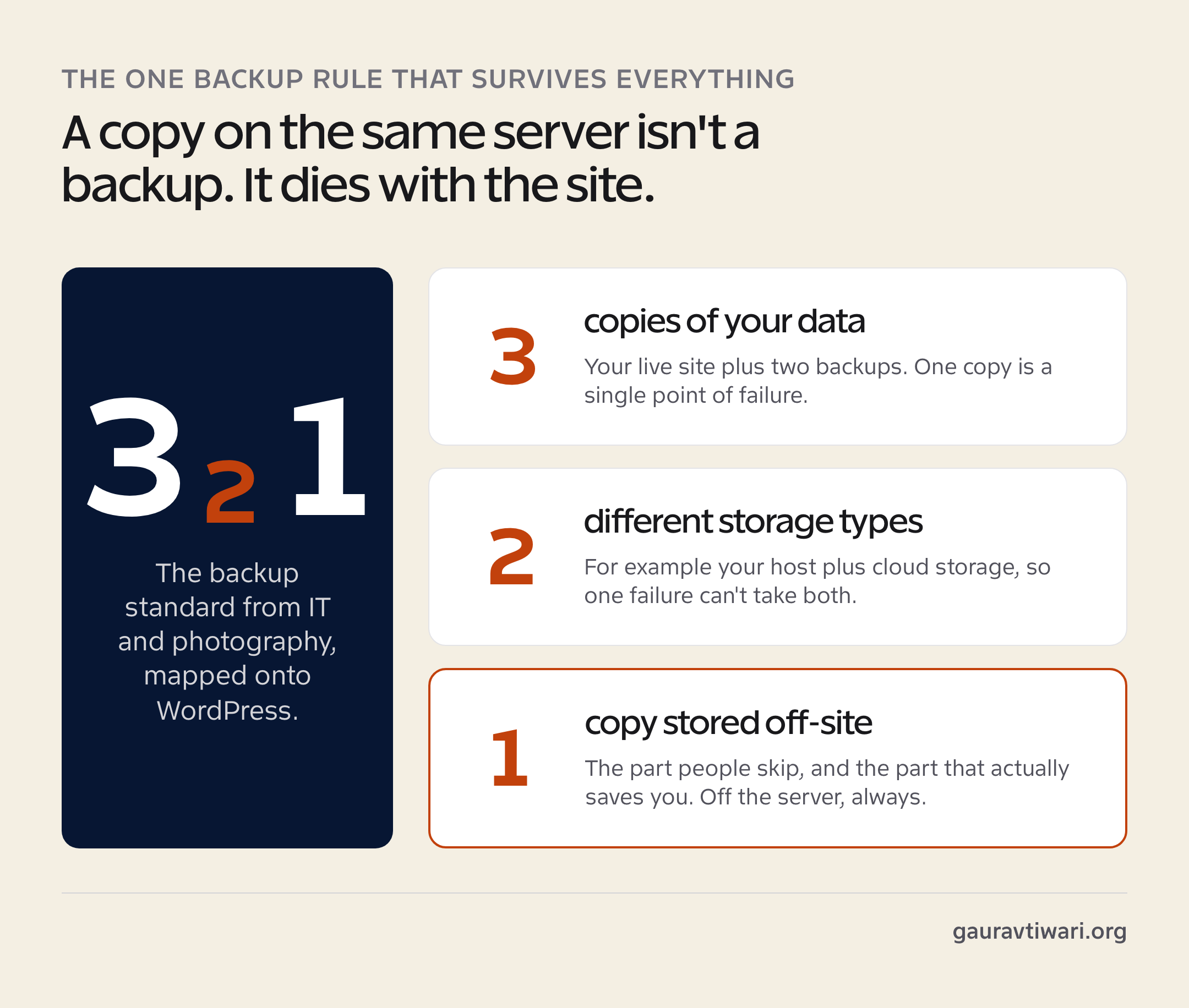
The 3-2-1 backup rule is the one piece of backup wisdom that has survived every change in technology: keep 3 copies of your data, on 2 different types of storage, with at least 1 copy off-site. It started in photography and IT, and it maps perfectly onto WordPress. The off-site copy is the part people skip, and it’s the part that saves you.
Think about why. If your only backup sits on the same server as your live site, a single event takes out both at once: a server crash, a ransomware hit, a host suspension, a hacker with write access. One failure, total loss. Move that copy to cloud storage and the same event can only hurt one of them. That’s the entire point of keeping backups off your hosting disk, and it’s why cloud-first backup tools beat the old “ZIP it and leave it on the server” approach.
If you remember one thing from this article: a backup stored on the same server as your website is not a backup. It’s a second copy waiting to die with the first. Off-site or it doesn’t count.
Most quality plugins now bundle the off-site step, sending copies to Google Drive, Dropbox, Amazon S3, or their own cloud. If you’d rather not manage storage destinations at all, the cloud-native services that own the storage end-to-end are the least-effort way to satisfy the 3-2-1 rule without thinking about it.
How to Choose a WordPress Backup Plugin
The right WordPress backup plugin is the one that runs automatically, stores off-site, restores in one click, and doesn’t slow your site down. Everything else is detail. But the details decide whether you actually recover when it matters, so here’s the checklist I run before I trust a backup tool on a client site.
- Automated scheduling. A backup you have to remember to run is a backup you’ll forget. Set it and walk away.
- Off-site cloud storage. Non-negotiable. The backup must leave your server (see the 3-2-1 rule above).
- Incremental backups. Lighter on the server, faster, and they let you back up more often without a performance hit.
- One-click restore. The whole value is in getting back, not in the copy. Test that the restore actually works.
- Built-in migration. The same engine that restores a site can move it to a new host or domain. Hugely useful, and it saves buying a separate tool.
- Low server impact. Pausable transfers and throttling keep you under shared-hosting resource limits.
- Active maintenance. Given that backup plugins get targeted, pick one that ships security fixes fast.
One thing that doesn’t belong on that list: a giant feature matrix you’ll never use. I’ve watched people pick the plugin with the most checkboxes and end up with something so heavy they disabled it. The best backup is the one that quietly runs forever.
Best WordPress Backup Plugins Compared
No single backup plugin wins for everyone, because a one-author blog and a high-traffic WooCommerce store have different needs. Here’s how the main options stack up on the things that actually matter: backup method, where copies are stored, included migrations, and who each one fits.
| Plugin | Backup method | Off-site storage | Best for |
|---|---|---|---|
| BackupWP | Scheduled + incremental, pause/resume | Built-in cloud, included | Hands-off cloud backups with low server load |
| UpdraftPlus | Scheduled (incremental on Premium) | Your own Drive, Dropbox, S3 | Most sites; the free tier covers the basics |
| BlogVault | Incremental, off-server processing | Own secure cloud, included | Large sites and agencies wanting zero load |
| Jetpack VaultPress Backup | Real-time, every change | Automattic cloud, included | WooCommerce and busy, transactional sites |
| Solid Backups | Incremental + migration | Own cloud or your storage | Developers who also move sites a lot |
If you want the simplest path and don’t want to wire up your own Dropbox or S3 bucket, a cloud-native option that stores copies for you is the least friction, and the WordPress backup plugin from BackupWP is built around exactly that model, with scheduled incremental backups, pause-and-resume transfers, and migrations included on the paid plans (2 per month on Pro, 5 on Agency). For people who’d rather own their storage destination, UpdraftPlus remains the default with over three million installs and a genuinely usable free tier.
For stores, I lean toward Jetpack VaultPress Backup because real-time capture means no lost orders, and for developers juggling client sites, Solid Backups (the plugin that used to be called BackupBuddy) doubles as a clean migration tool. There’s no wrong answer here as long as it’s automated, off-site, and tested. The wrong answer is the plugin you never installed.
How Often Should You Back Up Your WordPress Site?
Back up as often as you’d hate to redo the work you’d lose. That’s the honest rule. A site that changes daily needs daily backups. A store that takes orders hourly needs real-time. A static brochure site that you touch once a month is fine on weekly. Match the frequency to how fast your data changes, not to a number someone put in a blog post.
- Personal or hobby blog: weekly full backup, plus a manual one before any update.
- Active blog or business site: daily incremental backups, 30+ day retention.
- WooCommerce or membership site: real-time backups, full stop. You’re handling money and customer data.
- Before any big change: always run a manual backup before updating plugins, editing code, or migrating. Two minutes now saves a weekend later.
Retention matters as much as frequency. Some malware sits quiet for weeks before it activates, so if you only keep three days of backups, all three might already be infected. Keeping 30, 90, or 365 days of history gives you a clean point to roll back to. This is also where managing your own backups blurs into broader upkeep, the same territory I cover in my WordPress maintenance services, where backups, updates, and security monitoring run as one routine instead of three things you keep forgetting.
The Backup Mistakes That Cost People Their Sites
Having a backup plugin installed isn’t the same as being protected. I’ve seen sites with a backup plugin running for years that still couldn’t recover, because the backups were quietly useless. These are the mistakes that turn a backup into a false sense of security.
- Never testing a restore. An untested backup is a guess. Restore to a staging site once and confirm it actually works before you need it.
- Storing backups on the same server. The single most common fatal mistake. One server failure, both copies gone.
- Backing up files but not the database (or vice versa). You need both, in sync, or the restore is broken on arrival.
- Keeping too little history. Three days of retention won’t help against malware that’s been dormant for two weeks.
- Letting the plugin go stale. An abandoned or unpatched backup plugin is a security hole, not a safety net.
- Relying only on your host. Host backups are for the host’s disaster recovery, not your “undo last Tuesday” button.
The fix for all of these is the same: automate it, send it off-site, keep a month or more of history, and test a restore once so you know the parachute opens. Backups are one layer of a healthy site. Pair them with hardening and good passwords, and you’ve covered both halves of the problem: keeping attackers out, and getting back fast when something slips through anyway.
The Bottom Line on WordPress Backups
A WordPress backup plugin isn’t a nice-to-have you get around to after the redesign. It’s the foundation everything else sits on. You can lose your theme, your plugins, even your host, and rebuild from a good backup in an afternoon. Lose your data with no backup, and there’s nothing to rebuild from. The choice was never whether backups are worth it. It’s whether you set one up before or after the day you wish you had.
Pick a maintained plugin, turn on automatic incremental backups, point them at off-site cloud storage, keep at least 30 days of history, and run one test restore this week. Do that and the next bad update, failed host, or 2 a.m. hack stops being a catastrophe and starts being a footnote. That’s the entire promise of a backup, and in 2026 it’s a promise no serious site owner should be without.
Do I really need a WordPress backup plugin if my host offers backups?
Yes. Host backups exist for the host’s own disaster recovery, not for restoring your single site to a specific moment. They’re often slow, paid, best-effort, and stored on the same infrastructure as your live site. A dedicated WordPress backup plugin gives you off-site copies and one-click restores you control.
What’s the difference between a full and an incremental backup?
A full backup copies your entire site every time it runs. An incremental backup copies only what changed since the last run. Incremental backups are lighter on your server, faster, and let you back up more often without slowing the site, which is why most active sites should use them.
How often should I back up my WordPress site?
Match the frequency to how fast your data changes. A static site is fine on weekly backups, an active blog or business site should run daily, and a WooCommerce or membership site needs real-time backups so you never lose orders or customer data. Always run a manual backup before any update or migration.
Where should WordPress backups be stored?
Off-site, away from your hosting server. Follow the 3-2-1 rule: three copies, on two types of storage, with at least one off-site. Cloud storage like Google Drive, Dropbox, Amazon S3, or a backup service’s own cloud all work. A backup stored on the same server as your live site can be lost in the same failure.
Can a WordPress backup plugin also migrate my site?
Many can. The same engine that restores a backup can deploy it to a new host or domain, which makes migration a built-in feature on tools like BackupWP, Solid Backups, and BlogVault. It saves you buying a separate migration plugin and reduces the risk of losing data during a host move.
Are free WordPress backup plugins safe to use?
Reputable free plugins like UpdraftPlus are safe and widely used, but watch two things. First, free tiers often lack incremental backups and automated off-site storage, so check what’s included. Second, backup plugins are a known attack target, so only run actively maintained ones that ship security fixes quickly.
Tell Google you want more of this.
Add Gaurav Tiwari as a preferred sourceOne tap, and this site shows up more often in your own Top Stories, AI Overviews and AI Mode. Remove it any time.