
How to Choose a WordPress Theme (8 Checks I Run First)
 by
by
Most people choose a WordPress theme the way they choose wallpaper: scroll the demos, pick the prettiest one, install. Six months later they’re stuck with a slow site, a layout that fights them, and a sinking feeling that switching now means rebuilding everything.
I’ve installed, tested, and uninstalled hundreds of themes across client projects, and I’ve also been the person called in to rescue sites from the wrong choice. The pattern is always the same: the theme looked great in the demo and nobody checked anything else. So here’s the checklist I actually run before any theme touches a production site, updated for how WordPress works now, block themes and all.
Why Your WordPress Theme Choice Matters More Than It Looks
Your theme sets the performance ceiling for your entire site. It decides how much CSS and JavaScript every visitor downloads, how many DOM elements the browser has to paint, and whether your Core Web Vitals start in the green or start in a hole no caching plugin can dig you out of.
It also decides your switching costs. A theme that stores your content in its own shortcodes or builder format holds your site hostage: deactivate it and your pages collapse into tag soup. I’ve migrated enough sites to tell you that the price of a bad theme isn’t the $59 you paid. It’s the forty hours you’ll spend leaving it.
So treat this decision like infrastructure, not decoration. Looks are the easiest thing to change later… everything else is not.
First Decision: Classic Theme or Block Theme?
Before comparing individual themes, decide which editing model you want, because it filters the entire market. Classic themes use the Customizer and PHP templates; block themes hand the whole layout (header, footer, templates) to the Site Editor.
| Factor | Classic theme | Block theme |
|---|---|---|
| Layout editing | Customizer + theme options | Site Editor, visual and full |
| Maturity | 15+ years of polish | Solid now, still evolving |
| Best for | Existing sites, complex setups | New builds, design control without code |
| Performance potential | Excellent (GeneratePress, Blocksy) | Excellent, often lighter by default |
| Examples | GeneratePress, Kadence, Astra | Twenty Twenty-Five, Ollie, Rockbase |
My honest take in 2026: block themes are the direction WordPress is going, and for a brand-new site they’re worth serious consideration. But a well-built classic theme paired with a block plugin is still a completely valid, battle-tested choice, and it’s what most of my production sites run. If you’re weighing a migration, I wrote a full guide on switching from classic to block themes.
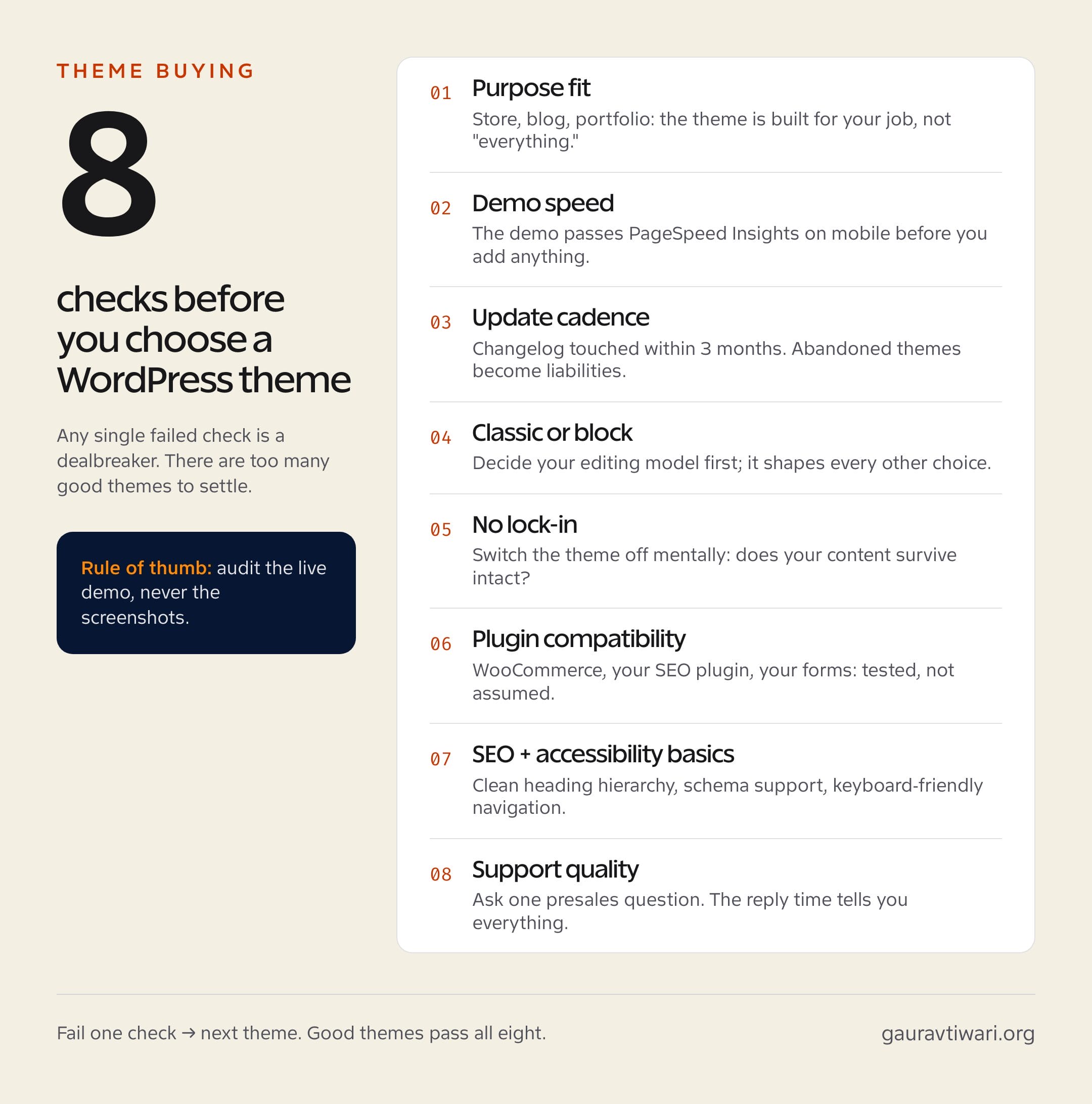
The 8 Checks I Run Before Installing Any Theme
Run these in order. The moment a theme fails one, move on. There are too many good themes available to settle for a maybe.
1. Purpose Fit
A theme built for everything is optimized for nothing. Running a store? You want deep WooCommerce integration, not a multipurpose theme with a shop page bolted on; my WooCommerce themes roundup covers the ones that handle carts properly. Blogging? Readability, typography, and archive layouts matter more than hero sliders. Portfolio? Image handling and gallery performance come first.
2. Demo Speed (Test It, Don’t Trust It)
Run the theme’s live demo through PageSpeed Insights on mobile. The demo is the theme at its absolute best: professional content, tuned images, no plugins fighting it. If the demo can’t pass Core Web Vitals, your real site with real content has no chance. A lean theme like GeneratePress ships only a few dozen kilobytes of CSS and JavaScript; heavyweight multipurpose themes ship ten times that before you’ve written a word.
3. Update Cadence and the Abandonment Check
Open the changelog. If the last update is older than three months, be suspicious; older than a year, walk away. WordPress ships multiple major releases a year, and a theme that isn’t keeping up will eventually break with a core update, usually at the worst possible time. On WordPress.org, also glance at the support forum: are threads getting answered, and how fast?
4. Free vs Premium (What the Money Actually Buys)
Free themes from the official WordPress.org repository are code-reviewed and safe; free themes from random download sites are how malware gets installed on purpose. Premium themes, usually $50 to $100 a year, buy you three real things: direct support, deeper feature sets, and a business reason for the developer to keep shipping updates. I’ve broken down exactly where the paid tier earns its money in my GeneratePress free vs premium comparison.
Never install a “nulled” premium theme. The pirated copy you save $59 on almost always carries injected backdoors, and cleaning a hacked site costs far more than the license ever did.
5. Customization Without Lock-In
Here’s the test almost nobody runs: imagine deactivating the theme. What survives? Content built with core blocks survives any theme switch. Content trapped in theme-specific shortcodes or a proprietary builder format does not. Prefer themes that style your content instead of owning it, and you’ll never be held hostage again.
6. Plugin Compatibility
Check explicitly for the plugins your site depends on: WooCommerce if you sell, your SEO plugin (I use Rank Math on every site), your forms plugin, your caching setup. Good theme developers list tested integrations on the sales page. If they don’t mention your critical plugin, ask presales before buying, which conveniently doubles as check number eight.
7. SEO and Accessibility Basics
View the demo’s source. You’re looking for one H1 per page, logical heading order, semantic HTML5 landmarks, and no walls of inline styles. Accessibility-ready themes (it’s a real tag on WordPress.org) tend to be better engineered across the board. Schema markup is nice to have in a theme, but your SEO plugin handles that better anyway.
8. Support Quality (the Presales Test)
Before buying, send one genuine presales question. Something specific: “Does the theme support WooCommerce product galleries with zoom?” The speed and substance of that reply is the best preview you’ll ever get of what support feels like after they have your money.
The 5-Minute Theme Audit, Start to Finish
Here’s the compressed version I run when a client sends me a theme link and asks “is this one okay?”
- Paste the demo URL into PageSpeed Insights, mobile tab. Below 80? Stop here.
- Open the changelog. Last update within three months? Good. Within a year? Caution. Older? Stop.
- View source on the demo homepage. Count the H1s (should be one) and scan for inline style bloat.
- Search “[theme name] slow” and “[theme name] problems.” Five minutes of other people’s pain is free research.
- Check renewal price, license terms, and what stops working when the license expires.
A theme that survives all five is worth a real trial. And because people ask: I keep a deeper version of this process in my theme buying decision framework.
Theme Red Flags I Keep Seeing in Audits
Some warning signs don’t fit neatly into a checklist, but they show up over and over in sites I’m called to fix:
- The 40-plugin demo import. You import the beautiful demo and discover it installed a slider plugin, two page builders, and 60 MB of stock images. Every one of those is now your maintenance problem.
- “Works with every builder” marketing. A theme that ships integration code for six page builders carries the weight of six page builders. Specialists beat generalists here.
- Features that belong in plugins. SEO panels, contact forms, sliders, portfolio post types baked into the theme. Switch themes and that content or functionality evaporates. Functionality belongs in plugins; presentation belongs in themes.
- Lifetime licenses from unknown shops. A lifetime license is only as good as the developer’s lifetime. An unknown shop selling $19 lifetime deals has no revenue to fund the updates you’re counting on.
- No visible changelog at all. If a developer won’t show their update history, assume there isn’t one.
None of these mean the theme looks bad. That’s exactly why they’re dangerous: the demo dazzles, and the debt shows up in month six.
The WordPress Themes I Actually Recommend
After all that testing, my shortlist is boring, and that’s the point:
- GeneratePress: my default recommendation for blogs and business sites. Tiny footprint, never breaks, premium is $59 a year.
- Blocksy: the best free tier in the business and my pick for WooCommerce stores; its header builder is genuinely excellent.
- Kadence: strongest starter-template library if you want a designed site fast; I covered it fully in my Kadence review.
- Neve: lightweight multipurpose alternative when the other three don’t fit.
What about Divi and other builder themes? They’re design powerhouses, and Divi’s recent rewrite improved performance a lot. But you’re marrying the builder, not dating it: content lock-in is real. Choose one only if you accept that tradeoff with open eyes.
One sentence of full disclosure: this site doesn’t run any of these. It runs a heavily customized child theme, because after 18 years I have opinions no theme shop can satisfy. For everyone who doesn’t want that life, the list above is what I install for clients… and that’s the strongest endorsement I can give.
Choose a WordPress theme with the checklist, not your eyes. The pretty part is replaceable. The foundation isn’t.
FAQs: How to Choose a WordPress Theme
How do I choose between a free and premium WordPress theme?
Start free if your site is new and simple; WordPress.org themes are code-reviewed and safe. Go premium ($50 to $100 a year) when you need direct support, deeper customization, or WooCommerce features. The money buys accountability more than features: paid developers keep shipping updates.
Are block themes better than classic themes in 2026?
For new sites, block themes deserve first consideration: they’re lighter by default and the Site Editor gives full layout control without code. Classic themes like GeneratePress and Kadence remain excellent and better documented. Existing sites shouldn’t migrate just to migrate; the gains rarely justify the rebuild on their own.
Does changing my WordPress theme affect SEO?
Your content and URLs survive a theme switch, but speed, heading structure, and internal linking can all shift, and those affect rankings. Test the new theme on staging, compare Core Web Vitals before and after, and re-crawl the site with your SEO plugin once you switch.
What is the fastest WordPress theme?
Among themes I’ve tested, GeneratePress and Blocksy consistently produce the smallest pages and the best Core Web Vitals baselines, with Kadence close behind. But any lean theme can be ruined by heavy plugins and unoptimized images; the theme sets the ceiling, your stack decides the rest.
How many WordPress themes should I keep installed?
Your active theme plus one default theme like Twenty Twenty-Five for troubleshooting. Delete everything else. Inactive themes still receive security vulnerabilities but rarely receive your attention, which makes them a quiet attack surface on autopilot.
Can I switch themes without losing content?
Posts, pages, and media always survive; they live in the database, not the theme. What you lose is theme-specific styling, widgets, menus and anything built in theme shortcodes. That’s why check five matters: themes that rely on core blocks make switching nearly painless.
Tell Google you want more of this.
Add Gaurav Tiwari as a preferred sourceOne tap, and this site shows up more often in your own Top Stories, AI Overviews and AI Mode. Remove it any time.