
 by
I get why an affiliate program feels like too much for a small store. Your customers already recommend you, and you’d like to pay them for it. But the usual setup runs on tracking links and cookies, and it means one more plugin to keep updated.
A coupon affiliate program does the same job with one thing a customer can share anywhere: a coupon code. A friend uses the code and gets a discount. When the order is paid, the person who shared the code earns a commission.
The coupon saved on the order is the proof, so there’s nothing to track in the browser.
My advice is to start there. I built a module called Coupon Affiliates into 3 of my plugins, 1 for each store plugin I work with:
- Stackless for WooCommerce, for WooCommerce stores.
- Stackless for EDD, for Easy Digital Downloads.
- GT Extensions for FluentCart, for FluentCart.
The program works the same way in all 3, so the terms you settle here carry over if you ever switch store plugins.
It isn’t a full affiliate platform, and I’ve listed its limits further down. If you need link tracking without a discount, banners for affiliates or automatic payouts, a dedicated affiliate plugin is the better buy.
Before the setup, I want to ensure the basic idea is clear. The rules about what earns a commission matter more than any setting.
What Is a Coupon Affiliate Program?
A coupon affiliate program pays a commission on every paid order that uses an affiliate’s coupon code. The affiliate can be a customer or a partner, such as a creator with an audience. There is no referral link to click and no cookie that expires.
This is the whole path one commission takes, from the shared code to the money you send.
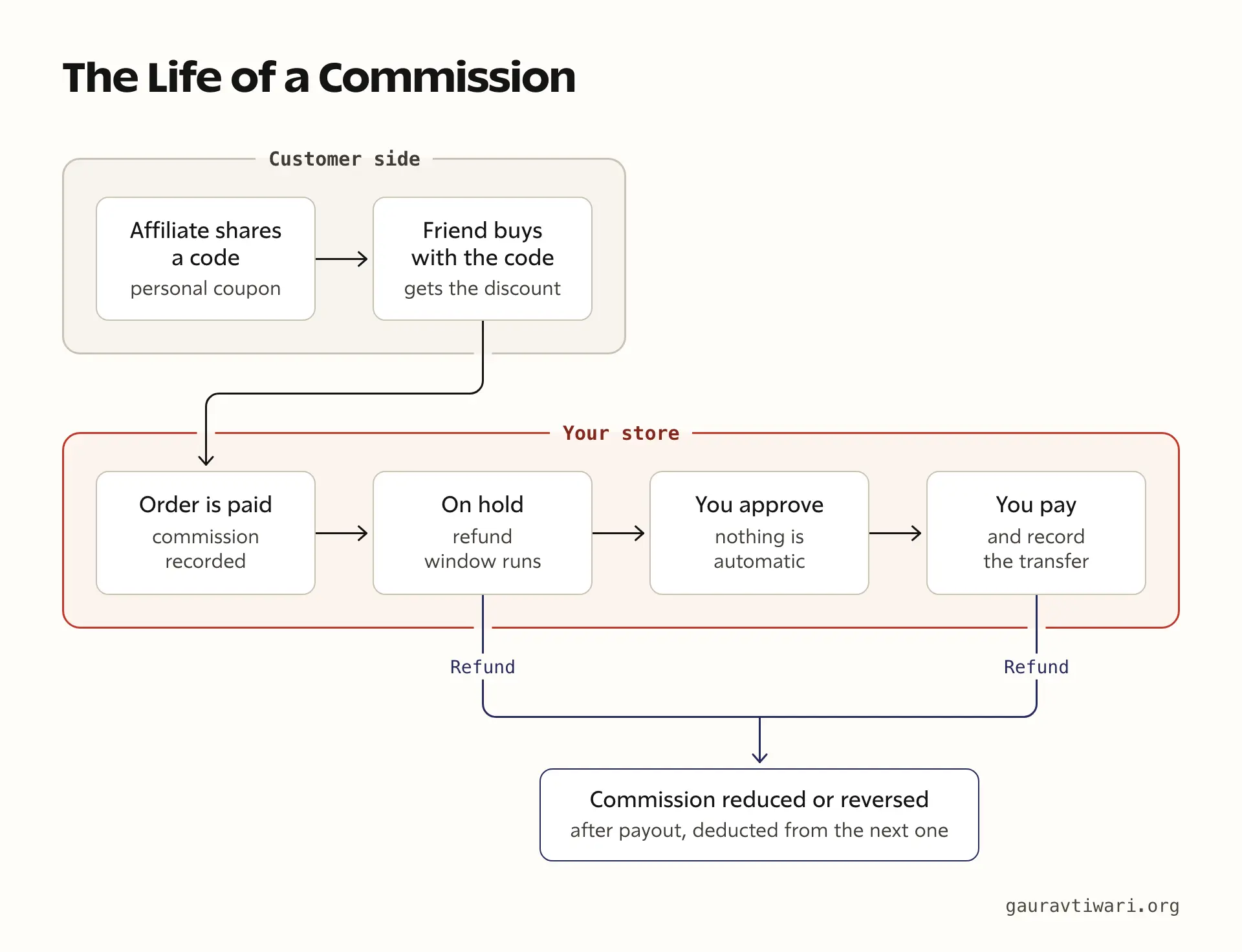
- The code: each affiliate gets a personal coupon, such as REFMAYA7T0G. You can also hand a partner a coupon you named yourself.
- The sale: a friend enters the code at checkout and gets the discount.
- The commission: once the order is paid, the plugin records a commission on the products in it.
- The hold: the commission waits while your refund period runs.
- The payout: you approve it, send the money your own way and record the transfer.
Most affiliate plugins track a link instead. The affiliate shares a URL, the plugin drops a cookie in the buyer’s browser and the sale is matched to that cookie. Both methods work, and these fail in different places.
| Question | Coupon tracking | Link tracking |
|---|---|---|
| What the affiliate shares | A code | A URL with their ID in it |
| How the sale is matched | The coupon on the paid order | A cookie in the buyer’s browser |
| Works when said out loud, in a video or on a printed card | Yes | Only if people type or click the link |
| Survives a switch of device or a cleared browser | Yes | Often not, the cookie stays behind |
| The buyer has to get a discount | Yes | No |
| Credit when the buyer forgets the code | No | Yes, while the cookie lasts |
Neither one is better everywhere. A code is easy to say and hard to lose, but every referral costs you a discount. A link pays the affiliate even when the buyer pays full price, but it needs the buyer to click it and stay on the same browser.
For a store where a handful of customers and partners do the referring, I’d take the code. It is simpler to explain to a customer as well: a friend uses your code, the friend saves and you earn.
Which Plugin Fits Your Store
I’d pick by the store plugin you already run. The program rules are the same in all 3. The differences are where the screens live and how affiliates get in.
| What you need to know | Stackless for WooCommerce | Stackless for EDD | GT Extensions for FluentCart |
|---|---|---|---|
| Store plugin | WooCommerce | Easy Digital Downloads | FluentCart 1.6.4 or newer |
| Where you manage it | Stackless → Affiliates | Stackless → Affiliates | FluentCart → Affiliates |
| Where customers join | My Account → Refer & Earn | The Refer & Earn tab of the account page | Customer account → Refer & Earn, or a shortcode on any page |
| Who can join | Open, approval or only accounts you add | Open, approval or only accounts you add | Open or approval |
| Assign a coupon you named | Yes, on the coupon’s edit screen | Yes, on the discount’s edit screen | No, each affiliate gets a personal coupon you can rename |
| Commission rate set per | Coupon, affiliate or program | Discount, affiliate or program | Affiliate or program |
| Share link | No | No | Yes, with Coupon links switched on |
Each plugin costs $39 a year or $99 once, on unlimited sites, and Coupon Affiliates comes with the license along with every other module. The Stackless prices are limited-time prices. The free Lite editions of Stackless don’t include this module.
There’s one naming clash to know about. WordPress.org has a separate WooCommerce plugin that is also called Coupon Affiliates. The module in my plugins isn’t related to it.
The Terms to Decide First
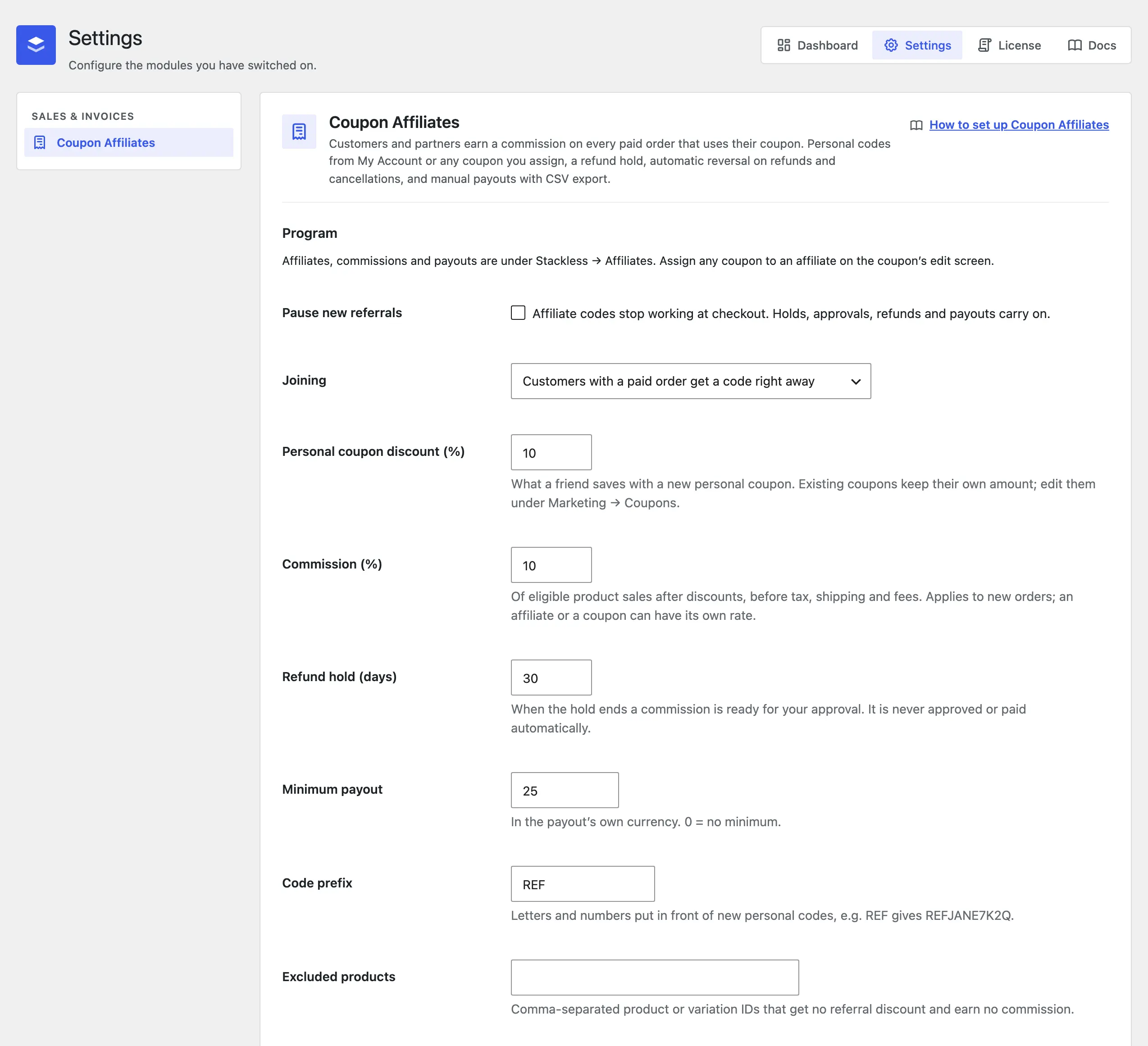
4 numbers decide what the program costs you. I’d settle these on paper before touching a setting, because changing a rate later only applies to new orders.
- Buyer discount: what the friend saves with a personal code. The default is 10%, and it can go up to 90%.
- Commission: the affiliate’s share of product sales, after discounts and before tax, shipping and fees. The default is 10%, up to 90%.
- Refund hold: how long a commission waits before you can approve it. The default is 30 days, and you can set 0 to 365.
- Minimum payout: the smallest amount you’ll pay out in one go. The default is 0, which means no minimum.
Worked example, with the defaults: a friend buys a $100 plugin with a 10% code and pays $90. The commission is 10% of $90, so the affiliate earns $9. You keep $81 before payment fees.
So a 10% discount plus a 10% commission costs you 19% of the list price, not 20%. The commission is counted on what the buyer paid, and that works in your favor at every rate.
My suggestion is to make the refund hold at least as long as your refund period. With a 14-day refund policy and a 14-day hold, you never approve a commission on an order that can still be refunded on request. I’d also set a small minimum payout, since it saves you from sending many tiny transfers.
The last decision is who can join:
- Open: a customer with a paid order gets a code right away.
- Approval: a customer with a paid order applies, and you approve each one.
- Manual: only accounts you add or assign a coupon to. This one is in the 2 Stackless plugins.
I run my own store on open joining. A customer who has already paid is a low-risk affiliate, and every commission still waits for my approval before it’s paid. I’d move to approval if your codes start showing up on coupon sites.
It is wise to rewrite the built-in program terms in your own words as well. Customers accept these before they join, and each acceptance records which version of the text they agreed to.
Set Up a Coupon Affiliate Program in WooCommerce
On WooCommerce, the module is part of Stackless for WooCommerce, a plugin that adds store features as modules you switch on one at a time. This is the order I’d follow:
- Switch on Coupon Affiliates under Stackless → Dashboard.
- Open Stackless → Settings → Coupon Affiliates. Set the personal coupon discount, the commission, the refund hold and the minimum payout.
- Choose who can join under Joining. Add a code prefix if you want codes that start the same way, such as REF.
- Edit the program terms and the share message, then save.
- Add your own account under Stackless → Affiliates, then place a test order from a second account with your code. The buyer can’t be the affiliate, because the code is refused on your own orders.
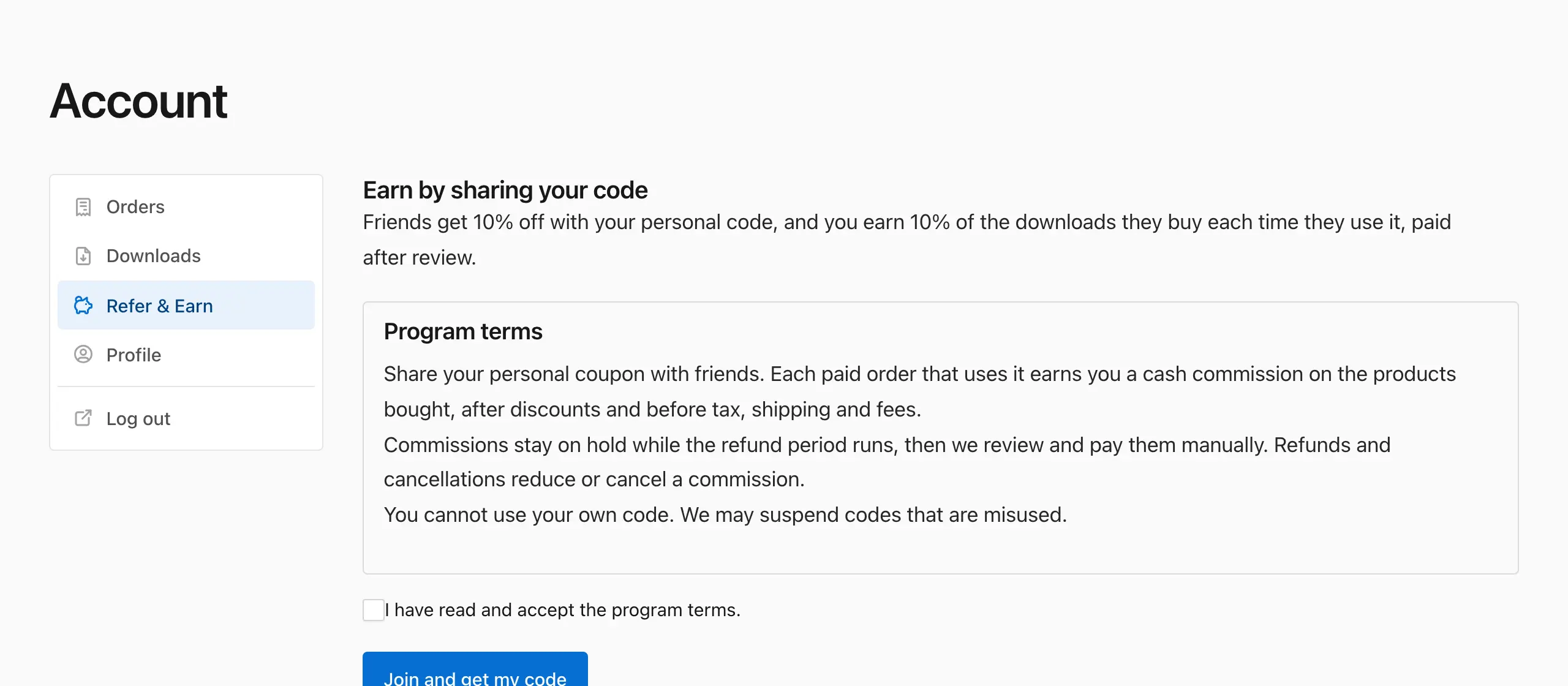
What customers see. Once a customer has a paid order, Refer & Earn appears in My Account. They read the terms, tick the box and get a personal code. After that the page shows:
- The code: with a Copy button and what friends save.
- A message to share: ready to paste, built from your share message.
- Earnings: on hold, approved and paid.
- Referral orders: the 25 most recent, each with a reference, a date, a status and the commission.
- Payouts: the transfers you’ve recorded.
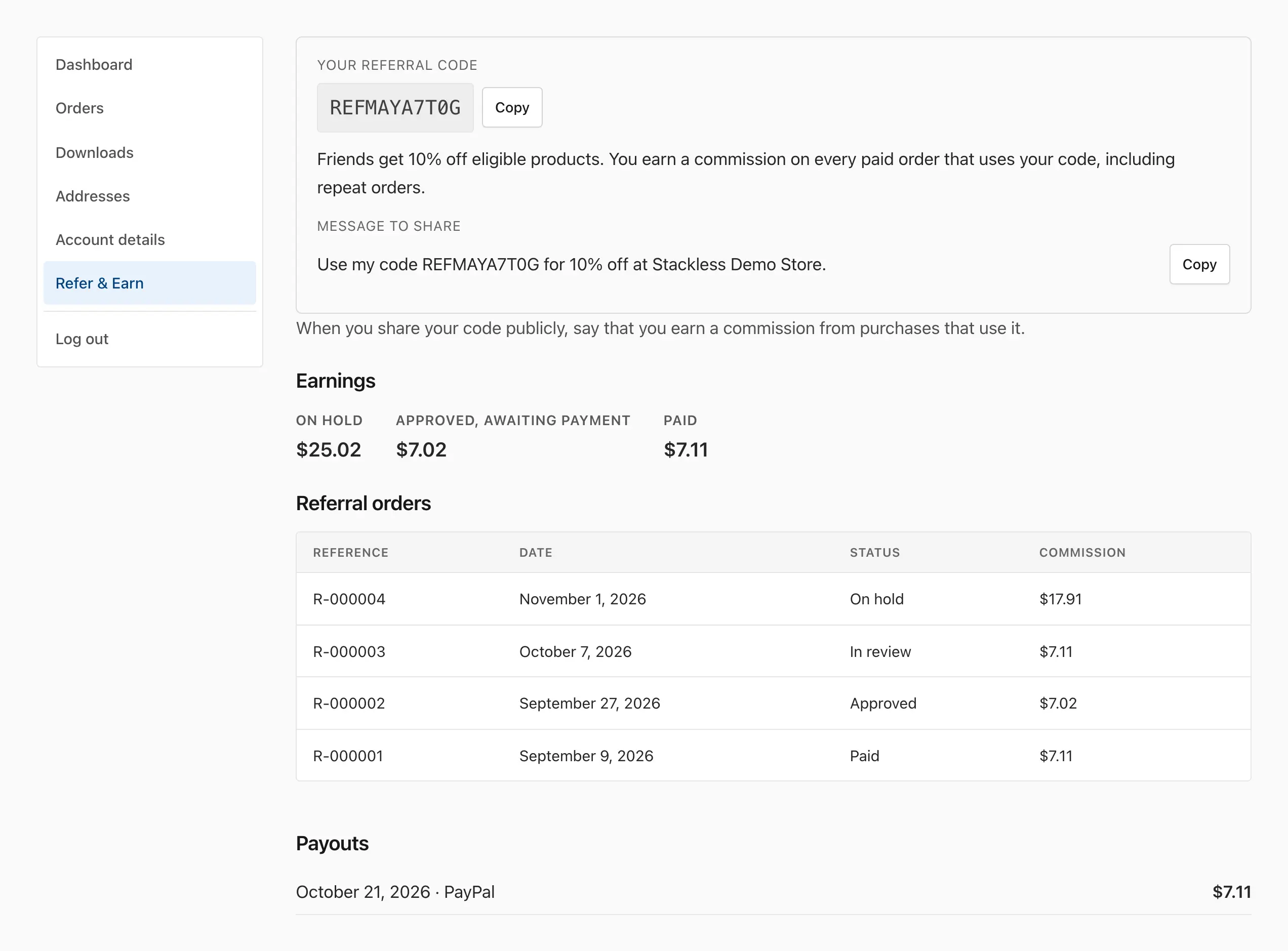
Referred buyers are never named. The affiliate sees a reference such as R-000004 and no name, email or product, so you aren’t handing one customer another customer’s order history.
Codes for partners. A creator or a newsletter partner usually wants a code with their own name on it. You create that coupon under Marketing → Coupons as you would any other.
Then you pick the partner’s account in the Affiliate field and, if you like, give that coupon its own commission rate.
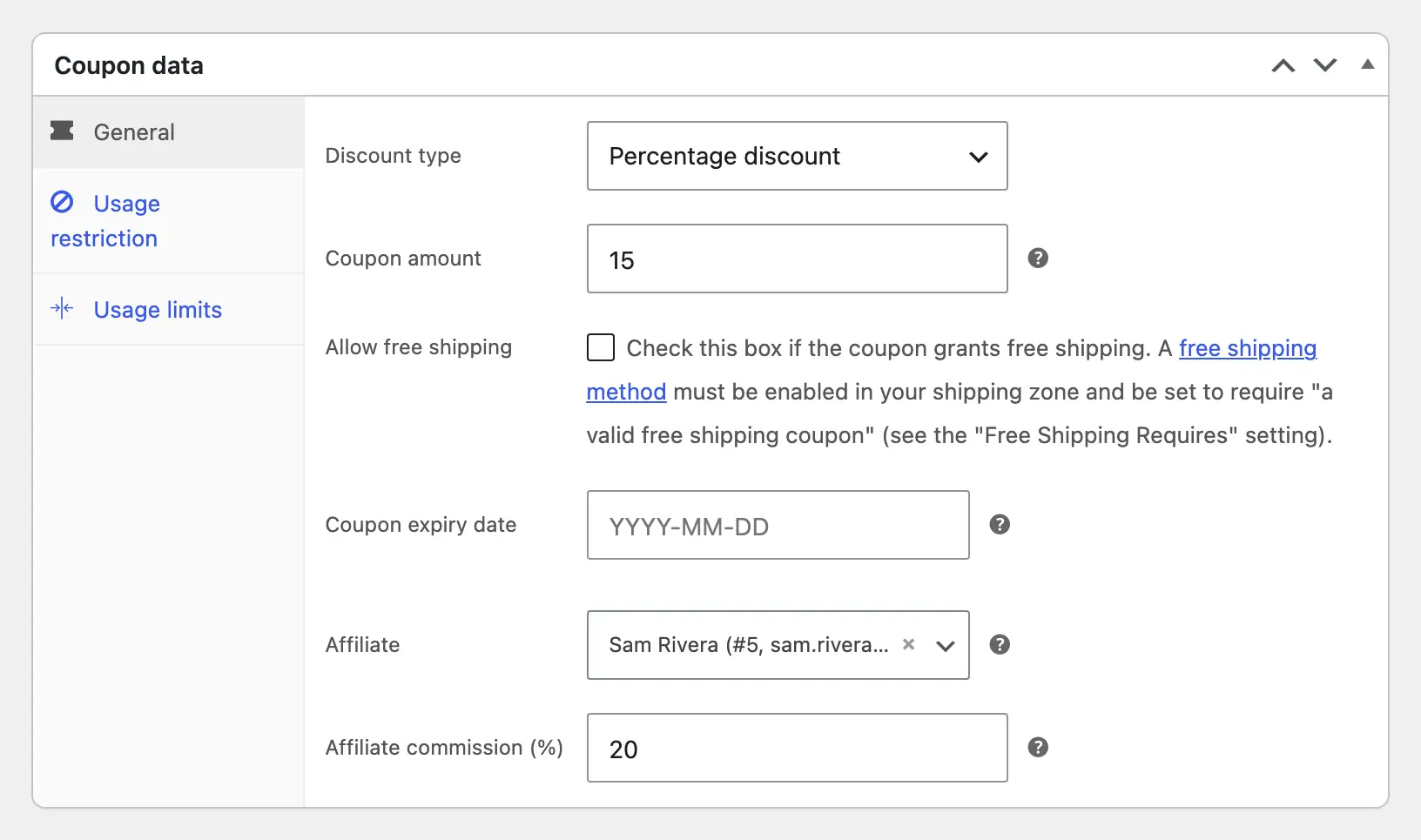
In this demo store, the CREATORKIT coupon gives buyers 15% off and pays its owner 20%, while personal codes stay at 10% and 10%. When rates overlap, the most specific one wins: the coupon’s rate first, then the affiliate’s, then the program’s.
Personal codes are regular WooCommerce percentage coupons set to individual use, so these don’t stack with your other coupons. The module works on the Checkout block and the classic checkout, and with both ways WooCommerce stores orders.
Set Up the Program in Easy Digital Downloads
Stackless for EDD carries the same module for Easy Digital Downloads, in EDD’s own words: coupons are discounts and products are downloads. The setup steps match WooCommerce. You switch the module on under Stackless → Dashboard and set the terms under Stackless → Settings → Coupon Affiliates.
Customers join from the Refer & Earn tab of the account page Stackless adds to EDD. Before joining, they see the discount, the commission and your terms on one screen.
For a partner code, you edit any discount under Downloads → Discounts and choose the account in the Affiliate field at the bottom. The account becomes an affiliate if it isn’t one yet. Clearing the field stops new commissions and keeps the ones already recorded.

Everything else happens under Stackless → Affiliates. The 4 totals at the top are the ones I’d check each week. The names and amounts in these screens are demo data.
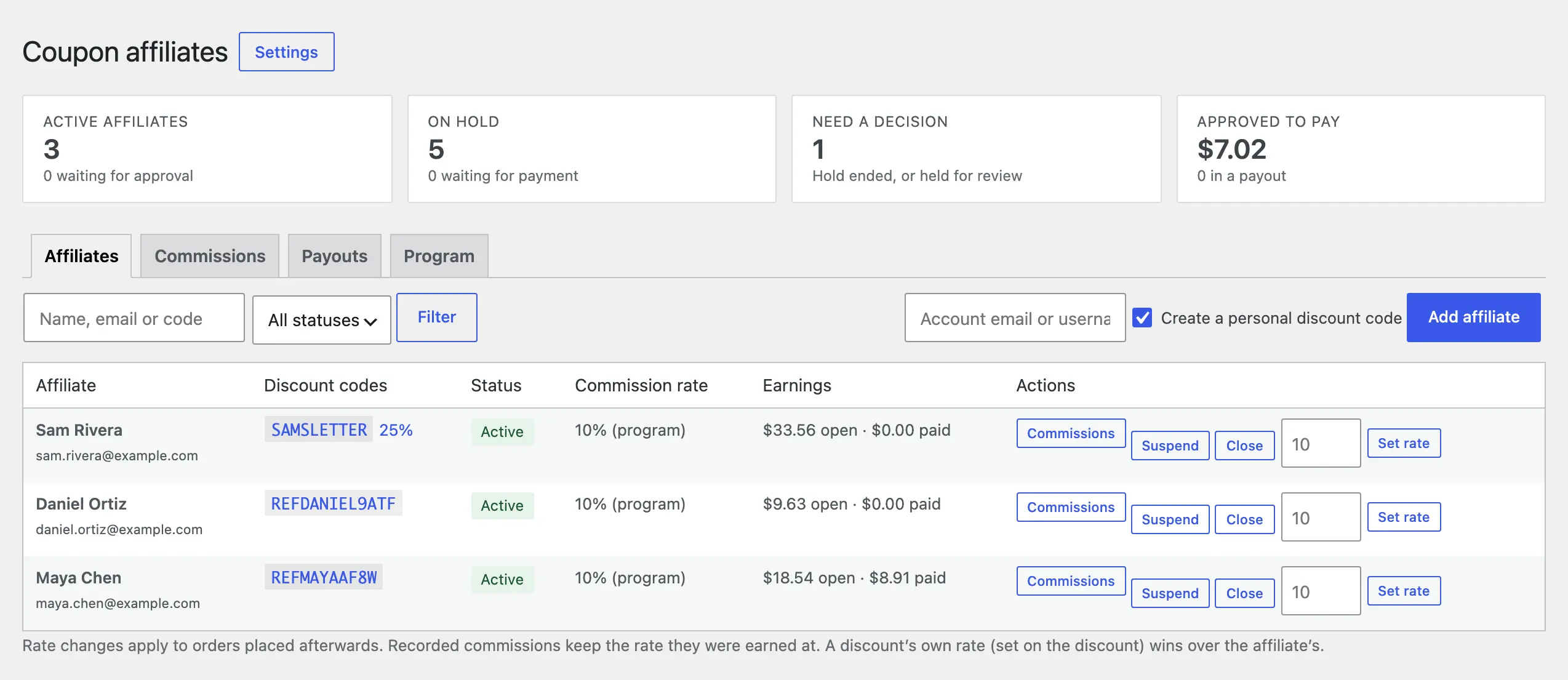
From the Affiliates tab you can add an account by email or username, suspend or close an affiliate and set a rate for one person. Suspending switches that affiliate’s codes off, and the earnings already recorded stay. The Coupon Affiliates doc for EDD lists every field.
Set Up the Program in FluentCart
On FluentCart, the module is part of GT Extensions for FluentCart and needs FluentCart 1.6.4 or newer. This is the one I run on my own store at gauravtiwari.org. If you’re still choosing a store plugin, my FluentCart review covers what it does well and where it falls short.
The setup I’d follow is 4 steps:
- In GT Extensions → Modules, turn on Coupon Affiliates.
- Open FluentCart → Affiliates → Settings.
- Set the buyer discount, the commission and the refund hold, then edit the program terms.
- Save settings. Refer & Earn now appears in the account menu of every customer with a paid order.
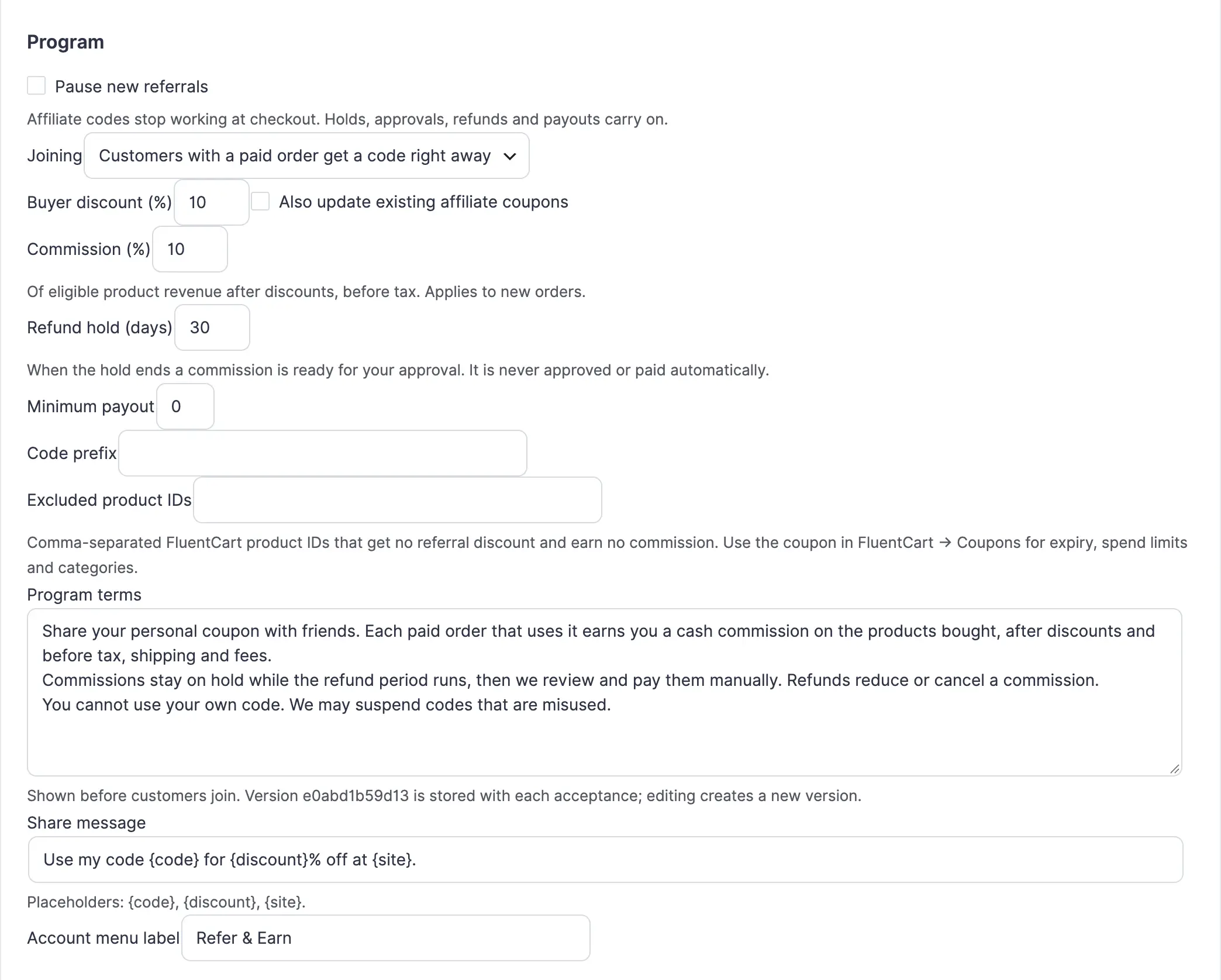
The FluentCart version differs from the Stackless one in 4 places:
- Codes: every affiliate gets a personal percentage coupon that the module creates in FluentCart. You can’t assign an existing coupon, but you can rename the personal one under FluentCart → Coupons and add an expiry or a spend limit there.
- Share link: with Extra Enhancements → Coupon links on, affiliates also get a link that adds
?coupon=to your shop address. The link remembers the code for 1 day on that browser and applies it once the friend adds something to the cart. - Shortcode:
[gtfc_refer_earn]puts Refer & Earn on any page, which is handy for a “Refer a friend” page in your footer. - Test orders: orders placed in FluentCart’s test mode go to a separate test ledger and never count toward a balance.
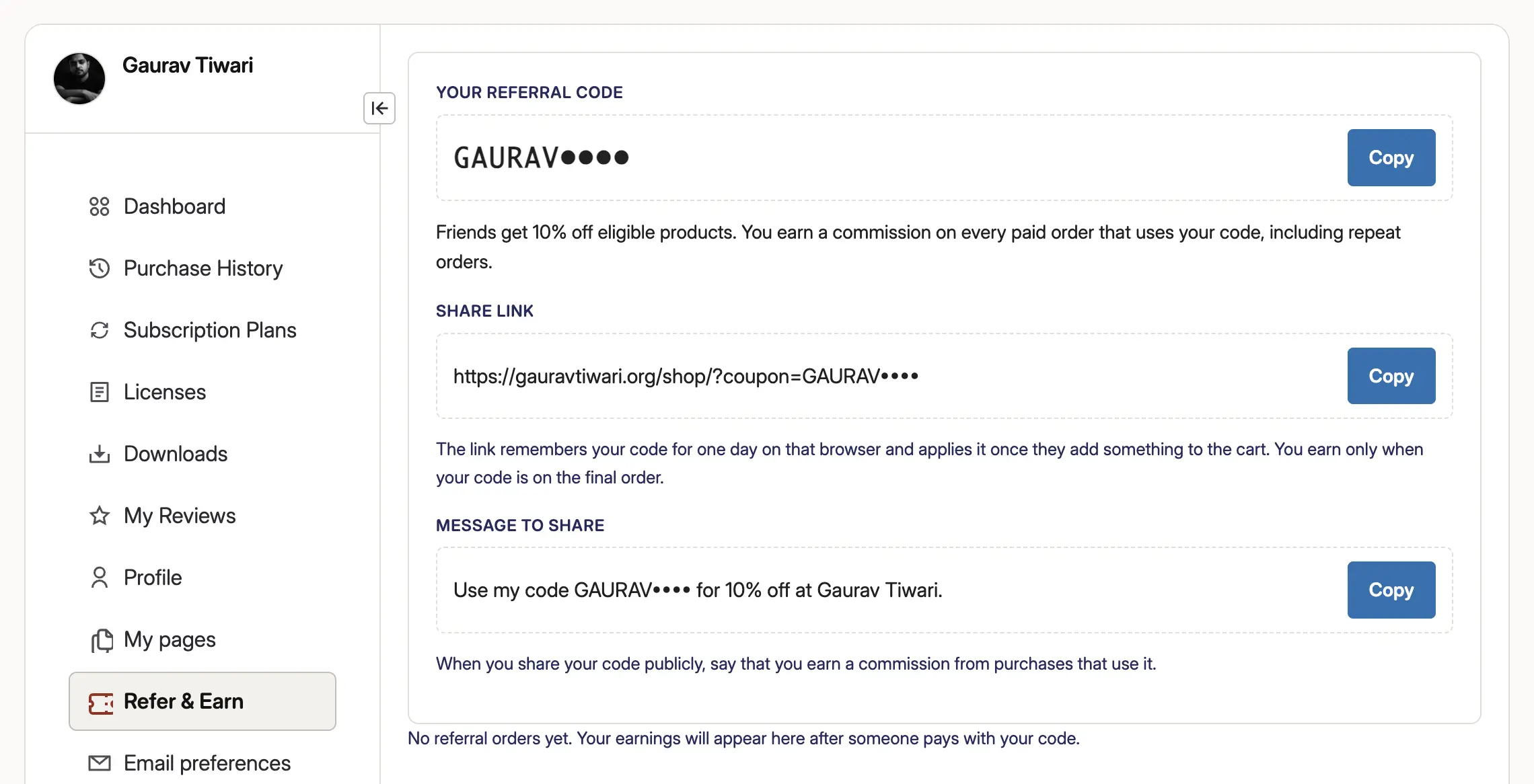
The share link is a convenience and doesn’t change the rule. The commission still comes from the coupon on the final order, so a friend who removes the code at checkout earns the affiliate nothing. The Coupon Affiliates doc for FluentCart has the full settings list, and there’s a guide on starting a referral program for digital products.
What Earns a Commission
The same rules apply in all 3 plugins. I’d read these before you write your terms, because your affiliates will ask about every one.
These orders earn:
- Paid orders only: a commission is recorded once the payment is. An order waiting for a bank transfer shows as Awaiting payment and earns nothing yet.
- Product lines only: the rate applies to what the buyer paid for products after every discount, before tax. Shipping, tax and fees never earn.
- Repeat orders: every paid order with the code earns, including a second order from the same buyer.
These never earn, and the order is marked Rejected with the reason:
- The affiliate’s own orders: the code is refused at checkout when the buyer is the affiliate, matched by account or by email.
- Renewals and plan switches: a subscription renewal earns nothing. Only the order where the code was entered counts.
- Invoice payments: an invoice paid through the same plugin stays out of the program.
- Excluded products: anything on your excluded list gets no referral discount and earns no commission.
Refunds adjust a commission without any work from you:
- A refund on one item: lowers the commission by that item’s share, at the rate it was earned.
- A full refund or a cancellation: reverses the commission.
- A refund after you’ve paid the affiliate: leaves that payout as it was and creates an adjustment. The amount comes off the affiliate’s next payout.
There is one more check. When a buyer shares an IP address with the affiliate, the commission is flagged for you to look at. It isn’t blocked, since families and offices share a connection.
Approving and Paying Affiliates
Nothing is approved or paid automatically. When a hold ends, the commission moves to Ready for approval and waits for you. I think that’s the right default for a small program, because you get to look at the order before any money moves.
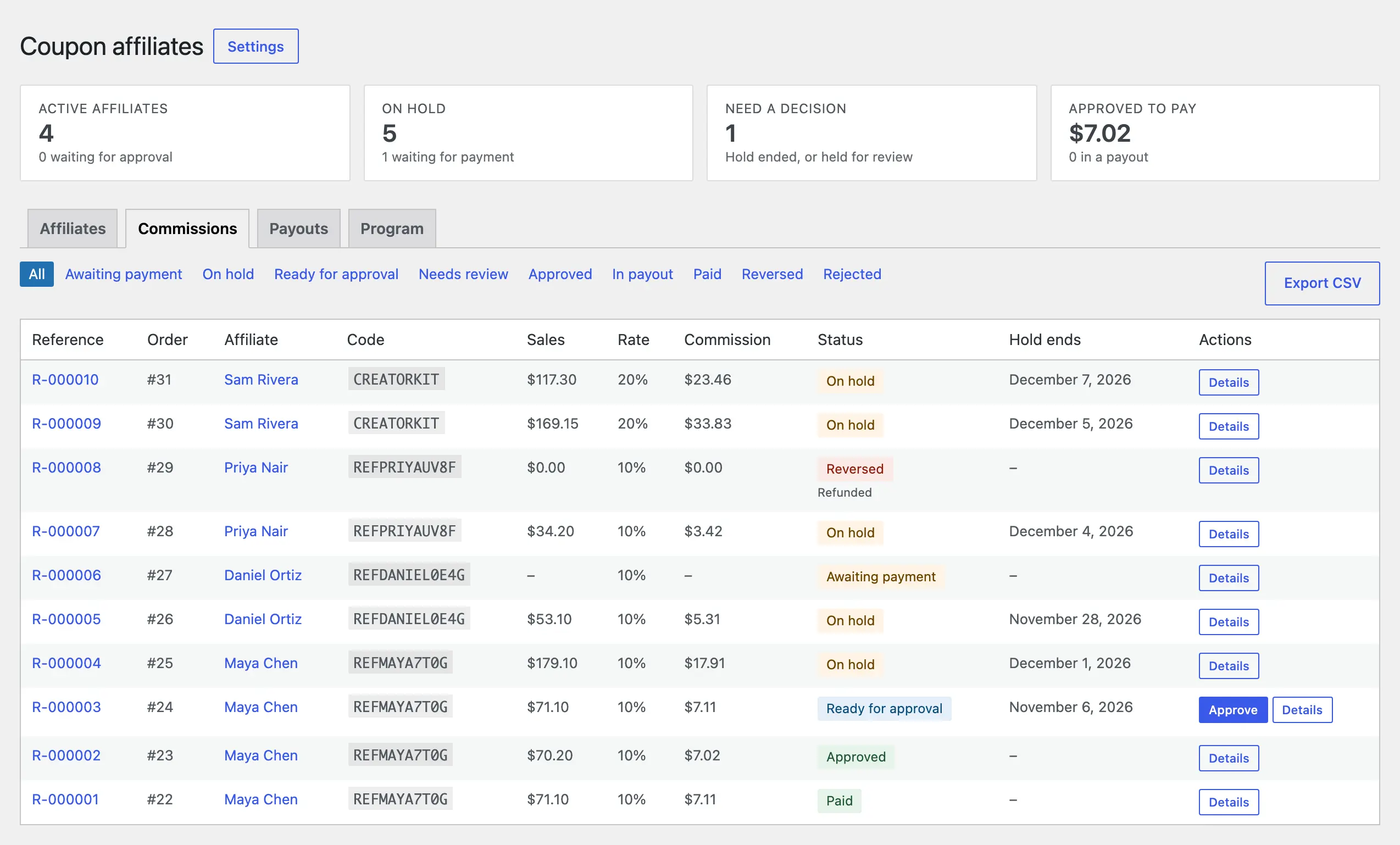
Every commission carries 1 of these statuses:
| Status | What it means |
|---|---|
| Awaiting payment | The order uses an affiliate code and isn’t paid yet. |
| On hold | Paid, and the refund hold is running. |
| Ready for approval | The hold ended. It needs your decision. |
| Needs review | Held because something needs a closer look, such as another affiliate plugin being active. |
| Approved | Ready to go into a payout. |
| In payout | Reserved in a payout you haven’t marked paid yet. |
| Paid | You recorded the transfer. |
| Reversed | Refunded, cancelled or rejected by you. |
| Rejected | The order didn’t qualify. |
Paying is a 4-step routine, and this is how I’d run it once a month:
- Open the Payouts tab. Ready to pay lists each affiliate and currency with the approved amount, any refund adjustments and the net.
- Click Reserve payout. This locks those commissions so nothing changes while you pay.
- Send the money your usual way, by bank transfer, PayPal or anything else.
- Enter the method, the exact amount, the date and the transfer reference, then click Mark paid.
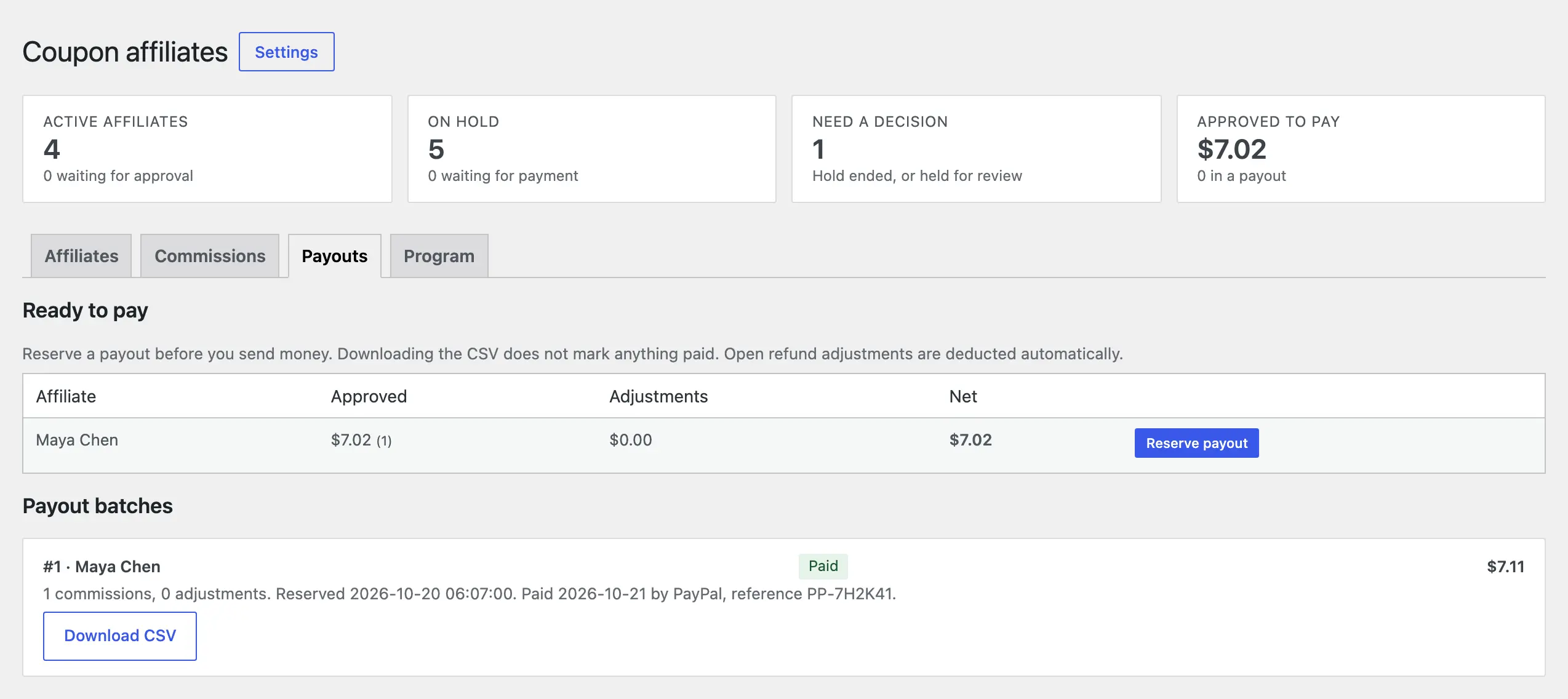
Downloading the CSV doesn’t mark anything paid. It is only a record for your bank or PayPal batch. The plugins never collect bank details either, so I’d ask each affiliate for payment details over email.
Commissions are recorded in the order’s currency, and payouts are grouped by currency. An affiliate with sales in dollars and euros gets 2 separate balances.
The Limits
I sell these plugins, so I’d rather you see the ceilings before you buy. These apply to all 3.
- No link tracking: only a coupon on the paid order earns. A buyer who forgets the code earns the affiliate nothing, and FluentCart’s share link doesn’t change that.
- Manual payouts: you send the money yourself. There’s no PayPal or Stripe mass payout and no store credit.
- Percentage commissions only: there’s no flat amount per sale.
- One level: no tiers and no sub-affiliates.
- No creatives: affiliates get a code and a message to share. There are no banners or landing pages.
- Codes can leak: a personal code can end up on a coupon site. Then you pay a discount and a commission on orders you’d have had anyway. Approval-based joining, the review before every payout and the Suspend button are your answers.
- Other affiliate plugins: while AffiliateWP, SliceWP, Solid Affiliate or FluentAffiliate is active, new commissions are held for review. You confirm in the settings that the other plugin doesn’t pay on the same orders, and the held ones are released.
If the first 5 are deal breakers, a dedicated affiliate plugin is the right purchase. AffiliateWP and FluentAffiliate both track referral links, give affiliates creatives and have their own payout tools. AffiliateWP can also credit sales by coupon code, so you don’t lose the code idea by moving up.
FAQs on Coupon Affiliate Programs
No. If a coupon code is the only thing your affiliates share, the Coupon Affiliates module in Stackless or GT Extensions covers joining, commissions, refunds and payouts. A dedicated affiliate plugin earns its price when you need referral links, creatives or automatic payouts.
Yes on WooCommerce and Easy Digital Downloads. You create the coupon or discount yourself and choose the influencer’s account in its Affiliate field. On FluentCart each affiliate gets a personal coupon, and you can rename it under FluentCart → Coupons.
Yes. You set a rate for that affiliate on the Affiliates tab, and it applies to their future orders. In the 2 Stackless plugins a single coupon can carry its own rate as well. Commissions already recorded keep the rate they were earned at.
No. An affiliate sees a reference such as R-000012, the date, the status and the commission. Names, emails and products stay private.
The plugin switches every affiliate code off first, so no coupon keeps giving discounts without a program behind it. History, balances and payouts stay, and you can reopen the program later from the same screens.
Yes. All 3 plugins add affiliate records to the WordPress personal data export and erase tools.
Final Remarks
If you’re unsure whether a referral program is worth the admin, I’d run the coupon version for a few months before buying anything bigger. I’d switch the module on, keep the 10%, 10% and 30-day defaults, and tell my 10 best customers that Refer & Earn is waiting in their account.
If the codes start doing real work, I’d raise the rate for the affiliates who bring buyers and name a coupon for each partner. If you catch yourself wishing for links, banners or automatic payouts, that’s the sign to move to a dedicated affiliate plugin. For the wider question of what to offer and how to ask, I’ve covered referral programs that drive results separately.
Tell Google you want more of this.
Add Gaurav Tiwari as a preferred sourceOne tap, and this site shows up more often in your own Top Stories, AI Overviews and AI Mode. Remove it any time.
Disclaimer: This site is reader-supported. If you buy through some links, I may earn a small commission at no extra cost to you. I only recommend tools I trust and would use myself. Your support helps keep gauravtiwari.org free and focused on real-world advice. Thanks. - Gaurav Tiwari