
Privacy and Retention
Core Forms keeps every entry and uploaded file until you delete it. Per-form privacy controls let you change that: protect new uploads so only your team can download them, and delete old entries and attachments on a schedule you choose.
Both controls are off by default. Turn them on per form.
Where to find the controls
Edit the form, open its Settings tab, and expand Privacy and retention. The card shows a Retention on badge when either retention period is set.
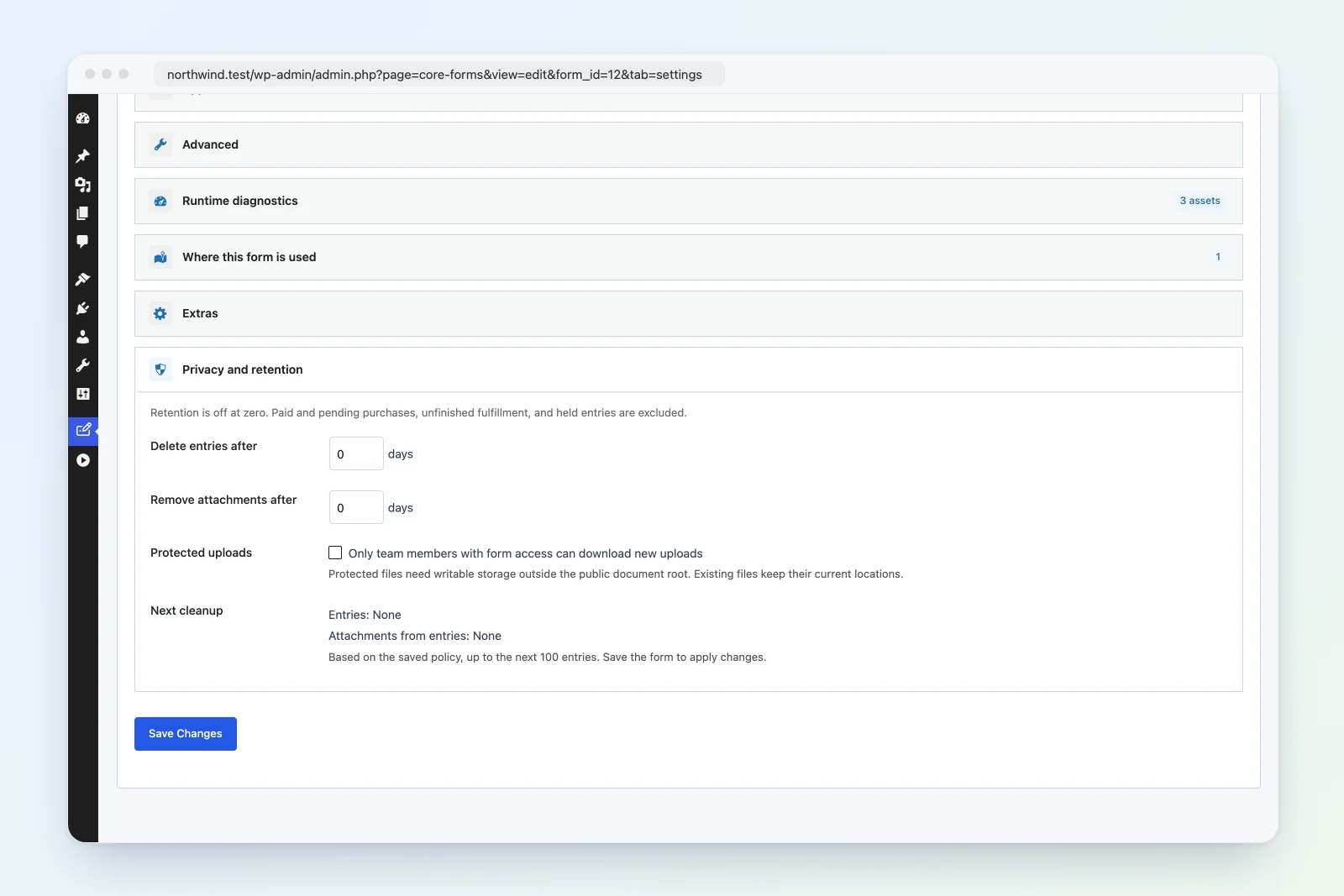
| Setting | Default | What it does |
|---|---|---|
| Delete entries after | 0 days | Deletes whole entries, with their files, once they’re older than this. |
| Remove attachments after | 0 days | Removes uploaded files from entries older than this and keeps the rest of the entry. |
| Protected uploads | Off | Stores new uploads outside the public web root and limits downloads to your team. |
Zero turns a retention period off. Each period can be up to 3,650 days. Click Save Form to apply changes.
Protected uploads
Normal uploads live under wp-content/uploads/core-forms/ and have public URLs. Anyone who has a file’s link can open it.
With Protected uploads on (“Only team members with form access can download new uploads”), new files are stored outside the public web root instead. Their links point to a download route that checks who’s asking:
- The person must be signed in and have access to the form.
- When the file belongs to an entry, they need access to that entry too.
- Everyone else gets “Sign in with access to this form to download its attachment.”
Protected files always download as attachments. They show a Private badge and a Download link on Core Forms > Media and have no thumbnail.
Keep in mind:
- Protection applies to new uploads only. Existing files stay where they are.
- Links to protected files in notification emails only work for recipients who can sign in with access to the form. Someone without access, such as the visitor who sent the file, can’t open them.
- If the private storage can’t be used, uploads on that form are refused with the upload error message instead of being stored publicly.
Choose the private storage directory
By default, Core Forms stores protected files in a .core-forms-private folder next to your WordPress folder (in the parent of ABSPATH). If WordPress lives in a subfolder of your document root, that location is still public, and Core Forms refuses to use it.
Set your own directory in wp-config.php:
define( 'CF_PRIVATE_UPLOAD_DIR', '/srv/core-forms-private' );The directory must:
- be writable by PHP
- sit outside both the WordPress folder and the server’s document root
Core Forms creates a site-specific subfolder inside it, then one folder per form, so several sites can share the same directory.
Submission and attachment retention
Retention runs once a day on WordPress cron. Each run looks at every form with a retention period and handles up to 100 entries per form for each period.
- Delete entries after removes entries submitted more than that many days ago. Their uploaded files, replies, email logs, action logs, queued actions and team inbox data go with them.
- Remove attachments after deletes the uploaded files from entries submitted more than that many days ago. The entry stays, and each removed file’s value becomes “Attachment removed by retention”.
What retention never deletes
Retention skips any entry that still matters for a payment, a delivery or your team:
- paid entries and entries with a pending payment (entries with a failed payment are included)
- entries with unfinished fulfillment
- entries with actions that are queued, retrying, running or uncertain
- entries with an unfinished payment refund or reversal
- drafts and partial entries
- entries on hold
Hold an entry
To keep a specific entry, open it, check Hold this entry and its files from automatic retention cleanup on the Team card, and click Save team details. Clear the box to let retention handle it again.
A hold only stops automatic retention. You can still delete a held entry yourself.
Preview the next cleanup
The Next cleanup row on the Privacy and retention card lists the IDs of the entries the next run would handle:
- Entries: entries that would be deleted
- Attachments from entries: entries whose files would be removed
The preview shows up to the next 100 entries for each, based on the saved policy. Save the form after changing a period, then check the preview.
Developers can read the same preview from GET /wp-json/cf/v1/forms/{id}/retention-preview. It returns entry_ids, attachment_entry_ids and limit.
Cleanup records
After each daily run, Core Forms saves a summary in the cf_retention_last_run option: when the run happened (at, in UTC), how many entries it deleted (entries), and how many files it removed (attachments).
Each deletion and attachment removal also fires the cf_submission_after_write action, with the context erase or attachment_retention. Use it to keep your own audit log:
add_action( 'cf_submission_after_write', function ( $submission_id, $context ) {
    if ( in_array( $context, array( 'erase', 'attachment_retention' ), true ) ) {
        error_log( "Core Forms retention: entry {$submission_id} ({$context})" );
    }
}, 10, 2 );
If a file can’t be deleted from storage, the entry and its ownership records stay in place, so the next run can try again.
Retention needs WordPress cron. If your site disables WP-Cron, set up a real cron job so the daily run happens.
Deleting entries yourself
Deleting an entry from the admin, through the REST API, or with a WordPress personal data erasure request uses the same careful deletion. It removes the entry’s own files, replies, logs, queued actions and team inbox data together.
Manual deletion ignores holds, but it still won’t delete an entry that’s needed for unfinished payment or delivery work. You’ll see “This entry is still needed for unfinished payment or delivery.” Wait for that work to finish, or resolve it, then delete the entry.
Deactivation and uninstall
Deactivating Core Forms stops the daily retention run and keeps all your data. When you activate it again, the schedule comes back.
Deleting the plugin only removes data when Delete data on uninstall is checked in the General section of Core Forms > Settings. That setting is off by default. When it’s on, uninstall also removes protected attachments.