
File Uploads
Core Forms supports file uploads with multi-layered security: extension blocklisting, MIME type validation, double extension detection, filename sanitization, and server-level execution prevention.
Basic Usage
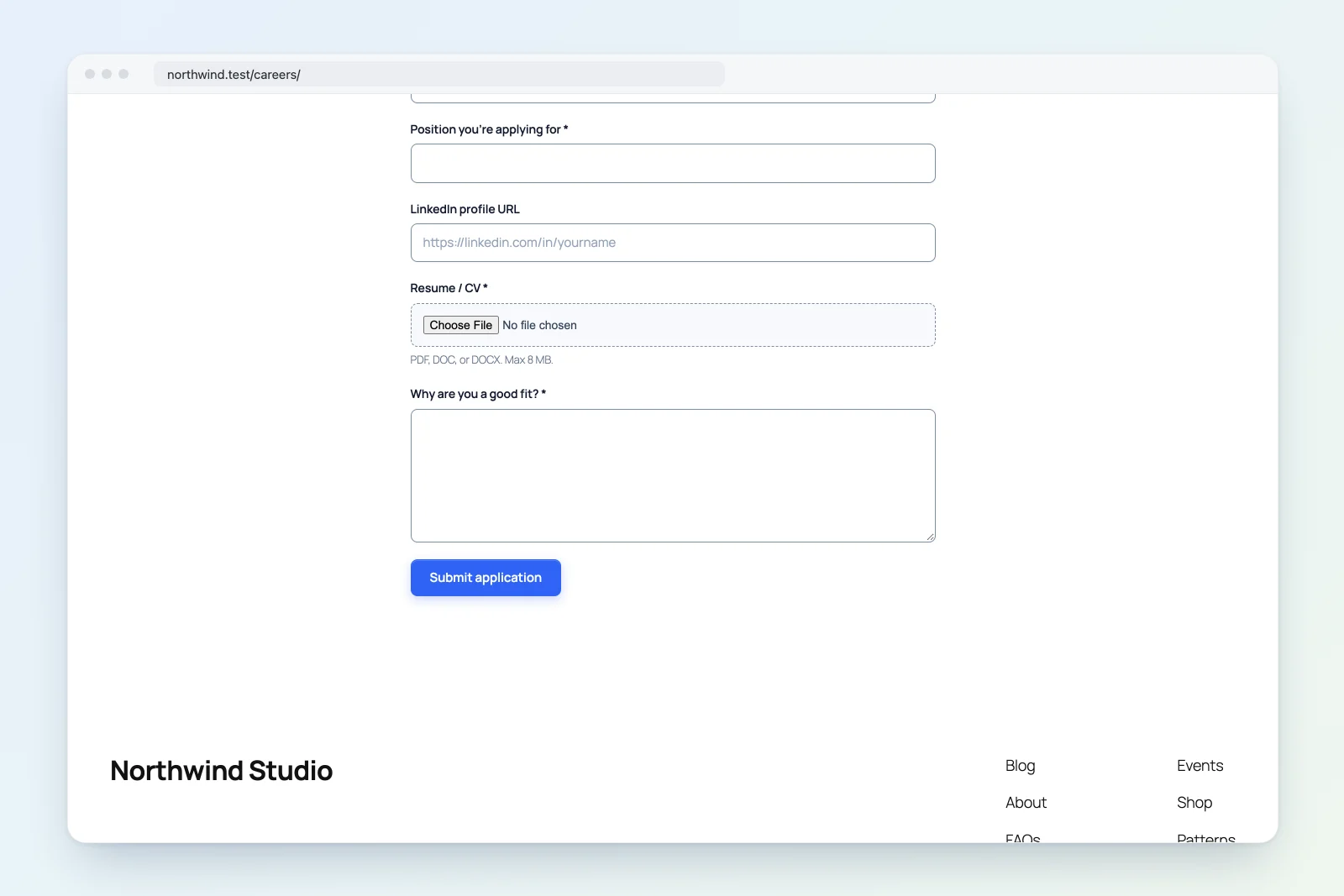
Add a file input to your form HTML:
<p>
    <label for="resume">Upload Resume</label>
    <input type="file" name="resume" id="resume" required />
</p>
Core Forms automatically handles the upload, validation, and storage.
Security Layers
1. Blocked Extensions (30+)
The following extensions are rejected immediately:
php, php3, php4, php5, php7, php8, phtml, phar
exe, bat, cmd, com, msi
sh, bash, csh, ksh, zsh
cgi, pl, py, rb, jsp, asp, aspx
htaccess, htpasswd
svg, shtml, shtm
swf
2. Double Extension Detection
Filenames with dangerous inner extensions are blocked:
file.php.jpg      -> BLOCKED (php in middle)
report.exe.pdf    -> BLOCKED (exe in middle)
photo.png         -> ALLOWED
data.backup.csv   -> ALLOWED (backup is not dangerous)
3. MIME Type Validation
The actual file content is inspected using finfo to detect the real MIME type. If the detected MIME type does not match the file extension, the upload is rejected:
// file.jpg with actual content of a PHP script -> REJECTED
$detected_mime = Uploader::detect_mime_type( $filepath );
if ( ! Uploader::mime_matches_extension( $detected_mime, $extension ) ) {
    return 'file_mime_mismatch';
}
Supported MIME Types
| Category | Extensions |
|---|---|
| Images | jpg, jpeg, jpe, png, gif, webp, avif, bmp, tif, tiff |
| Documents | pdf, doc, docx, xls, xlsx, ppt, pptx, odt, ods, rtf |
| Text | txt, log, csv |
| Archives | zip, rar, gz, 7z |
| Audio | mp3, wav, ogg, m4a |
| Video | mp4, webm, mov, avi |
4. Filename Sanitization
Uploaded filenames are cleaned before storage:
$safe = Uploader::sanitize_filename( $original );
// "My Report (final).pdf"  -> "My-Report-final.pdf"
// "../../etc/passwd"       -> "etcpasswd"
// "<script>hack</script>"  -> "scripthackscript"
Rules applied:
- Remove dangerous characters:
< > : " / | ? *and control characters - Normalize whitespace to hyphens
- Collapse multiple hyphens
- Trim hyphens from edges
- Empty names default to
upload
5. Server-Level Protection
An .htaccess file is written to the upload directory to prevent script execution:
# Prevent script execution
<FilesMatch ".(?:php|phar|phtml|php[0-9]|cgi|pl|py|rb|sh|bash|asp|aspx|jsp)$">
Order allow,deny
Deny from all
</FilesMatch>
An index.php file prevents directory listing.
File Size Limit
Default maximum file size is 8 MB (8,000,000 bytes). Customize with the cf_upload_max_filesize filter:
// Allow up to 25 MB
add_filter( 'cf_upload_max_filesize', function() {
    return 25 * 1024 * 1024; // 25 MB in bytes
} );
The 60 KiB submission-data ceiling applies only to encoded form values and file metadata. It does not count the uploaded binary. PHP’s upload_max_filesize, post_max_size, and max_file_uploads settings still apply to multipart requests alongside Core Forms’ per-file limit.
Multiple uploads using name="attachments[]" multiple are normalized and validated one file at a time. If form validation fails, pending uploads are discarded and temporary server paths are not stored with the submission.
Storage Location
Files are stored in:
wp-content/uploads/core-forms/{form-slug}/{form-slug}-{field-name}-{number}-{code}.{ext}Example: wp-content/uploads/core-forms/contact/contact-resume-1-k3f9a2.pdf
- The number counts up for each form and field and never goes back down.
- The code is six random lowercase letters and digits, so upload URLs can’t be guessed by counting.
- Underscores in the field name become hyphens.
- Change the
{form-slug}-{field-name}part with thecf_upload_filename_prefixfilter.
Forms with Protected uploads turned on store new files outside the public web root instead. See Privacy and Retention.
Media Library Integration
Each upload gets a private WordPress attachment record, which links it to its form, field and entry. Turn that off for public uploads with:
add_filter( 'cf_upload_add_to_media', '__return_false' );Uploads without an attachment record don’t appear on Core Forms > Media. Protected uploads always get one.
Form uploads are hidden from the WordPress Media Library and the editor’s media picker by default. Browse them on Core Forms > Media, a grid you can filter by form and file type, with links to each file and its submission. To list them in the Media Library too, choose Show form uploads under Core Forms > Settings > File Uploads. See Form Media.
Submission Data
After upload, the field data in the submission contains:
$submission->data['resume'] = [
    'name'          => 'contact-resume-1-k3f9a2.pdf',
    'original_name' => 'My-Resume.pdf',
    'url'           => 'https://example.com/wp-content/uploads/core-forms/contact/contact-resume-1-k3f9a2.pdf',
    'dir'           => '/var/www/html/wp-content/uploads/core-forms/contact',
    'size'          => 245760,
    'type'          => 'application/pdf',
    'attachment_id' => 567,
];
Error Messages
Custom error messages for file validation failures:
| Error Code | Default Message |
|---|---|
file_too_large |
Uploaded file is too large. |
file_upload_error |
An upload error occurred. Please try again later. |
file_invalid_extension |
This file type is not allowed. |
file_mime_mismatch |
The uploaded file does not match its extension. Please upload a valid file. |