
Block Editor Forms
A form’s fields can be built in the WordPress Block Editor instead of the HTML builder. It is a per-form choice: the HTML builder stays the default, existing forms are unchanged, and a form can switch back at any time.
Only the fields move. Messages, settings, actions, payments, submissions, analytics and revisions stay on the form’s Core Forms tabs.
Starting a Block Editor form
- New form: go to Core Forms → Add New and choose Build in the Block Editor. The editor opens with name, email and message fields and a submit button already in place, and the form gets the same “email the admin” action as the other templates.
- Existing form: on the form’s Fields tab, use Prefer blocks? → Switch to the Block Editor. Save your changes on that tab first. The current fields move over as one Custom HTML block, so visitors see no change; replace it with field blocks whenever you like.
Field blocks
| Block | Variations |
|---|---|
| Form Field | Text, Email, Phone, Website, Number, Date, Time, Message (multi-line), Consent checkbox, File upload, Hidden |
| Form Choices | Dropdown, Radio buttons, Checkboxes |
| Submit Button | None |
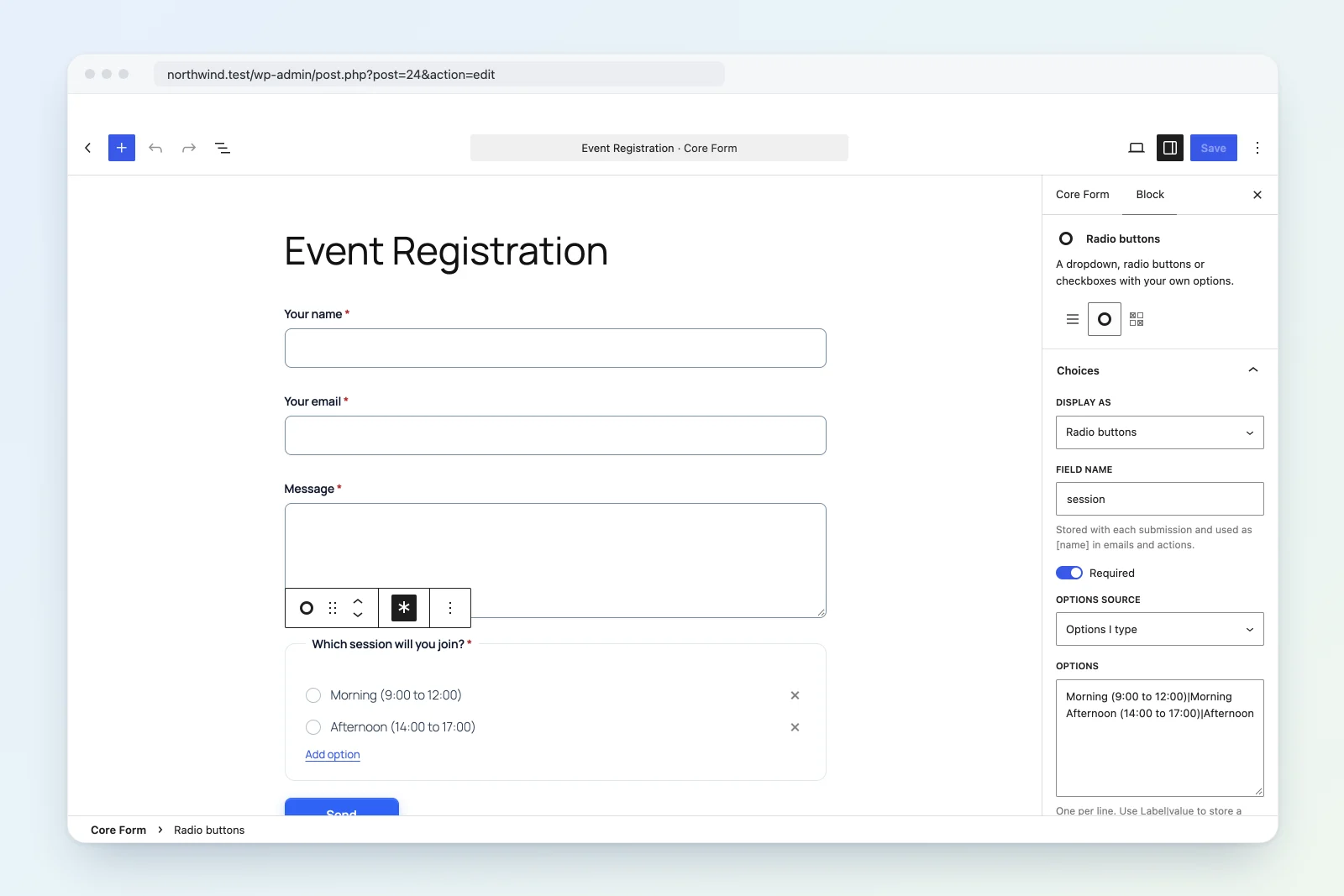
A Form Choices block can load its options from posts, terms, authors, ACF, custom fields or a JSON URL, and a dropdown can depend on another answer. See Dynamic options.
Lay fields out with Columns, Group, Heading, Paragraph, List, Image, Separator, Spacer and Custom HTML blocks. Only these blocks are offered inside a form, and the field blocks are not offered in ordinary posts and pages (use the Core Forms block to embed a form there).
Each field block has these settings in the sidebar:
- Field name: the key stored with each submission and used as
[name]in emails and actions. A new field takes its name from its label and keeps following the label until you type a name yourself. - Required: also a one-click button in the block toolbar.
- Placeholder, default value, help text, autocomplete, rows, minimum/maximum/step and allowed file types, depending on the field type.
- Conditional logic: “Show only if” and “Hide if” rules in the same format as the HTML builder, for example
plan:Pro,role:Manager|Directororcompany:*.
Choice options are edited directly on the canvas while the block is selected (rename, remove, Add option), or as one option per line in the sidebar. Use Label|value to store a different value than the label.
A plain text field whose label looks like an email, phone or website field offers a one-click switch to the matching type.
Before you publish
The Core Forms panel in the editor’s Form sidebar lists problems to fix, each with a Show link to the block:
- no Submit Button
- fields without a name (they are not submitted)
- two fields with the same name
- fields without a label
It also links to the form’s Settings, Messages, Actions and Submissions tabs, and shows the embed shortcode.
Saving, preview and draft publishing
- Saving shows a “Form updated.” notice with a link to Set up actions (or Review actions once the form has actions).
- Preview shows your latest unsaved changes.
- With draft publishing on, saving in the Block Editor updates the draft. Publish it from the Revisions tab. See Drafts and Revisions.
- Status, author, slug and trash are managed on the Core Forms screens, not in the Block Editor.
Switching back to the HTML builder
On a Block Editor form’s Fields tab, choose Switch to the HTML builder. The fields are kept and converted to plain HTML, which the visual builder and code editor read as usual.
How it works
Field blocks are static: each saves the same HTML the visual builder produces, with the block markup around it. Validation, required and email fields, the accepted-field list, conditional logic, calculations, actions and submissions read that HTML exactly as they do for HTML-builder forms, so no form feature depends on the editor you used. When the form is shown, the block markup is rendered and each field’s ID gets a per-instance prefix, so two copies of a form on one page never share IDs. Fields saved without a label get an accessible name from their field name.
Hooks
cf_native_form_write_allowed: whether a write to/wp/v2/core-form/{id}is allowed. Core Forms allows only the Block Editor’s save and autosave routes, for Block Editor forms the user can access.cf_preview_form: filters the form shown in the authorized preview. Core Forms uses it to show the latest autosave when the Block Editor’s Preview button opens it.
See Hooks and Filters for the rest of the hooks reference.