
Reusable Field Groups
Field groups let you save a set of fields once and insert it into any form. Save a billing address, a contact block or a consent section, and you won’t rebuild it for the next form.
Groups live in a library on your site. Each one is private to you unless you share it with every Core Forms editor.
Open the field group library
Edit a form, open its Fields tab, and click Field groups in the builder toolbar. The Reusable field groups popup opens with two tabs: Insert group and Save group.
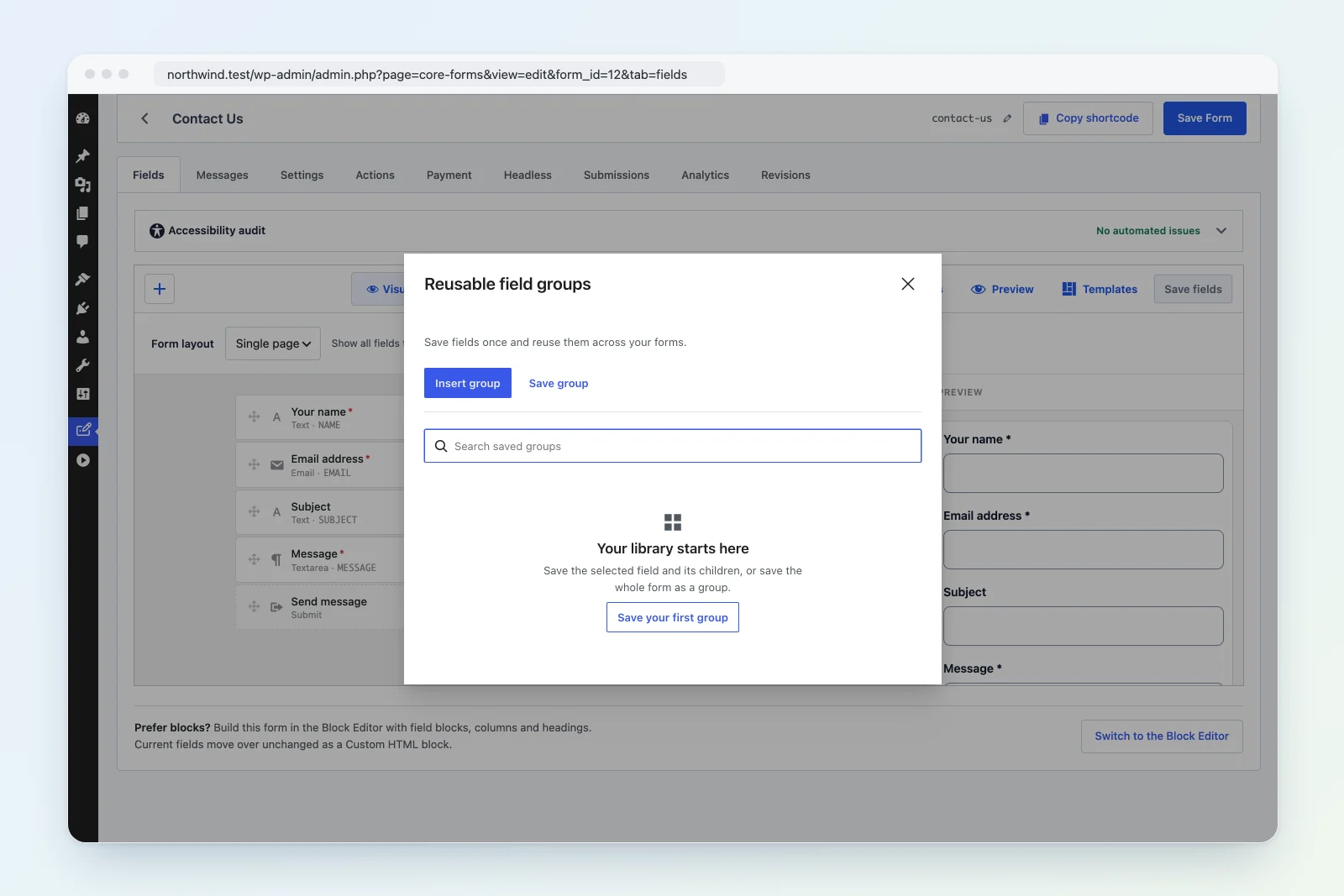
Field groups belong to the HTML builder (Visual and Code modes). Forms built in the Block Editor don’t show the button.
Save a group
- In the builder, select the field you want to save. Its child fields come with it, so selecting a container or fieldset saves everything inside. To save the complete form, don’t select any field.
- Click Field groups, then open the Save group tab. It shows what you’re saving (the selected field, or Complete form) and how many fields that includes.
- Enter a Group name you’ll recognize later, such as “Billing address”.
- Leave Share with every Core Forms editor unchecked to keep the group private, or check it to share it.
- Click Save group.
The popup switches back to Insert group and confirms the group is saved.
Insert a group
- Click Field groups. The Insert group tab opens.
- Type in Search saved groups to filter the library by name. Each row shows the group’s name, its field count, and whether it’s Private or Shared with your team.
- Click Insert next to the group you want.
- Click Save Form to keep the new fields.
The fields are added at the end of the form, and the first inserted field is selected so you can start editing it. In a multi-step form they go into the step you’re on.
What happens on insert
Inserting a group copies its fields into the form. The copy is independent:
- Editing the saved group later, or removing it, doesn’t change forms you already inserted it into.
- If a field name is already used in the form, the inserted field gets a unique name.
- Conditional logic and calculations that point at other fields in the same group are rewritten to the new names, so they keep working.
- Field IDs follow the new names, so two copies never share an ID.
A condition or calculation that points at a field outside the group isn’t rewritten. Add that field to the destination form, or update the reference after you insert the group.
Private and shared groups
- Private groups are visible to the person who saved them.
- Shared groups are visible to every user who can edit Core Forms forms on this site.
- Administrators see every group, private ones included.
Only the person who saved a group, or an administrator, can remove it. Click the trash icon on its row, then confirm with Remove saved group. Forms that already use its fields keep them.
Keyboard use
The popup works fully from the keyboard:
- Left and Right arrow keys switch between the Insert group and Save group tabs.
- Home jumps to Insert group and End jumps to Save group.
- The search box (or the group name box) gets focus when a tab opens.
- Escape closes the popup and returns focus to the Field groups button.
Limits
- A site’s library holds up to 100 groups.
- A group holds between 1 and 100 fields.
- Group names can be up to 100 characters.
If someone else saves or removes a group while your popup is open, saving shows “Groups changed. Refresh before saving.” Click Refresh groups and try again.