
Preview
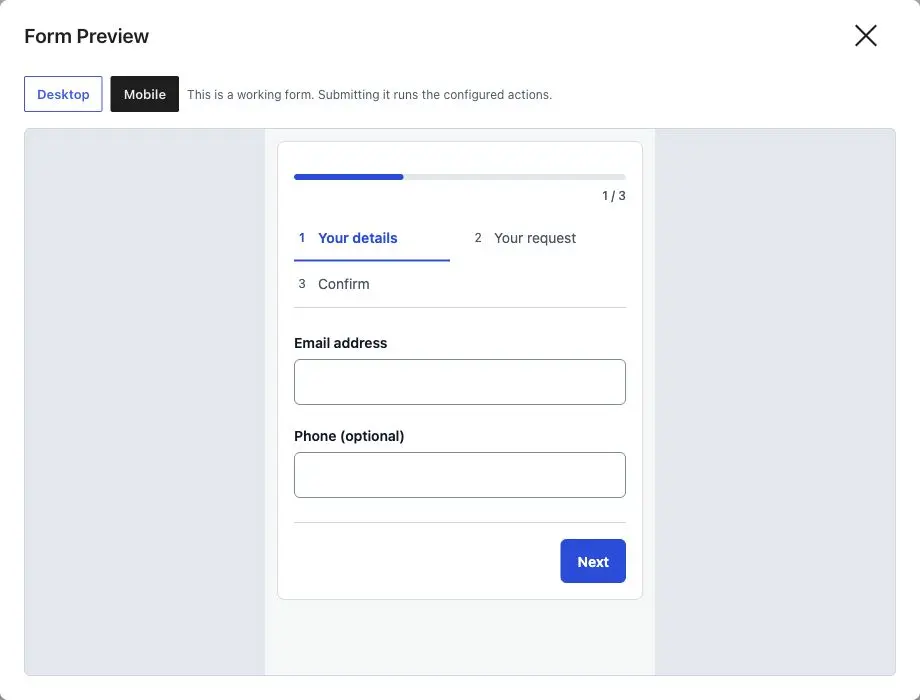
Preview checks a form’s rendering and behavior before you embed it. Core Forms offers a compact builder preview and a larger Form Preview dialog with Desktop and Mobile widths.
Open a working preview
- Edit the form’s fields and layout.
- Click Preview in the builder toolbar. If fields have unsaved changes, use Save & preview to save them before opening the dialog.
- Use Desktop or Mobile to change the preview width.
- Check labels, required fields, conditional fields, and multi-step navigation.
- Close the dialog to return to the editor.
Submitting a saved-form preview runs a rehearsal, not a real submission. The Rehearsal preview section under the form shows whether the answers pass validation, the calculated values, which actions would run or be skipped and where they’d send data, and the planned payment. Nothing is saved, no emails, webhooks or other actions run, and nothing is charged. The preview also turns off save and resume, partial entries, analytics tracking and the form’s custom JavaScript. See Rehearsal.
To test real delivery, such as an email arriving or a provider accepting a request, submit the form on a page with test recipients and payment test mode, or use Test action inside an action’s settings.
Check mobile width
Select Mobile in the same dialog. Confirm that long step labels wrap, controls fit, and the Next button remains easy to reach.
Compact builder preview
The builder can show a narrow preview beside the canvas when the field inspector is not in use. Use the full dialog for a clearer view of the complete flow. Select a field on the canvas to return to its editing controls.
What the preview includes
The preview loads the Core Forms rendering and runtime assets independently of the WordPress theme. Multi-step controls have their own scoped layout styles. This makes the isolated preview useful for checking the form itself.
Your published page can still contribute surrounding spacing, typography, or custom CSS. After embedding the form, check that actual page too.
Template previews are different
The Preview button on a template card opens a sample. You can inspect its fields and step navigation, but sample submission is blocked. After you create a form from the sample, its saved-form preview submits to a rehearsal like any other saved form.
If the preview looks out of date
Save the latest changes and reopen the preview. If saving reports an error, resolve it before testing. Check that you are previewing the intended form and that custom CSS selectors match the rendered controls.