Core Forms
WordPress forms with payments, digital products and spam protection.
 Gaurav TiwariDocs
Once you have created a form, you need to place it on a page, post, or widget area for visitors to use. Core Forms supports multiple embedding methods: a shortcode, a Gutenberg block, and direct PHP functions for theme templates.
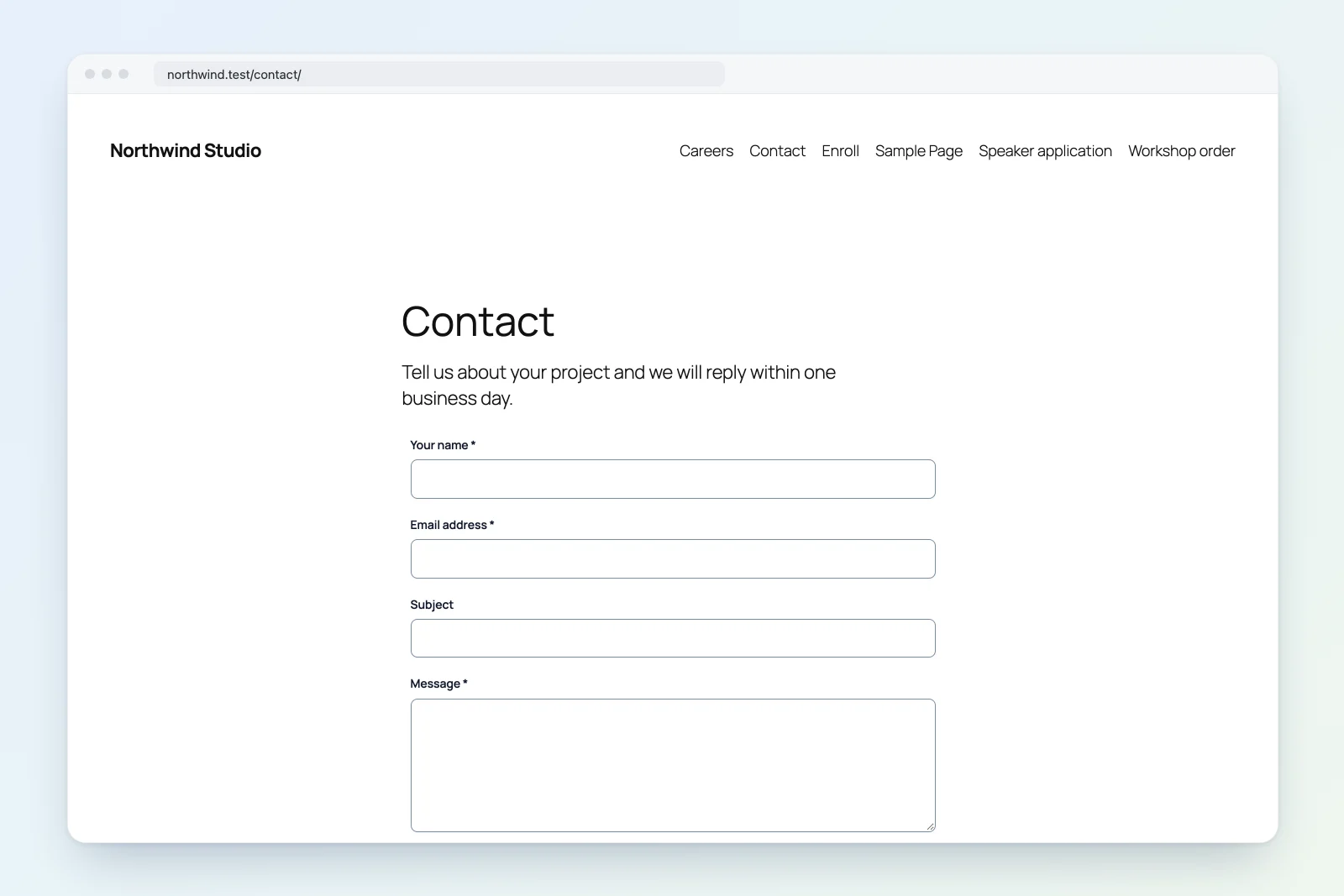
Both methods render the same saved form. Use the native block in the block editor, or the shortcode anywhere WordPress processes shortcodes.

Watch the complete Core Forms playlist on YouTube
In the block inserter, type cf to find Core Forms and Core Polls. Choose the form or poll block that matches what you want to embed.
The [cf_form] shortcode is the simplest way to embed a form anywhere that supports shortcodes — posts, pages, widgets, and page builder text modules.
[cf_form slug="contact"]The slug is the URL-friendly version of your form title. You can find it in the form editor, below the title. Using the slug is recommended because it is human-readable and does not change if you delete and recreate a form with the same name.
[cf_form id="42"]The form ID is the WordPress post ID of the core-form post. You can find it in the URL when editing a form (?page=core-forms&tab=fields&form_id=42). Using the ID is useful when you have multiple forms with similar slugs.
<!-- Basic contact form -->
[cf_form slug="contact"]

<!-- Form by ID -->
[cf_form id="42"]

<!-- Multiple forms on one page -->
[cf_form slug="contact"]
[cf_form slug="newsletter"]
Both slug and id parameters are supported. If both are provided, id takes priority.
The Core Form block is the recommended embedding method for the WordPress block editor.
/ to open the quick inserter.After inserting the block, use the Form dropdown in the block toolbar or sidebar to select which form to display. The dropdown lists all your Core Forms by title.
You can also type a form slug directly into the Slug field in the block sidebar if you prefer.
The block renders a live preview of your form directly in the editor. This shows you exactly how the form will look on the frontend, including all fields, labels, and the submit button. The preview updates automatically when you change the selected form.
Core Forms registers two block variations that appear as separate entries in the block inserter:
| Variation | Description | Default Slug |
|---|---|---|
| Contact Form | A simple contact form | contact |
| Newsletter Form | An email signup form | newsletter |
These are convenience shortcuts. They insert the same Core Form block but pre-fill the slug attribute. If a form with the matching slug does not exist yet, you will need to create it or change the slug to an existing form.
If you have existing content that uses the [cf_form] shortcode, the block editor automatically detects it and offers to convert it to a native Core Form block.
When you open a page containing [cf_form slug="contact"] in the block editor:
slug and id attributes.This also works the other way — you can transform a Core Form block back to a shortcode block if needed.
The Core Form block supports the following WordPress block features:
| Feature | Options | Description |
|---|---|---|
| Align | Wide, Full | Control the block width in supported themes |
| Spacing | Margin, Padding | Adjust spacing around the form via the block sidebar |
| className | Any CSS class | Add custom CSS classes via the “Advanced” panel |
<!-- Wide alignment -->
<!-- wp:core-forms/form {"slug":"contact","align":"wide"} /-->

<!-- Full width -->
<!-- wp:core-forms/form {"slug":"contact","align":"full"} /--><!-- With custom class -->
<!-- wp:core-forms/form {"slug":"contact","className":"my-custom-form hero-form"} /-->You can place a form in any widget area (sidebar, footer, etc.) using either a shortcode widget or a block widget.
[cf_form slug="newsletter"]For developers who need to embed forms directly in theme template files, Core Forms provides two approaches.
do_shortcode()The simplest PHP approach — process the shortcode in a template file:
<?php echo do_shortcode( '[cf_form slug="contact"]' ); ?>Or with the form ID:
<?php echo do_shortcode( '[cf_form id="42"]' ); ?>cf_get_form()For more control, use the cf_get_form() function to retrieve the form object and render it:
<?php
// Get form by slug
$form = cf_get_form( 'contact' );

if ( $form ) {
    echo $form->get_html();
}
?>
You can also retrieve a form by ID:
<?php
// Get form by ID
$form = cf_get_form( 42 );

if ( $form ) {
    echo $form->get_html();
}
?>The cf_get_form() function returns a Core_FormsForm object with these properties:
<?php
$form = cf_get_form( 'contact' );

if ( $form ) {
    echo $form->ID;       // 42
    echo $form->title;    // "Contact Form"
    echo $form->slug;     // "contact"
    echo $form->markup;   // Raw HTML of the form fields

    // Render the complete form (with wrapper, nonce, honeypot, etc.)
    echo $form->get_html();
}
?><?php
// File: theme/page-contact.php
get_header();
?>
<main class="site-content">
<div class="container">
<h1><?php the_title(); ?></h1>
<?php the_content(); ?>
<?php
$form = cf_get_form( 'contact' );
if ( $form ) {
echo $form->get_html();
}
?>
</div>
</main>
<?php get_footer(); ?><aside class="sidebar-form">
<h3>Get in Touch</h3>
<?php echo do_shortcode( '[cf_form slug="sidebar-contact"]' ); ?>
</aside><?php
// Show different forms on different pages
if ( is_page( 'careers' ) ) {
echo do_shortcode( '[cf_form slug="job-application"]' );
} elseif ( is_page( 'support' ) ) {
echo do_shortcode( '[cf_form slug="support-request"]' );
} else {
echo do_shortcode( '[cf_form slug="contact"]' );
}
?>Bricks and Elementor have a native Core Form element and widget, so you pick a form from a list instead of pasting a shortcode. Both come from the Elementor and Bricks module, which is on by default. See Bricks Builder and Elementor.
Core Forms automatically enqueues its JavaScript and CSS when a form is rendered on the page. You do not need to manually enqueue any scripts or stylesheets.
The following assets are loaded when a form is present:
| Asset | Handle | Purpose |
|---|---|---|
| JavaScript | core-forms |
AJAX submission, validation, conditional fields |
| Accessibility JS | core-forms-a11y |
Keyboard navigation, screen reader support |
| Form Theme CSS | (block style) | Default form styling (if enabled) |
If you are loading forms via AJAX or in unusual contexts where automatic enqueuing does not work, you can manually enqueue the assets:
wp_enqueue_script( 'core-forms' );
wp_enqueue_script( 'core-forms-a11y' );You can embed multiple forms on the same page. Each form operates independently — its own validation, submission handling, and success messages.
[cf_form slug="contact"]

<hr>

[cf_form slug="newsletter"]
Each form is wrapped in a <form> element with a unique class (cf-form-{ID}) so you can target them individually with CSS:
/* Style only the contact form */
.cf-form-42 {
    max-width: 600px;
    margin: 0 auto;
}

/* Style only the newsletter form */
.cf-form-58 {
    background: #f5f5f5;
    padding: 2rem;
}do_shortcode() in a theme file, make sure the function is called within the WordPress loop or after wp has initialized.cf_js_vars localization not loading.Still stuck? Open a support ticket