
Form Media
Core Forms > Media shows every file and image visitors have uploaded through your forms, in one grid. Use it to find an upload without opening entries one by one, and to jump from a file to the submission it came with.
By default these uploads stay out of the WordPress Media Library, so visitor files don’t mix with your site’s own images.
Open the Media screen
Go to Core Forms > Media. Anyone who can edit forms can open it.
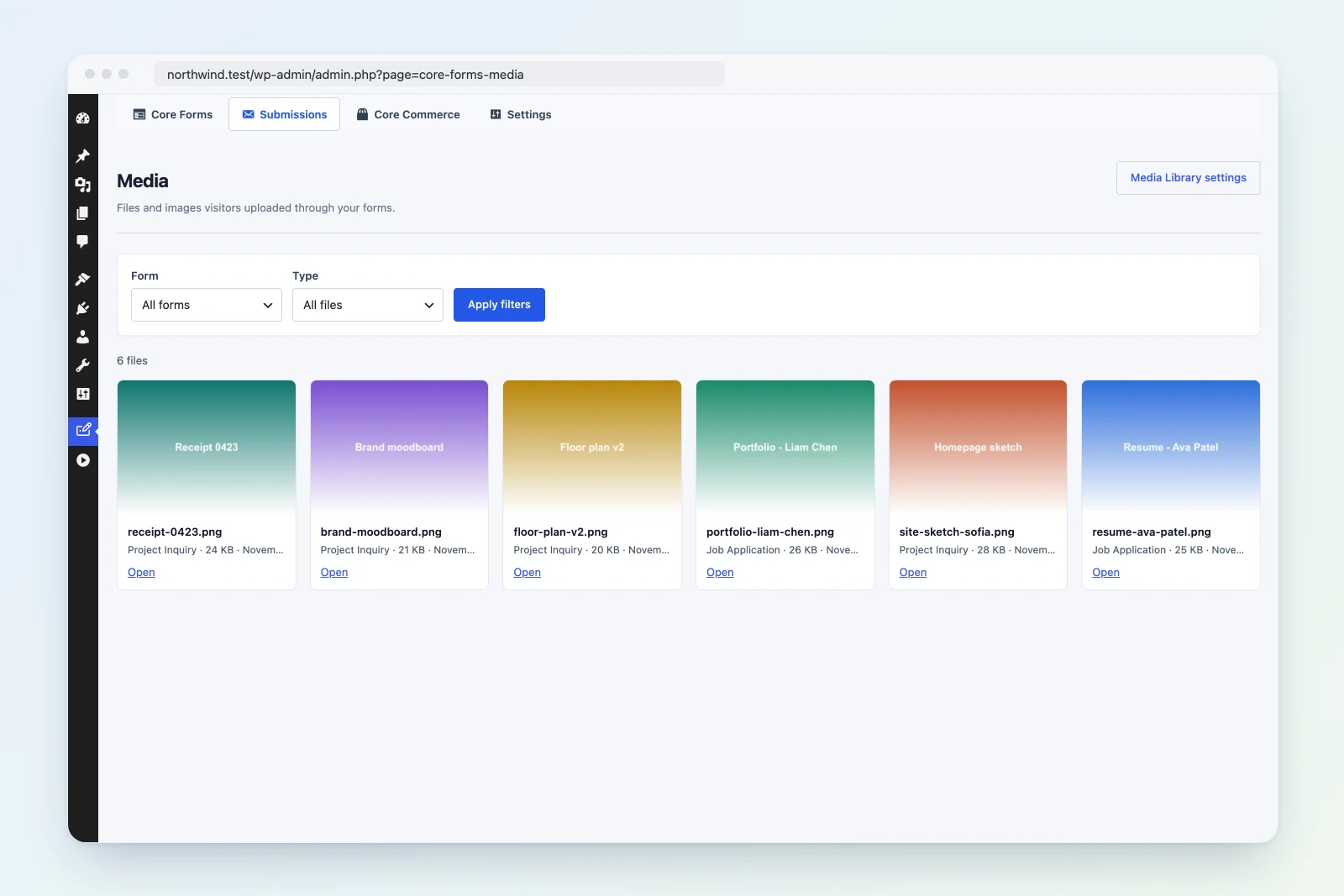
The grid shows the newest uploads first, 40 per page. Each card shows:
- a thumbnail for images, or a file-type icon for documents, audio, video, archives and spreadsheets
- the stored file name, plus the visitor’s original file name when it differs
- the form, the field, the file size and the upload date
- a Private badge when the file is protected
- an Open link, or Download for protected files
- a View submission link that opens the entry the file was sent with
View submission appears when the upload is linked to a saved entry. Files sent through a form that doesn’t save submissions have no entry to link to.
Filter uploads
Use the filters at the top of the screen, then click Apply filters:
- Form: one form, or All forms
- Type: All files, Images, or Documents and other files
Click Clear filters to go back to every upload.
Team members limited to certain forms only see uploads from those forms. See Team Inbox for how form access works.
Protected uploads
Forms with Protected uploads turned on store new files outside the public web root. On the Media screen these cards show a Private badge and a Download link instead of a thumbnail. The download only works for signed-in team members with access to the form. See Privacy and Retention.
Show or hide uploads in the WordPress Media Library
Form uploads are hidden from the WordPress Media Library by default. They don’t appear in Media > Library (grid or list view) or in the media picker inside the post editor. They’re always listed on Core Forms > Media.
To show them in the Media Library too:
- Go to Core Forms > Settings and open the File Uploads section. Administrators can also click Media Library settings on the Media screen.
- Set Media Library to Show form uploads.
- Save the settings.
Choose Hide form uploads to hide them again. The setting only changes where uploads are listed. It doesn’t move or delete any file.
How uploaded files are named
New uploads are named after the form and the field, with a running number and a random code:
{form-slug}-{field-name}-{number}-{code}.{ext}For example, the first resume sent through a form with the slug contact is stored as contact-resume-1-k3f9a2.pdf.
- Underscores in the field name become hyphens, so a field named
cover_lettergivescontact-cover-letter-1-…. - The number counts up for each form and field. It never goes back down, so a deleted file’s name, and any old email link to it, never points at a newer file.
- The random code is six lowercase letters and digits. It stops anyone guessing other uploads’ URLs by changing the number.
- The visitor’s original file name is cleaned and kept with the upload, and it’s shown on the Media card.
Public uploads are stored under wp-content/uploads/core-forms/{form-slug}/. Protected uploads are stored in the private directory instead.
Developers can change the {form-slug}-{field-name} part with the cf_upload_filename_prefix filter:
add_filter( 'cf_upload_filename_prefix', function ( $prefix, $form, $field_name ) {
    return 'upload-' . $form->ID . '-' . sanitize_title( $field_name );
}, 10, 3 );
When an upload doesn’t appear
The Media screen lists uploads that have a WordPress attachment record. Every upload gets one unless a site turns it off with the cf_upload_add_to_media filter. Public uploads stored while that filter returns false aren’t listed on the Media screen. Protected uploads always get an attachment record.