
Drafts and Revisions
Draft publishing lets you change a live form without visitors seeing half-finished work. You save changes to a draft, check them, and publish when they’re ready. Revisions keep complete snapshots of the form, so you can compare, preview and restore earlier versions.
Both live on the form’s Revisions tab.
How draft publishing works
Without draft publishing, every Save Form changes the form visitors see right away. With draft publishing on:
- Saving updates the draft. Visitors keep seeing the published version.
- The published version is used everywhere the form appears: shortcodes, the Core Forms block, standalone pages, headless requests and submissions.
- Admin screens, previews, rehearsals and the authoring API work with the draft.
Forms that never turn on draft publishing keep saving the way they always have.
Turn on draft publishing
- Edit the form and open its Revisions tab.
- In the Publishing card, click Enable draft publishing.
Core Forms takes a snapshot of the form as it is now and makes it the published version. From then on, saves change only the draft.
There’s no switch to turn draft publishing off again. To go live with every save, publish after each save.
Publish a draft
- Make and save your changes on any tab.
- Open the Revisions tab. The Publishing card compares the published markup with the draft side by side, or says “The draft matches the published form.”
- Click Publish draft.
The saved draft becomes the live form: its fields, settings, messages and headless configuration. Unsaved changes on other tabs aren’t included, so save first.
If another form already uses this form’s slug, publishing stops with “This form slug is already in use. Choose another slug before publishing.” Change the slug, save, and publish again.
Discard a draft
Click Discard draft and confirm. The draft goes back to the published version, and your unpublished changes are removed. Core Forms saves a revision first, so you can still restore the discarded work from the revisions list.
Revisions
Each save that changes the form creates a revision. A revision holds the form’s fields, settings, messages and headless configuration, not just its markup.
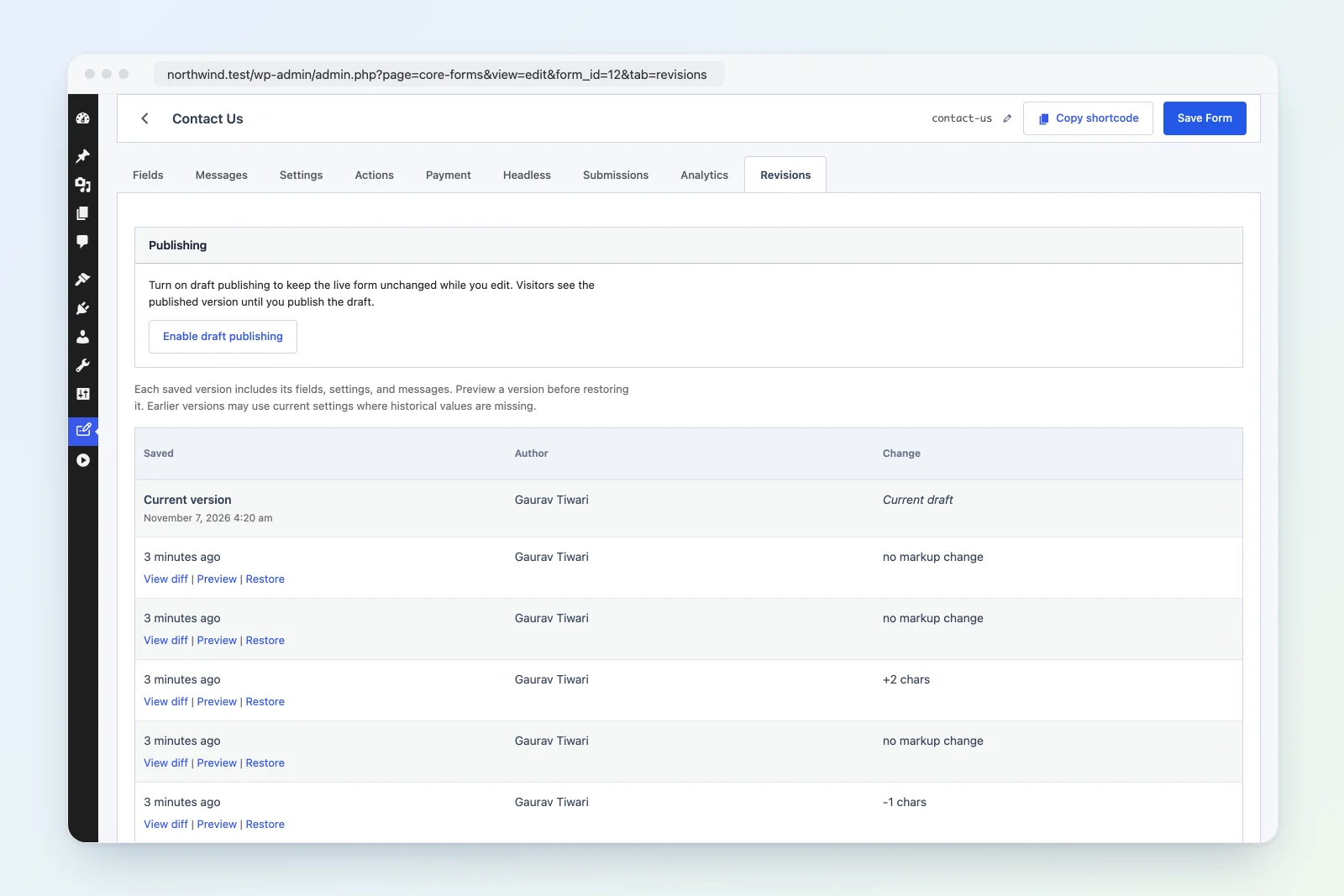
The revisions table lists:
- Current version at the top, with its last-saved date and author.
- Every saved revision, newest first, with how long ago it was saved, who saved it, and a short summary of the change, such as “title changed”, “+120 chars” or “no markup change”.
Older revisions saved before complete snapshots existed may only hold the title and markup. When you preview or restore one of those, Core Forms fills the missing parts with the form’s current values.
Compare versions
Click View diff on a revision to open the WordPress revision comparison in a new tab. It compares the title and form markup as text. Settings and messages aren’t shown field by field there. With draft publishing on, the Publishing card also shows a markup diff between the published form and the draft.
Preview a revision
Click Preview to open that revision as a working form in a new tab. Submitting it runs a rehearsal: you see validation, calculated values and the actions that would run, but nothing is saved, sent or charged. See Rehearsal.
Preview a revision before you restore it.
Restore a revision
- Click Restore on the revision.
- Confirm “Restore this saved version? This replaces your current draft.”
Restoring brings back the revision’s fields, settings and messages. Core Forms saves a revision of the current version first, so a restore can be undone by restoring that one.
- With draft publishing on, the restore replaces the draft. Publish it to make it live.
- Without draft publishing, the restore replaces the form visitors see.
How many revisions are kept
Core Forms uses the WordPress revision limit. The Revisions tab shows how many are kept per form on your site. If revisions are turned off in wp-config.php (WP_POST_REVISIONS set to 0), the tab says so and forms can’t be rolled back until that’s changed.
Protection against overwriting another editor’s work
Every save carries a fingerprint of the complete form as it was when you opened it. If someone else saved the form in the meantime, your save stops instead of overwriting their changes:
This form changed in another editor. Reload before saving.
Reload the form, reapply your changes, and save again. If a save is already running, you see “This form is being saved. Try again.”
The same check covers Save Form, Publish draft, Discard draft and Restore.
For developers: the authoring API
Edit forms through the Core Forms cf/v1 REST API. Write requests to the WordPress wp/v2/core-form routes are refused with a 405 error (“Use the Core Forms /cf/v1/forms API to edit forms.”), except for the Block Editor’s own saves on Block Editor forms.
- Read the form with
GET /wp-json/cf/v1/forms/{id}. The response includes afingerprint. - Send that fingerprint with your edit:
{
  "fingerprint": "the-value-from-the-most-recent-read",
  "markup": "<input name="email" type="email">"
}- Use the fingerprint returned by the edit for your next request.
A 409 response means the form changed since your last read. Fetch it again, reconcile the changes, and retry. A missing fingerprint also returns 409 (“Reload the form before saving.”).
Both the forms collection and the single-form endpoint return the draft. Public shortcodes, submissions and headless requests always use the published form.
Publishing and restoring have their own endpoints, which also take a fingerprint:
| Method | Route | Body |
|---|---|---|
POST |
/wp-json/cf/v1/forms/{id}/publishing |
{ "action": "start" | "publish" | "discard", "fingerprint": "…" } |
POST |
/wp-json/cf/v1/forms/{id}/revisions/{revision}/restore |
{ "fingerprint": "…" } |
start turns on draft publishing, publish makes the draft live, and discard resets the draft to the published version.