
Fullscreen Forms
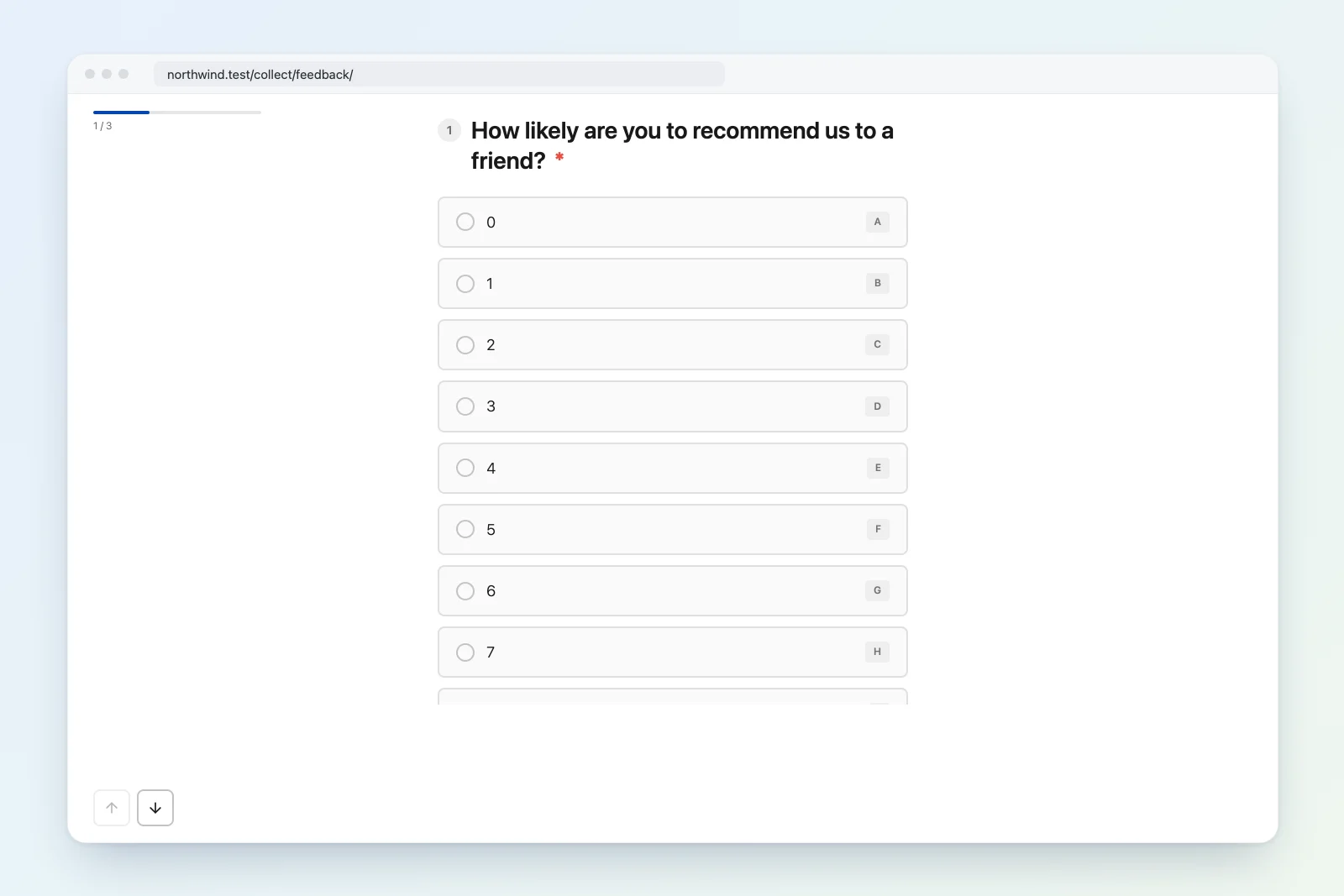
Core Forms includes a Typeform-style fullscreen mode that presents forms one question at a time. This is ideal for surveys, quizzes, multi-step applications, and any form where focused attention improves completion rates.
Enabling Fullscreen Mode
In the form editor, go to Settings and set Display Mode to Fullscreen.
Or set it programmatically:
add_filter( 'cf_form_default_settings', function( $settings ) {
    $settings['display_mode'] = 'fullscreen';
    return $settings;
} );
Settings
| Setting | Default | Options | Description |
|---|---|---|---|
display_mode |
normal |
normal, fullscreen |
Form display mode |
fullscreen_theme |
light |
light, dark |
Color theme |
fullscreen_show_progress |
1 |
1, 0 |
Show progress indicator |
fullscreen_animation |
slide |
slide, fade, none |
Transition animation |
fullscreen_page_title |
(empty) | string | Custom browser tab title |
fullscreen_external_css |
(empty) | URL | External CSS file to load |
fullscreen_external_js |
(empty) | URL | External JS file to load |
standalone_enabled |
0 |
1, 0 |
Publish a dedicated standalone page |
standalone_slug |
form slug | string | Stable public slug, independent of the internal form slug |
standalone_indexable |
0 |
1, 0 |
Allow search indexing; responses remain private and non-cacheable |
Standalone URL
Fullscreen forms can be accessed directly through the configurable standalone route:
https://example.com/collect/your-form-slug/The legacy ?cf-form=your-form-slug URL remains compatible. See Standalone Form Pages for base-slug, indexing, caching, and hook details.
How It Works
- Each
<p>or field wrapper in the form becomes a “step.” - Only one step is visible at a time.
- Users navigate with Enter, Tab, or navigation buttons.
- A progress indicator shows completion percentage.
- On submission, the standard AJAX handler processes the form.
Keyboard
- Enter moves to the next question. On the last question it submits the form.
- In a long-text question (a
<textarea>), Enter also moves on, like every other question. - Shift+Enter adds a line break in a long-text question. A hint under the box says “Shift + Enter for a new line”.
- Ctrl+Down and Ctrl+Up move to the next and previous question.
- On choice questions, press an option’s letter to select it.
On phones and tablets, Enter in a long-text question still adds a line break, because touch keyboards have no Shift+Enter. Visitors move on with the navigation buttons instead, and the Shift+Enter hint is hidden. Core Forms treats a device as touch when its main input has no hover and a coarse pointer.
Themes
Light Theme
Clean white background with dark text. Default theme.
Dark Theme
Dark background with light text. Set via fullscreen_theme setting.
Animations
| Animation | Description |
|---|---|
slide |
Steps slide in from the right, slide out to the left |
fade |
Steps fade in/out with a subtle opacity transition |
none |
Instant transition, no animation |
Progress Indicator
When enabled, a progress bar appears at the top of the screen showing the percentage of fields completed. Disable it by setting fullscreen_show_progress to 0.
Custom Styling
External CSS
Load a custom CSS file by providing a URL in fullscreen_external_css. This is loaded after the default fullscreen styles, so it can override any default styling.
Hooks
Customize the fullscreen page head and footer sections:
// Add custom styles or meta tags to the fullscreen page
add_action( 'cf_fullscreen_head', function() {
    echo '<style>
        body { font-family: "Inter", sans-serif; }
        .cf-fullscreen-step { max-width: 600px; }
    </style>';
} );

// Add custom scripts to the fullscreen page footer
add_action( 'cf_fullscreen_footer', function() {
    echo '<script>
        console.log("Fullscreen form loaded");
    </script>';
} );
Example: Survey Form
<!-- Each paragraph becomes a fullscreen step -->
<p>
    <label for="q1">How did you hear about us?</label>
    <select name="source" id="q1" required>
        <option value="">Select one...</option>
        <option value="google">Google Search</option>
        <option value="social">Social Media</option>
        <option value="referral">Friend/Colleague</option>
        <option value="other">Other</option>
    </select>
</p>

<p>
    <label for="q2">How satisfied are you with our service?</label>
    <input type="range" name="satisfaction" id="q2" min="1" max="10" value="5" />
</p>

<p>
    <label for="q3">Any additional feedback?</label>
    <textarea name="feedback" id="q3" rows="4"></textarea>
</p>

<p>
    <button type="submit">Submit Survey</button>
</p>
With fullscreen mode enabled, each <p> renders as a separate full-page step.
Embedding vs. Standalone
| Mode | URL | Theme Elements |
|---|---|---|
| Embedded | Any page with [cf_form] shortcode |
Uses WordPress theme |
| Standalone | /collect/slug/ |
Clean page, no theme chrome |
Both modes support the same fullscreen settings.