
Team Inbox
The team inbox turns submissions into shared work. Assign an entry to a teammate, leave private notes, set a due date, and save the filters you use every day. Administrators can also limit each team member to the forms they work on.
Assign an entry, add notes and set a due date
Open any entry from a form’s Submissions tab or from All Submissions. The Team card on the entry has these controls:
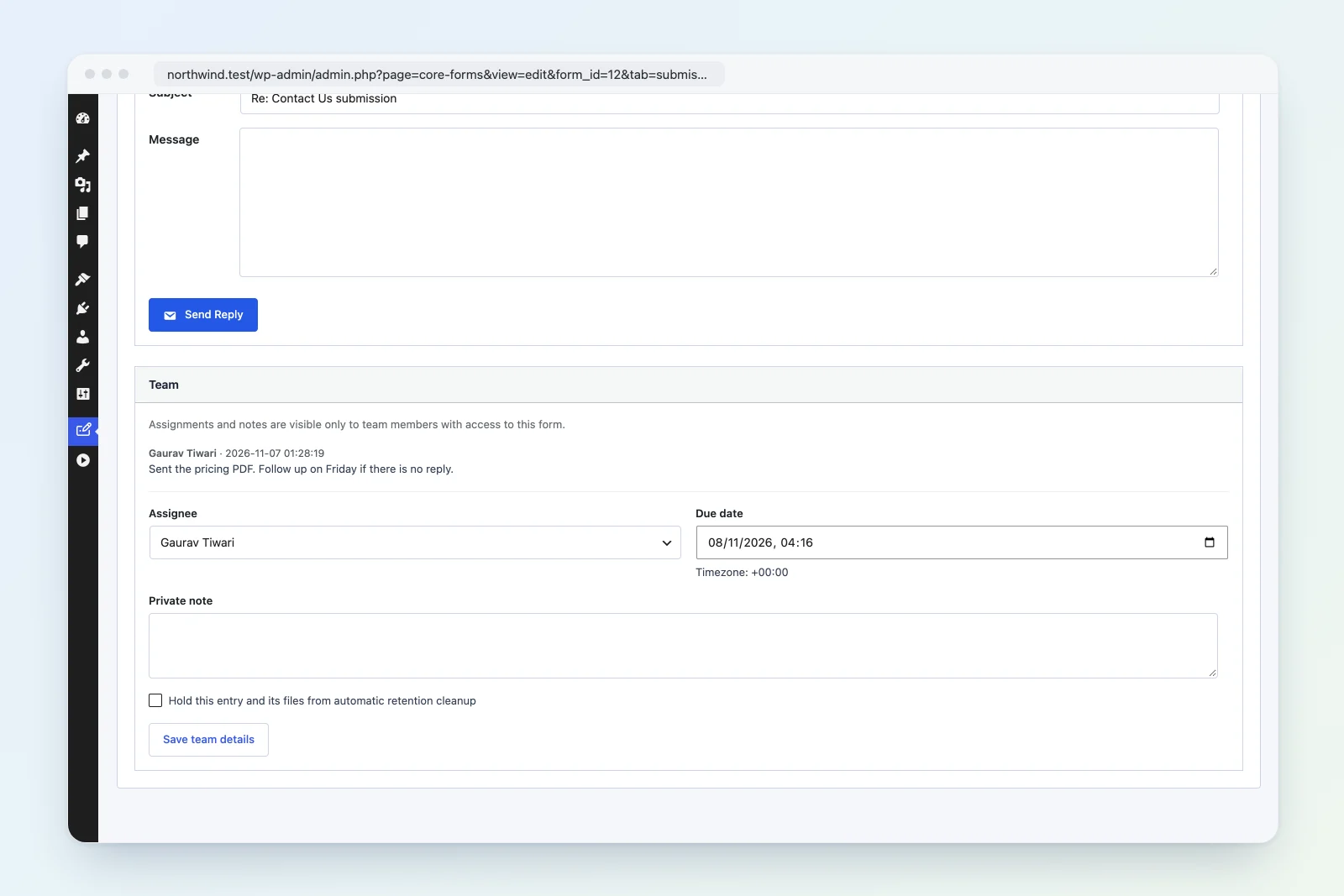
- Assignee: the teammate responsible for the entry, or Unassigned. The list only shows people who have access to this form.
- Due date: a date and time in the site’s timezone, which is shown under the field.
- Private note: a note for your team.
- Hold this entry and its files from automatic retention cleanup: keeps the entry when the form has a retention policy. See Privacy and Retention.
Click Save team details to save all four. To clear an assignment or due date, set Unassigned or empty the date and save.
Private notes
Each saved note is added to the list on the Team card with its author and the time it was added. Notes build up as a history; they can’t be edited or deleted from the card.
Notes are inbox metadata. They’re never added to the submitted answers, so they don’t appear in emails, exports of the entry’s fields, or actions. Only team members with access to the form can see them.
A note can be up to 10,000 characters, and an entry can hold up to 1,000 notes.
When two people edit the same entry
If someone else saves the Team card while you have the entry open, your save stops with “This entry changed. Reload before saving.” Reload the entry and make your change again, so neither person overwrites the other.
Overdue reminders
Once a day, Core Forms emails the assignee of each overdue entry with the subject “A Core Forms entry is overdue” and a link to the entry. The reminder repeats daily until the due date is moved into the future or cleared, or the entry is unassigned. Spam, archived, draft and partial entries are skipped.
Reminders run on WordPress cron. If your site disables WP-Cron, make sure a real cron job calls it, or reminders won’t go out.
Saved views
Go to Core Forms > All Submissions and open Saved views and team access above the list.
Two views are always there:
- Assigned to me: entries assigned to you.
- Overdue: entries whose due date has passed.
To save your own view:
- Set the filters you want on All Submissions: form, status, spam status, search and dates. You can start from Assigned to me or Overdue too.
- Open Saved views and team access.
- Type a name under Save current filters and click Save view.
The view appears as a link next to the built-in ones. Saving again with the same name replaces that view’s filters.
Saved views are personal. Each person has their own list, up to 30 views, and names can be up to 80 characters. On a multisite network, views are kept separately for each site.
Team access
By default, everyone who can edit Core Forms forms can see every form and its entries. Administrators can narrow that per person.
- Go to Core Forms > All Submissions and open Saved views and team access.
- Open Manage team access.
- Choose a Team member. Administrators aren’t listed, since they always have access to every form.
- Check Grant Core Forms access if this person doesn’t have Core Forms access yet.
- Check the forms this person should work on.
- Click Save access scope.
Saving replaces the member’s form access with exactly the forms you checked. Saving with no forms checked leaves them with access to none.
What access covers
Access to a form includes everything attached to it. A team member limited to certain forms can only reach those forms and their:
- entries, on the form’s Submissions tab and on All Submissions
- uploads on Core Forms > Media, and protected file downloads
- email logs, action logs and analytics
- revisions, previews and rehearsals
- Core Forms REST endpoints, plus the WordPress
wp/v2/core-formroutes
The assignee list on an entry only offers people who can access that form, and an assignment to someone without access is refused.
When a limited team member creates a new form, it’s added to their access automatically.
Access is stored per site. On a multisite network, a person can have different form access on each site.