
 by
by
A recording with room echo, a humming fan or a guest on a laptop mic is hard to listen to, and re-recording the whole episode costs more time than the episode is worth. Adobe Podcast fixes most of that after the fact: its Enhance Speech tool cleans up speech recordings, and Studio lets you record and edit podcasts in your browser.
I’d try the free plan for short recordings, then consider Premium if you need longer files, video enhancement or control over the enhancement strength.
I’ve used Adobe Podcast for a long time, and Enhance Speech has been useful to me. I recommend comparing its result with your original recording before deciding whether it belongs in your routine.
Quick Verdict
I’d try Adobe Podcast if room noise or echo makes your speech recording difficult to follow. Enhance Speech can reduce that noise, and Studio gives you browser recording with separate speaker tracks. The free limits suit shorter episodes and let you judge the result before paying.
Premium is worth considering when you regularly hit the free limits or need video enhancement, bulk uploads or strength controls. Adobe includes Podcast Premium in Firefly Pro, which also includes premium Adobe Express features. I’d compare the bundle’s price with the features you’ll actually use.
If your recording already sounds clean, compare the enhanced version before replacing it. For detailed mixing and finishing, I’d use a dedicated audio editor. Adobe Podcast also needs an internet connection, so you’ll need another option for work that must stay offline.
What Adobe Podcast Is
Adobe Podcast includes these tools for recording and preparing spoken audio:
- Enhance Speech, now in its second version, takes an audio file, or a video file on premium, and returns the speech with background noise, echo and background music removed. It is the tool most people mean by Adobe Podcast.
- Studio records you and remote guests in the browser, each on a separate 16-bit 48 kHz WAV track, transcribes the recording with the same engine Adobe uses in Premiere Pro, and lets you cut the audio by editing the transcript. It adds royalty-free music and exports audio, video or captions. It still carries a beta label.
- Mic Check, the setup tool that listened to 30 seconds of you talking and flagged gain, distance and room echo, is being retired. Adobe now points people to Enhance Speech to fix those problems after recording.
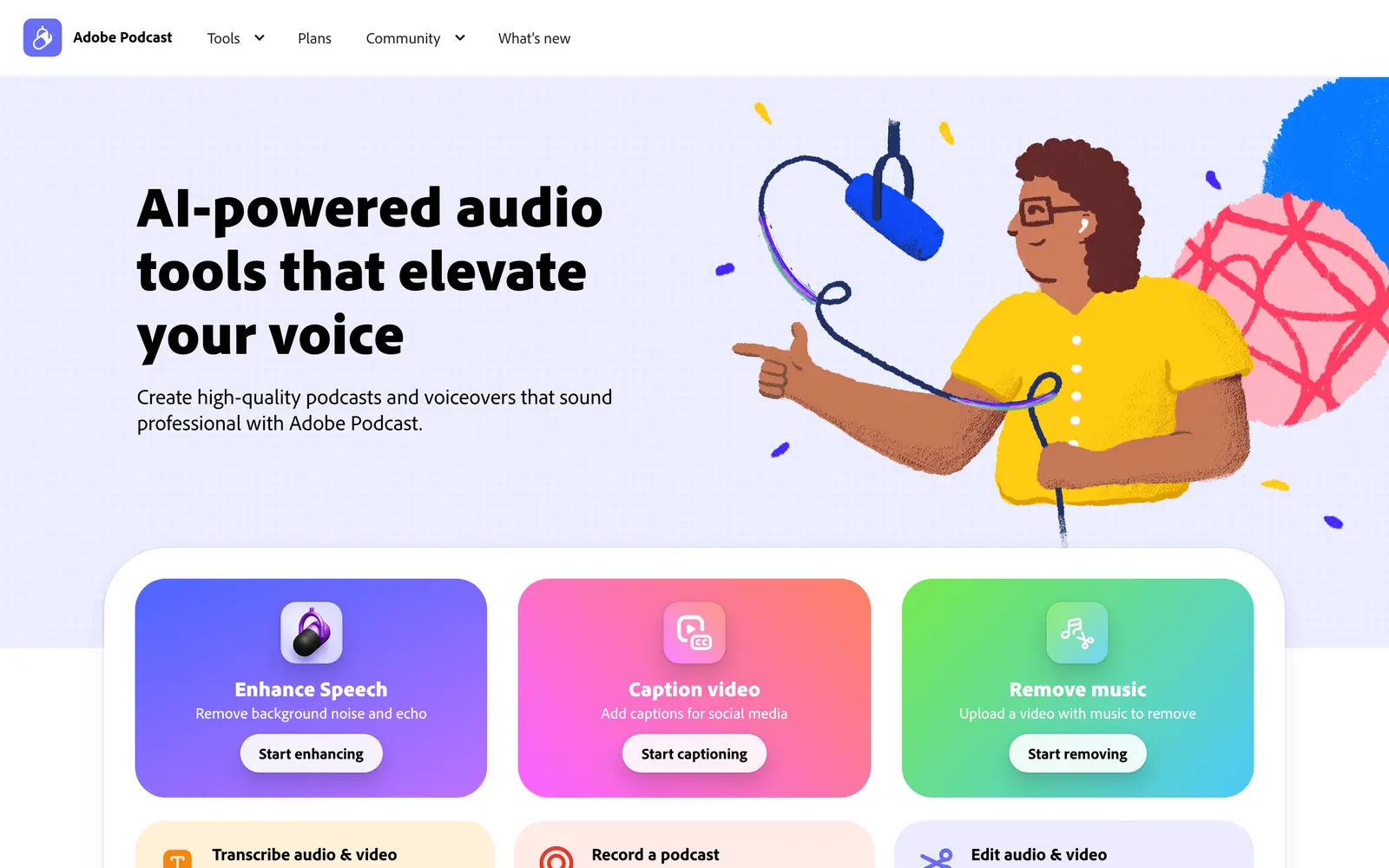
Everything runs in a browser against Adobe’s servers, so there is nothing to install and nothing works without an internet connection. A free Adobe account is enough to use Enhance Speech and Studio within the free limits.
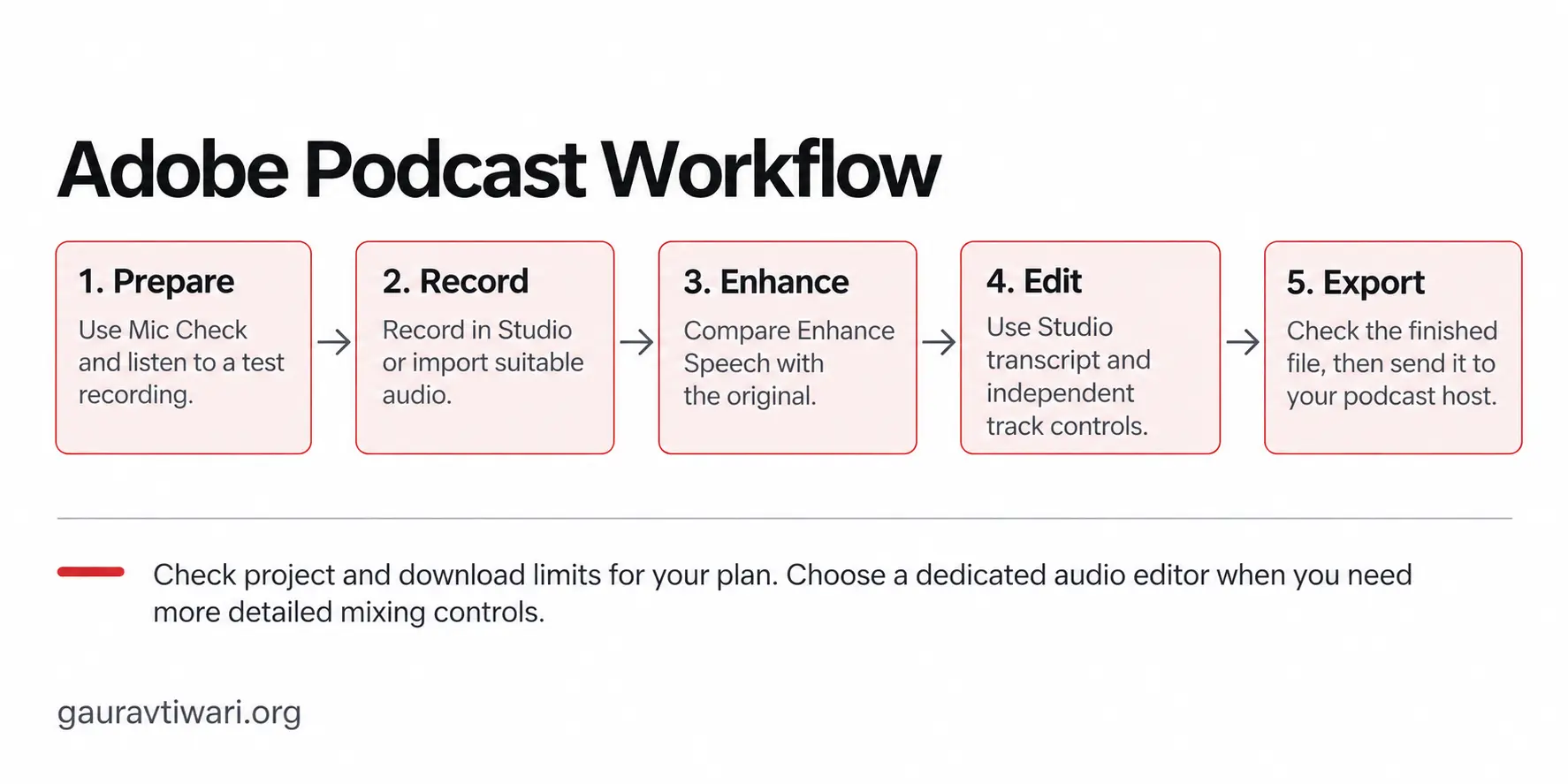
You can use Adobe Podcast for recording, cleanup and transcript-based editing. You’ll still need a podcast hosting platform to manage your feed and distribution. For a layered episode, allow time for the mixing and finishing your show needs.
Adobe Podcast Free vs Premium
The free plan has ongoing usage limits. I would check these against the length and number of recordings you expect to process; Adobe lists them on its plans page.
| What you get | Free plan | Premium, via Adobe Firefly Pro |
|---|---|---|
| Enhance Speech input | Audio only | Audio and video, including MP4 and MOV |
| Maximum file duration | 30 minutes | 2 hours |
| Maximum file size | 500 MB | 1 GB |
| Enhanced speech per day | 1 hour | 4 hours |
| Strength control | None, one setting | Separate sliders for speech, music and ambience |
| Bulk upload | 1 file at a time | Multiple files in an automatic queue |
| Studio remote recording | Unlimited | Unlimited |
| Studio project duration | Up to 30 minutes | Up to 2 hours |
| Studio downloads | 2 projects a day | Unlimited |
| Original, speaker-separated recordings | Not downloadable | Downloadable |
| Transcription and transcript editing | Included | Included |
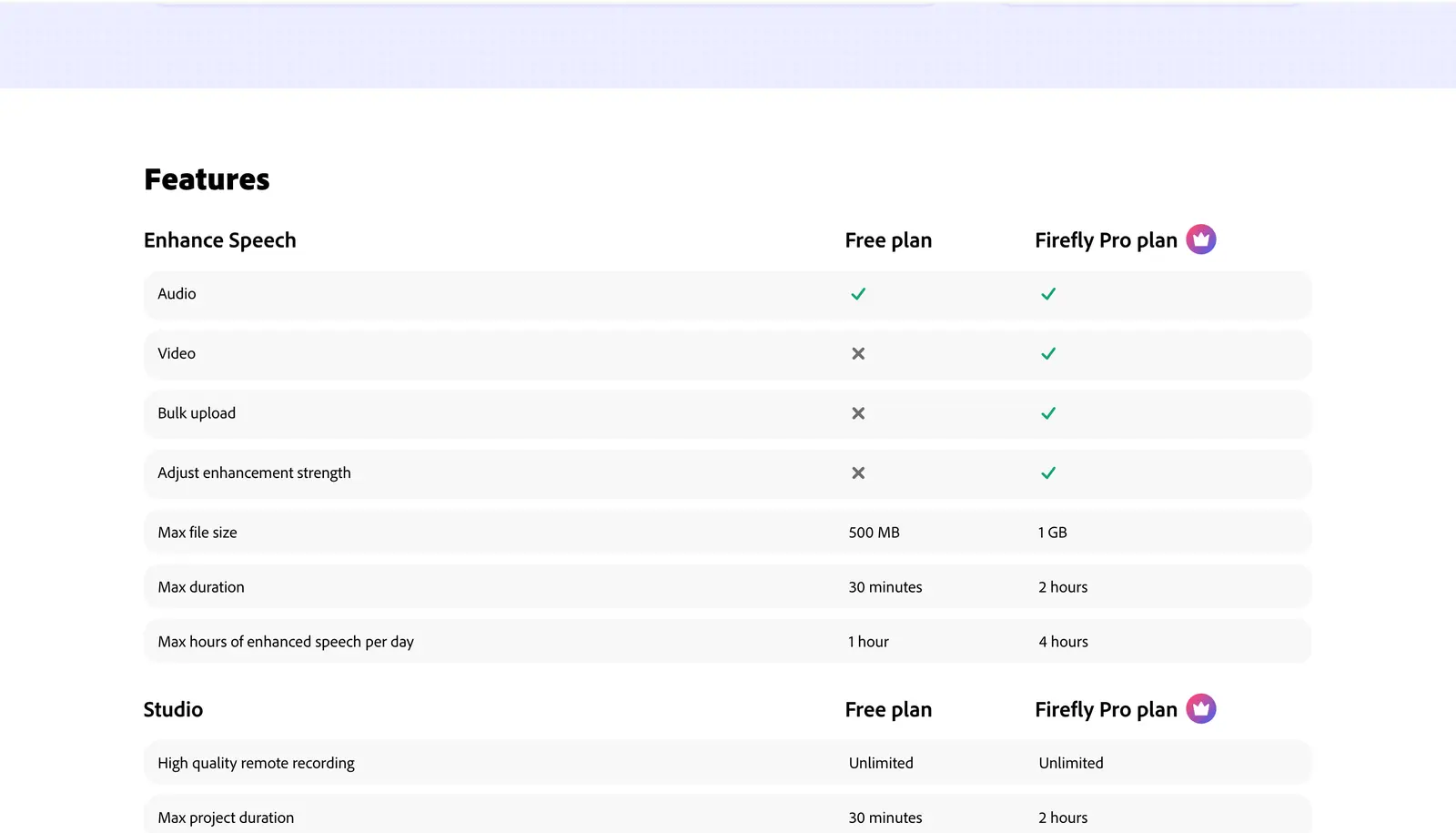
A 40-minute recording can fit the free Enhance Speech allowance if you split it into files of 30 minutes or less and stay within the 1-hour daily total. Studio has a separate 30-minute project limit, so you can’t treat that as one free 40-minute Studio project. I’d check both limits before choosing the free workflow, then compare your account’s regional Firefly Pro price if you need Premium.
Enhance Speech
Enhance Speech is why the product exists. You upload a file, wait anywhere from a few seconds to about 10 minutes depending on length and queue, preview the result against the original, and download a WAV. It accepts WAV, MP3, M4A, AAC, FLAC and OGG on the free plan and adds MP4 and MOV video on premium, and it always returns the speech as a new file rather than editing yours.
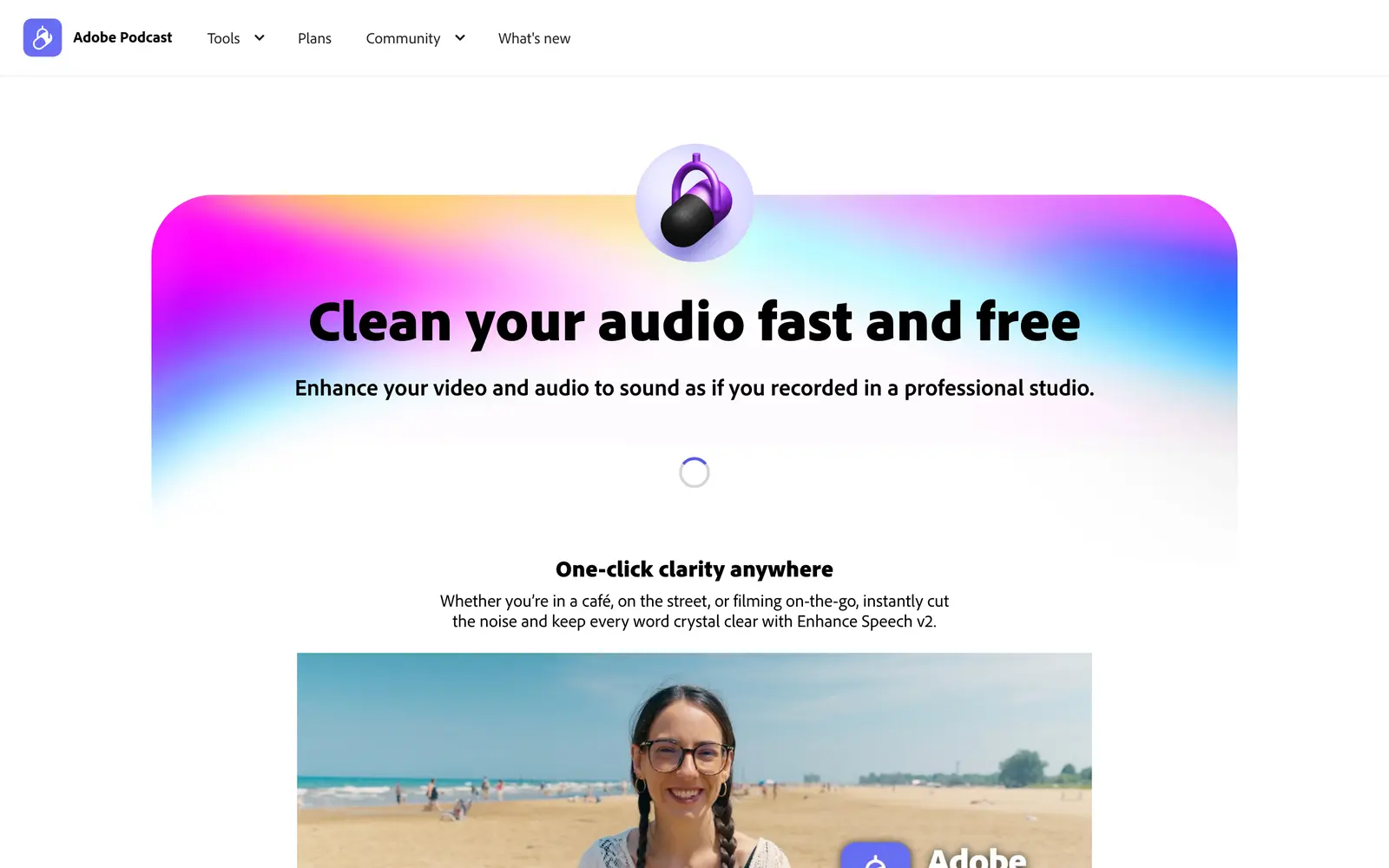
Adobe describes Enhance Speech as filtering noise and artifacts, adjusting pitch and volume, and normalizing audio. The result depends on how clearly the microphone captured the speaker and how much background noise is present. I would give it the cleanest recording you can make, even when you expect to use enhancement afterward.
On Premium, the enhancement has separate controls for speech and background, and the March 2026 update added a music slider and stem downloads. That turns it into a mixing tool as well as a rescue tool: a music bed baked into the recording can be lowered instead of removed, and the speech, background noise and music can be downloaded as separate stems for another editor. On the free plan there is 1 setting and no slider.
Enhancement can change the sound of your voice as well as reduce noise. Listen for words that become muffled, unnatural tone and distracting sounds in pauses. On Premium, try a lower strength if the result sounds over-processed. On the free plan, keep the original if you prefer it.
I’d compare a short section before processing an entire interview. Check a passage with speech and a quiet gap so you can hear both clarity and background noise. Keep the version that sounds more natural and is easier to understand.
Studio
Studio is the recording and editing half, and it is more capable than most people expect from a free browser tool. You start a project, invite guests with a link that needs no Adobe account, and Studio records every participant on their own 16-bit 48 kHz WAV track locally, so a guest’s bad connection does not put dropouts into the recording. It imports multitrack recordings from Zoom, Restream, StreamYard and Riverside if you recorded elsewhere. Remote recording works in desktop Chrome, which is worth telling a guest before the session.
After the recording, Studio transcribes it and the transcript becomes the editor: select a sentence and delete it, and the audio goes with it. Enhance Speech runs on the whole project, since it can’t yet be applied to one speaker on their own, and a library of royalty-free intros, outros and beds sits alongside. The export goes out as MP3 or WAV audio, as video with captions, or as a transcript in PDF, DOCX or TXT, and Premium adds a separate track for each speaker. Transcription covers 7 languages: English, French, German, Hindi, Italian, Portuguese and Spanish.
The free plan limits Studio projects to 30 minutes and 2 downloads a day, with no original-recording downloads. Premium allows projects up to 2 hours, unlimited downloads and access to the speaker-separated originals. Studio supports multitrack imports and transcript-based editing; for detailed EQ, loudness work or a complex mix, I’d plan a separate finishing step.
I’d use Studio for a solo show, an interview or a lecture that mainly needs recording and transcript edits. If you need a more detailed production workflow, compare the podcast recording apps before deciding which parts to do in Studio.
Where Adobe Podcast Falls Short
These are the limitations I’d weigh against your recording needs:
- Over-processing: enhancement can make a voice sound less natural. Compare it with your original; the free plan has no strength adjustment.
- Unwanted artifacts: listen for muffled words and distracting sounds around edits or pauses. Keep the original available if a processed section needs replacing.
- Cloud only. Every file is uploaded, every result is downloaded, and nothing works offline or on a slow connection. Confidential recordings need the same thought any cloud upload does.
- Free plan walls. 30-minute files, 1 hour a day, 2 Studio downloads a day and no original recordings are generous for a hobby show and a hard stop for a daily one.
- Premium is a bundle. Podcast Premium comes inside the Firefly Pro plan, so someone who wants only the slider and the video support pays for a wider Adobe plan they may never open.
- Finishing an episode: Studio supports separate tracks and transcript edits. Check whether its controls cover your mix and export requirements before relying on it for the entire production. Check language support for the transcription you need.
- No publishing. There is no feed, no directory submission and no download statistics, so a host is still on the shopping list.
For me, the deciding test is whether the enhanced recording is easier to understand without changing the voice in a distracting way. The preview lets you make that comparison.
Adobe Podcast vs the Alternatives
I’d choose an alternative based on the job you still need to do, such as editing an episode, balancing levels or cleaning a live call:
| Tool | What it does that Adobe Podcast does not | Choose it when |
|---|---|---|
| Descript | A full text-based editor with its own Studio Sound cleanup, filler-word removal, screen recording and video editing, on a subscription | You want to record, clean and cut the whole episode in one place and will pay monthly for it |
| Auphonic | Leveling between speakers, loudness targets for each platform, hum and noise reduction, with a free monthly allowance | Your problem is uneven levels and loudness rather than room noise |
| Krisp | Removes noise live during calls and meetings, on your machine | You need the call itself to be clean, not the recording afterwards |
| ElevenLabs Voice Isolator | Upload-based voice isolation from an AI voice company | You want a second opinion on a file Enhance Speech over-processed |
| Audacity | Free, offline, manual noise reduction from a room-tone profile plus EQ and compression | You want full control, no upload, and can spare 10 minutes per file |
| GarageBand or Adobe Audition | Real multitrack editing and mixing | The episode needs a mix, not a cleanup |
Most working setups use 2 of these: Adobe Podcast or Descript to clean the speech, and an editor or Auphonic to level and finish it. The roundup of the best AI noise cancellation software goes deeper on the live-call tools, which solve a different problem from the one this review is about.
Who Should Use Adobe Podcast
I would choose the plan around your recording length, file types and editing needs:
- Use the free plan if you record a weekly show under an hour with remote guests on ordinary microphones, or you make lectures, voiceovers or interviews on a laptop mic and want them to stop sounding like the room. Split anything over 30 minutes before uploading.
- Pay for premium if you enhance video, run a daily show or a batch of episodes at once, need files longer than 30 minutes handled in one pass, or your voice comes back over-processed and you need the sliders. Count the rest of the Firefly Pro bundle as either a bonus or a cost.
- Choose another workflow if recordings must stay on your machine or you need editing controls Adobe Podcast doesn’t provide. If your audio already sounds clean, compare a sample before adding enhancement to the routine.
Before paying, I’d try the free plan on a few representative recordings and compare the previews with the originals. Upgrade when you can name the limit or control that is holding up your work.
How to Get the Most From Enhance Speech
I’d use these checks to keep the enhanced recording sounding natural:
Reduce avoidable room noise before recording and use soft furnishings where they help with echo. You can move away from a noisy appliance or close a window before asking software to clean up the result.
I recommend a 30-second test recording before every session. Listen back on headphones and adjust gain and microphone distance before you record the whole episode, since Adobe’s Mic Check tool is on its way out.
I’d enhance the speech tracks before adding music and effects when you have them separately. For a recording with music already mixed in, Premium’s separate controls let you adjust that layer; listen to the result before using it.
Compare the preview with your original on headphones at several points, including a quiet gap. On Premium, adjust the strength while listening. I wouldn’t assume one slider position will work for every voice and recording.
Keep your original file. You may want to try a different strength or replace a processed section after listening on another device.
The Limits
A preview of your own recording is the best way to judge whether Enhance Speech helps your voice and room. The plan comparison describes Adobe’s published allowances; it cannot predict how natural every processed recording will sound.
The limits change. Since August 30, 2026, Adobe no longer sells Podcast Premium on its own: new buyers get it through Firefly Pro, and existing subscribers keep their plan. The music slider and stems arrived in March 2026, so the plans page inside your account outranks this table if the two ever disagree.
What Quietly Ruins a Recording
I’d improve the room and microphone setup even when I plan to enhance the audio. Clearer speech gives the software a better starting recording.
If you have separate music and speech tracks, keep the music out of the speech-cleanup step. If they’re already mixed, check how the enhancement affects the music as well as the voice.
Downloading without listening to the preview. The muffled second at the start of a clip is invisible in a waveform and obvious in headphones, and it is far cheaper to catch before the edit than after.
Treating the enhanced file as the master. Enhancement is not mastering, so an episode still needs leveling to a loudness target, and the enhanced file is a copy you may want to redo.
Check the free plan’s 30-minute file limit before uploading a 45-minute recording. If you split the file, keep the combined duration within your daily allowance.
Deleting the original once the enhanced version sounds fine on a laptop. It sounds different on a phone speaker, and by then the original is gone.
FAQs on Adobe Podcast
Is Adobe Podcast free?
Yes, with limits. The free plan gives you Enhance Speech for audio files up to 30 minutes and 500 MB, 1 hour of enhancement a day, and Studio recording with projects up to 30 minutes and 2 downloads a day. You need a free Adobe account. Video files, bulk uploads, the strength slider, longer files and unlimited Studio downloads need the premium plan, which Adobe now sells as part of its Firefly Pro plan.
Does Adobe Podcast Enhance Speech work on video?
Only on the premium plan. Free accounts can enhance audio files in formats such as WAV, MP3, M4A, AAC, FLAC and OGG. Premium accounts can upload MP4 and MOV video, get the enhanced audio back on the video, and process several files in a queue.
Why does Enhance Speech make my voice sound robotic?
Enhancement can alter a voice’s tone as it reduces noise and adjusts the audio. Compare the result with your original, especially around quiet speech and pauses. On Premium, try a lower strength if it sounds over-processed. I’d keep the original whenever it sounds clearer or more natural.
Can I record a podcast with remote guests in Adobe Podcast?
Yes. Studio records you and remote guests in the browser, with separate speaker tracks. WAV exports use 16-bit audio at 48 kHz. The free plan limits projects to 30 minutes and 2 downloads a day, with no original-recording downloads. Premium allows projects up to 2 hours, unlimited downloads and speaker-separated originals.
Is Adobe Podcast better than Descript?
I’d try Adobe Podcast first when you mainly need speech cleanup within its free limits. Descript may suit you better if you want broader transcript-based audio and video editing, including filler-word removal. Compare the controls you need and try the same recording before deciding which result you prefer.
Does Adobe Podcast store my recordings?
Files are uploaded to Adobe’s servers for processing and Studio projects live in your Adobe account, so nothing runs offline. Treat it like any cloud tool: keep your own original files, and download enhanced results and Studio exports rather than relying on the project staying available.
Final Remarks
I’d start by improving what the microphone captures, recording speakers on separate tracks when possible and keeping every original. Those choices give you more room to correct a problem later.
Keep the cleanup checklist beside your microphone if you want a reminder of the room checks and the final listen before publishing.
Tell Google you want more of this.
Add Gaurav Tiwari as a preferred sourceOne tap, and this site shows up more often in your own Top Stories, AI Overviews and AI Mode. Remove it any time.