
 by
byThe best Adobe Acrobat alternatives are PDF24 Creator for Windows, Apple Preview for everyday Mac work, PDFgear when you need text editing or OCR, and Stirling PDF when files must stay under your control. None is the universal winner. The right replacement depends on the first feature you can’t afford to lose.
That boundary matters because “free PDF editor” can mean four different things: a reader that adds notes, a page organizer, a browser tool with daily limits, or a desktop editor that can change existing text. Treating those as equivalent is how you finish the work and discover the export is capped, watermarked, or missing the edit you needed.
This comparison ranks current products by editing depth, free-tier restrictions, local processing, platform support, and the cost of reaching a full editor. Performance isn’t scored without matched files and published outputs.
Best Adobe Acrobat alternatives at a glance
If you only need a decision, use the operating system and job in front of you. These are the four picks that cover the clearest use cases.
Windows: PDF24 Creator is the strongest genuinely free desktop replacement. It works offline, has no advertised usage limits, and is free for private and commercial use.
Mac: Apple Preview already handles signatures, forms, annotations, page reordering, merging, and password protection. It cannot edit existing PDF text.
Text editing and OCR: PDFgear is the practical free step-up on Windows or macOS when Preview and Edge stop at markup.
Private or self-hosted work: Stirling PDF gives you desktop and self-hosted routes, so local control isn’t an afterthought.
| Tool | Best fit | Free boundary | Platform | Main catch |
|---|---|---|---|---|
| PDF24 Creator | Full free desktop toolkit | No advertised task limits | Windows | No Mac desktop app |
| Apple Preview | Forms, signatures, markup, pages | Built into macOS | Mac | Can’t edit existing text |
| PDFgear | Free text editing and OCR | Current desktop tools are free | Windows, Mac, mobile, web | No Linux app |
| Stirling PDF | Local and self-hosted workflows | Free plan/self-hosting available | Windows, Mac, Linux, Docker | Some advanced tools need extra components |
| Foxit PDF Reader | Familiar reading and forms | Reader is free | Windows, Mac, mobile, web | PDF Editor is paid |
| Sejda Desktop | Occasional editing | 3 tasks/day, 50 MB, 200 pages | Windows, Mac, Linux | Limits arrive quickly |
| Smallpdf | Polished browser workflow | Limited downloads and daily use | Web, Windows, mobile | Text editing and unrestricted OCR need Pro |
| iLovePDF | Batch web utilities | Limited document processing | Web | Desktop/mobile access is Premium |
| Xodo | Cross-platform professional editor | Short trial, then paid | Web, Windows, Mac, Linux, mobile | Not a lasting free replacement |
| PDFsam Basic | Merge, split, rotate, extract | Free and open source | Windows, Mac, Linux | Not a content editor |
| LibreOffice Draw | Small object or text corrections | Free and open source | Windows, Mac, Linux | Complex layouts can shift |
| Microsoft Edge | Quick markup and form filling | Built into Windows | Windows, Mac | Not an underlying-text editor |
The boundaries that matter before replacing Acrobat
A replacement is only cheaper when it completes the whole job. Check these boundaries before moving a real document into a new tool.
- Edit existing text or add new text? Apple Preview and Microsoft Edge can add text boxes, signatures, and annotations. They do not rewrite the text already embedded in a PDF. PDFgear, Acrobat Pro, Xodo PDF Studio, and Master PDF Editor are content editors.
- Local file or browser upload? PDF24 Creator, Preview, PDFgear desktop, PDFsam Basic, and local Stirling PDF workflows keep the document on the device. Browser tools may upload the file for processing, even when the vendor deletes it later.
- One task or a working day? Sejda, Smallpdf, and iLovePDF are useful for occasional jobs. Their free limits are the product boundary, not a footnote.
- Does the saved file still behave correctly? Forms, fonts, links, signatures, layers, and page boxes can survive a visual check while breaking downstream. Open the exported file in a second reader and verify the functions you depend on.
Use a copy of a real file as the acceptance test. A blank sample PDF proves almost nothing about font substitution, form behavior, OCR, or how your documents export.
What Acrobat Pro costs and when it still makes sense
Adobe Acrobat Pro currently costs $19.99 per month on a US annual plan billed monthly, or $239.88 per year when prepaid. The month-to-month plan is $29.99. Adobe lists the current plan details here.
That price is hard to justify for merging invoices or signing a few forms. It becomes easier to defend when PDF work is part of the operating system of the business.
- Choose Acrobat when you need Adobe’s accessibility checker, advanced redaction and sanitization, print-production controls, or a managed Adobe document workflow.
- Choose Acrobat when coworkers, clients, templates, and approvals already depend on Acrobat-specific behavior. Compatibility has a value, even when the feature exists elsewhere.
- Choose a smaller tool when the recurring job is annotation, page organization, compression, conversion, basic forms, or occasional OCR.
Don’t use a generic recommendation as compliance advice. If a document is regulated or a signature workflow has legal requirements, validate the vendor, retention policy, audit trail, and contract for your jurisdiction and organization.
Best free and low-cost Adobe Acrobat alternatives
The entries below are ordered by usefulness, not by the number of features on a pricing page. Each one has a job it handles well and a boundary you should see before installing it.
PDF24 Creator: Best free PDF editor for Windows
PDF24 Creator is the cleanest recommendation for a Windows user who wants a broad desktop toolkit without a subscription. It covers editing, merging, splitting, compression, conversion, OCR, signing, and page work in one offline app.
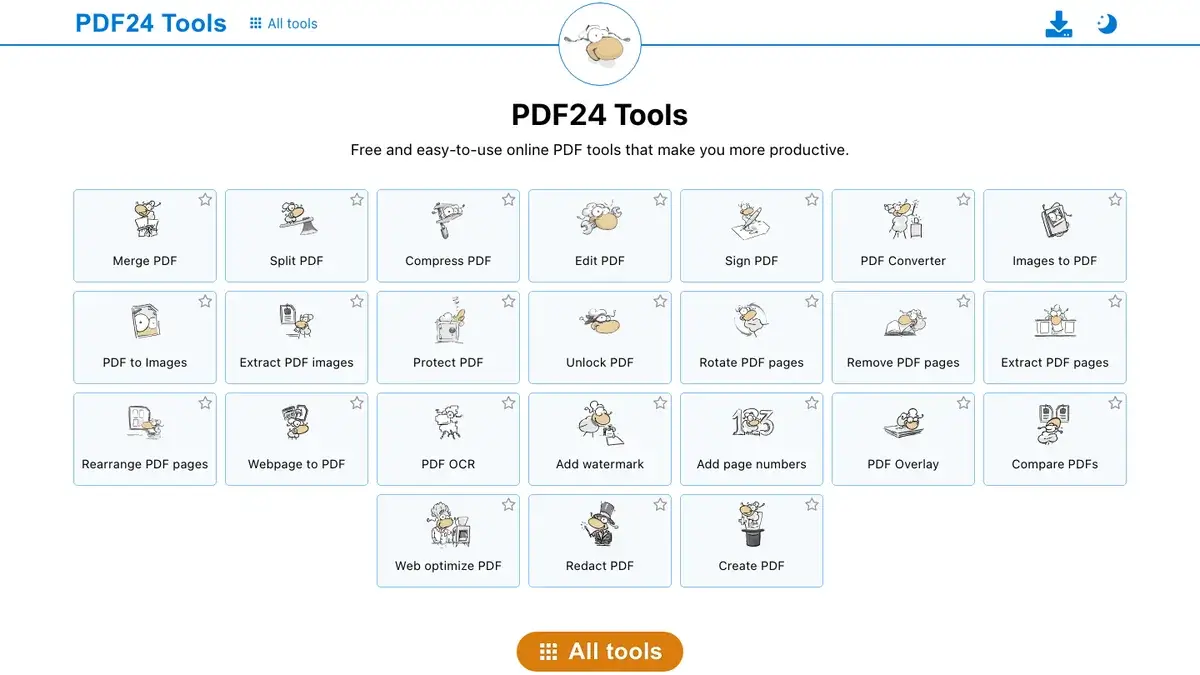
- Free boundary: PDF24 says Creator is free, has no usage restrictions, and can be used privately or commercially.
- Privacy: The desktop app works offline. PDF24 says files uploaded to its online tools are deleted automatically after one hour and processed on servers in Germany.
- Main catch: Creator is Windows-only. Mac and Linux users can use the web tools, but that changes the privacy model.
This is the first option I’d install on a Windows machine. The interface is utilitarian, but the product doesn’t turn ordinary PDF chores into a sequence of upgrade prompts. For a narrower job, the free guide to reducing PDF file size may be all you need.
Apple Preview: Best built-in PDF editor for Mac basics
Apple Preview should be the first stop on a Mac because it already handles the jobs people often install a PDF app for. You can fill and sign forms, annotate, combine files, add or remove pages, reorder pages, redact visible text, reduce file size, and add a password.
- Free boundary: It is included with macOS and has no separate usage cap.
- Main catch: Apple states that Preview cannot edit the existing text of a PDF. Adding a text box is not the same operation.
- Upgrade path: Use PDFgear for a free content editor. If you want a more polished paid Apple workflow, PDF Expert is the cleaner step up.
Preview wins by being enough. Installing a larger editor before you hit its text-editing boundary only adds another subscription decision to a job macOS already completes.
PDFgear: Best free option for text editing and OCR
PDFgear fills the gap between a capable reader and a full paid editor. Its desktop apps can change text and images, run OCR, annotate, organize pages, convert files, and work with forms.
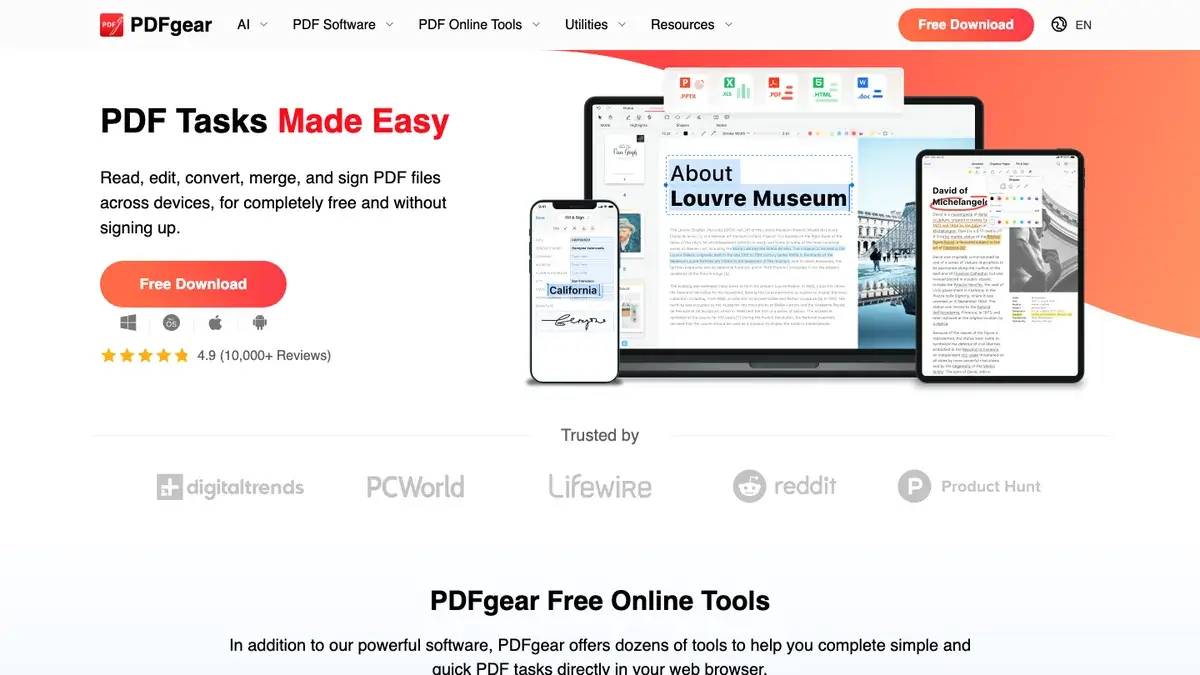
- Free boundary: PDFgear currently advertises the editor as free, with no premium version, file-count limit, or file-size restriction on the Windows product page.
- Best fit: Mac and Windows users who have moved beyond markup and need OCR or existing-text edits.
- Main catch: The current free model is a vendor policy, not a guarantee that pricing can never change. There is no Linux desktop app.
PDFgear is the better answer than pretending Preview or Edge is a complete editor. The distinction is small until the first time you need to correct a name inside an existing paragraph.
Stirling PDF: Best privacy-first and self-hosted option
Stirling PDF is an open-source PDF workspace with more than 60 tools, native desktop apps, and a self-hosted server route. It is the strongest choice here when control over file processing matters more than a consumer-polished interface.
- Local control: The desktop application can process files locally, and the self-hosted edition keeps the service inside infrastructure you manage.
- Best fit: Teams that want a shared internal PDF toolbox, Linux users, and technical users who prefer Docker or their own server.
- Main catch: Stirling documents that advanced OCR and some Office conversions may require extra components, server mode, or a connected Stirling service.
Self-hosting isn’t a magic security badge. You still own patching, access controls, backups, and logs. What it does give you is a privacy boundary you can inspect instead of merely accepting an upload promise.
Foxit PDF Reader: Best familiar reader, not a free editor
Foxit PDF Reader feels familiar to anyone coming from Acrobat Reader. It is suitable for viewing, commenting, form filling, and signing, with desktop and mobile options.
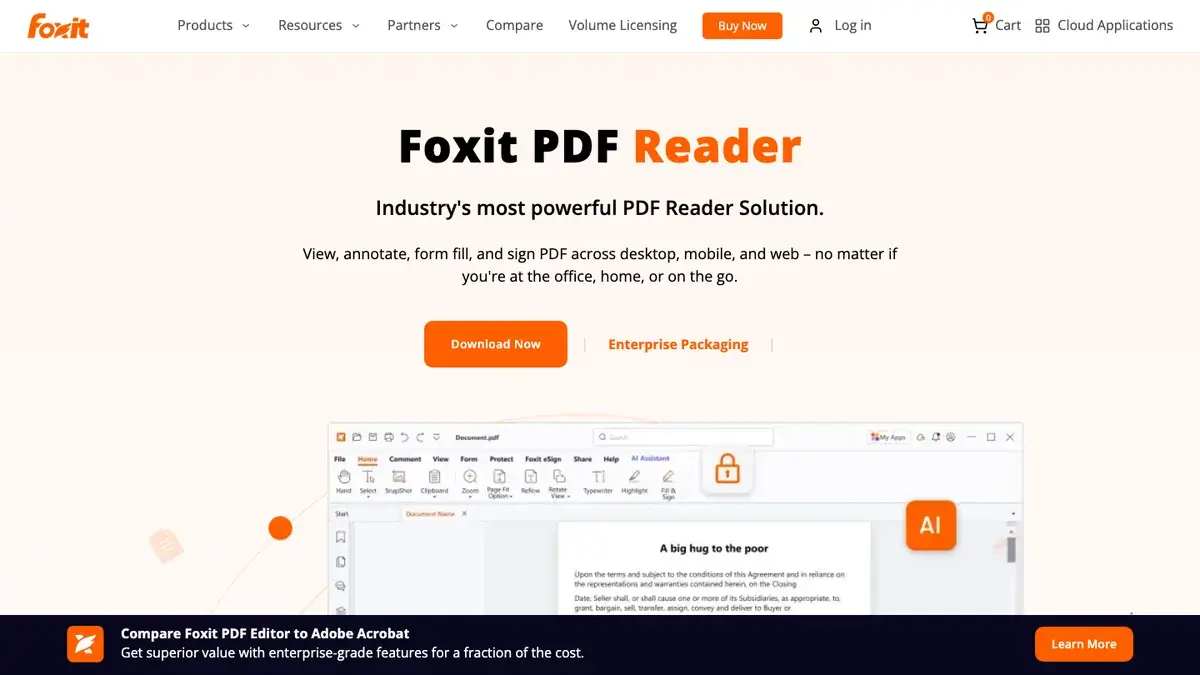
- Free boundary: Foxit says PDF Reader is its only completely free product.
- Main catch: Foxit PDF Editor is a separate paid product. Reader should not be compared with free tools that edit existing PDF content.
- Best fit: People who want an Acrobat-like reader and do not need a full free editor.
Foxit is popular because the interface and product family feel established. That doesn’t make the free reader a better Acrobat Pro replacement than PDF24 or PDFgear. It makes it a familiar Acrobat Reader alternative.
Sejda: Best for occasional browser or desktop editing
Sejda PDF Desktop combines a friendly editor with clear free limits. It can edit text, annotate, sign, organize pages, convert files, and run OCR.
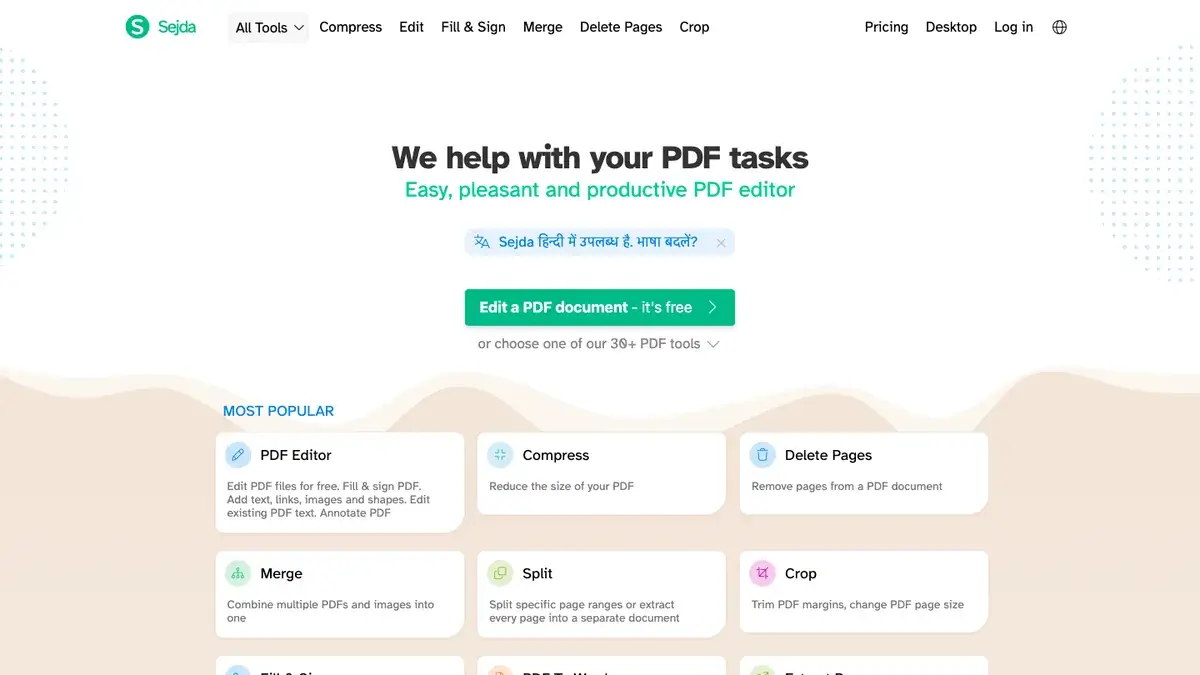
- Free boundary: Three tasks per day, documents up to 50 MB or 200 pages, and OCR up to 10 pages in the desktop app.
- Best fit: Someone who needs a capable editor for one or two documents, not a full working day.
- Main catch: The free allowance is easy to exhaust during a multi-step workflow. Web and desktop limits should not be treated as identical.
Sejda is useful because it makes the limit visible. If your PDF work is genuinely occasional, paying for unlimited capacity solves a problem you don’t have.
Smallpdf: Best interface with a restrictive free plan
Smallpdf has one of the easiest browser workflows for compression, conversion, page organization, annotation, and signing. It is a good utility when speed of navigation matters more than the depth of the free plan.
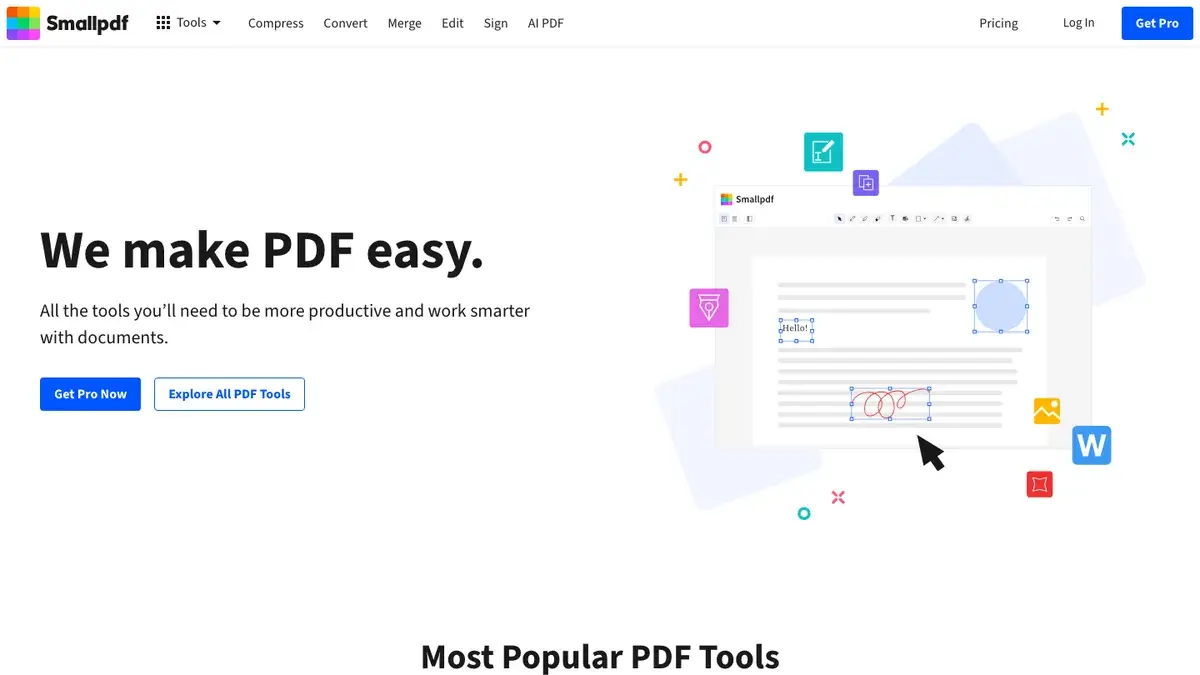
- Free boundary: Smallpdf lists limited document downloads, daily limits, and limited mobile access on the free plan.
- Paid boundary: Editing existing text, stronger compression, unrestricted OCR, unlimited downloads, and unlimited tool access are Pro features.
- Best fit: Occasional browser tasks where a polished interface is worth more than an unrestricted free tier.
The mistake is calling Smallpdf a free desktop-editor replacement. It is a polished web service with a useful free allowance. Those are different promises. See the broader comparison of online PDF editors if you want a browser-only workflow.
iLovePDF: Best for batch web utilities
iLovePDF is strongest when the job is mechanical: merge, split, compress, convert, repair, organize, watermark, or rotate a group of files. The layout makes these utilities easy to find.
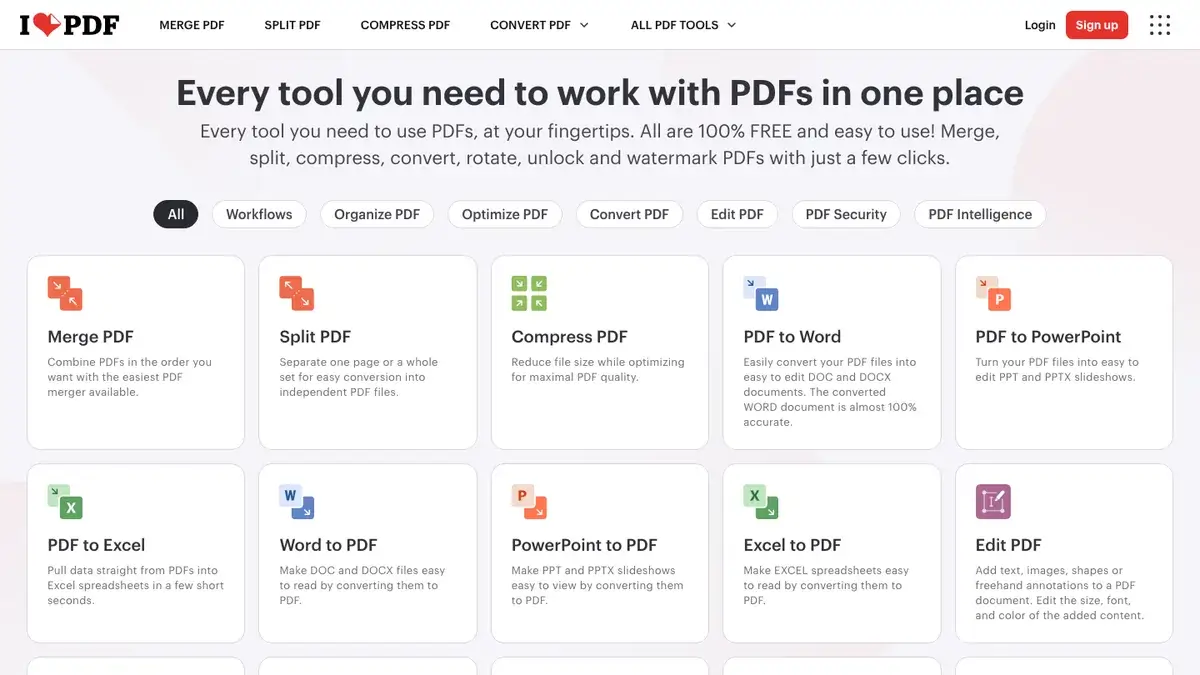
- Free boundary: The Basic plan includes essential tools with limited document processing.
- Paid boundary: Premium is currently $4 per month when billed annually and adds unlimited processing plus web, mobile, and desktop access.
- Main catch: The free plan is web-only, and limits vary by operation and file size. Check the specific tool before starting a large batch.
iLovePDF is easier to recommend for batch chores than for deep editing. It organizes the work well, but the paid boundary arrives exactly where repeated use begins.
Xodo: Best cross-platform paid upgrade path
Xodo now makes more sense as a paid cross-platform Acrobat alternative than as a permanent free pick. Xodo Web offers browser tools, while Xodo PDF Studio Desktop works offline on Windows, macOS, and Linux.
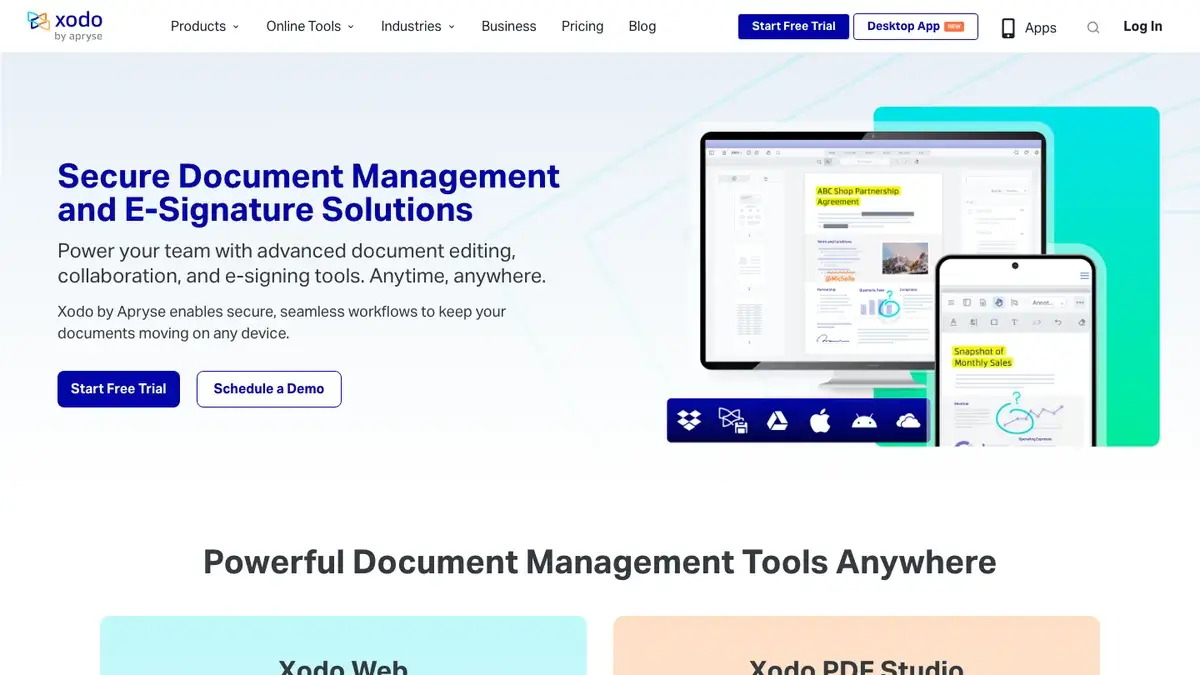
- Current price: Xodo Web is $7.99 per month and PDF Studio Desktop is $9.99 per month when billed yearly.
- Editing depth: The paid plans cover editing, OCR, redaction, conversion, page organization, comparison, and security tools.
- Main catch: The pricing page offers short trials, not a lasting full-featured free plan. Do not choose it to avoid subscriptions.
Xodo belongs on the list because it serves Windows, Mac, and Linux with a coherent paid route. It doesn’t belong under a misleading permanent-free label.
PDFsam Basic: Best offline tool for page organization
PDFsam Basic does a small set of structural PDF jobs well: merge, split, mix, rotate, extract, and insert pages. It is free, open source, and processes files locally on Windows, macOS, and Linux.
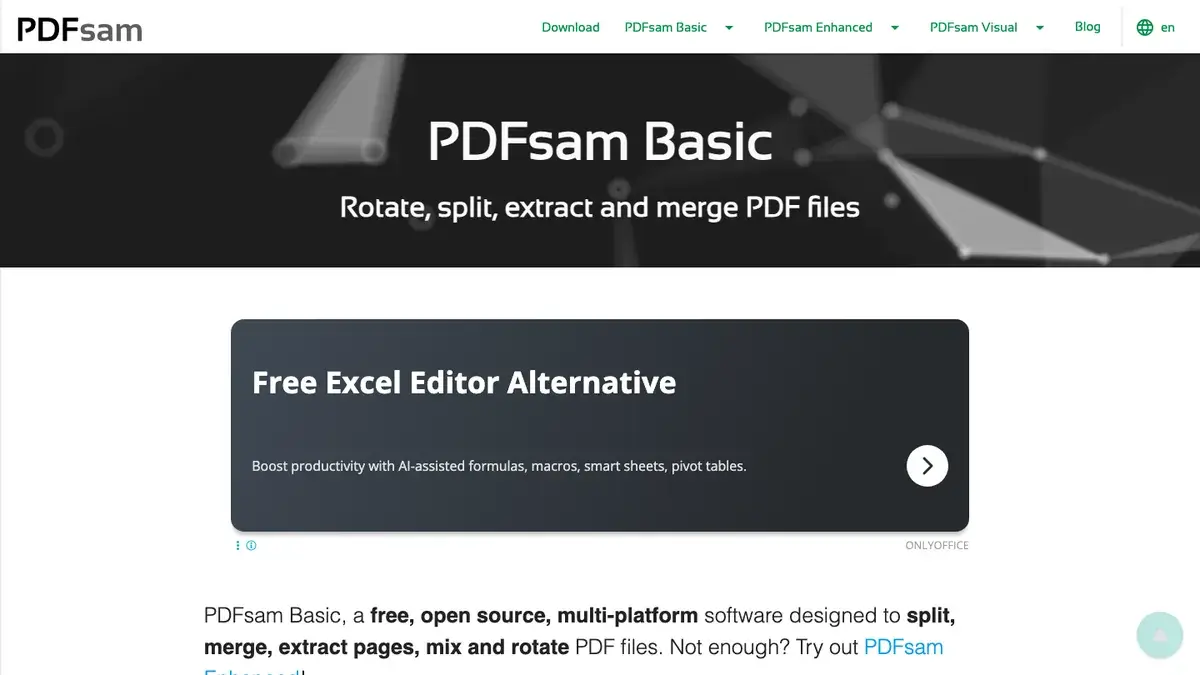
- Free boundary: No watermark and no stated file-size limit in PDFsam Basic.
- Best fit: Large or sensitive documents that need page surgery without an upload.
- Main catch: It does not edit PDF text, run OCR, fill forms, or replace Acrobat Pro as a content editor.
A focused tool is often the better tool. If the job is merging chapters or splitting a scanned book, a full editor adds complexity without adding value.
LibreOffice Draw: Best for one-off object and text fixes
LibreOffice Draw can open a PDF as drawing objects, which makes some text, image, and layout corrections possible without buying a PDF editor.
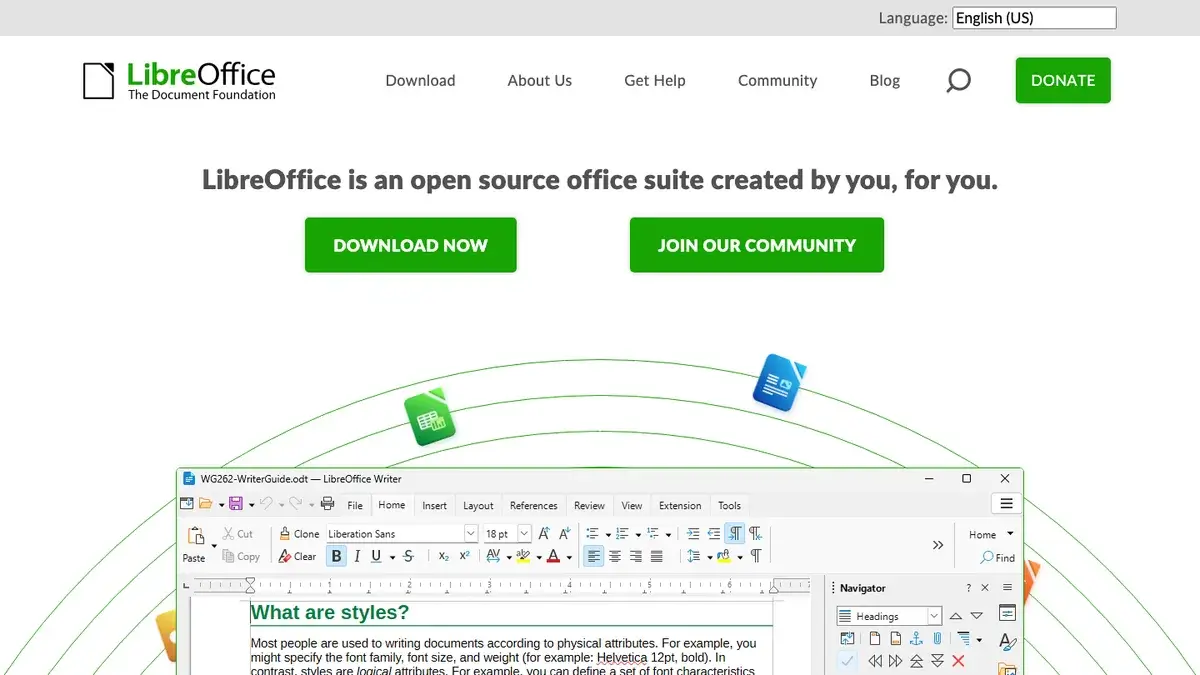
- Free boundary: LibreOffice is free and open source on Windows, macOS, and Linux.
- Best fit: A simple correction in a file with uncomplicated fonts and layout.
- Main catch: A PDF is not a word-processing document. Imported text can be split into objects, and complex layouts or forms can change when exported again.
Draw is a rescue tool, not a dependable document-production workflow. Keep the original file, export to a new name, and compare the result in another reader before sending it.
Microsoft Edge: Best quick PDF markup on Windows
Microsoft Edge already opens local and online PDFs. It can highlight, ink, add text, fill basic forms, read aloud, and save a copy with the changes.
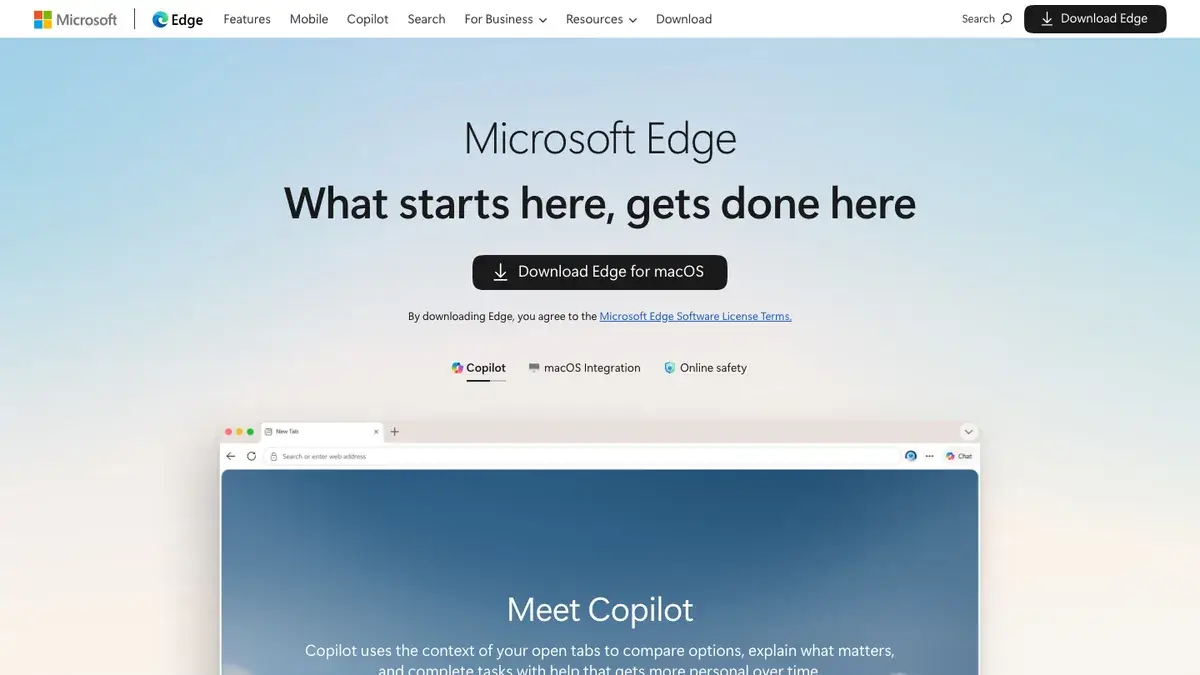
- Free boundary: The PDF reader is built into Edge and does not require a separate PDF subscription.
- Best fit: Adding a note, signature, highlight, or text box before returning a document.
- Main catch: Edge is not a full editor for changing existing page content, running OCR, or managing complex production files.
Edge is the Windows equivalent of starting with the tool already open. For a form or quick annotation, that is a better decision than installing a heavyweight editor.
What I would not count as a free Acrobat replacement
A product can be useful and still fail the ‘free replacement’ claim. Master PDF Editor is the clearest example.
Master PDF Editor: Capable editor, watermarked demo
Master PDF Editor is a capable cross-platform editor with text and image editing, OCR, forms, redaction, signatures, page tools, and PDF security. It is also commercial software.
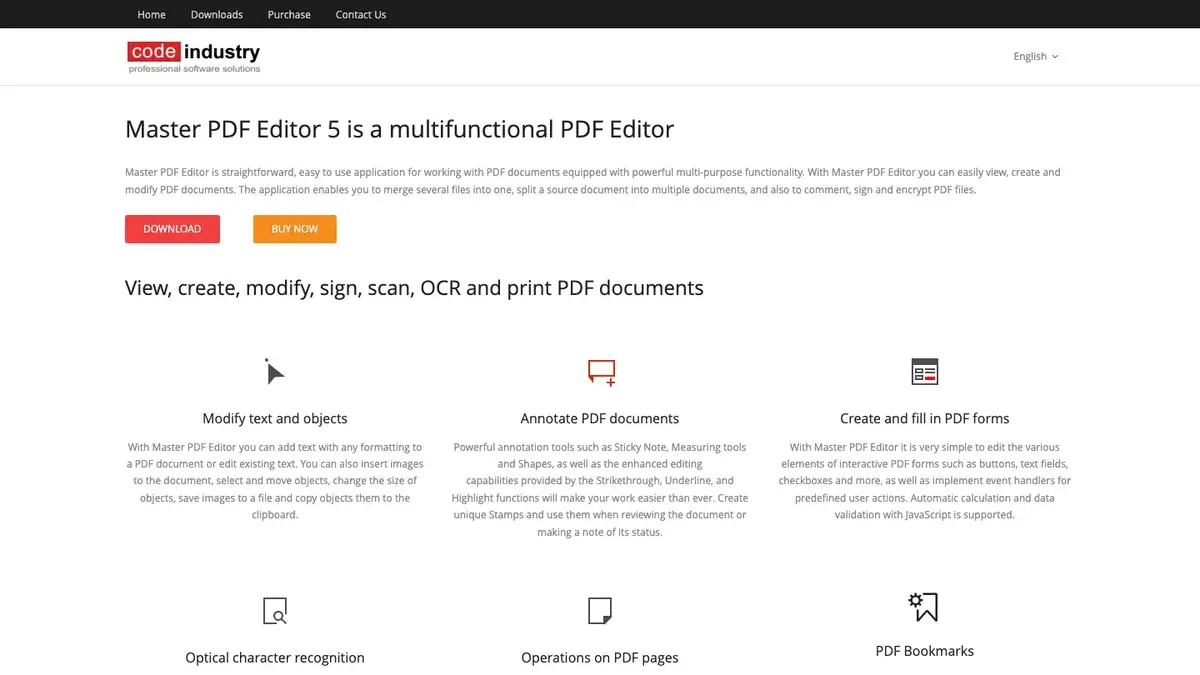
- Demo boundary: Code Industry says the demo has no functional limit except a watermark on saved output.
- Free personal use: The unregistered license allows viewing, form filling, comments, and printing for personal noncommercial use.
- Verdict: Consider it a paid editor with a testable demo, not a free Adobe Acrobat alternative for documents you need to deliver.
I would also skip random browser extensions that merely wrap an upload service. An extension gains access inside the browser but often gives you less information about the processor, retention policy, and business behind the tool. Use the vendor’s documented app or site directly.
Choose an Adobe Acrobat alternative by operating system
Platform support narrows the choice faster than another feature table. Start here, then check the boundary for your recurring job.
- Windows: Start with PDF24 Creator. Move to PDFgear when you need a more direct content-editing workflow. Use Edge for quick form filling and markup.
- Mac: Start with Preview. Add PDFgear for free OCR and text editing, or choose PDF Expert when a polished Apple-only paid workflow is worth the cost.
- Linux: Use PDFsam Basic for page operations, LibreOffice Draw for limited corrections, and Stirling PDF Desktop or self-hosting for a broader toolkit. Xodo PDF Studio and Master PDF Editor are paid options.
- Browser only: Use PDF24 Online for broad tools, Sejda for occasional editing, Smallpdf for the easiest interface, and iLovePDF for batch utilities. Do not upload sensitive documents until the retention and processing terms fit the file.
- Students: Annotation, reading, and page organization matter more than enterprise controls. The guide to PDF apps for students covers that narrower workflow.
Frequently asked questions
These answers separate the marketing label from the actual editing and privacy boundary.
What is the best free alternative to Adobe Acrobat Pro?
PDF24 Creator is the best free Acrobat Pro alternative for most Windows users. Apple Preview is the right starting point on a Mac for forms, signatures, annotations, and page work. Choose PDFgear when you need to edit existing text or run OCR without paying for Acrobat Pro.
Can I edit PDF text for free without a watermark?
Yes. PDFgear can edit existing PDF text on Windows and macOS without an advertised watermark. LibreOffice Draw can handle some text and object corrections, but complex layouts may shift. Apple Preview and Microsoft Edge add text boxes; they do not rewrite the text already stored in the PDF.
Is Adobe Acrobat Reader still free?
Adobe Acrobat Reader is free for reading, commenting, filling, and signing PDFs. Editing existing text, OCR, redaction, conversion, and advanced document tools belong to paid Acrobat plans. Reader is an Acrobat Reader alternative baseline, not the feature set the full editors on this page are replacing.
Does Apple Preview edit existing PDF text?
No. Apple states that Preview cannot edit the existing text in a PDF. Preview can annotate, add text boxes, fill and sign forms, combine files, reorder pages, redact visible text, and protect a PDF. Use PDFgear or a paid editor when the original text itself must change.
Which Adobe Acrobat alternative keeps files offline?
PDF24 Creator, Apple Preview, PDFgear desktop, PDFsam Basic, and local Stirling PDF workflows can process files on the device. Xodo PDF Studio and Master PDF Editor also work offline as paid products. Browser tools may upload documents, so check retention terms before using confidential files.
What is the best free PDF editor for Linux?
There is no single free Linux editor that matches Acrobat Pro. Use Stirling PDF for a broad local or self-hosted toolkit, PDFsam Basic for page organization, and LibreOffice Draw for limited text or object corrections. Xodo PDF Studio and Master PDF Editor are paid cross-platform choices.
What are Sejda’s free limits?
Sejda PDF Desktop currently allows three free tasks per day, documents up to 50 MB or 200 pages, and OCR for up to 10 pages. The web service can have different limits. Sejda is a good occasional editor, but repeated multi-step work reaches the free boundary quickly.
When is Adobe Acrobat Pro worth paying for?
Acrobat Pro is worth paying for when PDF work is frequent and tied to accessibility checks, advanced redaction, print production, managed Adobe workflows, or compatibility requirements across a team. For occasional annotation, forms, page organization, compression, conversion, or OCR, a smaller tool is usually the better purchase decision.
Keep Acrobat only when the requirement is real
Start with the smallest tool that completes a recurring job. On Windows, that means PDF24 Creator. On a Mac, open the file in Preview before installing anything. If the task fails because you need existing-text editing or OCR, move to PDFgear. If the file must stay inside infrastructure you control, use Stirling PDF locally or self-host it.
Then run one real document through the full cycle: edit, save, reopen in a second reader, print or export, and verify forms, links, fonts, and signatures. Keep Acrobat only if the replacement fails a requirement you actually use, not because a feature checklist says you might need it someday.
If conversion is the sticking point, compare the best apps for converting PDF to DOCX. If signatures are the real workflow, use the dedicated guide to e-signature software instead of forcing a general PDF editor to solve a contract process.
Tell Google you want more of this.
Add Gaurav Tiwari as a preferred sourceOne tap, and this site shows up more often in your own Top Stories, AI Overviews and AI Mode. Remove it any time.
Disclaimer: This site is reader-supported. If you buy through some links, I may earn a small commission at no extra cost to you. I only recommend tools I trust and would use myself. Your support helps keep gauravtiwari.org free and focused on real-world advice. Thanks. - Gaurav Tiwari