
 by
by
PDFs have become the default format for anything that has to look the same on my laptop, your phone, and the recipient’s printer. Contracts, invoices, research papers, student handouts, scanned receipts — they all end up as PDFs because the format freezes the layout. That reliability is also what made PDFs a pain for years. Every edit used to mean opening a 200 MB desktop app that cost money, fought with your operating system, and refused to update without a reboot.
That pain is mostly gone now. Most everyday PDF work — viewing, light editing, compressing, merging, splitting, unzipping archives full of PDFs — happens inside a browser tab. No install, no license, no waiting on IT to push an approved build. This guide walks through what actually works in the browser, which tools I reach for, and where you still need desktop software.
Why browser-based PDF tools replaced the desktop apps
Browser PDF tools won on three things: zero setup, cross-device parity, and speed. You open a URL, drop a file, and get a result in seconds. The same URL works on a MacBook, a Windows laptop at the office, and an Android phone on the train. Nothing to update, nothing to license, no admin password needed.
The second reason is restrictions. On a locked-down work laptop you often can’t install anything. Chrome and Edge are already installed, and any browser-based tool runs inside them. Third is recency. Web tools ship updates overnight. The Acrobat install on your machine is likely six versions behind what the vendor is shipping to the web client.
The tradeoff is that uploads travel over the internet. Large files and slow connections turn a 3-second operation into a 2-minute one. And anything highly confidential — signed contracts, medical scans, payroll exports — I still process on a desktop tool that never sends the bytes off my machine.
What you can do with PDFs in a browser
Modern browser tools cover about 90 percent of what the average person does with PDFs: view, compress, convert, edit, merge, split, sign, unzip. Here’s how the common tasks break down, with the tools I actually use.
Viewing and sharing
Chrome, Edge, Safari, and Firefox all render PDFs natively. Drag the file onto a tab and it opens. No plugin, no extension, no Adobe Reader. For sharing, a link from Google Drive, Dropbox, or iCloud beats an email attachment every time because you dodge the 25 MB Gmail cap and the 20 MB Outlook cap.
Editing and converting
Smallpdf, iLovePDF, and PDF24 handle the core edits: add text, insert signatures, fill forms, black out sensitive lines, rotate pages. Adobe Acrobat’s free web tools cover the same ground with slightly better fidelity on forms. Conversion to Word, Excel, or PowerPoint works well on text-based PDFs and falls apart on scanned documents unless the tool runs OCR first.
Organizing documents
Merging, splitting, and reordering pages are the fastest wins. I merge expense receipts into one monthly PDF in about 15 seconds using PDF24. Splitting a 300-page report into per-chapter files takes another 20. Reordering drags thumbnails around the way you’d expect.
Compressing large PDFs for email and cloud uploads
File size is where browser tools earn their keep. A 40 MB scanned contract will bounce off Gmail. A 90 MB brochure won’t upload to an older client portal. Browser compressors shrink those files to something the recipient can actually receive.
The free terms differ more than the interfaces do. Smallpdf takes files up to 5 GB but allows 2 compressions a day, with only its Basic level free. iLovePDF gives you 3 quality levels free, on up to 2 files of 200 MB each per task. PDF24 has no task limits and adds real DPI and image-quality controls, and PDFgear’s online compressor caps files at 100 MB. Whichever you use, pick the gentler settings for documents with photographic scans; heavy compression is what turns photos blurry. The full comparison, offline routes included, is in my guide to reducing PDF file size for free.
Slack’s 1 GB file cap and WhatsApp’s 100 MB limit are easier to hit than you’d think if you’re sending architectural plans or design reviews. A single compression pass usually solves it.
Accessing content: unzipping PDF files
Not every PDF arrives as a standalone file. Accountants, legal teams, HR systems, and cloud exports routinely ship bundles as ZIP archives because the attachment limits force them to. You might get a ZIP with 12 invoices, a contract pack with five annexes, or an HR export with a signed offer letter and three policy PDFs glued together.
Unzipping used to mean right-clicking on a desktop and waiting for Windows Explorer or Finder to do its thing. On a locked work laptop or a phone, that path isn’t always open. A browser-based unzipper handles it the same way a desktop one does. You can unzip PDFs using the iScanner tool directly in Chrome, Safari, or Edge — drop the ZIP, download the extracted PDFs, done. Works on a Chromebook at a coffee shop, an iPad on the couch, or a Windows machine with no install privileges.
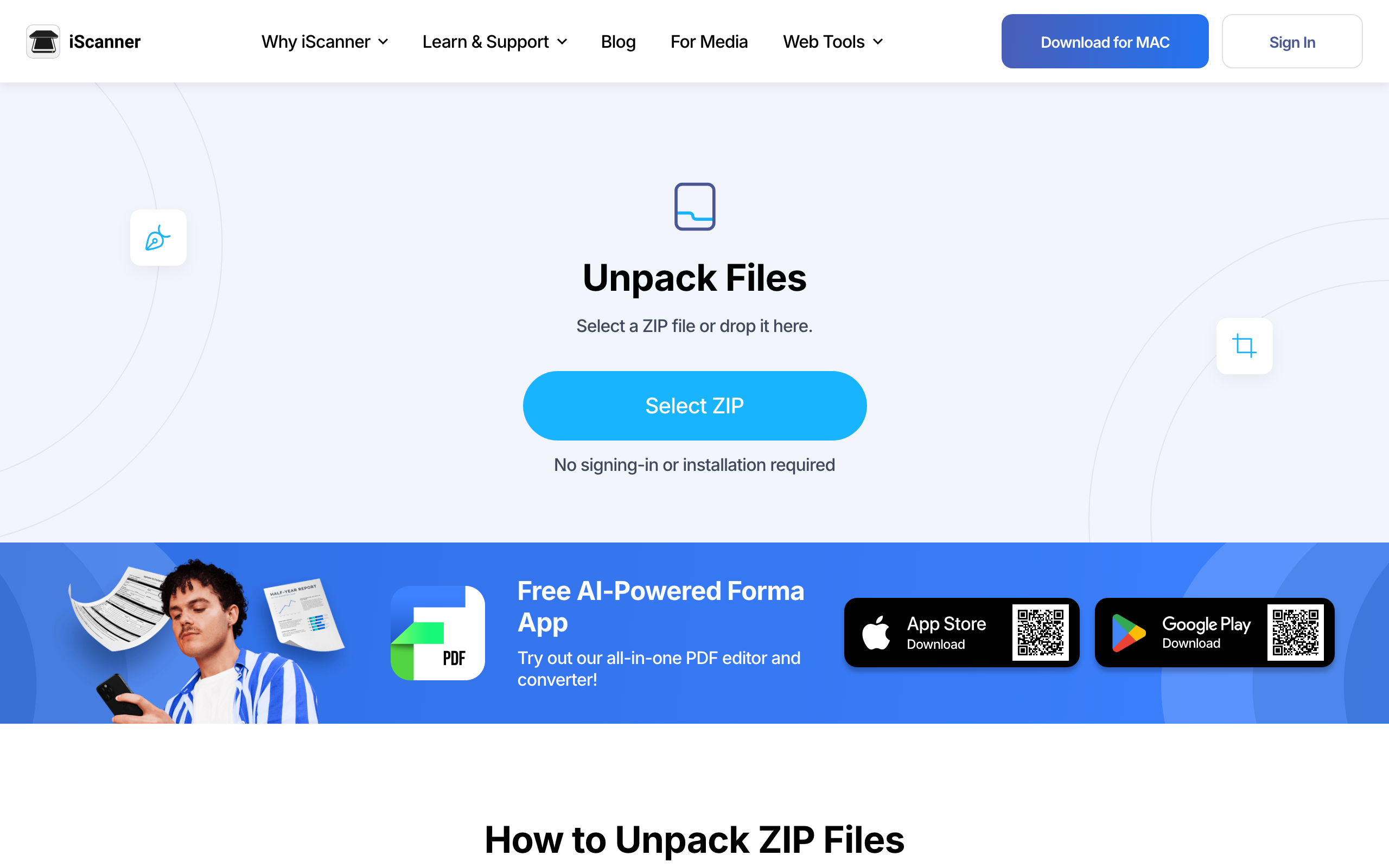
Browser unzippers also handle the scenario where a ZIP arrives password-protected. iScanner prompts for the password once, decrypts in-session, and hands back the PDFs inside. The archive itself and the extracted files stay on the tool’s servers only for the short retention window defined in its privacy policy.
When browser tools are the right call
Browser PDF tools are the right call when you care more about access than about throughput. A few concrete scenarios where I always pick the web option.
- You’re on a borrowed or locked-down computer where you can’t install software.
- You’re traveling with a Chromebook, iPad, or phone and need to turn around one document fast.
- The task is one-off: merge two files once, sign one contract once, unzip one export.
- Storage is tight. A full Acrobat install is 2 GB plus its cache. A browser tab is free.
- Security or compliance policy blocks unsigned installers.
The inverse is also worth naming. If you’re editing a 40-chapter book manuscript with tracked changes, you need Acrobat Pro or the original source file. If you’re batching 500 invoices a day, a scripted desktop workflow with pdftk or qpdf beats any browser tool on speed. If you’re handling documents under HIPAA, SOC 2, or attorney-client privilege, keep the files on a device you control.
A browser PDF workflow that won’t waste your time
After a few hundred PDF tasks run through browser tools, a handful of habits stop you from reprocessing the same file three times.
- Check the file size before you do anything else. If it’s under 5 MB, skip compression entirely. Every re-compression loses a little quality.
- Keep the original. Save it under a
_originalfilename before you touch it. If the compressed or edited version comes out wrong, you can start over. - Pick one tool and stay on it for the session. Bouncing between Smallpdf, iLovePDF, and Adobe for the same file chain usually produces worse output than doing all three steps on one platform.
- Read the retention policy once. Files usually auto-delete within 1 to 24 hours. If your task touches anything regulated, you want to know that number before you upload.
- Rename before you send.
invoice-final.pdfinstead ofdocument_compressed_1.pdfsaves the recipient five seconds of cognitive load.
My shortlist of browser PDF tools worth bookmarking
Every tool I name here runs in any modern browser, needs no install, and handles the basics without forcing a signup on the first task.
- iScanner Web Tools: strong unzip, scan, and conversion flow. The unzip tool is free and works on password-protected archives.
- Smallpdf: broadest set of free operations. The free tier allows 2 tasks a day, and compression above the Basic level is paid.
- iLovePDF: 3 free compression levels, and the most generous free compression allowance of the big names at 2 files of up to 200 MB each per task.
- PDF24 Tools: free, ad-supported, and has more than 30 tools on one page. No daily limits.
- Adobe Acrobat online: the most faithful conversion to Word and back. Requires an Adobe ID for anything beyond viewing.
Pick one as your default and only switch when it fails on a specific file. Tool-hopping for every task is how you end up re-uploading the same 30 MB document four times.
What I still do on the desktop
Three jobs never leave my MacBook. Long editing sessions on a contract with tracked changes, because Acrobat Pro’s comment threading beats every web alternative. Batch processing more than 20 files, because the browser round-trip kills throughput. And anything under NDA or covered by a privacy regulation, because the fewer servers that see the bytes, the fewer breach scenarios I have to worry about.
For everything else, the browser wins. A tab opens faster than an app, works on every device, and doesn’t care what operating system you’re on.
FAQs about browser-based PDF tools
Do browser-based PDF tools work offline?
Most don’t. You need a connection to upload the file and receive the processed version. A handful of viewers (Chrome’s native PDF renderer, for example) work offline because the browser ships the engine, but anything that edits, compresses, or converts files runs on a server.
Are browser PDF tools safe for confidential documents?
It depends on the provider. Look for HTTPS, a short retention window (files deleted within a few hours), and a published privacy policy. For contracts, medical records, or client PII, I’d rather use a desktop tool like Adobe Acrobat or a self-hosted option like PDF24 running on your own machine.
What’s the biggest PDF a browser tool can handle?
Bigger than most people assume, and the shape varies by tool. Smallpdf’s free compressor currently takes files up to 5 GB, capped at 2 compressions a day. iLovePDF’s free compress task takes up to 2 files at 200 MB each, and PDFgear’s online tools cap files at 100 MB. Your upload speed is often the real bottleneck on large files.
How much can I compress a PDF without wrecking quality?
On a scanned document with image-heavy pages, expect a 60 to 80 percent reduction at medium compression before text looks fuzzy. A text-only report barely compresses because there’s nothing to squeeze. Always compare the compressed file against the original before you send it.
Why do I get a ZIP file with PDFs inside instead of the PDFs themselves?
Email and cloud platforms enforce attachment limits. Gmail caps attachments at 25 MB, Outlook at 20 MB. Bundling PDFs into a ZIP reduces the package size and keeps related documents together so nothing gets lost in a forwarded thread. Exports from accounting or HR systems also ship as ZIPs by default.
Can I edit a PDF in the browser the same way I would in Word?
Not really. Browser editors handle light work well — adding text boxes, signatures, annotations, filling forms, redacting lines. Reflowing paragraphs, restyling fonts, or rebuilding tables still needs Acrobat Pro or a dedicated PDF editor. If the source document exists, edit that and re-export.
Which browser works best for PDF tools?
Chrome and Edge give the most consistent results because most tools are tested against Chromium first. Safari works for viewing but sometimes stalls on large uploads. Firefox is fine for everything except the handful of tools that rely on Chromium-only APIs. On mobile, stick to the system browser.
Do I need to log in to use a browser-based PDF tool?
For one-off tasks, no. iScanner’s unzip tool, Smallpdf’s free compressor, and PDF24’s viewer all run without an account. You’ll hit sign-in walls for batch operations, files above a certain size, or premium features like OCR and advanced editing.
Tell Google you want more of this.
Add Gaurav Tiwari as a preferred sourceOne tap, and this site shows up more often in your own Top Stories, AI Overviews and AI Mode. Remove it any time.