
 by
by
A Mac works well out of the box, but macOS still leaves gaps in screenshots, window management, writing, development, design, file handling, and automation. These are the 73 key Mac apps and utilities I keep because each one fixes a problem I run into regularly.
I use this stack across three machines: a MacBook Air M5 as my portable workhorse, a Mac mini M4 with 24GB of RAM and a 512GB SSD as my main production machine, and an M5 Pro MacBook Pro with 24GB of RAM and a 1TB SSD as my primary laptop.
For current Amazon listings, check the MacBook Air M5 and MacBook Pro M5 Pro. Amazon does not list my exact 24GB/512GB M4 Mac mini configuration in both regional catalogs. I also keep the rest of my hardware and desk setup in my Toolbox.
You won’t need all 73. Start with the quick comparison, pick the category that matches your work, and ignore the rest until a gap appears.
Top 10 Mac Apps: Quick Comparison
Short on time? These are the 10 apps I use most across my three Macs.
| App | Category | Current price | What I use it for | Get it |
|---|---|---|---|---|
| Brave Origin | Browser | $59.99 one-time | My default browser, all day | Brave Origin |
| Typora | Markdown editor | $14.99 one-time | Drafts, scripts and outlines | Typora |
| Raycast | Launcher | Free / $10/mo Pro | Launching, snippets and Quick Fix | Raycast |
| CleanShot X | Screenshots | $29 one-time | Every screenshot on this blog | CleanShot X |
| Things 3 | Tasks | $49.99 one-time | Daily and weekly planning | Things 3 |
| Bear | Notes | Free / $29.99/yr Pro | Notes my AI agents can read and edit | Bear |
| ChatGPT and Codex | AI | Free / $20/mo Plus | My main AI assistant | ChatGPT |
| ClipBook | Clipboard | $9.99 one-time | Everything I copy, searchable | ClipBook |
| Enpass | Passwords | $79.99 lifetime | Passwords and client logins | Enpass |
| Notion | Workspace | Free / $10 per member/mo | Content calendars and client boards | Notion |
Prices are in US dollars. Annual billing, regional taxes, introductory offers, and team seats can change the amount you pay.
Best Mac Apps by Use Case
Pick the row that matches your current problem. The linked guides explain the tradeoffs when a one-line recommendation is not enough.
| Use case | Top pick | Runner-up | Free or budget pick | Details |
|---|---|---|---|---|
| Writing | Craft | Scrivener | Typora ($14.99) | Compare Mac writing apps |
| Photo editing | Pixelmator Pro | Affinity | Affinity (free) | Compare Mac photo editors |
| WordPress development | Local + Claude Code | Studio by WordPress.com | Homebrew + CLI | See my WordPress Mac stack |
| Productivity | Notion | Raycast | Apple Reminders | Jump to productivity apps |
| Design | Affinity | Canva | Freeform | Jump to design apps |
| Security | Enpass | 1Password | Apple Passwords | Compare password managers |
| AI | ChatGPT + Codex | Claude | Ollama | Jump to AI apps |
| App bundle | Setapp ($14.99/mo) | Buy individually | Free alternatives | See my Setapp verdict |
| Video | IINA | OBS Studio | iMovie | Jump to video apps |
Must Have Mac Apps for Everyone
CleanShot X
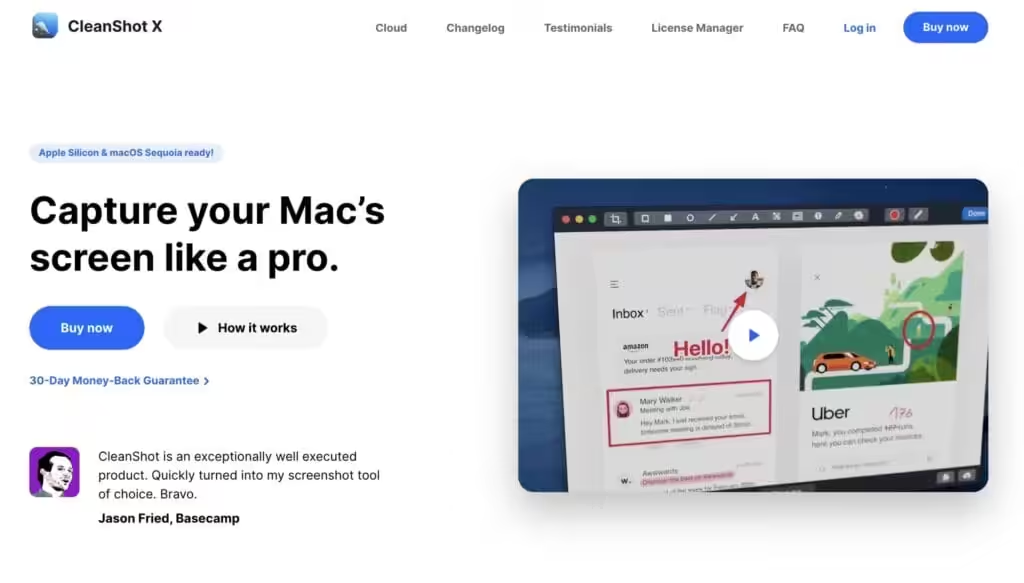
Get it from cleanshot.com
macOS’s default screenshot tool is… fine. But CleanShot X? It’s like upgrading from a pocket knife to a Swiss army multitool. You don’t just take screenshots, you use them.
Here’s how I use it daily:
- Scrolling Screenshots: This alone is worth the price. I can capture long web pages, code snippets, blog drafts, all in one neat image.
- Annotation Tools: I’m regularly working with clients and collaborators. The ability to highlight, box, blur, and add text on the fly? Total lifesaver.
- Hide Desktop Icons: My desktop is usually chaos. CleanShot hides it instantly before I record or screenshot. One click. Clean look.
- Screen Recording: It replaces Loom for me in many cases. I record app demos or quick how-tos and share them without uploading to YouTube or dealing with other tools.
- Cloud Uploading: Want to share that screenshot? Instant link. No need to drag it to Drive or Dropbox.
Most of the screenshots that you see here on this blog, are from CleanShot X. What I love most is the speed and polish. It doesn’t feel like a “power user” tool that tries too hard. It just works, quickly, cleanly, and reliably.
Pricing? It’s a one-time purchase at $29 (but you will have to pay for updates after a year), and honestly, it pays for itself if you work in content, code, or design even a little.
The free alternative: Screendrop is an open-source menu bar app that covers most of what I use CleanShot X for: capture, annotate with arrows, text, numbered markers and blur, record and trim the screen, and keep a local history of everything you have taken. It installs through Homebrew and costs nothing. I keep it on the Mac mini as a second option, and it is what I point people to when $29 is the blocker.
If you’ve ever felt like screenshots were too basic or clunky, this app will change your workflow completely.
Brave Origin
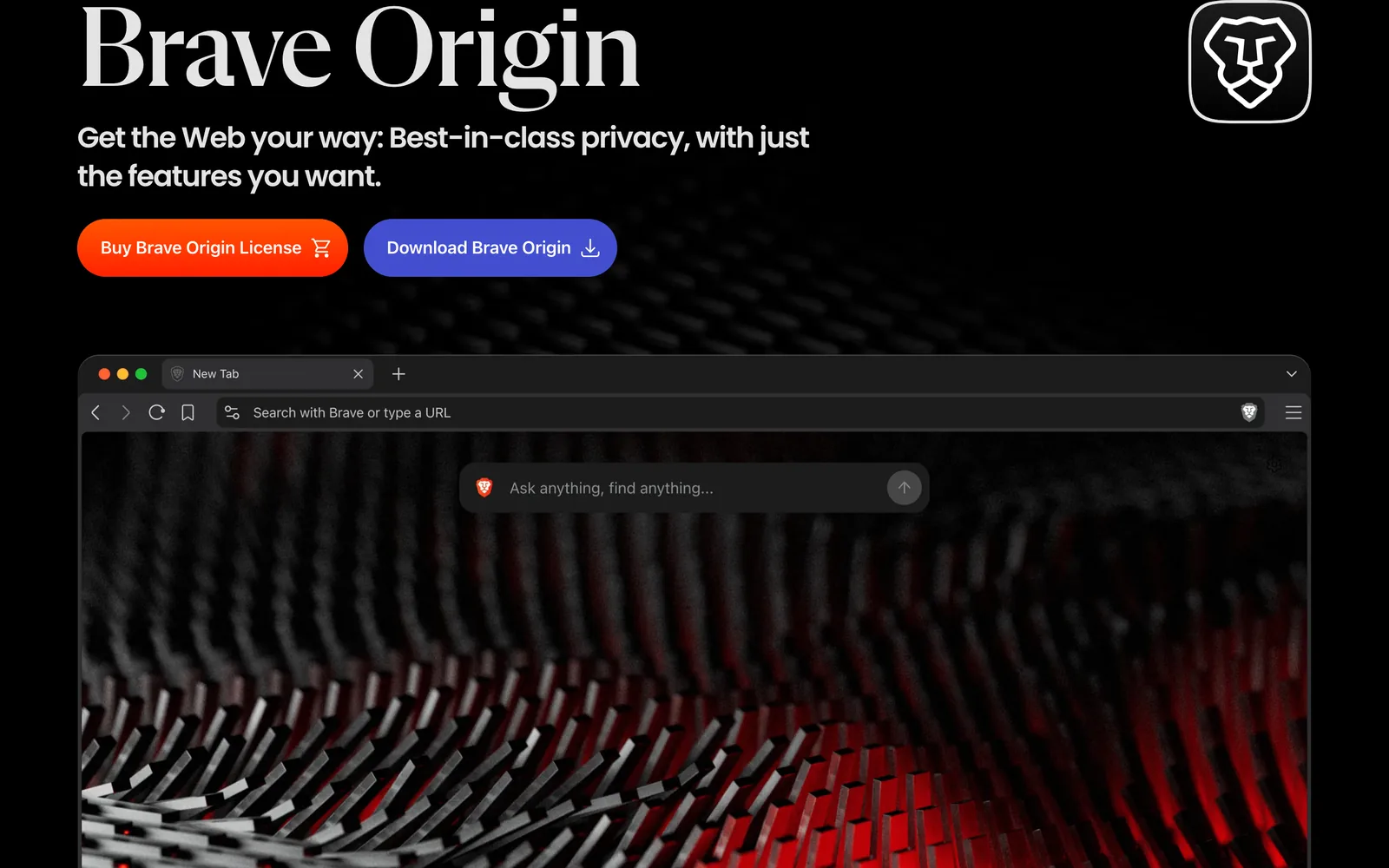
Get it from brave.com/origin. Regular Brave is still free at brave.com
I bought Brave Origin and it is now the browser I open by default. It is a paid, bloat-free edition of Brave: same engine, same ad and tracker blocking, none of the extras I was never going to use.
I ditched Chrome years ago and moved to Brave. The problem was that Brave kept growing. Every few updates added another thing to switch off, and I would spend an evening turning features back off after a major release.
Origin removes them at the source: no Leo AI, no Brave News, no Rewards, no VPN, no Wallet, no Web3 domains, no Tor windows, no Speedreader, no Talk, and no usage analytics or crash reporting. There is nothing to disable because none of it ships.
Here’s what I like most:
- Blocking with no setup: ads and trackers are gone out of the box. No extensions to install.
- A settings screen you can read: short enough to go through once and never open again.
- Shields dashboard: still there, still shows exactly what is blocked per site.
- Sync with iOS: same bookmarks and tabs on my iPhone 16 Plus.
- Battery: noticeably lighter than Chrome on the MacBook Air M5, same as regular Brave.
Pricing? $59.99 one-time, covering every device on the same account, and free on Linux. Regular Brave stays free and unchanged, so this only makes sense if you already use Brave and are tired of the extras. I open this browser eight hours a day, so $59.99 once was easy math.
Loving it so far. If you already run Brave and keep switching things off after every update, Origin is the version you actually wanted.
Other Browsers I Keep Around
Brave Origin is the default, but it is not the only browser on this Mac. I keep five more installed and open them more or less at random, whatever the task needs, or whatever I feel like that day. Trying new apps is half the reason this list exists, and browsers are where new ideas show up fastest.
None of these are recommendations to switch. They are the ones I genuinely rotate through.
Zen Browser
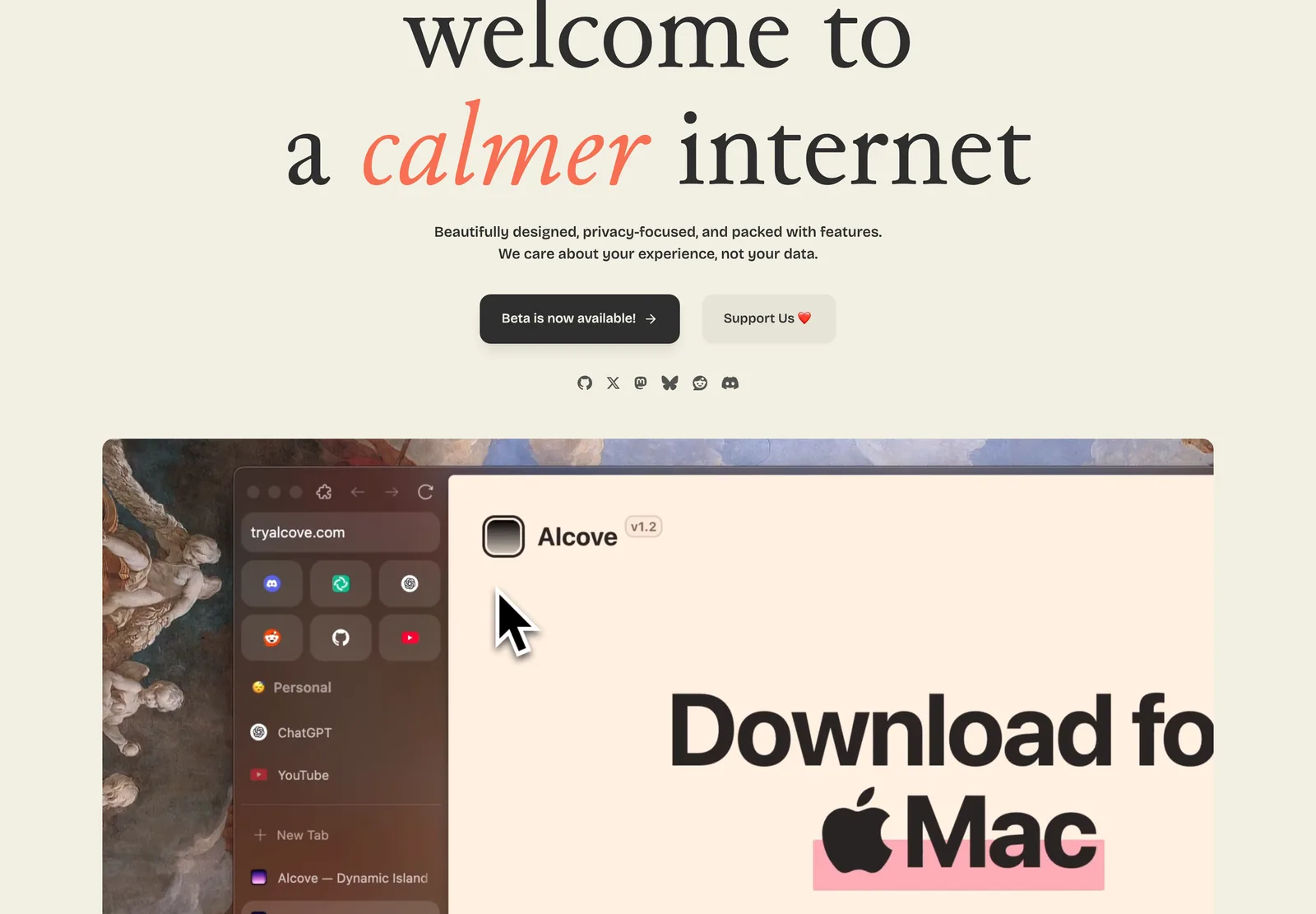
Zen is built on Firefox, free, and open source. Workspaces, split view, and a sidebar that collapses to nothing. This is what I open when I want a quiet window for reading and research: no tab strip across the top, no chrome fighting for attention. It is still in beta and it occasionally shows, but it is the most interesting design work happening in browsers right now.
Helium

Helium is Chromium with every Google service dependency stripped out, built by Imput and funded by its users. Free and open source. It blocks ads, trackers, cookie banners and fingerprinting by default, runs Chrome extensions, and has tab hibernation and split view. There is no built-in password manager, no sync and no DRM support yet, so it is a second browser rather than a primary one. I open it when I want the Chromium engine without Google attached to it.
Firefox

The only one here that is not Chromium under the hood. I keep Firefox for two reasons: a web where every browser is Chromium is a worse web, and I need to see how my sites render outside Blink before I ship anything. Free.
Safari
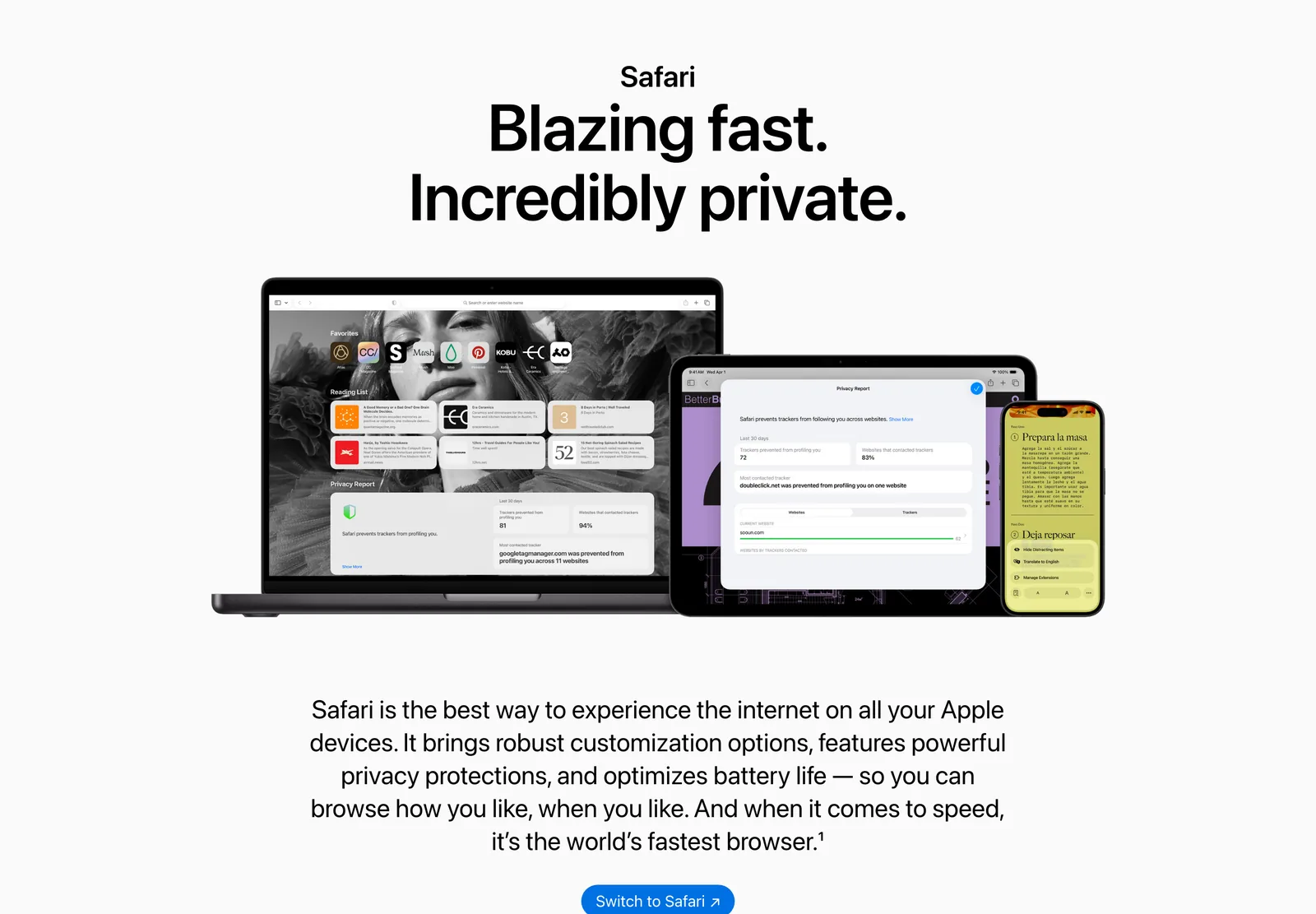
Best battery life on a MacBook, and it is not close. When I am on the Air away from a charger, Safari is the browser. It is also where I check anything Apple-specific: Handoff, iCloud Tabs, Apple Pay flows on client sites. Free and already installed.
Google Chrome and Chrome Canary
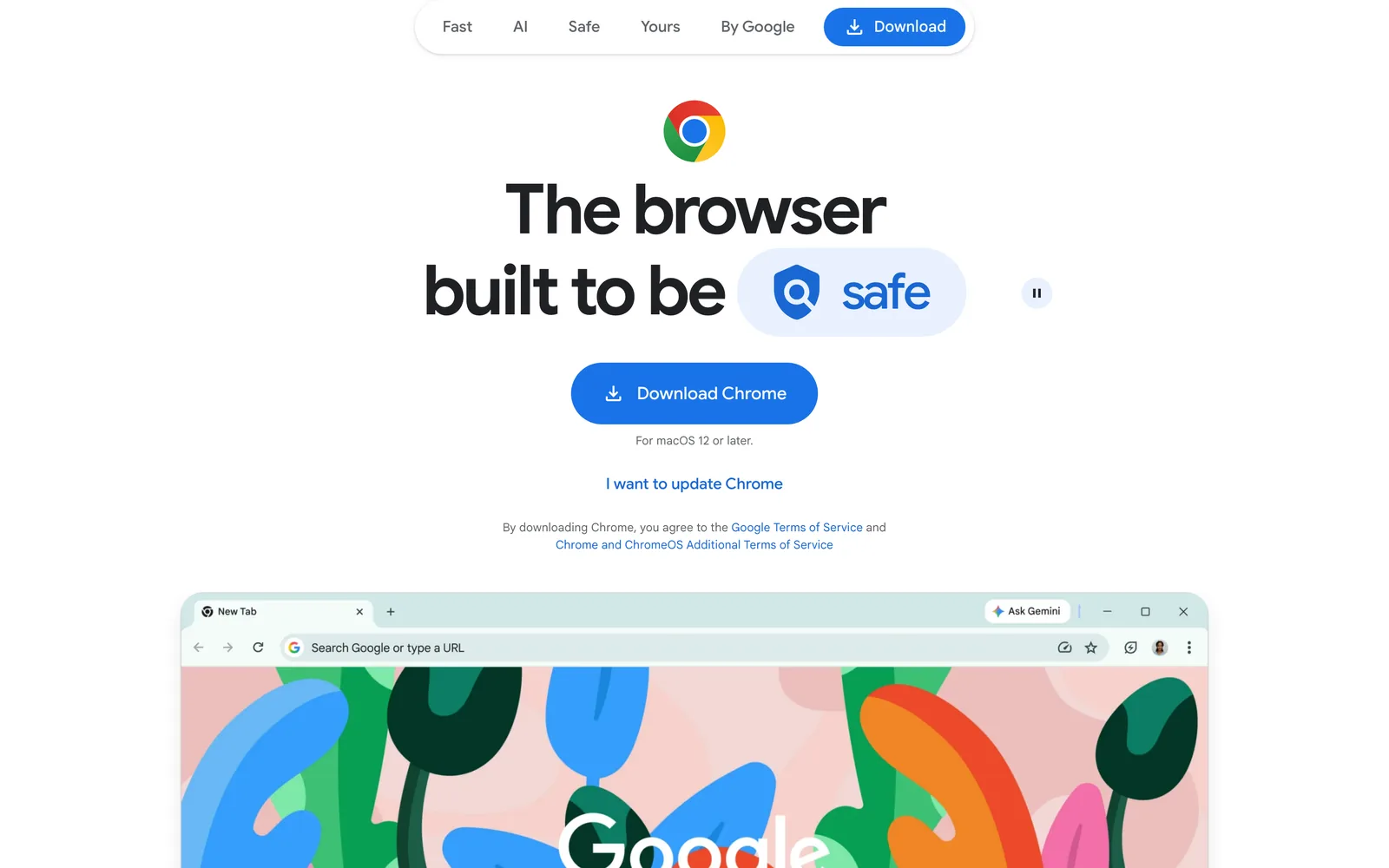
Not for browsing. Chrome is where I check client sites, run Lighthouse, and use the DevTools I know best. Canary sits next to it for testing what lands in a few months. Both free, both signed out of everything.
If you only want one browser, stop at Brave Origin or Safari. This section is here because people ask what else is in the folder, and the honest answer is: quite a lot.
Typora
My Most-Used App After Brave Browser
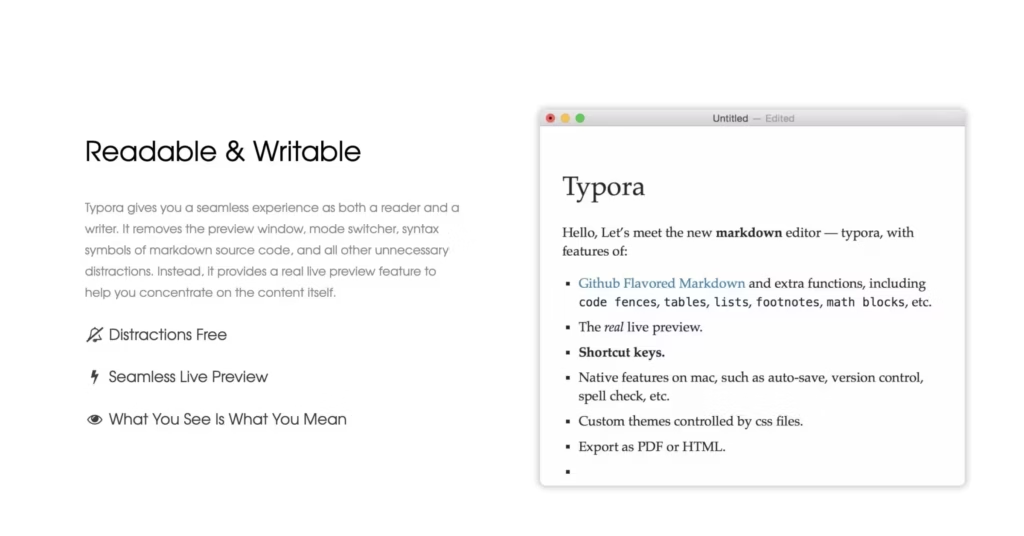
I’m not exaggerating: Typora is the app I open more than any other, aside from my browser.
This Markdown editor is clean, minimal, and zero-distraction. But behind that simplicity is a ton of power:
- Real-time preview and editing in a single pane
- Custom themes and typography that look amazing on retina displays
- Footnotes, math blocks, tables, all handled smoothly
- Works beautifully for both short notes and long-form writing
- No bloat, no “block” mechanics, just raw, focused writing
It’s where I write blog drafts, scripts, outlines, and even client proposals before formatting them elsewhere.
Compared to Obsidian, Typora feels more fluid. Compared to Notion, it feels faster. And for Markdown purists? It’s unmatched. Plus, it offers regex search replace like VS Code. So, workflow? 100%.
Typora costs $14.99 as a one-time purchase. For an editor I open most days, that is an easy price to justify.
Raycast
Visit: raycast.com
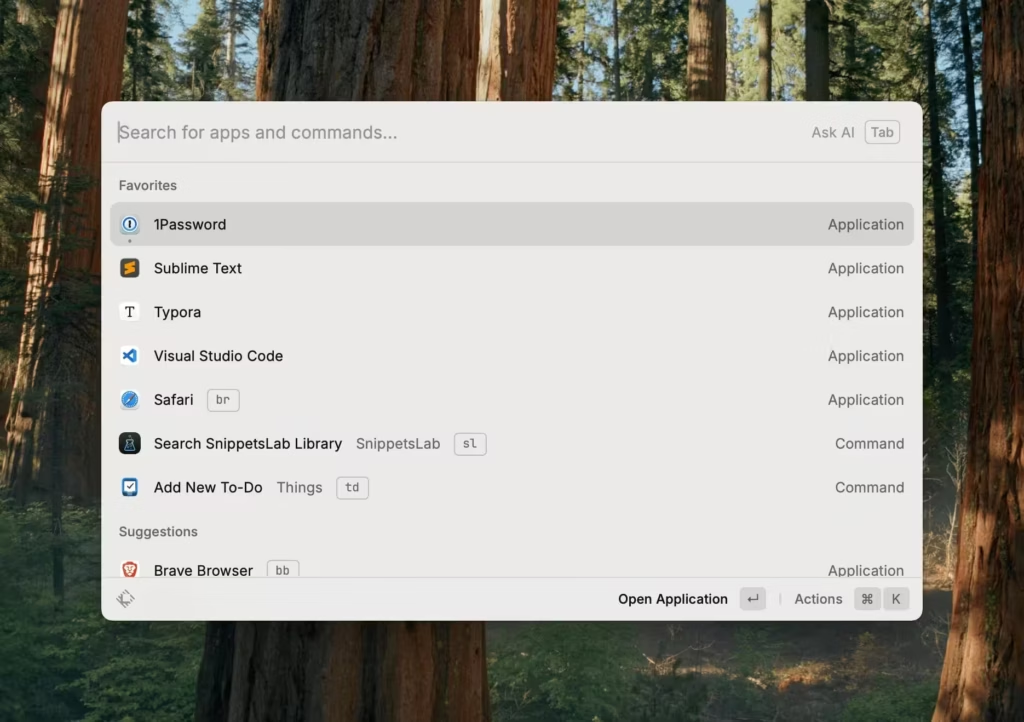
I will talk about Raycast several times in this article as it deserves to live on every “essential apps” list. It’s what Spotlight should have been all along.
This thing replaces:
- App launcher
- Clipboard manager
- File navigator
- Calendar checker
- Script runner
- Snippet inserter
- Window switcher
- Even basic calculations and conversions
- Grammarly, thanks to Quick Fix
Quick Fix is the newest reason it stays. I select text anywhere, press the hotkey, and Raycast fixes the spelling and grammar and pastes the corrected text back in place. That replaced Grammarly for me. Raycast’s team suggests the right Shift key as the hotkey, and it’s an easy one to reach.
It’s fast, clean, and lets me do 80% of what I need without lifting my hands off the keyboard.
My favorite Raycast use cases:
- Launch Typora with a specific template
- Run WordPress dev scripts
- Look up Stack Overflow answers in one keystroke
- Open project folders in ForkLift or Zed instantly
Raycast is basically the Mac brain I didn’t know I needed. Once you’ve customized it? Good luck going back.
Things 3
Visit: culturedcode.com/things
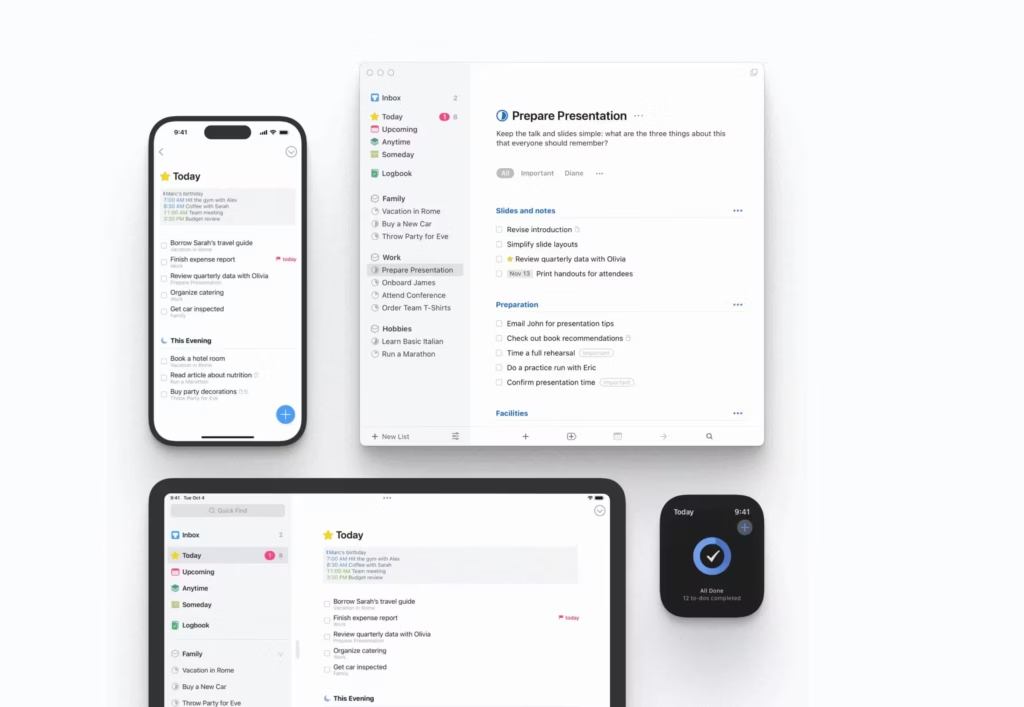
If I could only pick one productivity app to keep on my Mac, it would be Things. No question.
I’ve tried them all (Todoist, OmniFocus, Apple Reminders, Notion databases), but Things just feels right.
Here’s how I use it:
- Daily task planning and priority lists
- Weekly planning and recurring routines
- Project-level views for blog updates, dev work, and marketing cycles
- Quick-capture using the global shortcut and natural language parsing (“Write blog tomorrow at 10am” just works)
The design is buttery smooth. It never nags. It never feels overwhelming. And it syncs instantly across my MacBook Air, MacBook Pro, Mac mini, and iPhone 16 Plus.
It’s not free, but it’s also not a subscription. One of the best software purchases I’ve made.
ChatGPT and Codex

Use it at chatgpt.com
I switched back from Claude because GPT-5.6 Sol gets what I’m trying to do, not just what I typed. That’s the biggest difference for me.
With Sol and Codex, I can hand over a live WordPress page, an unfinished project, or a one-line correction such as “don’t delete anything.” It usually keeps the existing content, design rules, rollback path, responsive checks, and the actual definition of done in view.
It also handles changes of direction better. I can move from local files to WordPress to the browser without restating the whole project each time. That matters more to me than getting the prettiest first draft.
ChatGPT Pro currently has $100 and $200 monthly tiers, and both include Codex. The $200 tier mainly buys a larger usage allowance. See OpenAI’s current Pro plan details.
Craft

Download from: craft.do
You know how Notion feels powerful but sometimes… heavy? Craft is what happens when someone builds a doc app that actually respects your Mac.
It’s native. Truly native. Not an Electron wrapper pretending to be a Mac app. The difference shows in everything: how fast it launches, how smooth scrolling feels, how typing has zero lag. After years of web-based tools, using Craft feels like coming home.
Here’s how it fits my workflow:
- Client briefs and project docs: When I need to share something that looks polished without fiddling with formatting. Craft makes everything look good by default.
- Quick outlines: Blog posts, video scripts, newsletter drafts. The block-based editing feels faster than Notion, and the Markdown support means I can move content to Typora or WordPress easily.
- Personal planning: Daily notes, meeting summaries, random ideas I don’t want to lose. The daily notes feature is surprisingly addictive.
- Sharing without friction: One-click publish to a clean web link. No login required for viewers. Clients love this.
The typography is gorgeous. I’m not exaggerating. Craft pays attention to spacing, fonts, and visual hierarchy in a way that most productivity apps ignore. Documents just look right.
Sync across my Mac, iPhone, and iPad is instant. Not “eventually consistent.” Actually instant. Start a doc on my Mac mini, pick it up on my iPhone walking to get coffee, finish on the MacBook Air. It all just works.
The honest limitation: Craft isn’t trying to be a database like Notion. It has tables and Collections with custom fields, but no Notion-style board and timeline views or cross-database formulas. If you need a CRM or project management system, this isn’t it. But for writing and docs? It’s better than Notion in almost every way.
My current setup: I write drafts in Craft and polish final Markdown content in Typora. Both apps do these things exceptionally well.
Free tier is generous enough to try properly. If you write anything regularly and you’re on a Mac, give Craft a week. The speed difference alone might convert you.
Other recommendation: Agenda is worth keeping when notes need dates and project timelines. Its chronological model works well for meeting notes, client milestones, content calendars, and development logs, but I reach for Craft more often for writing and polished documents.
Enpass
The Password Manager I’m Moving To
Visit: enpass.io
This is where I’m landing after years of 1Password. Enpass does everything I need without the subscription creep.
Here’s what sold me:
- One-time purchase option: $79.99 for a lifetime license. Compare that to 1Password’s $48/year that never stops charging
- True cross-platform: Mac, Windows, Linux, iOS, Android. I test on multiple platforms and Enpass works everywhere, unlike Apple Passwords
- Credit card autofill in third-party browsers: this is huge. It fills credit cards in Brave and Chrome, which Apple Passwords can’t do properly outside Safari
- Offline-first with your own cloud sync: data syncs through iCloud, Dropbox, Google Drive, or OneDrive. Your vault never sits on Enpass servers
- Vaults, tags, and custom fields: organize passwords, secure notes, credit cards, licenses, and SSH keys the way you want
- Biometric unlock: Touch ID and Face ID, just like 1Password
The browser extension works in Safari, Chrome, Brave, Firefox, and Edge. Autofill is fast, not quite 1Password-level polish, but close enough that I don’t notice the difference in daily use.
The big advantage over Apple Passwords: credit card filling actually works in Brave, the cross-platform support means my passwords aren’t locked into Apple’s ecosystem, and the lifetime license means I stop paying after one purchase. For someone who manages client credentials, server logins, and personal accounts across Mac, iPhone, and occasionally Windows, Enpass is the practical choice.
If 1Password’s price increases have been bugging you, Enpass is the strongest alternative that doesn’t compromise on features.
Other recommendations: 1Password still has the most polished autofill and vault experience, but the individual plan rose to $47.88 a year in 2026. I no longer use it enough to justify that recurring price.
Apple Passwords is free and good enough for an all-Apple, Safari-first setup. I do not use it as my main vault because it still lacks secure notes and the organization and cross-platform control I need for client credentials.
WhatsApp for Mac
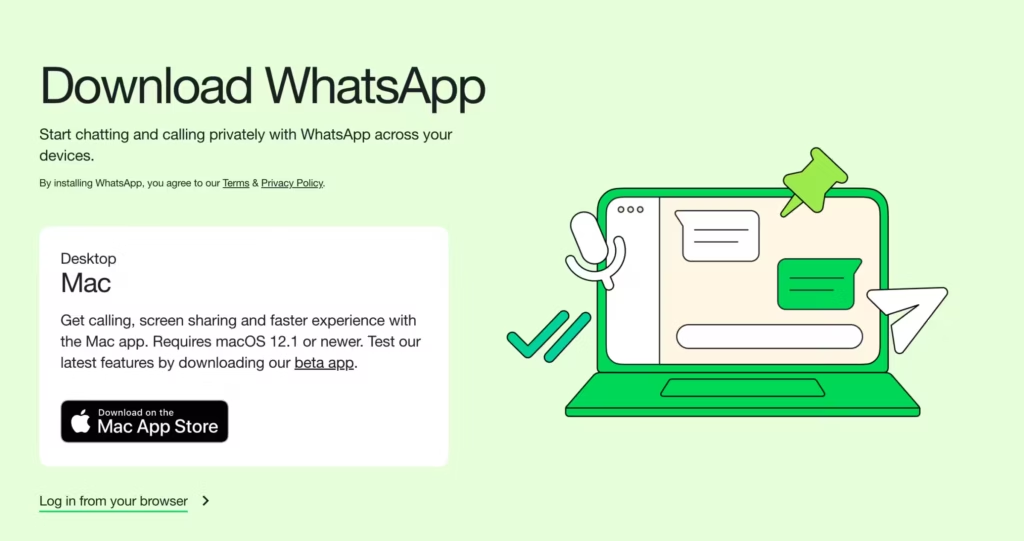
Download from whatsapp.com/download
Everyone uses WhatsApp. But the desktop app is how I keep my sanity while working.
Why it matters:
- Respond to messages without breaking focus or switching to my phone
- Copy/paste media, links, or code snippets directly to clients or collaborators
- Works great with macOS Notifications
- Saves me time, no more switching between devices mid-task
WhatsApp is still where most casual or quick client comms happen. And having it docked or shortcut-accessible means fewer distractions and more flow.
Other recommendation: Telegram is the better companion when I need large groups, channels, multi-device file sharing, or conversations that are easier to search. WhatsApp remains the default because that is where most clients already are.
AI Apps for Mac
ChatGPT and Codex stay in the must-have section because the pricing and my actual usage now justify that position. These are the AI apps I keep beside them for different kinds of work.
Gemini deserves a special mention. I open Gemini when Google’s models or Workspace context fit the job, but I treat it as an alternative rather than another daily Mac app.
Claude
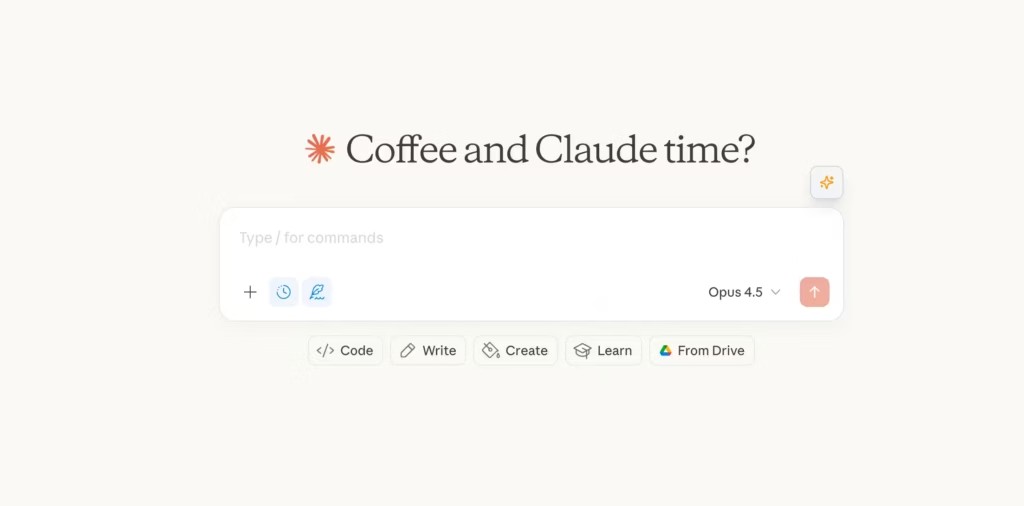
Use it at claude.ai
I haven’t stopped using Claude. It’s still very good at writing, research, and putting together a strong first draft. But I often found myself repeating context, fixing the last 10%, or checking whether the implementation was actually live and working.
Claude Pro costs $20 a month, while Max costs $100 or $200 a month. At the top end, Claude and ChatGPT cost the same. I care less about the model leaderboard than how much work gets finished without another round of explanation. See Claude’s current plan comparison.
Claude feels like a very good assistant. Sol feels like someone I can build with.
Ollama

Ollama is the AI app I use when the model and the files should stay on the Mac. It runs open models locally and exposes the same runtime to the desktop app, terminal, and tools that can connect to its local API.
The tradeoff is hardware and storage. Ollama needs macOS 14 or newer, uses Apple silicon for CPU and GPU acceleration, and model files can consume tens or even hundreds of gigabytes. It is not a cheaper ChatGPT replacement unless the Mac has enough memory and the local workflow actually matters.
Creative and Design Apps for Mac
Pixelmator Pro
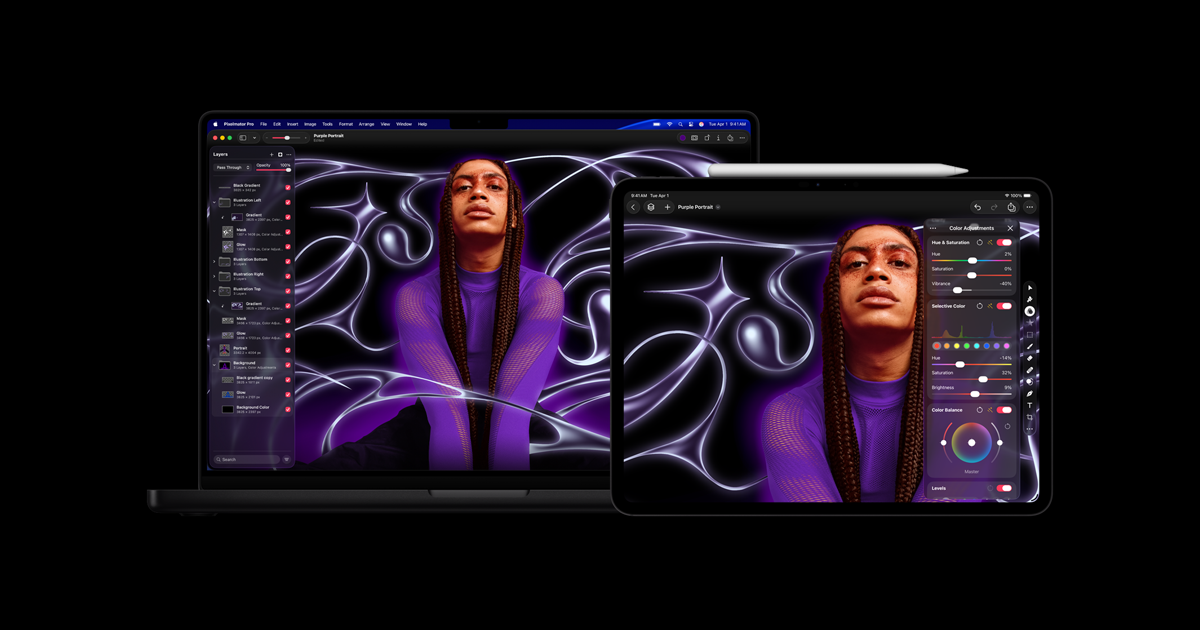
Get it from Apple
If you’ve ever used Photoshop and thought, “Why does this feel so… heavy?”, Pixelmator Pro is the exact opposite.
It’s a native Mac app, designed to take full advantage of Apple Silicon. And it flies. From photo retouching to blog banners to UI mockups, this app can handle most of what I throw at it, without turning my Mac into a jet engine.
How I use it:
- Blog Graphics: All my featured images and promotional banners? Done in Pixelmator Pro.
- Smart Remove Tool: It can erase unwanted stuff from an image almost instantly. Way faster than the spot heal tool in Photoshop.
- ML-Powered Editing: It uses machine learning for color balance, cropping, and even upscaling images without turning them into mush.
- Templates & Layers: Great for quick social posts or ads, without setting up a full project.
Apple now offers Pixelmator Pro through Apple Creator Studio at $12.99 a month or $129 a year, which is how I use it. The Mac app is also available as a $49.99 one-time purchase. Buy it once if Pixelmator is the only Apple creative app you need; Creator Studio makes more sense when Final Cut Pro or Logic Pro is already part of your work.
Apple Creator Studio
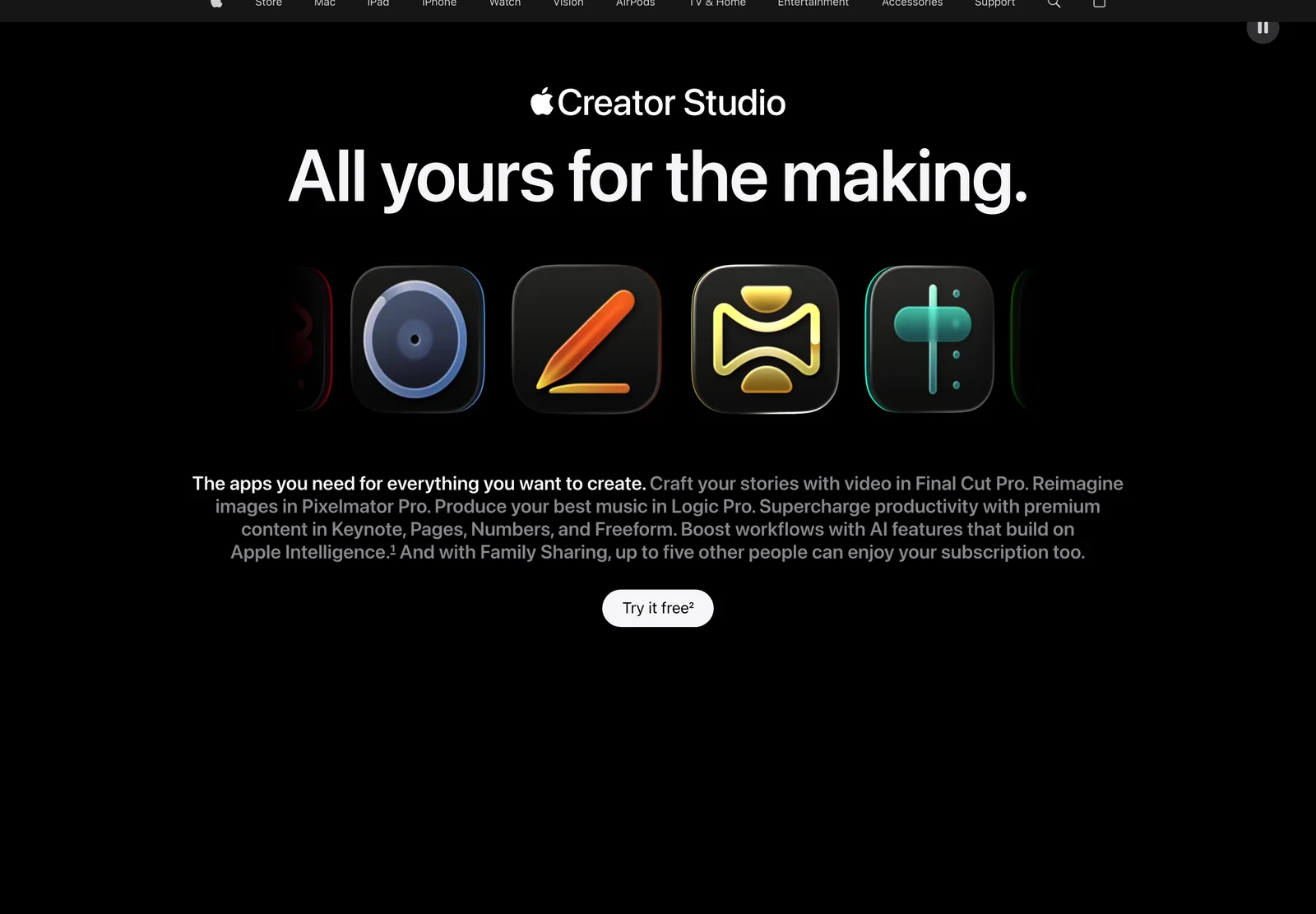
Details at apple.com/apple-creator-studio
If you opened your Applications folder recently and found Pixelmator Pro Creator Studio, Keynote Creator Studio, Numbers Creator Studio and Pages Creator Studio where the old apps used to be, nothing is broken. Apple renamed them. Mine are sitting in the folder right now under those names, because I’m on the annual plan.
Apple Creator Studio is the subscription bundle Apple announced in January 2026. It covers:
- Final Cut Pro on Mac and iPad
- Logic Pro on Mac and iPad
- Pixelmator Pro on Mac and iPad
- Motion, Compressor and MainStage on Mac
- Premium features inside Keynote, Pages, Numbers and Freeform
It runs $12.99 a month or $129 a year with a one-month trial, drops to $2.99 a month or $29.99 a year for students and educators, and works with Family Sharing for up to six people.
Two things worth knowing before you subscribe:
- The free apps are still free. Keynote, Pages, Numbers and Freeform create, edit and collaborate at no cost, exactly as before. The subscription unlocks premium templates, themes and the newer intelligent features on top of them. Nothing was taken away from you.
- One-time purchases still exist. Final Cut Pro is $299.99, Logic Pro $199.99, Pixelmator Pro $49.99, Motion $49.99, Compressor $49.99 and MainStage $29.99 on the Mac App Store.
The real casualty is the iWork name. Pages, Keynote and Numbers carried it since 2005, and Apple has quietly retired it in favour of the Creator Studio suffix.
My verdict: if Pixelmator Pro is the only app you want, buy it once for $49.99 and ignore the bundle. The subscription earns its keep the moment Final Cut Pro or Logic Pro is part of your work: those two alone are $499.98 outright, which is nearly four years of Creator Studio. I pay for the annual plan at $129 a year, which works out to about $10.75 a month and puts Final Cut Pro and Logic Pro on my Macs next to Pixelmator Pro.
If you only ever open Keynote to build slides, none of this changes anything for you except the app name.
Affinity
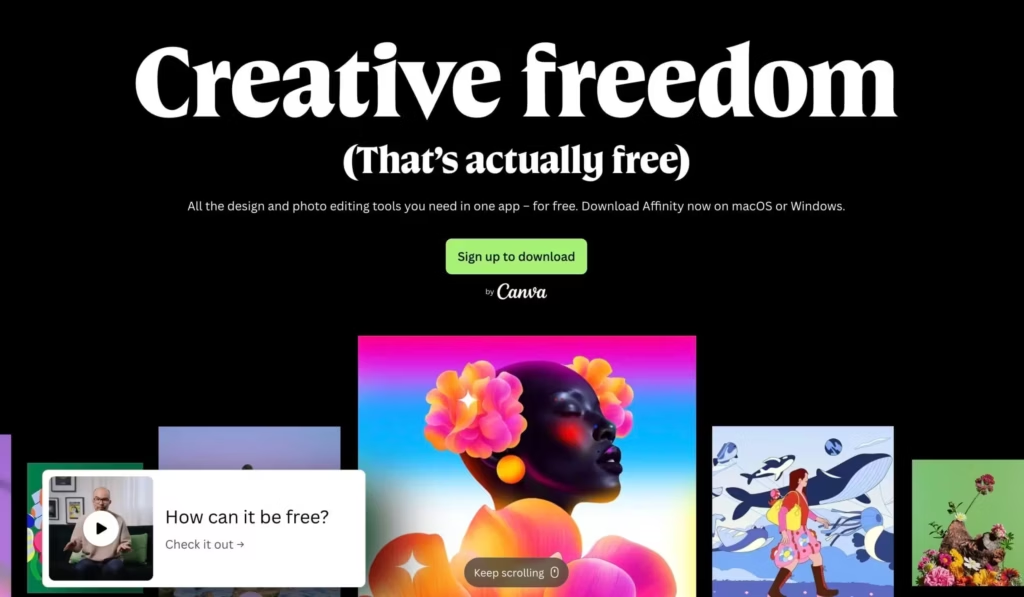
Download it from affinity.studio
Affinity is now completely free. Canva combined Affinity’s photo, vector, and page-layout tools into one professional Mac app with no subscription for the core tools.
Canva acquired Serif, the company behind Affinity, in 2024. The useful part of that deal is simple: you no longer need to buy Affinity Photo, Designer, and Publisher separately.
- One app: photo editing, vector design, and page layout share the same workspace.
- No core subscription: the professional editing and design tools are free.
- Local files: Affinity stores work on your device, and Canva says it doesn’t use Affinity content to train AI.
- Optional paid extras: premium Canva content, collaboration, and some AI features can still require a paid Canva plan.
The app runs smoothly on my Mac mini M4, including layered PSD files and print layouts. Canva is still faster for template-led social graphics, and Pixelmator Pro remains my quickest Mac-native photo editor. But if you want one free professional design app, start with Affinity.
Canva explains the free model, local storage, and paid extras in its Affinity announcement.
Canva
Visit Canva
I use Pixelmator Pro for quick native image editing and Affinity for deeper design work. Canva is what I open when a template, shared brand kit, or fast social graphic matters more than precise desktop editing.
I use the Canva desktop app mainly for:
- Blog graphics
- Instagram and Pinterest pins
- Client proposal headers
- Simple mockups and presentations
With its growing list of templates and AI-assisted features, Canva is honestly overpowered for what most people need.
What I like:
- Instant access to a massive asset library
- Drag-and-drop ease for layout and font pairing
- Cloud saves and team sharing when needed
And it’s fast. Not Mac-native fast, but close enough. For the kind of stuff that would take 15–20 minutes in Affinity? Canva gets it done in 5.
Freeform
Apple’s Visual Thinking Whiteboard
Learn more: apps.apple.com/us/app/freeform/
Freeform isn’t for everyone. But for me? It’s a quiet little gem.
It’s Apple’s built-in digital whiteboard: think brainstorming canvas, but shareable and synced across all your Apple devices.
How I use it:
- Sketch ideas for WordPress layouts
- Pin sticky notes with thoughts for upcoming blog posts
- Organize icons, screenshots, and snippets visually
- Collaborate with teammates when outlining project workflows
It’s not as advanced as Miro or as structured as Craft. But it’s fast, feels native, and is surprisingly good for creative thinking.
Bonus: With Apple Pencil on iPad Air M4, Freeform becomes a low-key design pad. Not daily-use level, but definitely good for messy early ideas.
Linearity Curve
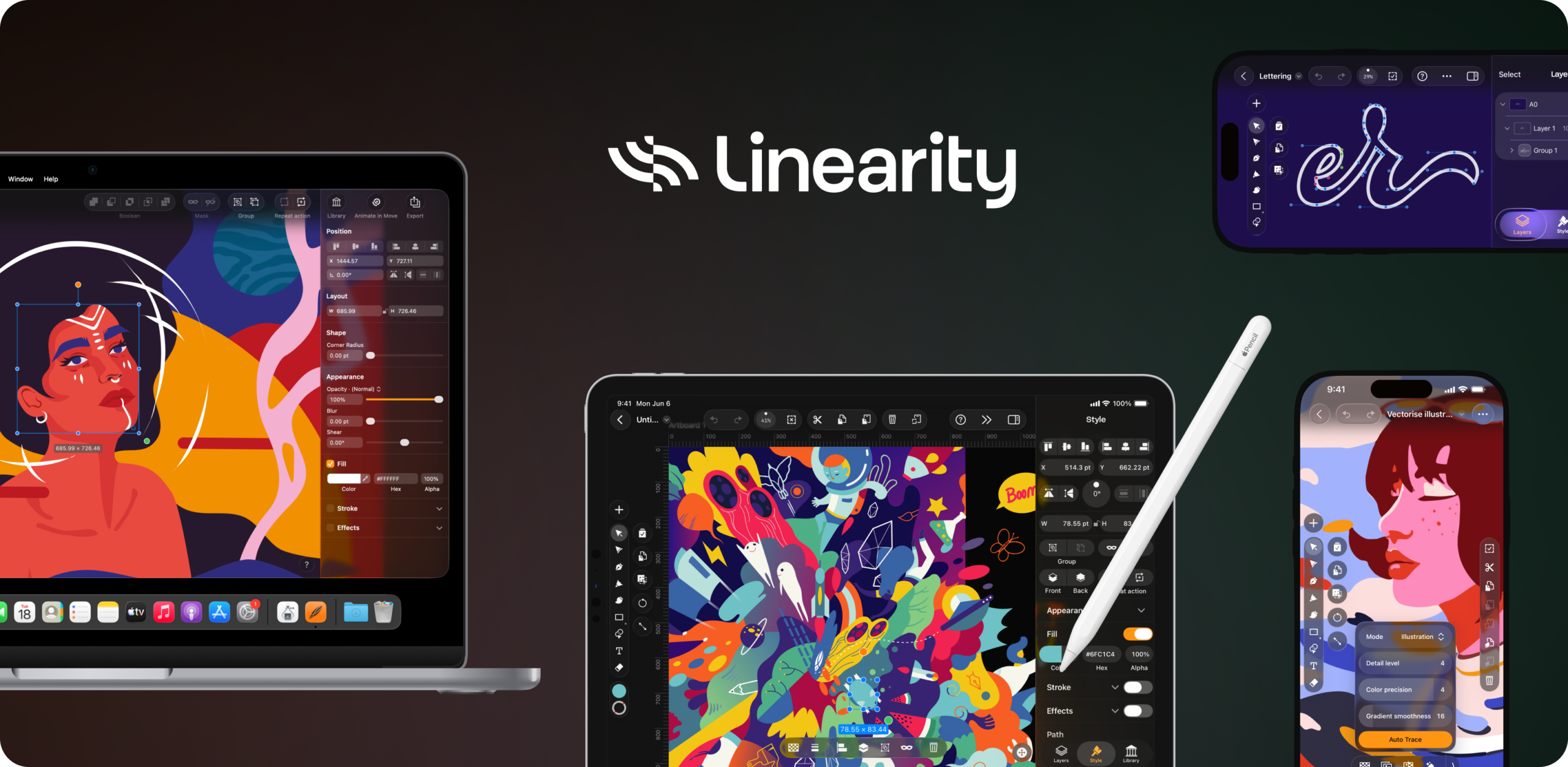
Vector Design with a Modern Soul
Learn more at linearity.io/curve
I didn’t expect to fall in love with Linearity Curve, but I did. It’s sleek, super intuitive, and honestly more fun to use than I expected from a design tool.
Why I use it:
- Fast vector illustration for blog graphics, client logos, or quick social visuals
- Smooth interface that feels modern, not bloated like some legacy tools
- Works beautifully on Mac mini M4, and syncing with the iPad is flawless
- Support for SVG, PDF, and AI files makes it easy to collaborate with others
Curve feels like what Adobe Illustrator should have become: fast and intelligent. It is subscription-based too now, with a free Starter plan and a paid Pro plan, so check the current plans before you commit. I’ve been using it more and more when Affinity feels like overkill.
Bonus: The app has real-time collaboration features and exports assets cleanly, a big deal if you’re creating web-ready content.
Pen (formerly Pencil)
Get it from pen.dev
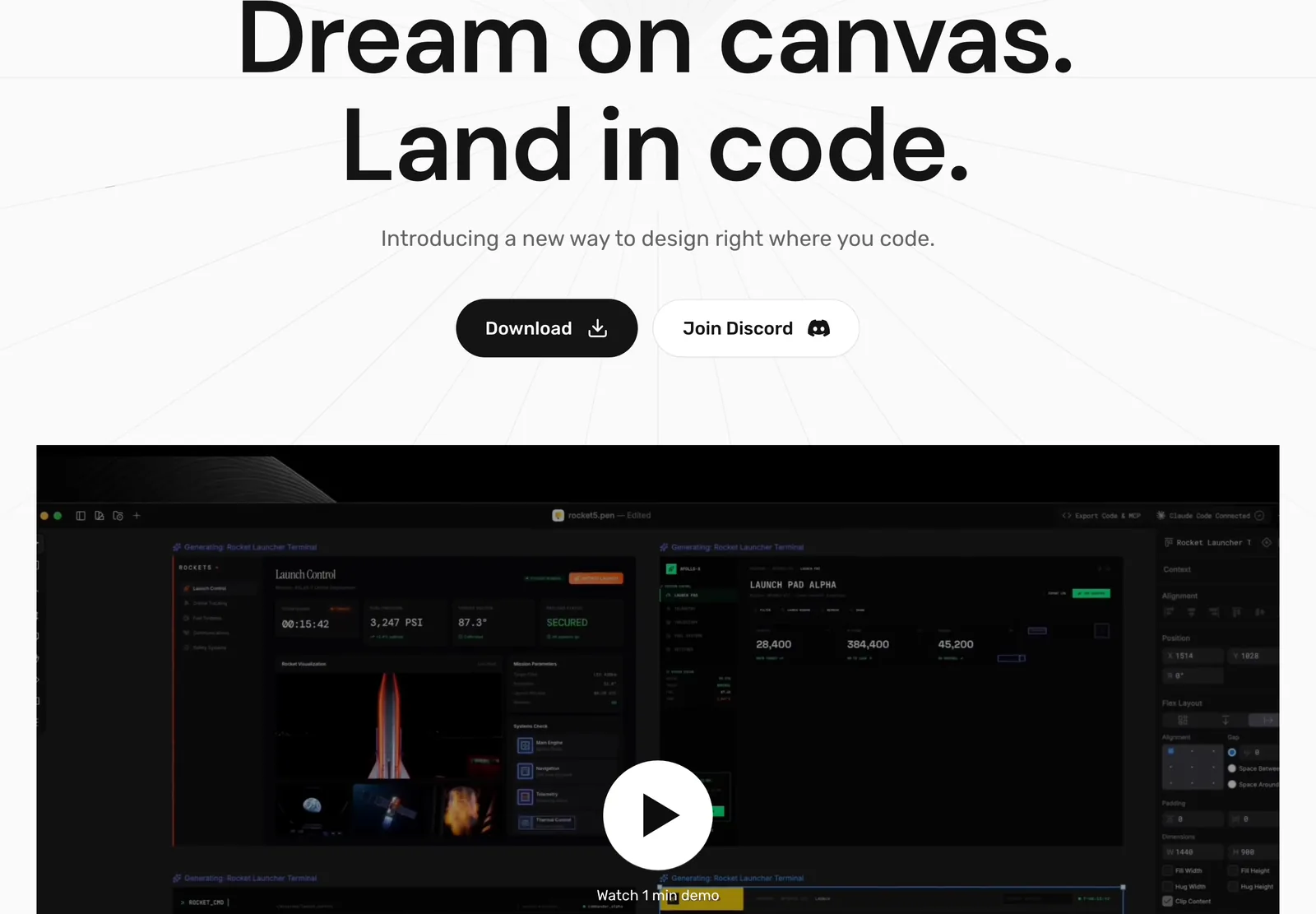
Pen is an infinite design canvas that sits next to your code, and it is the first design tool I have kept installed past the first week. It was called Pencil until recently: the app is Pen.app now, and pencil.dev redirects to pen.dev.
The tagline on the site is “Design on canvas. Land in code.” That is the actual workflow:
- The AI does the drawing: open a
.penfile and Pen runs Claude Code in the background with MCP tools wired into the canvas, adding frames, moving elements, changing colours, and screenshotting its own work to check it. - Design systems included: shadcn/ui and other kits ship with it, so designs start from a real component library.
- Figma import: bring an existing file in instead of starting from an empty canvas.
- Export to code: HTML, CSS or React out the other end.
Where it fits for me: roughing out a section layout before I build it in GenerateBlocks or Bricks. I describe what I want, Pen puts it on the canvas, I push it around by hand, and then I build against a reference instead of designing inside a page builder, which is a miserable way to design.
It is built by Tom Krcha, who previously built Around before Miro acquired it, and backed by a16z Speedrun.
Worth trying if you write code but do not think of yourself as a designer. That is exactly who it is built for.
Other recommendations: Paper is the closest idea to Pen, with a desktop canvas, MCP connections, and code-aware handoff. Figma for Mac remains the collaboration standard, while Sketch is the strongest native Mac alternative when the team does not need Figma’s browser-first workflow.
Developer Tools and Apps for Mac
Local
Building WordPress Sites Locally Made Simple
If you build or manage WordPress websites, Local is a must. I’ve been using it for years to test themes, tweak plugins, and build full sites offline, before pushing anything live.
Why I love it:
- Super fast setup: spin up a WordPress site in under 60 seconds
- Built-in tools for SSL, PHP version switching, mailcatcher, and more
- Push/pull integration with Flywheel and WP Engine (if you host there)
- Great for creating client demo environments or cloning existing sites safely
On the Mac mini, Local flies. No lag, no crashes, and it keeps everything sandboxed so I can test without breaking live sites. For devs, designers, and content editors, this is essential.
Studio by WordPress.com
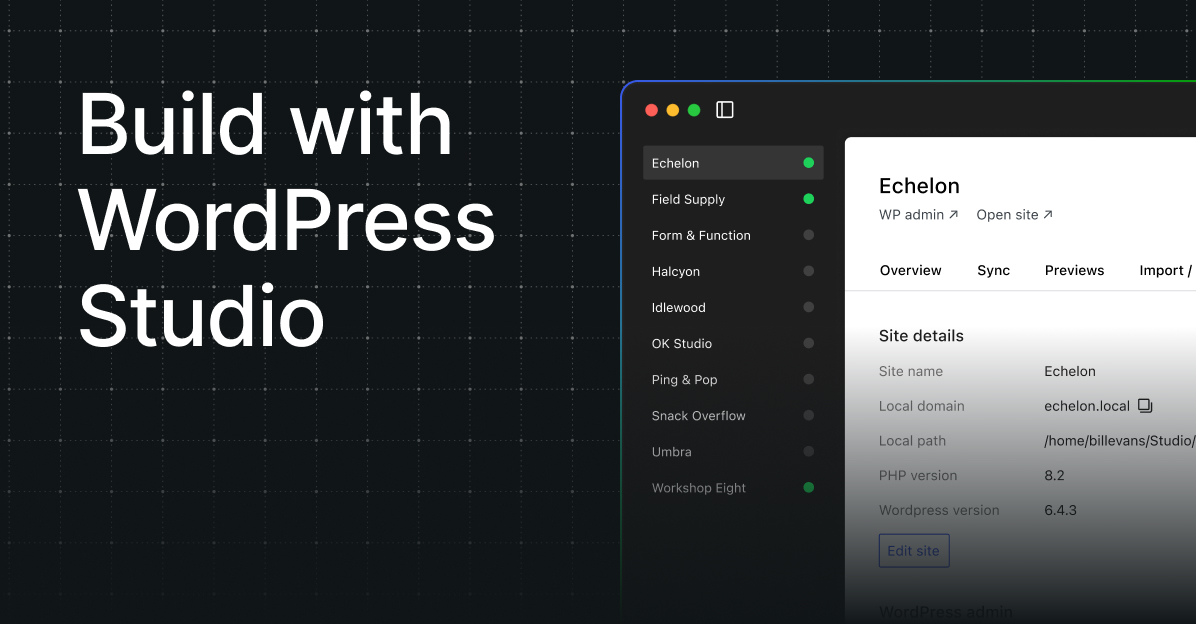
Next-Gen WP Dev Toolkit
Download from: wordpress.com/studio
Studio is like Local’s smarter, shinier cousin. Built by Automattic, it’s a local WordPress development app with a strong focus on Gutenberg, block themes, and the future of WordPress.
What stands out:
- Built-in block theme editing
- Git support baked in
- Modern interface that feels more like a Mac-native app
- Great sandbox for testing Kadence, GenerateBlocks, and even full-site editing projects
I mostly use it for testing block-first workflows and seeing how modern WP stacks behave in a contained space. If you’re experimenting with FSE (Full Site Editing), Studio is a fantastic playground.
That said, Local still handles heavier dev tasks better. But Studio? It’s clean, fast, and evolving fast.
Homebrew

The Mac Terminal’s Secret Weapon
You don’t see it, but it’s probably running half your dev stack.
Homebrew is the package manager that turns your terminal into an app store, but for actual developers.
What I use it for:
- Installing essentials like Git, Node.js, Python, wget, and ffmpeg without clicking through websites or downloading shady .dmg files
- Keeping packages updated with a simple
brew upgrade - Installing GUI apps via
brew install --cask: everything from Visual Studio Code to Rectangle (when I used it) - Managing extensions and command-line tools I need for building, testing, and optimizing WordPress projects
It’s simple:
brew install name-of-whatever-you-need
That’s it. You’re off and running.
Homebrew is the kind of tool you forget about until you’re setting up a new Mac, and then it’s the first thing you install. If you’ve ever typed curl | bash and prayed it didn’t break something, trust me: Homebrew is the safer, smarter, more elegant way to get your terminal life together.
Python

My Scriptable Secret Weapon
Download for free from python.org or run brew install python if you have Homebrew installed.
I don’t use Python every single day, but when I do? It’s essential. From automation to small data tasks to WordPress plugin utilities, Python fits in neatly.
How I use it:
- Write automation scripts to handle repetitive tasks
- Parse data or clean up client-provided CSVs
- Build quick prototypes for internal tools
- Occasionally use it in plugin development or with custom APIs
It runs beautifully on all three of my Macs, and with Claude Code and Zed set up properly, I can hop in and out of a script-based workflow without breaking stride.
Bonus: Python + Raycast workflows = small tools that just work for my exact needs.
Ghostty

The Terminal You Actually Want to Look At
Download for free from ghostty.dev
I used to fire up Terminal when I had to. Now? I enjoy it. Why? Because Ghostty made it nice to look at, and even nicer to use.
This is a modern, GPU-accelerated terminal emulator for Mac. Clean fonts, smooth animations, no flicker, and everything feels responsive.
Here’s why I switched:
- Supports ligatures and modern fonts like JetBrains Mono and Operator Mono
- GPU rendering makes everything feel buttery on the Mac mini M4
- Doesn’t hog memory or stutter during long processes or Git logs
- It just feels right: polished, native, and minimal
Pair it with Raycast, and it becomes your command-line cockpit. Bonus: If you’re sick of the default terminal being plain and glitchy, Ghostty makes you want to open it.
SnailSVN
For WordPress Plugin Subversioning
Download from the Mac App Store
Yes, I use Git. But Subversion (SVN) still powers a lot of WordPress plugin and theme repositories, and for that, Snail SVN is a quiet hero.
Why I use it:
- Push updates to WordPress.org repositories
- Manage older legacy projects that never migrated to Git
- Track changes to SVN-hosted client codebases
- Mount repos like Finder folders, with simple context menus
It’s basically TortoiseSVN for Mac: clean UI, right-click commit/push/pull, and works without having to memorize SVN commands.
If you’re in the WordPress dev world, and you publish plugins or themes, this tool is a must.
SnippetsLab

My Personal Code Vault
Download from the Mac App Store
If you work with code, you know the pain: you wrote the perfect function three projects ago… but where is it now?
SnippetsLab fixes that. It’s my private, searchable library of reusable code, WordPress snippets, CSS fixes, bash aliases, and more.
Here’s how I use it:
- Store custom
functions.phphooks - Save terminal commands I use during site migrations
- Keep reusable blocks of Tailwind or Markdown
- Organize everything by tag, language, or folder
It supports over 500+ languages, has syntax highlighting, and syncs beautifully across devices via iCloud.
For someone who writes across projects and hates repeating work, SnippetsLab is indispensable. Plus, it is totally free.
Claude Code
My Coding Setup Now
Get it from claude.com/product/claude-code
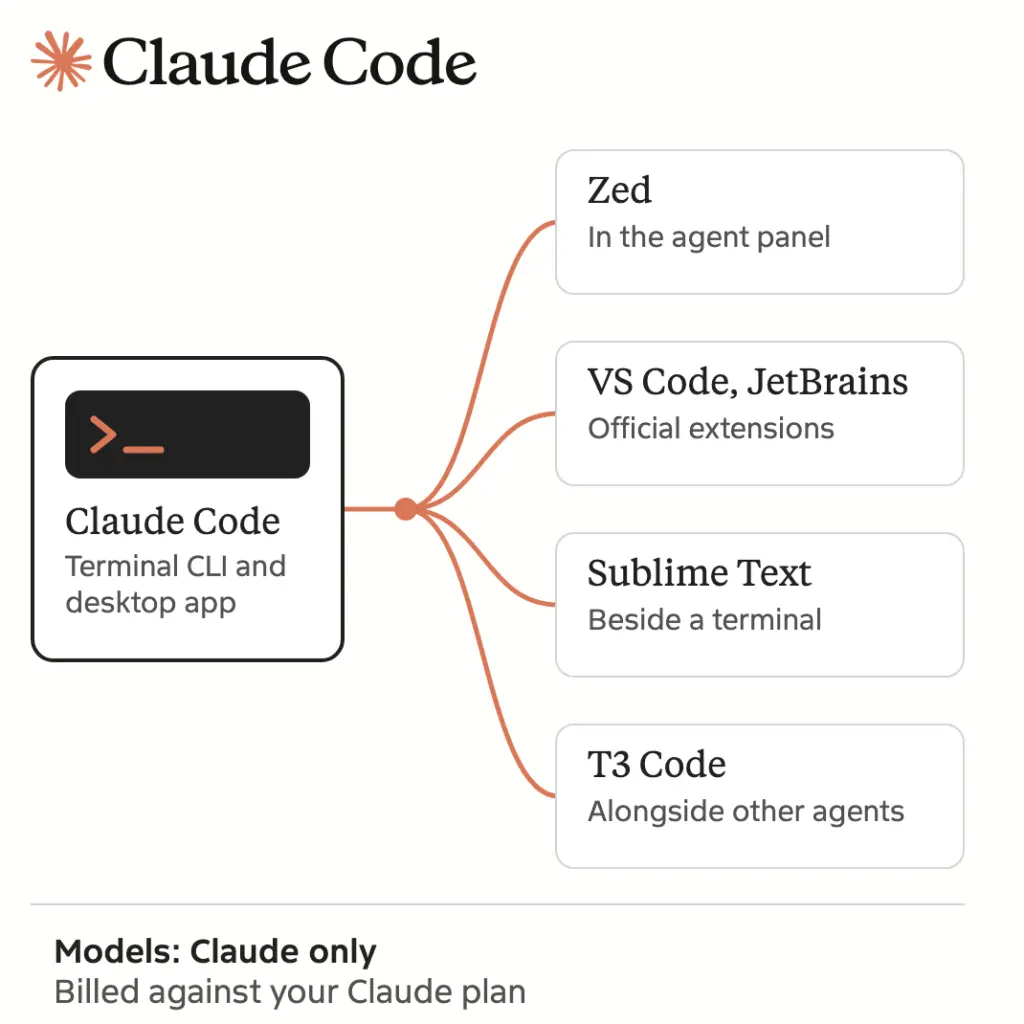
My coding setup is no longer one big editor. Claude Code does the agent work through the claude CLI and the Claude desktop app, and I pair it with a fast editor for reading and fixing code by hand.
This is the setup I actually run:
- Claude Code: it reads the project, runs commands, edits files and checks its own work. It comes with Claude Pro at $20 a month and Max at $100 or $200 a month.
- Zed: it opens instantly, stays light on big projects and runs Claude Code inside its agent panel. Zed is free, and Zed Pro is $10 a month if you want its own AI features.
- Sublime Text: still the fastest thing on my Mac for huge files and quick scratch edits, with Claude Code running in a terminal beside it. A license is $99 and includes three years of updates.
- T3 Code: a free, open-source desktop app from the T3 team that runs Claude Code and Codex sessions in one window, with git worktrees and inline diff review. I open it when several agent sessions need to run side by side.
VS Code was my main editor for years, and I still rate it above Cursor for flexibility. Once the agent does most of the typing, though, the editor’s job is to open fast and show me the diff, and Zed does that with far less weight. Cursor is off my Mac entirely. Its agent-first redesign turned it into a heavier version of this same setup.
I went through both approaches in my Cursor vs Claude Code comparison.
Other recommendations: these stay as narrower tools around the main setup.
- GitHub Desktop when a visual commit history is quicker than the terminal.
- VS Code when a project needs an extension the lighter editors don’t have.
- CotEditor for a free, native editor that sits neatly between TextEdit and an IDE.
- BBEdit for difficult grep, encoding, and multi-file text jobs.
- Antigravity when I want to try Google’s agent-first workflow, though I no longer treat a preview IDE as my main editor.
Whisk
A Surprisingly Great HTML5 & PHP Website Designer
Whisk is one of those apps I didn’t expect to use much, and then suddenly it became a go-to tool in my front-end workflow.
Here’s what makes it shine:
- Live preview for HTML, CSS, and JavaScript, side by side
- Perfect for prototyping email templates, landing pages, or component ideas
- Super fast rendering engine
- No heavy dependencies or workspace setup required
It’s especially handy when you want to test code snippets or refine layout ideas without booting up a full dev environment or launching Local/Studio.
Whether I’m tweaking block editor CSS or drafting a quick one-page landing design, Whisk gives me that instant feedback loop, and that’s addicting.
ForkLift
File Transfers That Don’t Feel Like a Chore
I used FileZilla (also listed below) for years. It works. It’s reliable. But let’s be honest: it looks and feels like it came out of 2004.
ForkLift is my FTP/SFTP app of choice now. Clean UI. Tabbed browsing. Dual-pane file manager. And it’s blazing fast on Apple Silicon.
How I use it:
- Managing WordPress theme files on client servers.
- Uploading SVGs and media for ongoing projects.
- Backing up server folders to external drives with one click.
It supports all the major protocols: FTP, SFTP, WebDAV, Amazon S3, you name it. If you’ve got multiple websites or work with clients, ForkLift is one of those tools you don’t realize you need until you use it once.
When FileZilla chokes, ForkLift delivers.
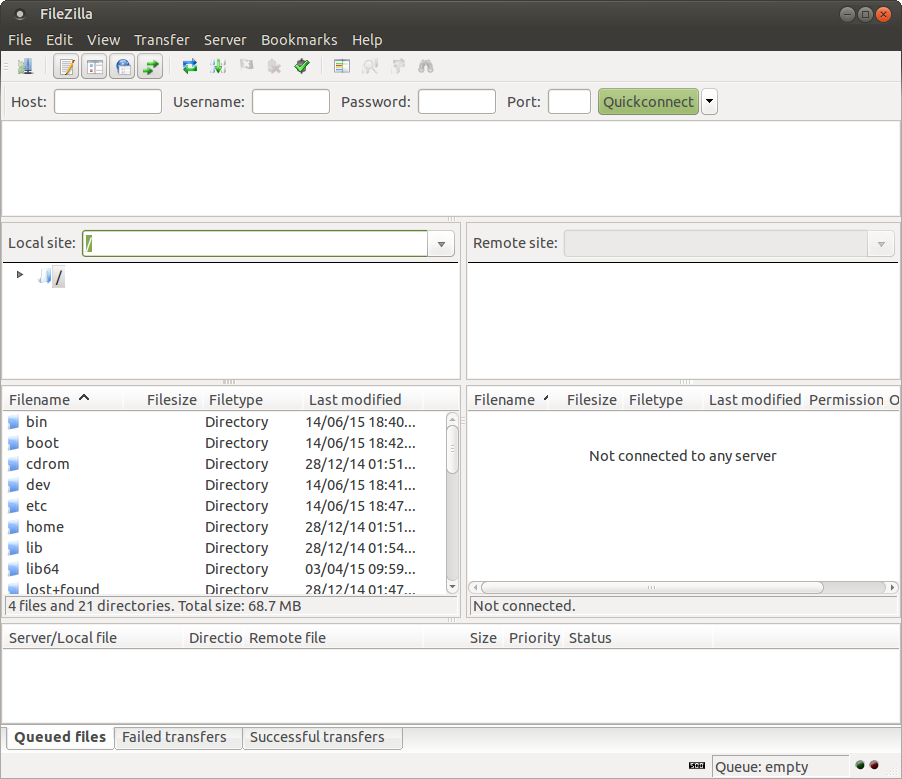
FileZilla
The Old Reliable, Still Hanging Around
Download from: filezilla-project.org
I know I just praised ForkLift, and I still stand by it as my go-to. But every now and then, ForkLift hits a snag, especially with older or more finicky FTP servers.
That’s where FileZilla comes in.
It’s not pretty. It hasn’t changed much visually in years. But it works. Every time. Especially when nothing else does.
I use it:
- For quick FTP access to legacy servers
- When working with clients who use odd hosting setups
- As a backup when ForkLift doesn’t handshake properly
It’s one of those “just in case” tools that I keep around because when you need it, you really need it.
Parallels Desktop
Run Windows on Your Mac Without Rebooting
Visit: parallels.com
Every once in a while, I need to test something in Windows: a WordPress plugin on IIS, a client’s setup, or just checking how a site renders in Edge on actual Windows. Parallels Desktop makes that painless.
On Apple Silicon, it runs Windows 11 ARM edition through virtualization, and honestly, it’s surprisingly fast:
- Coherence Mode lets you run Windows apps side-by-side with Mac apps, no separate desktop needed
- Drag and drop between Mac and Windows works seamlessly
- Snapshots let you save VM state and roll back if something breaks
- Linux support too: I’ve run Ubuntu for testing server configurations
It’s not something I launch daily, but when I need it, it’s the one I’d pay for. Boot Camp is gone on Apple Silicon, and VMware Fusion (now free) and the open-source UTM can run Windows too, but Parallels is still ahead on Coherence Mode and everyday speed.
If you ever need Windows for work, testing, or that one app that’s Windows-only, Parallels is a must-have.
- Run Windows 11 natively on Apple Silicon Macs with near-native speed
- Coherence Mode runs Windows apps side-by-side with Mac apps
- Linux support for testing server configurations
- Snapshots to save and restore VM state instantly
Writing Apps for Mac
Bear
Get it from bear.app
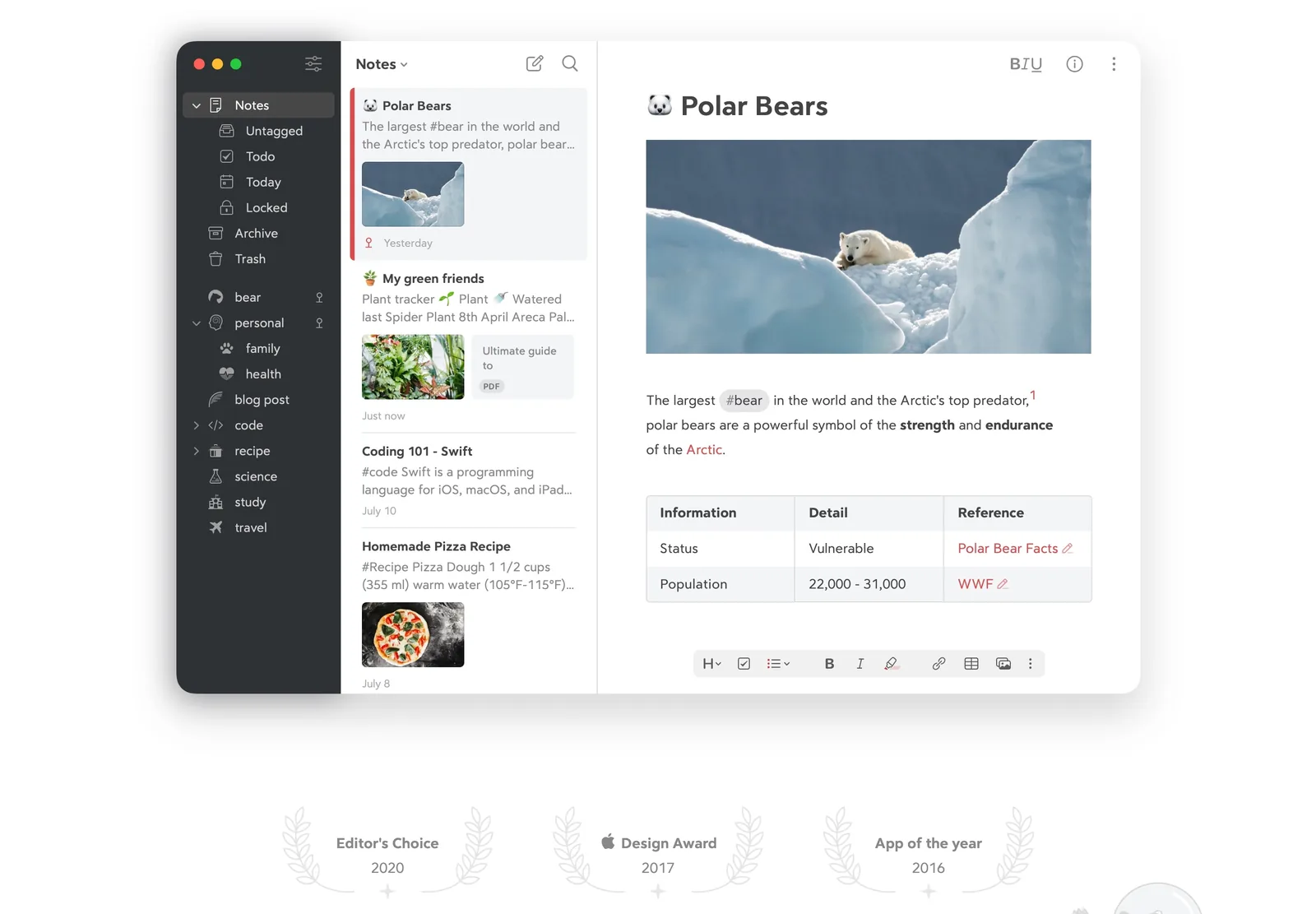
I used Bear years ago, drifted away from it, and came back this year for a reason I did not see coming: it now has an MCP server and a command line tool.
That changes what a notes app is for me. Claude can read a note, append to it, search the whole library, create notes with tags, from the terminal or from an agent, without me touching the interface. Writing a plan into Bear and then having it edited programmatically is genuinely useful in a way that “your notes sync across devices” never was.
Everything that made it good before is still true:
- Markdown that stays out of the way: it renders as you type instead of splitting the window into editor and preview.
- Tags instead of folders: nested tags handle structure better than a folder tree ever did.
- iCloud sync: Mac, iPhone and iPad, through my own iCloud account rather than someone else’s server.
- Fast: it opens instantly with thousands of notes in it, which is more than I can say for most of its competition.
Pricing? Bear Pro is $2.99 a month or $29.99 a year, with a seven-day trial. That is the cheapest line item in this entire post. The editor is free; sync, encryption, export to PDF and DOCX, and the themes need Pro.
Cheap, fast, syncs through iCloud, and scriptable from the command line. That combination is why it is back on my dock.
Scrivener

Buy from: literatureandlatte.com
Scrivener isn’t for blog posts. It’s for books. For serious writing. For content that’s so long, messy, or layered that other editors can’t handle it.
I use it for:
- Outlining and writing long-form guides or multi-part tutorials
- Drafting ebook content
- Research-heavy documents with lots of footnotes, assets, and rearranging
- Managing sections, scenes, and reference material all in one place
It’s not as pretty as Craft or as fluid as Typora. But for structured, complex writing? It wins. Big time.
And yes, it syncs across devices (including iPad), but I mostly use it on the Mac mini where I can focus deeply.
iA Writer
For Drafting When Every Panel Feels Like Noise
iA Writer strips writing back to a document, a cursor, and Markdown. Focus Mode can dim everything except the sentence or paragraph I am working on, which is useful when a draft needs concentration rather than another research tab.
Its Authorship feature is also timely. It can visually distinguish my own words, pasted reference material, and AI-assisted text without uploading the document for detection. That does not make weak writing honest by itself, but it gives me a clear view of where the draft came from before I publish it.
Typora remains better for tables, regex edits, and a live Markdown preview. Craft is better for polished shared documents. iA Writer wins when I need to stop organizing the work and write the next 800 words.
Obsidian
Get it from obsidian.md
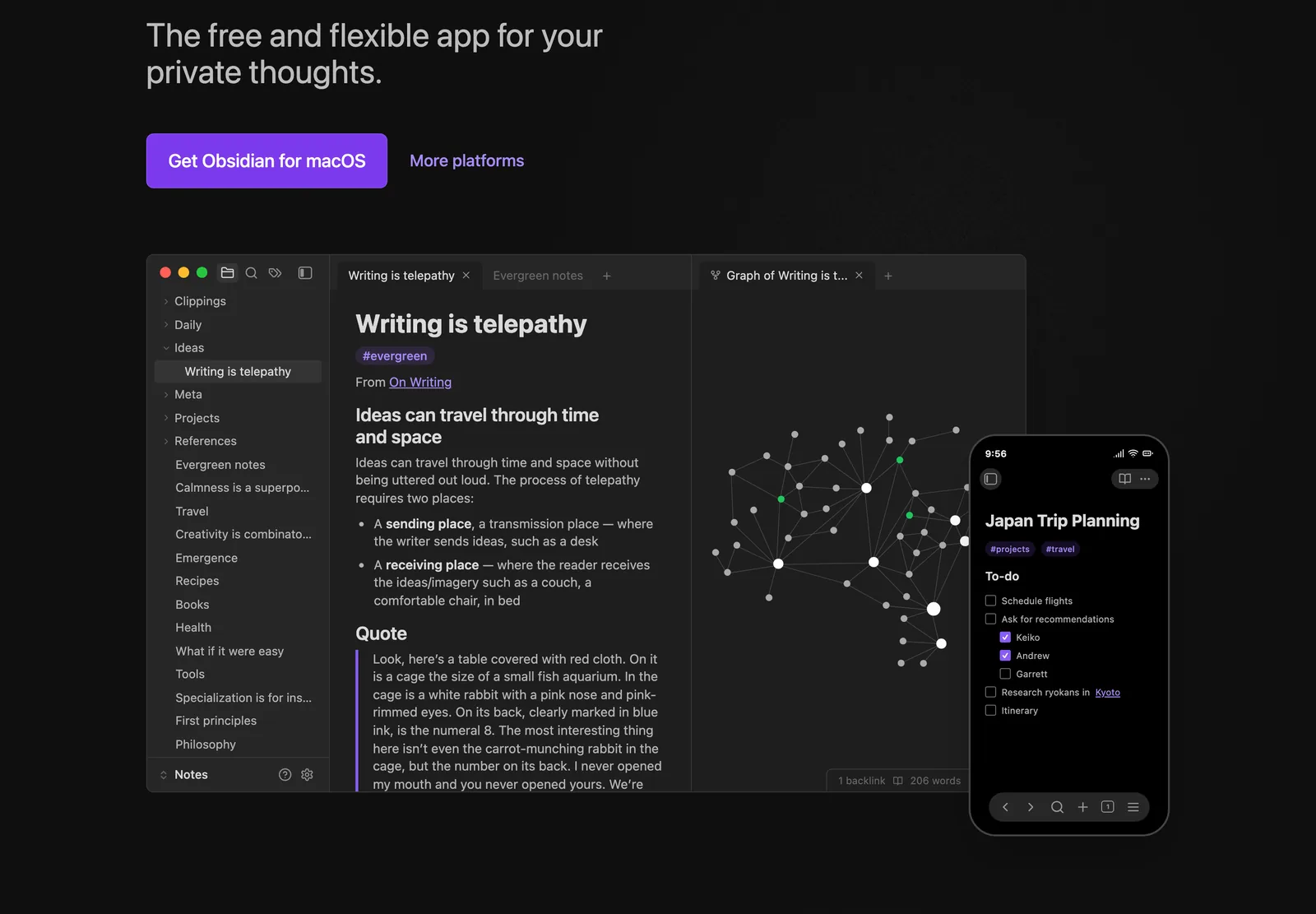
I have been an Obsidian user and a genuine fan for a long time. Plain markdown files on disk, a plugin for everything, the graph view, vaults you actually own. For years it was my answer to every “where should this live” question.
It is still installed. I open it less every month.
The honest reason: it has lost its edge. The core app has not moved much while the plugin ecosystem got heavier, and I noticed I was maintaining a note-taking setup instead of taking notes. Bear does most of what I need with none of the configuration, and the parts Obsidian genuinely does better (backlinks, the graph, big interlinked vaults) turned out to matter less to me than I expected.
Who should still use it:
- You want plain markdown files on disk with no database and no lock-in.
- You are building a real knowledge base rather than a notes app: hundreds of linked notes, where the graph earns its keep.
- You enjoy configuring your tools. Some people do, and Obsidian rewards it more than anything else here.
Pricing? Free, including for work: the $50 a year commercial licence is optional support, not a requirement. Sync is about $4 a month and Publish about $8 a month if you want them.
This is less a criticism of the app than a change in what I need from one. If Obsidian is working for you, nothing here should talk you out of it.
Best Mac Utilities
ClipBook
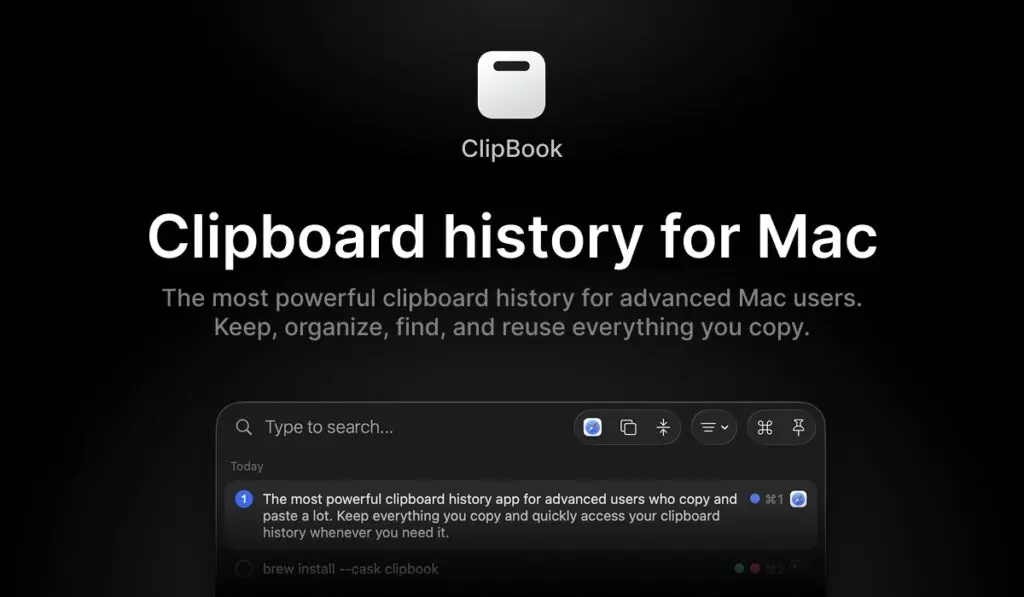
Get it from clipbook.app
I copy code, URLs, colors, client feedback, images and files all day. ClipBook keeps every one of them in a searchable history, and it replaced PastePal on my Macs for one reason: the interface is better. One clean search window, a full preview of each item and keyboard control for everything.
- Everything you copy: text, images, files, links and colors, with a full preview before you paste.
- Stays on the Mac: the history is stored locally, and ClipBook can skip passwords, one-time codes and any app you exclude.
- Keyboard first: quick-paste shortcuts and keyboard navigation, so the mouse is optional.
Pricing? $9.99 one-time for one Mac, $14.99 for two and $29.99 for up to five, with lifetime updates, a 5-day free trial and a 14-day money-back guarantee. It needs macOS 13 or later, and brew install --cask clipbook installs it through Homebrew.
Other recommendations: PastePal is still the better pick if you want the same clipboard history on an iPhone and iPad, since ClipBook is Mac-only. Paste has the prettiest visual timeline and pinboards, but I don’t use it enough to justify the subscription. Raycast already includes clipboard history, and since macOS Tahoe 26 Spotlight shows recent clipboard items too. Use those for light recall and ClipBook when the clipboard has become part of the workflow.
TOT
Download from the Mac App Store
TOT is the opposite of Notion or Things. It’s not a system. It’s not a planner. It’s just seven scratchpads, synced across all your devices.
I use TOT for:
- Jotting down links I don’t want to lose mid-research
- Pasting temporary Markdown content
- Logging Zoom links or quick code blocks
- Brain-dumping random ideas during meetings
Each page is color-coded and limited in size, which is the point. It’s just enough space to write, without turning into another inbox.
TOT is fast, beautiful, and completely frictionless. It’s the notes app that never asks for more than you’re ready to give.
AppCleaner
Download from: freemacsoft.net/appcleaner
Deleting an app on a Mac by dragging it to the trash? That’s cute. But it leaves behind junk: preference files, caches, support folders, weird library leftovers. It all adds up.
AppCleaner makes sure an uninstall is actually an uninstall.
Here’s how I use it:
- When I test new apps (which I do a lot), AppCleaner lets me delete them completely if they don’t make the cut.
- I just drag the app into AppCleaner, and it finds every single hidden file associated with it.
- One click. It’s gone. Fully gone.
It’s small, free, and runs without hogging memory. No frills, just does its job well. And on a machine like the Mac mini M4, which I want to keep lean and optimized, this is clutch.
Cotypist
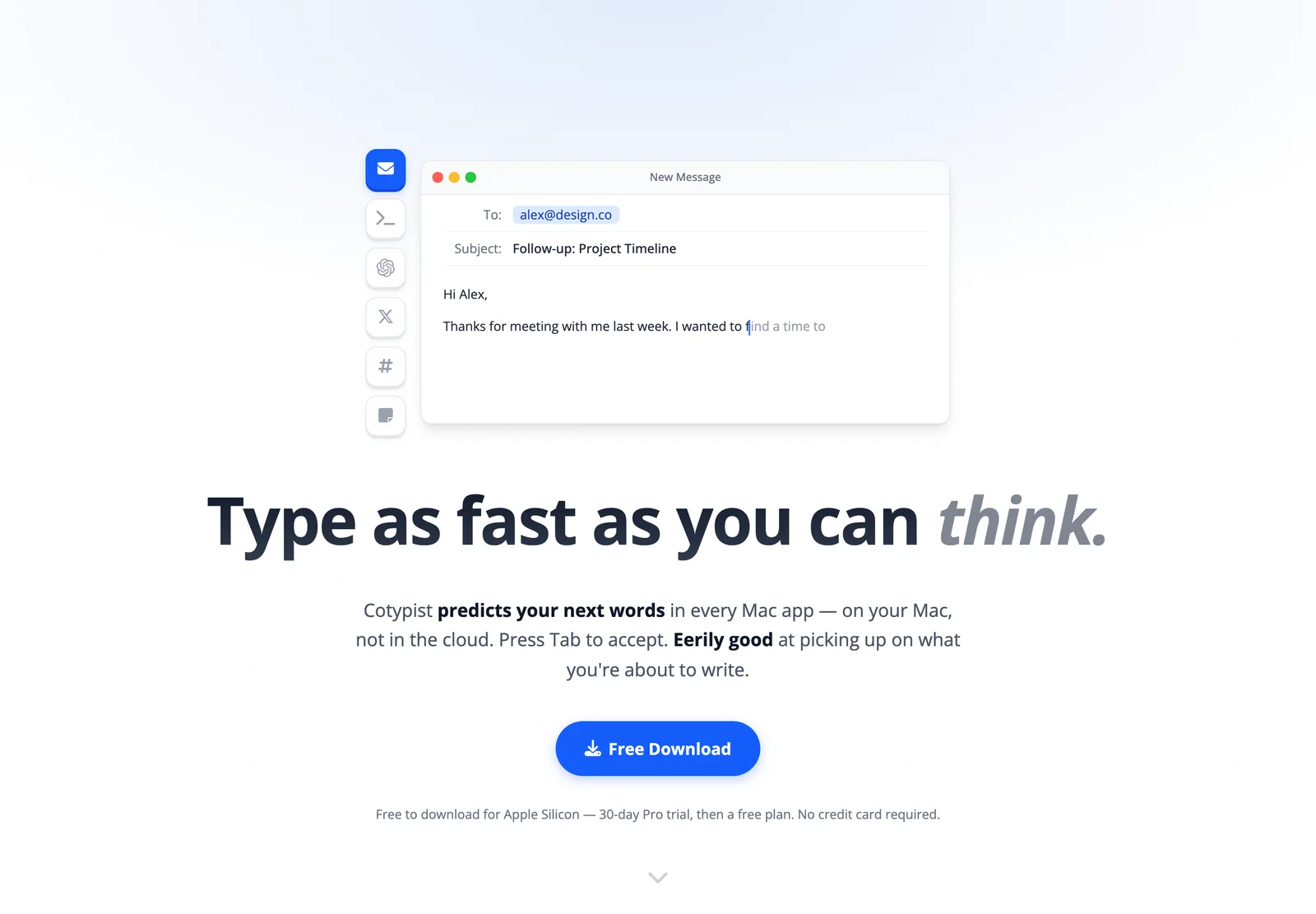
Get it from cotypist.app
Cotypist predicts your next words in any Mac text field and shows them inline in grey. Tab accepts a word or the whole line. Keep typing and the suggestion disappears. That is the entire app.
It earns a place this high in the list because of where it runs: entirely on your Mac. No cloud, no API key, nothing leaving the machine. Every other tool with “AI writing” in the description wants your text on a server first.
- Works nearly everywhere: Safari, Chrome, Mail, Word, Notes, Notion, Obsidian, Messages and most native text fields. Google Docs needs an accessibility permission, and code editors only work in sidebar chats.
- Learns how you write: the predictions are noticeably better after a week of use.
- One key to accept: Tab. No popup to dismiss, no menu to open.
- Private by construction: the model is local, so it works offline.
Requirements: Apple Silicon and macOS 14 or later, and it wants memory: 1 to 2.5GB while running, with 16GB of RAM recommended. On the Mac mini with 24GB I never notice it. On an 8GB machine I would think twice.
Pricing? Free for 100 completed words a day, which is enough to find out whether you like it. Paid plans remove the cap, and there is a 30-day Pro trial with no card required.
John Gruber called it “remarkably Mac-assed,” which is exactly right: it behaves like a system feature rather than an app you installed.
SlimSnap
Get it from slimsnap.ai
SlimSnap is built for screenshot-driven coding-agent work. CleanShot X remains the stronger all-rounder for polished captures, recording, and sharing. SlimSnap solves a narrower problem: it turns a screenshot into structured JSON with text, element positions, bounding boxes, and annotations, so tools such as Claude Code, Aider, and Codex CLI can act on the part you marked instead of guessing from pixels.
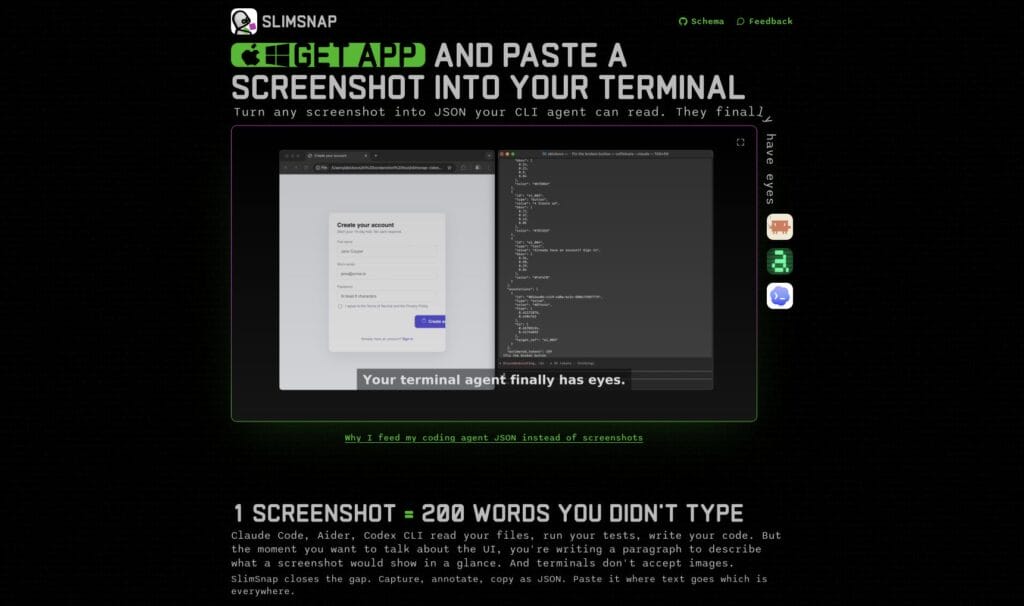
- Capture and annotate: grab a region or a scrolling page, then add arrows, callouts, and highlights that become structured intent in the export.
- Local OCR: screenshots, extracted text, JSON output, and app usage stay on the Mac. There is no account or telemetry.
- Readable long captures: scrolling screenshots split into page-sized frames instead of one tall image that an AI tool may shrink until the text is useless.
- Open handoff: the app is closed source, but its JSON schema is published under the MIT license, so the capture format is not locked to one app or agent.
This is not a CleanShot X replacement for visual presentation. SlimSnap’s JSON keeps text, structure, and coordinates, but it drops pixel-level details such as gradient direction and whitespace feel. Use it when the next step is fixing a specific interface element with an agent; keep the raw image when the visual treatment is the point.
Requirements and pricing: The Mac app requires Apple Silicon and Screen Recording permission. It is free during launch, with no registration required.
ProFind
File Search That Actually Finds Things
Download from: zeroonetwenty.com/profind or Mac App Store
Spotlight is fine for opening apps and doing quick searches. But when I need to actually find files, especially ones buried in project folders, invisible directories, or server volumes, Spotlight falls short.
ProFind is what Spotlight should have been.
What makes it different:
- Searches everywhere: Invisible folders, packages, any disk type (Mac, Windows, servers). Nothing is hidden from ProFind.
- Natural language queries: Type like you think. “images larger than 5mb modified last week” just works.
- Kernel-based searching: Uses macOS’s low-level search capabilities when available, plus metadata indexes. Fast even on huge drives.
- Saved searches: Keep searches I run regularly (like finding all WordPress theme files or images in a specific project) for quick access.
- iOS companion: Free iOS app lets me search files on my Mac from my iPhone over the local network.
I use ProFind constantly when digging through client projects, finding assets in massive media libraries, or locating that config file I know exists but can’t remember where I put it.
It’s not free, but the time it saves makes it worthwhile. When you need to find something fast, ProFind delivers.
Latest
Free, Open-Source Update Checker
Download from: max.codes/latest
MacUpdater was my go-to for years. Then it shut down. Classic story: indie app, couldn’t sustain the business model, gone.
Latest picked up the slack. It’s free, open-source, and does exactly what I need: tells me when my non-App Store apps have updates available.
Why I switched (beyond MacUpdater dying):
- Completely free. No subscription, no “pro” tier, no hidden costs.
- Open source means it’s not going anywhere. If the developer stops maintaining it, someone else can pick it up.
- Clean, minimal interface. Shows what’s outdated, lets me update with one click.
- Lightweight. Doesn’t hog resources running in the background.
When you’re running 70+ apps across a MacBook Air M5, a Mac mini M4, and a M5 Pro MacBook Pro, you need something tracking updates. Otherwise you’re running outdated software with security holes and missing features.
Latest isn’t as feature-rich as MacUpdater was. No automatic downloads, no detailed version histories. But it solves the core problem: “what needs updating?” That’s enough.
Folder Tidy

When Your Desktop Starts Looking Like a Dumpster Fire
Let’s talk real: every once in a while, your Downloads folder turns into a digital landfill. Screenshots. ZIPs. PSDs. Markdown files from 2017. That’s when I run Folder Tidy.
Here’s what it does:
- Scans any folder (yes, even your Desktop)
- Automatically moves files into sorted subfolders based on type, date, or rules you define
- Lets you review changes before confirming, so nothing gets lost
- Works fast and doesn’t break folder structure or create chaos
I run it once a week to declutter my workspace, especially helpful on the MacBook Air, where space is tighter. It’s like Marie Kondo for your Mac, except you don’t have to ask every file if it sparks joy.
Best part? If it moves something by mistake, you can undo it in one click.
If you’re the type who saves “final-final-version-v3.jpg” to the Desktop and forgets it for weeks, Folder Tidy might become your new best friend.
iPhone Mirroring
One Less Reason to Reach for My Phone
Learn more: support.apple.com/guide/mac-help/use-iphone-on-mac
This one feels a bit like sci-fi until you start using it, then it’s just normal.
With iPhone Mirroring via macOS Continuity, I can:
- See and control my iPhone 16 Plus right from my Mac
- Drag files between devices
- Copy-paste text and links instantly
- Check notifications without breaking focus
- Even record the iPhone screen using CleanShot X or OBS
I use it when I’m coding, writing, or deep in a design session and don’t want to break concentration. It’s especially handy when I need 2FA codes, copy text from apps like Authy, or reply quickly to a WhatsApp message.
If you’re in Apple’s ecosystem, this feature turns your devices into one seamless workspace.
Camo Studio
Make Your iPhone Camera Actually Useful
Get it from camo.com
I’ve used webcams. I’ve used external cams. And I’ve hated all of them.
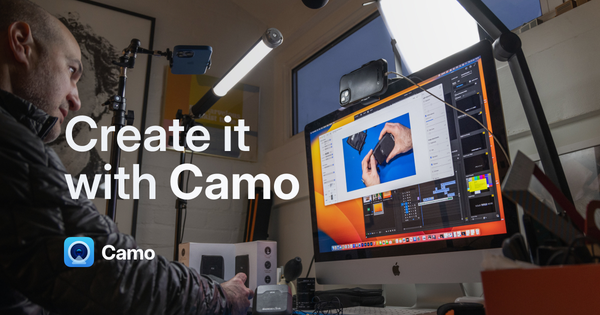
Then I picked up Camo Studio, and suddenly, my iPhone 16 Plus became a professional-grade webcam.
It’s wild how good this setup is:
- Connects to your Mac over USB or Wi-Fi
- Zero-lag, full 1080p or even 4K depending on your iPhone model
- Manual controls: ISO, white balance, zoom, bokeh, it’s all there
- Works seamlessly with Zoom, OBS, FaceTime, you name it
- Preview window lets me check framing before I go live
macOS can already use an iPhone as a webcam through Continuity Camera, and that is enough for a quick call. Camo earns its place when I want manual control over the image, a live preview and the same camera feed in OBS.
I use this combo all the time for client meetings, webinars, and even for creating short video clips for social or product updates. It saves me from buying a DSLR or dealing with Logitech bloatware.
Bonus: I use Mirror Magnet as a quick mirror check before jumping on camera. Match made in Mac Utility Heaven.
Mirror Magnet
Here’s a simple one: Mirror Magnet lets you check how you look before a video call. That’s it. And it’s surprisingly valuable.
Why I love it:
- Menu bar access: I can launch it in a second
- No FaceTime window. No full app. Just my camera, framed and focused
- Helps me adjust lighting and angles before a client Zoom call
- Essential when I’m using Camo Studio + iPhone 16 Plus for camera work
It’s a small thing, but the kind of tool that just makes life smoother. I use it every time I prep for a video session or recorded walkthrough.
Keka

The Archive Utility macOS Should Come With
You know how Windows users have WinRAR and 7-Zip? On Mac, we have Keka, and it’s better.
This is my go-to tool for:
- Creating .zip, .7z, .tar, and password-protected archives
- Extracting weird compressed file types other apps choke on
- Unpacking multi-part archives without breaking a sweat
- Drag-and-drop simplicity, with serious power under the hood
It integrates into Finder so cleanly that it feels native. And for someone like me, who regularly receives zipped files from clients or exports compressed site backups, Keka is a no-brainer.
It’s a small app. But once you’ve used it, you’ll wonder why it’s not built into macOS by default.
BetterDisplay
Mac + External Monitor = Finally in Sync
Visit: github.com/waydabber/BetterDisplay
When I hooked up my LG external monitor to the Mac mini M4, everything looked… off. Scaling was weird. Text was fuzzy. Colors didn’t quite match. I wanted native resolution and crisp UI scaling, but macOS doesn’t give you that kind of control.
BetterDisplay fixed all of it.
This app lets me:
- Force HiDPI (Retina-quality) scaling on non-Retina displays
- Fine-tune resolutions that macOS refuses to show
- Create virtual displays for screen recording or extended workflows
- Rotate displays, adjust brightness and color profiles
- Emulate side-by-side split views with perfect alignment
If you’re running a monitor that’s not a Studio Display or Apple’s own gear, BetterDisplay is like a secret weapon. It makes a third-party monitor feel native.
And if you work in design, code, or video, those pixel-perfect tweaks matter more than you think.
Clop
On-flying image optimizer on steroids
Visit: lowtechguys.com/clop
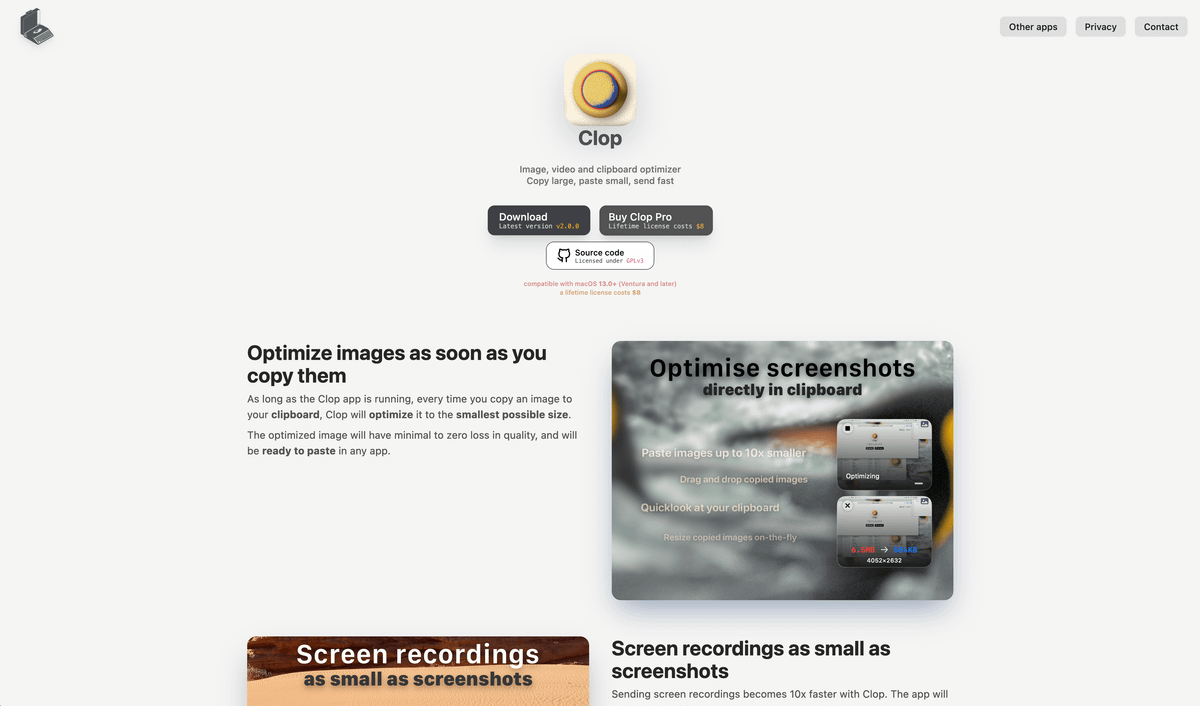
Clop is an on-the-fly optimizer for images, videos, PDFs, and anything else you drag, drop, or copy.
And it’s incredibly helpful if you’re constantly sharing media or working with large assets.
Here’s how I use it:
- Screenshots and screen recordings: Right after I use CleanShot X, Clop quietly kicks in and compresses the output, without me lifting a finger. Perfect for sharing over Slack, email, or uploading to WordPress without killing performance.
- Copied images: Whenever I copy an image from my browser, Finder, or even Pixelmator Pro, Clop automatically reduces its size. It’s like having an invisible compressor running in the background.
- PDFs: If I’m sending out an ebook or client report, Clop reduces the file size while keeping the quality shockingly high.
- Manual optimization: Got a big media file? Just drag it to Clop’s drop zone and it gets instantly downscaled and shrunk.
Clop’s goal is simple: smaller files, faster workflow, no visual compromises. And it nails that.
If you regularly deal with images, screen captures, or heavy media files, and especially if you share them with clients, embed them into blog posts, or upload to a CMS, this one saves both time and bandwidth.
Quiet, smart, and very Mac-native. One of those tools you forget is running… until you try turning it off and miss it instantly.
Cloudflare WARP (1.1.1.1)

Encrypted DNS and a secure network tunnel, not a location-changing VPN.
Download it from 1.1.1.1
I use Cloudflare WARP on hotel, airport, and café networks when I want an encrypted route to Cloudflare’s network without the speed penalty I often get from a conventional VPN.
- 1.1.1.1 mode changes the DNS resolver used by the Mac.
- WARP mode encrypts more of the connection between the device and Cloudflare.
- It isn’t for region switching. Use a conventional VPN when you need a server in another country.
The base service is free. Cloudflare still handles connection data under its privacy policy, so I don’t describe WARP as anonymous browsing or claim that nothing is logged.
Dropover
Drag & Drop, Upgraded
You ever find yourself dragging a file across multiple spaces, trying to juggle tabs, windows, and folders like a digital octopus? Yeah, same. That’s where Dropover comes in.
Think of it as a temporary holding zone for your files.
How I use it:
- Drag 3–4 files from Finder or Downloads into Dropover’s shelf
- Navigate to a completely different app or tab
- Drop those files wherever I actually need them
It works with images, folders, docs, anything. And it supports drag-and-drop between virtual desktops, which macOS is still surprisingly clunky at.
It feels like a natural extension of how Mac should handle file movement. Simple concept, huge time-saver.
Other recommendation: Yoink solves the same drag-and-drop problem with an edge shelf that can also hold text, web images, and snippets. I use Dropover for quick transfers and Yoink when I am collecting a batch from several folders or apps.
Free Download Manager

For large downloads
Visit: freedownloadmanager.org
Downloading large files on Safari or even Chrome? Meh. Things timeout, speeds fluctuate, and if the power blinks, poof.
Free Download Manager (FDM) is the fix. It’s a lightweight but powerful app that handles:
- Large files, segmented downloads, and mirror links
- Resume support when something fails midway
- YouTube/Vimeo support if you want to save a video (you didn’t hear it from me)
- Torrent files, quietly and cleanly
I use it mostly for:
- Downloading Linux ISOs
- Pulling down huge assets from design repos
- Batch downloads from media-heavy client drives
And because it’s not bloated like some other download managers out there, it doesn’t make my MacBook Air or Mac mini sweat. Quiet, efficient, and gets the job done.
Blip
AirDrop for the Devices AirDrop Ignores
AirDrop is still the fastest answer between Apple devices. Blip is for the awkward transfer that involves a Mac and an Android phone or Windows PC. It sends files directly, keeps transfers end-to-end encrypted, and does not park another copy in cloud storage.
There is no separate upload-and-download cycle and no file-size limit. Interrupted transfers resume, and the received file is ready on the other device instead of buried behind a share link. The catch is simple: Blip needs to be installed on both ends.
I keep it for cross-platform handoffs and large media files. For Mac-to-iPhone transfers, AirDrop remains one click faster.
Mole
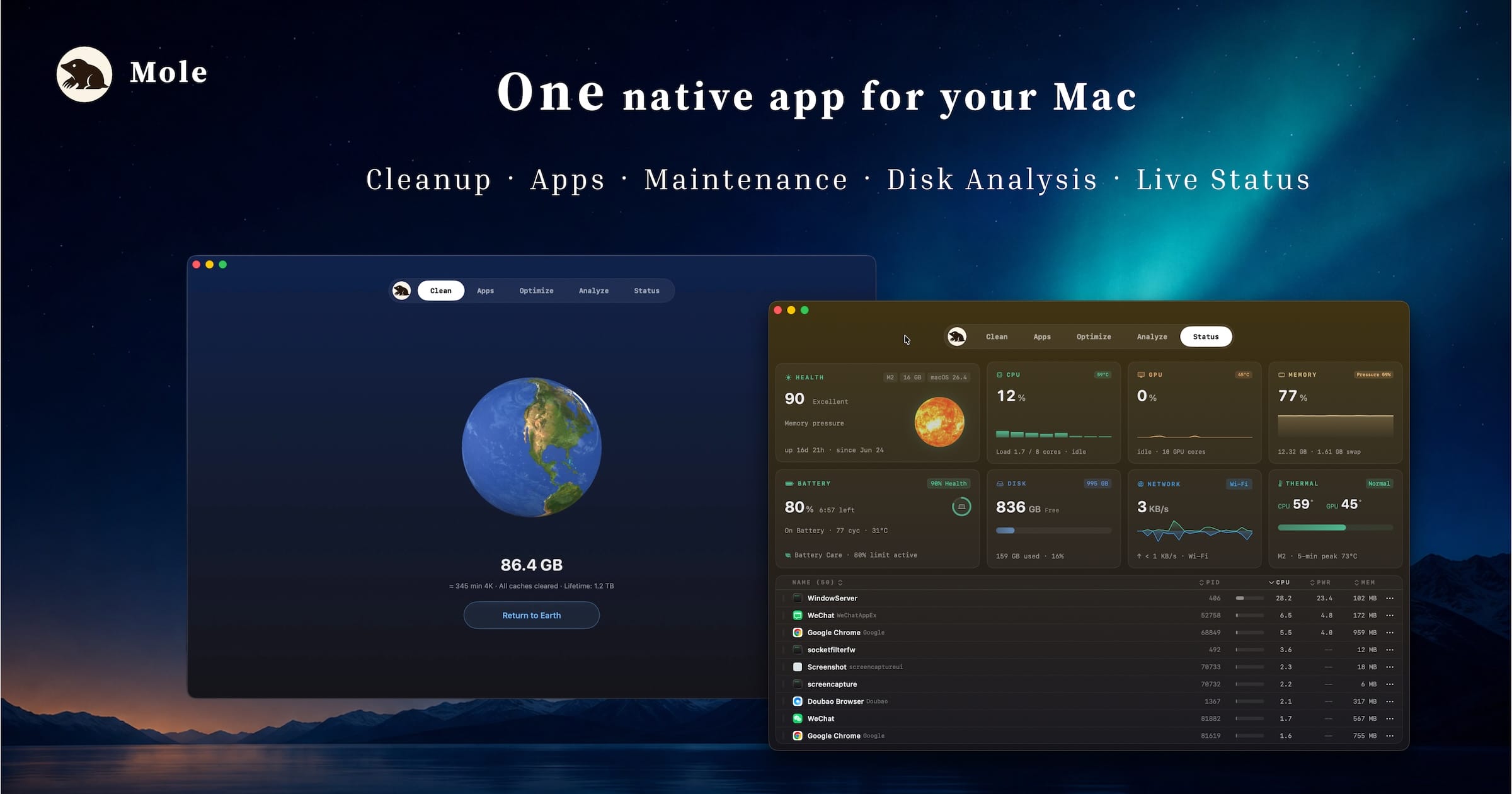
Try the Mole Mac app or get the free CLI from GitHub
Mole now has a proper native GUI, and that changes who I can recommend it to. The free, open-source CLI remains excellent for terminal users. The $19 Mac app adds the review layer I want before a cleanup tool touches caches, app leftovers, or developer files.
- Clean: review cleanup categories, protect items, and choose direct deletion or Trash.
- Software: check updates, manage startup items, and uninstall apps with their leftovers.
- Analyze: use a disk treemap to find large folders, then open them in Finder or move selected items to Trash.
- Status: monitor CPU, GPU, memory, disk, network, battery, temperature, fans, and processes, with selected metrics in the menu bar.
One purchase covers two Macs, includes lifetime updates, and has a 14-day refund window. AppCleaner remains the calmer one-job tool for a simple uninstall. Mole earns the extra space when cleanup, disk analysis, maintenance, app updates, and live status need to sit together.
Supercharge
Supercharge is one of those Mac utilities that feels almost too powerful.
It gives me access to system-level settings without diving into terminal commands or plist files. Stuff like:
- Showing hidden files
- Customizing animations and window behaviors
- Tweaking dock size/behavior beyond System Settings
- Managing background processes and default app associations
It’s not a tool I use every day. But when I’m setting up a new machine or optimizing the Mac mini M4, Supercharge helps me get under the hood without breaking things.
If you like macOS but want more control, this app gives it to you without needing to be a command-line ninja.
Riffo
AI-Assisted Names for Messy Files and Screenshots
Riffo looks at a batch of files and suggests useful names and folders based on their contents. That is a better starting point than a Downloads folder full of names such as Screenshot 2026-07-15 at 8.31.04 AM.png or final-final-2.pdf.
I use it selectively for screenshots, downloaded assets, and document batches that are already hard to search. You can review the proposed names, apply a naming pattern, and undo a rename if the result is wrong.
I would not point Riffo at a sensitive client folder. The developer says file content is processed locally, but extracted characteristics are sent through encrypted requests to AI providers and cloud nodes. The convenience is useful. The privacy tradeoff still deserves a deliberate choice.
Reading Apps for Mac
Kindle
My main universe of reading
Visit: amazon.com/kindle-dbs/fd/kcp
Reading is a huge part of my work and downtime, and while Apple Books is my default for PDFs and clean UI, Kindle still owns a chunk of my library.
Why I keep it:
- Syncs with my physical Kindle and iPhone/iPad seamlessly
- Lets me highlight and export notes easily
- Cross-device continuity: start reading on iPad Air M4, finish on Mac
- Ideal for tech, business, and reference books I want to revisit later
I usually keep both Kindle and Books installed. One’s for minimalism, the other for Amazon’s massive book ecosystem.
Also: nothing beats reading technical books in a clean, no-distraction Kindle layout while sipping coffee and pretending it’s a lazy day.
Books (Apple)

A Low-Key Reading Habit I Actually Stuck With
Learn more/Download: apps.apple.com/us/app/books/id364709193
I’ll be honest: I didn’t expect the stock Books app from Apple to become part of my daily routine. But it did. Big time.
I use it mostly for tech books, reference PDFs, and the occasional non-fiction title. What makes it stick?
- Clean interface. Easy to search, annotate, and highlight.
- Syncs across Mac, iPhone, and iPad, so I can read anywhere.
- Offline access. No annoying DRM popups or weird account issues.
- Feels less distracting than Kindle for certain books.
When I’m working on the Mac and need to reference a guide or a spec sheet, the Apple Books app is just… there. Quiet, fast, and reliable.
If you read PDFs or eBooks even semi-regularly, don’t sleep on it.
YACReader and YACReaderLibrary

Get it from yacreader.com
I am a comic book fan, and comics are the one thing Kindle and Apple Books handle badly. CBR and CBZ archives, double-page spreads, scans at resolutions that actually matter: none of that is what a general ebook reader is built for.
YACReader is two apps and you want both. YACReader is the reader. YACReaderLibrary is the catalogue that sits behind it and keeps the collection organised.
- Every format that matters: CBR, CBZ, CBT, PDF and plain folders of images.
- Reading modes built for comics: double page, fit to width, fit to height, and a mode that walks you through one panel at a time.
- A library that works: covers, series grouping, reading progress, and it remembers where you stopped in every single book.
- Server mode: YACReaderLibrary can serve the collection over your network, so the iOS app reads straight from the Mac.
- Free and open source: three million downloads since 2009, funded by donations.
It is not a pretty app by 2026 standards: it is a Qt application and it looks like one. It is also the only comic reader I have not been tempted to replace, which counts for more.
If your comics live in a folder of CBZ files, stop fighting a PDF reader. This is the app for it.
Panels
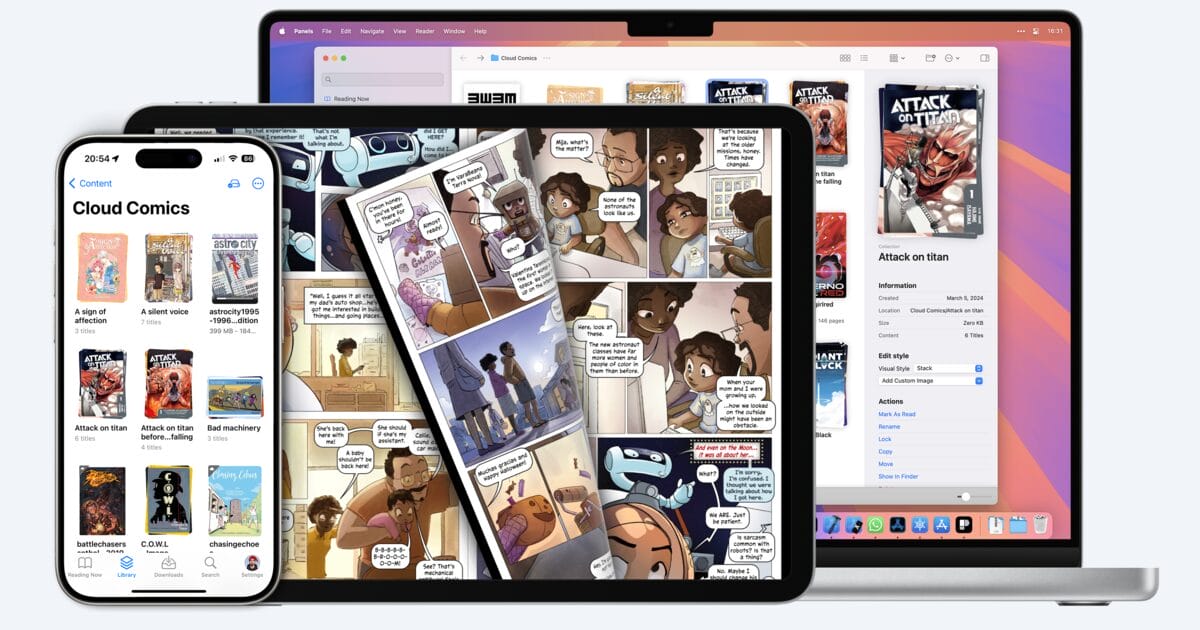
Panels is the polished alternative when a comic library needs to follow me from the Mac to an iPad or iPhone. It reads DRM-free CBR, CBZ, CB7, PDF, and comic EPUB files, syncs progress, supports iCloud Drive and OPDS libraries, and can move through a comic panel by panel.
Panels does not sell or supply the comics, so you still need your own files. YACReader remains the better free desktop library manager. Panels wins when the Apple-device reading experience and cross-device progress matter more than managing the collection from one Mac.
Skim

The No-Nonsense PDF Reader for Readers Who Actually *Read*
Visit: skim-app.sourceforge.io
Most PDF readers are bloated or way too minimal. Skim hits the sweet spot.
Here’s what I use it for:
- Reading research papers or eBooks with heavy annotations
- Highlighting sections with color-coded notes
- Navigating long PDFs with bookmarks and summaries
- Syncing with PDF Expert for markup and export
It’s fast, focused, and perfect for studying technical docs or deep-reading whitepapers.
When I’m reviewing course material, content briefs, or PDF reports, Skim is the app I reach for. It’s free, lightweight, and surprisingly powerful.
PDF Expert
Premium PDF Editing That Feels Like a Native App Should
Visit: readdle.com/pdfexpert
PDF Expert is the one PDF app I’ve actually paid for, and I don’t regret it.
Here’s why it’s worth it:
- Clean, polished interface (like it was built for macOS, not just ported to it)
- Lets me edit text inside PDFs, not just highlight
- Merge, split, reorder pages with drag-and-drop ease
- Annotate with custom stamps, signatures, or drawings
- Syncs seamlessly across Mac, iPad, and iPhone
When I’m reviewing contracts, tweaking reports, or filling out forms from clients, this is the app I open.
It’s the best all-in-one PDF tool if you want more control than Preview, without the chaos of Adobe Acrobat.
Video Players and Video Editors
Borumi
Video Creation Without the Editing Nightmare
Download from: borumi.com
Creating content is fun. Recording and editing? That’s where motivation goes to die.
Borumi changed my video workflow completely. It combines scripting, recording, and editing into one app, and the whole process is surprisingly painless.
Here’s the workflow:
- Script first: Write your video structure in a Notion-like editor. Bullet points, full scripts, whatever works. Use the built-in teleprompter when recording.
- Scene-by-scene recording: Record each scene separately. Mess up? Just redo that scene. No more scrolling through 30 minutes of footage to find the one good take.
- Automatic sync: Camera, screen, and microphone are recorded separately but synced automatically. No manual alignment needed.
- Transcript-based editing: Delete words from the transcript, and they disappear from the video. It’s literally as easy as editing a document.
- Smart layouts: Built-in layouts make your video look professional with one click. Smooth cursor movements, automatic zoom-ins, 4K resolution.
I use Borumi for product demos, tutorial videos, and content creation. The transcript editing alone saves hours. Delete the “umms” and pauses by highlighting and deleting text. Done.
It’s $59 one-time (no subscription), works on both macOS and Windows, and includes a free trial so you can test before buying.
If Screen Studio’s subscription felt steep, Borumi offers similar quality at a lower price with better editing capabilities. And if you hate video editing as much as I do, the transcript-based approach is a game-changer.
VLC
The Classic That Plays *Everything*
VLC is like that one friend who never complains, always shows up, and somehow handles every weird situation. Except instead of drama, it’s video formats.
.mp4? .mkv? .flv from 2008? VLC doesn’t flinch.
Why I keep it installed:
- Handles every format I throw at it, even oddball files from old hard drives
- Allows precise playback speed control (useful for watching tutorials or talks)
- Built-in subtitle support that actually works
- Great audio tweaks and equalizer options when you’re using studio monitors or AirPods Pro
It’s not the prettiest app. But that’s never been the point. It just works. No adware, no popups, no nonsense. VLC is still the king of universal playback.
IINA
The Modern Mac Video Player VLC Wishes It Was
Now, if VLC is that reliable old friend, IINA is its younger, better-dressed sibling.
IINA is built from the ground up for macOS, and you feel that instantly. It’s smoother, better-looking, and just as capable.
What I love:
- Version 1.5.0, the biggest redesign since launch, with Liquid Glass, a new Settings window and resizable sidebars, and it runs on macOS Golden Gate
- Picture-in-picture support out of the box
- Works perfectly with Apple’s media keys
- Easy subtitle loading and streaming support
I use IINA when I want a player that looks like it belongs on a current Mac. For watching full-length videos, screeners, or even looping videos during edits, it’s just cleaner.
VLC is the fallback. IINA is the everyday.
iMovie

Installed, Not Often Used (But Still There When Needed)
I don’t use iMovie daily. Heck, sometimes it doesn’t see the light of day for weeks. But when I need to stitch together a quick explainer, a product demo, or a basic edit, it’s right there, free and capable.
Here’s what I keep it around for:
- Fast edits of screen recordings from CleanShot X or Camo Studio
- YouTube intro videos or content clips
- Exporting social-sized videos with transitions
It’s not Final Cut Pro. It’s not DaVinci Resolve. But it’s good enough for 80% of light editing needs, and it runs great on all three of my Macs without eating RAM like popcorn.
Bonus: If I ever need to hand off video projects to someone else, iMovie’s format is easy to share and export cleanly.
OBS Studio

When You Need Full Control Over What You’re Recording
If you’re recording videos, streaming tutorials, or even just capturing screen walkthroughs, OBS Studio is the gold standard. It’s open source, deeply customizable, and shockingly powerful.
How I use it:
- Record screen + webcam simultaneously using Camo Studio
- Create layered scenes with overlays for product demos
- Capture clean footage for video-based tutorials and client deliverables
- Use it with iPhone Mirroring or Craft walkthroughs for polished visuals
OBS gives me complete control over what’s being recorded: no weird cropping, no system UI in the way. Plus, performance is rock solid on the Mac mini M4 (especially paired with BetterDisplay tweaks).
It takes a little setup, but once you’ve dialed in your scenes and sources, it’s incredibly flexible.
Camtasia

Screen Recording Meets Professional Video Editing
OBS is great for live streaming, and CleanShot handles quick screen recordings. But when I need to create polished tutorial videos with annotations, callouts, zoom effects, and clean transitions, Camtasia is the tool I reach for.
Here’s what makes it different from free alternatives:
- Built-in screen recorder + editor in one app, no switching between tools
- Cursor effects and annotations that highlight exactly what you’re clicking
- Templates and themes for consistent branding across all your videos
- PowerPoint import for turning slides into video presentations
- Interactive quizzes you can embed directly into videos
I’ve used it for WordPress tutorial recordings, course content, and client walkthroughs. The learning curve is gentler than Premiere or Final Cut, but the output looks professional enough for any audience.
If you make tutorial content, course videos, or client demos, Camtasia saves hours compared to piecing together screen recordings in a separate editor.
Productivity Apps
Notion + Notion Mail + Notion Calendar

Visit: notion.com
Notion isn’t just a note-taking app for me, it’s my everything dashboard.
Here’s how I’ve got it working:
- Task and content calendars
- Client project boards
- Brand style guides
- Blog post templates and outlines
- Affiliate campaign tracking
- Shared workspaces with my team
Add in Notion Mail and Notion Calendar, and it gets even better:
- I forward client messages to specific pages in Notion via Mail
- Calendar events tie into project notes so everything’s context-aware
- Cross-device sync between Mac, iPhone, and iPad is rock solid
But here’s the thing: Notion doesn’t live alone. I use it in sync with Craft and Typora, because each app does a specific thing better.
For systems and long-term structure? Notion wins.
For beautiful docs? Craft.
For deep writing and Markdown? My money is on Typora.
- Notes, tasks, wikis, databases, calendars, and email in one app
- Notion AI for writing, summarizing, and brainstorming built-in
- Cross-device sync across Mac, iPhone, iPad, and web
- Shared workspaces for team collaboration with granular permissions
Raindrop.io
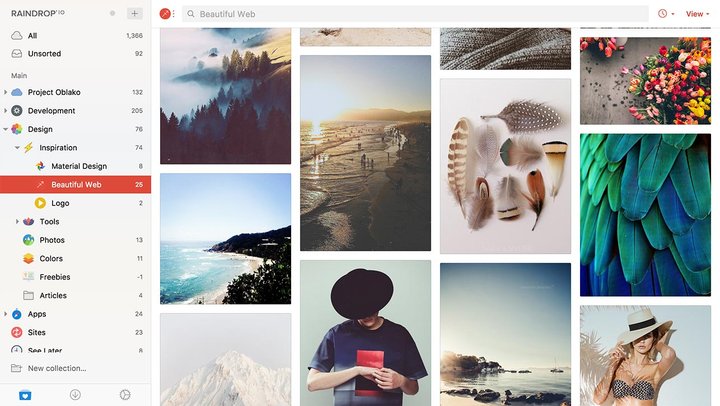
Browser bookmarks are a mess. Raindrop.io fixes that, with style.
I use it to:
- Save articles, tools, and resources in organized folders
- Sync bookmarks across Brave, iPhone, and iPad
- Add notes and tags so I remember why I saved something
- Archive tools or design inspiration for future client work
The interface is clean, the mobile app is surprisingly good, and the Chrome/Brave extension makes it dead simple to capture links.
I also love the broken link checker and duplicates cleaner, perfect for long-term collectors like me. Raindrop is my second brain for URLs.
Alternative: GoodLinks is the better fit when saved links are mainly a read-later library and you want a native Apple app with iCloud sync. It is a universal purchase for Mac, iPhone, and iPad and can import an existing Raindrop library. Raindrop.io still wins for cross-platform bookmark organization, team sharing, duplicate cleanup, and broken-link checks.
Slack
I’ll be honest: I don’t use Slack daily. But when I do, it’s because a client or partner team is on it, and I need to jump into their workspace for collaboration.
Why I keep it:
- Organized, threaded communication (beats email clutter)
- Quick file sharing and integration with Google Drive, Trello, etc.
- Channels keep convos focused, no random side chatter
- Works well across devices if you’re juggling a conversation across Mac and iPhone
That said, I don’t use it for personal workflows. I prefer Notion + Email or even Trello comments when managing things internally.
Still, Slack is essential for collaborating with teams that live inside it. So it stays installed.
Trello
Trello is how I keep big-picture stuff in check. It’s not where I do the work, it’s where I plan the work.
Here’s how it fits in:
- Editorial calendar for my blog and clients
- Client project pipelines (To Do → Doing → Done)
- Course outlines and topic progression
- Long-term goals broken into smaller action cards
I love how visual it is. Dragging cards from list to list gives you a real sense of momentum. And with Power-Ups, you can connect Notion, Google Drive, GitHub, and more, making it a command center without complexity.
It’s not trying to be everything. It’s trying to be a great board. And it nails that.
SEO Utils
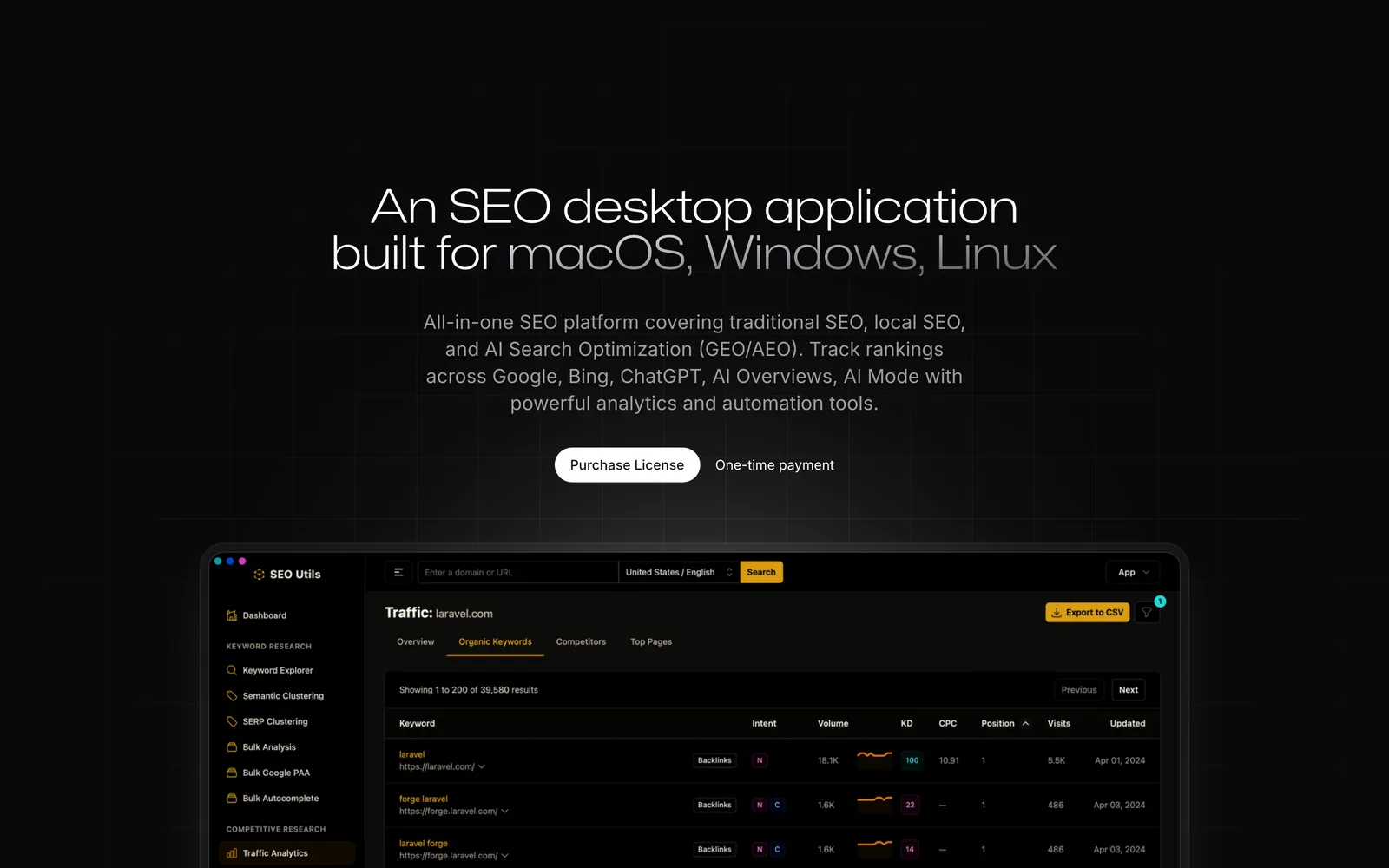
Get it from seoutils.app
SEO Utils is a desktop SEO app for macOS, Windows and Linux, and it replaced a stack of browser tabs and one subscription I had stopped enjoying paying for. Everything runs locally: the database sits on my Mac, not on someone else’s server.
How I actually use it:
- Search Console without the 16-month wall: I have seven properties connected (this site, anantamias.com, core-forms.com and four others), syncing every day. Google throws away anything older than 16 months. SEO Utils keeps it, so I can look at three years of query data instead of one.
- Rank tracking on my own schedule: 574 keywords for this site, checked weekly against the top 30 results.
- DataForSEO for anything external: you bring your own API key, and that is the part that keeps it cheap. Keyword volumes, backlinks, traffic estimates and SERP data all bill pay-as-you-go instead of a flat $99+ a month.
- AI search visibility: it tracks ChatGPT and AI Overviews next to Google, which is where a growing share of my traffic decisions come from now.
- Clustering and bulk tools: SERP clustering, bulk analysis and bulk autocomplete, which is how I plan topic groups rather than one-off posts.
Pricing? A one-time licence with a year of updates. If you stop renewing, you keep the last version you paid for rather than losing access, which is how software should be sold.
The catch: bring-your-own-key means the DataForSEO bill is yours too. It is cheap per query, but a bulk backlink pull is real money. Watch the meter for the first week until you know what your habits cost.
If you run more than one site and the enterprise SEO subscriptions feel like overkill, this is the honest middle ground.
Best Mac App Bundles and Deals
Setapp
One subscription for hundreds of Mac apps
Buying CleanMyMac, Bartender, Paste, Ulysses, iStat Menus, Downie, and other paid Mac apps separately adds up quickly. Setapp’s current Mac plan costs $14.99 a month for one Mac and includes 1,000 AI-app credits.
The Mac + iOS plan costs $18.99 a month, and the Power User plan costs $22.99 a month for up to four Macs and four iOS devices. Annual billing can save up to 40%.
I keep Setapp because I use enough included apps to justify the fee. If you only want one or two tools, buy those directly. The subscription makes sense after you can name at least three included apps you would otherwise pay for.
My rule is simple: list the included apps you will use, total their real cost, then compare that number with $14.99 a month.
- Hundreds of Mac apps for $14.99/month on one Mac
- Includes CleanMyMac, Bartender, Paste, Ulysses, iStat Menus, and more
- Seven-day trial, with annual billing saving up to 40%
- Mac + iOS costs $18.99/month; Power User costs $22.99/month
Other Ways to Save on Mac Apps
- Buy the tool you use every day. A one-time CleanShot X or Typora license can cost less than another permanent subscription.
- Use Apple education pricing. Students and educators can check Apple’s education store.
- Use Affinity before paying for another design suite. Its photo, vector, and page-layout tools are now free.
- Wait for predictable sales. I collect worthwhile offers on my blogging deals page.
Related Mac App Guides
- Compare Craft, Scrivener, Typora, iA Writer, and other Mac writing apps
- Compare Pixelmator Pro, Affinity, Lightroom, and other Mac photo editors
- See my complete Mac app stack for WordPress development
The Macs I Use With These Apps
All three machines handle the everyday apps in this list. The difference shows up with Docker, virtual machines, video work, large design files, and how many heavy apps stay open together.
- MacBook Air M5: my portable machine and the best fit for most writing, browsing, development, and light design work. Check current availability
- Mac mini M4, 24GB/512GB: my main production desktop. It gives me enough memory for local WordPress sites, browsers, editors, and design tools without paying laptop prices. This exact M4 memory/storage configuration is not currently listed on both Amazon US and Amazon India; Amazon’s 24GB/512GB retail result is M4 Pro.
- MacBook Pro M5 Pro, 24GB/1TB: my primary laptop for heavier development, virtual machines, and creative work. Check current availability
If you run Docker, Parallels, Figma, an IDE, and dozens of browser tabs together, I would treat 16GB as the floor and buy 24GB if the budget allows. My Mac performance guide covers the tradeoffs in more detail.
My Final Mac App Advice
Don’t install 73 key apps because I did. Start with the gap that wastes time every week. CleanShot X fixed screenshots for me, Raycast replaced several small utilities, and Affinity now removes the cost barrier for professional design. Add the next app only when you can name the problem it solves.
FAQs
What are the must-have apps for a new Mac?
The essential apps for a new Mac include CleanShot X for screenshots, Brave Origin for browsing, Raycast for launching and automation, Enpass for password management, and Things 3 for tasks. For writing, start with Typora and Bear. Developers should add Homebrew, Claude Code with Zed, and Local.
Is Affinity really free now?
Yes. Affinity’s unified photo, vector, and page-layout app is free for the core professional tools. It stores work locally, and Canva says Affinity files aren’t used to train its AI. Premium Canva content, collaboration, and some AI features can still require a paid Canva plan.
What’s the best clipboard manager for Mac?
ClipBook is my current clipboard manager because its interface is the best I have used: full previews, quick-paste shortcuts and keyboard control, with everything stored locally on the Mac. It costs $9.99 one-time. PastePal is the pick if you need iPhone and iPad sync, and Raycast and Spotlight’s clipboard history cover lighter needs.
What’s the best coding setup on a Mac?
I use Claude Code with Zed as my editor, Sublime Text for huge files and T3 Code when several agent sessions run together. VS Code is the better pick when you need its extension coverage in one editor, and Antigravity is worth a look if you want Google’s agent-first IDE.
What’s the best screenshot app for Mac?
CleanShot X is the best screenshot app for Mac. It offers scrolling screenshots for capturing long web pages, powerful annotation tools, the ability to hide desktop icons before recording, screen recording with webcam overlay, and instant cloud uploading for easy sharing. It’s a one-time purchase at $29, which pays for itself quickly if you work in content, code, or design. The built-in macOS screenshot tool works fine for basic needs, but CleanShot X is a significant upgrade.
How do I keep my non-App Store Mac apps updated?
Use Latest, a free and open-source app that tracks updates for all your non-App Store applications. It shows which apps are outdated and lets you update with one click. MacUpdater used to be the go-to option but has shut down. Latest is lightweight, completely free with no hidden costs, and being open source means it won’t disappear if the developer stops maintaining it. You can download it from max.codes/latest.
What’s the difference between Craft and Notion for Mac?
Craft is a native Mac app built specifically for writing and documents. It’s faster, has better typography, and syncs instantly across Apple devices. Notion is more powerful for databases, project management, and complex systems with tables and relations. Use Craft when you need beautiful documents, quick outlines, or polished client deliverables. Use Notion when you need a CRM, editorial calendar, or anything requiring database functionality. Many power users run both apps for different purposes.
What’s the best video editing app for Mac beginners?
For beginners, iMovie is free and handles 80% of light editing needs. For screen recordings and tutorials, Borumi is excellent because it uses transcript-based editing where you delete words from text and they disappear from the video. It combines scripting, recording, and editing in one app for $59 one-time. OBS Studio is free and powerful for recording and streaming but has a steeper learning curve. If you just need quick screen recordings with nice effects, CleanShot X also handles basic video capture.
Do I need a password manager on Mac?
Yes, absolutely. You have three good options: Apple Passwords (free, built into macOS since Sequoia) works well if you live in Safari and the Apple ecosystem. 1Password is polished but now costs $48/year after a 33% price hike in March 2026. Enpass is my current pick because it offers a one-time $79.99 lifetime license, works across Mac, Windows, Linux, iOS, and Android, and fills credit cards in third-party browsers like Brave and Chrome. If you juggle personal, client, and business accounts across platforms, Enpass gives you the most flexibility without subscription fatigue.
What’s the best AI assistant app for Mac?
ChatGPT with GPT-5.6 Sol and Codex is my primary Mac AI setup because it carries intent across local files, WordPress, browsers, and production checks. Claude remains strong for writing and first drafts, Gemini is useful when Google’s ecosystem fits the job, and Ollama is the local option when files or models should stay on the Mac.
Tell Google you want more of this.
Add Gaurav Tiwari as a preferred sourceOne tap, and this site shows up more often in your own Top Stories, AI Overviews and AI Mode. Remove it any time.
Disclaimer: This site is reader-supported. If you buy through some links, I may earn a small commission at no extra cost to you. I only recommend tools I trust and would use myself. Your support helps keep gauravtiwari.org free and focused on real-world advice. Thanks. - Gaurav Tiwari