
 by
by
The best MacBook Pro accessories solve a bottleneck you feel every day. For most desk users, I would buy the Logitech MX Master 3S, or 4, first. Creators running out of storage should start with the Samsung T9. A Thunderbolt 5 dock or four-bay NAS belongs much later in the buying order.
My rule is simple: buy for the work you already do, not for the desk photo you want to recreate. A ₹30,000 dock that saves you no time is worse than a good mouse you touch for eight hours a day. This guide ranks each accessory by workflow impact, compatibility, and the problem it actually removes.
The best MacBook Pro accessories at a glance
If you are short on time, use this table to match the purchase to your constraint. Some links are affiliate links, but that does not change the order. I rank these MacBook Pro accessories by usefulness first and commission second.
| Accessory | Best for | Honest limitation |
|---|---|---|
| Logitech MX Master 3S | Best overall desk upgrade | Right-handed shape |
| BenQ MA320U | 32-inch 4K Mac workspace | 60Hz, not a gaming display |
| CalDigit TS5 | One-cable pro workstation | Expensive and excessive for light I/O |
| MX Mechanical Mini for Mac | Compact mechanical typing | Limited switch choice |
| Samsung T9 4TB | Fast portable project storage | Many Macs cannot reach its full 20Gbps mode |
| BenQ ScreenBar Halo 2 | Late-night desk lighting | A comfort upgrade, not a necessity |
| Anker Prime 27,650mAh | Travel and power cuts | Heavy at 665g |
| Insta360 Link 2 | Teaching and presentations | Overkill for occasional calls |
| Elgato Stream Deck Neo | Repeatable shortcuts and routines | Only valuable after you configure it |
| Synology DS925+ | Central backup and private cloud | Drives and setup time cost extra |
| Twelve South Curve Flex | Ergonomics at home and away | Pricey for a stand |
How I chose these MacBook Pro accessories
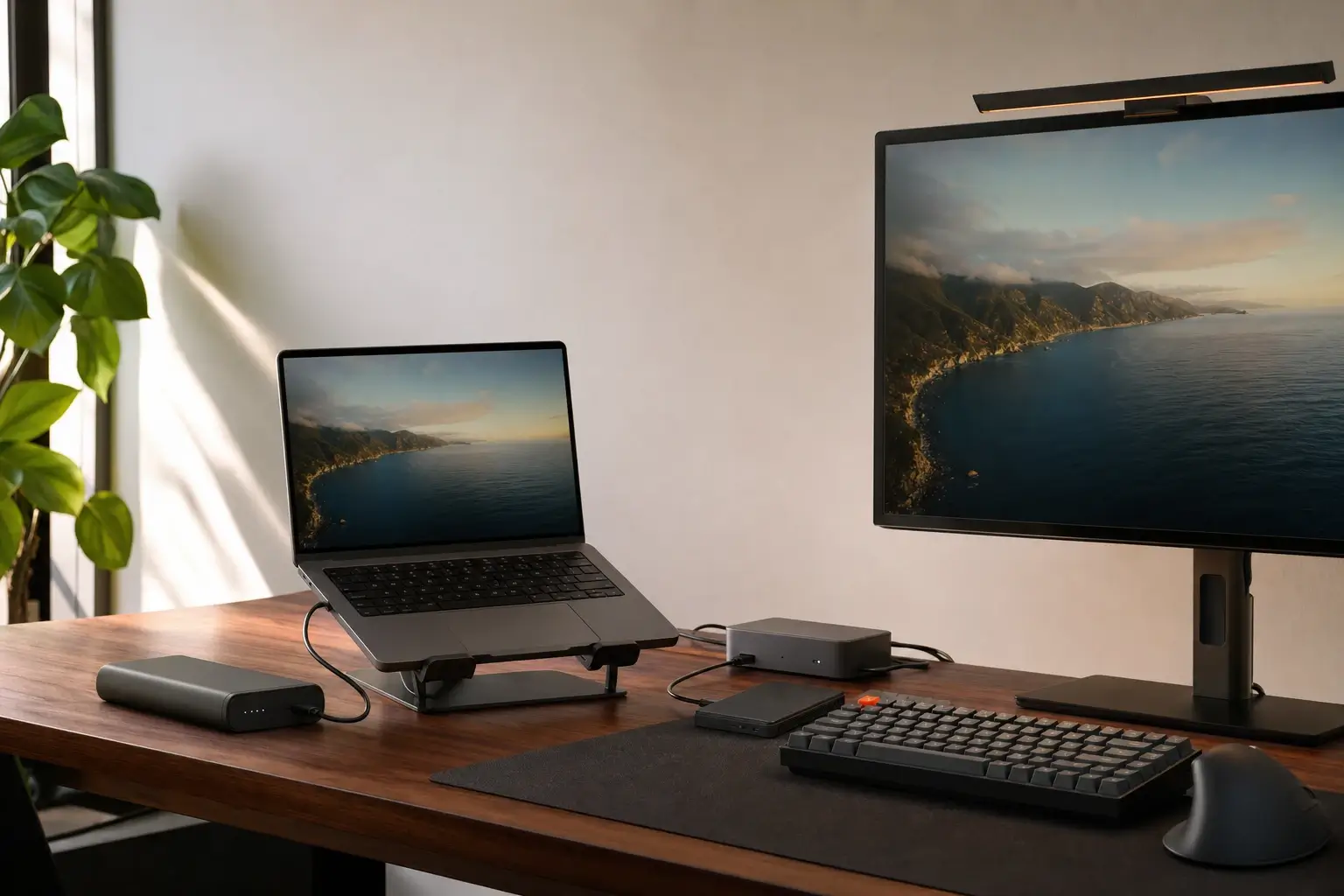
I have not lab-tested every item on this list. The Samsung T9 is the clear first-hand pick because I use it in my own 4K editing workflow. I judged the other products by current manufacturer specifications, Mac compatibility, workflow value, and the limitations that are easy to miss on a store page.
- Daily impact: Does it remove friction several times a day?
- Compatibility: Will a current MacBook Pro expose the feature you are paying for?
- Longevity: Can it survive a laptop upgrade without becoming e-waste?
- Honest limits: Is the advertised maximum realistic on macOS and the ports you own?
- Buying order: Does it deserve money before a cheaper, higher-impact upgrade?
I use the same filter when choosing Mac apps and utilities: a tool has to save time, prevent a mistake, or make the work noticeably better. The rest is clutter.
Before buying a dock, monitor, or charger, open System Settings > General > About and note the exact Mac model and chip. MacBook Pro generations that look nearly identical can support different external-display counts, charging rates, and connection standards. Check the host requirement, cable rating, and display specification together. The fastest accessory in the list will still fall back to the slowest link in that chain.
Best MacBook Pro desk accessories
A better MacBook Pro desk setup starts with the things you touch and look at all day. Mouse, display, and keyboard come before an expensive dock. Add the dock only when repeated cable swapping or limited ports have become a real constraint.
1. Logitech MX Master: the best first desk upgrade
The Logitech MX Master 3S or 4 for Mac, if the budget allows, is my best overall recommendation because it improves navigation in almost every professional app without changing your entire desk.
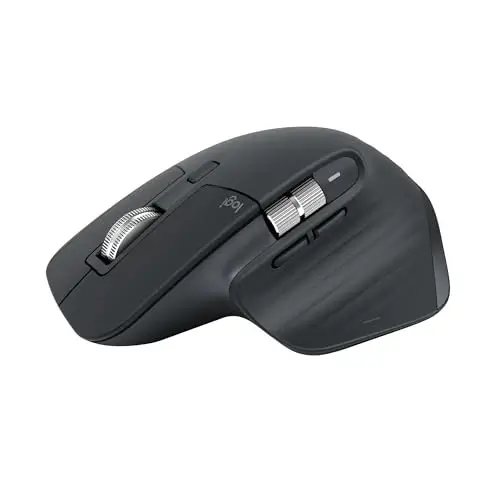
Logitech MX Master 3S Wireless Mouse
- 8,000 DPI sensor that works on glass
- MagSpeed wheel rated for up to 1,000 lines per second
- Quiet main clicks and three-device switching
The thumb wheel is genuinely useful for wide spreadsheets, video timelines, and browser tabs. Logitech’s Options+ software also lets you assign app-specific actions. The tradeoff is the sculpted right-handed body. Left-handed users should skip it instead of trying to adapt to it.
2. BenQ MA320U: a practical 32-inch 4K monitor for Mac
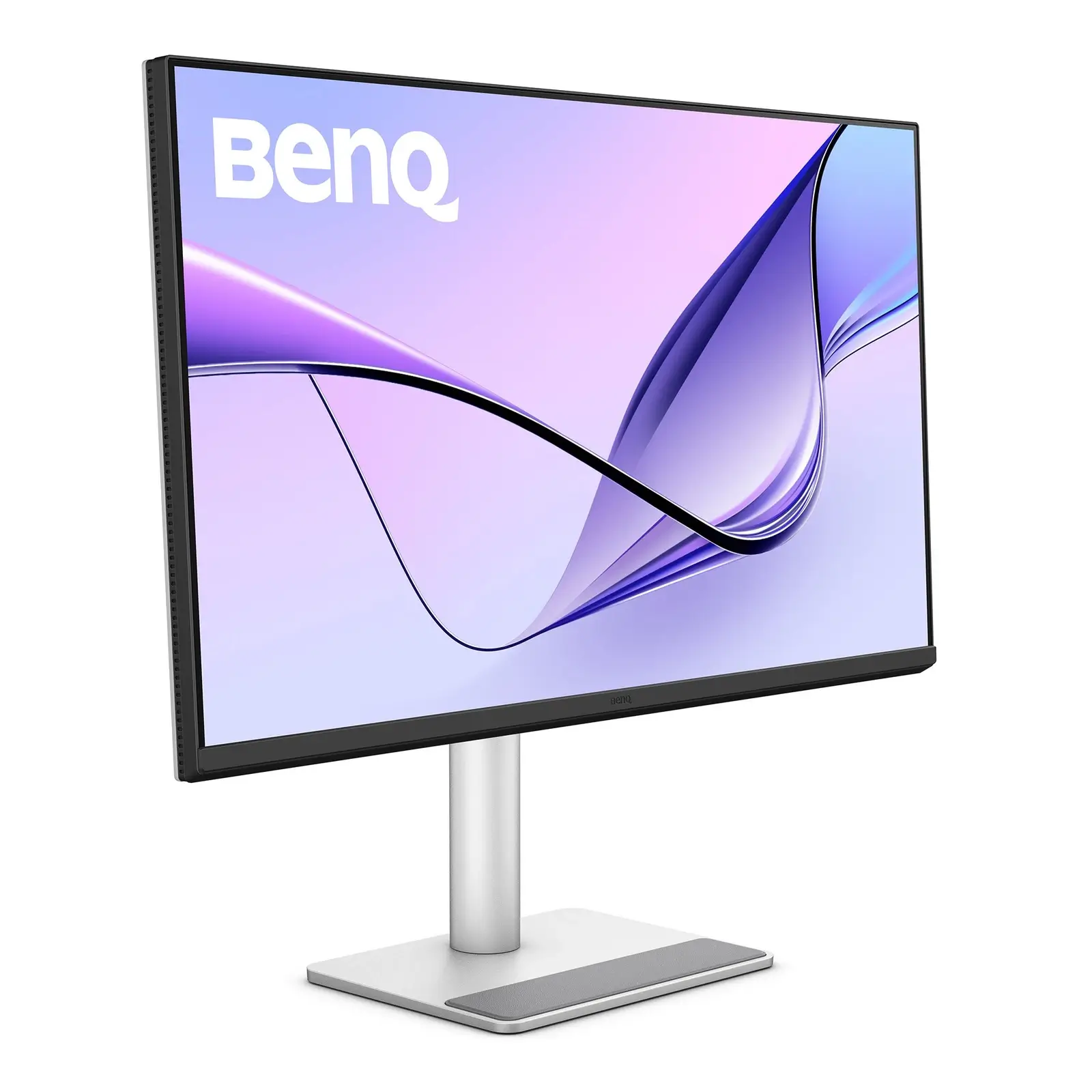
The BenQ MA320U is the MacBook Pro external monitor I would shortlist for writing, development, research, and office work. Its appeal is not a gimmick. It is the combination of useful screen area, Mac-oriented color modes, and one-cable USB-C power.
- Panel: 32-inch 4K UHD
- Power delivery: up to 90W over USB-C
- Best for: text-heavy work, coding, dashboards, and general content creation
- Skip if: you need high-refresh gaming or color-critical work with your own reference-grade calibration target
At 32 inches, 4K gives you more working room without forcing tiny interface elements. BenQ’s Mac-focused controls are convenient, but the panel is still limited to 60Hz. If motion clarity matters more than resolution, buy a different monitor. I have a separate guide to the best monitors for programmers if you want more size and panel options.
3. CalDigit TS5: the MacBook Pro docking station for heavy I/O
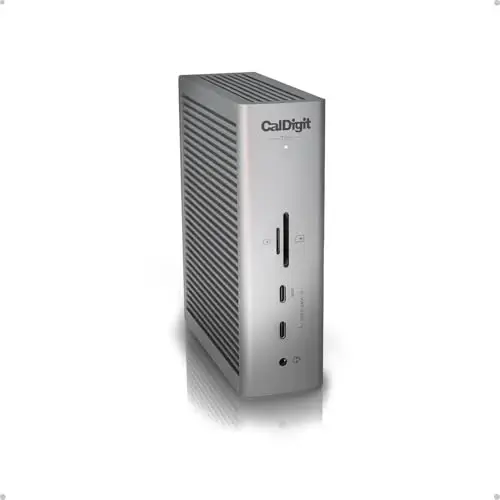
The CalDigit TS5 is for a MacBook Pro that acts as the center of a full workstation. It is not the sensible default for someone connecting one monitor and an occasional card reader.
- Ports: 15 total, including four Thunderbolt 5 connections
- Host charging: up to 140W
- Networking: 2.5Gb Ethernet
- Best for: fast storage, wired networking, audio gear, and multi-display workflows
The important word is compatible. The TS5 works with older Thunderbolt Macs, but you only get its headline bandwidth from a Thunderbolt 5 or USB4 v2 host. Buy it when one cable replaces a pile of devices you already use. If your desk needs three ports, a smaller dock is the smarter purchase.
4. Logitech MX Mechanical Mini for Mac: compact typing with real key travel
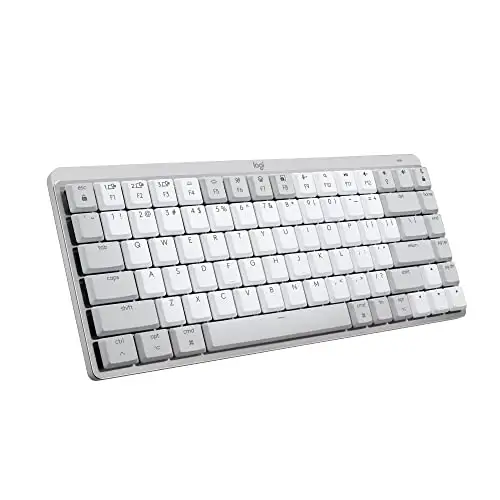
The MX Mechanical Mini for Mac is a clean compromise between Apple’s shallow keyboards and a tall enthusiast board. It keeps the familiar Command and Option layout without taking over the desk.
- Layout: compact Mac-specific keyboard
- Switch: low-profile Tactile Quiet
- Connections: switch among three paired devices
- Lighting: proximity-aware backlighting
I would buy it for long writing and coding sessions where tactile feedback matters more than silence. The limitation is choice. Logitech’s Mac edition does not offer the broad switch selection you get from Keychron and other mechanical-keyboard brands.
5. BenQ ScreenBar Halo 2: focused light without desk clutter
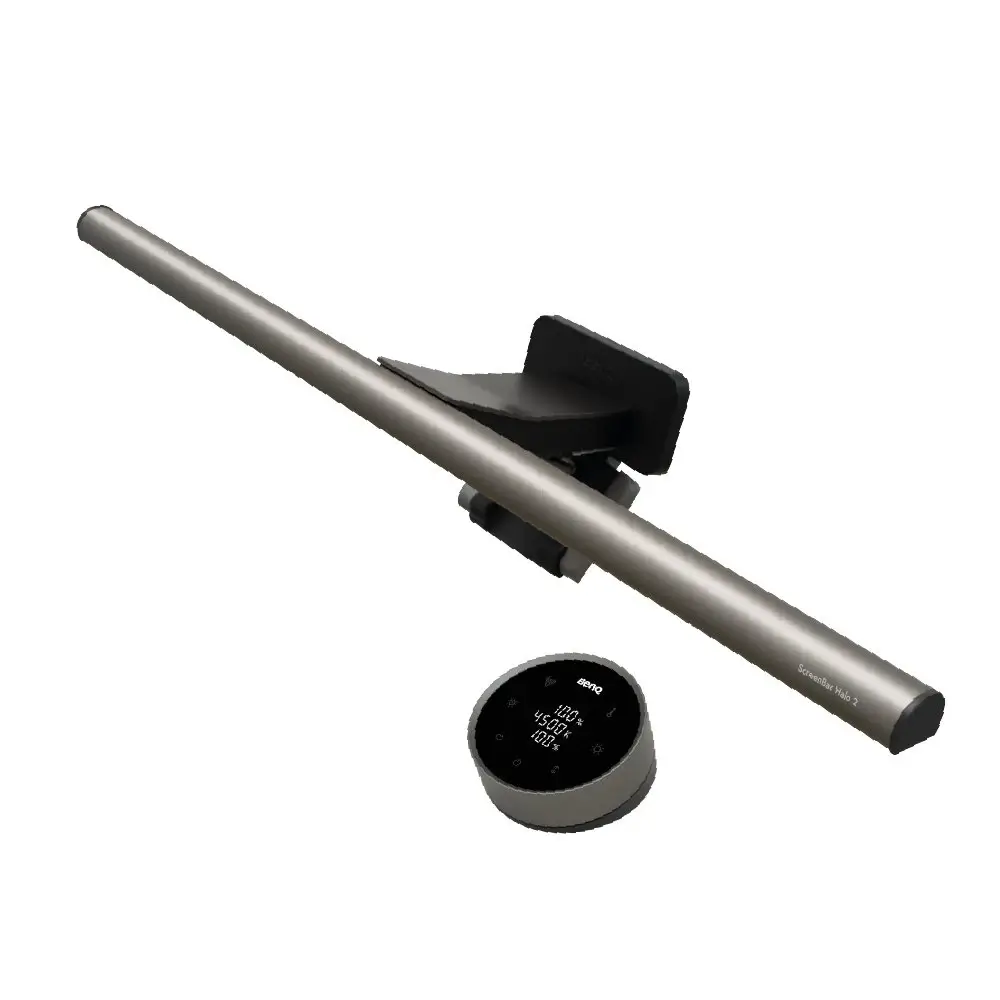
The BenQ ScreenBar Halo 2 puts adjustable task light on the desk without occupying the space a lamp needs. It makes the most sense for people who work after sunset and constantly fight glare or uneven room lighting.
- Color range: 2700K to 6500K
- Control: wireless controller with automatic dimming
- Lighting: front task light plus rear ambient light
- Skip if: your room already has good, even lighting
This is a comfort purchase. I would never put it ahead of a mouse, monitor, backup drive, or proper chair. Once the essentials are solved, it is a neat way to improve a late-night desk without adding another base and cable across the work surface.
Best MacBook Pro accessories for storage and backup
Storage accessories solve two different problems. A portable SSD gives one Mac fast working space. A NAS gives several devices a central backup and file service. Most people need the portable SSD first.
6. Samsung Portable SSD T9 4TB: the pick I use for active projects
I use the Samsung T9 in my own editing workflow, including 4K project files. That does not make its 2,000 MB/s headline speed universal, but it does make the recommendation more than a spec-sheet exercise.
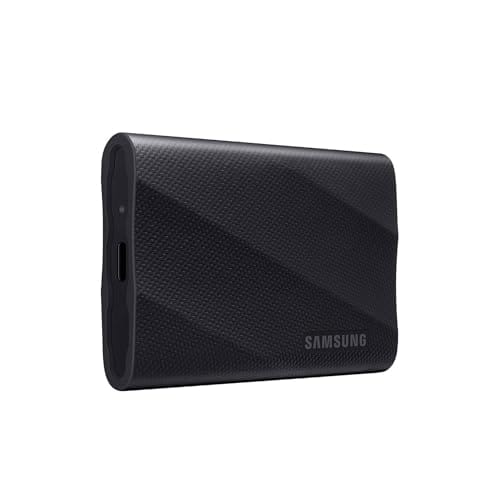
Samsung Portable SSD T9 4TB
- Up to 2,000 MB/s over USB 3.2 Gen 2×2
- Available in 1TB, 2TB, and 4TB capacities
- Three-meter drop resistance and five-year limited warranty
The catch is USB mode support. The T9 reaches its maximum through USB 3.2 Gen 2×2, while many Macs negotiate a slower mode. It can still be a fast, useful drive, but do not buy it on the assumption that every MacBook Pro will show the box number. My external SSD guide for content creators explains the interface tradeoffs in more detail.
7. Synology DiskStation DS925+: backup infrastructure, not a casual add-on
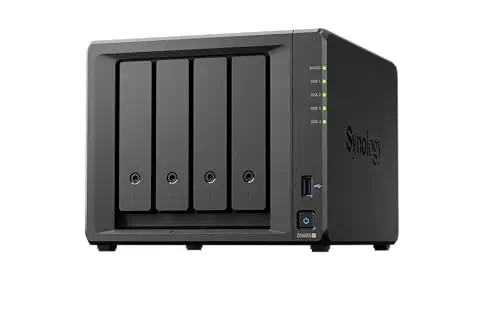
The Synology DS925+ belongs in a setup that has outgrown scattered USB drives. It can centralize Time Machine backups, working archives, family photos, and private file syncing, but the enclosure is only the start of the budget.
- Drive bays: four, with drives sold separately
- Networking: two 2.5Gb Ethernet ports
- Expansion: two M.2 slots and support for a separate expansion unit
- Best for: households, small studios, and multi-device backup plans
I would begin with two suitable drives and a redundancy plan, then expand only after the backup routine is working. Before buying disks, use Synology’s current compatibility checker. A NAS is not a backup by itself. You still need another copy of irreplaceable files, ideally off-site.
Best MacBook Pro accessories for travel, calls, and shortcuts
Mobile accessories should earn the weight they add to your bag. At home, the same rule applies to webcams and shortcut pads: buy them for a repeated job, not because they look good beside the laptop.
8. Anker Prime 27,650mAh: serious portable power
The Anker Prime 27,650mAh power bank is built for flights, long days away from outlets, and power cuts. It is closer to carrying a spare energy brick than a pocket charger.
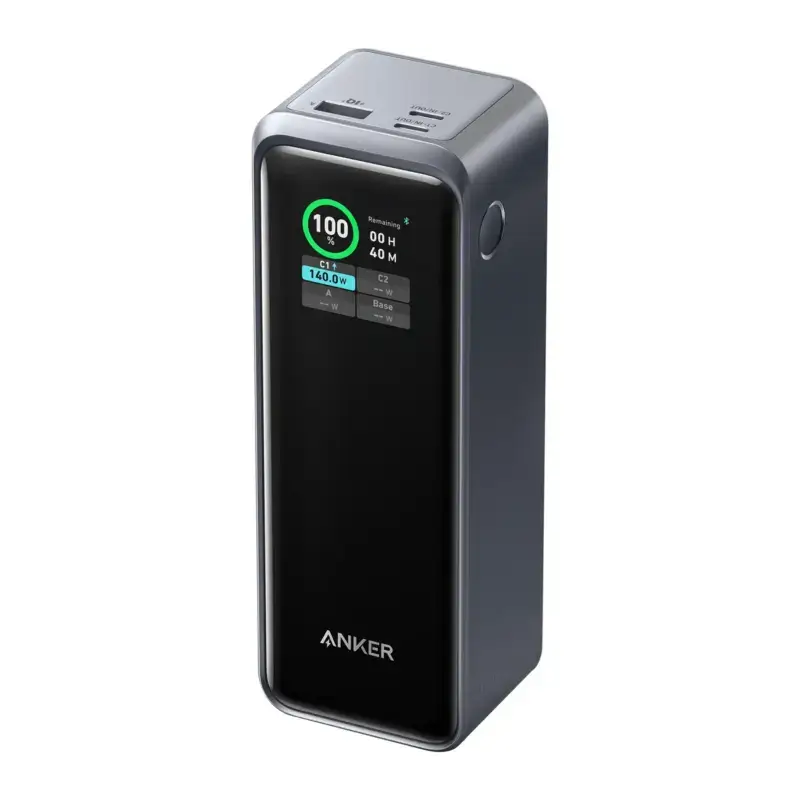
Anker Prime 27,650mAh 250W Power Bank
- 27,650mAh rated capacity
- Up to 250W combined output and 140W from one supported USB-C port
- Three output ports with an on-device status display
The 140W single-port ceiling is the reason this model makes the list. Lower-output batteries may show a charging icon while barely keeping up with a loaded MacBook Pro. The tradeoff is obvious when you lift it: 665g is more than some compact tablets. Check your airline’s battery rules before travel and keep the capacity label accessible.
9. Twelve South Curve Flex: a stand that travels
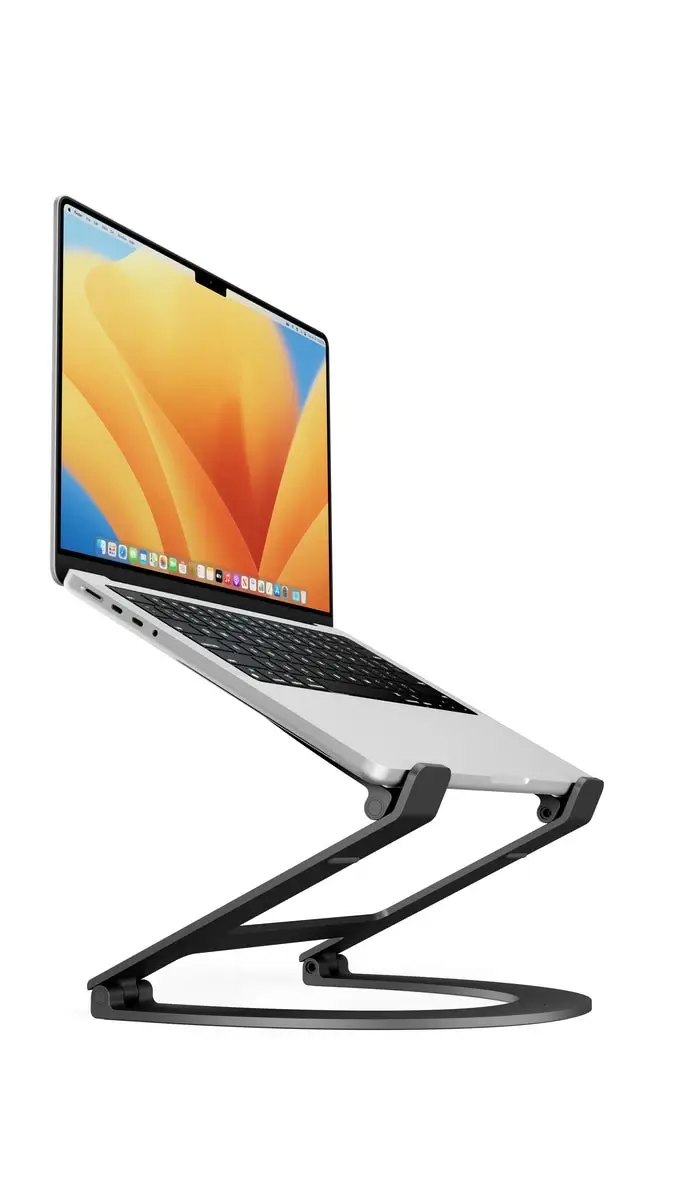
The Twelve South Curve Flex lifts the MacBook Pro screen toward eye level and folds down for travel. That makes it more useful than a fixed stand if you divide work between a home desk, office, and hotel room.
- Height: raises a laptop up to 22 inches
- Angle: keyboard platform adjusts from 0 to 45 degrees
- Capacity: supports laptops up to 7lb
- Requirement: pair it with an external keyboard and mouse for long sessions
The stand is beautifully made, but it is expensive for a piece of aluminum. A basic fixed riser is enough for a permanent desk. Pay for the Curve Flex only if the folding design and height adjustment will follow you between workspaces.
10. Insta360 Link 2: a webcam for teaching and presenting
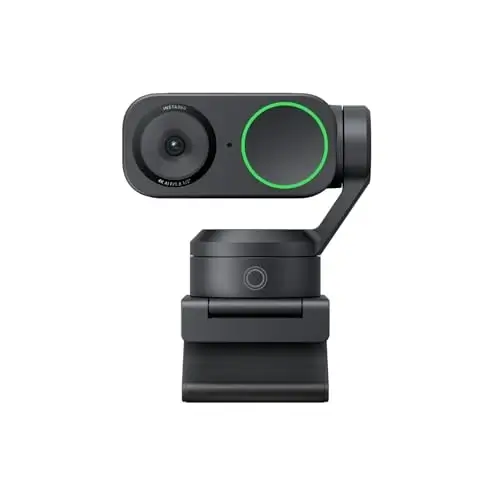
The Insta360 Link 2 is for work where movement and presentation quality matter: teaching, live demos, consulting, and recorded walkthroughs. Its motorized tracking is wasted on a weekly ten-minute status call.
- Video: up to 4K at 30fps
- Sensor: 1/2-inch format
- Tracking: two-axis gimbal with AI subject tracking
- Compatibility: macOS 13 or later, with some features requiring Apple silicon
The larger sensor and tracking make it meaningfully different from the built-in camera when you move around or teach at a board. If you sit still, improve lighting and microphone quality first. The cheaper Link 2C removes the motorized gimbal while keeping much of the image-quality appeal.
11. Elgato Stream Deck Neo: useful after you know what to automate
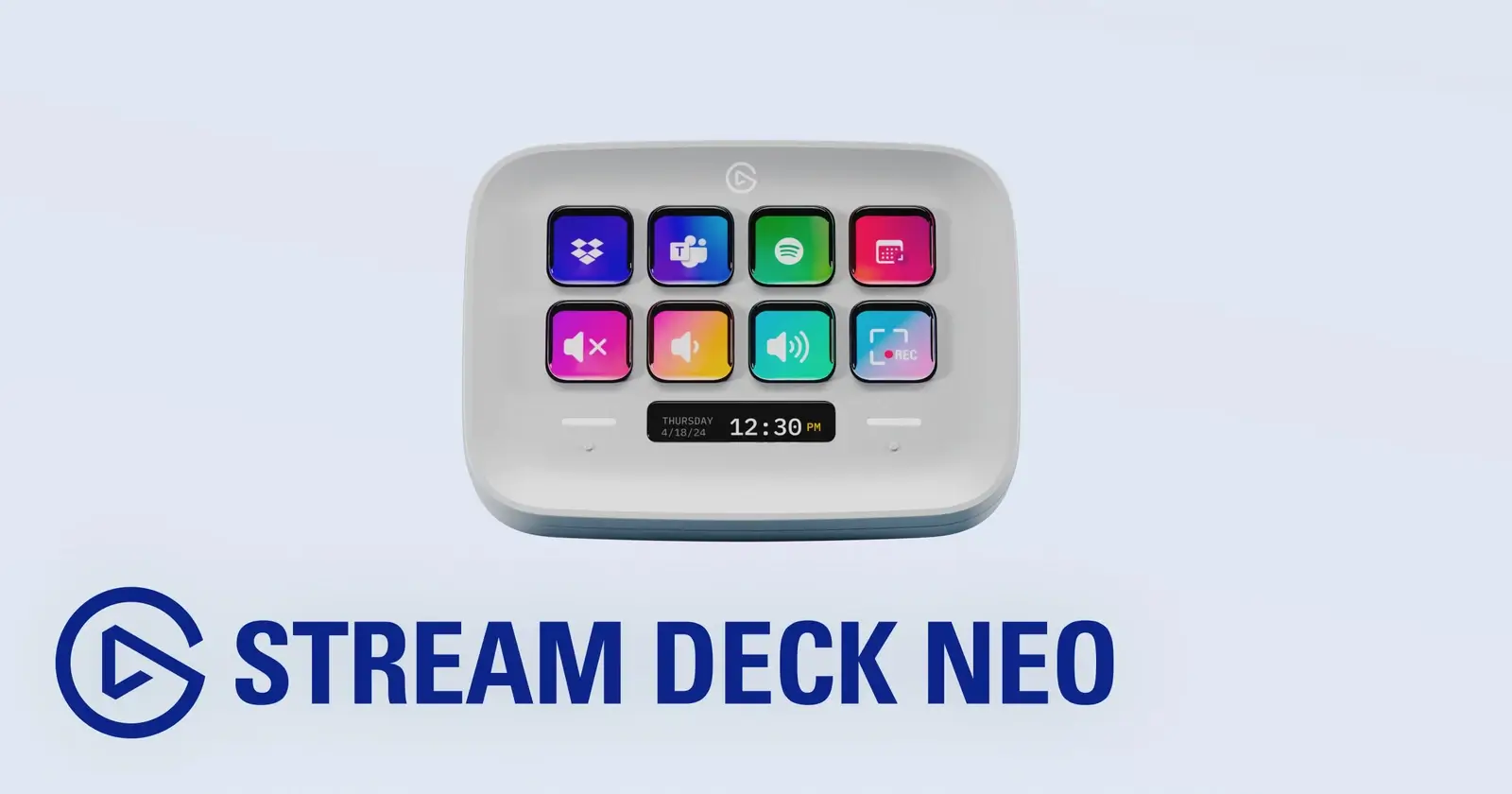
The Elgato Stream Deck Neo turns repeated multi-step actions into labeled physical buttons. That can be opening a writing workspace, muting a call, starting a timer, resizing an image, or launching a publishing checklist.
- Controls: eight customizable LCD keys and two touch points
- Display: customizable infobar
- Compatibility: macOS 13 or later
- Best for: repeatable workflows you can already describe step by step
Do not buy it hoping automation will appear by itself. Write down the actions you repeat for a week. If five of them are annoying and predictable, the Neo has a job. If you cannot name those actions, use keyboard shortcuts and macOS Shortcuts first.
MacBook Pro accessories I would not buy first
The easiest way to waste money is to protect or expand the MacBook Pro before you understand the problem. These are the purchases I would delay or avoid unless a specific use case proves otherwise.
A keyboard cover or thick camera cover
Apple says the clearance between its notebook display and top case is engineered to tight tolerances. Its Mac notebook camera-cover guidance tells users to remove a camera cover before closing the display if the cover is thicker than a normal piece of printer paper. I apply the same caution to thick keyboard covers.
A random cheap USB-C hub
A hub is infrastructure. Unclear power delivery, unreliable display output, or poor thermal design can turn a cheap purchase into a recurring troubleshooting problem. Buy the ports you need from a vendor that publishes the supported resolutions, refresh rates, charging limits, and host requirements.
A low-output power bank
A small phone battery may slow discharge without providing useful MacBook Pro charging under load. Match the USB-C Power Delivery output and cable rating to your MacBook Pro model. Capacity tells you how long it may help; wattage tells you whether it can keep up.
A large monitor with poor text clarity
Size is not the same as usable space. A cheap 32-inch 1080p display makes text visibly coarse at normal desk distance. For writing and development, I would rather use a smaller sharp display than a larger blurry one.
The order I would buy these accessories
There is no universal perfect setup, but there is a sensible order. Start with the item that affects the most hours of your week, then add infrastructure after the daily friction is gone.
- Fix input first: MX Master 3S, then a keyboard if the built-in one limits your posture or typing.
- Add screen space: BenQ MA320U or another sharp external monitor if you spend most of the day at a desk.
- Protect active work: Samsung T9 for project storage and a separate backup copy.
- Improve ergonomics: Curve Flex for mobile work, or a simpler fixed stand for one desk.
- Consolidate the desk: CalDigit TS5 only after cables and high-speed devices justify it.
- Solve specialized work: Link 2 for teaching, Stream Deck Neo for repeatable workflows, and ScreenBar Halo 2 for night work.
- Build infrastructure last: DS925+ when multiple machines and growing archives need central storage.
This order mirrors the way I think about a productive home office setup. Comfort and reliability compound every day. Decorative upgrades do not.
Frequently asked questions
These quick answers cover the compatibility and buying-order questions that matter most before you spend money on MacBook Pro accessories.
What is the best first accessory for a MacBook Pro?
For most desk users, the Logitech MX Master 3S is the best first accessory because it improves navigation in almost every app. Choose a portable SSD first if storage is the bottleneck, or a stand and charger if you travel more than you work at a fixed desk.
Do MacBook Pro accessories have to be made by Apple?
No. USB-C, Thunderbolt, Bluetooth, and USB Power Delivery are industry standards. Check the exact Mac model, port standard, display support, power requirement, and macOS compatibility instead of buying by logo alone.
Do I need a Thunderbolt 5 dock for a MacBook Pro?
Only if your Mac and workflow can use the bandwidth. A Thunderbolt 5 dock makes sense for fast external storage, wired networking, several peripherals, and supported displays. A smaller Thunderbolt or USB-C dock is better for lighter setups.
Will the Samsung T9 reach 2,000 MB/s on a Mac?
Not necessarily. The T9’s maximum speed uses USB 3.2 Gen 2×2, and many Macs do not expose that 20Gbps mode. The drive can still work well, but actual speed depends on the Mac, port, cable, file size, and workload.
What power bank output should I choose for a MacBook Pro?
Match the power bank’s USB-C Power Delivery output and the cable rating to your MacBook Pro model. Higher-performance models benefit from higher single-port output. A 140W-capable battery is useful for demanding travel, while lighter MacBooks may need less.
Can a camera cover damage a MacBook Pro screen?
Apple warns that the clearance between the display and top case is very tight. If a camera cover is thicker than a normal piece of printer paper, remove it before closing the screen. Avoid any accessory that places pressure between the display and keyboard.
The MacBook Pro setup I would build first
I would start with the MX Master 3S, a sharp external monitor, and the Samsung T9. Those three improve control, screen space, and storage without forcing the MacBook Pro into a complicated workstation. Add the Curve Flex when you travel. Add the TS5 only when the port math proves you need it.
The best MacBook Pro accessories are the ones you stop noticing because they remove friction. Pick one bottleneck, fix it, and work for a month before adding anything else. If you want to see how those choices fit into the rest of my stack, browse my toolbox and work setup.
Tell Google you want more of this.
Add Gaurav Tiwari as a preferred sourceOne tap, and this site shows up more often in your own Top Stories, AI Overviews and AI Mode. Remove it any time.
Disclaimer: This site is reader-supported. If you buy through some links, I may earn a small commission at no extra cost to you. I only recommend tools I trust and would use myself. Your support helps keep gauravtiwari.org free and focused on real-world advice. Thanks. - Gaurav Tiwari