
 by
by
Free productivity templates are easy to find and hard to choose. Search for a planner or a task tracker and you get thousands of results from app galleries, spreadsheet sites and creator stores, and some of them turn out to be the wrong format, a paid version sitting behind a free label or a file you aren’t allowed to share with your team.
The quickest route is to start with the template gallery of the app you already use, because the copy opens in a tool you already know. When that gallery is too generic for your job, a spreadsheet publisher or a creator usually has a narrower version, and it is worth the extra minute it takes to check the price and the terms.
I’ve grouped the sources below by where the template lives. Each one has a useful example and the condition you should check before copying anything from it.
Quick Comparisons
Find the app you use, then jump to its source:
| Source | Works with | Good example | What to check |
|---|---|---|---|
| Google Template Gallery | Google Docs, Sheets, Slides and Forms | Budgets and order forms | Some template features need a work or school account |
| Microsoft Excel templates | Excel | Subscription and membership tracker | Opens in Excel for the web after you sign in |
| Notion Marketplace | Notion | Free personal productivity category | Free and paid templates share one gallery |
| Trello templates | Trello | Community board templates | Some Power-Ups need setting up on your copy |
| Airtable templates | Airtable | Content calendar | The Free plan caps each base at 1,000 records |
| Vertex42 | Excel and Google Sheets | Project Task List | Private Use license: no resale or public sharing |
| Smartsheet | Google Sheets | Simple Project Tracker | The trial buttons on the page are for paid software |
| Gumroad | Mostly Notion | Easlo’s Starter Bundle | Free only where the price reads $0+ |
| Creator websites | Mostly Notion | Thomas Frank’s Expense Tracker | Email form first, with a skip link on this page |
| GitHub | Obsidian (Markdown files) | Kepano’s Obsidian vault | Each repository sets its own license |
Official Template Galleries
The gallery inside your own app is the place to start when a basic layout covers the job. The copy opens where you already work, so changing a column doesn’t mean learning a new tool.
Google Template Gallery
Google’s template gallery sits at the top of the Docs, Sheets, Slides and Forms home screens. You click Template Gallery, pick a template and Google opens a copy in your Drive, so the original stays clean and you edit only your own version.
It has resumes, budgets and order forms, and it is the fastest route when your planning already lives in Sheets. Google also says some template features are only available on work or school accounts, so a personal Gmail account may see fewer options than your office account does.
Microsoft Excel Templates
Microsoft’s planner and tracker templates cover the everyday spreadsheets people usually build by hand, such as expense trackers and weekly planners. The subscription and membership tracker is the one I’d open first if renewals keep catching you by surprise.
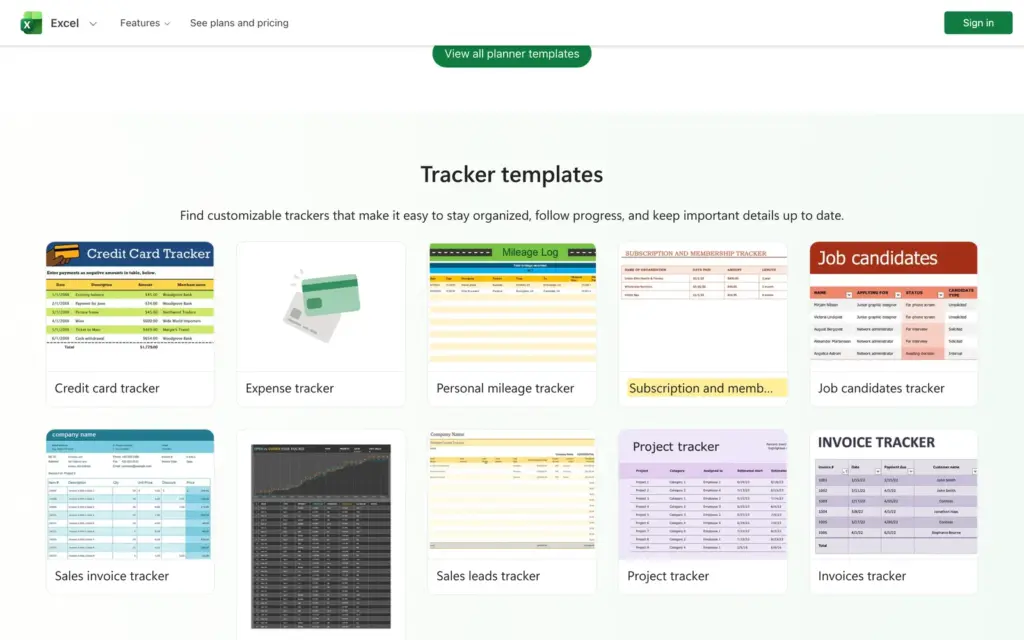
A template opens in Excel in your browser once you sign in with a Microsoft account, and you replace the sample values with your own. You can save it, print it or share it as a PDF from there. The desktop app is a separate purchase, but you don’t need it to use these files.
Notion Marketplace
Notion’s Marketplace mixes free and paid templates, so the free category is the one to bookmark. Its free personal productivity category alone lists more than 13,000 templates, split into smaller groups such as habit tracking, journaling and planners.
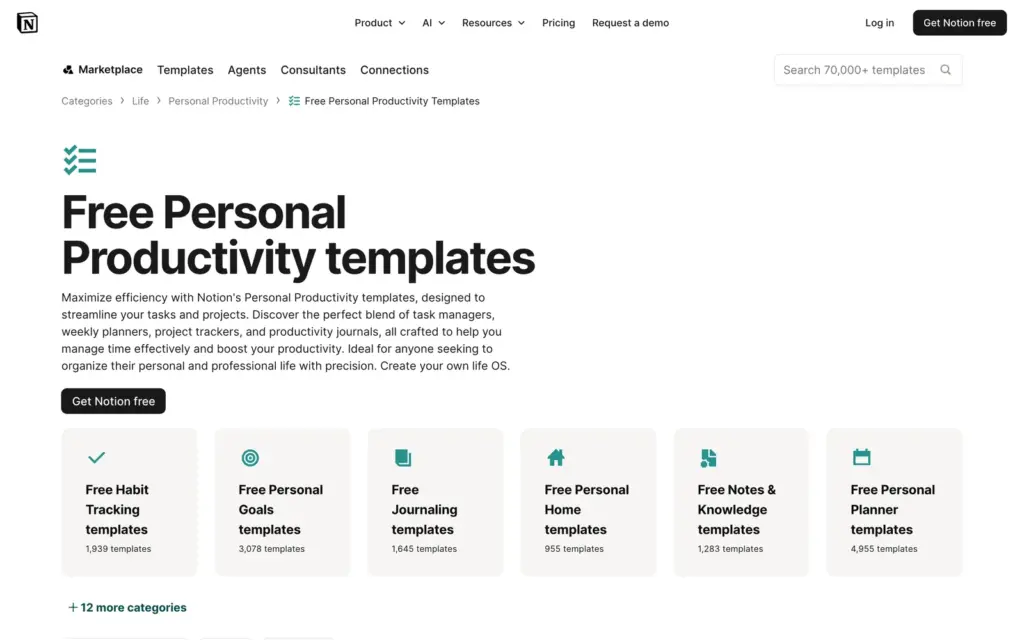
The button on a listing tells you the price before you commit. A free template shows Add, and a paid one shows Buy with the price on it.
With that many options, choosing is the hard part, so I’ve picked the best free ones for each job in my list of free Notion templates.
Trello Template Gallery
Trello’s template gallery holds boards made by the Trello team and by its users, sorted into categories such as productivity and project management. Each template has an overview page that shows who made it and which Power-Ups it uses, with a preview of the board.
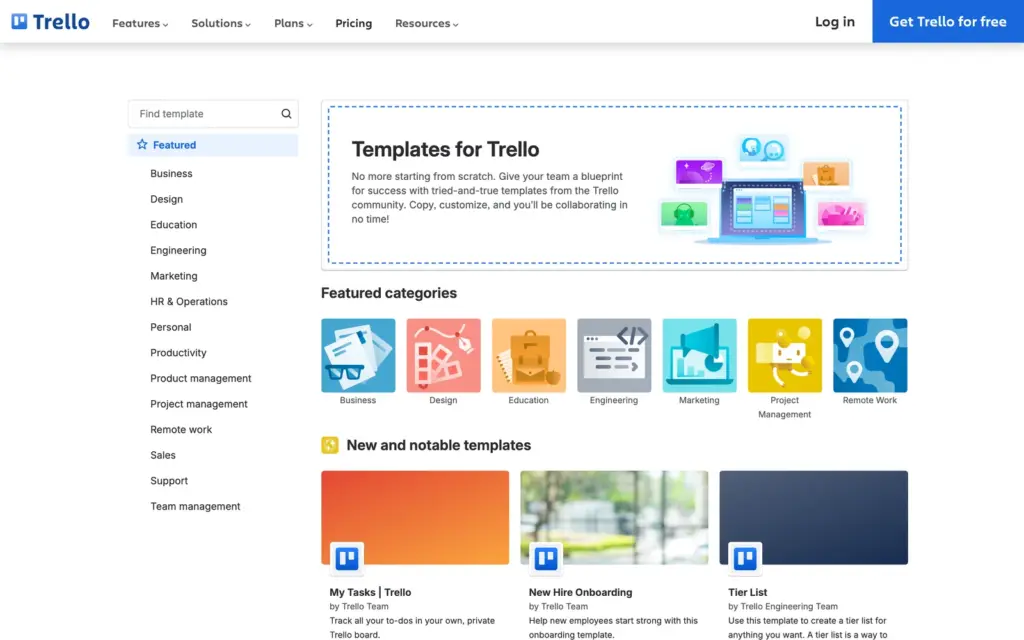
Create board from template lets you rename the board, pick a workspace and keep or drop the sample cards. Power-Ups that link another service, such as Slack or Dropbox, may not come across set up, so expect to connect those again on your copy.
Airtable Templates
Airtable suits trackers that outgrow a flat sheet, where one record needs to link to another. Its content calendar template is free and plans posts on a calendar view, with a field for each post’s platform and date.
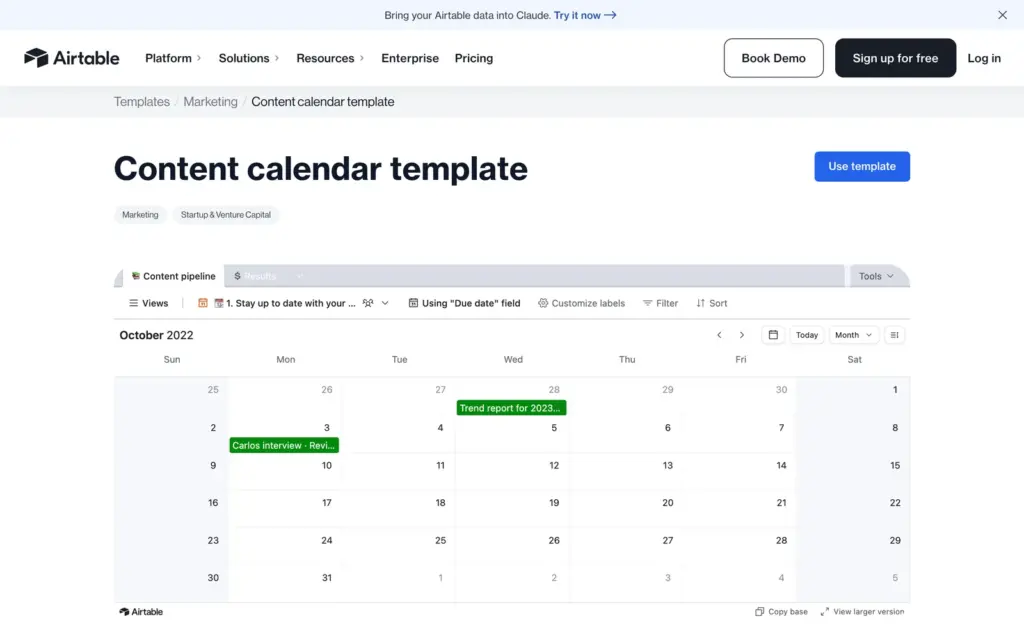
Two limits are worth knowing before you build on it:
- Airtable’s Free plan allows 1,000 records per base. That is enough for a personal calendar, but a team that logs every post will reach it.
- Record templates, which create preset records with one click, are a paid feature. They are a different thing from the free base templates in the gallery.
If you haven’t decided what to publish yet, a content matrix is the step before the calendar.
Spreadsheet Template Websites
A downloaded spreadsheet is the better choice when the job is rows, dates and totals and you don’t want another app to look after. These two publishers have free files for Excel and Google Sheets.
For small-business expenses in particular, my own expense tracker template for Excel is built for that one job.
Vertex42
Vertex42 publishes Excel templates, and many of them come with a Google Sheets version too. Its Project Task List is a good start for a small project: it highlights the priority column, shows a progress bar for each task and has columns for the budget and hours spent.
The Google Sheets copy has no progress bar, because Sheets doesn’t support in-cell data bars. If that bar matters to you, download the Excel file.
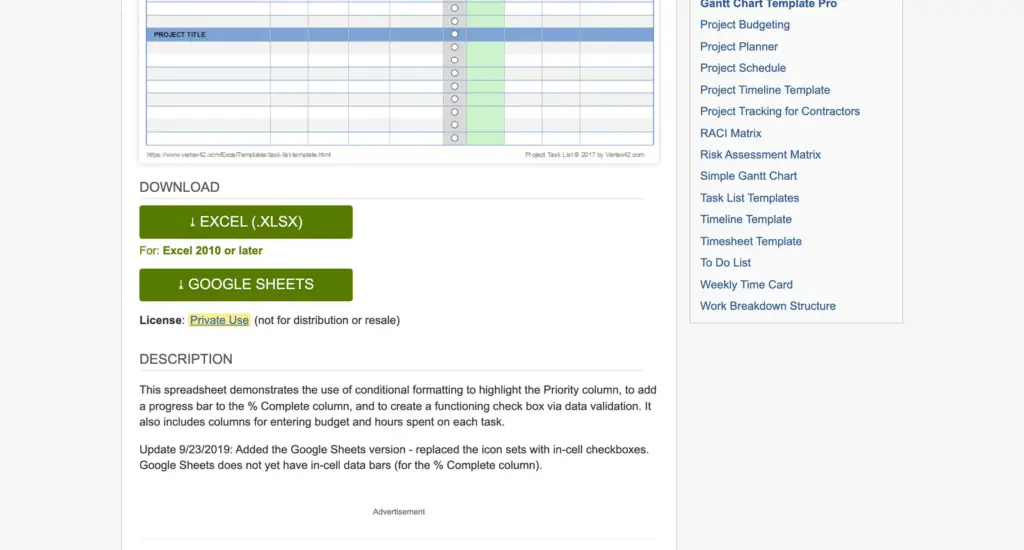
Read the license line under the download buttons. This template uses Vertex42’s Private Use license, which sets these terms:
- You can use and edit it for yourself or inside your company.
- You can share your edited copy privately with the people who need it.
- You can’t sell it, post it publicly or upload it to a template gallery.
Some other Vertex42 templates use a stricter Personal Use license, so the line under each download is the one to trust.
Smartsheet
Smartsheet sells project management software, and its resource pages give away spreadsheet templates to bring readers in. The Simple Project Tracker for Google Sheets gives each task a row with its status and due date, and the same page has bigger versions with a dashboard, multiple projects or phases.
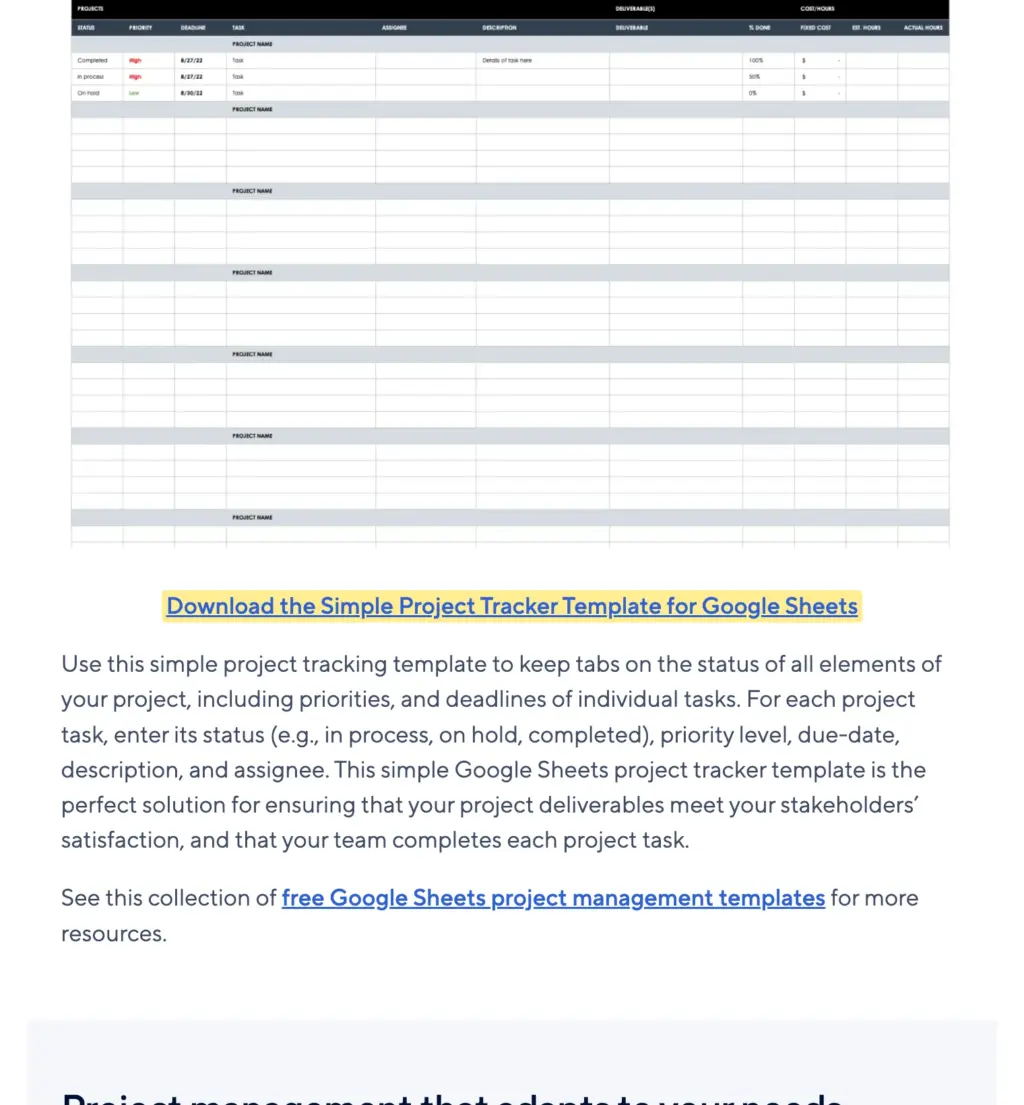
The download link sits right under each preview. The Try Smartsheet buttons around it are for the paid software, and you don’t need them to use the sheet.
Creator and Community Sources
Creators fill the gaps the official galleries leave, usually with a narrower workflow and often with a video that explains how the template works. The price and the way you get the file vary more here, so read the listing before you click anything.
Gumroad
Gumroad is the store many Notion creators sell through. A price written as $0+ means pay what you want, with 0 allowed, and Easlo’s Starter Bundle is a good example: one free download with 5 of his Notion templates.
- Habit Tracker
- Expense Tracker
- Book Tracker
- Journal
- Notes Dashboard
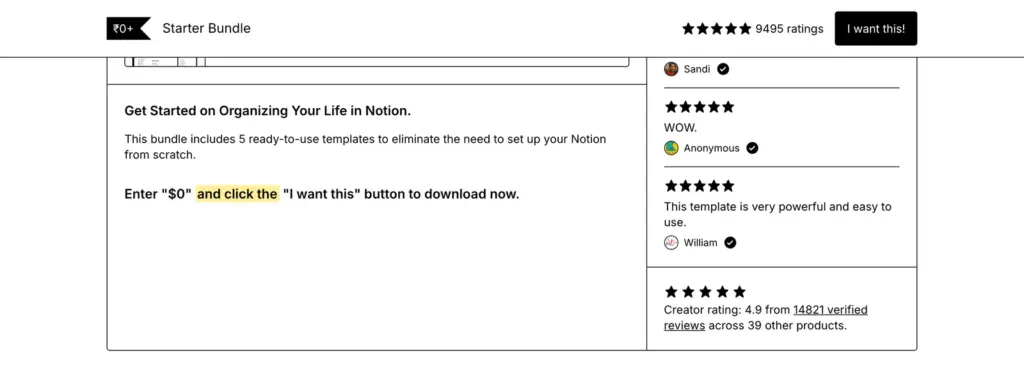
To get it, you type 0 in the price box, check out with your email address and open the Notion link Gumroad gives you. A price without the plus sign is a fixed price, and some products sell paid versions next to the free one, so check which version you’ve picked before checkout.
Creator Websites
Some creators keep their free templates on their own sites, next to a guide or a video on using them. Thomas Frank’s Expense Tracker for Notion is built for recurring costs: it keeps the subscriptions you might cancel in their own list and shows annual plans as a monthly cost.
His page asks for your email first. The “No thanks, just give me the template” link under the form skips that step and takes you straight to the template.
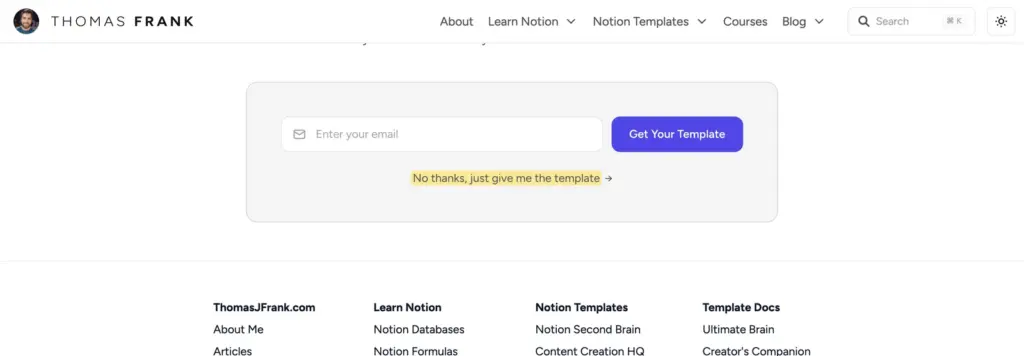
Not every creator offers a link like that, so look for one before you sign up for a newsletter you didn’t want.
GitHub
GitHub is the place to look if you keep notes as plain Markdown files in an app like Obsidian. Steph Ango, the CEO of Obsidian, shares his personal vault template there, and setting it up takes 3 steps:
- Download the vault as a ZIP file.
- Unzip it to a folder of your choice.
- Open Obsidian and create a new vault pointing to that folder.
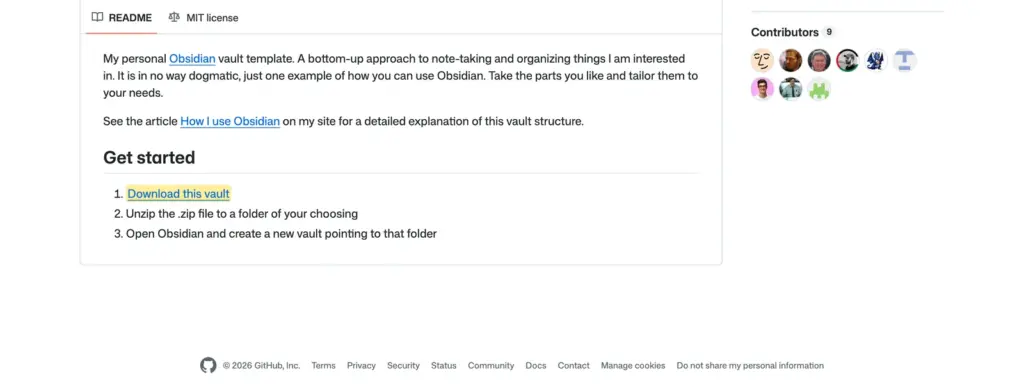
It is a starting structure, so expect to spend some time understanding his folders and categories before it feels like yours. The repository is MIT-licensed, which allows reuse and changes, but that is this repository’s choice. Public files on GitHub aren’t automatically free to reuse, so check the LICENSE file of any template you copy.
How to Pick a Free Productivity Template
A free template only saves time if it fits the job from the first day. I’d run through these checks before copying anything:
- Name one job, such as tracking renewals or planning posts, and pick the app you already use for it.
- Check that the version you’re copying is the free one and not a paid version on the same page.
- Check what the template needs from your plan, like charts, automations or Power-Ups.
- Preview it and note the columns or properties you’d delete.
- Switch on macros, add-ons or integrations only when you know what they connect to.
- Read the license before you share the file outside your team.
- Copy one template, delete the sample entries and use it for a week before you add another.
Tell Google you want more of this.
Add Gaurav Tiwari as a preferred sourceOne tap, and this site shows up more often in your own Top Stories, AI Overviews and AI Mode. Remove it any time.