
 by
by
Search Notion’s template gallery for almost any job and you get thousands of results. Most of the free ones are a nice cover image with one database inside, so it’s easy to duplicate five, delete four and still build the real system yourself.
The best free Notion templates for most jobs are the ones Notion makes itself. They’re free, Notion maintains them and they’re simple enough to change, and a few creator templates, most of them from Thomas Frank and Easlo, fill the gaps where Notion’s own are too thin. Paying makes sense only when a template carries something you’d otherwise have to work out yourself: the rules, the playbooks and the data already filled in.
I picked one template for each job people search for, from budgets and meal plans to CRMs and class notes. Every template below is free, most of them on Notion’s marketplace and a few as $0 downloads from their creators, and I’ve noted where one leans on a feature the free Notion plan doesn’t include.
Notion is the workspace these templates run in: pages, databases and views in one app, free for individuals. A template is a ready-made Notion page that you duplicate into your own workspace, and the copy is yours to change.
Quick Comparisons
Find the job you need a template for, then jump to its section:
| Job | Free template | Made by | What you get |
|---|---|---|---|
| Daily tasks | Ultimate Tasks | Thomas Frank | Inbox, Today and recurring task views, with projects |
| Weekly planning | Simple Weekly To-do List | Notion | Monday to Sunday checklists on one page |
| Projects | Projects & Tasks | Notion | Linked projects and tasks with timeline and board views |
| Goals | Yearly Goal Tracker | Notion | Yearly goals linked to quarterly goals and habits |
| Budget | Personal Finance Tracker | Notion | Income and expenses rolling into monthly savings |
| Meals | Meal planner | Notion | A meals database linked to a weekly plan |
| Travel | Travel planner | Notion | Itinerary, to-dos and a calendar for the trip |
| Courses | Easlo’s Student Dashboard | Easlo | Courses, assignments, exams and notes in 4 linked databases |
| Class notes | Cornell notes system | Notion | A button that builds each Cornell notes page |
| Reading | Reading list | Notion | Books with status, page progress and ratings |
| Clients | Sales CRM | Notion | Deals with value, close date and a pipeline board |
| Content | Content calendar | Notion | Campaigns and deliverables on a calendar and timeline |
| Job hunt | Job Application Tracker (w/ Notion AI) | Notion | Applications on a board by stage |
| Journal | Journal | Notion | Dated entries with daily, personal and calendar views |
| Habits | Habit tracker | Notion | Daily check-offs with streak charts |
| Everything | Life Wiki | Notion | Notebook, reading list, notes, tasks and goals in one place |
Planning and Tasks
These four cover the work that fills most days: the daily list, the week, bigger projects and the goals behind them.
Ultimate Tasks
Ultimate Tasks is my pick for a to-do list, and it’s the one place I’d choose a creator template over Notion’s own. Thomas Frank built it with Tasks and Projects databases and views for Inbox, Today, Scheduled, No Due and recurring tasks, so sub-tasks, priorities and repeating chores work from day one.
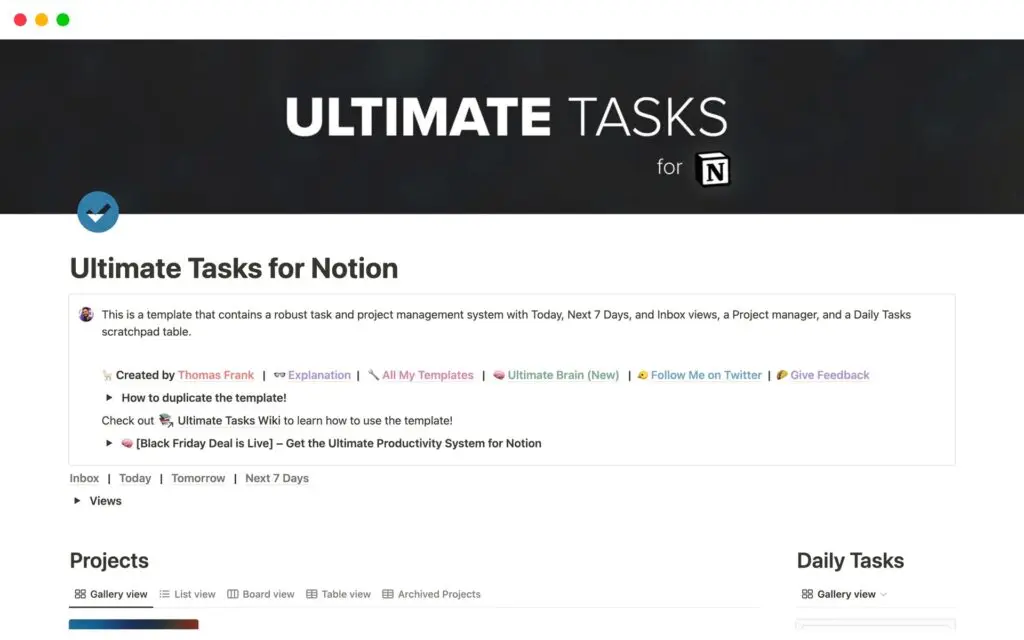
Notion’s own To-do List is the simpler choice if you only want one database on a board. Before you duplicate Ultimate Tasks, know that it includes a linked database advertising Thomas Frank’s paid templates. You can delete that page from your copy.
Simple Weekly To-do List
Simple Weekly To-do List is a single page with a heading for each day from Monday to Sunday and checkbox to-dos under each one. There’s no database, and that is exactly why it works for a quick weekly plan: nothing to set up and nothing to filter.
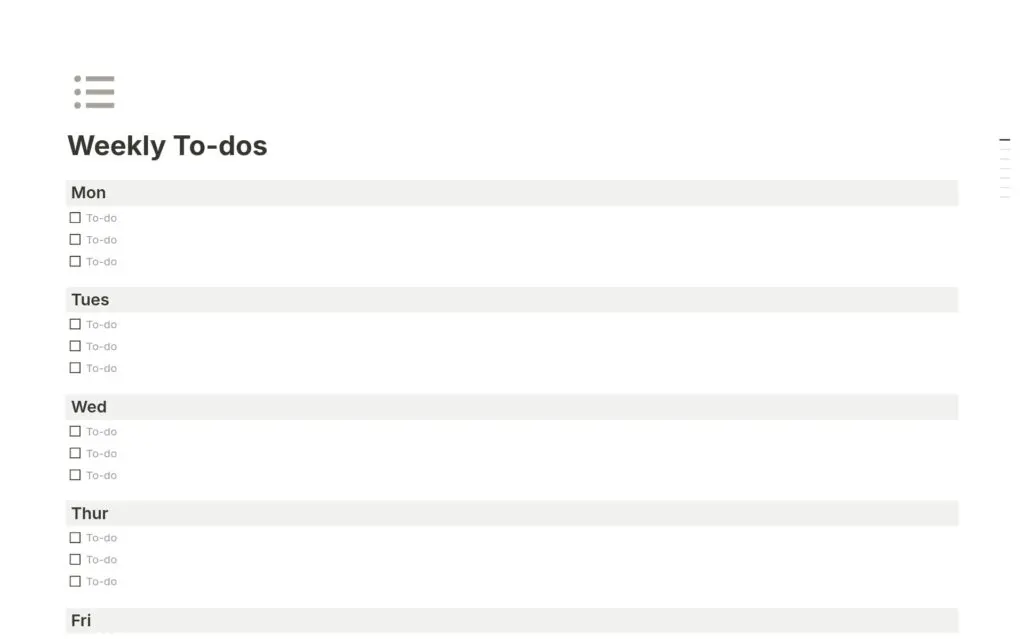
The same thing is its limit. You can’t sort, filter or carry unfinished tasks forward, so once your week needs that, Ultimate Tasks is the next step.
Projects & Tasks
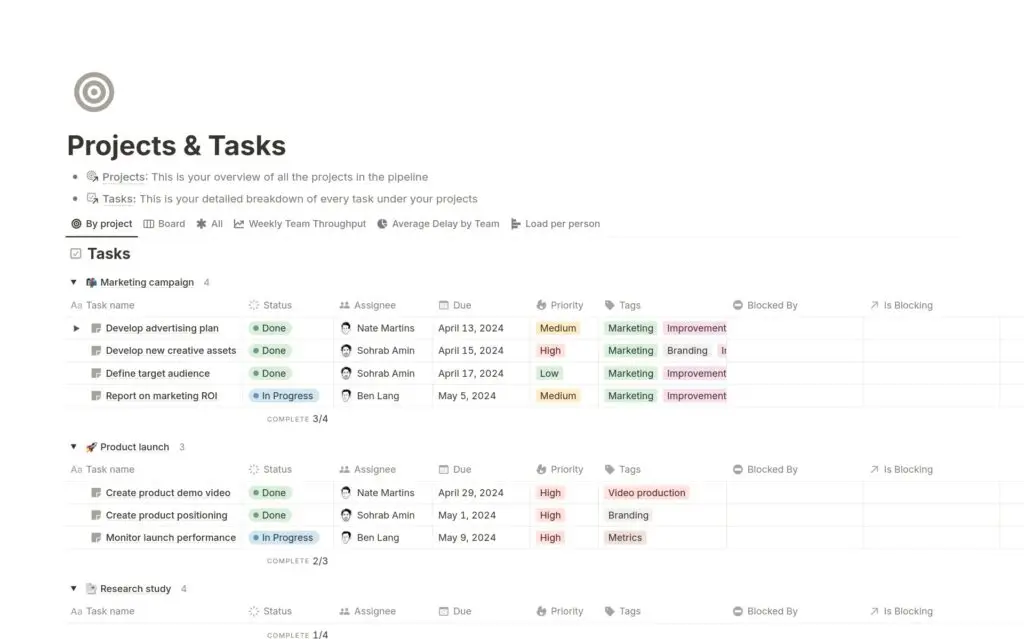
Projects & Tasks is Notion’s own project tracker and the best free start for a team or client project. Projects carry an owner, a priority, a completion figure and blocked-by relations. Tasks carry assignees, sub-tasks and a delay formula, with timeline, board and 3 chart views on top.
For a solo project, Easlo’s Project Tracker is lighter: one page with 2 databases and Today, Upcoming and Timeline views, and it doesn’t rely on chart views, which matter on the free plan.
Yearly Goal Tracker
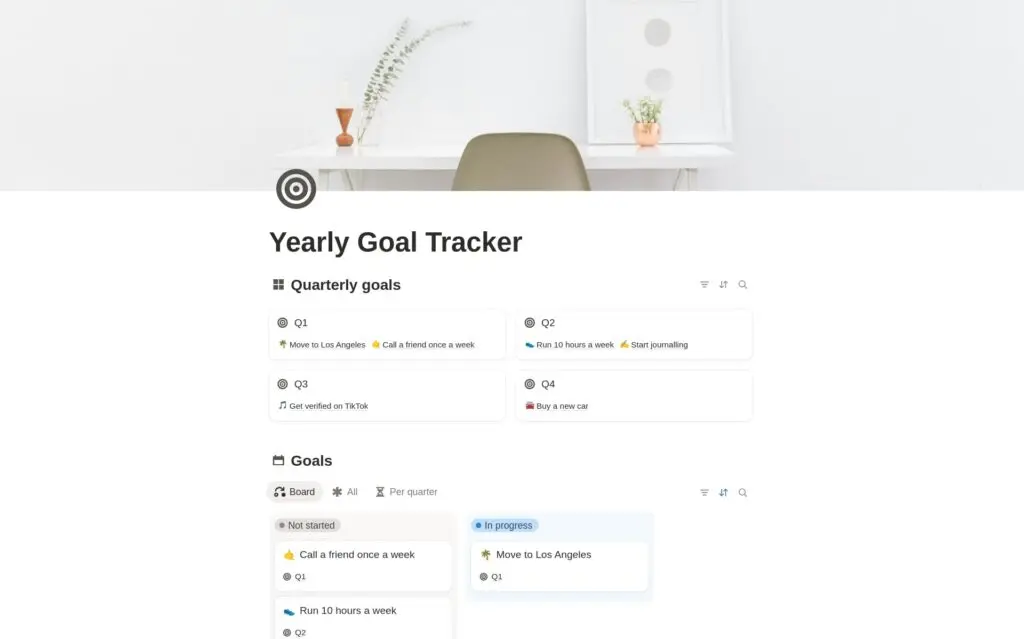
Yearly Goal Tracker links yearly goals to quarterly goals and adds a habit database with a streaks view, so the big goal and the daily habit that feeds it sit on one page. That link is what Notion’s simpler Goals template lacks, since it’s one database with a status board. I’d start with the yearly tracker unless all you want is a list of goals.
Money and Home
Budgets, meals and trips are where a template saves the most setup, because getting the structure right is the hard part.
Personal Finance Tracker
Personal Finance Tracker is the budget template I’d start with. Income and Expenses databases, each with an amount, a date and tags, roll into a monthly Total Savings database, and the Finance Dashboard shows the year by quarter.
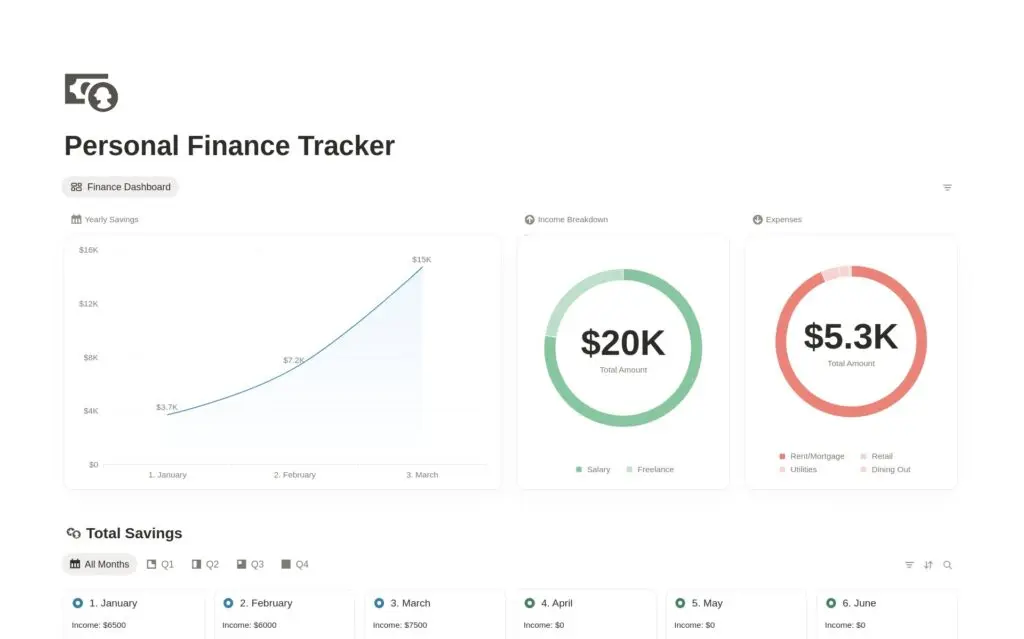
Two parts of it lean on paid features. Its automations, which date new entries and nudge you to set money aside for tax, need a paid plan, because Notion’s free plan only includes button automations. Its charts also count against the free plan’s single chart. The income, expense and savings databases don’t depend on either.
If you want something smaller, Notion’s Simple Budget is one Expenses database with a monthly cap, and Easlo’s Expense Tracker adds receipts, payment methods and spending by category. For business expenses kept in a spreadsheet, my expense tracker template for Excel is the better fit.
If most of your spending is subscriptions, Thomas Frank’s free Expense Tracker is the better fit. It’s built for the recurring costs a blog or freelance business runs on:
- Active, canceled and maybe-cancel expenses sit in separate lists, so the tools you plan to drop don’t hide among the ones you use.
- Every expense shows an effective monthly cost, which breaks an annual plan into what it costs you each month.
- A calendar view that you can add to Notion Calendar shows each renewal before the charge lands.
Meal planner
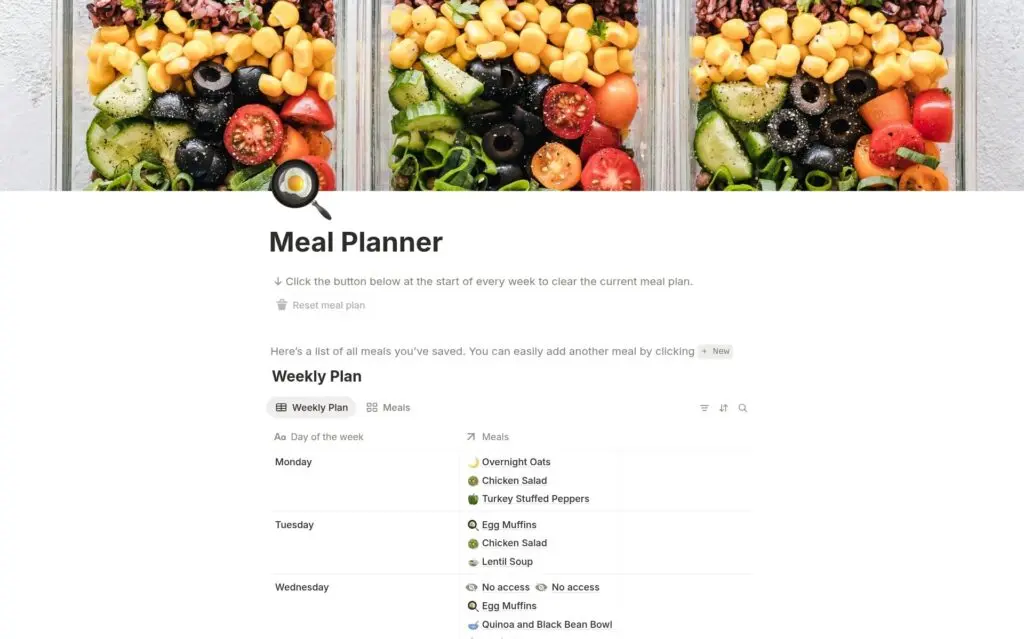
Meal planner links a Meals database to a Weekly Plan with one row per day, so you add a meal once and reuse it across weeks. If you cook from your own collection, pair it with Notion’s Recipe Book, a gallery of recipes you can rate and sort into perfected and want-to-try.
Travel planner
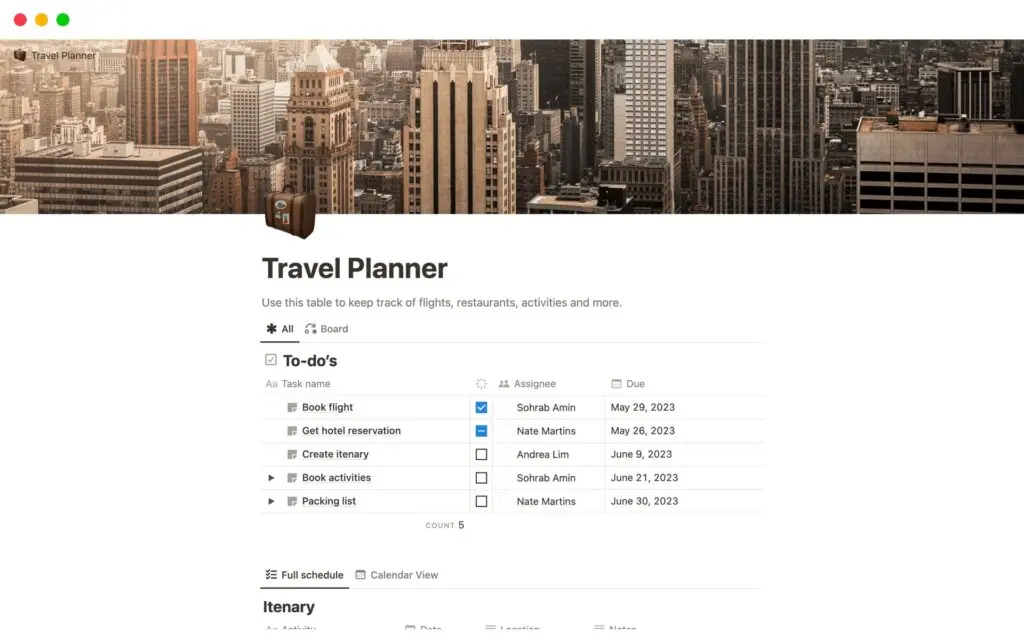
Travel planner is an itinerary database with activity, date, place and type, a to-do list, a calendar view and a photo wall for the trip.
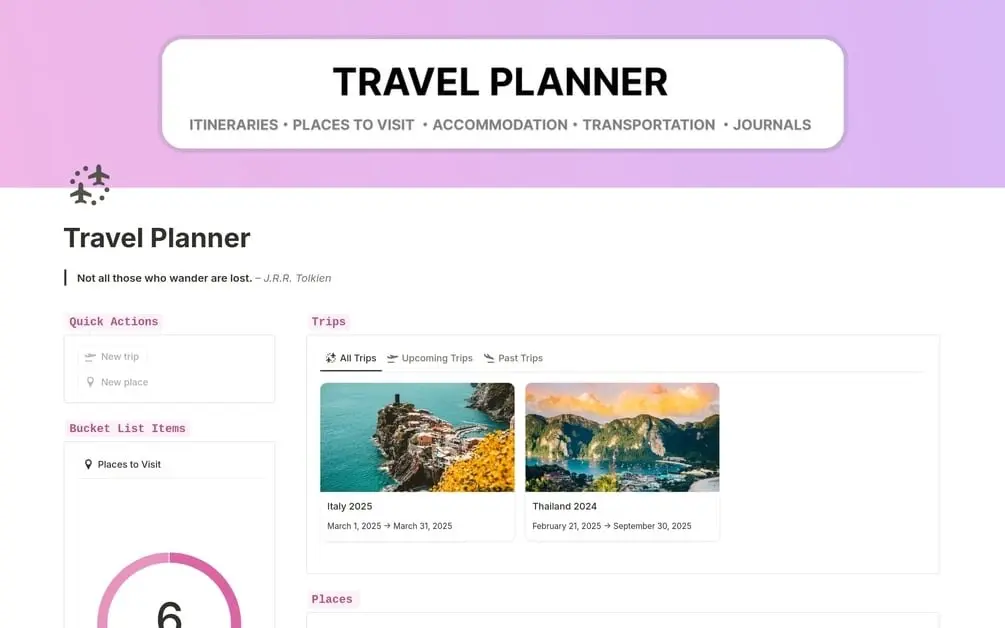
If you travel often, Joel’s free Notion Travel Planner on Gumroad, the store many Notion creators sell through, keeps all your trips in one place:
- A Trips database sorts upcoming and past trips by country and year.
- A Places to Visit list tracks your bucket list, with a progress ring for the places you’ve already been.
- Each trip gets its own page with buttons to add stays, transport, restaurants and activities, along with a to-do list and a page for every day of the itinerary.
- A travel journal lets you write daily or weekly entries and link them to the trip.
The listing also suggests keeping passports and booking confirmations in it. Booking references are fine there, but I’d keep passport scans out of Notion.
Study
Students get the most out of Notion templates, and the free ones here are good enough that I wouldn’t pay for a study system.
Easlo’s Student Dashboard
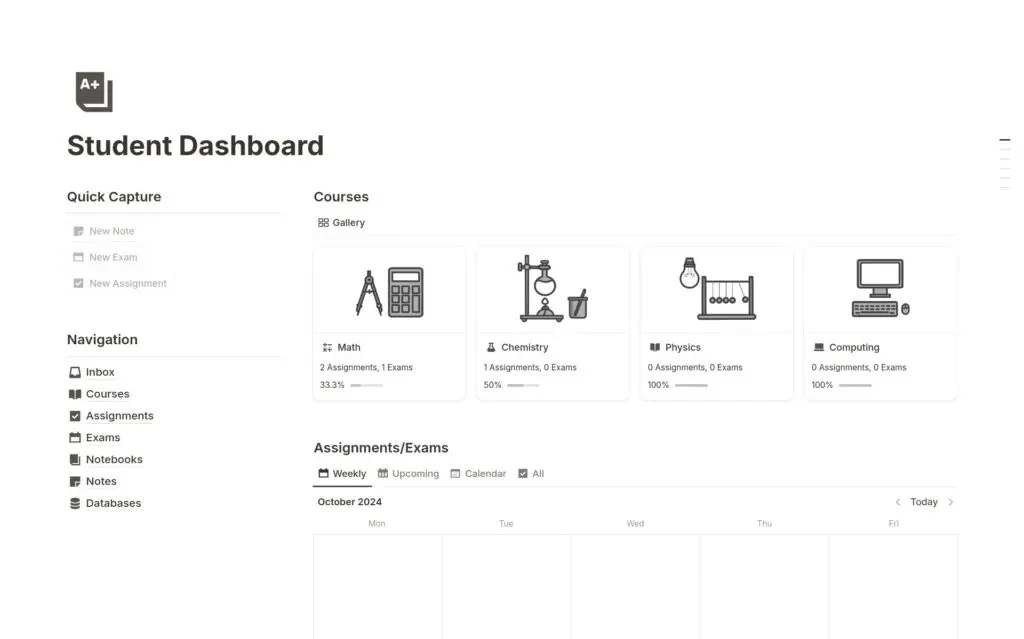
Easlo’s Student Dashboard is the student template I’d pick. It connects 4 databases: Courses with the syllabus file and progress, Assignments and Exams with a days-left count, Notes with a last-reviewed date and Notebooks with a confidence rating.
Notion’s own Student dashboard is simpler, with courses, to-dos, clubs and personal projects. Its Assignment Tracker with Automations adds weighted grades and a GPA chart, but it uses automations and a chart, so it fits a paid plan better.
Cornell notes system
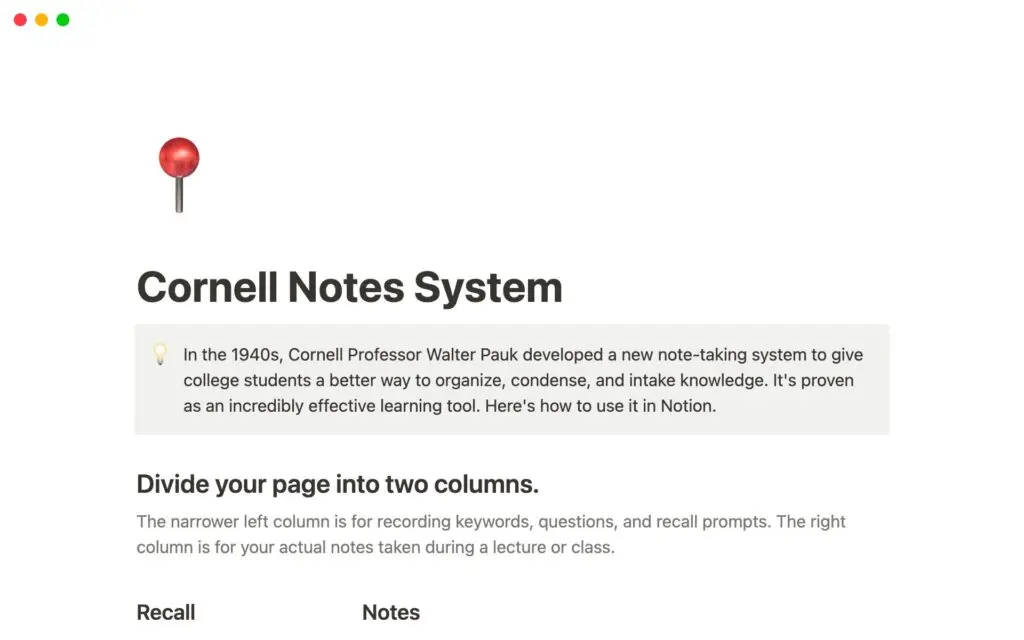
Cornell notes system explains Walter Pauk’s method and gives you a New Notes button that builds each page with the date and topic, a recall column, a notes column and a summary. It’s page-based, so the notes don’t land in a database you can sort.
Notion’s Class Notes is the database version, grouped by subject or sorted by date. I’d use it when you want every lecture in one searchable list and the Cornell layout matters less.
Reading list
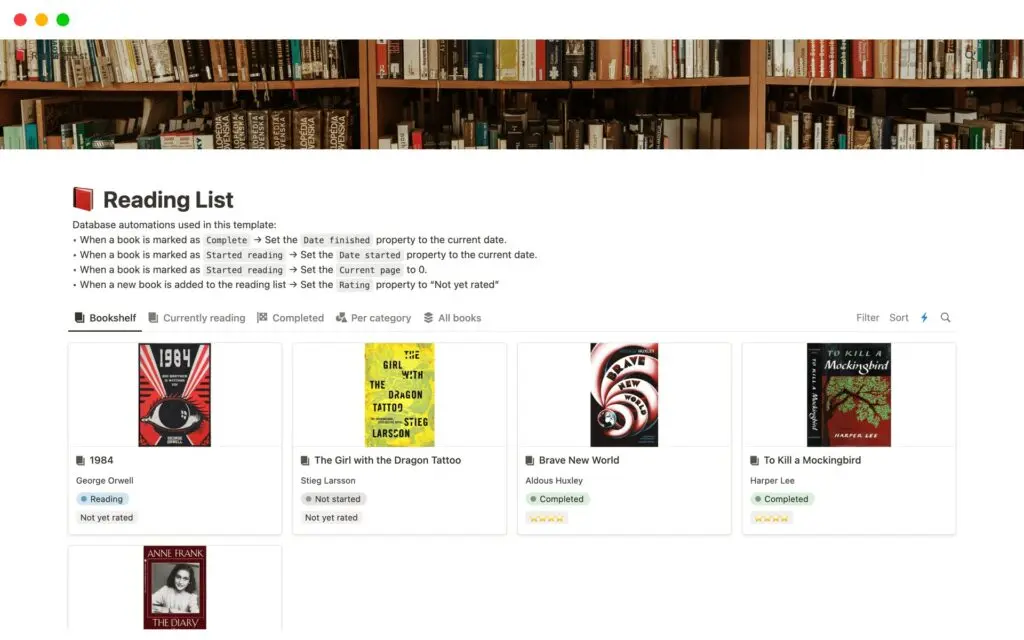
Reading list tracks books with the author, status, current and total pages, progress and a rating, shown as a bookshelf gallery. The listing mentions articles and podcasts too, but the database is built for books. Easlo’s Book Tracker adds separate Highlights and Genres databases if you take notes from what you read.
Work and Business
For client and content work, Notion’s own templates are solid starting points, and these are also the jobs where a paid system starts to earn its price.
Sales CRM
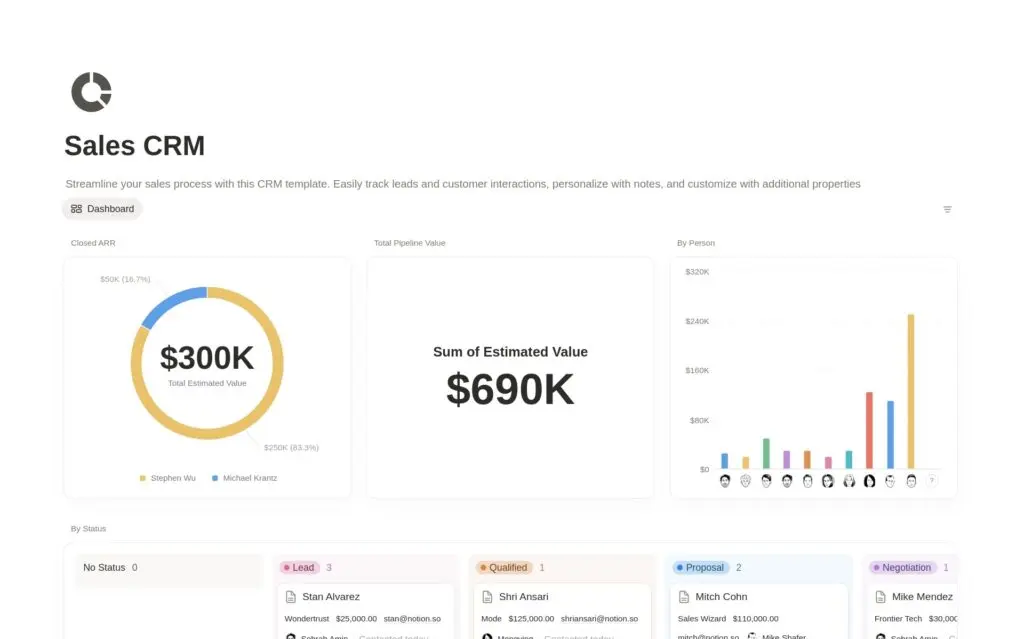
Sales CRM is my pick for freelancers and small teams who want a free CRM. Each deal has a company, email, phone, status, estimated value, expected close date and last contact, plus a Contacted button, and the board and dashboard show the whole pipeline.
For people rather than deals, Notion’s Personal CRM tracks when you last contacted someone, with a status formula next to the last-contacted date.
Content calendar
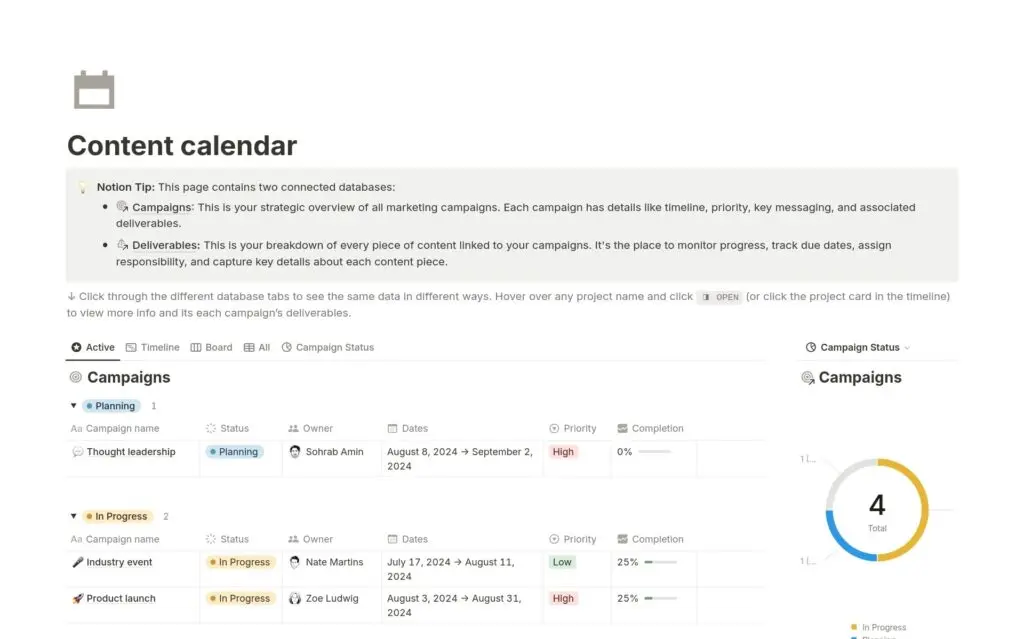
Content calendar links Campaigns to Deliverables with channels, type and due date, on a deadline calendar, a timeline and 3 charts. It suits a team publishing across channels. A solo creator may prefer Thomas Frank’s Simple Content Planner for Creators, with Content, Research and Swipes databases. It’s a free, cut-down version of his paid Creator’s Companion.
If you post on several platforms, Notion Done’s free Content Calendar on Gumroad gives each platform and content category its own database, so you can plan by channel or by content pillar.
If you plan content by topic clusters, my guide to building a content matrix shows the structure to put inside the calendar.
Job Application Tracker (w/ Notion AI)
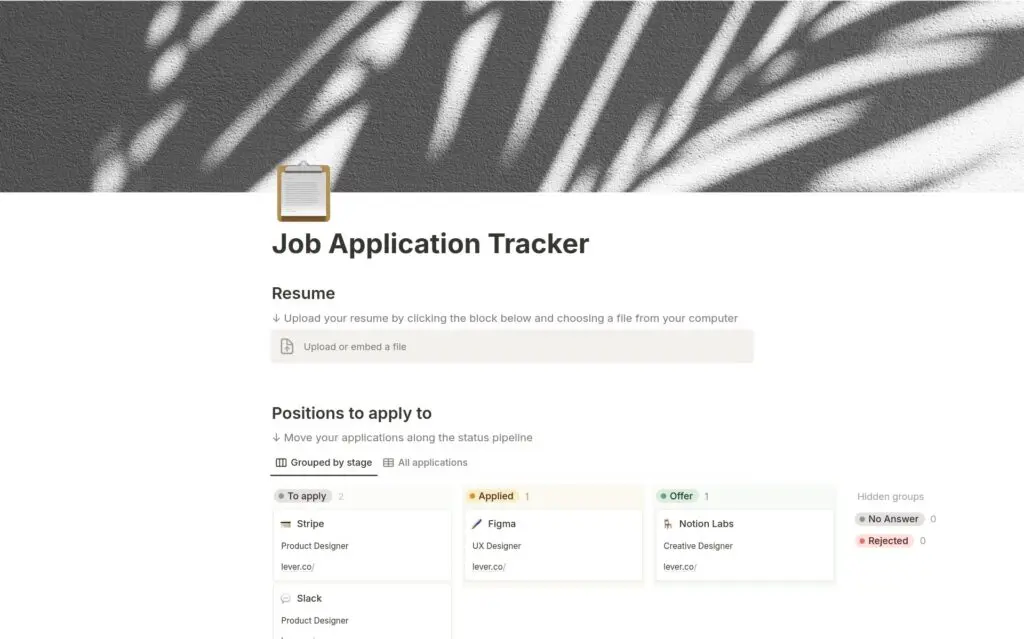
Job Application Tracker (w/ Notion AI) puts every application on a board by stage, with the company, position, stage and link, plus sections for your resume and action items. The AI features need Notion AI, which the free plan only includes as a trial, but the tracking board doesn’t depend on them. Students can use Notion’s Student Job Tracker, the same layout without the position field.
Life and Habits
These three are the personal ones: what you write down, what you repeat and where everything else lives.
Journal
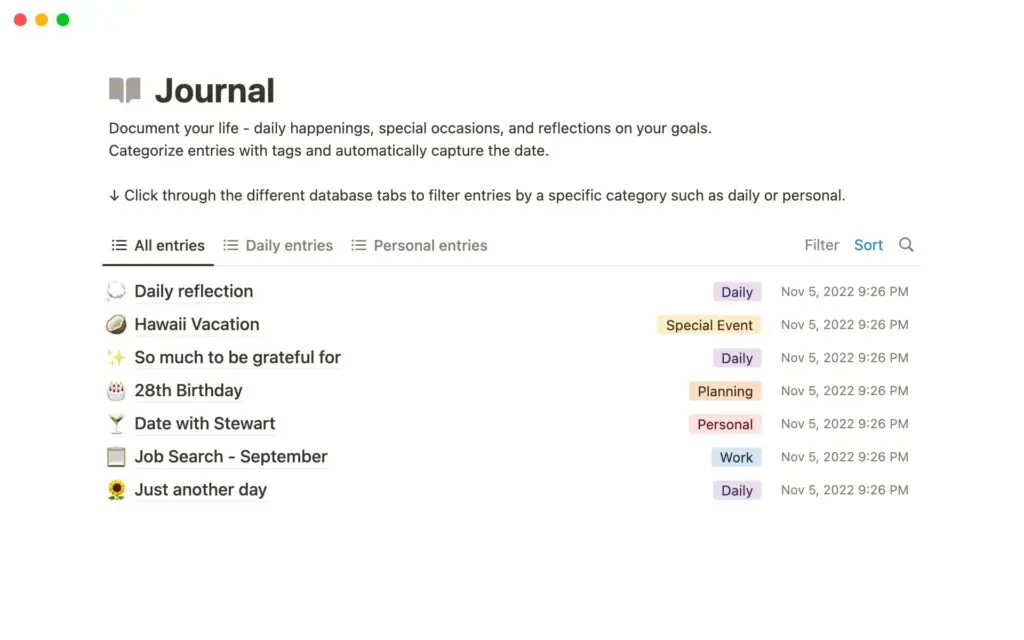
Journal is a database of dated entries with tags and All, Daily, Personal and Calendar views. Easlo’s Daily Journal is worth a look for one feature: an On This Day formula that brings back what you wrote on the same date in earlier years.
Habit tracker
Habit tracker gives each habit a daily checkbox, buttons to check them off and a progress formula, with 5 chart views including a streak.
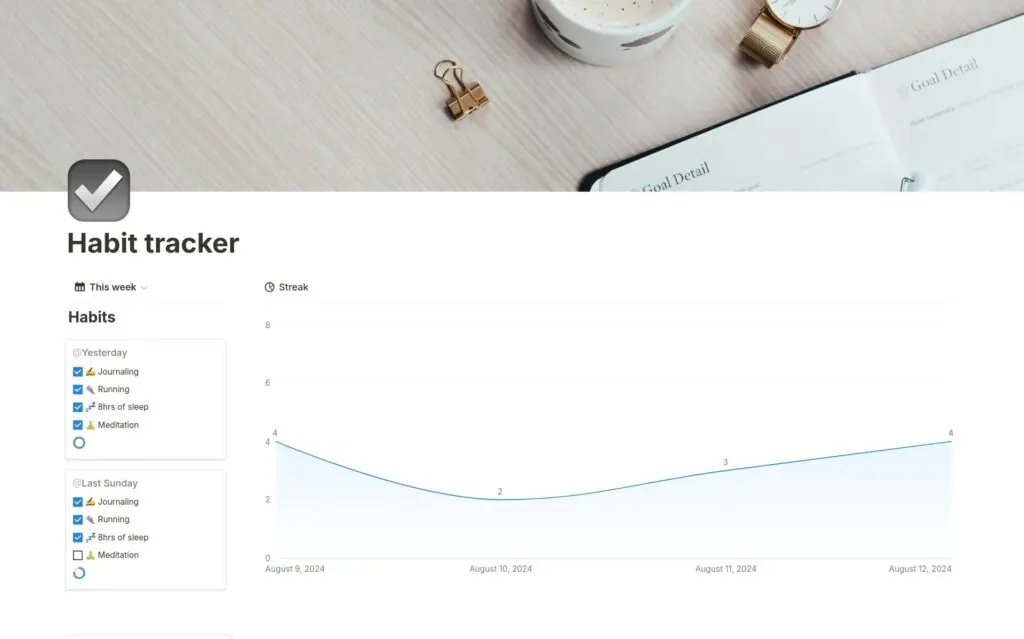
The free plan includes 1 chart, so most of those chart views need a paid plan. Easlo’s Habit Tracker skips the charts and uses Today, Week, Month and Calendar views, which suits the free plan better.
Gumroad has two more free trackers built around Notion buttons. Kevechino’s Gamified Habit Tracker gives you EXP, game-style experience points, for every habit you complete, which helps if a score keeps you coming back, and its 20 built-in habits are easy to swap for your own. Chris’s Buttons Habit Tracker comes with a video tutorial that explains how its buttons work, so you can change it to fit your routine.
Life Wiki
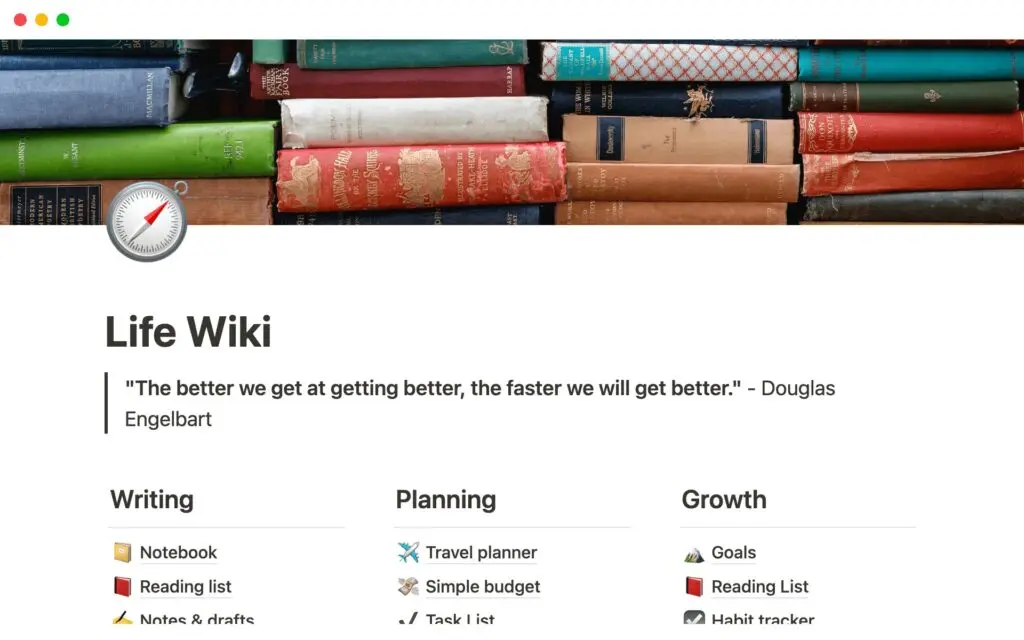
Life Wiki is Notion’s free answer to a second brain: 5 databases for a notebook, a reading list, notes and drafts, tasks and goals, all on one home page. If you like the PARA method, Thomas Frank’s free PARA Dashboard sorts tasks, notes, projects and areas with inbox and next-7-days views. Either one is a good start before you think about a paid system.
If all you need is a better place for notes, Thomas Frank’s free Ultimate Notes sticks to notes. It has an inbox for quick capture and a tags system for sorting, with your favorite and recent notes on its home page.
Easlo’s free Starter Bundle on Gumroad packs 5 of his templates into one $0 download:
- Habit Tracker
- Expense Tracker
- Book Tracker
- Journal
- Notes Dashboard
The first three are the Easlo templates in the budget, reading and habit sections above, so the bundle saves you collecting them one by one.
Notion Templates Worth Paying For
A paid template is worth it when it saves you from working out something you don’t know yet. The free gallery already covers the empty structure, so your money should buy the rules, the playbooks and the data inside. These three pass that test.
Notion Templates Library
I built the Notion Templates Library for the jobs where a free template leaves you to do the hard part alone. Each template is a connected Notion system that tells you what to do next: a post that’s losing clicks, an invoice that’s overdue, an affiliate program that closed or a revision you skipped. One $39 yearly membership covers every template in the library, and every copy you duplicate stays in your workspace.
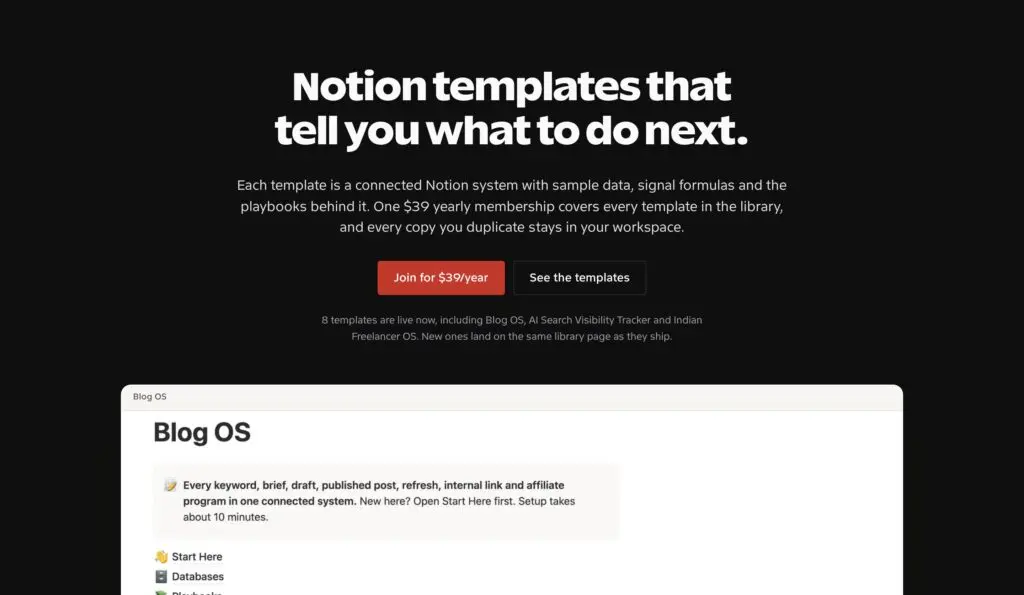
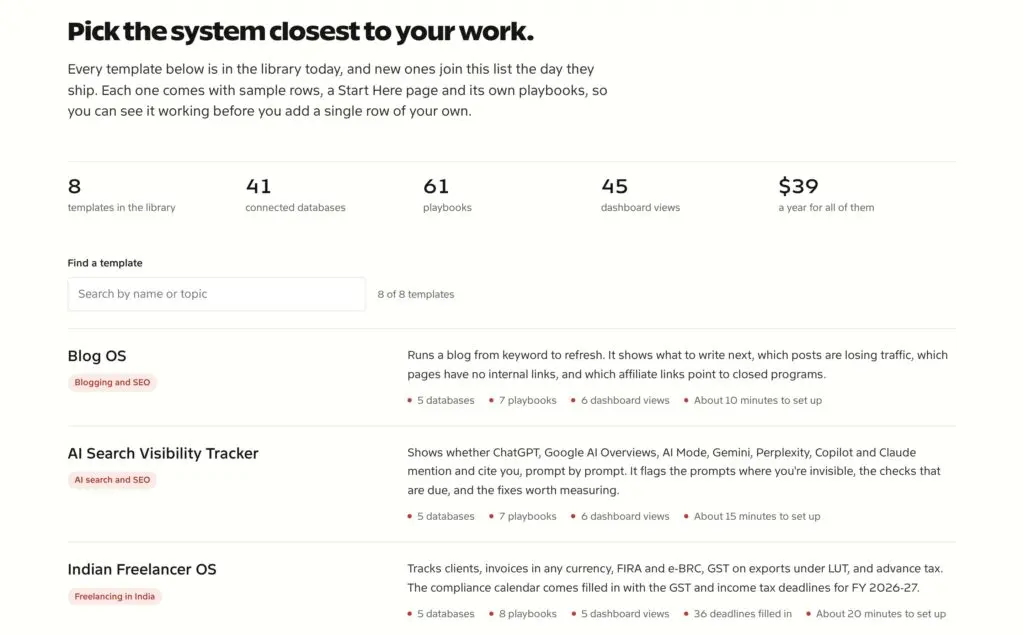
The library has 8 templates today, with 41 connected databases, 61 playbooks and 45 dashboard views between them. I’m taking it to 30 templates by the end of 2026, and each new one lands on the same library page at no extra cost while your membership runs. New templates come from systems I run myself and from what members ask for.
These 8 are live now:
- Blog OS runs a blog from keyword to refresh and shows what to write next, which posts are losing traffic and which pages have no internal links.
- AI Search Visibility Tracker shows whether ChatGPT, Google AI Overviews, AI Mode, Gemini, Perplexity, Copilot and Claude mention and cite you, prompt by prompt.
- Indian Freelancer OS tracks clients, invoices in any currency, FIRA and e-BRC, GST on exports under LUT and advance tax, with 36 deadlines for FY 2026-27 filled in.
- WordPress Launch Checklist runs every site launch through the same 100 checks, each with a note on how to verify it, plus what to check in the 30 days after launch.
- Affiliate Program Manager keeps programs, links, payouts and policies together, with 16 networks filled in, and flags closed programs that still have live links.
- Voice DNA Kit turns your best writing into a voice document that ChatGPT, Claude or Gemini can follow, then tests the output in 7 writing situations with 11 ready-to-copy prompts.
- UPSC Prep OS holds the Civil Services syllabus as 172 topics with spaced revision dates and tells you what to revise today.
- Family Emergency Binder maps where every document, account, policy, nominee and contact is kept, without storing full ID numbers or passwords.
Every template ships with the same five parts, so the second one you open already feels familiar:
- A Start Here page that walks you through setup in order, down to how many sample rows to delete in each database
- A dashboard that shows only the work that needs you today, so you rarely open the raw databases
- Signals, formula columns that turn your own rows red, orange or green
- Playbooks, the process behind the system written as decision tables and numbered steps
- Sample data marked with a test-tube icon, so every view works before you add anything
Every template runs on Notion’s free plan in a personal workspace, so the membership is the only thing you pay for. If you cancel, your access runs to the end of the year you paid for, and the templates you’ve already duplicated stay yours.
Ultimate Brain
Ultimate Brain is the best-known paid Notion system, and it’s the one I’d point to if you want a single complete setup without building it. Version 3.0 covers tasks with sub-tasks and recurring tasks, notes, projects, goals, a My Day dashboard, a weekly review page, a people CRM, meal planning and a reading log.
It lists at $129 on Notion’s marketplace, and Thomas Frank’s own site sometimes sells it for less. It’s a big system, so give yourself a weekend to learn it. Life Wiki and PARA Dashboard cover the basics for free if you’re not sure you need all of it.
Second Brain
Second Brain is Easlo’s paid system, built on the PARA method with databases for projects, tasks, notes, references, areas, goals, key results, topics and highlights. It lists at $79 on Notion’s marketplace.
It’s the better fit if you already think in PARA and want a cleaner setup than Ultimate Brain. It doesn’t include the people CRM or meal planning that Ultimate Brain has.
How to Add a Template to Notion
Templates from Notion’s marketplace go into your workspace like this:
- Sign up or log in to Notion in your browser.
- Open the template’s page on Notion’s marketplace from the links above.
- Use the button on that page to get the template, and choose the workspace it should go into.
- Notion copies the page, with all its sub-pages, into the Private section of your sidebar.
- Delete the sample rows, rename things to fit your work and start adding your own entries.
A few blocks may show No access after the copy. Notion’s help pages say those can be deleted safely.
Creator templates on Gumroad take one extra step. A price of $0+ means you can pay what you want, including nothing:
- Type 0 in the price box and click the buy button.
- Finish checkout with your email address.
- Open the Notion link Gumroad gives you after checkout and duplicate the page into your workspace.
Thomas Frank’s templates come from his own site, which asks for your email first. The “No thanks, just give me the template” link under the form skips that step.
What the Free Plan Covers
Every template above is free to duplicate, and Notion’s Free plan covers most of what they need. These are the limits that matter for templates:
- Blocks are unlimited for one person, and the block limit applies once a workspace has 2 or more members.
- The free plan includes 1 chart, so templates with several chart views need Plus to show them all.
- Automations are limited to buttons, so database automations like the ones in Personal Finance Tracker need Plus.
- File uploads are capped at 5 MB each, and page history goes back 7 days.
- Notion AI is only included as a trial.
Notion Plus costs $10 per member a month when billed yearly. I’d only upgrade for templates if one you use every day depends on charts or automations.
If you’re starting from zero, I’d duplicate Life Wiki for the whole setup or Ultimate Tasks for daily work, use it for a week and then add one template for a specific job at a time.
FAQs on Free Notion Templates
What is the best free Notion template?
For most people, Notion’s own Life Wiki is the best single free template, because it puts notes, tasks, goals and a reading list on one home page. For one job, pick from the list: Personal Finance Tracker for money, Ultimate Tasks for to-dos and Easlo’s Student Dashboard for school.
Are Notion templates free?
Many are. Every template Notion publishes on its marketplace is free, and creators like Thomas Frank and Easlo offer free templates alongside paid ones. Paid templates show a price on their listing. On Gumroad, a price of $0+ means you can pay nothing.
How do I add a template to my Notion workspace?
Open the template’s page on Notion’s marketplace while logged in, use the button to get it and choose a workspace. Notion copies it, with its sub-pages, into the Private section of your sidebar. For a $0+ template on Gumroad, you check out at a price of 0 and then duplicate the Notion page it links to.
Do free Notion templates work on the free plan?
Yes, with two caveats. The free plan includes 1 chart and only button automations, so templates with several charts or database automations need Plus for those parts.
Is it worth paying for a Notion template?
Only when the template includes knowledge you’d otherwise have to work out yourself, such as playbooks, rules or data already filled in. For a plain structure, the free templates in this list are enough.
Tell Google you want more of this.
Add Gaurav Tiwari as a preferred sourceOne tap, and this site shows up more often in your own Top Stories, AI Overviews and AI Mode. Remove it any time.
Disclaimer: This site is reader-supported. If you buy through some links, I may earn a small commission at no extra cost to you. I only recommend tools I trust and would use myself. Your support helps keep gauravtiwari.org free and focused on real-world advice. Thanks. - Gaurav Tiwari