
 by
by
If your business already runs on WordPress, paying Calendly every year just so people can book a call with you is a cost you don’t need. Your website already has a database, a dashboard and your own domain. Calendly adds a second account on top of that, charges for every person who takes meetings and keeps your appointments and customer details on its own servers.
The better setup is a Calendly alternative for WordPress: a booking plugin that runs inside the site you already own. Your customers book on your pages, you manage every appointment from wp-admin and the records stay in the same database you already back up. You pay for the plugin once or once a year, and adding a second or third person who takes bookings doesn’t add another seat fee.
I built Core Bookings to do exactly this job. It is my own WordPress booking plugin for appointments, group sessions, payments and reminders, and everything it stores lives in your WordPress database. It is in beta right now (version 0.10.0), so I’m not recommending it for production websites yet. If you need a booking plugin live on a business site today, I’ll point you to the ones I’d use instead, and you can come back to Core Bookings when it reaches 1.0.
Why Calendly Is an Unnecessary Cost on WordPress
Calendly is a good scheduling product. My problem with it is narrower: on a business website that already runs on WordPress, it duplicates things you already have and charges you every year for the duplicate.
This is what you are paying for with Calendly:
- The Free plan gives you 1 event type and 1 calendar connection, which covers a single kind of meeting.
- Standard costs $10 per seat per month, billed yearly, which is $120 per person every year. Multiple event types, reminders, automations and Stripe or PayPal payments all start on this plan.
- Teams costs $16 per seat per month, billed yearly, which is $192 per person every year. Round-robin scheduling and lead routing start here.
- A seat is anyone who hosts meetings. Your customers don’t need one, but every consultant, coach or staff member on your team does.
- Monthly billing costs more, because Calendly gives a 17% discount on Standard and 20% on Teams for paying yearly.
The money is only half of it. When someone books through Calendly, all of this sits in Calendly’s account:
- the appointment and its status
- the person’s name and email address
- their answers to your booking questions
- your reminder and follow-up history
You can embed Calendly in WordPress through a Custom HTML block, but the embed only changes where the form appears. Calendly still runs the scheduling and stores the data, and it decides how far you can change the design.
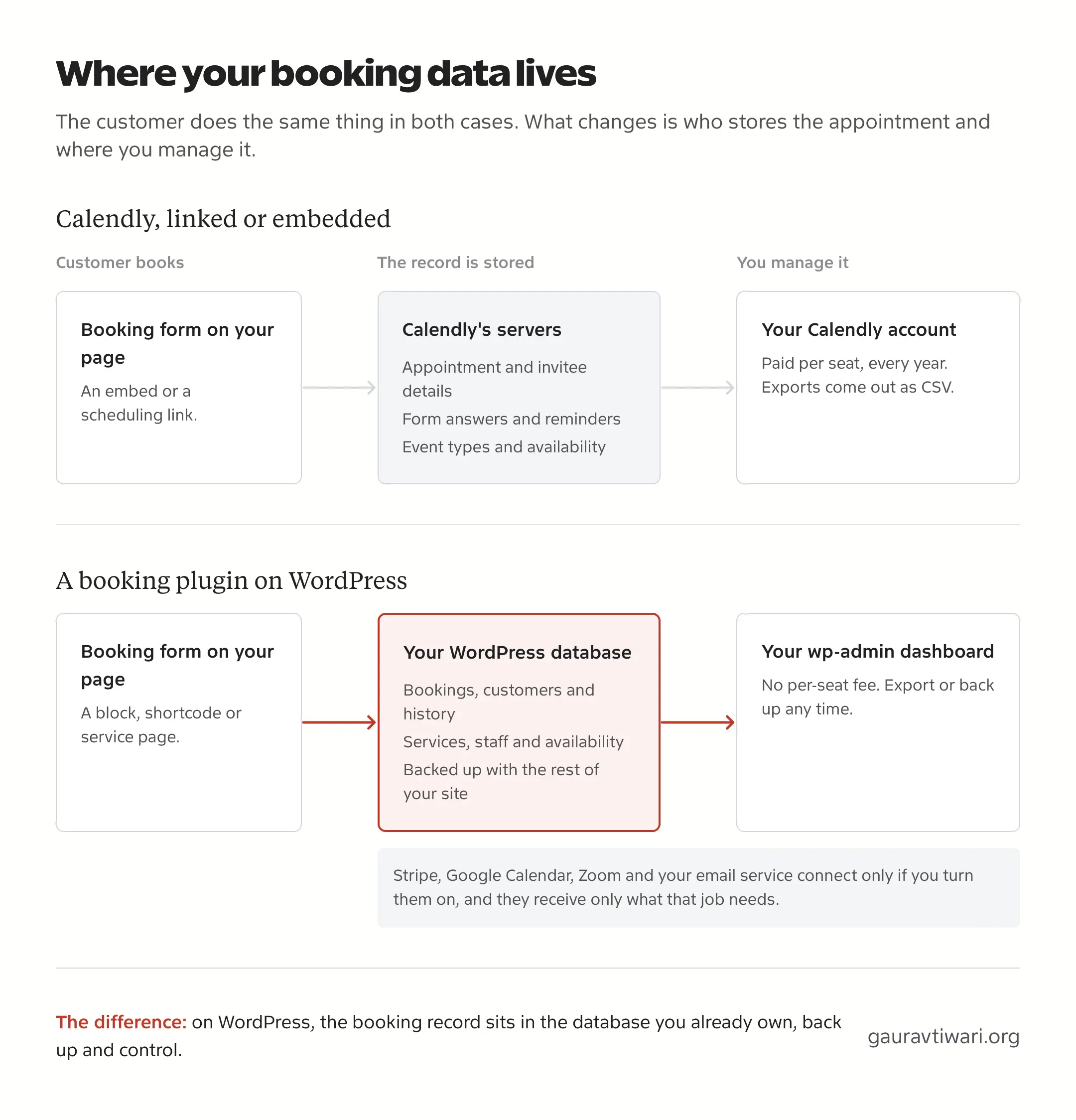
A booking plugin turns that around. The booking form is a block on your own page, the appointment is a row in your own database and the customer list sits next to your other WordPress data. You can style the form with your theme, connect it to the store and forms you already use and back it up with the rest of your site.
You do take on the running of it. Plugin updates, email delivery, scheduled jobs and backups become your responsibility, and that work has a cost too. For a business that already maintains a WordPress site, most of that work is already happening.
Calendly still makes sense in a few cases:
- Your website doesn’t run on WordPress, or you don’t control its hosting.
- One meeting type on the Free plan covers everything you need.
- Your sales team routes leads through Salesforce and depends on Calendly’s Teams or Enterprise routing.
The Calendly Alternative I Built for WordPress
Core Bookings is a standalone appointment and group scheduling plugin for WordPress. It doesn’t need any other plugin to work, and it handles the whole booking job, from services and staff hours to payments, calendar sync, reminders and customer self-service.
The current release is 0.10.0, which shipped on October 3, 2026. It costs $99 for a lifetime license or $39 a year, and both cover unlimited sites. A lifetime license bought during the beta stays a lifetime license after 1.0.
There are a lot of features now, so I’ve grouped them by the job they do.
Bookings and Scheduling Rules
This is the part that decides whether the calendar matches how your business actually works. Each service gets its own rules, and each staff member gets their own hours and time zone.
- You can offer one-to-one appointments and scheduled group sessions, and staff capacity is shared between them.
- Every group session can have its own seat limit. A workshop can default to 6 seats, allow 12 at one time slot and close another slot completely.
- Each service has its own duration, buffers, minimum notice, booking window and change cutoff.
- Staff hours support weekly schedules, split shifts, date-specific hours and repeating time off.
- You can cap how many bookings a staff member takes for a service each day or each week.
- Customers can book a recurring series of up to 12 one-to-one sessions, 1 to 4 weeks apart. Every date in the series is reserved together, or none of them are.
- A service can require staff approval. The time is held until a deadline, and payment starts only after the staff member approves.
- Waitlists use verified email, and when a seat opens, the next person gets a 15-minute window to claim it.
- Automatic staff selection gives a booking to the available person with the lightest recent load.
- Two different services can share a calendar when you allow it, so a full-day service and short consults don’t block each other.
- Customers pick their own time zone, and a local time that doesn’t exist because of a daylight-saving change is rejected instead of guessed.
Two customers can try to grab the same last slot at the same moment. Core Bookings locks the slot in the database, so one booking goes through and the other gets a clear “slot taken” answer. When I sent 20 simultaneous requests for 1 slot on a test site, 1 booking was confirmed and the other 19 were refused.
The Booking Form
The booking form is where Calendly feels most out of place on a WordPress site, so Core Bookings gives you a lot of control over it. You add it as a block, and it looks like part of your page because it uses your theme’s fonts.
- The Gutenberg block has a searchable service picker and settings for text, colors, spacing, corner radius, columns, alignment and anchors.
- You can create a new service from inside the block editor without leaving the page.
- The
[core_bookings]shortcode works in themes and builders that don’t use blocks. - Every service can also have its own standalone page with a summary, host profile, pricing and a focused booking panel.
- A “Find next available appointment” button searches ahead and marks which dates still have open times.
- Group sessions show the remaining seats beside each time.
- Cloudflare Turnstile protects bookings, waitlist requests and customer sign-in from spam.
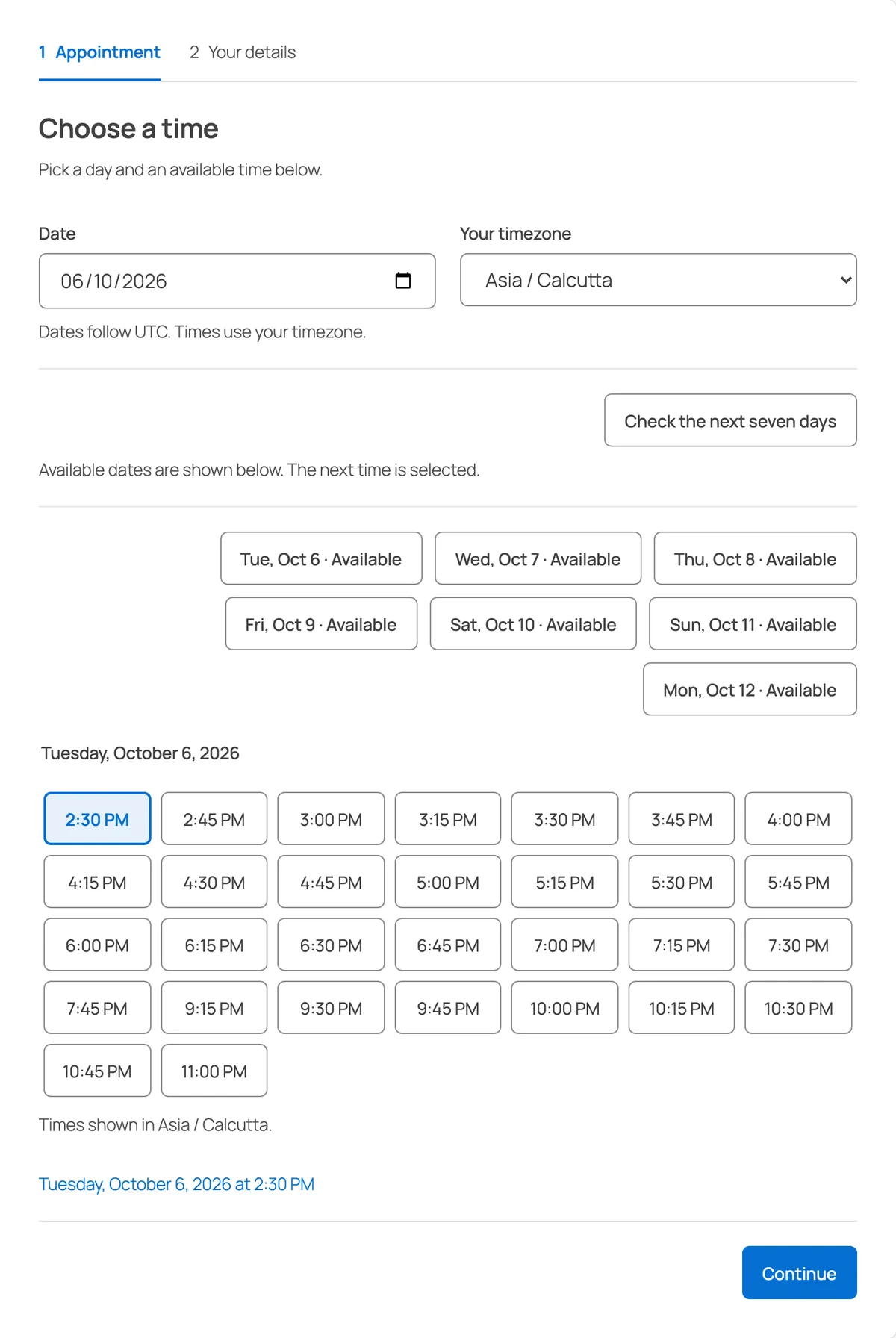
You also choose how much of my design you want. Default UI gives you a clean, compact look out of the box. No UI Style removes the plugin’s visual CSS from customer-facing pages so your theme or your own CSS can style everything, and booking still works the same way.
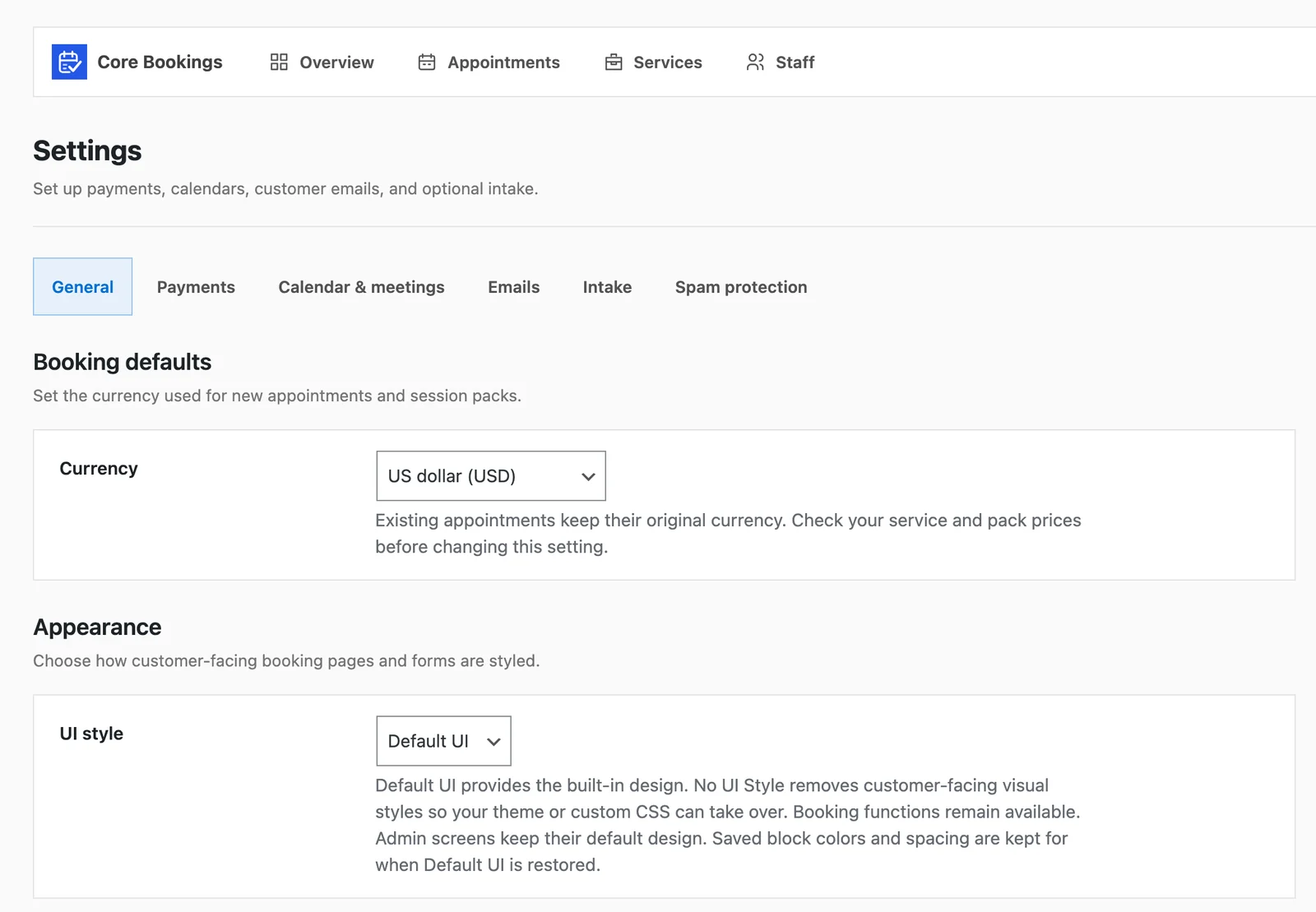
Speed matters on a booking page. The booking stylesheet is about 4 KB, and it loads only on pages that show a booking form, so your other pages load no booking CSS or JavaScript at all. In 0.10.0, I also cut the database reads for a public catalog of 100 services sharing 20 staff members from 2,101 queries to 21.
Customer Self-Service
Most of the back-and-forth emails around a booking come from people who want to move it, cancel it or find the meeting link. Core Bookings lets customers handle that themselves.
- Every booking comes with a private link where the customer can reschedule or cancel within your rules.
- Customers can sign in to their own dashboard with a one-time email link, and they don’t need a WordPress account for it.
- That dashboard shows their booking history, payment history, book-again links and session-pack credits.
- Every confirmed booking includes an
.icscalendar file plus Google Calendar and Outlook add-event links. - If you use Core Forms, customers can fill in an intake form that already has their booking details in it.
Payments
You can take bookings for free, collect the full amount at the time of booking or take a deposit and collect the rest later.
- Free and offline bookings work without any payment setup.
- Stripe can take payments on its hosted Checkout page or through an embedded payment form inside the booking view.
- Deposits are supported, and customers can pay the remaining balance later from their management page.
- You can request refunds from wp-admin, and Core Bookings matches them back to the booking.
- Customers can buy prepaid session packs for a service and spend the credits over time.
- Stores that already sell through FluentCart can use its checkout instead, with optional extras such as a written report or a companion course added to the same order.
Calendars, Meetings and Reminders
Each staff member connects their own Google Calendar, so busy times from their personal or work calendar block the booking form automatically.
- Core Bookings checks multiple Google calendars for conflicts and writes new bookings to the one you choose.
- It creates a Google Meet or Zoom link for each booking, and a group session shares one meeting.
- You can edit the email templates for confirmations, changes and cancellations.
- Each appointment can get up to 5 reminders, sent through WordPress mail or Brevo templates.
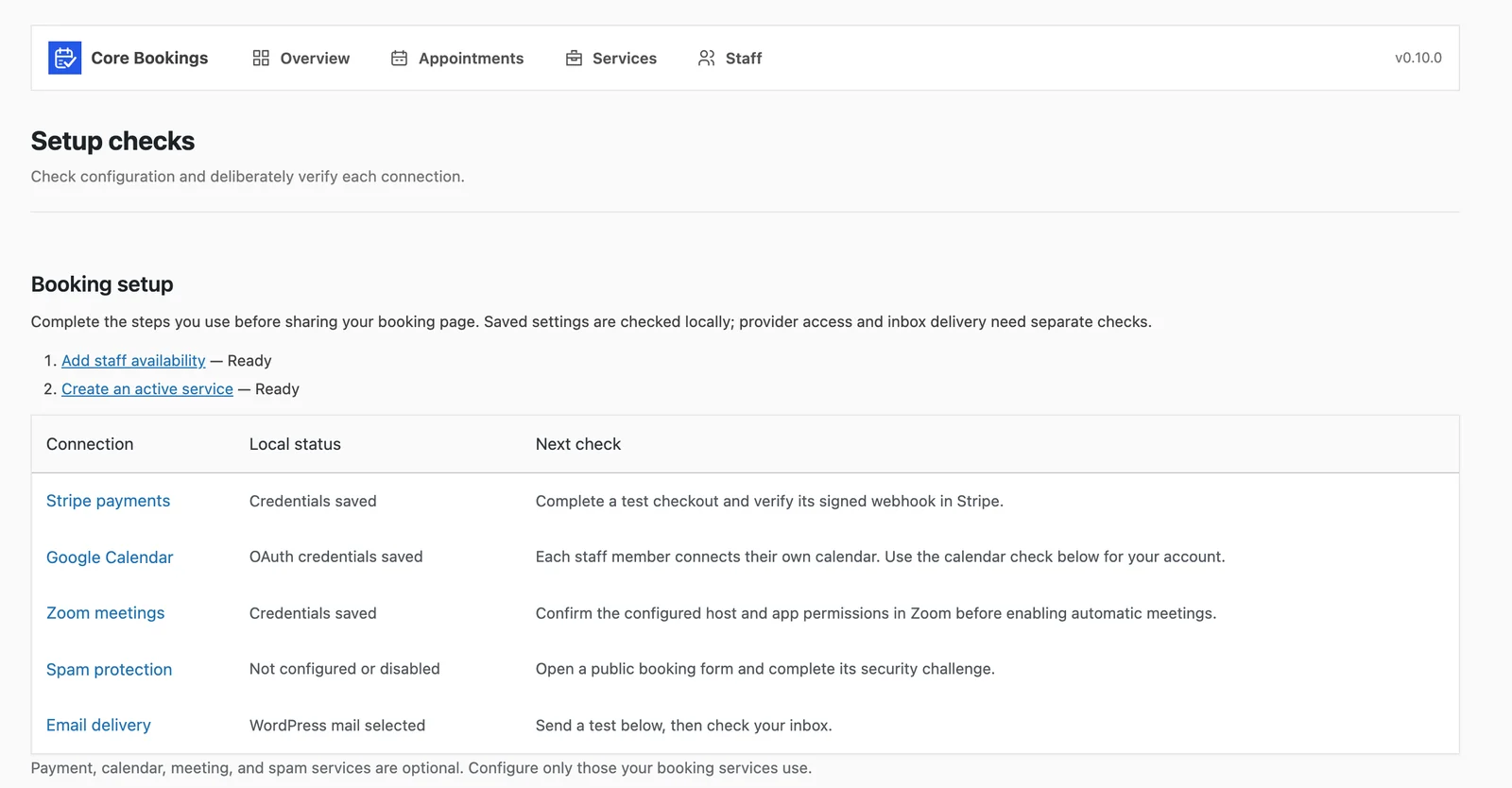
The Setup checks screen is something I wish more plugins had. It lists every connection, tells you what is saved locally and what you still need to confirm on the provider’s side, and lets you check your calendar access or send yourself a test email.
Managing Bookings in wp-admin
Everything you’d normally open Calendly for sits in one Bookings menu inside WordPress.
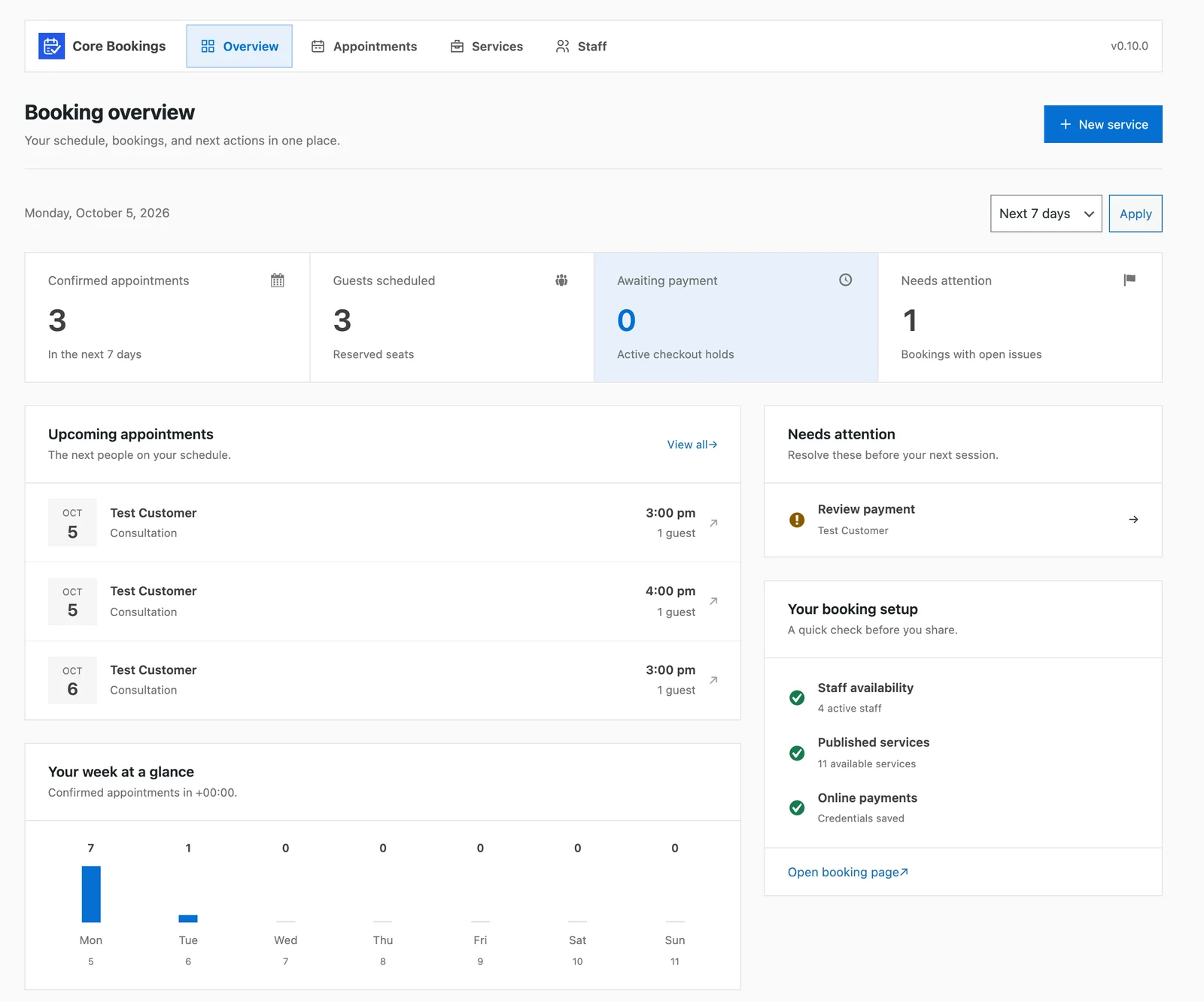
- The overview dashboard shows confirmed appointments, guests, bookings awaiting payment, items that need attention and your week at a glance.
- The appointment list and monthly calendar open each booking in a popup with its full activity timeline.
- The Customers screen lets you search customers and see their booking history, payment history, session credits, group rosters and waitlist entries.
- The Operations screen tracks confirmations, reminders and calendar jobs, and it gives you recovery actions when something fails.
- Before you save a schedule change, you can preview which upcoming bookings it would affect, and every change goes into a history.
- You can let a staff member manage their own hours and time off without giving them access to anything else.
Your Data and Moving It
This is the reason I built Core Bookings as a WordPress plugin instead of another hosted service. Your booking data belongs in your database, and you should be able to take it anywhere.
- Bookings, customers, services, staff and history are stored in Core Bookings’ own tables in your WordPress database.
- Core Bookings sends no telemetry, and it runs no AI processing on your booking data.
- You can export and import JSON between Core Bookings sites, either your configuration alone or your configuration with appointments and history.
- It imports Calendly, Acuity and custom CSV files with column mapping, conflict previews and duplicate detection, and an import never emails your customers.
- WordPress’s own privacy export and erase tools cover Core Bookings data.
- Uninstalling the plugin keeps your data unless you have chosen to delete it.
- Developers get a REST API, lifecycle hooks and custom customer fields.
Your data leaves WordPress only when you connect a service that needs it. Stripe receives what it needs to take a payment, Google receives the event it writes to your calendar and Zoom receives the meeting it creates.
Core Bookings needs WordPress 6.9 or later, PHP 8.3 or later, MySQL or MariaDB with InnoDB and the PHP Sodium extension. It works on single sites and on individual subsites of a multisite network.
This video tutorial walks through setting up WordPress appointment booking with Core Bookings:
Core Bookings Roadmap
Core Bookings already covers the full booking workflow, but I don’t want you running a beta on a site that pays your bills. The features above are built and covered by automated tests, and what’s left before 1.0 is testing in the real world.
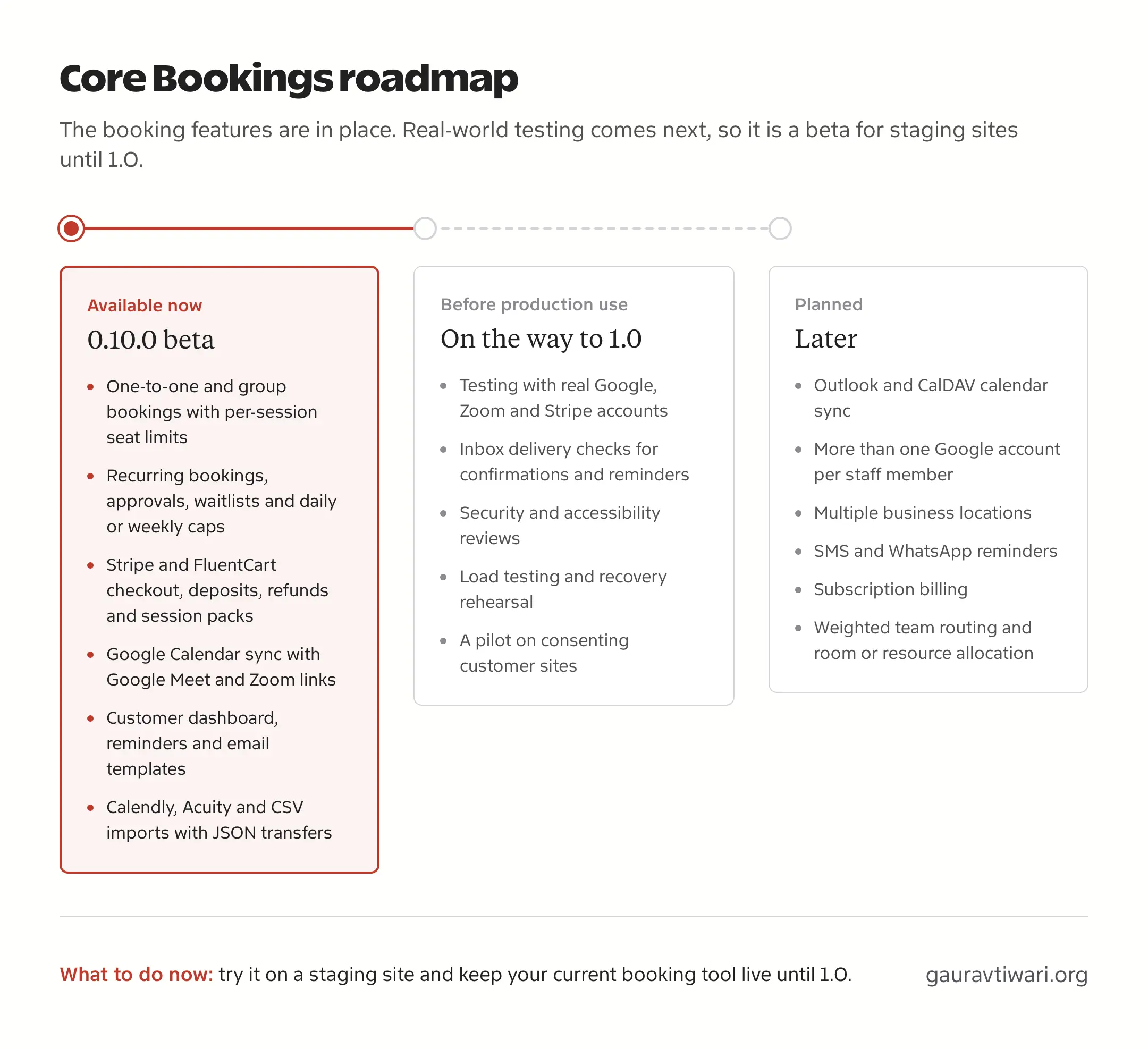
This is what has to happen before I call it ready for production websites:
- I need to test it with real Google, Zoom and Stripe accounts, including OAuth, webhooks, checkouts and refunds.
- Confirmations and reminders have to pass inbox delivery checks.
- The plugin has to go through security and accessibility reviews.
- It needs load testing and a recovery rehearsal.
- It needs a pilot on customer sites whose owners have agreed to it.
After 1.0, these are the features I have planned:
- Outlook and CalDAV calendar sync
- more than one Google account per staff member
- multiple business locations
- SMS and WhatsApp reminders
- subscription billing
- weighted team routing and room or resource allocation
Until 1.0, it is wise to install Core Bookings on a staging copy of your site, set up your real services and run real bookings through it while your current booking tool stays live.
Core Bookings vs Calendly
Both put a booking form in front of your customers. The differences are in where the data lives, how the price grows and how much of the form you control.
| Feature | Calendly | Core Bookings |
|---|---|---|
| Where bookings are stored | Calendly’s servers | Your WordPress database |
| Booking form | Calendly page, link or embed | Block, shortcode or standalone page on your site |
| Price model | Free for 1 event type; $10 or $16 per seat per month, billed yearly | $99 lifetime or $39 a year, unlimited sites, no seat fees |
| Event types and reminders | Multiple event types and reminders from Standard | Included |
| Group bookings | Group and collective meeting types from Standard | Group sessions with a seat limit for each session |
| Payments | Stripe and PayPal from Standard | Stripe or FluentCart, with deposits, refunds and session packs |
| Team scheduling | Round robin and routing on Teams | Automatic staff selection; weighted routing planned |
| Calendar sync | Google, Outlook and Office 365 | Google Calendar for each staff member; Outlook and CalDAV planned |
| Video meetings | Zoom, Google Meet and Microsoft Teams | Google Meet and Zoom |
| Design | Calendly’s layout, with branding controls on paid plans | Your theme, Default UI or No UI Style |
| Who runs it | Calendly | You, on your WordPress hosting |
| Status | Mature hosted service | Beta 0.10.0, not for production sites yet |
Calendly is ahead on calendar coverage and team routing today, and it is a finished product. Core Bookings is ahead on data ownership, design control and price, and it covers jobs that Calendly doesn’t focus on, such as session packs, waitlists, approvals and per-session seat limits.
Compare the 3-Year Cost
The price gap is easiest to see over 3 years. I’ve used Calendly’s yearly billing rates and assumed they stay the same.
| Option | 1 Person Taking Bookings | 3 People Taking Bookings |
|---|---|---|
| Calendly Standard ($10 per seat per month) | $360 | $1,080 |
| Calendly Teams ($16 per seat per month) | $576 | $1,728 |
| Core Bookings yearly ($39 a year) | $117 | $117 |
| Core Bookings lifetime ($99 once) | $99 | $99 |
With 1 person on Calendly Standard, the lifetime license saves $261 over 3 years. With 3 people, it saves $981, and the gap keeps growing every time you add someone, because Core Bookings has no seat fee.
The license is not the whole cost, so you should count these as well:
- hosting that can handle your booking traffic and the scheduled jobs
- an email delivery service, so confirmations and reminders reach inboxes
- backups and updates for your WordPress site
- Stripe, Zoom or other provider fees for the services you connect
If your site already has good hosting, a transactional email service and daily backups, most of that cost is already paid.
Move Your Calendly Bookings to WordPress
You don’t have to start from an empty calendar. Core Bookings imports the CSV file that Calendly exports, so your existing appointments come across with their customers, times and status.
I tested the importer with a small fictional CSV that used Calendly’s column headers. It had 2 confirmed appointments and 1 cancellation, and I kept it small so I could compare every imported record with the source file.
The steps are short:
- In Calendly, open the Calendar page, filter the meetings you want and choose Export. Depending on the export, the CSV downloads directly or arrives by email.
- In Core Bookings, create the staff profile and the service you want the appointments to go into.
- Open Bookings > Import / Export, choose Calendly CSV, select the file and click Read file.
- Check the suggested column mapping, choose the source time zone and date format and map each Calendly event type to a service.
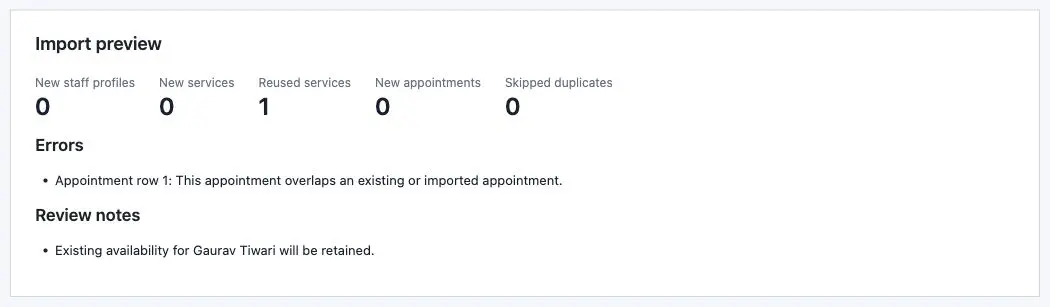
- Click Preview import, check the counts and rows, then import.
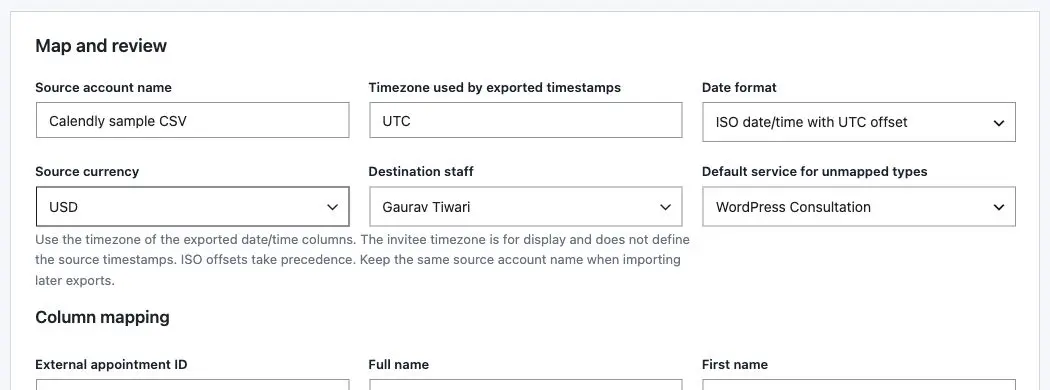
I used explicit UTC timestamps in my sample. And for the appointment at 10:00 UTC, it appeared as 15:30 in the site’s display time zone while its stored instant remained unchanged.
Daylight-saving changes need care. When a local time is ambiguous or doesn’t exist because the clocks moved, and the file has no explicit offset, Core Bookings rejects that row. You should fix those rows in the source file instead of guessing which time the customer meant.
This is what my sample import produced:
| Check | Result |
|---|---|
| First import | 3 appointments added |
| Cancelled booking | Kept as cancelled |
| Same file imported again | 0 added and 3 duplicates skipped |
| A new appointment overlapping an existing booking | Refused in the preview |
| Missing payment amount | Payment marked as unknown |
| Emails and reminders | None sent by the import |
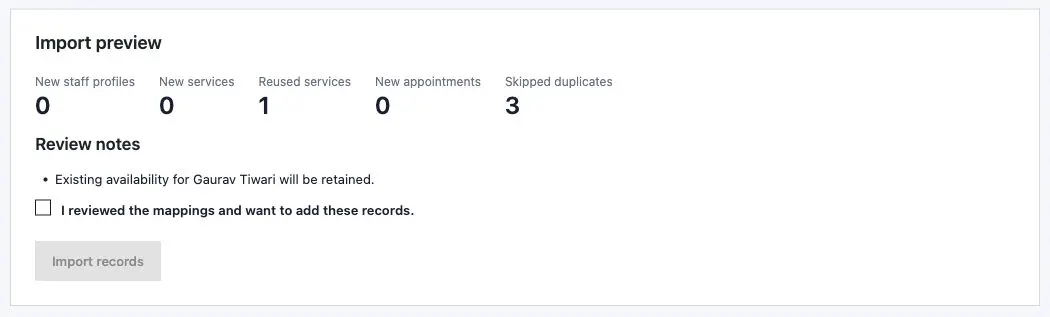
Duplicate detection protects you when an export includes records you have already moved. The importer adds records and never changes or deletes existing ones, so an appointment that changes in Calendly during your move needs to be updated by hand.
The CSV import moves your appointments, and your Calendly settings stay behind. You still need to set up availability, reconnect Google, Zoom and Stripe, recreate custom questions and replace the booking links on your website. Each batch goes to 1 staff member, handles up to 2,000 rows and must be under 10 MB, so a team should export each host separately.
Before you replace your Calendly links, I’d run through this checklist:
- Compare the imported appointments with the export, including cancellations and time zones.
- Make a new booking yourself and check that the confirmation and reminder reach a real inbox.
- Reschedule and cancel that booking from the customer side.
- Run a test payment before you accept paid bookings.
- Keep the original export and a database backup.
- Decide how customers with future Calendly bookings will manage them, because their old Calendly links won’t work in WordPress.
Other WordPress Booking Plugins
Core Bookings isn’t ready for production yet, and you may need bookings on a live business site this week. These plugins are mature, they keep your bookings in WordPress and they are the ones I’d look at today. I compare them in more depth in my WordPress booking plugins comparison.
FluentBooking
FluentBooking is the closest thing to Calendly inside WordPress. It is built for meetings and calls, with one-to-one, group, round-robin and collective booking types, and it syncs two ways with Google, Outlook, Apple and Nextcloud calendars. The free version on WordPress.org has more than 20,000 active installs. I’d pick it for consultants and sales teams who mainly book calls. A business that sells services with staff, packages and resources will find it more meeting-focused than it needs.
LatePoint
LatePoint has the most polished customer-facing booking flow of this group, and its free version has more than 100,000 active installs. It suits service businesses such as salons, clinics and studios that want a booking experience customers enjoy using. Some features, such as extra integrations and notification channels, come through paid add-ons, so you should price the add-ons you need before you commit.
Amelia
Amelia handles appointments and events in one plugin, which makes it a good fit for businesses that run classes or workshops alongside one-to-one sessions. The free Lite version has more than 90,000 active installs, and the paid plans come in yearly and lifetime options. Many staff, payment and integration features sit in the higher tiers, so the plan you need depends on how big your team is.
Booknetic
Booknetic is built for multi-staff service businesses, and it sells through its own website instead of WordPress.org. It uses an add-on model, so you should check which gateways, integrations and staff seats come with the license you buy.
Simply Schedule Appointments
Simply Schedule Appointments is the easiest of these to set up for a beginner, and its free version has more than 50,000 active installs. It works well for a solo business owner with a few appointment types. Payments, SMS, webhooks and team features are in the paid tiers.
Other Hosted Scheduling Tools
If you would rather stay with a hosted tool, these are worth a look before you pay Calendly’s per-seat price. They don’t keep your data in WordPress, but each one solves a specific problem.
- Cal.com is open source. Its free plan covers 1 user with unlimited event types and calendars, and you can host it yourself if you want the data on your own server.
- TidyCal is sold as a one-time purchase through AppSumo, which suits a solo business that wants a simple booking page without a subscription.
- Google Calendar’s appointment schedules give a personal Google account one free booking page, and paid Google Workspace plans add payments, reminders and more booking pages.
Which One Should You Pick?
My recommendation depends on how soon you need bookings on a live site.
- You need bookings live this week: use FluentBooking for meetings and calls, or LatePoint or Amelia for a service business with staff.
- You want to own a lightweight booking system and can test first: install Core Bookings on a staging site now, set up your real services and move to it after 1.0. A lifetime license bought during the beta stays lifetime afterwards.
- Your site doesn’t run on WordPress, or you depend on Salesforce routing: stay with Calendly.
If your business already runs on WordPress, start by listing the services you sell and the people who take bookings. Then set those up in a WordPress booking plugin on staging and run a week of real bookings through it before you cancel your Calendly plan.
FAQs on Calendly Alternatives for WordPress
Yes, there are several. FluentBooking, LatePoint, Amelia and Simply Schedule Appointments all have free versions on WordPress.org that keep bookings in your WordPress database. Core Bookings is paid, at $39 a year or $99 for a lifetime license.
Yes, you can. Core Bookings imports Calendly’s CSV export with column mapping, time zone selection, conflict previews and duplicate detection. It moves your appointments, and you still set up availability and integrations yourself.
It isn’t ready yet. Version 0.10.0 is a beta, and real-account testing with Google, Zoom and Stripe, inbox delivery checks, security and accessibility reviews and a pilot have to finish before 1.0. For now, you should test it on a staging site.
Yes, it does. Each staff member connects their own Google Calendar for busy times and new events, and Core Bookings creates Google Meet or Zoom links for bookings. Outlook and CalDAV sync are planned for later.
Your bookings, customers and history stay in your WordPress database. Data goes out only to services you connect, such as Stripe for a payment, Google for a calendar event or Zoom for a meeting link.
Tell Google you want more of this.
Add Gaurav Tiwari as a preferred sourceOne tap, and this site shows up more often in your own Top Stories, AI Overviews and AI Mode. Remove it any time.
Disclaimer: This site is reader-supported. If you buy through some links, I may earn a small commission at no extra cost to you. I only recommend tools I trust and would use myself. Your support helps keep gauravtiwari.org free and focused on real-world advice. Thanks. - Gaurav Tiwari