by
I’d start WordPress lead tracking by saving the campaign source with every form submission. A lead can arrive with a name and email while the newsletter or ad that brought it disappears. That makes your next marketing decision harder than it needs to be.
My recommendation is to capture the UTM parameters on the landing page, preserve them while the visitor browses and submit them as hidden form fields. The useful result is a lead record that still says which campaign it came from.
The example below uses Core Forms, my WordPress form plugin. It stores submitted fields and can pass them into notifications or integrations. A separate JavaScript snippet handles the cross-page storage; that part isn’t a built-in attribution feature.
How WordPress Lead Tracking Works

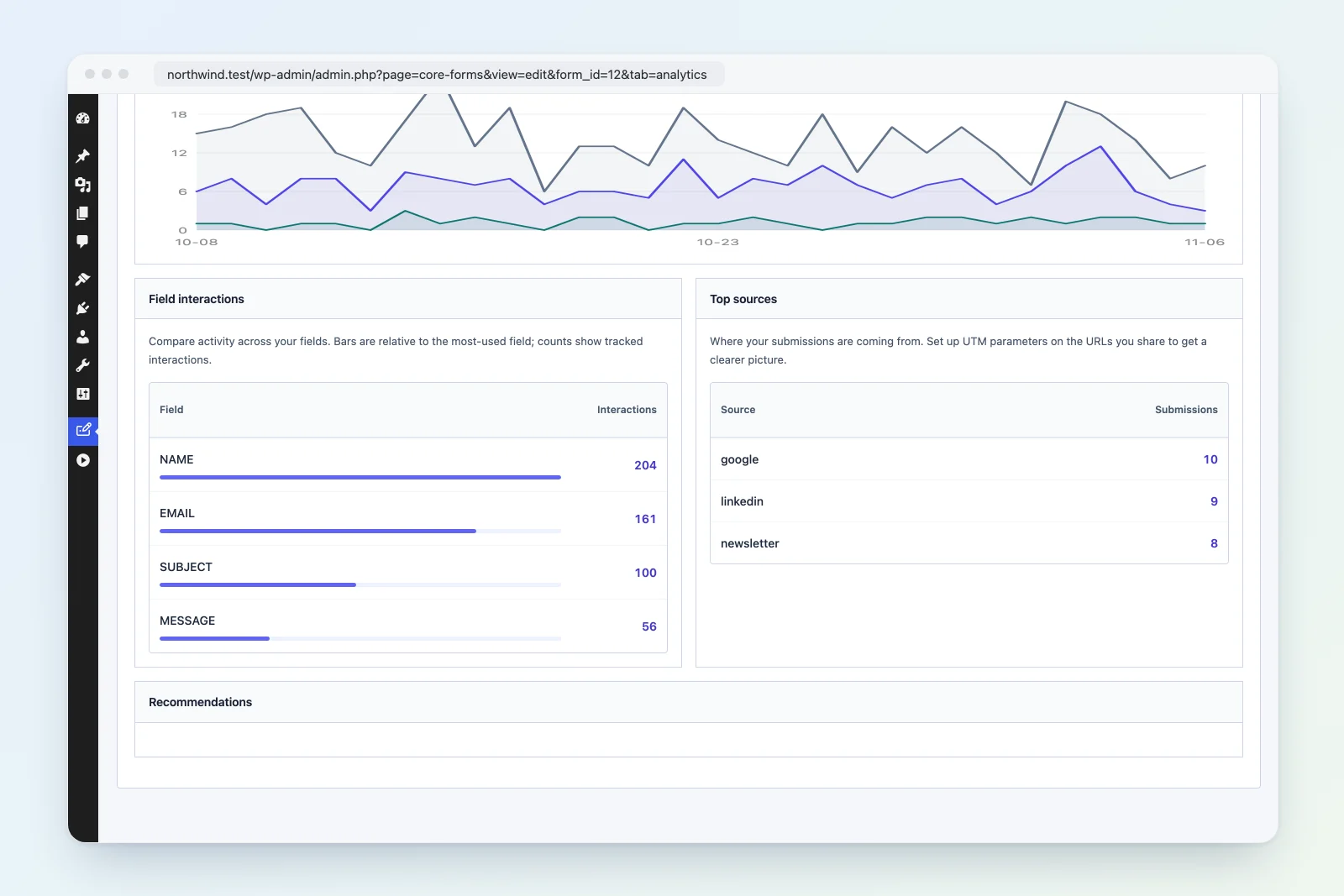
An aggregate source report answers which campaigns produced submissions. The individual lead also needs its own campaign fields if you want that information in an email or CRM.
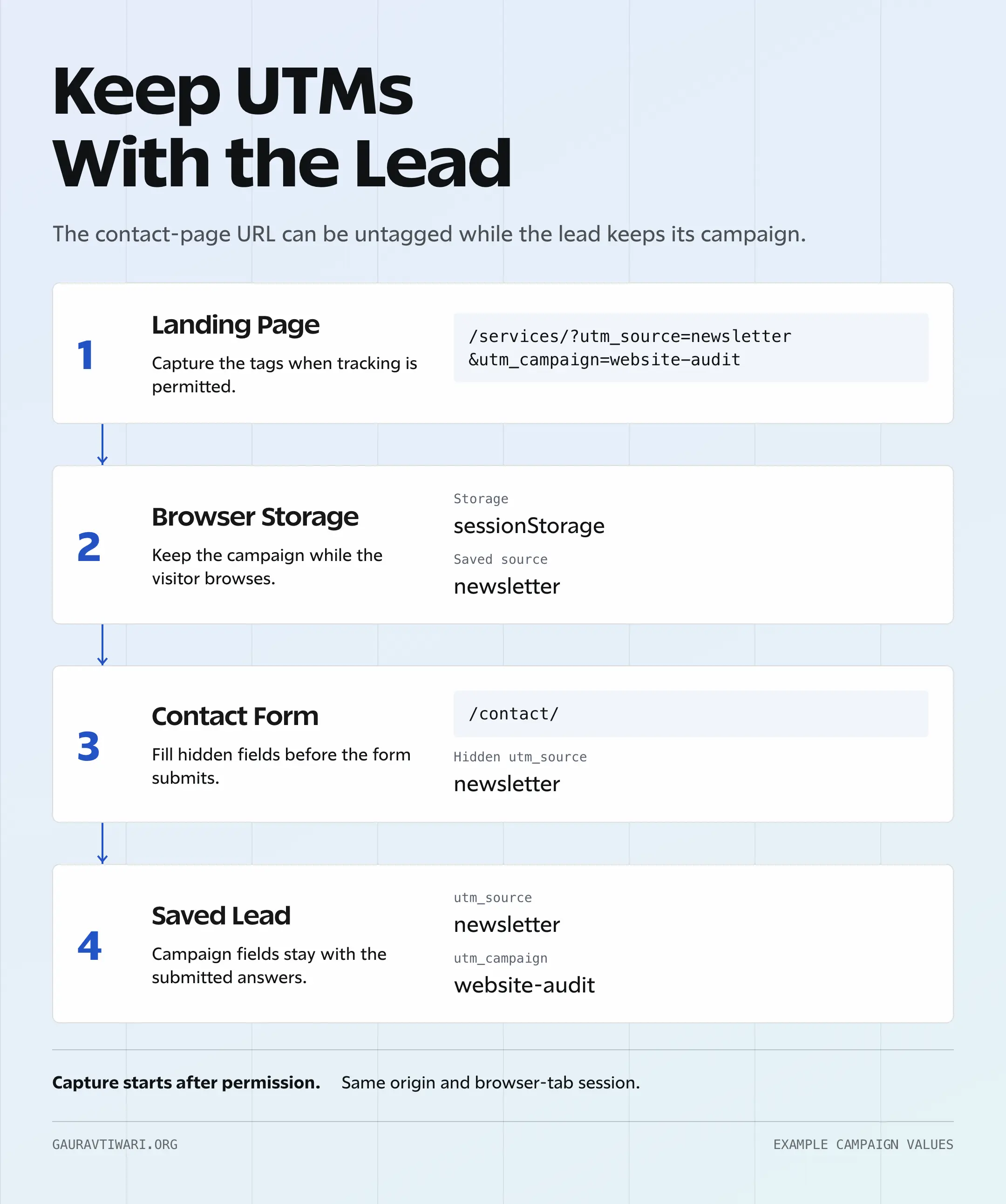
Say someone clicks a newsletter link to your services page, reads it and then opens your contact page. The newsletter tags are on the first URL. An ordinary link to /contact/ doesn’t carry those tags along.
The capture has to happen before that navigation:
- The landing page reads the campaign tags from its URL.
- Browser storage keeps those values available on the next page.
- The contact form copies them into hidden fields before submission.
- The saved lead includes those fields alongside the visitor’s answers.
This is one part of a WordPress lead generation system. The form and follow-up still need to work before campaign attribution is useful.
What You Need
I’d set this up on a staging copy first, with a form that already saves submissions. The remaining requirements are:
- A Core Forms form you can edit, including its hidden fields and notification action.
- Access to add JavaScript across the site, including landing pages without a form.
- A consent setup that can start and stop the capture when your site’s policy permits it.
- A way to inspect the saved submission and the fields received by your CRM, if you use one.
The example records the latest tagged campaign in the current browser-tab session. It doesn’t identify a person across devices or provide a history of their visits.
1. Build a Tagged Campaign Link
UTM parameters are labels added to a URL. For a newsletter promoting a website audit, a complete example looks like this:
https://example.com/services/?utm_source=newsletter&utm_medium=email&utm_campaign=website-audit&utm_content=top-linkUTM Campaign URL Builder
Add campaign tags to a destination URL, then copy the finished link.
Optional tags left blank are removed from the generated link.
This builder runs in your browser. It doesn’t submit or store your entries.
I’d agree on the names before sending the campaign. These are the fields this setup captures:
| Parameter | Example | Purpose |
|---|---|---|
utm_source | newsletter | Identifies the source that sent the visitor |
utm_medium | email | Groups the type of marketing channel |
utm_campaign | website-audit | Identifies the campaign |
utm_content | top-link | Distinguishes links or creative variations |
utm_term | wordpress-consultant | Identifies a paid keyword when relevant |
Google’s campaign URL guidance explains these parameters and treats their values as case-sensitive. My preference is lowercase names with consistent spelling, so newsletter and Newsletter don’t become separate labels.
I recommend keeping personal information out of campaign tags. An email address in a URL can reach browser history and server logs. A campaign label such as website-audit is enough for this job.
Internal navigation should keep its normal URLs. Adding utm_source=homepage to your own contact link would replace the campaign in this example and make the attribution less useful.
2. Add Hidden Fields in Core Forms
Hidden fields give the campaign values somewhere to go when the form submits. The field names must match the JavaScript and any notification or CRM mapping.
In the Core Forms editor, open Fields, then switch to Code above the form canvas. Add these inputs alongside your existing fields, before the submit button:
<input type="hidden" name="utm_source" value="">
<input type="hidden" name="utm_medium" value="">
<input type="hidden" name="utm_campaign" value="">
<input type="hidden" name="utm_content" value="">
<input type="hidden" name="utm_term" value="">
Save the form. These fields should remain invisible to visitors and should not be marked required. A visitor without campaign tags must still be able to contact you.
The Core Forms form guide explains the editor if you’re starting from a blank form. For an existing form, I’d keep its questions unchanged while adding attribution.
Core Forms also supports values such as {{url_params.utm_source}} through its template variables. That reads the current request’s query parameter. It doesn’t remember a tag from an earlier page, and cached HTML needs particular care with request-specific values.
The empty defaults above let JavaScript fill each visitor’s fields in the browser instead.
3. Preserve UTMs Across Pages
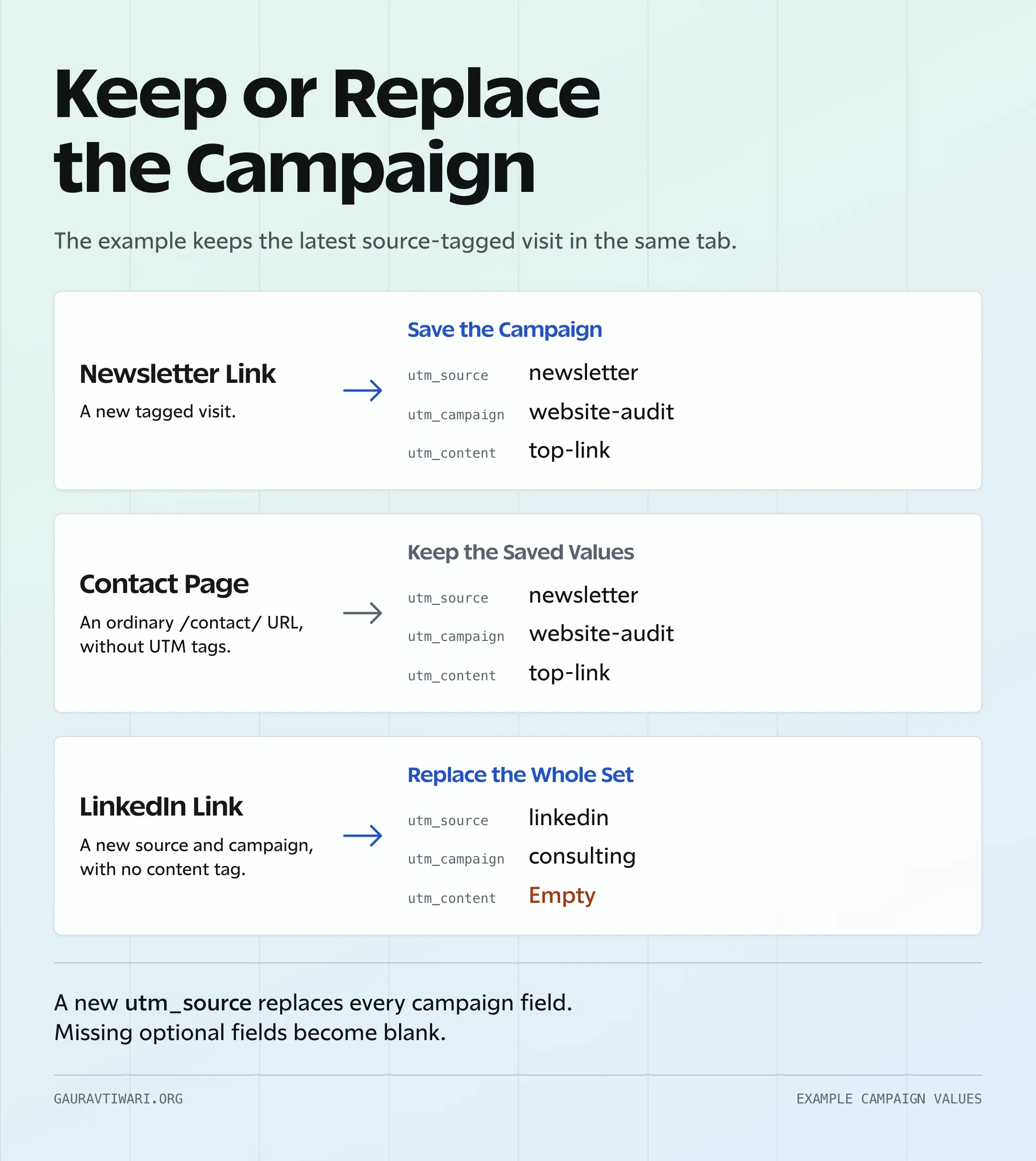
The snippet below keeps a single set of campaign values in sessionStorage. A new URL with a nonempty utm_source replaces the whole set. Untagged pages leave it alone.
I prefer that explicit rule to a field-by-field merge. Otherwise, a new LinkedIn campaign could inherit an old newsletter’s utm_content and produce a combination nobody sent.
Add the Capture Script
Save this as assets/js/lead-utm.js inside your active child theme. It defines the capture functions but leaves tracking inactive until the consent integration starts it.
(() => {
  'use strict';
  if (window.gtLeadTracking) return;

  const key = 'gt_lead_utm_v1';
  const names = [
    'utm_source', 'utm_medium', 'utm_campaign',
    'utm_content', 'utm_term'
  ];
  const clean = value => typeof value === 'string'
    ? value.trim().slice(0, 150) : '';
  let active = false;
  let values = {};

  function readSaved() {
    try {
      const saved = JSON.parse(sessionStorage.getItem(key) || '{}');
      return Object.fromEntries(names.map(name => [name, clean(saved?.[name])]));
    } catch {
      return {};
    }
  }

  function fill(form) {
    if (!form?.matches?.('form.cf-form')) return;
    names.forEach(name => {
      form.querySelectorAll(`input[type="hidden"][name="${name}"]`)
        .forEach(input => { input.value = active ? values[name] || '' : ''; });
    });
  }

  function fillAll() {
    document.querySelectorAll('form.cf-form').forEach(fill);
  }

  function start() {
    if (active) return;
    active = true;
    values = readSaved();
    const query = new URLSearchParams(window.location.search);

    if (clean(query.get('utm_source'))) {
      values = Object.fromEntries(names.map(name => [name, clean(query.get(name))]));
      try {
        sessionStorage.setItem(key, JSON.stringify(values));
      } catch {
        // Current-page capture can still work when browser storage is blocked.
      }
    }
    fillAll();
  }

  function stop() {
    active = false;
    values = {};
    try { sessionStorage.removeItem(key); } catch {}
    fillAll();
  }

  window.gtLeadTracking = { start, stop };
  document.addEventListener('DOMContentLoaded', fillAll);
  document.addEventListener('cf-submit', event => fill(event.target), true);
  window.addEventListener('pageshow', event => {
    if (event.persisted && active) {
      values = readSaved();
      fillAll();
    }
  });
})();
The cf-submit event runs before Core Forms collects the form data. That lets the snippet fill the hidden inputs even when a form is inserted after the page loads.
The example trims each value and limits it to 150 characters. It stores only the 5 named UTM fields. A URL containing utm_medium without utm_source won’t replace the saved campaign.
Load It Across the Site
Add this PHP to your child theme’s functions.php, below its existing opening PHP tag. The JavaScript file must exist at the path above.
add_action( 'wp_enqueue_scripts', function () {
    $path = '/assets/js/lead-utm.js';
    wp_enqueue_script(
        'gt-lead-utm',
        get_stylesheet_directory_uri() . $path,
        array(),
        filemtime( get_stylesheet_directory() . $path ),
        true
    );
} );
A site-wide JavaScript manager is another way to load the same file. I recommend choosing one loading method, since duplicate copies make debugging harder.
The script belongs on the landing page as well as the form page. Loading it only on /contact/ is too late when the visitor arrived somewhere else.
Connect Your Consent Tool
The activation calls are the site-specific part. Your consent tool must call them after the definition script has loaded, using the appropriate consent category for your setup.
| Consent State | Call |
|---|---|
| Tracking is permitted when the page loads | window.gtLeadTracking.start() |
| The visitor grants the required permission | window.gtLeadTracking.start() |
| Permission is denied or withdrawn | window.gtLeadTracking.stop() |
start() reads the current URL and any permitted saved campaign. stop() clears the saved campaign and the hidden field values. The lead form remains usable in either state.
I wouldn’t treat session storage as an automatic consent exemption. The ICO’s storage guidance covers technologies beyond cookies and requires consent for non-exempt uses. Your site’s applicable rules and consent configuration decide when this capture can run.
If permission arrives only after the visitor has left the tagged landing page, the script cannot recover those earlier tags. Blank attribution is the expected result in that case.
Understand the Storage Limits
As MDN documents, session storage is scoped to an origin and browser-tab session. For this example, that means:
- Navigation between pages on the same origin can retain the campaign in the same tab.
- A different subdomain, protocol or device doesn’t share this stored record.
- A new tab isn’t a reliable continuation of the original record. Browsers can initially copy storage from an opener, but the copies don’t remain synchronized.
- A restored browser session can last longer than you expect. This isn’t GA4’s session timeout or a fixed attribution window.
- If storage is blocked, the script can fill tags on the current page, but cannot preserve them for later navigation.
For leads that commonly return days later, I’d choose an attribution system with an explicit retention period and documented consent support. This small example is intended for a same-tab route to the form.
4. Keep the Campaign With the Lead
The campaign values need to survive beyond the browser. In the form’s Settings, ensure submission saving is enabled. After a submission, its UTM fields should appear with the other saved field values.
In Actions, add the fields to the email notification using their names:
Source: [utm_source]
Medium: [utm_medium]
Campaign: [utm_campaign]
Content: [utm_content]
Term: [utm_term]
For a CRM or webhook, I recommend mapping each submitted field to a dedicated property. A successful form message doesn’t establish that the integration received every field; the destination record needs its own check.
These custom fields are separate from Core Forms’ aggregate analytics. Its native UTM reporting reads campaign values from the event’s page URL. This snippet fills the lead fields; it doesn’t rewrite the analytics report after navigation to an untagged contact page.
I’d also keep attribution fields separate from contact details. A campaign value is supplied through the visitor’s browser and can be changed. It should never determine a price, permission or trusted customer status.
5. Verify the Complete Route
The useful check starts on the tagged landing page and ends in the saved lead. I suggest this sequence in staging, with notifications routed to your own test inbox:
- Open a fresh browser session and visit the sample campaign URL on your staging domain.
- Grant the required consent, then follow an ordinary link to the form page in the same tab.
- Submit an identifiable test inquiry.
- Open the saved submission and inspect its campaign fields.
- Check the notification or CRM record for those same values.
For the newsletter example, the saved lead should contain:
utm_source: newsletter
utm_medium: email
utm_campaign: website-audit
utm_content: top-link
utm_term: [empty]
I’d check the boundaries before enabling the setup for a campaign:
| Check | Expected Result |
|---|---|
| Untagged visit in a fresh session | Attribution stays blank; the form still submits |
| Tagged visit followed by an untagged contact page | The saved campaign remains available |
| New campaign with a different source | The new campaign replaces the previous set |
New campaign without utm_content | Old content is cleared |
| Consent denied or withdrawn | No campaign values are submitted by this snippet |
| Browser storage unavailable | Current-page capture may work; cross-page retention doesn’t |
For rollback, the consent tool can call stop() before you disable the script. Removing the enqueue code and hidden fields then stops future capture. Existing saved submissions remain separate records and need your normal retention policy.
Missing or Incorrect UTM Values
I would trace a missing value through the URL, the hidden input and the saved submission, in that order. The point where it disappears usually identifies the problem.
- The landing URL is already missing tags: a redirect or shortened link may have dropped the query string. The final destination must retain the intended parameters.
- The URL has tags but the inputs are empty: check whether the script loaded, consent called
start()and the field names match exactly. - The form has no tags after navigation: the script may run only on the form page, or storage may be unavailable. The landing page needs capture too.
- An email shows blanks but the submission has values: the notification’s variables or the CRM field mapping need correction.
- Old values appear: confirm which tagged visit last replaced the record, then check whether an old script or form definition is still cached.
Hidden attribution should add no work for the visitor. If you’re also changing the visible questions, the contact form design guide can help you keep that work separate.
FAQs on WordPress Lead Tracking
Not necessarily. This example stores the latest source-tagged URL in one tab’s session. GA4 has its own traffic-source scopes and attribution settings, and auto-tagging can affect its reported dimensions. The saved fields describe this form’s capture rule, so I wouldn’t use them as an exact reconciliation of every GA4 report.
The UTM storage rule is reusable, but the form integration needs adaptation. This snippet targets form.cf-form and Core Forms’ cf-submit event. Another plugin may serialize its fields earlier or use a different event. I recommend checking its documented submission hook before changing the selector.
Yes, with a different capture rule. The script would need to save a tagged campaign only when no earlier qualifying record exists. That would be the first recorded campaign within your chosen storage period, not proof of the person’s first visit. I’d decide that period before changing the code.
No. This example captures tagged campaigns. An untagged search visit, a stripped URL or a visitor who declines tracking can produce blank fields. I’d label those records unknown or untagged rather than automatically calling them direct traffic.
Start With One Campaign
I’d begin with one newsletter link and one working form. Once the source appears in the saved submission and its destination record, you have a useful basis for comparing campaigns. Longer retention can wait until the business actually needs it.
Tell Google you want more of this.
Add Gaurav Tiwari as a preferred sourceOne tap, and this site shows up more often in your own Top Stories, AI Overviews and AI Mode. Remove it any time.
Disclaimer: This site is reader-supported. If you buy through some links, I may earn a small commission at no extra cost to you. I only recommend tools I trust and would use myself. Your support helps keep gauravtiwari.org free and focused on real-world advice. Thanks. - Gaurav Tiwari