
 by
I get why a WordPress knowledge base plugin looks like the fix for a busy support inbox. You write each answer once, customers find it on their own and the same questions stop landing in your email.
Most of these plugins handle that part well. The trouble shows up later, in 3 places:
- what the plugin loads on every help article
- what it charges the day you need private docs
- where a reader goes when the docs don’t have the answer
That last reader usually ends up in a contact form, and their question never makes it back to the person writing the docs.
I installed the free versions of 5 popular docs plugins on a clean test site, wrote the same 6 help articles in each and measured what a visitor downloads. My advice depends on what else you run:
- You sell a product and answer support tickets: Core Support.
- You want the best free docs: Echo Knowledge Base.
- You want the longest feature list and can accept a heavier page: BetterDocs.
Core Support is my own plugin, so I’ll say that up front. I built it to keep product docs, a ticket inbox, an AI chatbot and changelogs in one WordPress plugin, and the docs for my own plugins run on it. Its numbers below come from my live docs. The other 5 ran on the test site.
Quick Comparisons
Find the job you need in the first column, then check what private docs cost and how heavy one article page is. The last column is the plugin’s own CSS and JavaScript on a single help article, compressed the way a browser downloads it.
| Plugin | Best for | Free version | Private docs | Plugin files on an article page |
|---|---|---|---|---|
| Core Support | Docs plus tickets in one plugin | No, $199 once for unlimited sites | Included | About 23 KB |
| Echo Knowledge Base | Best free knowledge base | Yes | $110/yr add-on | About 33 KB |
| BetterDocs | Most features, AI and MCP | Yes | Pro, from $69/yr | About 98 KB |
| weDocs | Light, book-style docs | Yes | Pro, from $39/yr | About 43 KB |
| Heroic Knowledge Base | Internal and public docs | No, from $169/yr | Plus tier, $349/yr | Not tested |
| EazyDocs | 3-column article layout | Yes | Pro, from $49/yr | About 53 KB |
| BasePress | Several KBs for free | Yes | Paid, from $79/yr | About 18 KB |
How I Tested
Before the picks, I want to ensure the numbers make sense, because a docs plugin can look light on its settings screen and still be heavy for your readers.
- Each plugin ran alone on a fresh WordPress site with the default block theme.
- Every plugin got the same 2 categories and 6 short help articles.
- I opened the docs home and one article as a logged-out visitor and added up the plugin’s own CSS and JavaScript.
- I also opened an ordinary blog post, because a docs plugin has no reason to load files there.
- I ran each plugin’s setup wizard the way a new user would.
Only EazyDocs loaded anything on the blog post. It adds jQuery to every page, about 35 KB. The other 4 kept their files to the docs pages, which is how it should be.
Heroic KB has no free version, so its entry is based on HeroThemes’ own pricing and documentation.
Best WordPress Knowledge Base Plugins
These are in the order I’d recommend them to a small WordPress business. Each heading names the job that plugin does best, so you can jump straight to yours.
Best for Docs Plus Tickets: Core Support
Core Support is my pick when your docs and your support inbox belong in one place, which is the case for most people who sell plugins, themes or software. Every doc ends with a “Was this helpful?” vote and a “Still stuck? Open a support ticket” link, so a reader who doesn’t find the answer is one click away from a ticket.
Core Support
- Docs, tickets, AI chat and changelogs in one plugin
- Every doc links stuck readers to a ticket
- Private collections for signed-in readers
- $199 once for unlimited sites and agents
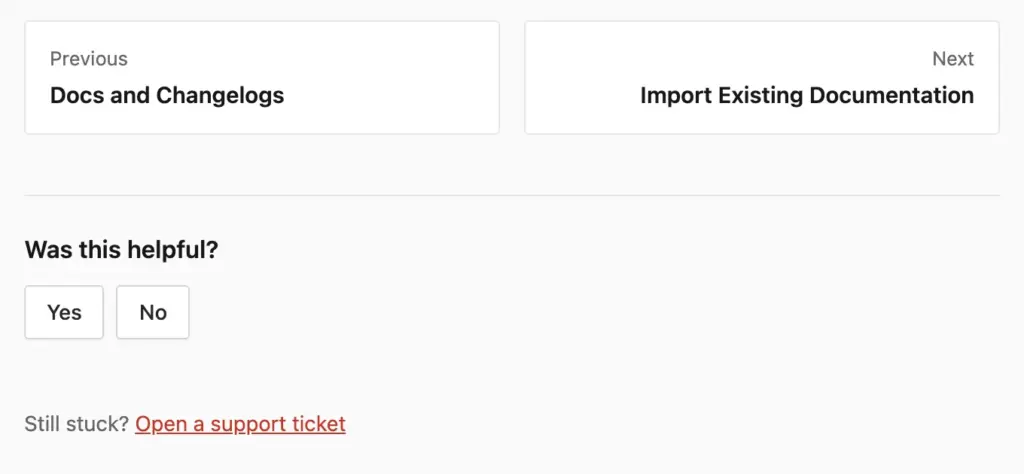
That ticket lands in your own inbox, in the same plugin and under the same brand. The AI chatbot works the same way: it answers from your docs, and Talk to a person turns the conversation into a ticket with the whole transcript attached.
The docs side is a full knowledge base, and it includes the features other plugins sell as add-ons:
- Collections: one collection per product, each with sections and pages at /docs/{collection}/.
- Private docs: each collection can be readable by everyone or by signed-in visitors only. Locked pages stay out of search, feeds and sitemaps.
- Reader tools: instant search, an “On this page” outline, previous and next links and the helpful vote with an optional comment.
- Docs insights: searches that found nothing, the least helpful docs, docs nobody has touched in 6 months and the questions the chatbot couldn’t answer.
- Imports: one WP-CLI command pulls existing docs from a sitemap, any web page, Markdown files, a GitHub wiki or a wordpress.org readme. Images are copied into the media library and the pages land as drafts.
- Docs elsewhere: one script tag shows chosen collections on another website, so you edit each doc once.
- Changelogs: release notes at /changelogs/, written in wp-admin or synced from GitHub and wordpress.org.
Docs insights is the screen I’d open every week. Each empty search and each unanswered chat question is a doc your customers asked for, so you write the next page from real questions instead of guesses.
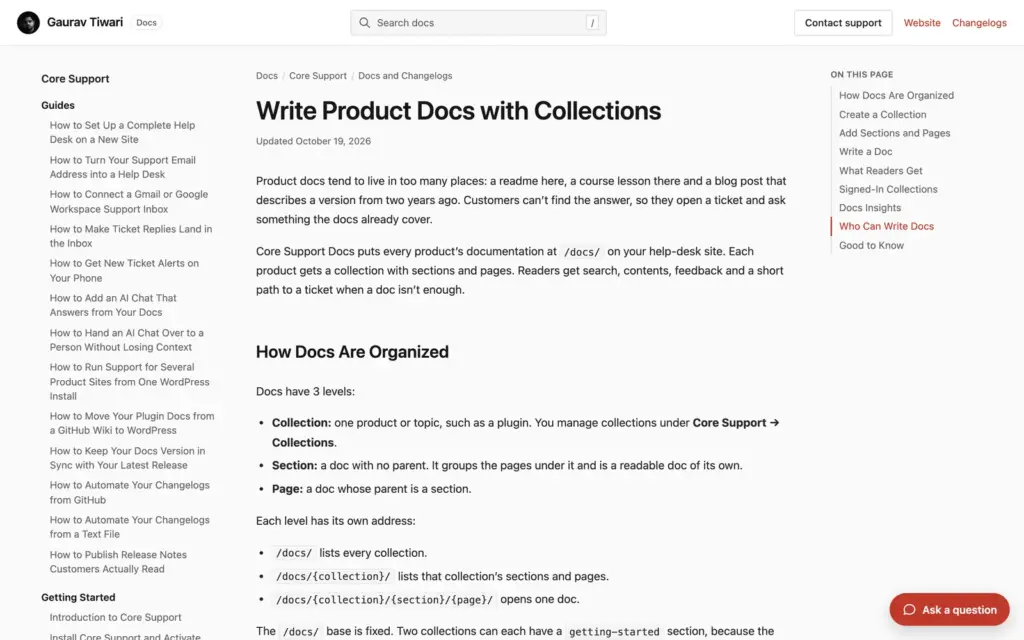
On my live site, a docs article loads about 23 KB of Core Support CSS and JavaScript, and that includes the chat launcher. Only BasePress was lighter on an article page, and it has no AI chat or ticket link.
Core Support costs $199 once for unlimited sites and agents, and every future update is included. The AI chatbot uses your own API key from OpenAI, Anthropic, xAI or DeepSeek, with a daily token budget so the bill stays predictable. If you run more than one product, I’d start here, because the docs, the tickets and the release notes stay in one place.
Best Free Knowledge Base: Echo Knowledge Base
Echo Knowledge Base is the best free WordPress knowledge base plugin I tested. Its main page showed a finished layout before I changed a single setting: category boxes with their articles, plus Featured, Popular, Newest and Recently Updated lists.

Echo Knowledge Base
- Free on unlimited sites
- Complete main page with no setup
- About 33 KB of plugin files on an article
- Private docs: $110/yr add-on
Echo also stays out of the way. It loaded nothing on the ordinary blog post, and a help article carried about 33 KB of its own files, a third of what BetterDocs needed for the same article.
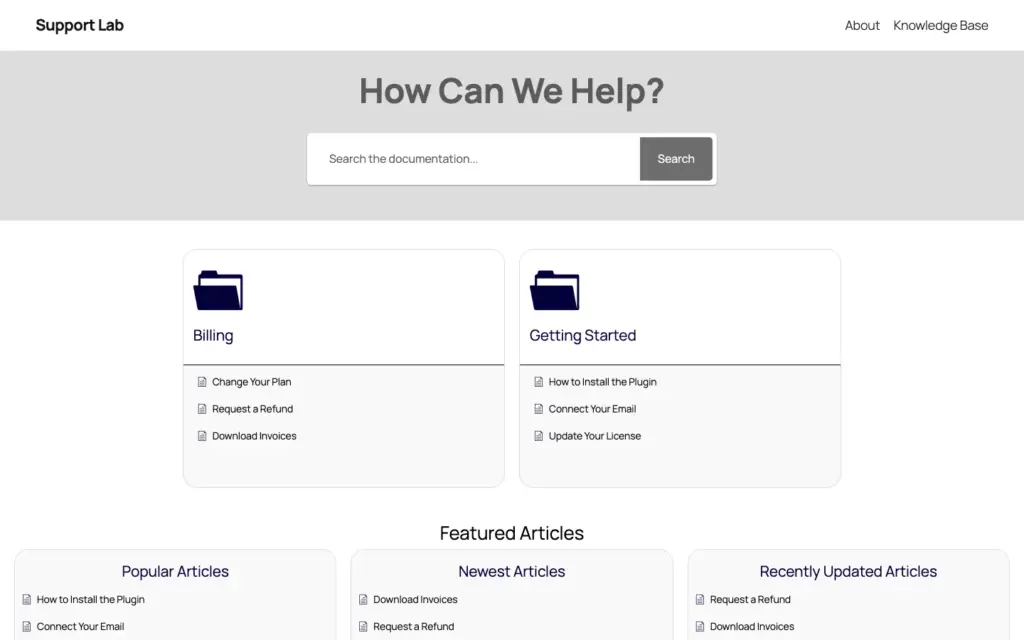
The free version covers a lot:
- unlimited sites, categories up to 5 levels deep and search-as-you-type with basic search counts
- a table of contents, glossary, FAQs and print button on articles
- AI chat and AI search that answer from your docs, using your own OpenAI or Gemini key (off by default)
- blocks, shortcodes and a front-end visual editor
The catch is the add-on model. Private docs need the Access Manager add-on at $110/yr for 1 site, or the Access Control bundle. Article ratings, multiple knowledge bases and handing a chat over to a person are paid add-ons too, so the price climbs as your docs grow.
For a public knowledge base on a budget, Echo is where I’d start. If you know you’ll need private docs and analytics in year one, compare its bundle price with Core Support’s one-time license first.
Best for AI Writing: BetterDocs
BetterDocs has the longest feature list of the group and the biggest install base among WordPress docs plugins. It’s the pick if you want AI features and a block-theme design that you can edit in the Site Editor.
BetterDocs
- Free MCP server and Markdown output
- AI writing with your own key
- Site Editor templates for block themes
- Pro from $69/yr, chatbot add-on $69/yr
The free version of BetterDocs includes things the others charge for:
- an MCP server, which is a standard way for AI tools such as Claude and ChatGPT to read your docs
- AI writing and FAQ building with your own key from OpenAI, Anthropic, Gemini and others
- every doc also served as plain Markdown for AI tools
- Site Editor templates, instant search, a sticky table of contents and emoji feedback
Its 5-step Quick Setup is friendly. One step offers to generate sample docs with no API key, which works by sending your site’s name, address and page excerpts to BetterDocs’ own service. I skipped it, and you may want to as well.
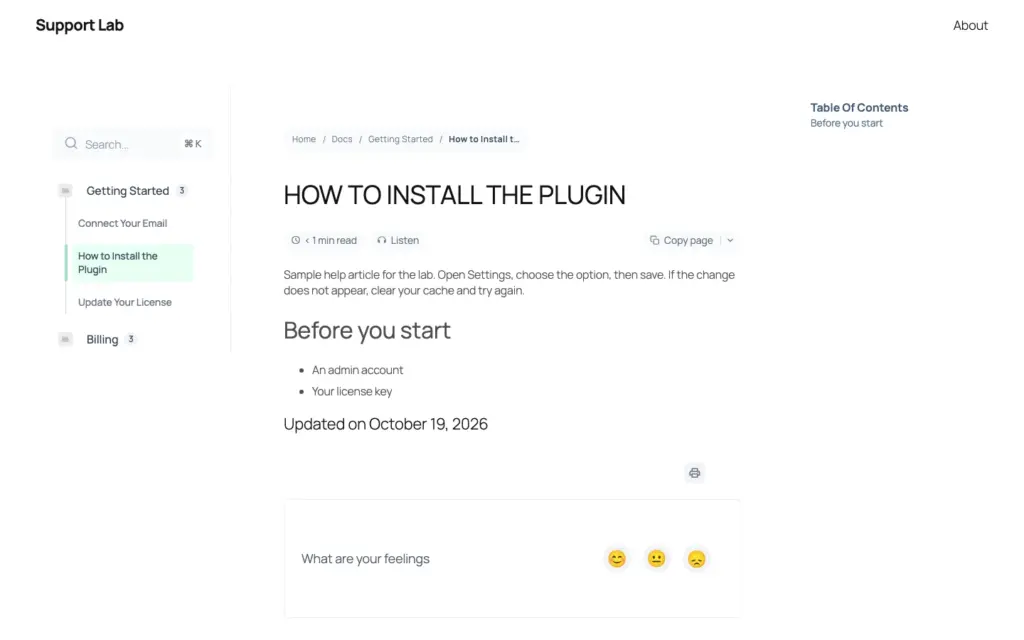
The cost shows up on the article page. One help article loaded 14 stylesheets and 7 scripts from BetterDocs, about 98 KB compressed, roughly 3 times Echo’s article page. Browser caching helps returning readers, but a first-time visitor from search downloads all of it.
BetterDocs Pro starts at $69/yr for 1 site and adds multiple and internal knowledge bases, analytics and the Instant Answer widget, which can email your support address. The AI chatbot is a separate add-on at $69/yr per site and needs Pro, and the model usage is billed by OpenAI or Google on top. If you want every feature and you’re fine paying for the add-ons, BetterDocs is the most complete choice here.
Best for Single-Product Docs: weDocs
For docs organized like a book, with a doc, its sections and the articles under each, weDocs is the lightest free option. It made a Documentation page on activation, and that page loaded only about 14 KB of plugin files.
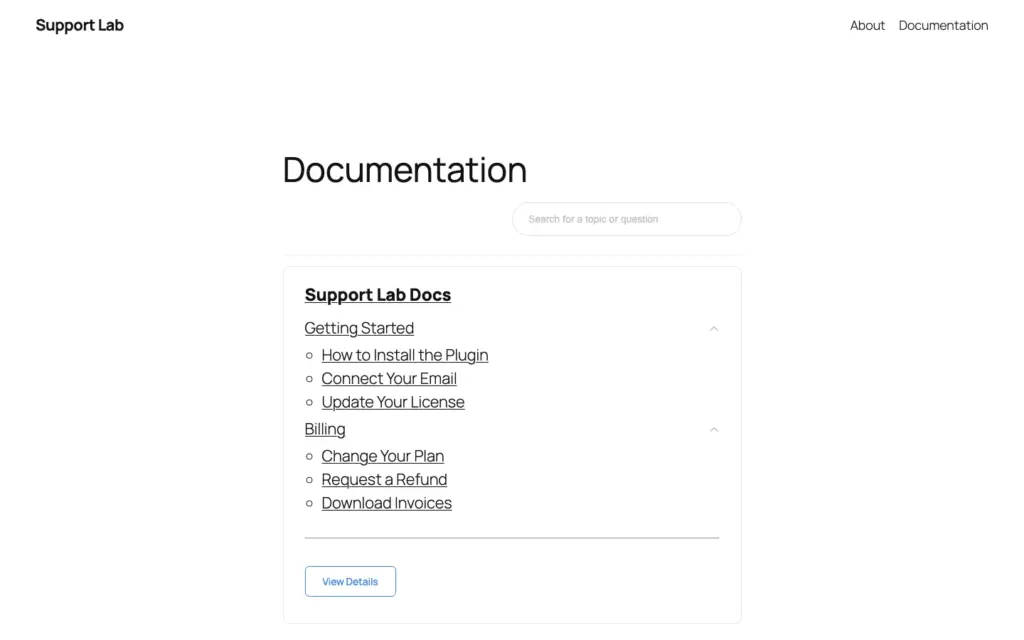
weDocs keeps the free version useful:
- unlimited docs and knowledge bases with drag-and-drop ordering
- search-as-you-type, feedback voting and a basic analytics dashboard
- a “Still stuck? How can we help?” box with a Get Help contact link under each article
- block editor support plus Elementor widgets
- one-click migration from BetterDocs
The article page is heavier than the docs home, at about 43 KB, still well under half of BetterDocs. Private docs, role permissions, the glossary and MCP access sit in Pro, from $39/yr for 1 site. The AI chatbot is a separate $7.99/month subscription.
Echo’s free main page does more out of the box. weDocs is the simpler one to live with, and I’d pick it for a single product with a clear table of contents.
Best Access Control: Heroic Knowledge Base
HeroThemes sells Heroic Knowledge Base as a premium-only plugin, so it didn’t go through my test site. It’s built for teams that run an internal knowledge base next to a public one.
Heroic Knowledge Base comes in 3 tiers:
- Essential, $169/yr for 1 site: FAQ builder, article attachments, table of contents, glossary, CSV import and a dedicated knowledge base theme.
- Plus, $349/yr for 3 sites: search analytics with empty searches, article feedback and access control for the whole KB, a category or a single article.
- Pro, $599/yr for 5 sites: integrations with Slack, Heroic Inbox, Help Scout and form plugins.
HeroThemes usually discounts the first year, and renewals are at full price. Its built-in AI assistant is being replaced by HelpJet, a separate hosted product with its own plans, so budget for that if AI is the reason you’re buying.
Private docs start at $349 a year here. That’s the right money for a team that needs article-level access control, and too much for a single product’s public docs.
Best 3-Column Layout: EazyDocs
EazyDocs has the most polished article layout of the free plugins. Its article page puts a docs tree on the left, the article in the middle and its contents on the right, with font-size and print controls.
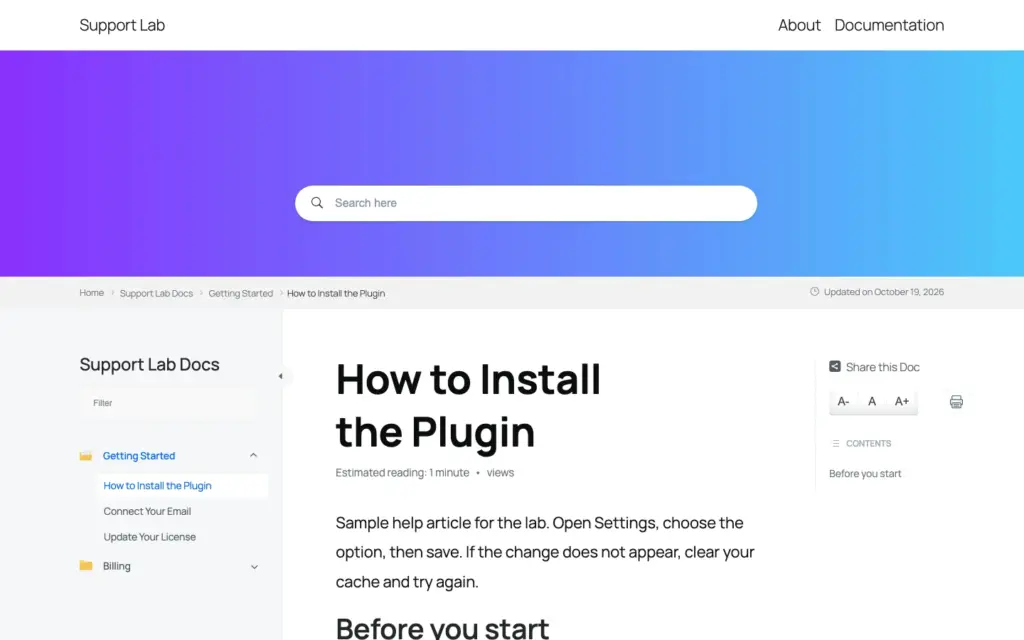
EazyDocs got off to a rough start on my test site, though:
- The “Documentation” page it creates on activation uses a block from the Pro version, so on the free plugin that page was empty.
- The setup wizard’s “Create a new docs page automatically” option made a working page with the
[eazydocs]shortcode. - At step 4, the wizard wouldn’t continue until I installed Antimanual, the vendor’s separate AI plugin, which it marks as required. “Skip Setup” was the way out.
- It loads jQuery on every page of the site, about 35 KB, even on a block theme that otherwise doesn’t need it.
Once set up, the article page carried about 53 KB of plugin files. Pro starts at $49/yr for 1 site, with lifetime licenses from $129, and adds private docs, user roles and a doc helper widget. Analytics and search insights sit in Pro Max, from $59/yr.
If you like the layout, EazyDocs is worth it. You’ll just spend your first session fixing what the free version set up.
Best for Several Small Knowledge Bases: BasePress
BasePress lets you run several knowledge bases on one site for free, such as one per product. Its article page was the lightest in the test, at about 18 KB.
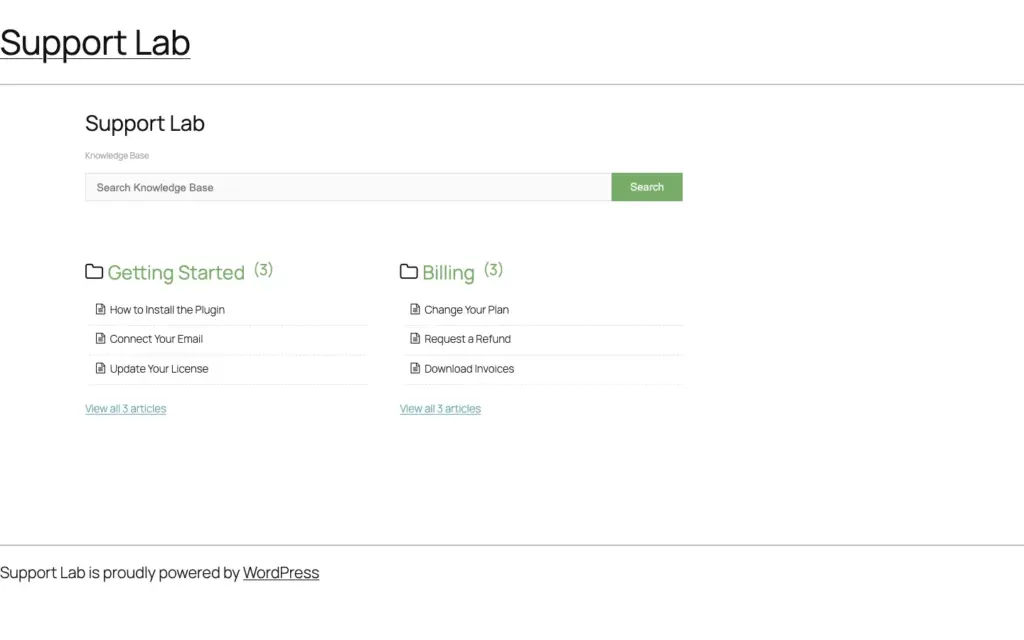
BasePress needs its 5-step setup wizard before anything shows. Until I ran it, the knowledge base page said “There are no Knowledge Bases yet!” even with articles published.
The bigger catch is the theme. BasePress renders its pages with its own templates, so on a block theme the knowledge base lost my theme’s header and footer and showed a plain title link instead. As far as I can tell, it was built for classic themes, where those templates pick up the theme’s header normally.
Voting, feedback, role-based restrictions and statistics are paid, from $79/yr for 1 site, and there are no AI features. BasePress suits a classic-theme site that needs 2 or 3 small public knowledge bases and nothing fancy.
Pick a docs plugin by what private docs cost, what one article page weighs and where a stuck reader goes next. The feature lists are closer than they look.
Which One Should You Pick
There are broadly three ways to run docs on a WordPress site: a docs-only plugin, a helpdesk plugin with docs built in, or a hosted docs tool you link to. The hosted tools are fine, but you rent them every month and your docs live on someone else’s servers.
A docs-only plugin is the lighter choice when your tickets already live in a helpdesk you like. A plugin with docs and tickets together saves you a second tool, a second login and the copy-paste between them. It is wise to pick by the job your docs do:
- You sell a product and answer support tickets: Core Support. Docs, tickets, chat and changelogs live in one plugin under one brand.
- You want free, public docs that look finished on day one: Echo Knowledge Base.
- You want AI writing, an MCP server and Site Editor templates: BetterDocs, if you can live with heavier article pages.
- You have one product and want a clean book of docs: weDocs.
- You need internal and public knowledge bases with article-level access control: Heroic Knowledge Base, or Core Support’s signed-in collections if per-collection access is enough.
- You like a 3-column docs layout: EazyDocs, after you replace its auto-created page.
- You need 2 or 3 small knowledge bases on a classic theme: BasePress.
When the Docs Don’t Have the Answer
A docs plugin answers the questions you’ve already written down. The questions you haven’t written down still need a person, and this is where the 7 plugins split.
- A contact link or email: weDocs’ Get Help link, BetterDocs’ Instant Answer and Echo’s paid chat handover send the question to a form or your support email. It leaves the docs system, and nobody connects it back to the page that failed.
- A separate helpdesk plugin: Heroic KB’s Pro tier connects to Heroic Inbox, the vendor’s own helpdesk, which is a second plugin and a second license.
- A ticket in the same plugin: Core Support turns the “Still stuck?” link and the chatbot’s handover into tickets in its own inbox. The unanswered searches and chat questions also show up in Docs insights, so the gap and the fix sit on the same screen.
- AI costs: every AI chatbot here runs on your own API key or a paid add-on, so every answer has a running cost.
- Freshness: docs go stale with every release. Feedback votes and empty-search reports show which pages to fix first.
If your docs plugin stops at a contact link, you still need somewhere for those questions to land. I tested the WordPress helpdesk plugins for that job too, including which ones email the customer back.
If you’re still deciding what to write first, I covered what a knowledge base saves and which articles to build first. Start with the questions your inbox sees most often, then let the empty searches tell you the rest.
FAQs on WordPress Knowledge Base Plugins
For docs plus support tickets, Core Support. For a free public knowledge base, Echo Knowledge Base. For the most features, including AI writing and an MCP server, BetterDocs.
Not among the ones I tested. Echo, BetterDocs, weDocs, EazyDocs and BasePress all put private or role-based docs in a paid plan or add-on. Core Support includes signed-in-only collections in its one-time license.
An FAQ plugin shows short answers in an accordion on a page. A knowledge base plugin gives each answer its own article with categories, search and an address you can share. Once your answers need categories and search, a knowledge base serves readers better.
Yes. Core Support, Echo, BetterDocs and weDocs can answer chat questions from your docs. Each runs on your own AI key or a paid add-on, so plan for the usage cost.
It shouldn’t slow down pages outside the docs. In my test, only EazyDocs loaded files site-wide. On the article pages themselves, the plugins’ own files ranged from about 18 KB to about 98 KB.
With most of them, yes, because they stop at a contact link or an email address. Core Support is the exception here, since its docs, chatbot and ticket inbox are one plugin.
Final Remarks
Most of these plugins make good docs. The differences that matter are the price of private docs, the weight of an article page and what happens to the reader the docs can’t help.
If you sell a product and answer support, I’d start with Core Support and import your existing docs as drafts first. If you only need public docs and want to spend nothing, I’d install Echo Knowledge Base and add a helpdesk later.
Best of luck.
Tell Google you want more of this.
Add Gaurav Tiwari as a preferred sourceOne tap, and this site shows up more often in your own Top Stories, AI Overviews and AI Mode. Remove it any time.
Disclaimer: This site is reader-supported. If you buy through some links, I may earn a small commission at no extra cost to you. I only recommend tools I trust and would use myself. Your support helps keep gauravtiwari.org free and focused on real-world advice. Thanks. - Gaurav Tiwari