
 by
by
I get why agency owners and freelancers are asking the same question this week. Canva launched its own AI image model, the early demos look like finished posters, and nobody wants to be the last studio still building first drafts by hand. But a model that looks great in a launch video can still cost you a client. All it takes is a wrong word on a menu or opening hours nobody approved.
My advice is simple. I’d use Canva Craft for first drafts, concept rounds and quick social graphics, and I’d keep a human proofing every word before anything reaches a client.
I ran three agency-style briefs through it in my Canva Pro account, and the text came back accurate every time. The bigger risk turned out to be the copy it adds on its own.
Canva Craft is the first image generation model Canva built in-house. Canva released it on October 22, 2026, and it lives inside Canva’s Dream Lab. Canva trained it mostly on design templates, which is why it handles layouts, hierarchy and text so well.
Here is Craft at a glance:
- What it is: Canva’s first in-house image model, built by its new Canva Research lab
- Where it lives: Dream Lab in Canva, the Canva public API (preview) and, soon, the Canva MCP server
- Output: up to 2K resolution, 4 variations per prompt in Dream Lab
- Text: prompts in any language, in-image text in 55 languages
- Editing: one-change edits by prompt, plus Magic Layers to turn the image into editable text and objects
- Who can use it: all Canva users, on Canva’s shared AI allowance
- Ranking: 4th on DesignArena’s image leaderboard at launch, behind 3 OpenAI models
Canva Craft
Pros
- Every requested headline, date, dish and price came back correct across all 3 test briefs
- Each prompt returns 4 distinct layouts, enough for a first concept round
- Magic Layers turns the output into live, editable text and separate graphics
- One-change edits remove a single element and keep the rest of the layout
- Runs on the AI allowance already included in Canva plans, with an API and an AI Connector route
Cons
- Adds copy you never asked for, including made-up opening hours on a poster
- Dream Lab can't apply your Brand Kit to Craft yet
- Only 6 aspect ratios in Dream Lab and the API, against the 30+ Canva promotes
- 2K ceiling, and every prompt edit re-renders the whole image
Summary
Canva Craft is a strong choice for agency first drafts inside Canva. It got every requested word and price right in my tests, and Magic Layers turns the result into an editable design. It also adds copy nobody approved and ignores your Brand Kit in Dream Lab, so a human still proofs and finishes every file.
What Is Canva Craft?
Canva Craft is a text-to-image model made for design work, for example:
- posters and flyers
- social posts and ads
- slides, menus and infographics
You describe the design, and it returns finished-looking images with the text already set.
The difference is under the hood. Most image models turn a prompt straight into pixels. Craft works in two stages:
- A planning model reads the prompt and writes a plan for the composition: which elements appear, where they sit, how big they are, what the visual hierarchy is and what text goes where.
- A rendering model turns that plan into the image, at up to 2K resolution.
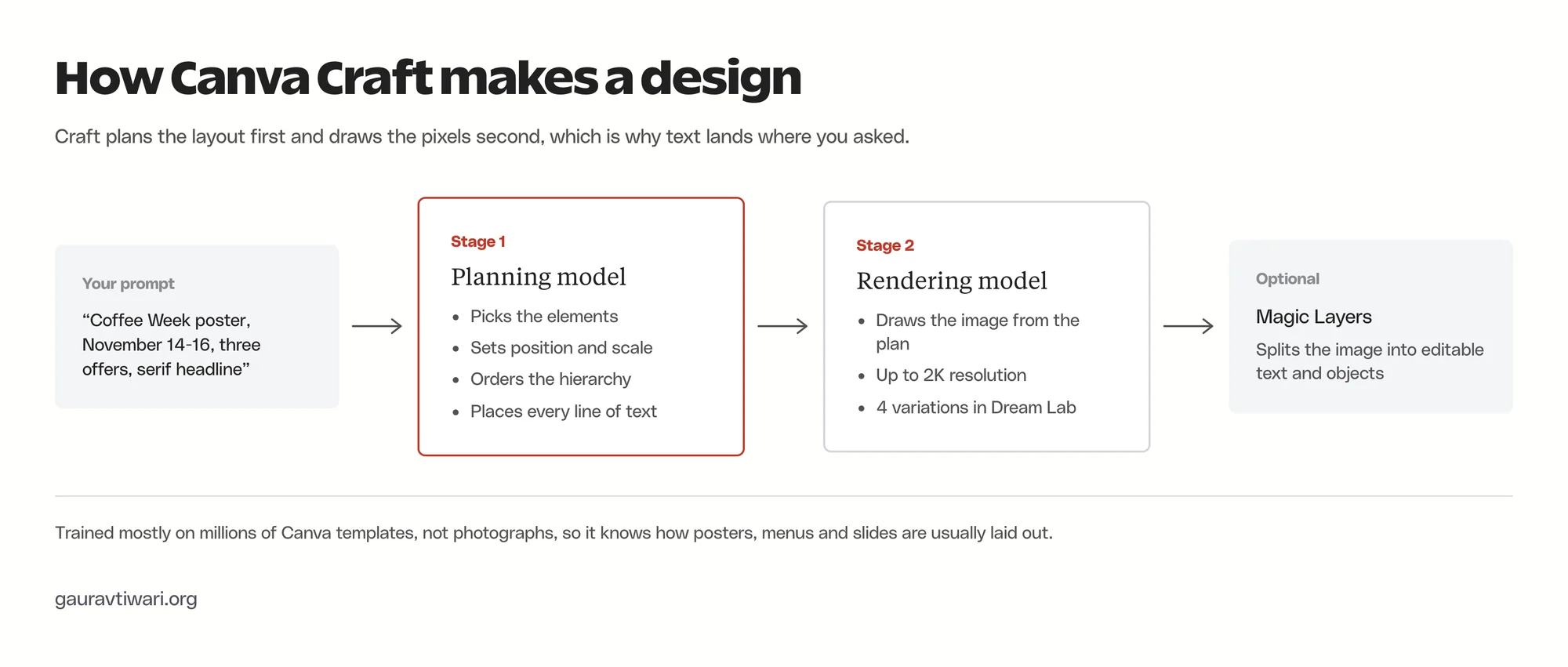
Canva credits this planning step for Craft’s accurate text. The model has decided where the headline goes before it draws a single letter. Canva also says the same structure helps Magic Layers split the image into editable parts later.
Canva says Craft learned from millions of human-made templates in its own library, including posters, social posts, presentations, infographics, menus and typography-heavy layouts. Canva’s designers then compared more than 25,000 pairs of images against other leading models, and Canva says it sided with the designers whenever automated scores disagreed with them.
Canva Research built it. Canva introduced the lab a day before Craft, with more than 160 AI research scientists and engineers inside a 400-person AI organization. Researchers from Leonardo.ai, which Canva bought in 2024, also worked on the model.
Where to Find Canva Craft in Canva
Craft runs inside Dream Lab. You can open it from the Dream Lab icon at the bottom of the left sidebar or go straight to canva.com/dream-lab. The model selector below the prompt box reads Canva Craft-1 2K.
These are the controls you get:
- AI quality: Standard, Premium (the default) and Ultra. Each tier uses your AI allowance at a different rate.
- Style: 19 presets plus None, including Smart, Cinematic, Illustration, 3D Render, Minimalist, Stock Photo, Pop Art and Vector.
- Aspect ratio: 16:9, 9:16, 1:1, 4:3, 3:4 and 2:1 in the Dream Lab menu.
- Model: locked to Canva Craft-1 2K. Switching the quality tier did not unlock another model.
- Attachments: upload an image, add one from Canva or reuse a recent image as a reference.
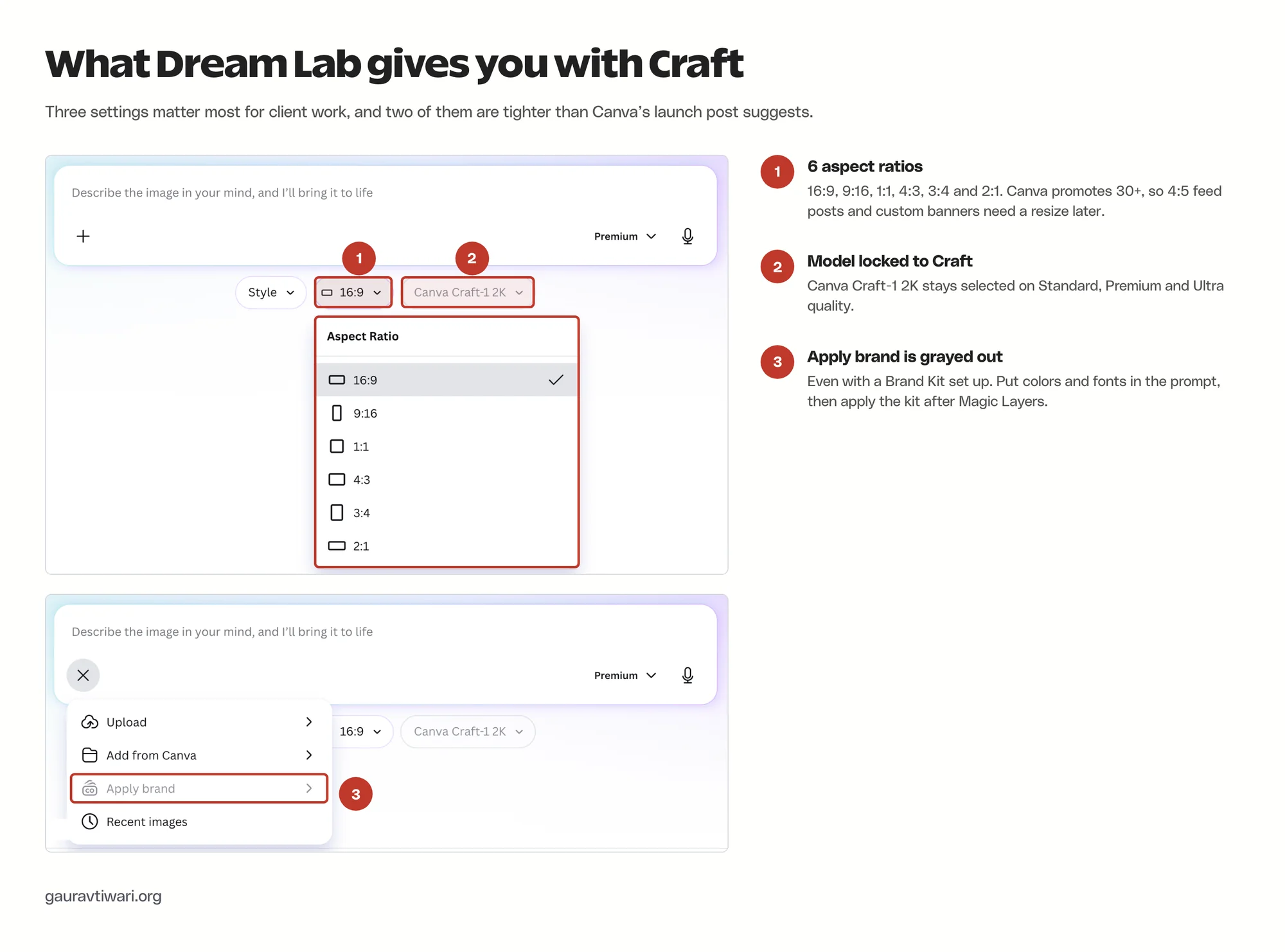
Two of those deserve a note for agency work. Canva says Craft supports more than 30 aspect ratios, but the standalone Dream Lab menu showed only 6 in my account. If you need 4:5 for an Instagram feed post or a custom banner size, you will be resizing afterward.
The second is brand control. The Apply brand option in Dream Lab’s attachment menu was grayed out, even though my account has a Brand Kit set up. So for now, your brand colors, fonts and tone have to go into the prompt in plain words.
How Canva Craft Handled Real Agency Briefs
I wanted to test Craft the way an agency would use it. That means briefs with exact copy, prices and dates, because that is where image models usually fall apart and where a client notices first.
I ran three briefs, all on the default Premium quality. Each prompt returned 4 variations in under 90 seconds.
Event Poster
The first brief was a promotional poster for a fictional coffee shop:
Event poster for a coffee shop called Northside Roasters. Headline: COFFEE WEEK. Dates: November 14-16. Three short offers listed below the headline: Free refills before 9 AM, 20% off whole beans, Latte art class on Saturday. Warm brown and cream palette, bold serif headline, clean modern layout, small logo at the bottom.
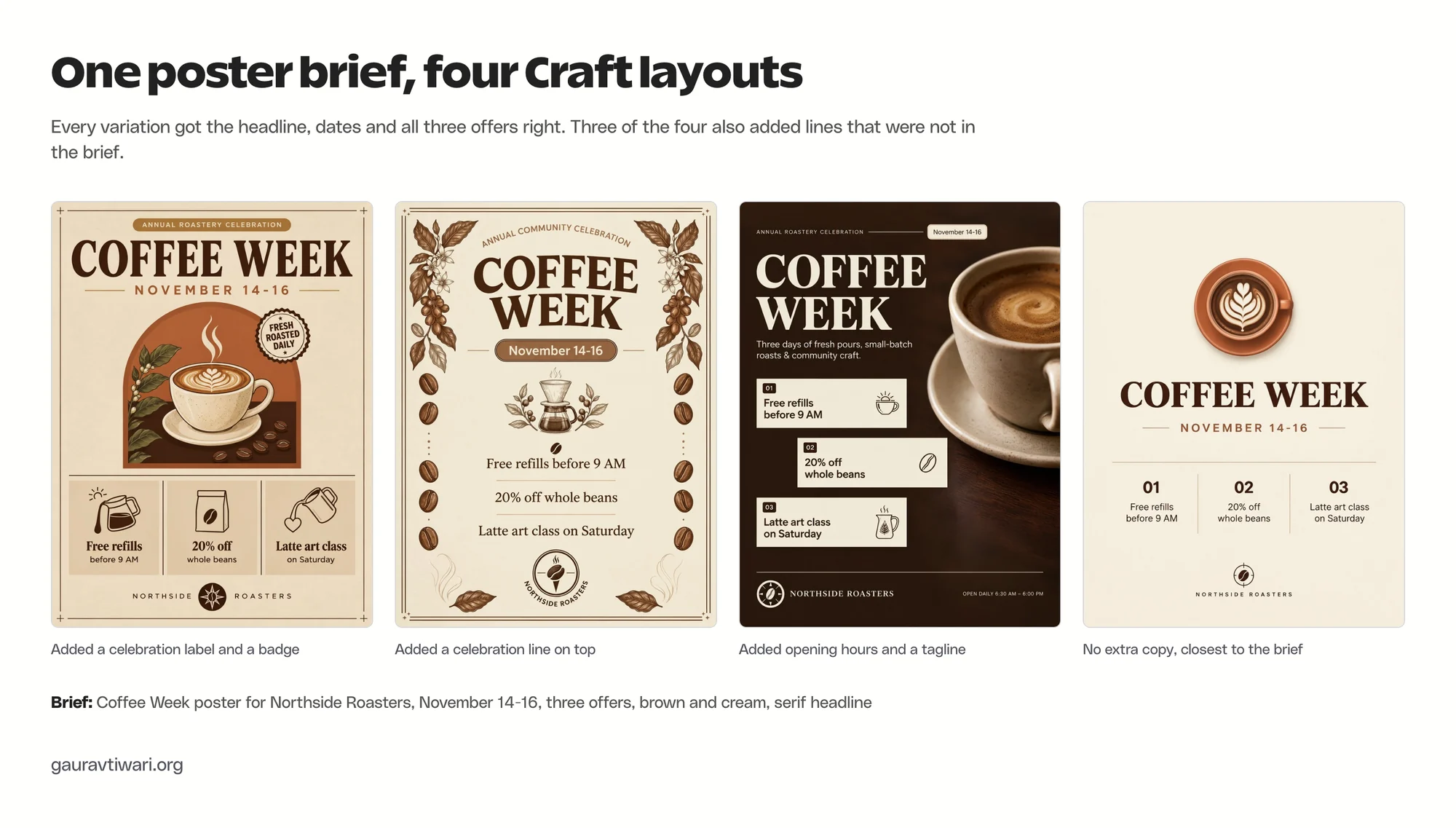
All 4 variations got the headline, the dates and all 3 offers right, with no spelling mistakes. The layouts were different from each other, and each one followed the palette and the serif headline, so one prompt gave me a full first concept round.
The small print was a different story. Craft added copy I never asked for in 3 of the 4 variations. The dark one carried “Annual Roastery Celebration” above the headline and a tagline about “small-batch roasts and community craft.” Worst of all, it printed “Open Daily 6:30 AM – 6:00 PM” in the footer. Another added a “Fresh Roasted Daily” badge, and a third called the promotion an “Annual Community Celebration.” Only the minimal cream version stuck to the brief.
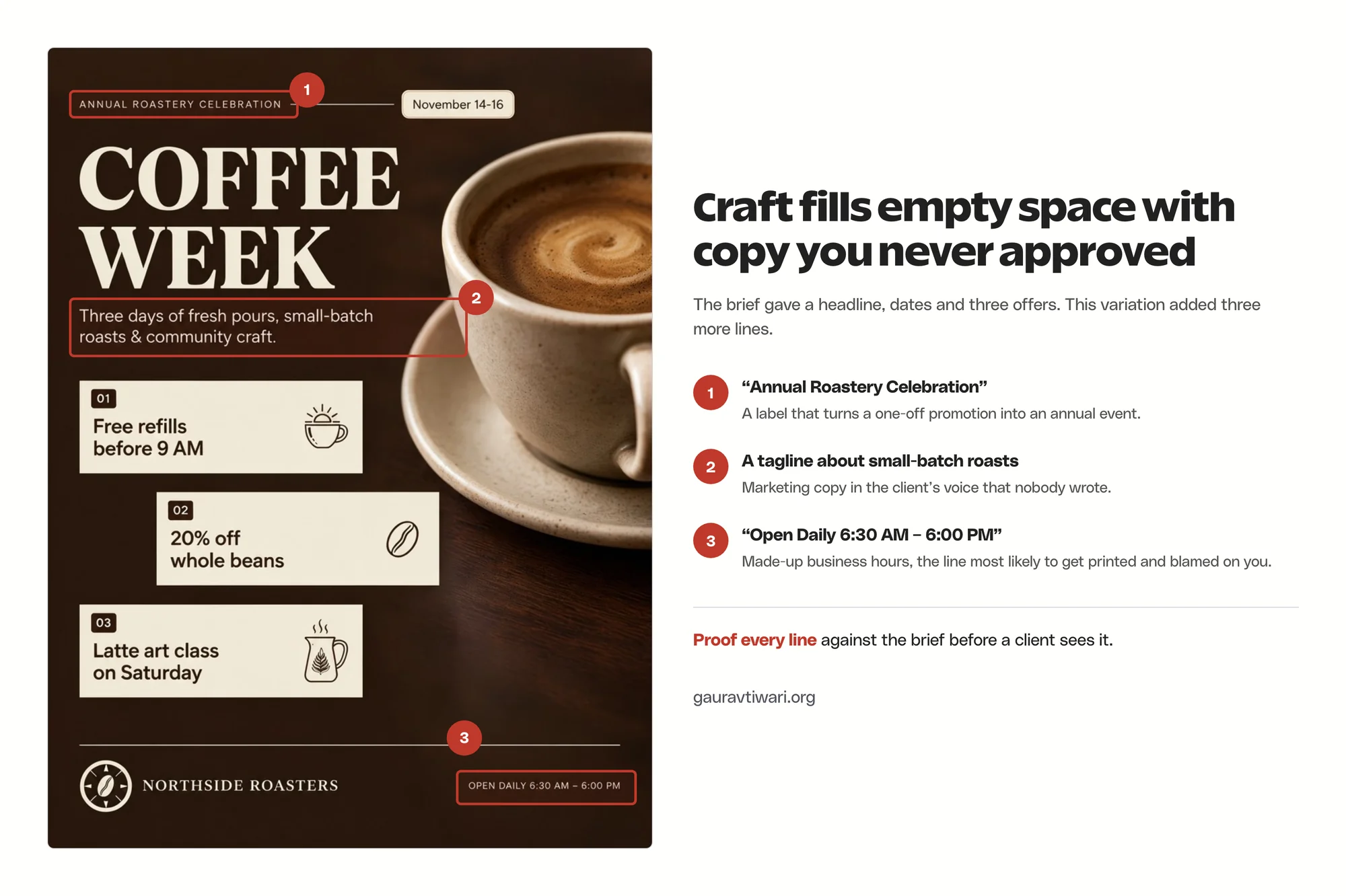
This is the most important finding for agencies. Invented opening hours on a client poster is the kind of mistake that gets printed, posted and then blamed on you. Craft learned from templates, and templates are full of filler lines like these. My guess is that it adds them to make the design look complete.
Restaurant Menu
The second brief was harder: a menu with 8 dishes, 8 prices and a footer line.
Restaurant menu for an Italian bistro called Casa Verde. Section STARTERS: Bruschetta $9, Burrata with tomatoes $14, Calamari fritti $13, Minestrone $8. Section MAINS: Margherita pizza $16, Lasagna al forno $21, Spaghetti carbonara $19, Grilled sea bass $28. Small footer line: Please tell your server about any allergies. Elegant green and cream design.
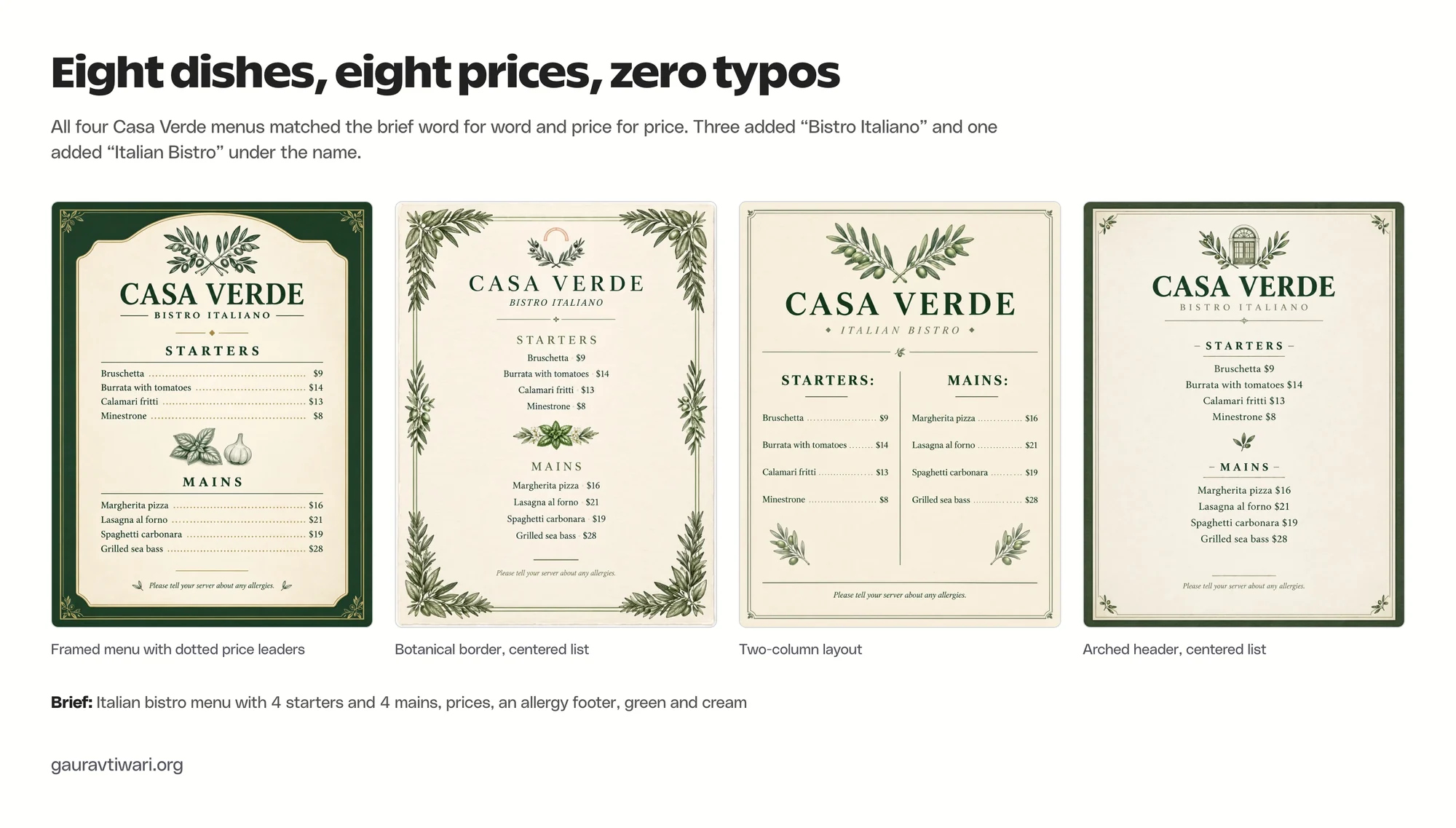
Every dish name and every price matched the brief in all 4 variations. Dishes and prices lined up cleanly, the allergy line sat where a menu footer should, and the illustrations stayed out of the text.
Craft still added a subtitle, “Bistro Italiano” in 3 variations and “Italian Bistro” in the fourth. That is harmless on a menu, but it is the same habit as the poster. It fills empty space with words.
Instagram Story Infographic
The third brief tested small text in a tall format, the kind of carousel or story graphic agencies make every week:
Instagram story infographic for a marketing agency called Brightpath Studio. Title: How We Onboard New Clients. Five numbered steps, each with a one-line description: 1 Discovery call – we learn your goals in 30 minutes. 2 Brand audit – we review your site, socials and ads. 3 Strategy deck – a 90-day plan with clear KPIs. 4 Launch – first campaigns go live in week 3. 5 Monthly report – results, learnings and next steps. Footer: brightpath.studio. Navy and coral color scheme, clean sans serif type.
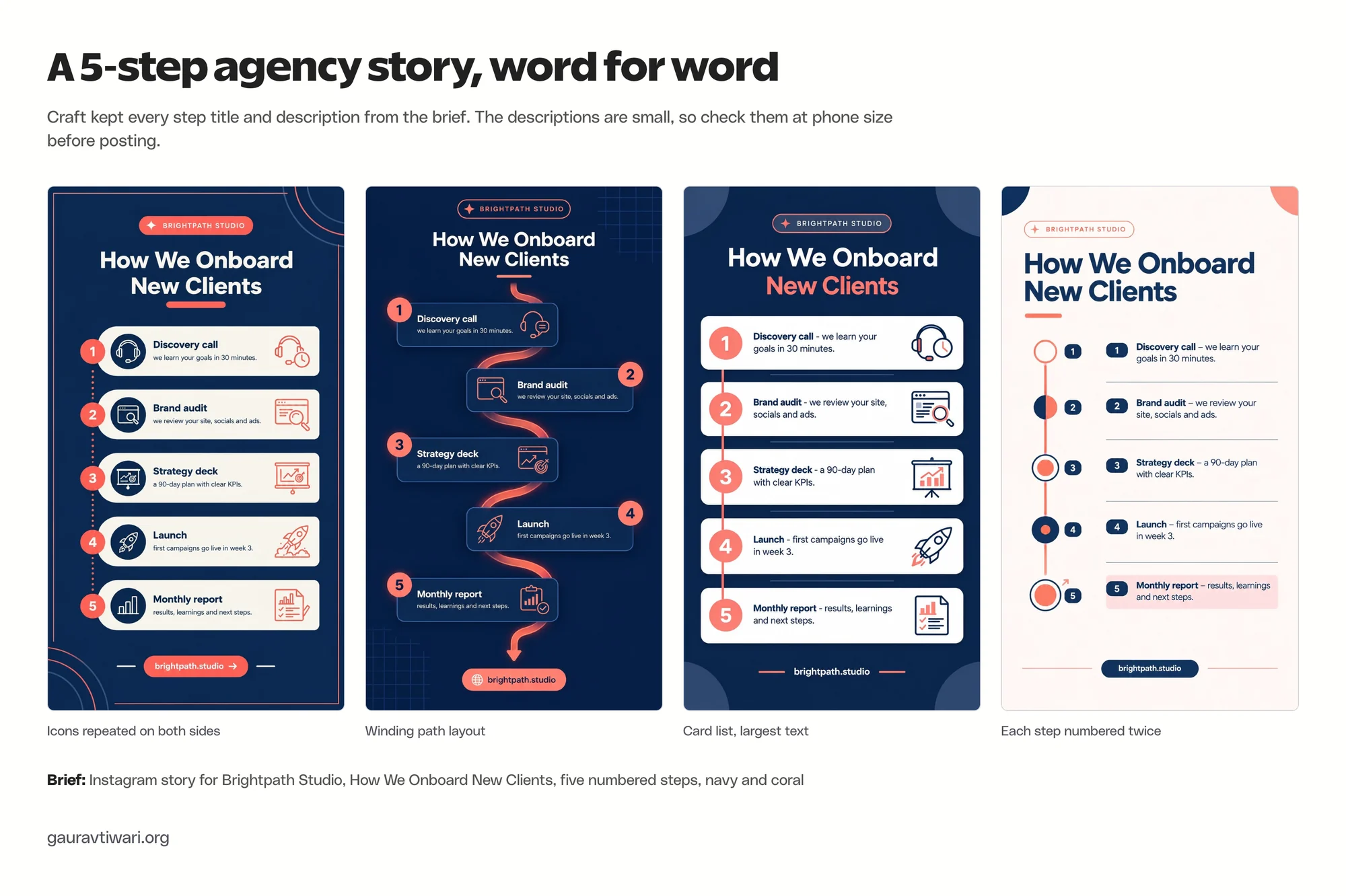
All 5 steps and their descriptions came back word for word, including “90-day plan” and “week 3.” The icons matched the steps, and the footer URL was correct. This time Craft added nothing extra apart from a small “Brightpath Studio” label at the top.
The weak spot was size. The step descriptions are small enough that they would be hard to read on a phone.
One variation also numbered each step twice, once in a circle and again in a badge. These are design calls you would fix in a minute, but they show that Craft follows the brief more closely than it judges the result.
Here is how the three tests compare:
| Brief | Requested text correct | Text Craft added | Output size |
|---|---|---|---|
| Event poster (3:4) | Yes, all 4 variations | Opening hours, taglines and a badge in 3 of 4 | 1760 x 2336 px |
| Restaurant menu (3:4) | Yes, all 8 dishes and prices | “Bistro Italiano” subtitle | 1760 x 2336 px |
| Story infographic (9:16) | Yes, all 5 steps | Brand label only | 1355 x 2399 px |
The 9:16 output is close to a story’s shape but not an exact 1080 x 1920 export, so plan on a resize before posting.
Editing Craft Output
A first draft is only useful if you can change it without starting over. Craft gives you two ways to do that, and both worked well in my tests.
One-Change Edits
Every Craft image opens in a viewer with a “What would you like to change?” box. Canva’s own hint below it says requesting one change at a time gets better results.
I asked Craft to remove the opening hours from the poster. It did exactly that, and the rest of the design stayed as it was to my eye.
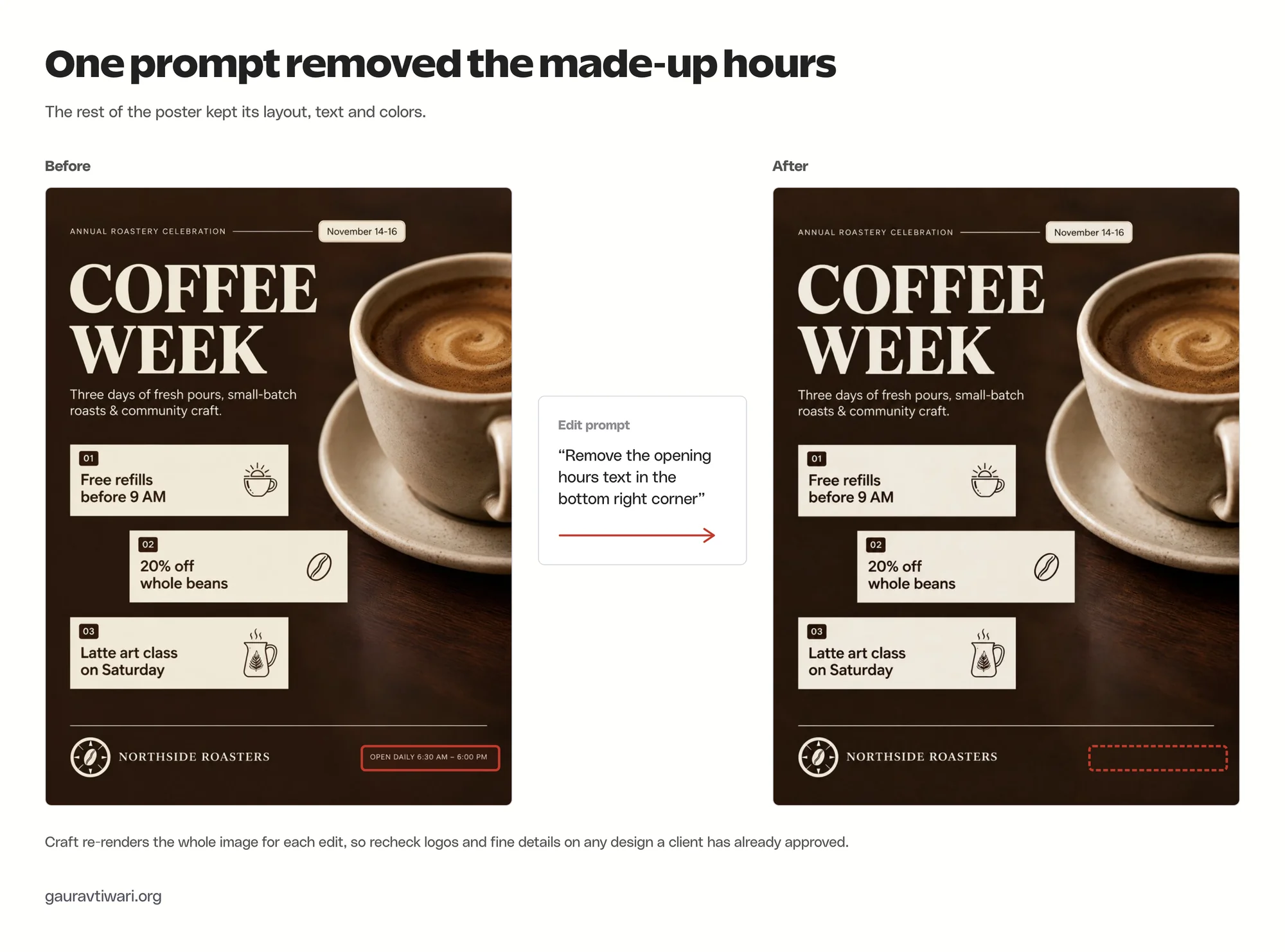
There is one catch worth knowing. When I compared the two files pixel by pixel, faint differences showed up along the edges of nearly every element. Craft does not patch one corner, it re-renders the whole image from the same plan.
For a social post, that does not matter. For a design a client already approved, you should check the logo and fine details again after every edit.
Magic Layers
Magic Layers is the feature that makes Craft useful for production work. It sits under Edit in the image tools once you open a Craft image in the editor, and it splits a flat image into separate, editable elements.
I ran it on the Casa Verde menu. About a minute later, every dish name, every price, both section headings, the restaurant name and the allergy line had become live text boxes. The olive branch, the basil and garlic illustration and the dividers became separate objects.
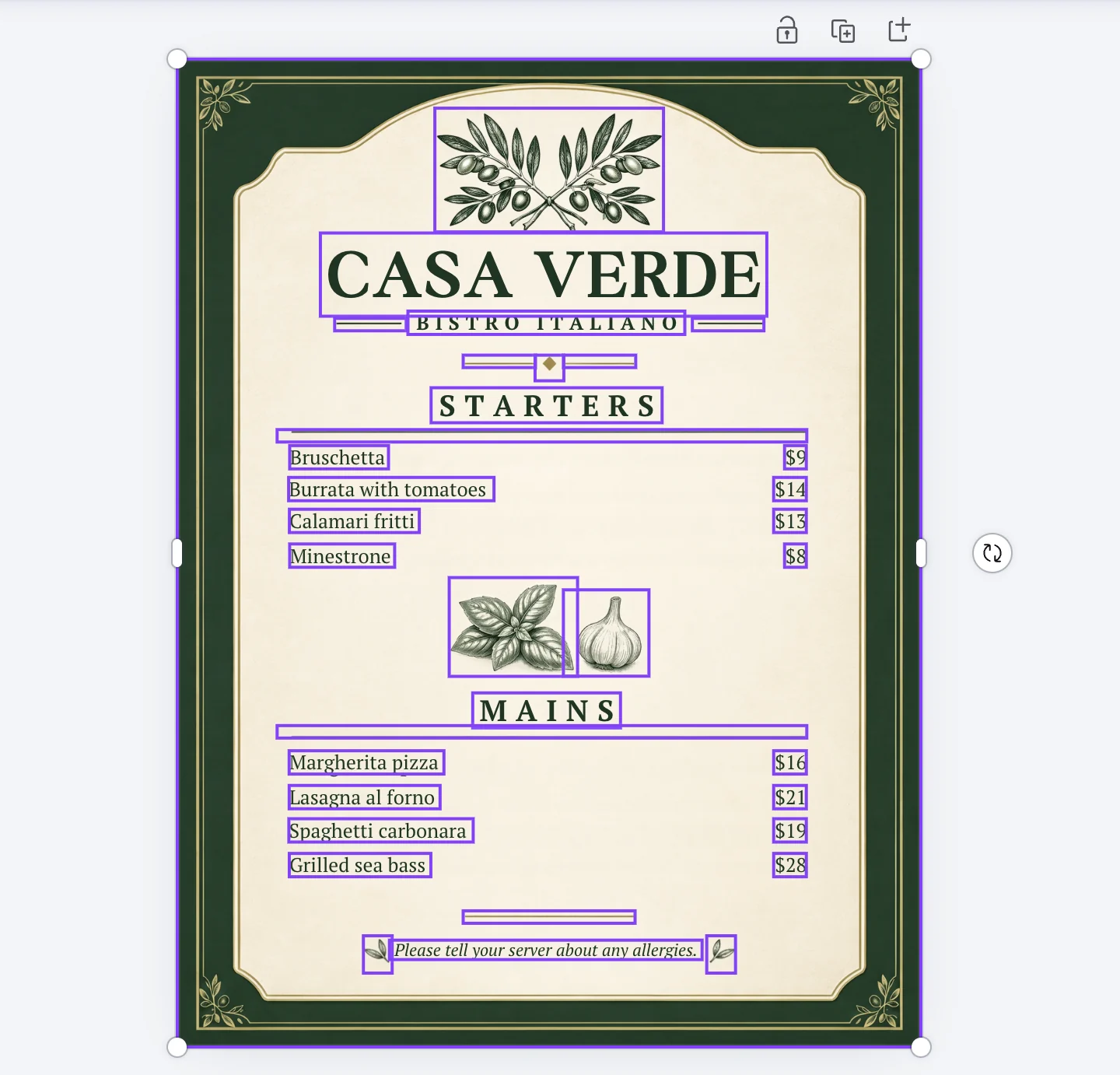
That means a client can change a price or swap a dish without anyone opening Dream Lab again. It also means your team can apply the client’s brand font after conversion, which matters because Dream Lab can’t apply your Brand Kit to Craft yet.
Magic Layers is not perfect. The dotted leader lines between dishes and prices did not survive the conversion, so the menu needs them added back. I’d treat the converted file as a well-organized starting point that still needs a designer’s pass.
Canva Craft AI Capabilities and Integrations
Canva connects Craft to its wider AI setup in three ways:
- Canva AI, the chat assistant inside Canva
- the AI Connector for outside assistants such as ChatGPT and Claude
- a developer API
For an agency, the connector and the API matter more than the Dream Lab box, because they let Craft run inside the tools your team already uses.
Canva AI Inside the Editor
Each Craft image comes with shortcuts that pass it to Canva AI, Canva’s chat assistant. In my account these were Make a poster and Create an Instagram post, along with Open in chat from the image menu. They hand the image to Canva AI as the start of a full design instead of leaving it as a picture.
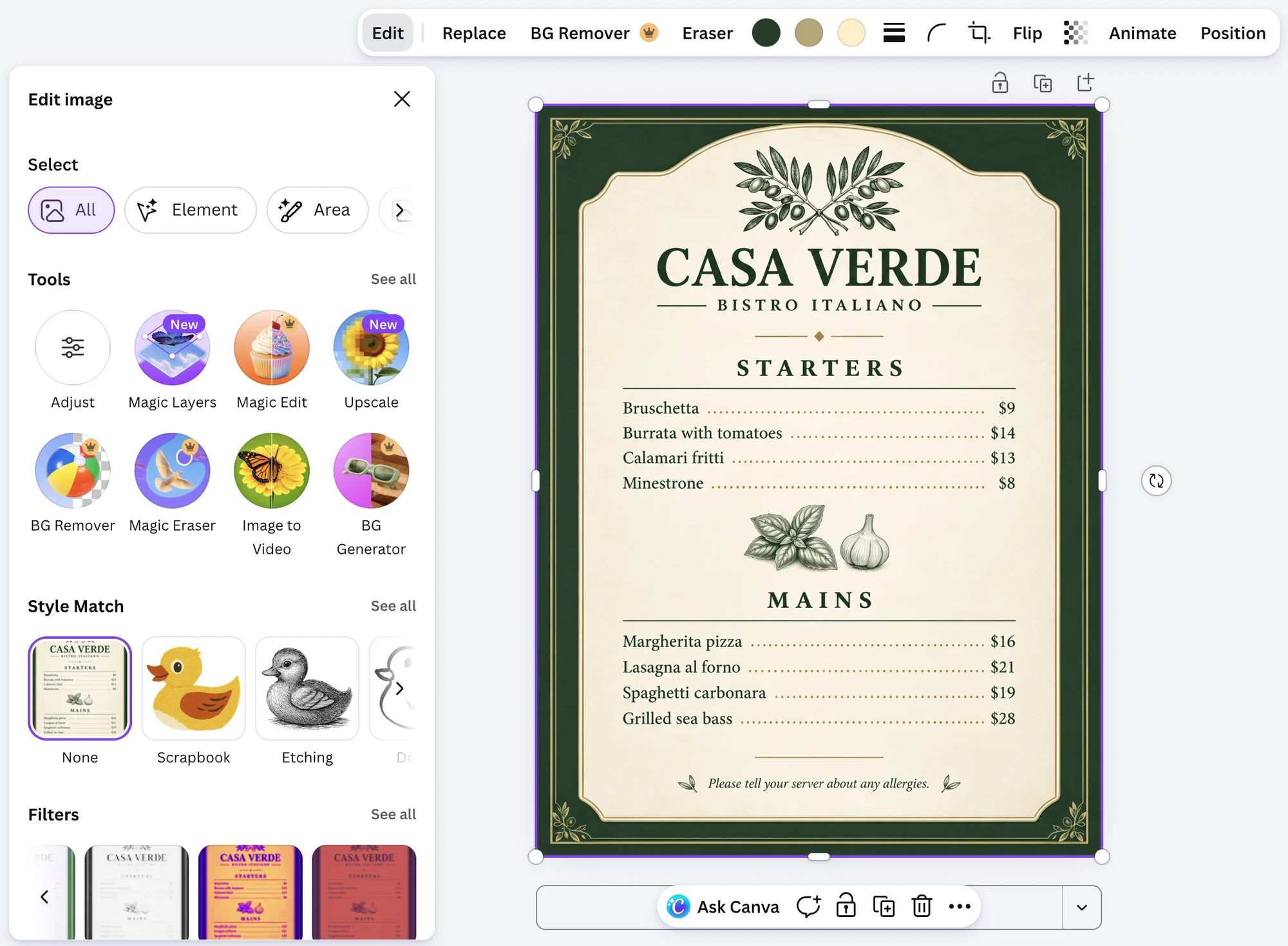
Inside the editor, a Craft image gets the same AI image tools as any other photo:
- Magic Layers to split the image into editable text and objects
- Magic Edit to change one area with a prompt
- Upscale and Boost resolution when 2K is not enough
- BG Remover, Magic Eraser and BG Generator for cutouts and cleanup
- Image to Video to turn a still into a short clip
Canva AI Connector for ChatGPT, Claude, Gemini and Copilot
Canva’s AI Connector runs on the Canva MCP server. MCP, or Model Context Protocol, is the open standard that lets an AI assistant use an outside tool with your permission. Canva’s own setup guide covers 4 assistants:
- ChatGPT: connect Canva in Settings and generate designs inside the chat
- Claude: connect Canva in Settings to create, edit and search Canva designs from the conversation
- Gemini: type @canva in the chat to connect
- Copilot: open the Canva agent inside Copilot and connect your account
The connector already pulls your Brand Kit, templates and permissions into those assistants, and admins decide who can connect and which Brand Kit an assistant may use. It can also autofill a brand template with data from the chat, which is handy for monthly client reports.
Craft image generation through the MCP server is listed by Canva as coming soon.
Once it ships, an assistant could brief Craft, place the image in a branded template and hand back an editable design in one conversation. That would save time for agencies that already plan campaigns in ChatGPT or Claude. I’d wait for it to land before building a client process around it.
Canva Craft API
Developers can call Craft through Canva’s image generation API. The model value is craft_v1_2k. Canva’s docs list these limits:
| API detail | What it means |
|---|---|
| Status | Preview. Breaking changes can arrive without a new version, and public apps built on it won’t pass Canva’s review |
| Aspect ratios | 6: square, landscape (16:9), portrait (9:16), 3:2, 2:3 and 4:5 |
| Rate limit | 20 requests per minute for each user |
| Billing | Each job uses the user’s Canva AI allowance |
| Output | Download URL valid for 24 hours, with optional saving to the user’s Canva uploads |
| Other models | lucid_origin and z_image_turbo are also available |
Canva’s docs recommend leaving the model field empty so Canva picks the best model for each request. They suggest Craft for infographics, posters, slides, portraits and marketing material, and Z Image Turbo for images with text. That second point is odd, given how well Craft handled text in my tests, so I’d compare both models on your own briefs before building an app around one.
For an agency, the API is good for internal tools today, such as a private app that drafts social graphics from a content calendar. It is not ready for a client-facing product while it stays in preview. Canva has also announced two cheaper and faster versions, Craft-fast and Craft-ultrafast, with no release date yet.
Canva Craft Pricing and AI Limits
Craft has no separate price. It runs on the shared AI allowance that comes with your Canva plan, and the Standard, Premium and Ultra quality tiers use that allowance at different rates.
| Plan | AI allowance for Craft | Agency notes |
|---|---|---|
| Canva Free | Up to 20 Standard or Premium AI uses | Enough to try Craft, not to work with it |
| Canva Pro | 10x more AI than Free, Premium or Ultra | One person, with Brand Kit and Magic Layers |
| Canva Business | 20x more AI than Free | Up to 100 Brand Kits and approvals, useful for client brands |
| AI Pass add-on | 40x more AI than Pro, or 20x more than Business | Extra cost, for heavy generation |
Canva says complex tasks use more of the allowance than simple ones, so these multipliers are best-case numbers. Prices vary by country, and you can check yours on the Canva pricing page.
For a freelancer, Pro is enough to use Craft for drafts. For an agency juggling several client brands, Business makes more sense. The reason is the extra Brand Kits and the approval workflow, since Craft works the same on both plans.
What Designers and Agencies Are Saying
The launch numbers are strong. Canva says Craft debuted 4th on DesignArena’s image leaderboard with an Elo score of about 1,340. That put it behind 3 OpenAI models and ahead of recent models from Google, Microsoft and xAI.
DesignArena itself said Craft wins most often on photorealistic product and object shots, and Canva claims first place in the People and Portraits and Landscapes and Nature categories.
That ranking needs context. DesignArena scores move as votes come in, and Canva calls the placement preliminary.
Canva’s “second most advanced AI lab” line also counts labs, not models. Craft is the 4th best model, and OpenAI holds all three places above it.
The reaction on X has been mixed:
- Workflow fans like the Magic Layers angle most. One AI builder on X said that a first image which arrives as editable layers is what makes a generator usable for production.
- Skeptics question the ranking. One user said Qwen did better in their own test, and one design channel posted a video on why it is not sold on Craft yet.
- People who expected a general image tool noticed its design bias. One user asked for a meme and got something that looked more like a poster.
- Practical buyers keep asking about pricing and limits, which Canva has not spelled out beyond the shared allowance.
At least one of the most-shared launch posts was marked as a paid partnership, so I’d give more weight to hands-on tests than to the launch-week buzz.
The Limits
These are the gaps that matter most for client work:
- It adds copy you didn’t approve. Taglines, badges and even opening hours can appear in the design. Every word needs a proofread against the brief.
- Brand Kit doesn’t apply in Dream Lab. Colors and fonts have to be described in the prompt, and the client’s brand fonts go in after Magic Layers.
- Aspect ratios are limited outside the editor. Dream Lab showed 6 ratios and the API offers 6, against the 30+ Canva promotes.
- 2K is the ceiling. That is fine for social and screens. Large print jobs will need Upscale or a rebuild.
- Edits re-render the whole image. Small details can shift slightly with each prompt edit, so recheck logos and fine print.
- You can’t switch models in Dream Lab. If Craft struggles with a style, you can’t swap to another model in the same place.
- The training data raises questions. Canva hasn’t said how template creators were credited for training. Agencies with strict client policies on AI sources should ask before using it.
- Ownership is not exclusive. Canva allows commercial use of AI output, but purely AI-generated images may not be protected by copyright. Canva’s IP indemnity for AI content applies to eligible Enterprise customers, not to Pro or Business plans.
How I’d Use Canva Craft in an Agency Workflow
If I were running client design work in Canva today, this is how I’d fit Craft in:
- Write the brief as a prompt with exact copy. Put every headline, date, price and call to action in the prompt, in quotes or after a label such as “Headline:”.
- Add “no extra text” to the prompt. It won’t always stop the filler lines, but it reduces them.
- Use the 4 variations as concept directions. Show the client 2 or 3 of them as moodboards and keep the final file for later.
- Fix small things with one-change edits. Remove an extra line or change a color with one request at a time.
- Convert the chosen design with Magic Layers. Apply the client’s fonts and colors from the Brand Kit on the converted file.
- Proofread every word against the brief. Check dates, prices, phone numbers, URLs and anything that could be wrong in a legal sense.
- Resize and export in the editor. Use Canva’s resize for exact platform sizes instead of relying on Dream Lab’s 6 ratios.
Freelancers get the most from steps 3 and 5. A solo designer can show a client 4 directions from a single prompt and spend the saved hours on the version the client picks.
Craft is not the right tool for logo design, detailed technical drawings or large-format print. Canva itself says fine print and technical drawings are still being improved. For logos, I’d still follow a proper process like the one in my guide on how to design a logo yourself.
Canva Craft Alternatives
If Craft doesn’t fit your work, the nearest options depend on what you need from the image:
- ChatGPT with GPT Image for the highest leaderboard scores and general images, though the output arrives as a flat image
- Gemini with Nano Banana if your team already works in Google Workspace
- Adobe Firefly if your agency already pays for Creative Cloud and wants Photoshop in the loop
I have compared these and more in my list of the best AI image generators. If the issue is Canva itself rather than Craft, my roundup of Canva alternatives covers design tools for different budgets.
Craft’s advantage over all of them is that the image lands inside Canva, next to your templates, Brand Kits and client folders, and turns into an editable design.
FAQs on Canva Craft
Yes, Canva Free users can try it within the free plan’s AI allowance of up to 20 Standard or Premium AI uses. Regular agency use needs Pro or Business, which include a much larger shared AI allowance.
Open Dream Lab from the left sidebar in Canva, type a prompt and pick an aspect ratio and style. Craft is the default model in Dream Lab, and it returns 4 variations you can edit, download or open in the editor.
Canva allows commercial use of AI-generated output. Purely AI-generated images may not be protected by copyright, though. Canva’s IP indemnity for AI content also covers eligible Enterprise customers only, so you should tell clients when a design started as AI output.
OpenAI’s GPT Image models still rank above Craft on DesignArena’s overall leaderboard. Craft’s advantage for posters is that the result lands in Canva, and Magic Layers can turn it into editable text, while ChatGPT returns a flat image. I haven’t run the same briefs through both, so I’d judge them on workflow until a side-by-side test exists.
In my tests, each prompt returned 4 variations in under 90 seconds, and a one-change edit came back in about the same time. A Magic Layers conversion took about a minute. Canva says faster Craft-fast and Craft-ultrafast models are on the way.
Canva says Craft accepts prompts in any language and can render text in 55 languages. My tests used English only, so check non-Latin scripts carefully before a client sees them.
Final Remarks
If you are still unsure whether Craft belongs in your workflow, I’d let one recent brief decide. Take a job you finished last month, paste its exact copy into Dream Lab and compare the 4 drafts with what your team made.
If the drafts save you the first round of concepts, keep Craft for that stage and let your designers own the final file. And whatever you ship, proofread it like a junior designer made it, because in a way one did.
Tell Google you want more of this.
Add Gaurav Tiwari as a preferred sourceOne tap, and this site shows up more often in your own Top Stories, AI Overviews and AI Mode. Remove it any time.
Disclaimer: This site is reader-supported. If you buy through some links, I may earn a small commission at no extra cost to you. I only recommend tools I trust and would use myself. Your support helps keep gauravtiwari.org free and focused on real-world advice. Thanks. - Gaurav Tiwari