
 by
by
You upload a Halloween portrait you like to an AI video tool, type “make it spooky” and wait. The clip that comes back has a slightly different face, the wall behind you starts breathing, and the last second jumps to a room that was never in your photo.
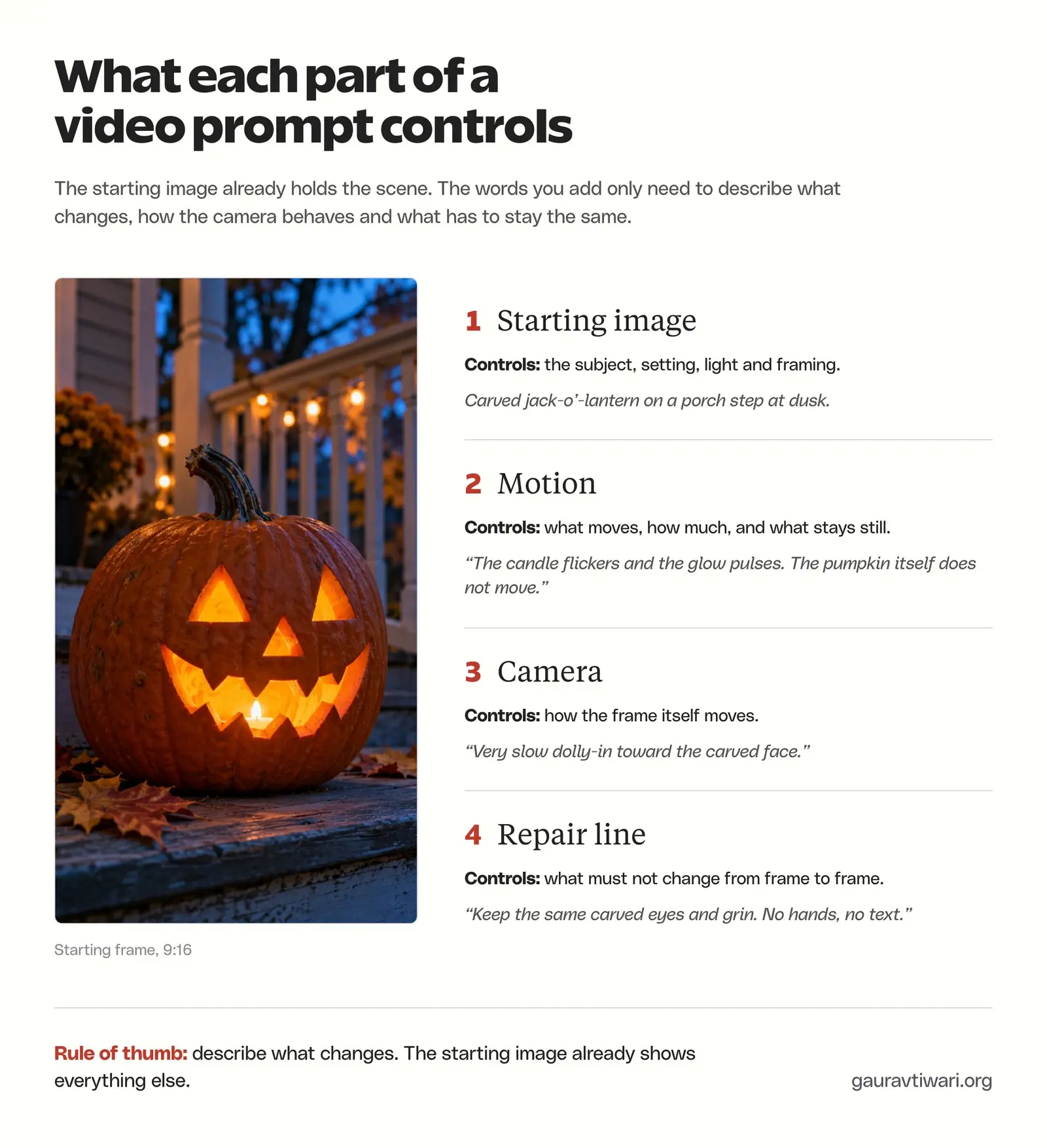
The fix is a shorter and stricter prompt. These Halloween AI video prompts treat the photo as the scene and give the words only 3 jobs:
- what moves
- what the camera does
- what must stay the same
Below are 4 vertical Halloween scenes built that way. Each one comes with its starting image and the exact prompts that go with it, and all 4 are in a free prompt pack you can download as a ZIP of plain-text files.
The 4 starting images were made from the image prompts printed with them. The people in them are fictional adults, and 2 of the 4 scenes hide the face completely. Video models change their answer from one run to the next and from one tool to another, so I have explained what each line is designed to control. Treat your first render as a draft.
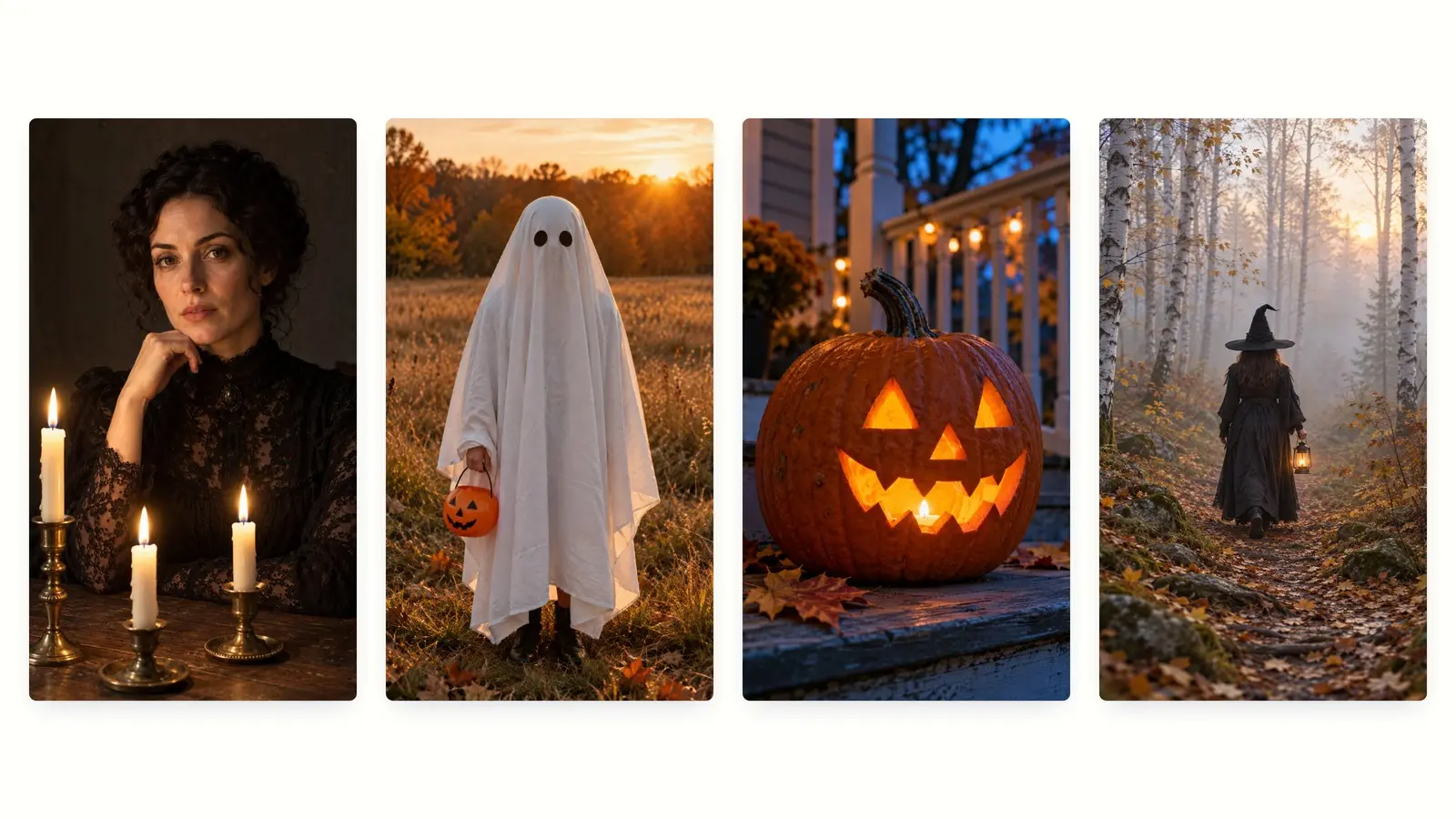
How to Animate a Halloween Photo
Turning a Halloween photo to video works the same way in every image-to-video tool. Only the button names change, and the tool notes further down say where each button lives.
- Start with a vertical image. A 9:16 frame matches Reels and Shorts, so the tool doesn’t have to crop your subject or invent picture at the sides.
- Upload it as the first frame. Every image-to-video tool has an upload or “add image” button next to the prompt box.
- Pick 9:16 and the shortest clip length on offer. A short clip gives the model fewer frames to keep consistent, and drift builds up the longer a clip runs.
- Paste the motion prompt and the camera line together. If the tool has its own camera menu, set the move there and delete the camera line, so the two instructions don’t fight.
- Add the repair line at the end of the prompt.
- Watch the result twice at full screen: once for the face or main shape, and once for the edges and background.
- Change one line, regenerate and compare. When you’re happy, download the MP4 and add music in Instagram or YouTube.
That last step matters more than it looks. If you change the motion, the camera and the repair line at the same time and the next clip is better, you have no idea which change did it.
Choose the Starting Image
Each frame of the video is drawn from your starting image, so whatever is unclear in the photo gets guessed again and again. A clean, simple image gives the model less to guess.
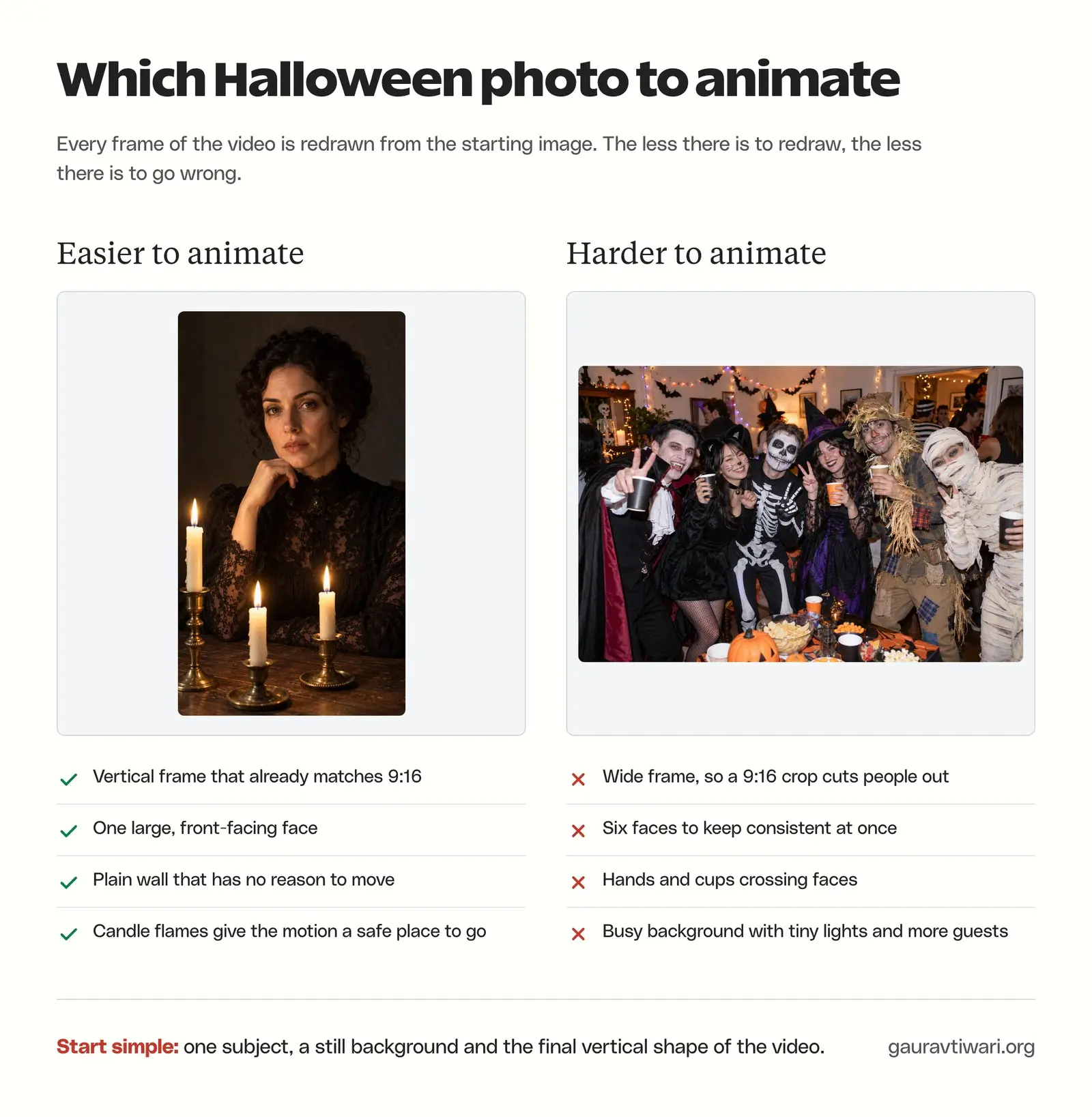
A good Halloween starting image for a video usually has these things:
- A vertical frame: 9:16, or close to it, so nothing important sits outside a phone screen.
- One main subject, large in the frame: one face is easier to keep steady than six.
- A still, simple background: a plain wall, fog or an empty field has no reason to move.
- Something that can move safely: candles, a lantern, fog, leaves or string lights give the motion prompt a job that doesn’t touch the face.
- Hands away from the face: fingers near a jaw or a cup in front of the mouth are the first things to melt.
- No text or logos: letters get redrawn on every frame and tend to wobble. Add your text later in Instagram, YouTube or an editor.
If you don’t have a Halloween portrait yet, the photo prompts in my Halloween AI prompts guide turn an ordinary selfie into a witch, a vampire or a 90s party shot in Gemini or ChatGPT. Add “vertical 9:16 frame” to the end of any of those prompts and the result is ready to animate.
Use your own photo or a photo of an adult who has agreed to it. Gemini asks you to upload only photos you have the right to use, and its video feature is for users aged 18 and over. When you’d rather not put a recognizable face into a video app at all, the sheet ghost and the foggy witch below hide the face completely.
Halloween AI Video Prompts
Each scene below has 4 parts. The image prompt made the starting frame, and you can paste it into any image generator or swap in your own photo with similar framing. The motion prompt, the camera line and the repair line go into the video tool.
Candlelit Portrait
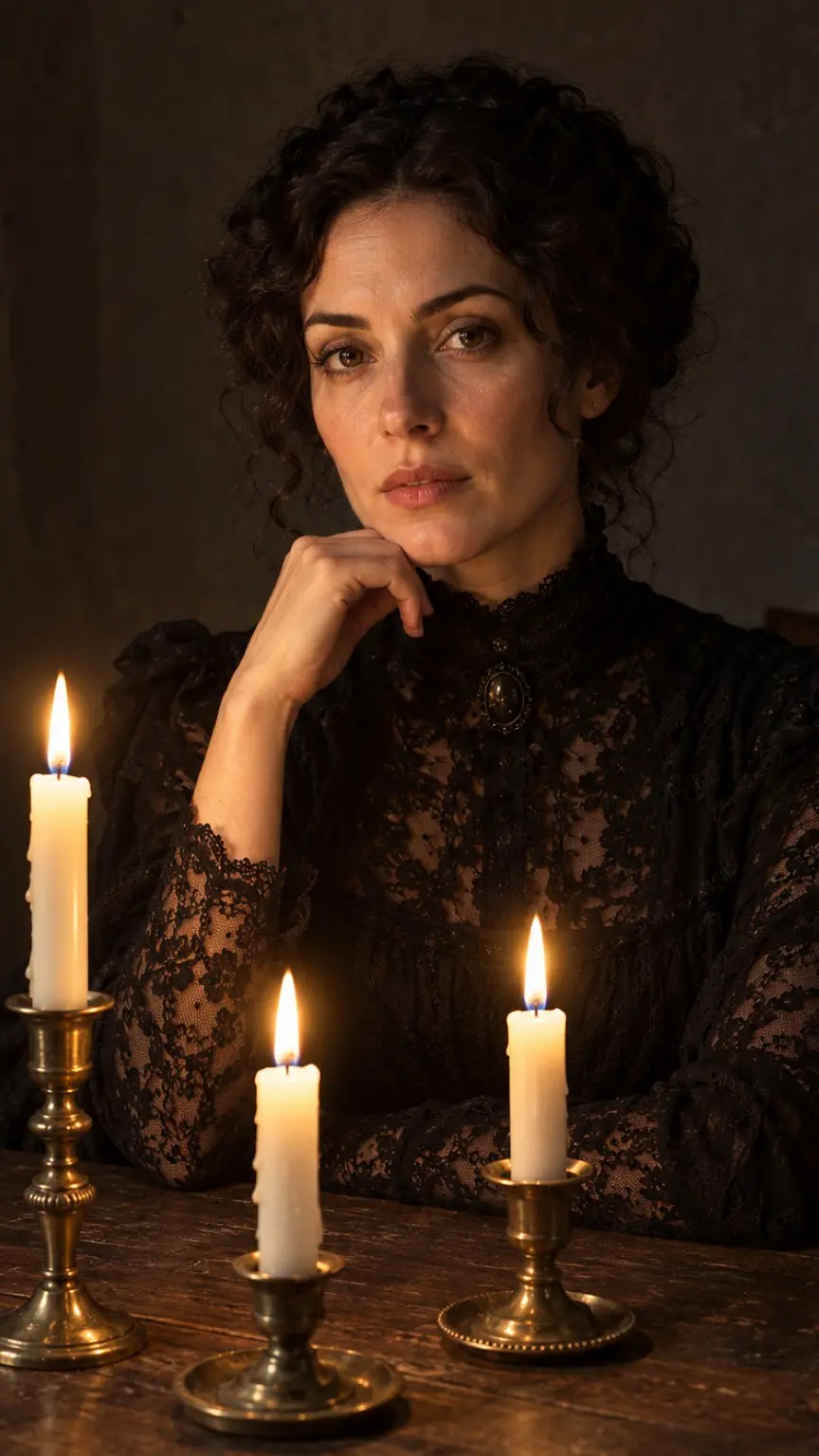
This is the closest scene to animating your own Halloween portrait, and it’s the one to start with. The face is large and front-facing, and the candles give the clip plenty to do without touching it.
Image prompt
Vertical 9:16 photograph of a woman in her 30s with dark curly hair, dressed as a gothic Victorian widow in a black lace high-necked dress, seated at an old wooden table and looking calmly into the camera. Chest-up framing with her face in the upper third of the frame and space above her head. Three lit white candles in brass holders stand on the table in front of her, the only light source, giving warm flickering light on her face and soft shadows on a plain dark plaster wall behind her. Shot on a 50mm lens at eye level, natural skin texture with visible pores, realistic light falloff, true-to-life colors. Keep the background simple and still. No text, no logos, no other people.
Motion prompt
The woman stays seated and keeps looking into the camera. She blinks slowly once and breathes gently, so her shoulders rise and fall a little. The three candle flames flicker softly and their warm light moves across her face and the wall. Her hand stays resting under her chin. Nothing else in the room moves.
Camera
Static camera on a tripod at eye level. No zoom, no pan.
Repair line
Keep her face, eyes, hair and expression exactly as they are in the first frame. Keep exactly three candles. No new people, no text.
What each line is designed to control:
- Motion: gives the face one small action, a blink and a breath, and hands the rest of the movement to the candle flames, which can flicker freely without changing who she is.
- Camera: keeps the frame locked, so the model only has to redraw small areas of the image instead of the whole scene.
- Repair line: names the two things a portrait clip usually loses first, the likeness and the object count.
The hand under her chin is the riskiest part of this frame. If the fingers start blending into the jaw, add “her hand stays completely still” to the motion prompt, or regenerate from a version of the image with the hand lowered.
Sheet Ghost
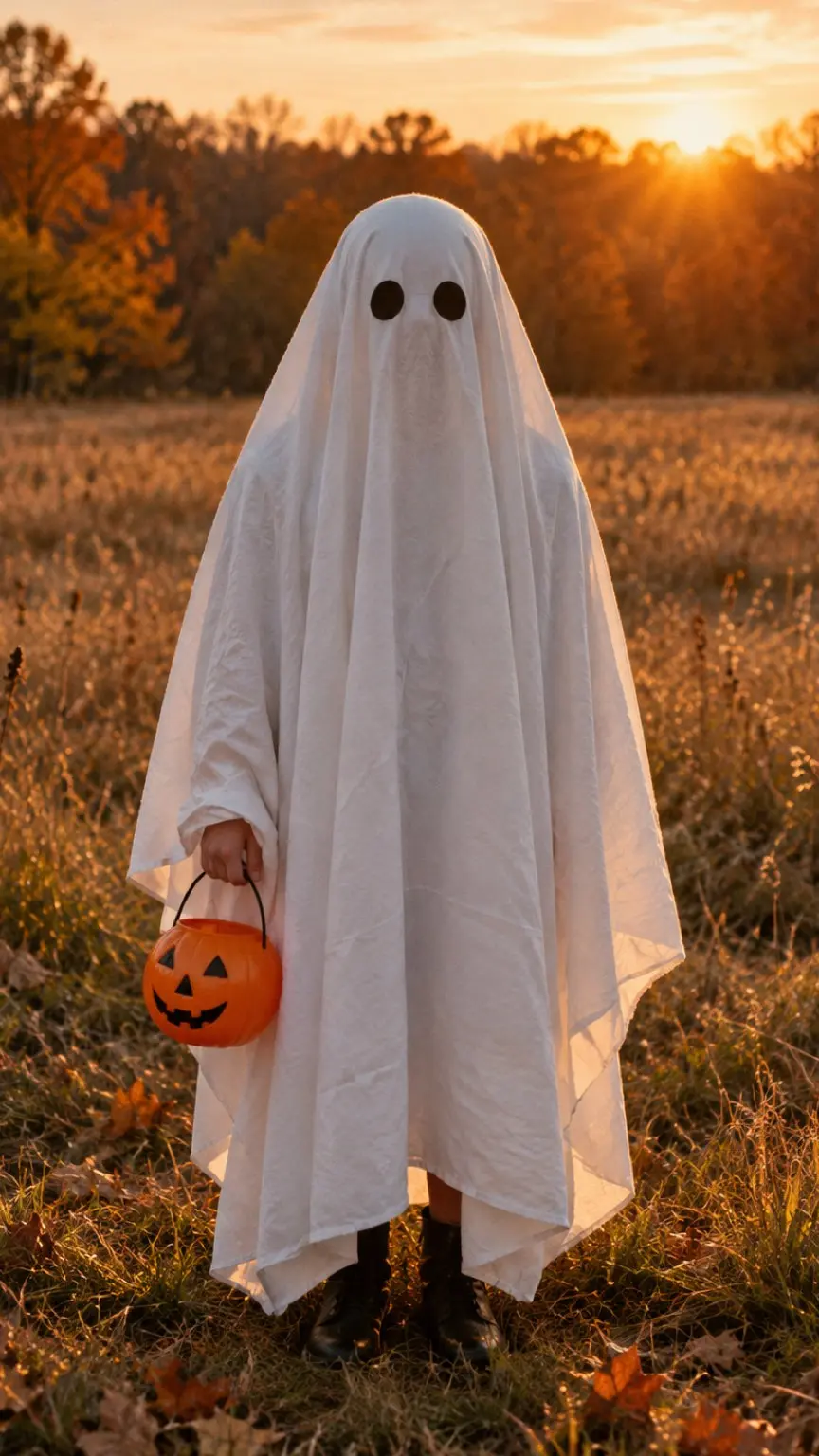
A sheet ghost is the easiest Halloween character to animate, because there is no face to drift. It’s also the scene to use when you don’t want a recognizable photo of yourself on a video app.
Image prompt
Vertical 9:16 photograph of a person wearing a plain white bedsheet ghost costume with two round black eye holes, standing in an open autumn field at golden hour and holding a small orange plastic pumpkin bucket in one hand. The ghost is centered and fills the middle of the frame from head to knees, with clear space around the edges of the sheet. Low warm sunlight from behind, dry grass and a few fallen leaves on the ground, a soft line of trees in the distance. Natural fabric folds and wrinkles in the sheet, realistic light, true-to-life colors, 35mm film look. No face visible, no text, no logos, no other people.
Motion prompt
The ghost slowly tilts its head to one side, pauses, then tilts it back, as if it is curious about the camera. A light breeze moves the bottom edge of the sheet and the dry grass. A few leaves drift past from left to right. The ghost stays in the same spot.
Camera
Slow push-in from a full-body shot to a knee-up shot over the whole clip. The camera stays at the same height.
Repair line
The sheet stays plain white with exactly two round eye holes. The pumpkin bucket stays in the same hand. No face, no mouth, no extra hands, no text.
What each line is designed to control:
- Motion: picks one readable action, the head tilt, which a sheet makes easy to animate because there is no face to keep. The breeze and the leaves add background movement that costs nothing.
- Camera: the push-in adds energy to an otherwise still subject and ends on a tighter frame that suits a phone screen.
- Repair line: a blank shape leaves the model room to invent features, so the line pins the two eye holes and rules out a mouth or a face.
Because the person is fully hidden, this is the safest scene to make if you don’t want to upload a recognizable face. The risky part is the hand holding the bucket, so keep the bucket line in the repair prompt.
Pumpkin Lantern

No person at all, so this one works for a shop, a party invite or a page that wants a spooky intro clip without a face in it.
Image prompt
Vertical 9:16 close-up photograph of a carved jack-o'-lantern on a weathered wooden porch step at blue hour. The pumpkin has triangle eyes and a wide jagged grin, lit from inside by a single candle so the carved shapes glow warm orange. The pumpkin sits in the lower half of the frame, with the porch railing and a softly blurred string of warm lights behind it. A few dry maple leaves lie on the step. Cool blue dusk light on the wood, warm candlelight inside the pumpkin, realistic pumpkin skin texture and stem, true-to-life colors. No text, no logos, no people.
Motion prompt
The candle inside the pumpkin flickers and the glow in the carved eyes and mouth pulses gently brighter and dimmer. A thin wisp of smoke rises from behind the stem and drifts away. The string lights in the background twinkle softly. The pumpkin itself does not move.
Camera
Very slow dolly-in toward the carved face, ending with the grin filling the lower half of the frame.
Repair line
Keep the same carved eyes and grin. The pumpkin does not open its mouth, talk or change expression. No hands, no people, no text.
What each line is designed to control:
- Motion: puts all the movement in the light. The flicker and the pulsing glow read as spooky on a small screen while the pumpkin stays a solid object.
- Camera: the slow dolly-in gives a still object a sense of approach, which is what turns this frame into a clip.
- Repair line: stops the model from treating the carving as a face and animating it.
If you actually want a talking pumpkin, that is a different prompt, and the carved shape will change as the mouth moves. Keep the two ideas separate.
Foggy Witch
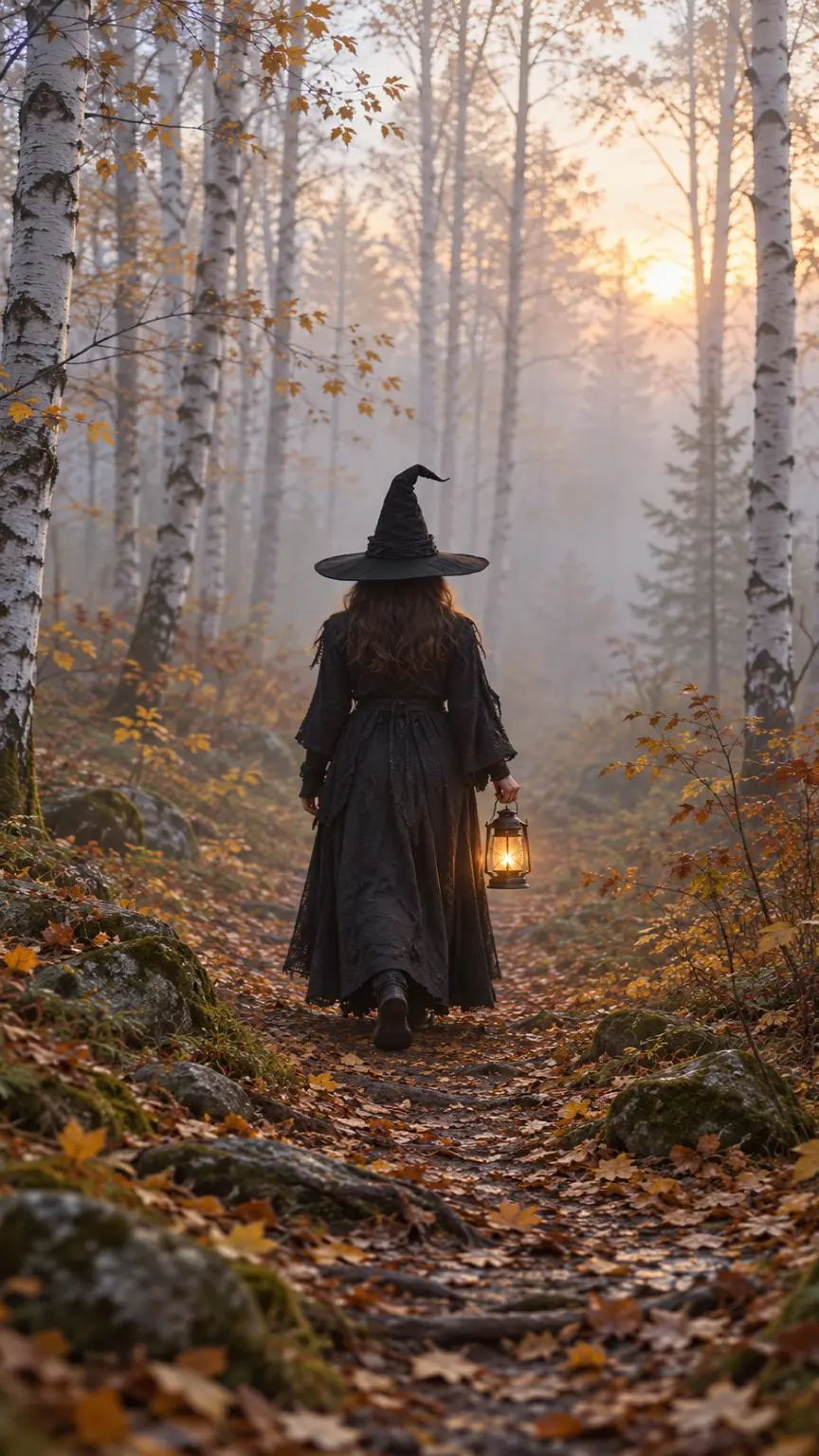
The witch is seen from behind, which keeps the costume and the mood while avoiding the face entirely.
Image prompt
Vertical 9:16 photograph of a figure dressed as a witch, seen from behind, walking away down a narrow path through a misty birch forest at dawn. Black wide-brimmed pointed hat, long dark coat that reaches the ankles, a small glowing lantern in the right hand. The figure is in the middle of the frame and takes up about a third of its height, with the path leading toward her from the bottom edge. Soft pale morning fog between the white tree trunks, gentle diffused light, muted autumn colors, realistic fabric and natural forest detail. Face not visible, no text, no logos, no other people.
Motion prompt
The witch keeps walking slowly away along the path at a calm, even pace. Her dress sways with each step and the lantern swings slightly in her hand. Fog drifts slowly between the birch trunks from right to left.
Camera
Static wide shot. The camera stays still as she walks deeper into the forest and gets smaller in the frame.
Repair line
She never turns around and her face never appears. Keep one figure, one lantern and the same pointed hat. The trees stay in place. No sudden cuts or scene changes.
What each line is designed to control:
- Motion: walking away is a natural, repeatable action, and the fog gives the whole frame slow movement without asking the trees to change.
- Camera: a fixed wide shot lets the subject create the depth by shrinking into the scene.
- Repair line: rules out the two changes nobody asked for in a walking-away shot: the subject turning toward the camera and a cut to a new scene.
Walking legs under a long dress are hard to draw frame by frame, and feet that slide or glide are the usual giveaway. A shorter clip or a slower pace gives the model fewer steps to draw, so try that before adding more words.
All 4 scenes, the settings and a blank template are in the prompt pack ZIP, with one plain-text file per scene, so you can keep the one you need open next to the video tool.
Control Camera and Subject Movement
Camera movement and subject movement are two separate dials. Subject movement changes what’s inside the frame. Camera movement changes the frame itself, which means the model has to redraw the whole picture as it slides, grows or turns. That’s why a still camera is the safest choice for a face.
These are the camera instructions worth knowing for short Halloween clips:
| Camera line | What moves | Good for | Watch for |
|---|---|---|---|
| Static camera | Only the subject, light and weather | Portraits and anything with a face | Feels like a photo unless something in the frame moves |
| Slow push-in or dolly-in | The frame moves toward the subject | Objects, reveals, the jack-o’-lantern | Background detail grows and gets redrawn |
| Slow pull-out | The frame moves away and widens | Revealing a setting | The model must invent picture beyond the original edges |
| Slow pan left or right | The frame slides sideways | Fog, forests, wide scenes | New picture has to appear at the edge it pans toward |
| Orbit or arc shot | The camera circles the subject | A single object on a plain background | The hidden side has to be invented, the riskiest move here |
| Handheld | Small, constant shake | Found-footage horror | Adds motion to every pixel, including the face |
Google’s Veo prompt guide draws one distinction worth borrowing: a dolly moves the camera toward the subject, while a zoom only changes the lens. Both make the subject bigger, but they look different on screen, so name the one you want. Either one asks the model to redraw more than a static shot does.
For the subject, the rules are short:
- One action per clip: a blink, a head tilt or a slow walk. Two actions in a few seconds tend to look rushed.
- Speed words: slowly, gently, barely and “at a calm, even pace” keep the motion small.
- Say what stays still: “the pumpkin itself does not move” is as useful as the movement you ask for.
- Give the motion somewhere safe to go: flames, fog, leaves and fabric can move a lot without changing who or what the subject is.
Then change one instruction at a time. Run the pumpkin with a static camera first, then swap only the camera line for the dolly-in. If the second clip breaks, you know exactly which line did it.
Fix Face Drift and Unwanted Motion
The face changes because a video model draws every new frame from what came before. Your photo is the only exact reference, and each frame after it is a little more of a guess. More movement near the face, a longer clip and a smaller face all push that guess further.
These are the common problems and the repair line to try for each:
- The face changes partway through: remove any motion near the face, add “keep her face, eyes and expression exactly as in the first frame” and pick a shorter clip. A larger, front-facing face in the starting image helps more than any prompt.
- The background crawls or breathes: add “the background stays completely still” and use a static camera.
- New people or objects appear: state the count, such as “exactly one person” or “keep exactly three candles”, and add “no new people”.
- The clip cuts to a new scene at the end: add “one continuous shot, no cuts, no scene changes”, or use a last-frame option if the tool has one.
- Hands melt into the face or props: keep hands still, lower them in the starting image or crop them out.
- Text or letters wobble: remove text from the starting image and add it afterward in the editing app.
- The subject turns to face the camera: say “never turns around” for any back-facing subject.
- Everything moves too fast: add “slowly” to each action, or “slow motion” for the whole clip.
Some tools have a separate negative prompt field. The Veo prompt guide advises listing the things you don’t want in that field without words like “no” or “don’t”, so “extra people, text, scene change” works better there than “no extra people”. In the main prompt box, plain “no” lines are fine.
If a clip still drifts after 2 or 3 tries, the starting image is usually the problem. Go back and simplify the photo before you write a longer prompt.
Export for Reels and Shorts
Reels and Shorts use the same vertical shape, so one export works for both. My Instagram post size guide covers the other formats if you plan to post the clip in the feed as well.
- Aspect ratio: 9:16, at 1080 x 1920 pixels.
- Length: AI tools generate clips of a few seconds, usually under 10. Both platforms accept far longer videos, so length is never the limit here.
- Safe area: keep the face and any text out of the bottom fifth of the frame, where captions and buttons sit.
- Audio: generated audio is optional. Adding licensed music from the Instagram or YouTube library inside the app is the safer route for a public post.
- AI label: YouTube asks creators to disclose realistic altered or synthetic content, and Shorts made with YouTube’s own AI tools are labeled automatically. Instagram can add an “AI info” label when it detects industry-standard AI signals in a file, and you can add the label yourself when you post.
A loop needs the end of the clip to match its start. Tools with a last-frame or end-frame option let you upload the same image as both the first and last frame, which gives the model a fixed point to return to. The candlelit portrait and the pumpkin suit a loop because nothing travels anywhere. The foggy witch doesn’t, because she ends further away than she started. When there is no last-frame option, playing the clip forward and then in reverse in an editor makes a passable loop for a flickering candle or a glowing pumpkin.
Recommended Tools for Each Step
Every Halloween AI video prompt above works in any tool that animates an uploaded image, but each step has a tool that fits it best. These picks come from what each tool documents today and where it is available, India included. Each card has one default and the alternatives worth knowing.
Starting Image
Default: ChatGPT is where I’d make the starting frame. Its images carry no visible watermark, so there’s no mark in the corner for the video model to animate along with the scene, and image generation works on the free plan. The 4 starting frames above came from OpenAI’s image model. If an image comes back in a 2:3 portrait shape, crop it to 9:16 before you upload it, so the video tool doesn’t crop it for you.
Alternatives:
- Gemini: Nano Banana 2 sits in the same app as Gemini’s video tool, so you can make the frame and animate it in one chat. In India the visible watermark can only be switched off on the Ultra plan, and a visible mark gets animated with everything else.
- OpenArt: runs GPT Image 2.5, Nano Banana 2 and other image models in one place, and its Halloween generator starts from an uploaded selfie. It’s handy when you want to compare two models on the same prompt.
Image to Video
Default: the Gemini app. Choose Create video, then Add image, and paste the motion, camera and repair lines into one prompt. Its video model, Gemini Omni, keeps the shape of the image you upload, so a 9:16 frame comes back as a 9:16 clip. It needs a Google AI plan and an account holder aged 18 or over, and Google AI Plus, Google’s cheapest plan, is sold in India. Expect Gemini’s visible watermark on the video unless your plan lets you switch it off, which in India means Ultra.
Alternatives:
- YouTube Shorts photo to video: free in the YouTube app in most countries. You can pick a suggested prompt or write your own, and the Short is labeled as AI for you. It isn’t available in the EEA, the UK or Switzerland, it needs the app language set to English, and the clip is made inside Shorts, so it suits Shorts more than Reels.
- Adobe Firefly: the best fit for camera control. Its image-to-video settings include a Portrait 9:16 option, first and last frames for loops, and motion presets such as zoom in, pan, tilt, static and handheld, so you can set the move from the menu and drop the camera line. Video generation uses Adobe’s generative credits.
- Runway: runs its own image-to-video models with a 9:16 option, and the free plan comes with one-time credits to test a scene before you pay.
- Kling AI: start and end frame controls help with loops, and Kling is also available inside Firefly as a partner model.
- Meta AI app: free where the app is available. Upload the image and start the prompt with “Animate”.
- OpenArt: offers Veo 3.1 and Gemini Omni on its own credits, which suits you if you would rather not take a Google plan.
Older Halloween guides that send you to Sora are out of date. OpenAI shut down the Sora app and website on April 26, 2026.
Editing and Export
Default: Edits, Instagram’s free video editor for iPhone and Android. It generates captions automatically, including bilingual captions in 15 languages such as Hindi, Bengali, Gujarati and Kannada, and it exports with no watermark, so the same file can go to YouTube Shorts as well as Reels.
Alternatives:
For a wider look at the bigger video generators, my list of the best AI video generators goes deeper on each one.
FAQs on Halloween AI Videos
Yes. Upload the photo to an image-to-video tool such as the Gemini app, YouTube Shorts photo to video, Adobe Firefly, Runway or Kling AI, then describe the motion, the camera and what must stay the same. A vertical 9:16 photo with one clear subject is the easiest place to start.
The model draws each new frame from the frames before it, so the face gets a little less exact the further the clip runs from your photo. Keep motion away from the face, use a static camera, pick a short clip and add a line asking to keep the face exactly as in the first frame.
Yes. Use a costume that hides the face, like a bedsheet ghost, a subject seen from behind or an object such as a jack-o’-lantern. You can also generate a fictional starting image from a text prompt and animate that.
Use the same image as the first and last frame in a tool that supports a last frame, keep the camera static and choose a scene where nothing travels, such as candles or a glowing pumpkin. Without a last-frame option, play the clip forward and then in reverse in an editor.
YouTube Shorts photo to video is free in the YouTube app in most countries, and the Meta AI app can animate an uploaded photo where it is available. Runway gives new accounts a one-time pack of free credits. The Gemini app needs a Google AI plan.
No. OpenAI discontinued the Sora app and website on April 26, 2026, so prompts written for Sora need to go into another image-to-video tool.
Start with the candlelit portrait or the pumpkin. Both keep the motion in the light, and both will tell you within one render whether your starting image is good enough before you try the walking witch.
Tell Google you want more of this.
Add Gaurav Tiwari as a preferred sourceOne tap, and this site shows up more often in your own Top Stories, AI Overviews and AI Mode. Remove it any time.
Disclaimer: This site is reader-supported. If you buy through some links, I may earn a small commission at no extra cost to you. I only recommend tools I trust and would use myself. Your support helps keep gauravtiwari.org free and focused on real-world advice. Thanks. - Gaurav Tiwari