
 by
by
The best Instagram post size for a tall feed photo is 1080 by 1440 pixels at 3:4, and that’s where I’d start. Instagram supports that shape, and 1080 by 1350 at 4:5 is another useful choice. For Stories or full-height Reels, a 1080 by 1920 canvas gives you a starting point; check the interface overlays and thumbnail crop before publishing.
The confusing part is that the upload, the feed and the profile thumbnail may show different portions of the same image. A file can have the right dimensions and still put its title or a face outside the visible preview.
What Is the Best Instagram Post Size?
I’d choose the size around the composition and the tool you’ll use to publish it. A tall photo can work well at 1080 by 1440; a 1080 by 1350 design may fit your material or publishing workflow better. Both are useful options.
These are practical working canvases, with the important qualifications beside them:
| Use | Working Size | What to Check |
|---|---|---|
| Tall feed photo | 1080 × 1440, 3:4 | Native photo support includes this ratio. Confirm support in a third-party publishing tool. |
| Alternative portrait | 1080 × 1350, 4:5 | Useful when the composition or publishing workflow suits it. |
| Square photo | 1080 × 1080, 1:1 | Still supported; a portrait thumbnail can crop the sides. |
| Landscape photo | 1080 × 566, about 1.91:1 | Keep the wide composition when it matters, then inspect the thumbnail. |
| Carousel | One consistent canvas across the set | Choose the shared orientation and inspect every crop. |
| Story or vertical Reel | 1080 × 1920, 9:16 | A useful full-height design canvas, not a guarantee about every display. |
| Reel cover | Use the cover picker and preview | Instagram help recommends 420 × 654 for the cover; that is separate from the video canvas. |
| Profile or Highlight image | Square source with a centered subject | A 1080 × 1080 source is a design choice, not a claim about the stored thumbnail resolution. |
Aspect ratio describes the shape; pixel dimensions describe the amount of image data. A 2160 by 2880 file and a 1080 by 1440 file are both 3:4. Reducing one to the other changes its resolution while keeping its proportions.
Instagram Feed Post Sizes
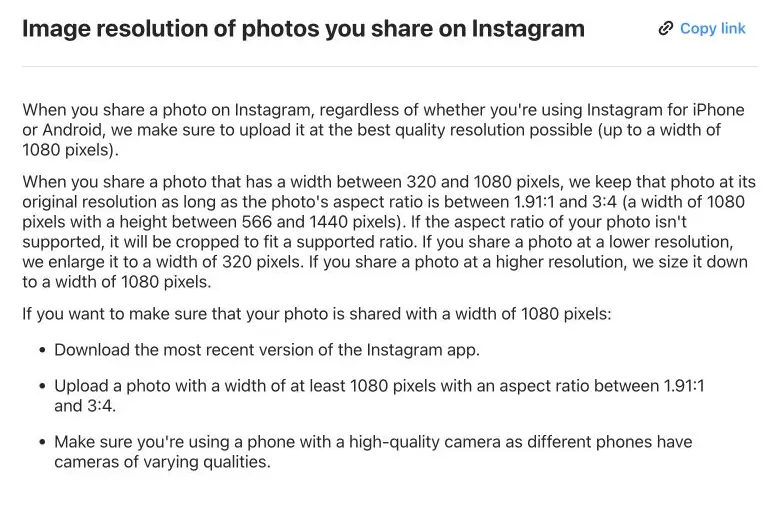
Instagram‘s current photo help page gives a supported range from 1.91:1 through 3:4. It describes retaining a supported photo’s original resolution between 320 and 1080 pixels wide, with larger images sized down and smaller ones enlarged.
Portrait Photos: 3:4 and 4:5
Both portrait shapes work within that range. Choose by composition, then check the tool you will use to publish.
- 1080 × 1440 at 3:4: keeps a taller portrait composition.
- 1080 × 1350 at 4:5: trims 90 pixels of height from a same-width 3:4 canvas if you crop it rather than add space.
- Publishing tools: Meta’s publishing API, which most schedulers use, still lists images from 4:5 to 1.91:1, so a scheduler may reject or crop a 3:4 photo that the app accepts. Read the tool’s current requirements and inspect its preview before committing to a template.
Do not stretch a 3:4 image into 4:5 by changing width and height independently. Crop deliberately, or place the full image on a new canvas if preserving all of it matters.
Square Photos
1080 by 1080 is still a valid photo size. It can suit a centered product, an album sleeve or a design that needs equal width and height. A portrait thumbnail may show less of the sides, which is a preview problem to check rather than proof that square uploads are obsolete.
Landscape Photos
1080 by 566 is a practical integer size near the widest documented photo ratio. A landscape, group photograph or wide scene may need that composition. Cropping it into a tall frame merely to fill more screen space can remove the point of the photo.
If the profile preview loses the subject, check its available preview controls or create a separate composition. A caption cannot restore pixels that the image crop removed, and a later carousel slide still shares the carousel’s selected orientation.
Instagram Grid Size and Preview Crops
I’d check the profile thumbnail separately from the full post. A 3:4 portrait preview is a useful case to plan for, but use the frame and controls your account shows. The examples below assume a centered fill crop, where the image fills the frame and the excess is hidden.
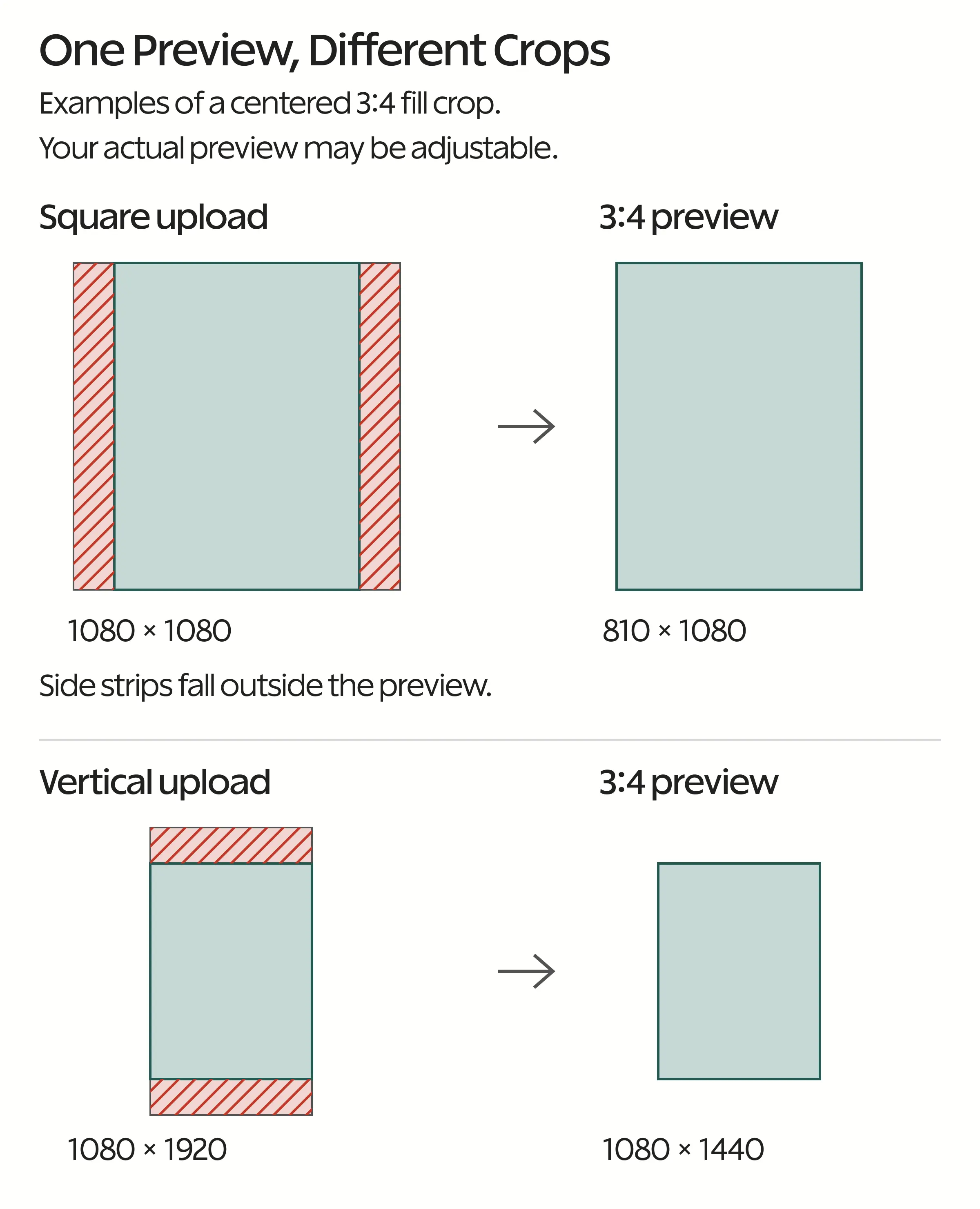
| Source at 1080 px Wide | What a Centered 3:4 Fill Crop Keeps | Where the Trim Falls |
|---|---|---|
| 1080 × 1080 square | 810 × 1080; 75% of the width | 135 px from each side. |
| 1080 × 1350 portrait | About 1013 × 1350; 93.75% of the width | About 34 px from each side. |
| 1080 × 1440 portrait | The full 3:4 shape | No trim under this model. |
| 1080 × 566 landscape | About 425 × 566; 39.3% of the width | A large portion of each side. |
| 1080 × 1920 vertical | 1080 × 1440; 75% of the height | 240 px from the top and bottom. |
Those figures come from the geometry of the chosen frame. They are not measurements of every Instagram grid, and they change if the app fits the whole image, shifts the crop or uses another preview shape.
Check or Adjust the Preview
If your post menu offers Adjust preview, use it to inspect the thumbnail composition. Availability and labels can differ, so follow the controls visible in your app.
- Open the relevant post or its profile-grid menu.
- Look for the preview adjustment control, then inspect any fit, fill or positioning options it offers.
- Place the important subject comfortably inside the visible frame.
- Review the thumbnail alongside the full post before saving an intentional adjustment.
A preview adjustment concerns how the thumbnail is framed. It should not be confused with editing the original image. Keep your source file so a deliberate new export remains possible if the available preview controls cannot give you the composition you need.
Instagram Story Size
I’d start an ordinary Story at 1080 by 1920 in a 9:16 layout, then leave space for the account information, controls and any stickers you add.
- Keep important text away from the account name, progress indicator and bottom interaction controls.
- Leave space for the stickers, captions and links you add to the Story itself.
- Check the preview with those elements in place. A clean image in your design tool does not show the overlays.
- Keep the full-resolution source; a lower-quality export cannot recover detail by being enlarged later.
There is no fixed strip of pixels that I can promise will stay visible on every phone and every version of the interface. A comfortable margin and the actual preview are more useful than positioning a title exactly against a supposed universal boundary.
Instagram Reel Size and Cover Size
For a full-height Reel, start with a 1080 by 1920 video canvas at 9:16. That is a practical export recommendation within a broader accepted range, not the only shape Instagram allows. Length matters as much as shape: you can record and edit Reels up to 20 minutes, but Instagram doesn’t recommend Reels longer than 3 minutes to new audiences, so I’d keep a Reel meant for discovery at 3 minutes or less.
Reel Upload Requirements
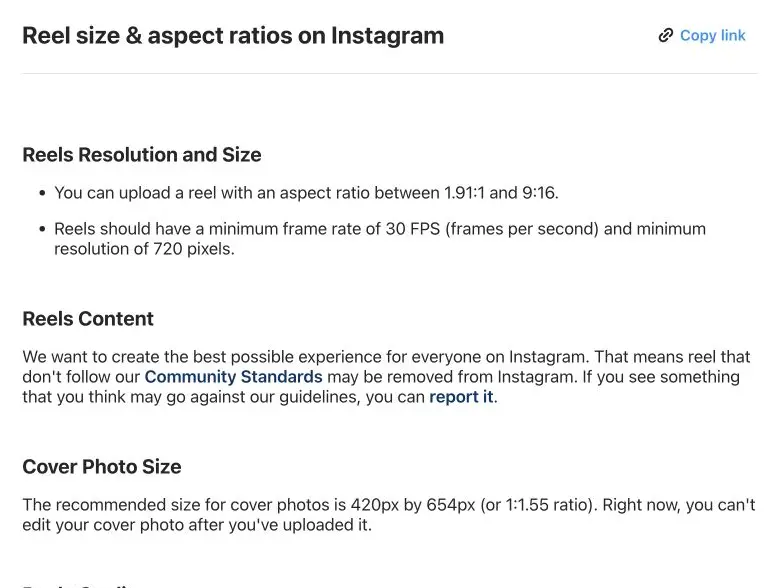
- Aspect ratio: Instagram documents a range from 1.91:1 through 9:16.
- Frame rate: its help page specifies at least 30 frames per second.
- Resolution: the documented minimum is 720 pixels.
- On-screen material: keep captions and key details away from the button rail and other overlays, then inspect the result in the relevant preview.
Horizontal footage can remain horizontal when the scene needs it. A vertical crop is useful only if it preserves the subject and movement. Compare the composition before discarding the rest of the frame.
Reel Covers
Instagram’s Reel help page currently recommends 420 by 654 pixels, approximately 1:1.55, for cover photos and lists PNG or JPG as cover formats. That differs from the 1080 by 1920 full-height master many people use while designing.
Keep a larger editable portrait master, then inspect the actual cover picker and profile preview before publication. A video frame, a separate cover image and the profile thumbnail can have different framing requirements. Do not assume that the top and bottom of every cover will always be cropped by an identical amount.
Upload Quality
Instagram documents an Upload at highest quality option under Media quality. In the app, open your profile menu, look under Your app and media and review that setting if it is available. Higher-quality uploads may take longer.
Keep the camera or editing master. A 1080-pixel-wide working export can be convenient, but a 4K master is not inherently worse, and no one export setting can guarantee that Instagram will preserve every pixel unchanged.
Instagram Carousel Size
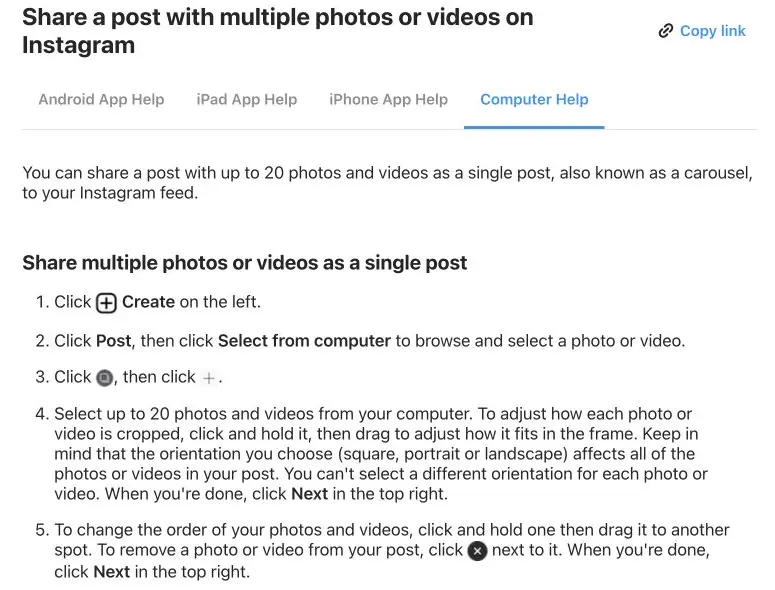
Use a consistent canvas across the carousel and choose its orientation in the composer. Instagram’s current instructions say that the selected orientation applies to all the photos and videos; they also explain that you can adjust how each item fits within that frame.
- Build the slides from a common template, such as 1080 × 1440 or 1080 × 1350.
- Select the carousel orientation and review each item in the upload preview.
- Reposition an item if the composer allows it, or return to the source design when a crop loses essential content.
- Check the final slide as carefully as the opening one, especially when it contains a next step or an offer.
The native instructions currently allow up to 20 photos or videos. An integration may expose different limits, and Meta’s publishing API, which most schedulers use, caps a carousel at 10 items, so a 20-slide carousel has to be posted from the app. Instagram also distinguishes videos inside a carousel from standalone Reels; the same file does not necessarily get the same presentation or features.
Profile Picture and Highlight Cover Sizes
For a profile or Highlight image, I’d keep a square master with the face or mark centered. A 1080 by 1080 file is one practical design choice. Check the small displayed thumbnail, because that working size does not establish the resolution Instagram stores or displays everywhere.
- For a circular thumbnail, keep the important shape away from the square’s corners.
- Check the small displayed image, not only the large design canvas. Fine text and detailed logos can become unreadable.
- For a Highlight cover, check the cover selector and the thumbnail shape the current interface shows. A vertical Story master can be reused, but it is not a universal required cover size.
A simple, centered symbol often survives a small thumbnail better than a full poster. The preview tells you whether the design works at that size.
Organic Posts and Instagram Ads
An ordinary post and an advertisement can use different recommendations and restrictions. If you are preparing an ad, choose the placement in Meta Ads Manager and inspect that placement’s specifications and preview.
For example, Meta’s current Instagram Stories video-ad guide lists:
- Recommended canvas: 1440 × 2560 at 9:16.
- Suggested clearance: roughly 14% at the top, 35% at the bottom and 6% on each side for key text, logos and other elements.
- File guidance: MP4, MOV or GIF, with video settings described for that ad placement.
- Separate technical limits: its file-size and duration rules belong to the ad specification, not to every organic Story, Reel or scheduler.
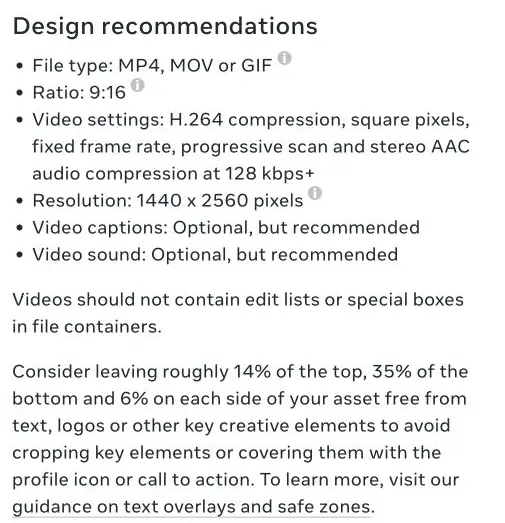
The margins help you plan around overlays and possible cropping. They do not guarantee that every screen, caption or call to action leaves the same area visible. Keep key elements comfortably inside the usable area and check the actual creative preview.
How to Resize an Image for Instagram
Resizing changes the pixel dimensions. Cropping changes which part of the image remains. Choosing the right operation prevents a common mistake: stretching the photograph to make two numbers match a template.
For reusable designs, Canva offers custom-size designs and export controls. For the resize example below, Photopea provides the needed controls in a browser. Check the current plan requirements for any paid resizing feature; the Canva alternatives I have compared give you other options.
Choose the Shape Before Resizing
Keep the original file and work on a copy. Decide whether the image already has the ratio you need. If it does not, crop the composition first or place the full image on a differently shaped canvas.
- Image Size: scales the image and its pixels. Keep its proportions linked when you want the same shape.
- Crop Tool: selects the part of the image you want to retain.
- Canvas Size: changes the document boundary without proportionally resizing the content. A smaller canvas can trim content; a larger one adds space.
For example, forcing a 3:4 photo into 4:5 with independent width and height values distorts the subject. A deliberate crop or an added border preserves its proportions.
Resize Proportionally in Photopea
A 2160 by 2880 document is already 3:4. To prepare a 1080 by 1440 version, halve its width with the aspect ratio linked.
- Open the image in Photopea and choose Image → Image Size.
- Use Pixels as the unit and keep Keep Aspect Ratio enabled.
- Set the width to 1080. A 2160 × 2880 source should now show a height of 1440.
- Check the dimensions and resampling option, then choose OK.
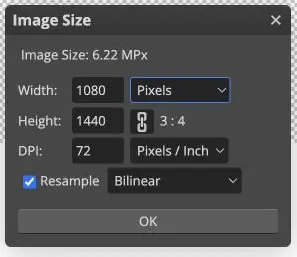
For a 4:5 source, the corresponding 1080-pixel-wide result is 1350 pixels tall. Changing print DPI alone is not a substitute for checking those pixel dimensions, and enlarging a small source does not recreate missing detail.
Export and Check the File
Open File → Export as and choose a format that suits the content. JPG is a common choice for photographs; PNG can be useful for text and flat graphics. Either can still be processed again by Instagram.
- Check the width and height in the export dialog instead of assuming the document settings carried through.
- Choose a quality setting by inspecting the exported result. The example shows 85%, which is a starting choice rather than an Instagram requirement.
- Save the export as a separate file and retain the editable master.
- Open the exported file, then inspect the intended upload and thumbnail previews before publishing.
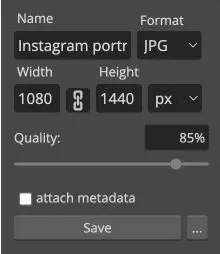
Check fine text, edges and gradients at the size someone will actually see. Use a consistent color workflow, such as sRGB when appropriate, but do not assume that a profile setting guarantees identical color across every device. Extra sharpening and repeated JPEG exports can introduce artifacts rather than fix them.
Reusing the Image Elsewhere
Keep the editable master and create exports for the destinations you need. Another platform’s feed may accept the same shape while its banner, cover or thumbnail needs a different composition.
Reusing the editable source gives you room to make a separate crop or layout for each destination. Check the required dimensions and preview before exporting.
The Limits
These dimensions help you prepare a sensible file. They cannot guarantee that every upload route, recommendation surface or device will show it identically.
- Native app support and a third-party publishing integration can differ. Check the route you use.
- A profile preview can crop or fit an image differently from the full post. Treat crop diagrams as models under stated assumptions.
- Safe-zone guidance belongs to a particular placement and interface. Extra margin reduces risk, but no line guarantees visibility everywhere.
- An export cannot recover detail lost in a small or heavily compressed source. Keep the original master.
What Quietly Ruins It
Using a template name as the specification. An old preset can still be labeled Instagram even when it creates a different shape from the one you intend. Check the actual width, height and ratio.
Unlocking proportions to force a size. The dimensions look correct while the face, product or illustration becomes stretched. Crop or add space when the shape needs to change.
Checking only the first carousel slide. Shared dimensions do not guarantee that every title and subject sits safely inside the selected frame. Review the whole set.
Putting text against the edge of a Reel or Story. The design file does not show every caption, button or sticker. Leave room and inspect the composition with those elements present.
Discarding the original after exporting. A compressed delivery file gives you less freedom for a later crop or a different placement. The editable master is the file worth keeping.
FAQs on Instagram Post Sizes
These distinctions help when a file uploads successfully but does not look the same in every part of the app.
What size is an Instagram post?
For a tall feed photo, 1080 by 1440 pixels at 3:4 is supported by Instagram’s photo guidance. 1080 by 1350 at 4:5, 1080 by 1080 square and about 1080 by 566 landscape are other useful canvases. Choose the composition and publishing route before treating one size as the default for everything.
Is 1080 by 1080 still okay for Instagram?
Yes. A square photo is still supported. A portrait profile preview may crop its sides, so check the actual thumbnail and any available preview-adjustment controls. A preview crop does not make the square source invalid.
What is the Instagram story size?
1080 by 1920 pixels at 9:16 is a useful working canvas for an ordinary Story. Keep key details away from overlays and check the actual preview. Ads have placement-specific specifications and should be checked separately.
What size is an Instagram Reel?
A 1080 by 1920 canvas at 9:16 is a practical choice for a full-height Reel. Instagram’s help accepts ratios from 1.91:1 to 9:16 and specifies at least 30 FPS and a minimum resolution of 720 pixels. Those are upload requirements, not a guarantee about every preview.
What is the Instagram profile picture size?
Start from a square source with a centered face or logo; 1080 by 1080 is one useful design size. Check how the small thumbnail looks. Do not assume that one commonly quoted thumbnail size describes every stored or displayed version.
Why does Instagram crop my photos in the grid?
A thumbnail frame can have a different shape from the uploaded image. Filling that frame can hide the sides of a square or landscape image, or the top and bottom of a taller image. If the app offers Adjust preview, inspect its available fit and position controls.
Can I post 3:4 photos on Instagram without cropping?
Instagram’s native photo guidance includes 3:4 within its supported range. At 1080 pixels wide, that is 1440 pixels tall. Check the individual scheduler or publishing integration before assuming it accepts the same ratio, and inspect the upload preview.
Final Remarks
Before uploading, I’d confirm the destination, keep the proportions intact and inspect the crop with the important text or subject in view.
Use the cheat sheet when you need the working dimensions and crop checks beside your editor.
Tell Google you want more of this.
Add Gaurav Tiwari as a preferred sourceOne tap, and this site shows up more often in your own Top Stories, AI Overviews and AI Mode. Remove it any time.
Disclaimer: This site is reader-supported. If you buy through some links, I may earn a small commission at no extra cost to you. I only recommend tools I trust and would use myself. Your support helps keep gauravtiwari.org free and focused on real-world advice. Thanks. - Gaurav Tiwari