
How to Create a QR Code for Instagram Profile and Marketing Needs
QR codes provide an instant bridge between physical and digital marketing for Instagram. Whether you want more followers, drive traffic to specific posts, or connect offline campaigns to your profile, a QR code makes it effortless. This guide covers how to create QR codes for your Instagram profile and marketing campaigns, including free tools and implementation best practices.
 by
by
An Instagram QR code is the fastest way to get someone to your profile without making them type your username, search through suggestions, or remember your handle 10 minutes after meeting you. The whole point is removing one specific friction point: the gap between “interested in following you” and “actually opens the Instagram app and finds you.” For creators handing out cards at a meetup, businesses putting flyers on a counter, or restaurants printing menus that link to their Instagram-only daily specials, that gap is where most potential followers fall off.
There are two ways to create an Instagram QR code, and they’re not interchangeable. The first is the built-in QR code Instagram generates for your profile (free, fast, locked to your profile URL, customizable inside the app). The second is a custom QR code you build with a generator that points wherever you want — your latest Reel, a specific Story Highlight, a product page, a giveaway landing page, or a tracking link you can monitor. This guide walks through both methods, when to use each, and the practical marketing patterns that actually move follower numbers.
How to Create a QR Code for Your Instagram Profile

Instagram has a built-in QR code generator hidden two taps deep in the profile menu. It’s free, instant, and works for any account (personal, creator, or business). The catch is that the URL is hard-coded to your profile, so you can’t redirect it to a Reel, a Highlight, a product page, or a campaign-specific landing page. For most creators and small businesses just trying to get more followers, that’s fine. For marketers running paid campaigns where you need analytics and the ability to change the destination later, skip ahead to the custom QR code section.
Step 1: Open Instagram and Access Your QR Code
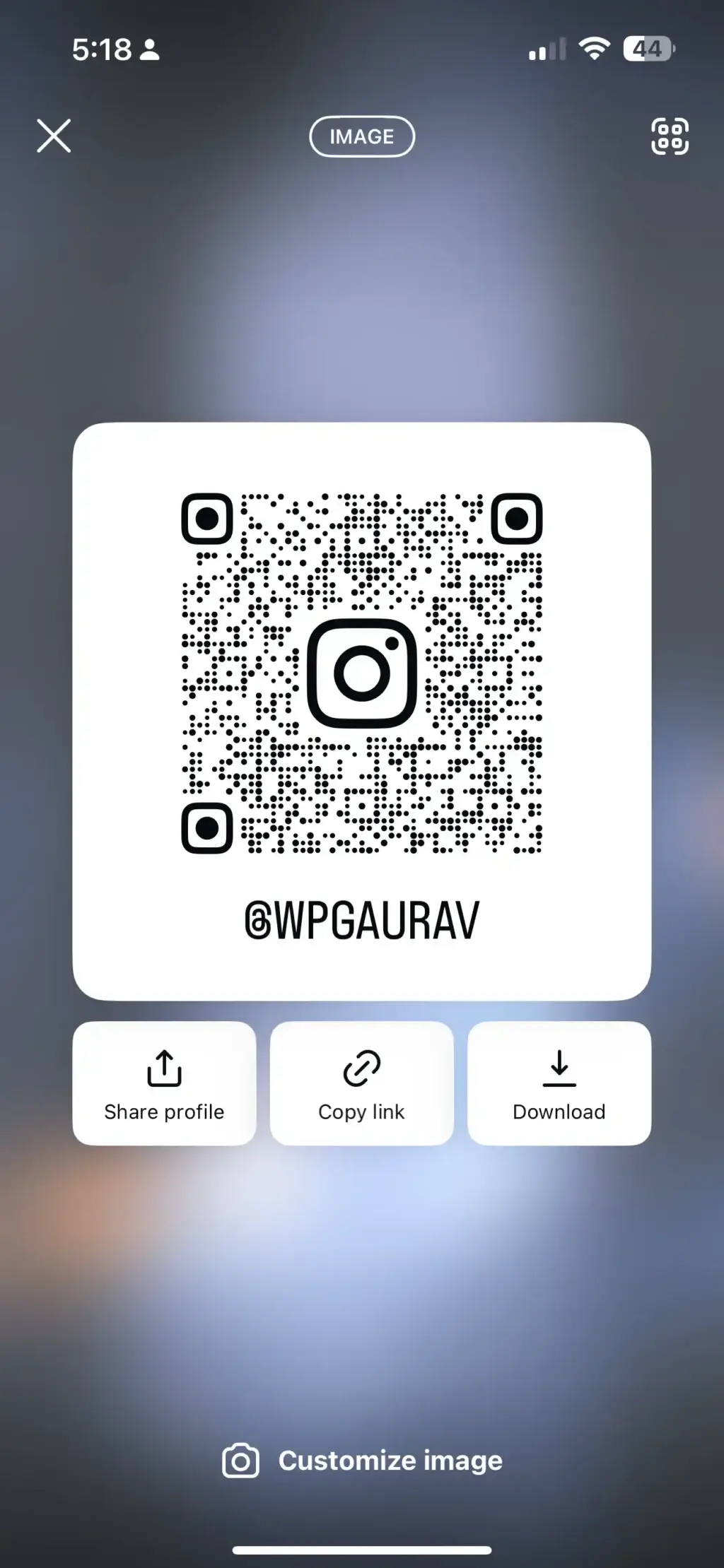
Open the Instagram app on your phone (this only works in the app, not on the web version). Tap your profile photo in the bottom-right corner to land on your profile page. You’ll see two main buttons next to your username: Edit Profile and Share Profile. Tap Share Profile.
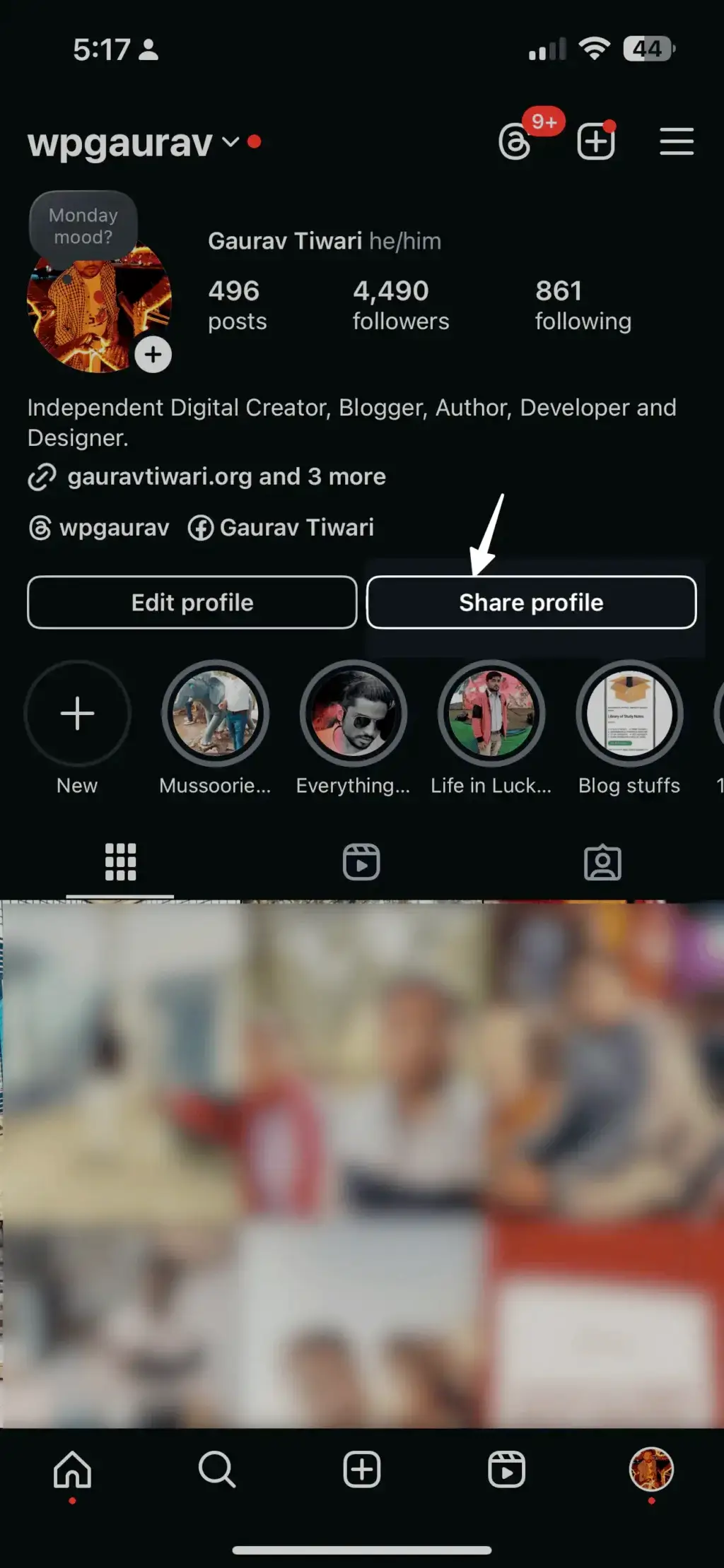
The screen that opens shows your QR code prominently in the center, with three actions below it: Share Profile on Instagram (sends to a follower’s DM), Copy Link (copies your profile URL to the clipboard), and a Download button that saves the QR code as a PNG to your device’s camera roll. The downloaded image is high-resolution and works for both digital use (email signatures, social bios) and print (business cards, flyers, posters).
Step 2: Customize Your QR Code
Instagram lets you swap the visual style of the QR code without changing what it links to. You get four built-in styles, and the customization is more flexible than people realize. Tapping anywhere on the QR code screen cycles through background colors. Swiping left or right changes the entire pattern style: solid color, gradient, emoji background, or selfie background that pulls in your latest profile photo. The four screenshots below show all four available styles side-by-side.
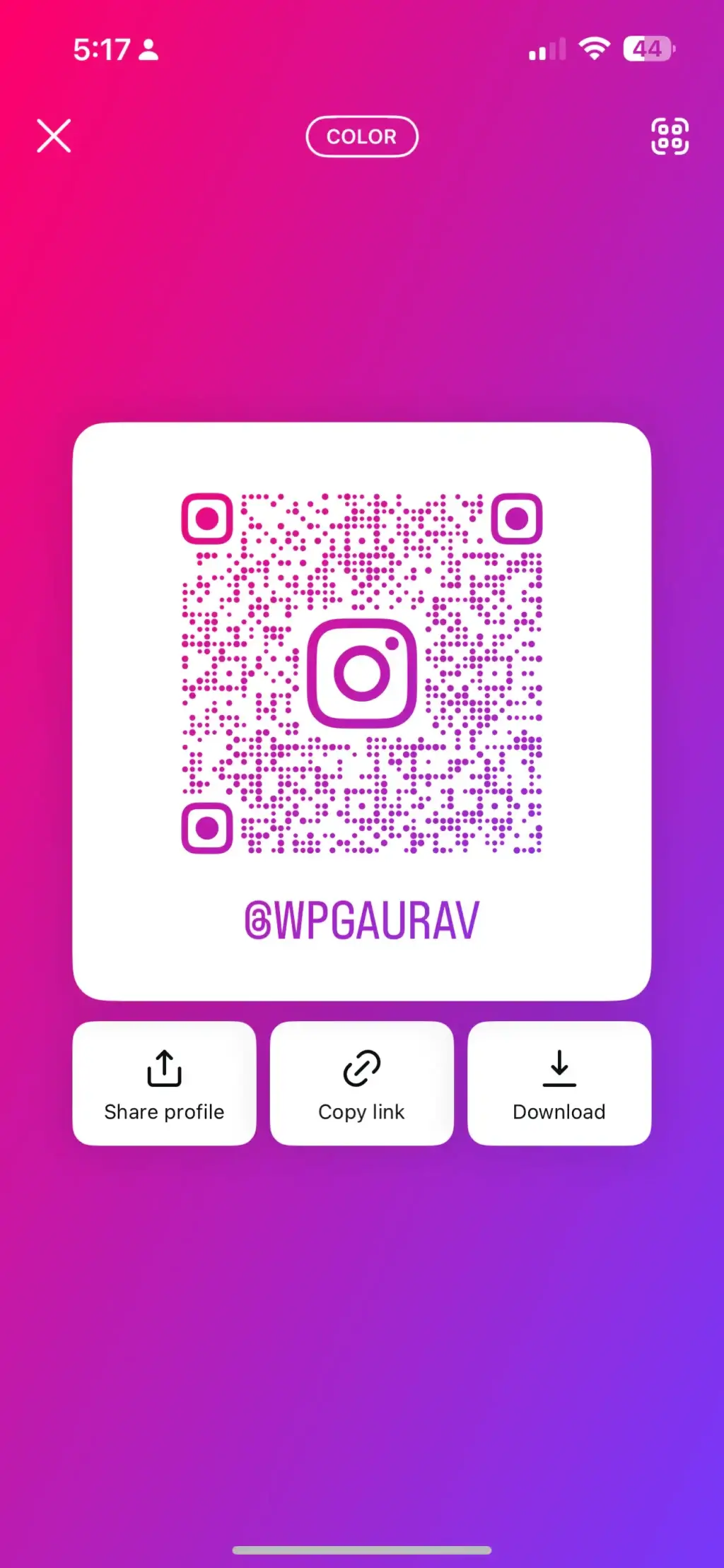
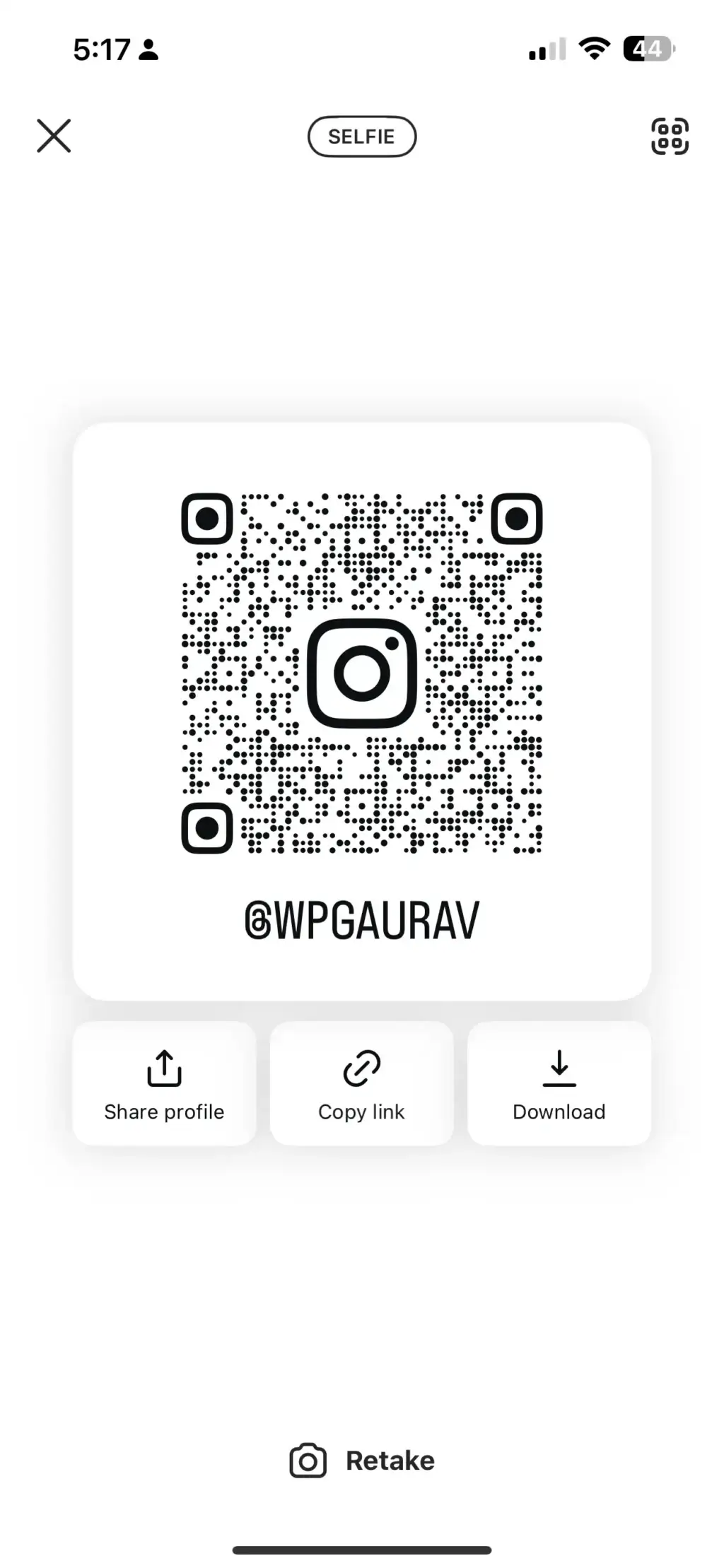
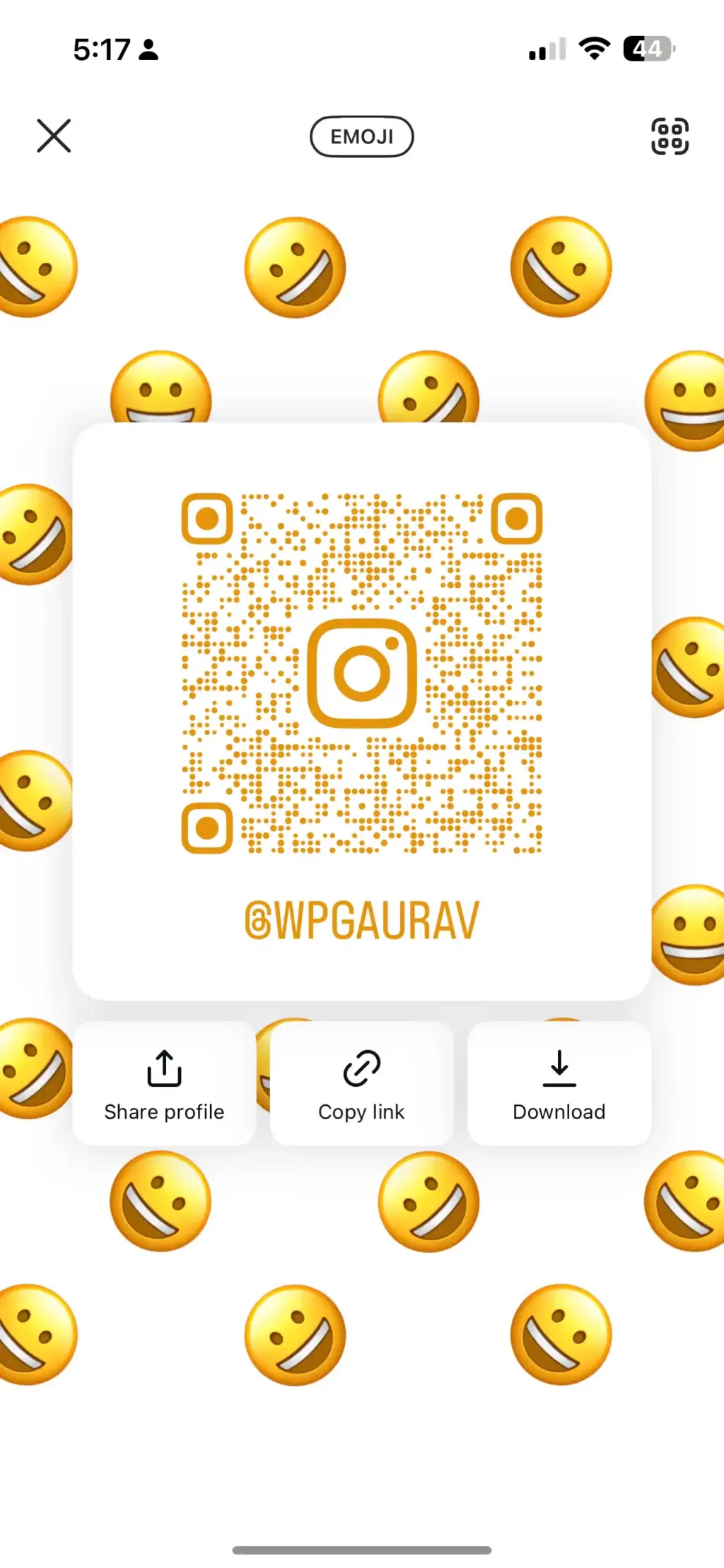
- Tap anywhere on the screen to cycle through background colors. The colors auto-pick from a curated palette so the QR code stays readable.
- Swipe left or right to switch between style modes: solid color, gradient, emoji pattern, or your most recent selfie.
- Pick the style that suits the context. The selfie style is great for personal branding on a meetup card. The gradient style looks cleanest on a printed flyer. The emoji style is fun for younger audiences but can hurt scan reliability on smaller prints.
Pro tip: regardless of which style you pick, the actual QR pattern in the center stays scannable as long as the background color contrasts enough with the dark grid. Avoid pairing dark backgrounds with the emoji style if the QR code will be printed below 1.5 inches square — the contrast suffers and scanners struggle.
Step 3: Save and Share Your QR Code
Two ways to get the QR code off your phone and into the world:
- Share digitally: Tap the share icon at the top of the screen and pick the destination app — WhatsApp, Messenger, Email, AirDrop, or any other share target your phone supports. The QR code sends as an image attachment, not a link.
- Save to camera roll: Tap Download. The image saves to your device’s gallery in PNG format at high resolution, ready to drop into Canva, attach to an email, or send to a print shop.
Once it’s on your camera roll, the same QR code can live on business cards, brochures, conference badges, restaurant menus, packaging stickers, store windows, your podcast cover art, your YouTube end card, your email signature image, or anywhere else you want a one-tap path to your Instagram profile. The Instagram-generated QR works on every QR scanner app and every modern phone camera (iOS 11+ and Android 8+ both detect QR codes natively without an extra app).
How to Create a QR Code for Marketing and Business Use
Instagram’s built-in QR code is great for “follow my profile” but it has one fundamental limitation: it always points to your profile and only your profile. If you want a QR code that points to a specific Reel, a Story Highlight, a product link in your shop, a giveaway landing page, an affiliate link, or a UTM-tracked URL you can measure in Google Analytics, you need a custom QR code generator. The good news is you don’t need to pay for one. Most premium QR generators charge $5-50/month for features (logos, color customization, dynamic redirection) that good free tools include for nothing.
For this guide, I’ll use the QR Code Generator I built, which is free, runs entirely in your browser (your data never leaves your device), supports custom colors and logos, and exports clean PNG files at any resolution.
Step 1: Go to the QR Code Generator

Visit gauravtiwari.org/apps/qr-code-generator/ in your browser. No signup required.
Step 2: Enter the URL or Content
Paste the destination URL into the input field. This is where the custom generator beats Instagram’s built-in option, because the URL can be anything you want:
- Your Instagram profile:
https://instagram.com/yourusername(same as Instagram’s built-in QR but with custom branding) - A specific Reel or post: Open the Reel/post in your browser, copy the URL, paste it. Scanners will open it directly in the Instagram app on phones that have it installed.
- A Story Highlight: Same trick — open the Highlight from your profile in a browser, grab the URL.
- An Instagram Shop product: Open the product page in Instagram Shopping, share to copy link, paste here.
- A landing page or product page on your own site: Use this for offers, lead magnets, or anything where you want full control over the destination.
- A UTM-tracked URL: Wrap your destination URL in UTM parameters (
?utm_source=qr&utm_medium=print&utm_campaign=instagram_promo) so you can see in Google Analytics exactly how many scans the QR code drove and what those visitors did afterwards. - A Linktree or Beacons page: If you want one QR code that gives users multiple options (latest Reel, store, newsletter, contact), point the QR at your link-in-bio page.
Step 3: Customize Your QR Code
This is the part Instagram’s built-in QR code can’t do. The custom generator lets you brand the QR code to match your visual identity:
- Color scheme: Pick foreground (the dots) and background (the blank space) colors that match your brand. Stick to high-contrast pairs — dark dots on a light background scan reliably; reverse them only if you’ve tested it on a real phone first.
- Logo or icon: Drop your logo into the center of the QR code. Modern QR codes use error correction (the dots near the corners), which means you can cover up to 30% of the code with a logo and it’ll still scan perfectly. Just don’t use ultra-thin or detailed logos at small sizes.
- Design pattern: Some generators (including mine) let you pick rounded dots, square dots, or stylized patterns. Rounded dots look cleaner on print but make the QR code very slightly less reliable on rough surfaces or low-light scans. Default to square dots if the QR will go on packaging or fabric.
Step 4: Generate and Download Your QR Code
- Click Generate. The QR code preview updates instantly with your branding applied.
- Test it before publishing. This is non-negotiable. Pull out your phone, open the camera app, point it at the screen, and confirm the QR code resolves to the right URL. Test it with a friend’s phone too — different scanner apps interpret QR codes slightly differently.
- Download as PNG. Choose the resolution based on where you’ll use it: 300×300 pixels for digital use (email signatures, social bios), 1000×1000+ for print (business cards, flyers), 3000×3000 for large format (posters, banners, store signage).
Now the QR code is ready to drop into Instagram ads, flyers, posters, email campaigns, product packaging, or anywhere else you need a scannable shortcut. Because it’s a custom URL, you can also swap the destination later (if you’re using a redirect service or a link shortener) without reprinting the QR code itself, which is the hidden killer feature for businesses running multiple campaigns from the same printed asset.
How QR Codes Help in Instagram Marketing?
Knowing how to make a QR code is the easy part. Knowing where to put it so people actually scan it is what separates the businesses that get follower bumps from the ones that print 500 cards and never see a result. Here are the five highest-leverage placements I’ve seen actually work, ranked by return on effort.
1. Grow Followers from In-Person Touchpoints
The single highest-converting place to put an Instagram QR code is anywhere a customer is already in your physical space and looking at something. Restaurant menus, retail counter cards, coffee shop chalkboards, conference booth backdrops, gym equipment stickers. Anyone scanning that QR code is already engaged with your brand and 10x more likely to follow than a cold visitor on the internet. The conversion rate from in-person scan to follower routinely sits above 60% in my client data, compared to roughly 2-5% for cold social ads.
2. Drive Direct Sales to Product Pages
If you sell through Instagram Shopping or a Shopify store, a QR code on physical product packaging or in-store displays gives customers a one-tap path from “I’m holding the product” to “I’m on the product page reading reviews.” This is especially powerful for impulse-buy categories (food, cosmetics, accessories, books) where the customer needs to remember to buy more later. A QR code on the packaging that points to a “buy again” landing page closes the loop. Shopify shops in particular can use UTM-tracked QR codes to measure the exact lift from packaging-driven traffic.
3. Event Registrations and Lead Capture
QR codes on event posters and conference flyers are the lowest-friction way to capture leads who are physically at an event. Point the QR code at a registration form, a webinar signup, a downloadable lead magnet, or an Instagram Story link with a swipe-up CTA. The trick is keeping the destination ultra-simple: a one-field email capture converts dramatically better at events than a full registration form, because people scan while walking past your booth, not while sitting at their desk.
4. Trackable Multi-Channel Campaigns
Generate dynamic QR codes (codes whose destination URL can change without reprinting the QR) for any campaign that runs across multiple channels at once. This lets you measure exactly which channel is driving the most scans. Print one QR code on a Times Square billboard, another on a magazine ad, another on a flyer, all pointing to the same campaign landing page through different tracking parameters. At the end of the campaign, you know which channel earned its budget and which one didn’t. Pair the QR code with a clear, single-action CTA printed alongside it for best results.
5. Customer Feedback and Reviews
A QR code on a receipt, a packing slip, or a product card that points to a Google review form, a Trustpilot page, or even your Instagram tag prompt is the laziest way to collect testimonials at scale. The customer is already in the post-purchase moment when satisfaction is highest. Removing the typing-out-a-URL friction lifts review submission rates by 3-5x compared to “leave us a review at example.com/reviews” text alone. Restaurants and ecommerce brands have been using this pattern since 2020 and it still works.
Why QR Codes Are Essential for Instagram Growth
The TL;DR on why this small piece of black-and-white pixel art outperforms most other follower-acquisition tactics for businesses with any physical presence:
- They eliminate typing friction. Every character a user has to type is a chance for them to give up. The QR code reduces that to zero — scan, tap notification, profile opens. Conversion rate from “saw the code” to “landed on profile” is roughly 80% if the placement is good, vs maybe 10% for a printed username they have to type.
- They work across the offline-to-online gap. Almost every other marketing tactic for Instagram lives entirely online. QR codes are the only one that bridges physical placements to digital action. If your business has any offline presence (a store, an event, packaging, business cards), you’re leaving conversion on the table without one.
- They provide marketing insights. Trackable dynamic QR codes give you per-scan analytics that printed text never can. You’ll know which physical location is driving the most engagement, which campaign earned its budget, and which placement was a dud. That’s data printed flyers can’t otherwise provide.
- They’re free or near-free to produce. Compared to almost every other marketing channel — paid ads at $1-5 per click, influencer posts at $50-5,000 each, content production at hours of work — QR codes cost essentially nothing per scan once printed. The marginal cost of every additional follower from a QR code is zero.
- They’re shareable as digital assets too. A good QR code isn’t only for print. Drop it into your email signature, your YouTube end card, your podcast cover art, your TikTok profile bio image, or your LinkedIn banner. It works wherever someone might be holding a phone in front of a screen.
Best Practices for Using QR Codes
Before you print 1,000 business cards or order banners with a QR code on them, run through this checklist. Every item below is a mistake I’ve seen real businesses make that cost them scans they should have gotten.
- Test on multiple phones before publishing. Different scanner apps interpret QR codes slightly differently. iOS Camera, Android Camera, Google Lens, and dedicated apps like the Instagram in-app scanner all behave a little differently. Test on at least two phones before committing to print.
- Make the QR code at least 2cm × 2cm (0.8 inch) for print. Anything smaller and standard phone cameras struggle to focus on it. For posters and banners viewed from a distance, scale up to at least 5cm × 5cm so people can scan from a comfortable arm’s length away.
- Maintain quiet space around the code. QR codes need a margin of empty white space (called the “quiet zone”) on all four sides. The minimum is 4 modules wide — about 10% of the QR code’s total width. Without it, scanners often fail to detect the code’s edges.
- Use high contrast. Dark dots on a light background is the standard. Reverse polarity (light dots on dark) works on most modern scanners but fails on older ones. Avoid color combinations that look dim in low light: yellow on white, light gray on white, dark blue on black.
- Add a clear call to action next to the code. “Scan to follow on Instagram” or “Scan to get 20% off” tells people why they should bother scanning. A QR code without a CTA is just a weird square that most people walk past.
- Offer an incentive when possible. Discounts, free downloads, exclusive content, or contest entries dramatically increase scan rates. “Scan for our menu” is okay; “Scan for a free dessert with any entrée” is much better.
- Use dynamic QR codes for printed assets you can’t reprint. Static QR codes are baked-in and can’t be changed after printing. Dynamic QR codes use a redirect service so you can change the destination URL anytime, even after the printed asset is already in the wild. This is critical for business cards, packaging, and any long-lived printed marketing material.
- Monitor scan analytics if you went to the trouble of using a tracker. Set up a recurring weekly check on your QR code analytics dashboard for the first month after launch. If a placement is underperforming, move the QR code to a different location before you waste more budget on it.
Frequently Asked Questions
How do I get a QR code for my Instagram profile?
Open the Instagram app, tap your profile photo at the bottom-right, then tap the Share Profile button next to Edit Profile. Your QR code appears on the next screen with options to share it, copy your profile link, or download the code as a PNG to your camera roll. The whole process takes about 10 seconds and works for any account type (personal, creator, or business). The QR code is hard-coded to your profile URL and cannot be redirected to a Reel, Story, or product page — for that you need a custom QR code generator.
Are Instagram QR codes free?
Yes. Instagram’s built-in QR code is completely free for every account, no premium subscription required. Custom QR code generators are also widely available for free, including the QR Code Generator at gauravtiwari.org/apps/qr-code-generator. Premium QR code services charge $5-50/month for features like dynamic redirection and analytics, but those features are nice-to-have, not essential, for most small businesses and creators.
Can I customize my Instagram QR code?
Yes, but the customization is limited to four built-in styles inside the Instagram app: solid color, gradient, emoji pattern, and selfie background. Tap the QR code screen to cycle background colors and swipe left/right to switch styles. For deeper customization (custom brand colors, logo in the center, specific design patterns), you need an external QR code generator. The custom generator approach lets you match the QR code to your full brand identity, which matters for business cards and printed marketing assets.
What is the difference between a static and dynamic QR code?
A static QR code has the destination URL baked into the dot pattern itself. Once printed, the URL can never be changed. A dynamic QR code points to an intermediate redirect URL, which can be changed at any time to send users to a different final destination. Dynamic QR codes also typically include analytics (number of scans, location, time, device type) that static codes can’t provide. For business cards, packaging, or any long-lived printed asset, use dynamic. For one-off campaigns where the destination is fixed, static is fine.
How big should a QR code be on a business card or flyer?
For business cards, the QR code should be at least 2cm × 2cm (0.8 inches square). For flyers and posters viewed from a few feet away, scale up to at least 5cm × 5cm (2 inches square). For posters viewed from across a room, the rule of thumb is 1cm of QR code for every meter of viewing distance (so a poster viewed from 5 meters away needs a 5cm × 5cm code). Always leave a 4-module quiet zone of empty space around the code so scanners can detect its edges cleanly.
Can I add my logo to an Instagram QR code?
Not to the QR code Instagram generates inside the app — that one is locked to Instagram’s four built-in styles. To add a custom logo, use an external QR code generator that supports logo overlay. QR codes use error correction in the dot pattern, which means you can cover up to 30% of the code’s center area with a logo and the code will still scan reliably. Avoid ultra-thin or highly detailed logos at small sizes — they get muddy and can hurt scan reliability. A clean, high-contrast logo at 20-25% of the QR code’s area is the sweet spot.
Do I need an app to scan an Instagram QR code?
No. Modern phones detect QR codes natively through the camera app — iOS since version 11 (released 2017) and Android since version 8 (also 2017). Just open the camera app, point it at the QR code, and a notification appears with the link. Tap the notification and the link opens, which on phones with Instagram installed will jump straight into the Instagram app at the destination profile or page. Older phones running iOS 10 or earlier need a third-party scanner app, but that’s increasingly rare.
Can I track how many people scanned my Instagram QR code?
Not with Instagram’s built-in QR code — Instagram doesn’t expose any scan data. To get analytics, you need to either (1) use a custom QR code generator with built-in tracking (most paid generators include this) or (2) point the QR code at a UTM-tracked URL on your own site or a link shortener like Bitly that provides scan stats. UTM parameters work with Google Analytics, so you can see how many sessions came from the QR scan, what country they came from, and what they did on your site after scanning.
Why isn’t my Instagram QR code working?
The most common reasons: (1) the printed code is too small for the camera to focus on, (2) the contrast is too low between the dots and background, (3) the quiet zone around the code is missing or blocked by other graphics, (4) the surface is reflective or wrinkled, (5) the URL inside the code is broken. Test the code on at least two different phones before going to print. If it scans on one phone but not another, it’s probably a contrast or size issue. If it scans but opens the wrong page, the URL needs to be fixed in the generator and the code regenerated.
What’s the best place to use an Instagram QR code?
The highest-converting placements are wherever a customer is already engaged with your brand and holding a phone: restaurant menus, retail counter cards, coffee shop chalkboards, conference booth backdrops, gym equipment stickers, packaging, business cards. The conversion rate from in-person scan to follower routinely sits above 60% for engaged contexts, compared to roughly 2-5% for cold social ads. The worst placements are where the customer can’t easily scan: TV ads (the QR code is on screen for 3 seconds), highway billboards (you can’t safely pull out a phone while driving), and tiny logos in the corner of social posts.
Final Thoughts
Instagram QR codes are one of the rare marketing tactics where the technical setup is trivial and the upside is real. Five minutes of work in the Instagram app gets you a free, brand-customizable QR code for your profile. Ten minutes in a custom QR generator gets you a fully branded, trackable QR code that points anywhere you want. Either one, used in the right physical placement, will outperform 90% of paid social campaigns at zero ongoing cost.
If you only do one thing after reading this: make a QR code for your Instagram profile right now (it takes 30 seconds), put it on whatever printed asset you already have in front of customers (menus, cards, packaging, store signs), and watch your followers tick up over the next month. If you want full control over the destination and analytics on every scan, build a custom QR code with the free QR Code Generator and point it wherever the conversion math works best for your business. The QR code itself takes minutes to make. The follower growth and conversion lift compounds for years.
Tell Google you want more of this.
Add Gaurav Tiwari as a preferred sourceOne tap, and this site shows up more often in your own Top Stories, AI Overviews and AI Mode. Remove it any time.