
Google Product Feed
Google shows products from stores it knows about in free listings across Search, Shopping, Images and Lens, and in Shopping ads. To know about yours, Google Merchant Center needs a product feed: a file it fetches on a schedule with each product’s price, stock, images and identifiers. WooCommerce doesn’t make one, so most stores add a feed plugin or connect a separate service.
Google Product Feed builds that file from your catalog. It is rebuilt a few minutes after products change and once a day, it leaves out products Google doesn’t allow, and it tells you why each one is missing.
Set Up the Feed
- Open Stackless → Dashboard and turn on Google Product Feed. The first build starts within a few minutes.
- Open Stackless → Product feed and copy the feed URL. It is
/stackless-feed/google.xmlon your site, or/?stackless_feed=googlewithout pretty permalinks. - In Google Merchant Center, verify and claim your site. The Google verification field in your SEO plugin works for this.
- Go to Products → Add product source → Add products from a file, choose the option to enter a link to your file, paste the feed URL and set a daily fetch.
- Set your shipping and return policies in Merchant Center. Virtual and downloadable products are listed with free shipping to your target country.
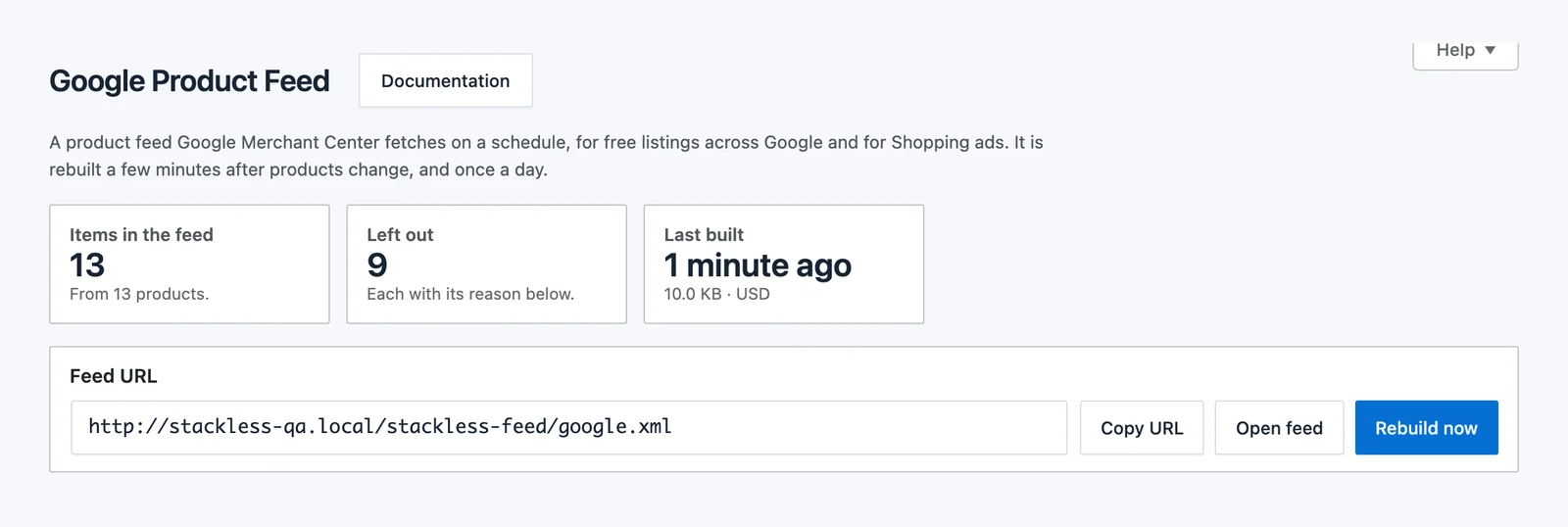
The screen shows how many items are in the feed, how many were left out and when it was last built. Use Rebuild now when you want a change in the feed straight away.
What Goes Into Each Item
Each simple product and each variation becomes one item. Variations of the same product share an item group, and each links to the product page with that variation selected. Prices are in your store currency, never a visitor’s switched currency.
| Feed attribute | Where it comes from |
|---|---|
| Title and description | The product name (with the variation’s attributes) and its short description or description |
| Images | The variation or product image, then the gallery |
| Price and sale price | The price the product page shows, with WooCommerce’s sale price and scheduled sale dates |
| Availability | In stock, out of stock or on backorder, from WooCommerce |
| Yearly subscriptions | Listed at the price of their first year, signup fee included |
| GTIN and brand | WooCommerce’s GTIN, UPC, EAN or ISBN field, and WooCommerce Brands, then the default brand setting |
| Condition | The condition setting, New by default |
| Google category and product type | Your category mapping, and the product category path |
| Shipping | Weight for physical products, free shipping to your target country for virtual and downloadable ones |
What Is Left Out
Google doesn’t allow some products. The feed leaves these out and lists each one under Left out of the feed with the reason:
- Products you exclude on the feed screen
- Drafts, private and password-protected products, and products hidden from the catalog
- External products sold on another site, and service products
- Products a signed-out visitor can’t buy, for example when Hide Price Until Login hides the price
- Products with no price or a zero price
- Subscriptions billed more often than yearly, and subscriptions with a set number of renewals. Google allows only yearly prepaid software subscriptions
- Products with no image
Ebooks stay in the feed for free listings and are kept out of Shopping ads, which don’t allow them. One-time software licenses are included, but Merchant Center may still disapprove them.
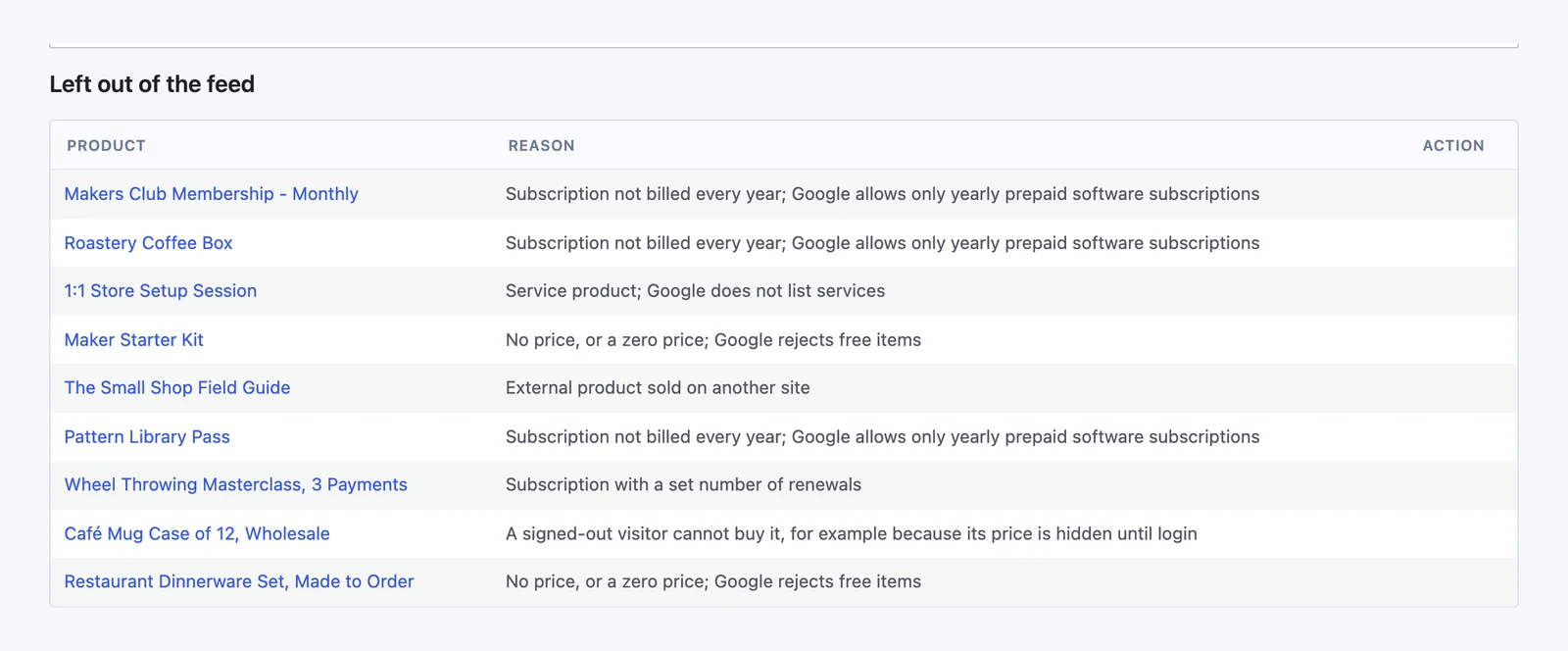
Under In the feed, click Exclude to leave a product out. It moves to the left-out list, where Include puts it back. Changes show in the feed after the next build.
Feed Settings
Go to Stackless → Settings → Google Product Feed:
- Default brand: used when a product has no brand in WooCommerce Brands.
- Condition: New, Used or Refurbished.
- Target country: the country on the free shipping line of virtual and downloadable products. It starts as your store country.
- Subscriptions: include yearly subscriptions only, or leave out all subscriptions.
- Secret key: adds a key to the feed URL, and the feed refuses requests without it. Your product pages already show this data, so most stores leave the feed public.
Google Categories
Mapping is optional. On the feed screen, enter a Google product category ID or full path from Google’s list next to each product category, then click Save categories. A category without one uses its parent’s. Tick Ebooks for a category of ebooks to keep it out of Shopping ads.
Sale Prices on the Product Page
Merchant Center checks that the feed’s price matches the product page. WooCommerce already puts the regular price next to the sale price in the product’s structured data, so a sale in the feed matches the page with nothing to set up.
Good to Know
- Updates: a burst of product edits makes one rebuild, five minutes after the first change. Large catalogs are built in batches in the background.
- No half-built feeds: the feed file is only replaced once a build finishes, so Merchant Center always gets a complete file.
- Caching: the feed tells caches they can keep it for an hour and answers repeat fetches with “not modified”. Nothing is purged when it rebuilds.
- Item IDs: each item’s ID is
wc_plus the product or variation ID. It never changes, so Merchant Center keeps each item’s history. - Other feed plugins: the module pauses while Google for WooCommerce or another product feed plugin is active, so Merchant Center doesn’t get the same products twice. The Dashboard says which plugin paused it.
- Turning the module off: the feed URL stops working. Your settings and category mapping stay saved.
For Developers
stackless_product_feed_item changes one item before it is written. It receives the item’s attributes, the product or variation, and the parent product. Return null to leave the item out:
add_filter('stackless_product_feed_item', function ($item, $product, $parent) {
    $item['custom_label_0'] = 'launch';
    return $item;
}, 10, 3);
stackless_product_feed_built runs after each build with the build summary. WP-CLI can build the feed, show its status, or print one product’s item and why it was left out:
wp stackless feed build
wp stackless feed status
wp stackless feed item 123