
Delivery and Pickup Slots
A bakery, a florist or a grocery store can’t deliver every order at the same time. Without time slots, customers write “please come after 5” in the order notes, and you end up with twenty deliveries promised for Saturday morning and two vans.
Delivery & Pickup Slots lets customers pick a delivery or pickup time at checkout. You set weekly time windows with a capacity per slot, and the plugin turns them into dated slots, books the chosen one when the order is placed, and frees it again if the order is cancelled.
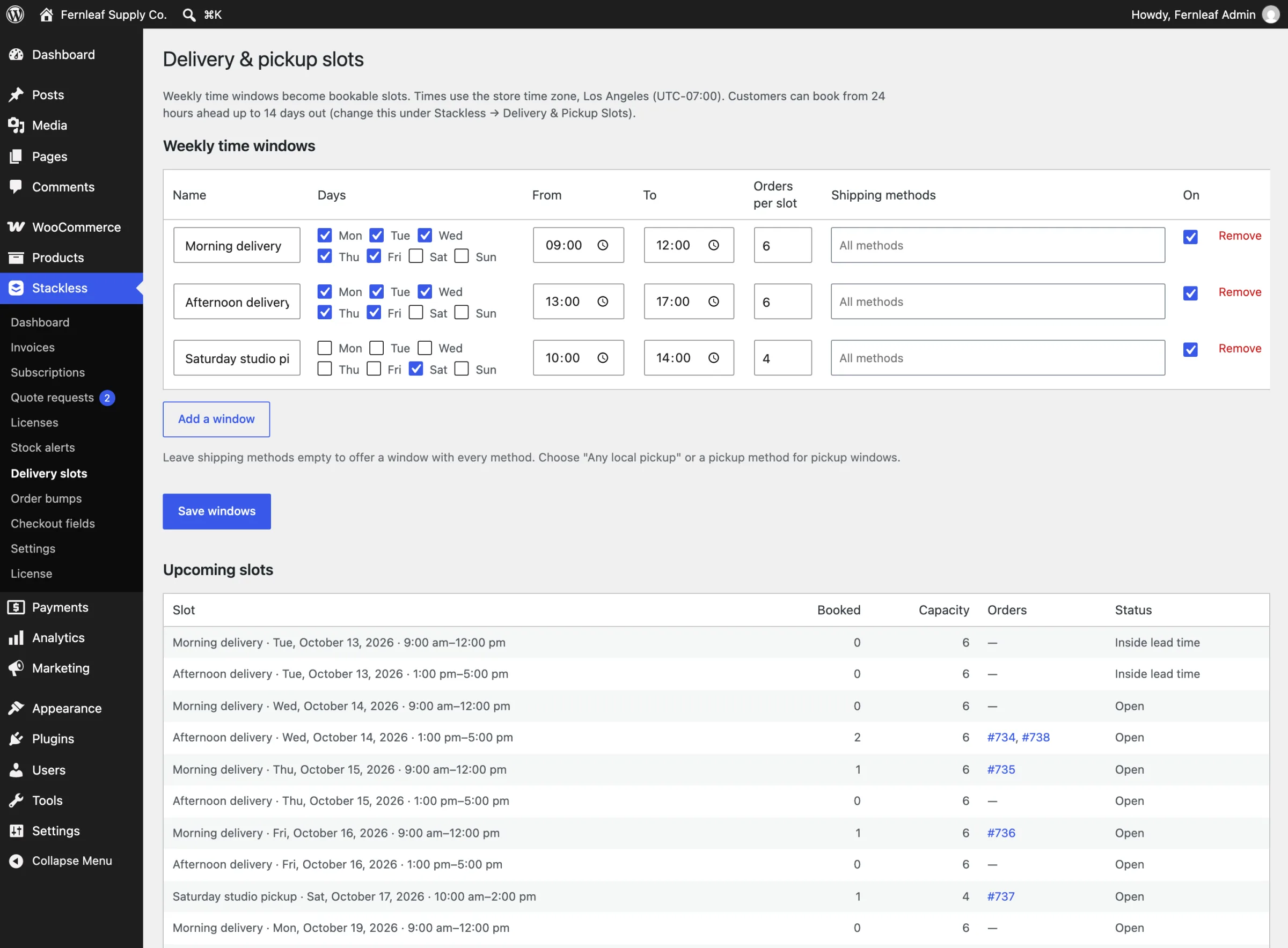
Set Your Weekly Time Windows
Go to Stackless → Delivery slots and click Add a window. Each window has:
- Name: for example “Morning delivery”. Customers see it next to the date and time.
- Days: any of Mon to Sun.
- From and To: the time range. The end must be after the start.
- Orders per slot: how many orders one slot can take.
- Shipping methods: leave it empty to offer the window with every method. Pick specific methods, or Any local pickup location (block checkout), to make a pickup window.
- On: switch a window off without deleting it.
Click Save windows. Windows without a day or with an end time before the start time aren’t saved, and you get a warning.
Below the windows, Upcoming slots lists each dated slot in the booking horizon with Booked, Capacity, the orders holding it and a status of Open, Full or Inside lead time.
Configure Booking Rules
Go to Stackless → Settings → Delivery & Pickup Slots:
- Field label: defaults to “Delivery or pickup time”.
- Required: customers must choose a time when their shipping method has slots. Off by default.
- Lead time (hours): the earliest slot starts at least this long after the order is placed. Defaults to 24.
- Booking horizon (days): how many days ahead customers can book. Defaults to 14, up to 365.
- Closed dates: one date per line as YYYY-MM-DD, in the store time zone. No slots are offered on these days.
All times use your WordPress time zone.
What Customers See at Checkout
The field appears on the block checkout and the classic checkout when the cart needs shipping and at least one window exists. It lists the open slots for the shipping method the customer picked, each with the window name, the date and the time range. Full slots aren’t offered.
The first option is No preference, or Choose a time when the field is required. A note says which time zone the times are in and that the slot is booked when the order is placed. If the chosen method has no windows, the customer sees “No times are available for this shipping method.”
How Booking Works
- The slot is booked when the order is placed, not when it’s picked. If someone takes the last place first, the customer is asked to choose another time.
- The order gets a “Delivery slot booked” note.
- The slot shows in the admin order screen under the shipping address, in order emails, on the thank-you page and in the customer’s order details.
If an order is cancelled, fails, is refunded, trashed or deleted, its place is released. If a failed order is paid later, the plugin tries to book the same slot again. When that slot has filled up or already passed, the order is marked Needs attention with a note asking you to contact the customer.
Good to Know
- Delivery & Pickup Slots pauses itself while WooCommerce Order Delivery, Order Delivery Date Pro or Order Delivery Date for WooCommerce is active.
- Unfinished bookings from abandoned checkouts are cleaned up during WooCommerce’s regular session cleanup.