
The Stackless Dashboard, Modules and Settings
Thirty modules is a lot to look at on day one, and most stores need a handful. The risk is switching on things you don’t use and ending up with extra buttons, emails and checkout fields you never asked for.
The Stackless dashboard is built around that. Every module is a card with an on/off switch, nothing is on until you turn it on (apart from License & Updates), and a switched-off module loads no code at all. Settings live on one screen, grouped the same way as the dashboard.
Find the Stackless Menu
Stackless adds a top-level Stackless menu to your WordPress admin. It holds:
- Dashboard: the module cards and switches
- Settings: settings for every module you’ve switched on
- License: your Stackless license and updates
Modules with their own screens add them to the same menu when you switch them on: Subscriptions, Invoices, Quote requests, Licenses, Order bumps, Stock alerts, Delivery slots and Checkout fields. Quote requests shows a count of new requests next to its name.
Every Stackless screen needs the manage_woocommerce capability, so shop managers and administrators can use them. Activating the plugin license is the one exception, and that needs an administrator.
Turn Modules On and Off
Open Stackless → Dashboard. Modules are grouped into sections:
- Subscriptions
- Payments
- Checkout
- Sales & invoices
- Currency
- Access & licensing
- Catalog
- Store tools
- Admin
Each card shows the module’s name, a short description and a switch. Click the switch and the change saves straight away, with no Save button. The counter at the top updates to show how many modules are on, such as “5 of 30 on”. If saving fails, the switch flips back and you see “Could not save. Reload and try again.”
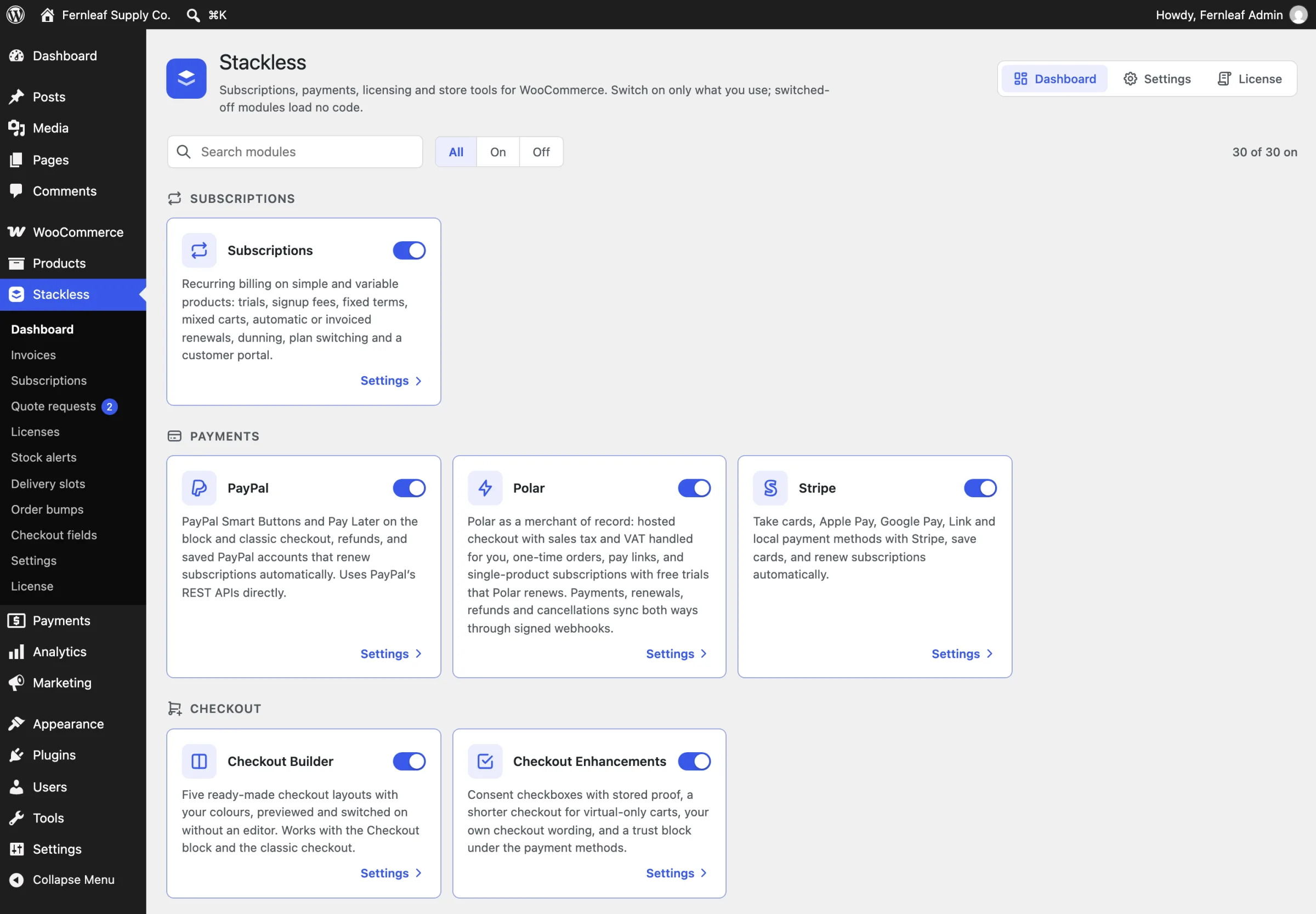
Once a module is on and has settings, a Settings link appears at the bottom of its card. Every card also has a Docs link to that module’s lesson in this course, so you can read how a module works before switching it on. The first time you switch a module on, Stackless creates any database tables it needs.
Find the Right Lesson from wp-admin
Stackless links to this course wherever you might need help:
- Docs in the Stackless header, next to Dashboard, Settings and License
- a How to set up link at the top of each module’s settings
- a Documentation button next to the title on the Subscriptions, Licenses, Invoices, Order bumps, Quote requests, Delivery slots, Stock alerts and Checkout fields screens
- a short link inside the Licensing, Add-ons, Details, Page access and Service panels and the subscription schedule in the product editor
- Documentation in the plugin’s row on the Plugins screen
Every link opens in a new tab.
Switching a module off doesn’t delete its settings or data. They stay stored, and the module picks them up again when you turn it back on.
Search and Filter Modules
Above the cards there’s a Search modules box and three filters:
- All: every module
- On: only modules you’ve switched on
- Off: only modules that are off
Search matches the module name, its description and its section, so typing “currency” finds all three currency modules. If nothing matches, the page says “No modules match your search.”
Why a Module Says It’s Paused
A module can be switched on and still not run. The card then shows the reason under its description:
- “Paused because (plugin name) is active and does the same job.” Another plugin already covers this job, so Stackless stays out of its way. Deactivate that plugin to let the module run.
- “Needs the (module name) module enabled.” The module depends on another one. Currency-Aware Payment Gateways and Storefront Currency Selector need Multi-Currency Checkout, and Request a Quote needs Custom Invoices.
- “Failed to start. See WooCommerce → Status → Logs (stackless-*).” The module hit an error while starting. The log entry has the details.
These messages are worked out when the page loads, so reload the dashboard after switching a dependency on. Troubleshooting and Plugin Conflicts lists every plugin that pauses a module.
Configure a Module
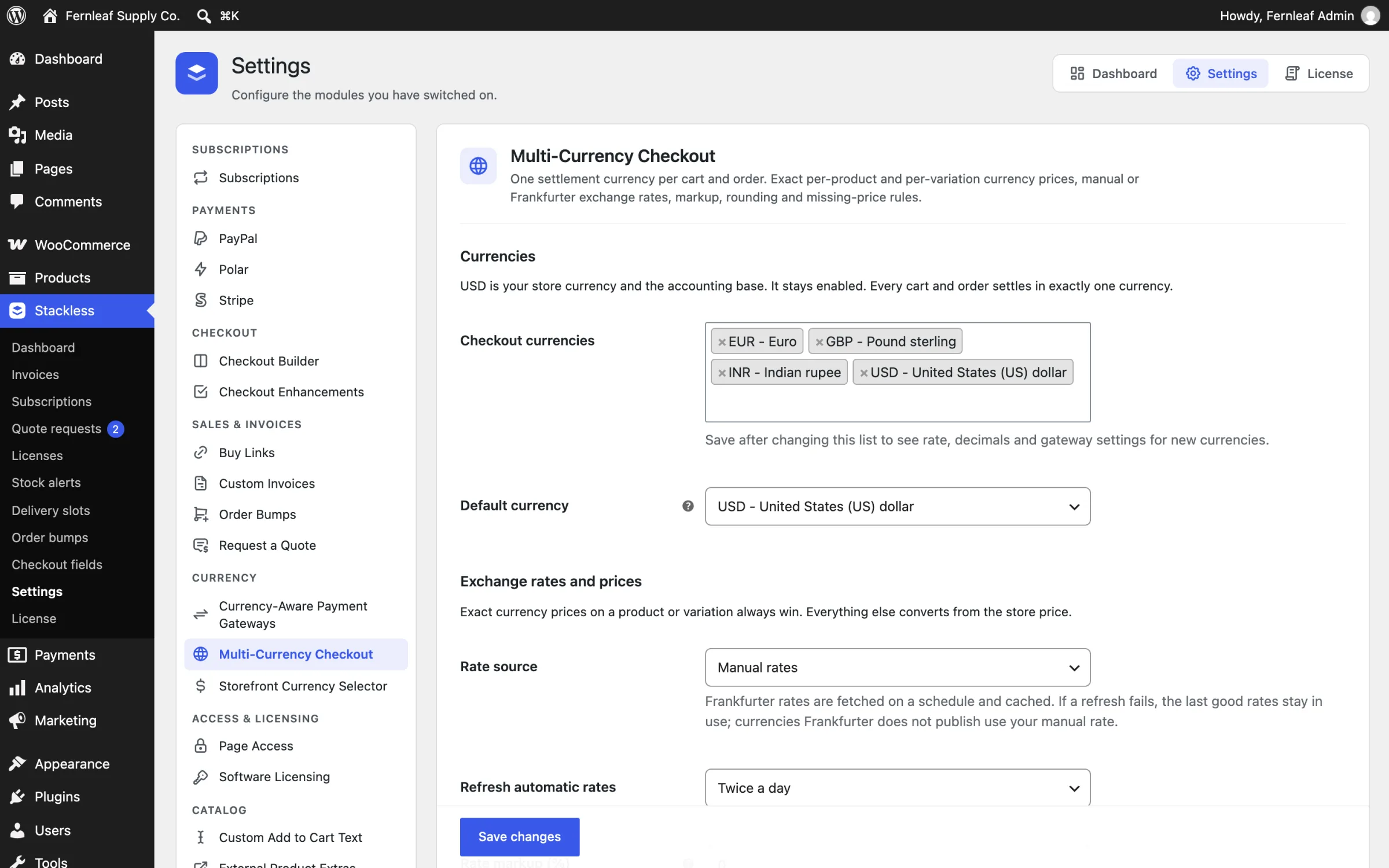
Go to Stackless → Settings, or click Settings on a module’s card. The left sidebar lists every switched-on module that has settings, grouped by section. Click a module to open its settings, change what you need, then click Save changes. You’ll see “Settings saved.” at the top.
If no modules are switched on yet, the Settings screen says “Switch on a module from the Dashboard to configure it here.” with an Open Dashboard button.
A few settings live outside this screen:
- The License & Updates module has its own screen under Stackless → License.
- PayPal and Polar keep their credentials with the other payment methods under WooCommerce → Settings → Payments. Their Stackless settings page links there and shows the webhook URL to copy.
- Per-product settings, such as a product’s subscription plan or quantity limits, live on the product edit screen.
Good to Know
- Only License & Updates is on after a fresh install. Every other module starts off.
- The Dashboard and Settings screens share a header with links to Dashboard, Settings and License, so you can move between them from any Stackless screen.
- The Plugins screen has a Modules link under Stackless that opens the dashboard.
- Old links in the form
admin.php?page=stackless&tab=...still work and forward to the matching Stackless screen.