
Choose a Checkout Layout
The default WooCommerce checkout looks however your theme draws it. Changing that usually means a page builder, a child theme template or a pile of custom CSS that breaks the next time WooCommerce updates its checkout.
Checkout Builder gives you five ready-made layouts. You preview each one, pick it, set your colors, and save. WooCommerce still handles the fields, shipping, taxes and payments. Nothing on your checkout changes until you choose a layout.
Open the Layout Gallery
Switch on Checkout Builder from Stackless > Dashboard, then go to Stackless > Settings and pick Checkout Builder under Checkout in the sidebar.
The Checkout layout section shows a card for each choice:
- WooCommerce default: your checkout exactly as WooCommerce and your theme draw it. This is the starting value.
- Classic: customer details on the left, order summary on the right.
- Split: order summary first on the left, checkout form on the right.
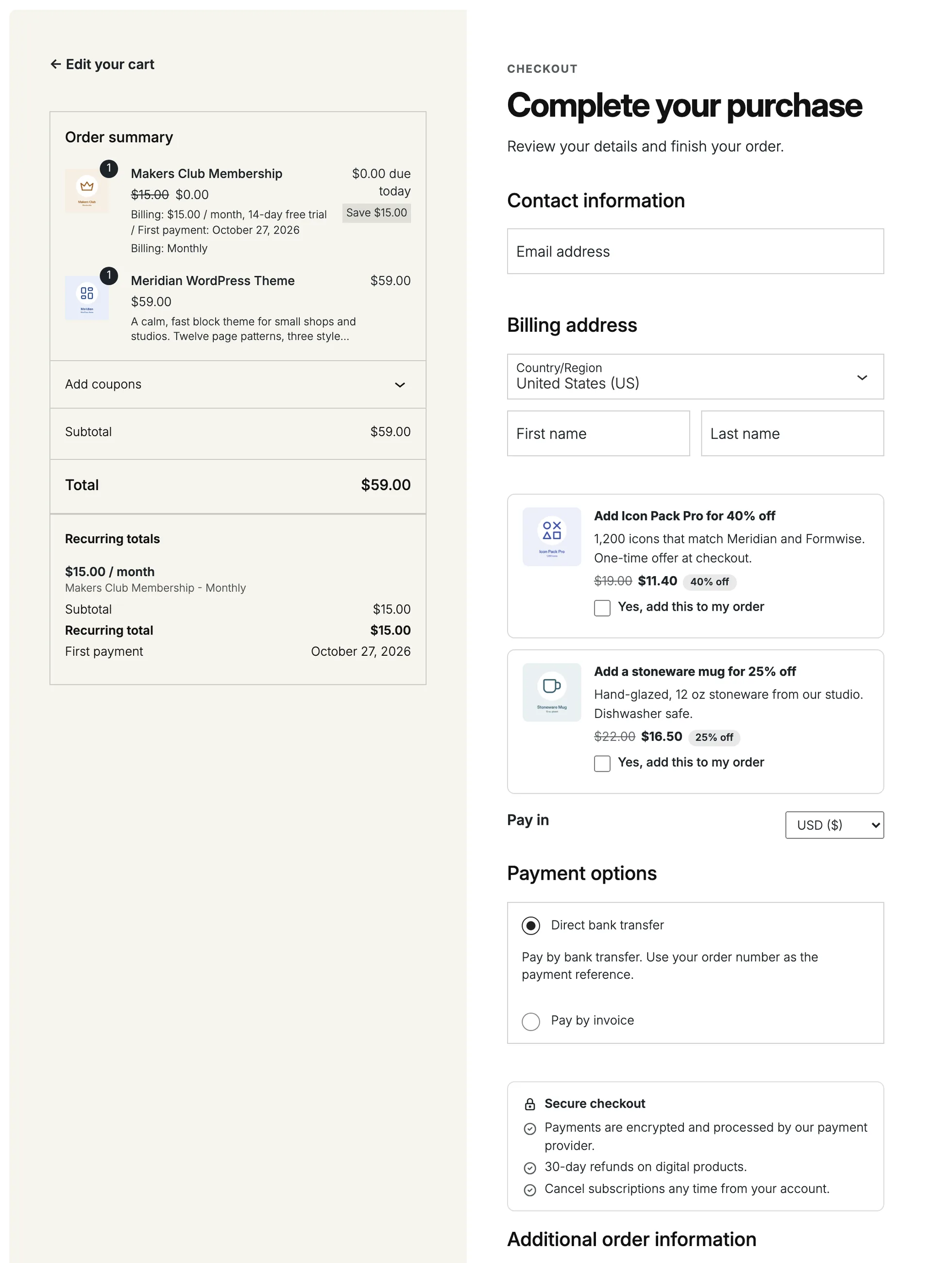
- Warm Split: a warm order panel beside a spacious white checkout, with a bold purchase button.
- Focused: a centered single column, with the order summary above the form.
- Review First: full-width order review, then customer details beside payment.
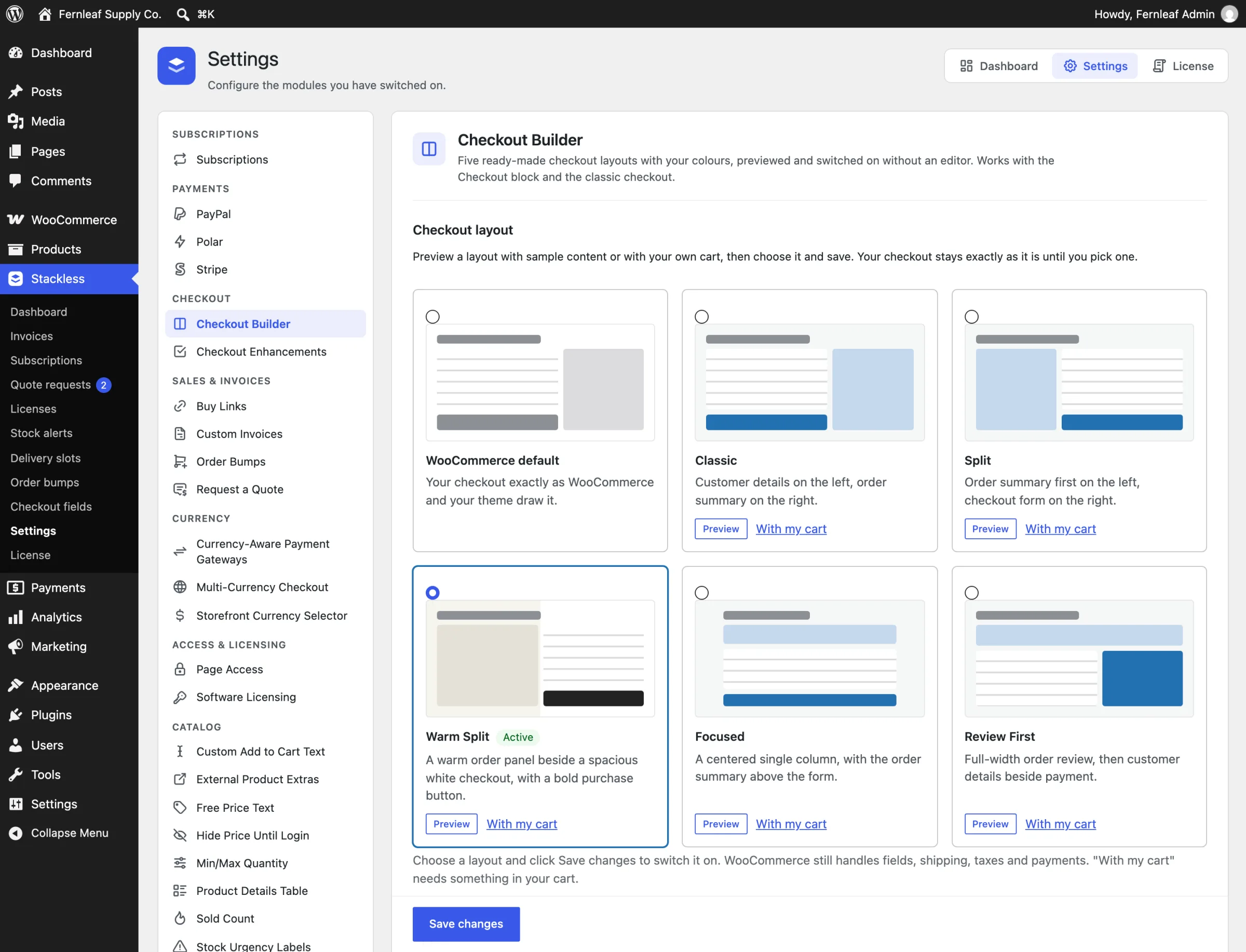
Preview Before You Switch
Each layout card has two preview options:
- Preview opens a dialog with sample content. You can toggle between Desktop and Mobile sizes. The sample can’t place an order. Choose this layout selects the layout and saves the settings page, so it goes live right away.
- With my cart opens your real checkout page in a new tab with that layout applied, only for you. It needs something in your cart.
While you preview with your cart, a notice at the top reads “Previewing [layout]. Your live checkout is unchanged.” Only users with the manage_woocommerce capability can preview, and preview pages are marked noindex.
To go live from the gallery instead:
- Select the layout’s radio card.
- Click Save changes.
- Open your checkout in a private window to check it as a customer sees it.
To go back, choose WooCommerce default and save.
Set Colors, Width and Corners
The Appearance section applies to every layout:
- Accent colour, default
#2271b1. Used for the Place order button, selected options and focus outlines. - Checkout background, default
#ffffff. - Summary background, default
#f6f7f7. - Content width (px), default 1120, between 720 and 1600.
- Corner radius (px), default 6, between 0 and 24.
You don’t pick text colors. For each background, Stackless picks near-black (#1d2327) or white, whichever has more contrast. The staging tests check that text on the accent, background and summary colors reaches at least 4.5:1.
Warm Split has its own palette. The Warm Split colours checkbox is on by default, and while it’s on, that layout uses an accent of #222222, a #f6f4ed summary panel, a 1400 px width and an 8 px radius instead of your Appearance colors. Untick it to use your own.
Use the Compact Header
Page header has two options:
- Theme header and footer (default)
- Compact store header (logo and Return to cart only)
The compact header replaces your theme’s header and footer on the checkout page only. It shows your Store logo, or your store name if you haven’t chosen one, plus a Return to cart link. Choose the logo with the Choose logo button. Use store name instead clears it.
To change the compact page markup, copy templates/checkout_builder/compact.php to stackless/checkout_builder/compact.php in your theme.
Block Checkout vs Classic Checkout
All five layouts work with both checkouts, but they’re applied differently:
- Checkout block: the block output is wrapped in a
stackless-cb-wrapcontainer and restyled with scoped CSS and body classes. For Warm Split, a “Complete your purchase” heading and an “Edit your cart” back link are added once the block has rendered. - Classic checkout: grid wrappers are added through WooCommerce’s checkout template hooks. On Review First, the payment section moves out of the order summary to sit beside the customer details.
- On the classic checkout, screens up to 899 px wide get a Hide order summary / Show order summary button. Payment always stays visible.
The order-received page and other checkout endpoints keep your normal look. Layout CSS and JavaScript load on the checkout page only.
Good to Know
- The layout is stored in the
stackless_checkout_builder_layoutoption. An empty value means WooCommerce default. - The body gets
stackless-cb,stackless-cb-layout-{layout}and eitherstackless-cb-blocksorstackless-cb-classic, plusstackless-cb-compactwith the compact header. Use these if you need small CSS tweaks. - Colors are exposed as CSS custom properties such as
--stackless-cb-accentand--stackless-cb-width. - Checkout Builder changes layout and colors only. It doesn’t add, remove or reorder checkout fields. For consents and checkout wording, see Checkout Consents, Wording and Trust Block.