
Create Subscription Products
Selling memberships, retainers or software on a schedule usually means a separate subscriptions plugin and a new product type. Your catalog already has the products. What’s missing is a way to say “charge this every month.”
The Subscriptions module adds that as a switch on existing WooCommerce products. A simple product or any single variation becomes a subscription with its own billing schedule, free trial, signup fee and length. Switch the module on under Stackless → Dashboard first.
Turn a Simple Product into a Subscription
- Open the product and keep the product type on Simple product.
- Tick Subscription next to the product type options.
- Set the Regular price. That’s the price per billing period, and a sale price works too.
- Fill in the Subscription schedule fields that appear under the price.
The fields are:
- Bill and Billing period: every 1 to every 12, in day(s), week(s), month(s) or year(s).
- Free trial length and Trial period: 0 means no trial. The first payment is taken when the trial ends.
- Signup fee: a one-time amount added to the first order.
- Renewals: the number of renewal payments after the first paid period. 0 renews until cancelled.
- Renewal mode: Automatic when the gateway supports it, otherwise manual (the default), Automatic only, or Manual only.
- One per customer: customers with an active subscription to this product can’t buy it again.
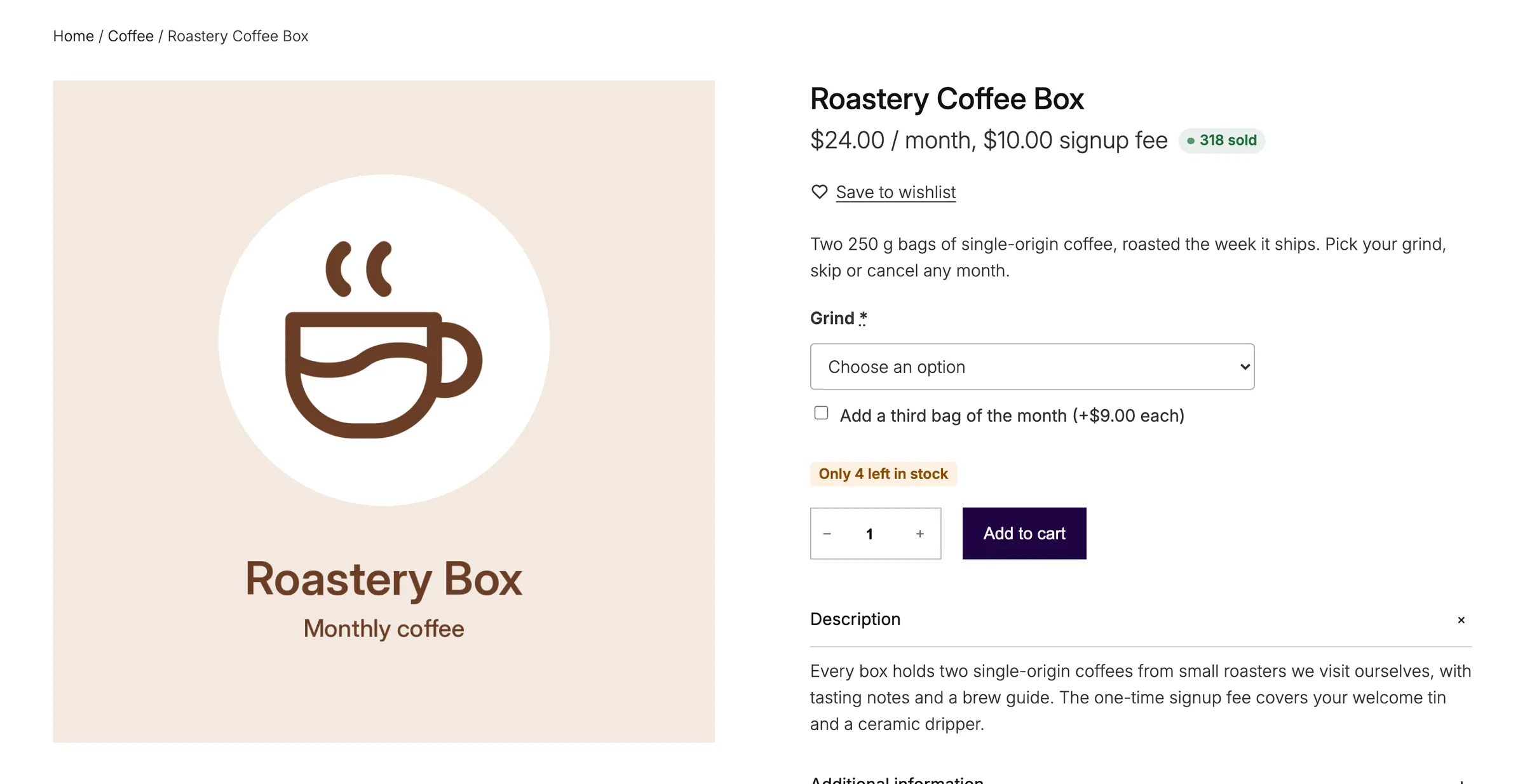
So a monthly plan with Renewals set to 11 bills 12 times, and the product page reads “for 12 months.”
Set Up Variable Subscriptions
On a variable product, each variation has its own Subscription checkbox. Tick it and the same schedule fields appear inside that variation. The limit checkbox is labeled One active subscription per customer there.
You can mix one-time and subscription variations on one product. When every visible variation is a subscription on the same schedule, the parent’s price range gets the schedule added, such as “/ month”. Mixed schedules, or a mix of one-time and subscription variations, keep the plain range.
What Shoppers See
The price on the product page carries the whole plan in one line, for example “$10 / month for 12 months, 7-day free trial, $5 signup fee.”
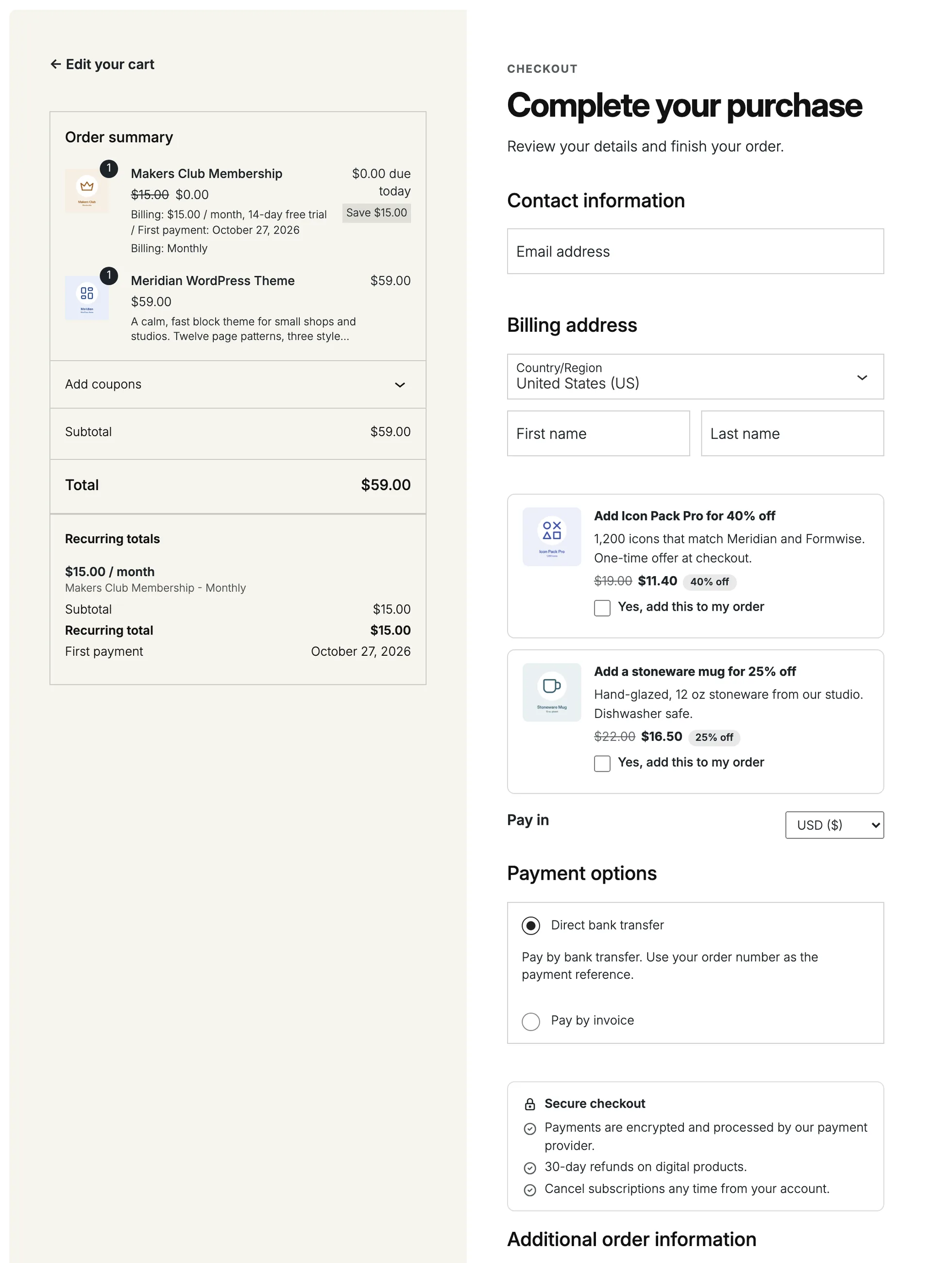
In the cart, each subscription line gets a Billing row with the same wording. Trial items add a First payment row with the date. Below the order total, a Recurring totals block shows each future charge with its tax, shipping, discount, First renewal date and Ends date when the plan has a fixed length.
Today’s charge is the first period’s price plus any signup fee. With a free trial, it’s only the signup fee.
Allow Mixed Carts
Settings live under Stackless → Settings → Subscriptions, in the Cart and checkout section:
- Mixed carts, on by default: several subscriptions and one-time products in one checkout.
- Max subscriptions per order: 0 means no limit.
With mixed carts on, items whose plans share the same period, interval, trial, length and renewal mode become one subscription. Different schedules become separate subscriptions from the same order. Signup fees and the one-per-customer limit don’t split a group.
With mixed carts off, adding a subscription to a cart with other items empties the cart first, and adding other products to a cart holding a subscription is refused.
How Renewal Mode Picks the Gateway
Renewal mode decides which payment methods show at checkout:
- Automatic only hides gateways that can’t renew on their own. With the built-in gateways that leaves Stripe, PayPal and Polar.
- Automatic when the gateway supports it shows every gateway. A gateway that can renew makes the subscription automatic. Any other gateway makes it manual.
- Manual only always renews by emailed invoice, whatever the customer pays with.
One exception for “Automatic when the gateway supports it”: when nothing is due today, such as a free trial with no signup fee, and an automatic gateway is available, checkout shows only the gateways that can renew automatically, so a payment method gets saved for the first real charge.
A cart holding a subscription also requires an account at checkout, so the customer can manage it later from My Account.
Offer Recurring Coupons
The module adds four coupon types under Marketing → Coupons → Discount type:
- Recurring % discount
- Recurring fixed discount (per item)
- Signup fee % discount
- Signup fee fixed discount (per item)
Recurring types get a Subscription payments setting: First payment only, Every payment, or A set number of payments with a Number of payments field. The count includes the first payment, but a signup with a free trial doesn’t use one up.
When a coupon runs out of discounted payments, it’s removed from the subscription and renewals go back to the full price. Renewal orders don’t add to the coupon’s usage count. Signup fee types only apply to products that have a signup fee.
Good to Know
- Subscription pricing works on simple products and variations. Other product types can’t be subscriptions.
- One per customer also counts subscriptions that are on hold or pending cancellation, and it limits the cart quantity to one.
- Plan changes on the product don’t touch existing subscriptions. Each subscription keeps the items, prices and schedule it was bought with.
- Plan switching paths live on the product’s Advanced tab, covered in What Customers Can Do from My Account.