
Show a Sold Count Badge
Shoppers trust a product more when they can see other people bought it. WooCommerce already counts every sale, but it doesn’t show that number anywhere on the storefront.
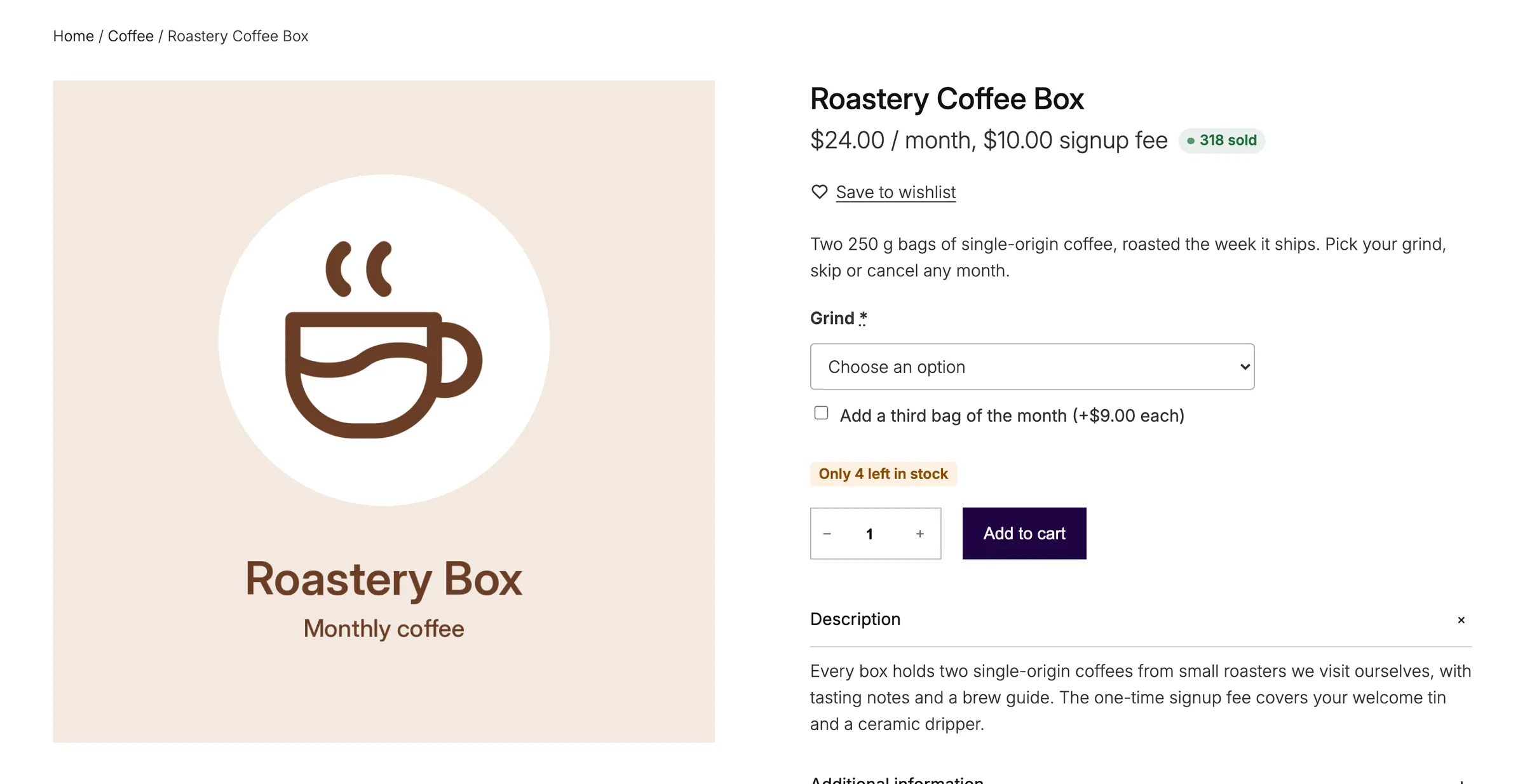
Sold Count turns that counter into a small “X sold” badge on product pages and in shop grids, and only shows it once a product has sold enough to be worth mentioning.
Configure the Badge
Go to Stackless → Settings → Sold Count:
- Badge text: defaults to
{count} sold.{count}is replaced with the number sold. If you leave the placeholder out, the number is added in front of your text. - Show from: hide the badge until a product has sold at least this many. Defaults to 5, minimum 1.
- Number style: Exact (1,268 sold), the default, or Rounded down (1,200+ sold).
- Product pages: After the title, After the price (default), After the add to cart button, or Do not show on product pages.
- Shop grids: After the title, After the price (default), Before the add to cart button, or Do not show in shop grids. This covers the shop, category pages, related products and product blocks.
Rounded down only changes counts of 100 and above. It rounds down to the nearest 10 below 1,000, the nearest 100 below 10,000 and the nearest 1,000 above that, then adds “+”. A count that’s already a round number shows without the “+”.
Hide the Badge on One Product
Edit the product, open Product data → Advanced and tick Hide sold count. That product never shows the badge, whatever its sales.
Where the Number Comes From
The count is WooCommerce’s own total_sales counter for the product, which comes from completed and processing orders. Variations add up on their parent product, so a variable product shows one total. The badge works on classic templates and on block themes, where it attaches to the product price, title, button and add-to-cart blocks.
Good to Know
- The badge prints once per product on a product page, even if the theme renders the price or add-to-cart block twice.
- Developers can change the number with the
stackless_sold_count_countfilter.