
Checkout Consents, Wording and Trust Block
A privacy checkbox, a digital content waiver for EU buyers, an age check. Most stores add these with a snippet that shows a box but keeps no record of what the customer actually agreed to. Then a digital buyer still has to type a street address they don’t need, and the checkout headings say whatever WooCommerce says.
Checkout Enhancements handles all of that in one place. It adds consent checkboxes that store proof on the order, shortens the checkout when nothing ships, lets you rename fields and headings, and puts a short trust block under the payment methods.
Find the Settings
Switch on Checkout Enhancements from Stackless > Dashboard, then open Stackless > Settings and choose Checkout Enhancements under Checkout. The page has four sections: Consent checkboxes, Shorter checkout for virtual-only carts, Checkout wording, and Trust block under payment.
Add Consent Checkboxes
Under Consent checkboxes, the add buttons create a consent with starting wording:
- + Privacy policy: “I have read the privacy policy.” Required, all carts.
- + Marketing emails: “Email me product updates and offers. I can unsubscribe at any time.” Optional, all carts.
- + EU digital content waiver: wording about delivery starting immediately and losing the right of withdrawal. Required, carts with virtual or downloadable items.
- + Age confirmation: “I confirm that I am 18 or older.” Required, all carts.
- + Custom: empty wording you write yourself.
The suggested wording is a starting point. Check it against your own policies and local law, especially the waiver.
Each consent has these fields:
- Type
- Show for: All carts, Carts with items that ship, Carts with virtual or downloadable items, Carts where nothing ships, or Carts with a specific product (then pick the Product; variations of a variable product count too)
- Checkbox text, up to 600 characters. Links, bold and italic are allowed.
- Customer must tick this to place the order
You can add up to 10 checkboxes. Click Save changes when you’re done.
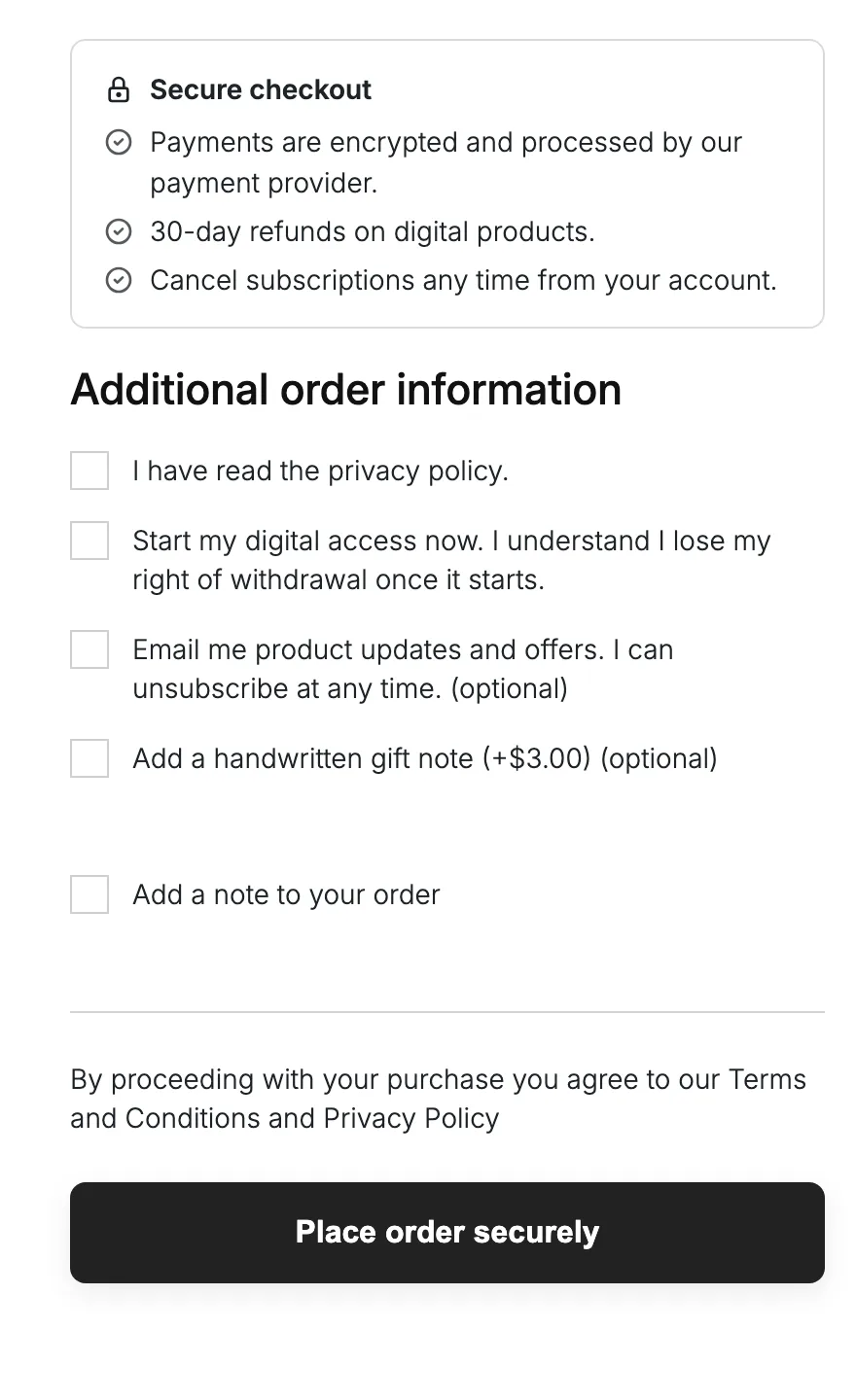
How Consents Work on Each Checkout
- Classic checkout: the boxes appear above the Place order button. A missing required box shows “Please confirm:” followed by the wording.
- Checkout block: each consent is registered as a WooCommerce additional checkout field in the order information step. WooCommerce shows or hides it based on the cart, and a missing required box shows “Please tick this box to continue.”
- On the Checkout block, links inside the wording show as plain text, because WooCommerce’s checkbox label is plain text.
The Proof Stored on Each Order
For every consent the customer was shown, the order keeps:
- the exact wording and its version
- whether it was required
- whether it was accepted
- the time, in UTC
Changing a consent’s text starts a new wording version, so the record always matches what that customer saw. The editor shows the current version as a “Wording v2” style badge.
The order edit screen has a Checkout consents box, and an order note lists each answer once. Removing a consent later doesn’t touch orders already placed.
Two checkboxes decide what customers see. Both are on by default:
- Show answers to customers: on the thank-you page and the order in My Account
- Show answers in emails: in order emails to the customer and the store
Developers can react to new records with the stackless_checkout_enhancements_consents_recorded action, which receives the order and the records.
Shorten Checkout for Digital-Only Carts
Under Shorter checkout for virtual-only carts, tick Hide fields. It’s off by default. When every item in the cart is virtual or downloadable, the fields chosen in Fields to hide are removed.
- You can hide Company, Street address, Apartment, suite, unit, Town / City, State / County, Postcode / ZIP and Phone.
- The default selection is Street address, Apartment, suite, unit, Town / City, State / County and Postcode / ZIP.
- Country always stays because taxes depend on it. Keep State if your tax rates depend on it.
This applies on the checkout page only, not in My Account or on the order-pay page.
Rename Fields, Headings and the Button
Checkout wording has a text box for each item. Leave a box empty to keep WooCommerce’s text.
- Field labels: Email address, First name, Last name, Company, Country / Region, Street address, Apartment, suite, unit, Town / City, State / County, Postcode / ZIP and Phone, up to 80 characters each.
- Headings and checkout text, up to 120 characters each: Billing heading, Order summary heading, and items marked (block checkout) or (classic checkout) that only exist on one of them, such as Payment heading (block checkout) and Ship to a different address (classic checkout).
- Place order button, up to 60 characters.
Renamed fields also change in the matching required-field messages. A custom Place order label replaces payment-method specific button text too, so a gateway that sets its own button wording gets yours instead.
Add the Trust Block
Under Trust block under payment, tick Show trust block (off by default) and fill in:
- Heading, default “Secure checkout”
- Reassurance lines, one per line, up to 6. The default line is “Payments are encrypted and processed by our payment provider.” Keep them true for your store.
- Payment methods image. Use an image of the brands your gateways really accept. Its alt text from the media library is used at checkout.
- Refund policy page, or No link
- Link text, default “Refund policy”
The block shows under the payment methods on both checkouts. On the Checkout block it’s placed by a script once the block has rendered.
Good to Know
- A Show for rule of Carts with a specific product falls back to All carts if no product is chosen.
- Layout and colors live in a separate module. See Choose a Checkout Layout.