
How to Add an Order Bump Customers Actually Take
Most order bumps fail for the same reason: they offer something unrelated to what’s in the cart, at the normal price, to everyone. Buyers scroll past, and the bump becomes one more thing between them and the Place order button.
To add an order bump customers actually take, you offer something that completes the purchase they’re already making, at a price that only exists at checkout. Then you show it only to carts it fits. Stackless then counts how often each bump was shown, taken and what it earned, so you can tell a good offer from a bad one.
Stackless for WooCommerce is my all-in-one plugin for WooCommerce, and Order Bumps is one of its modules. Each bump is a checkbox at checkout, and ticking it adds the product at the bump price, worked out on the server.
Before You Start
- Order Bumps switched on under Stackless → Dashboard.
- A product to offer: a simple product, a subscription product or one specific variation.
Pick an Offer That Fits
The best bump is the obvious next thing for someone with this cart. A few pairings that tend to fit:
- A plugin license with an extra site, or priority support for a year
- A course with a workbook or a template pack
- A physical product with an extended warranty, a refill or a carry case
Keep the offer small next to the main purchase. A $15 add-on on a $79 cart is an easy yes. A $200 add-on on the same cart makes the buyer stop and think, which is the opposite of what a checkout should do.
Create the Bump
- Go to Stackless → Order bumps and click Add order bump.
- Under Offer, choose the Product to offer and set the Bump price. New bumps start at 20% off.
- Under What the customer sees, write the Headline and a one or two sentence Description.
- Under When to show it, add the cart rules covered below.
- Tick Show this bump at checkout and click Create order bump.
Write a Headline That Sells
The default headline is “Add [product] to your order”, which is accurate and forgettable. Name the benefit and the checkout-only price instead:
Headline: Add priority support for $15 (normally $29)
Description: Get answers within 4 business hours for a full year. Only offered here.
Checkbox text: Yes, add priority support
Keep the description to what the buyer gets. Links, bold and italic work in it, up to 1,000 characters, but most good bumps use 2 short sentences.
Show It Only Where It Fits
A bump shows only when all of its rules pass:
- Cart contains any of these products or any product in these categories. Leave both empty to show it on every cart.
- Hide when the cart has these products or these categories.
- Cart subtotal at least and Cart subtotal at most.
Use the hide rules to stop offering what the buyer already has, such as hiding the “5-site upgrade” when the cart holds the 5-site tier. A bump never shows when its own product is already in the cart, and the subtotal leaves out bump items, so a bump can’t qualify itself.
Bumps per checkout under Stackless → Settings → Order Bumps caps how many can show, 2 by default. I’d keep it at 1 or 2. Three offers at checkout start to feel like a sales pitch.
Read the Take Rate
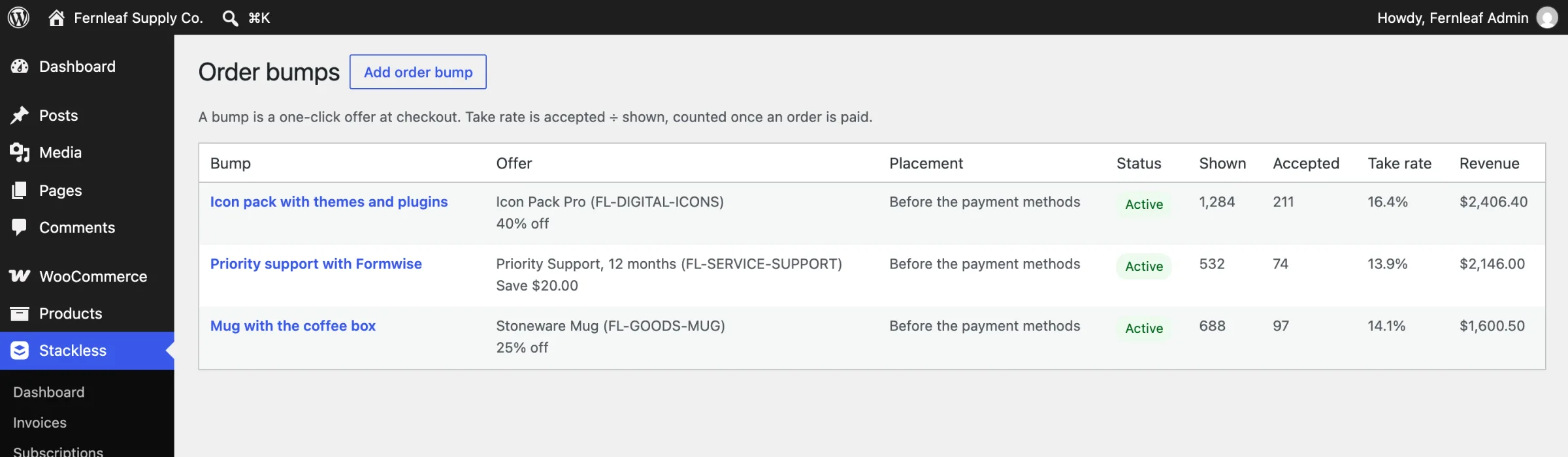
Stackless → Order bumps lists each bump’s Shown, Accepted, Take rate and Revenue. Take rate is accepted divided by shown, counted once per order when it reaches a paid status, so abandoned checkouts don’t skew it.
Change one thing at a time and compare:
- Run a bump for a few weeks, or until it has been shown a meaningful number of times.
- Note the take rate, then use Reset stats and change one thing: the headline, the price or the placement.
- Compare the new take rate with the old one.
Placement is worth testing. Before the payment methods is the default, and Just above the Place order button catches buyers at the last step. Both work on the block checkout and the classic checkout.
Check It Works
- Add a qualifying product to the cart and go to checkout. The bump shows with its headline and price.
- Tick it. The order summary adds the product with an “Offer” line showing the discount.
- Remove the qualifying product. The bump and its item disappear.
What It Won’t Do
- It can’t offer a variable product or a variation set to “Any”. Choose one specific variation.
- Customers can’t change the bump quantity, only remove the offer.
- Bump prices you enter stay in your store currency. With Multi-Currency Checkout on, they convert for display.
- Revenue counts only store-currency orders. An accept in another currency adds to Accepted but not to Revenue.
The full field list is in Add Order Bumps at Checkout.