
Manage Subscriptions, Emails and Reports
Sooner or later a subscriber asks you to move their billing date, swap a card ID, fix an address or cancel on their behalf. If that means poking at order meta or a database row, you’ll put it off, and the subscriber waits.
The Subscriptions module gives you a list screen, a full edit screen, ten emails and a dashboard widget for recurring revenue. Everything is under Stackless → Subscriptions, and it needs the manage_woocommerce capability.
The Subscriptions List
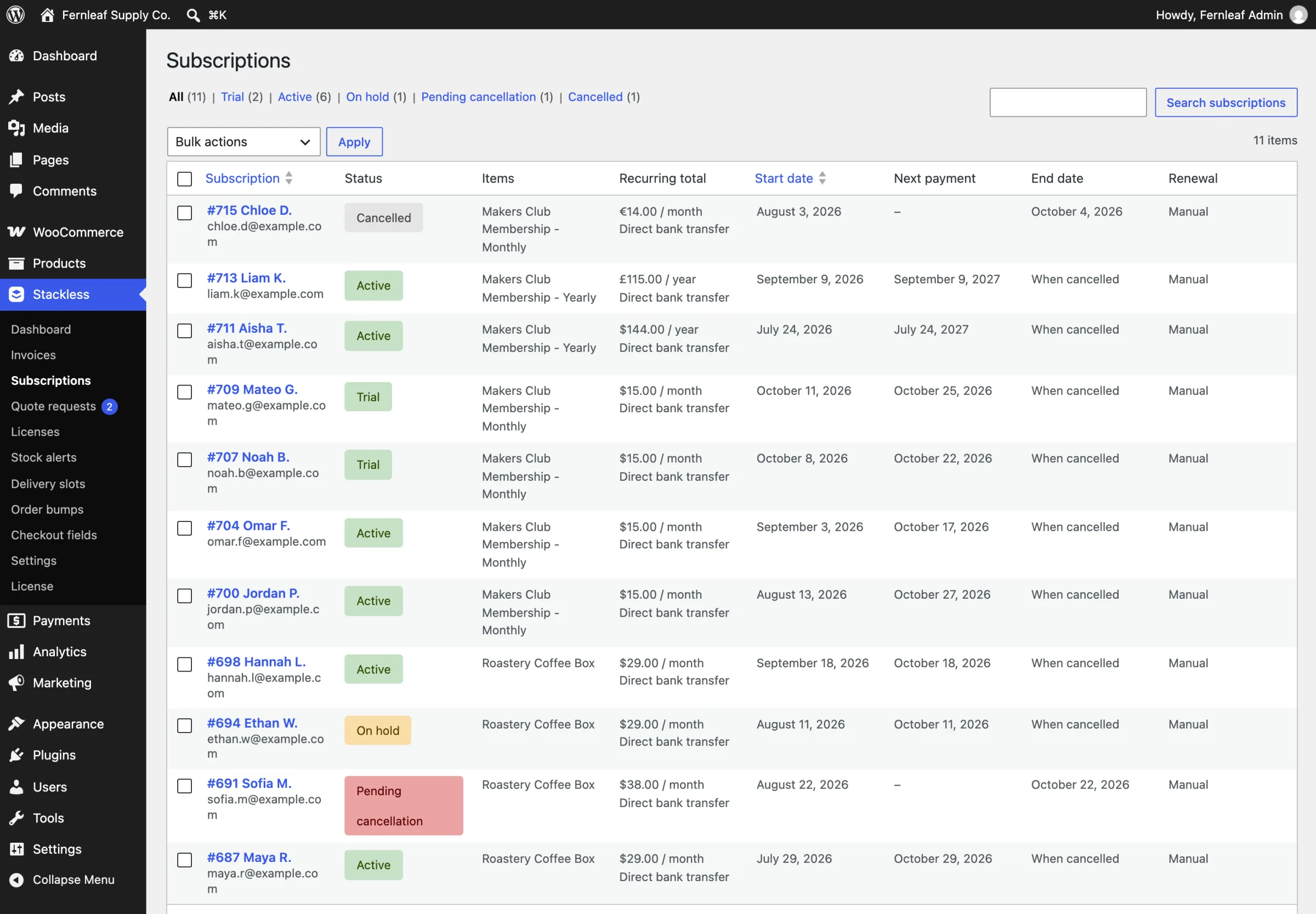
The list has an All view plus a view for each status that has subscriptions (Pending, Trial, Active, On hold, Pending cancellation, Cancelled, Expired), each with a count, and a search box that matches subscription ID, email or name. Columns:
- Subscription, with the customer name and email
- Status
- Items
- Recurring total
- Start date, Next payment and End date (“When cancelled” for open-ended plans)
- Renewal: Automatic, Manual, or Gateway when Polar bills it
Bulk actions: Cancel at period end, Cancel now, Put on hold and Reactivate.
Edit a Subscription
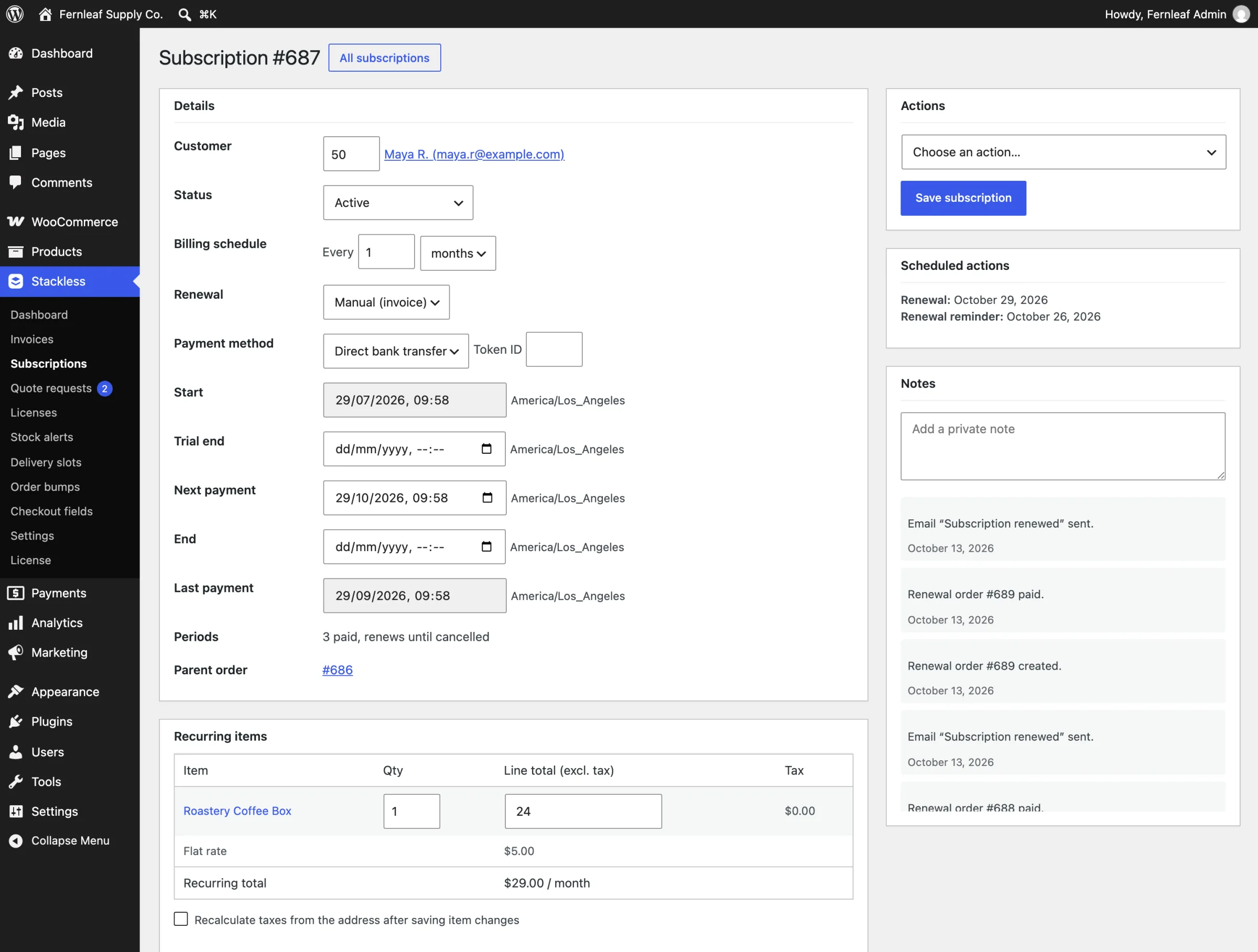
Click a subscription number to open its edit screen. The Details box lets you change:
- Customer (user ID) and Status. A status change runs the same steps as the matching action, so schedules and gateways follow.
- Billing schedule: Every 1 to 365 days, weeks, months or years.
- Renewal: Automatic or Manual (invoice).
- Payment method and Token ID. The token must belong to the customer.
- Trial end, Next payment and End dates, in your site’s timezone. Start and Last payment are read-only.
Periods shows how many billing periods are paid, like “3 of 12 paid”, and Parent order links the first order.
Recurring items lets you edit quantity and line total. Tick Recalculate taxes from the address after saving item changes when taxes should follow. Addresses has full billing and shipping fields, and Related orders lists the parent, renewal, early renewal and switch orders.
The side column has three boxes:
- Actions: Process renewal now, Retry failed payment, Email renewal invoice, Email renewal reminder, Put on hold, Reactivate, Cancel at period end and Cancel now. Pick one, then click Save subscription.
- Scheduled actions: the next renewal, trial end, end of term, retry, overdue check and reminders.
- Notes: the subscription’s history, plus a box to add a private note.
Order edit screens get a Subscriptions panel too. It shows each linked subscription and whether this order created, renewed or switched it.
Date Rules
- The next payment date must be in the future and before the end date.
- Changing the next payment date also moves the billing day of the month for later renewals.
- For Polar subscriptions, the next payment date can’t be changed because Polar controls it, and schedule changes here don’t change Polar’s billing.
The Ten Subscription Emails
All ten are in WooCommerce → Settings → Emails, where you can turn each one on or off and edit its subject, heading and extra content.
- New subscription (admin): to the store when a subscription starts. Recipients default to the site admin email.
- New subscription: to the customer when it starts.
- Subscription renewal invoice: manual renewals, with a pay link. Also used for unpaid-renewal reminders.
- Subscription renewed: when a renewal payment succeeds.
- Subscription payment failed: when a renewal payment fails, with a link to pay.
- Upcoming renewal reminder: a few days before each renewal.
- Free trial ending: a few days before a trial ends.
- Subscription cancelled: when a subscription is cancelled or set to end at the period’s close.
- Subscription expired: when a fixed-length plan reaches its end.
- Subscription switched: when a customer switches plans.
Subjects and headings can use {subscription_number}, {order_number} and {next_payment_date}. To restyle a template, copy it from templates/subscriptions/emails/ in the plugin to stackless/subscriptions/emails/ in your theme. The Copy file to theme button in the email settings does the same.
The Dashboard Widget
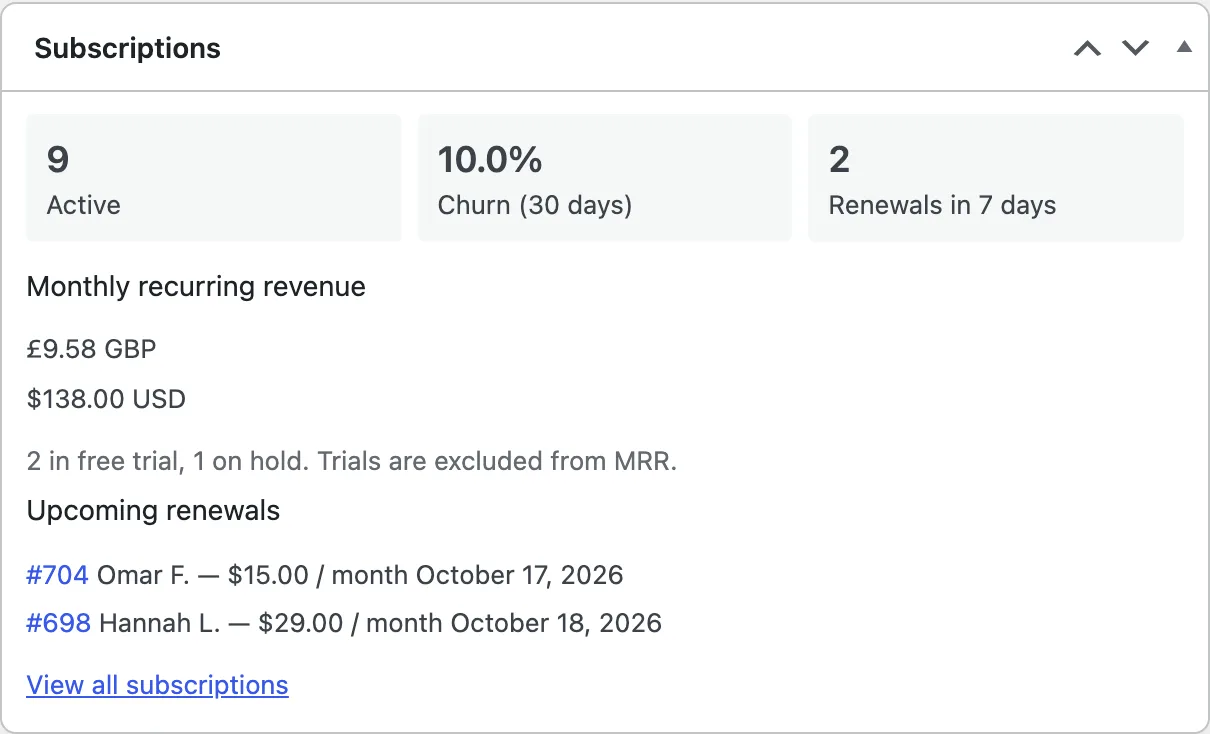
The Subscriptions widget on the WordPress dashboard shows:
- Active: subscriptions that are active, in trial or pending cancellation
- Churn (30 days): subscriptions cancelled or expired in the last 30 days, divided by those plus the ones still active
- Renewals in 7 days
- Monthly recurring revenue, one line per currency, with each plan converted to a monthly amount
- trial and on-hold counts, and up to 10 upcoming renewals with links
Trials and on-hold subscriptions aren’t counted in MRR. The numbers are cached for up to an hour and refresh when a subscription changes status or a renewal is paid.
Coexisting with WooCommerce Subscriptions
Stackless pauses its Subscriptions module while WooCommerce Subscriptions is active, so the two never process the same renewals. The same applies to Subscriptions for WooCommerce, YITH WooCommerce Subscription and SUMO Subscriptions. Its card on Stackless → Dashboard shows “Paused because [plugin] is active and does the same job.”
Limits
- There’s no importer from WooCommerce Subscriptions yet.
- MRR is reported per currency and isn’t converted into one total.