
How to Run Local Delivery and Store Pickup Time Slots
A bakery promises 20 deliveries for Saturday morning and has 2 vans. Without time slots, customers write “please come after 5” in the order notes, and someone spends Friday night on the phone rearranging everything.
To run delivery and pickup time slots in WooCommerce, you set weekly time windows with a cap on orders per slot. Customers then pick an open slot at checkout, the slot is booked when the order is placed and full slots stop showing. A cancelled order frees its place again.
Stackless for WooCommerce is my all-in-one plugin for WooCommerce, and Delivery & Pickup Slots is one of its modules. It works on the block checkout and the classic checkout.
Before You Start
- Delivery & Pickup Slots switched on under Stackless → Dashboard.
- Your shipping methods set up under WooCommerce → Settings → Shipping, including local pickup if you offer it.
- Your WordPress time zone set correctly under Settings → General. Every slot uses it.
Plan Your Windows
Start from what you can actually deliver, not what customers might want. For each window, decide the days, the hours and how many orders one slot can take:
| Window | Days | Hours | Orders per slot | Shipping methods |
|---|---|---|---|---|
| Morning delivery | Mon to Sat | 9:00 to 12:00 | 8 | Local delivery |
| Evening delivery | Mon to Fri | 17:00 to 20:00 | 6 | Local delivery |
| Counter pickup | Mon to Sun | 10:00 to 18:00 | 20 | Any local pickup location |
Size Orders per slot to your slowest day, not your best one. A slot that fills up is a small annoyance for a customer. A slot that’s overbooked is a late delivery and a refund.
Create the Windows
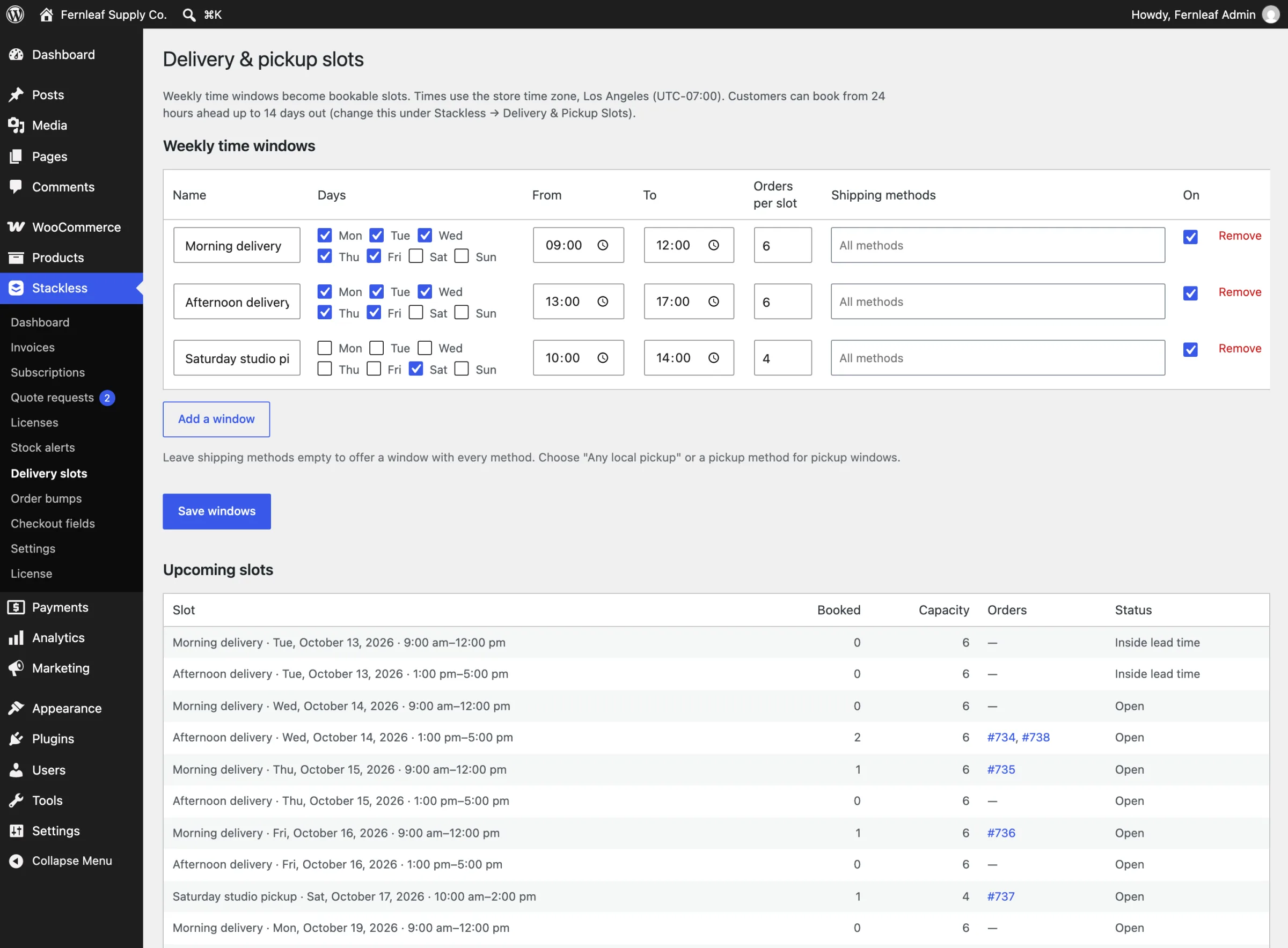
- Go to Stackless → Delivery slots and click Add a window.
- Enter a Name, such as “Morning delivery”. Customers see it next to the date and time.
- Tick the Days, then set From and To.
- Set Orders per slot.
- Under Shipping methods, pick the methods this window serves. Leave it empty to offer it with every method, or pick Any local pickup location to make a pickup window on the block checkout.
- Click Save windows.
Below the windows, Upcoming slots lists each dated slot with how many orders it holds and whether it’s Open, Full or Inside lead time.
Set the Booking Rules
Go to Stackless → Settings → Delivery & Pickup Slots:
- Lead time (hours): the earliest slot starts at least this long after the order. The default is 24, which gives you a day to prepare.
- Booking horizon (days): how far ahead customers can book, 14 by default.
- Closed dates: one date per line as
YYYY-MM-DD, such as holidays. No slots are offered on those days. - Required: off by default. Turn it on if every delivery needs a time.
- Field label: “Delivery or pickup time” by default.
I’d turn Required on for delivery and leave it off if you also ship by courier, since courier orders don’t need a slot. The field only appears when the chosen shipping method has windows.
What Customers See
At checkout, the field lists open slots for the shipping method the customer picked, each with the window name, date and time. A note says which time zone the times are in. Full slots aren’t shown, and a method with no windows shows “No times are available for this shipping method.”
The chosen slot then shows on the order screen under the shipping address, in order emails, on the thank-you page and in the customer’s order details. Your team works from the order screen as usual.
How Overbooking Is Prevented
- The slot is booked when the order is placed, not when it’s picked. If someone takes the last place first, the customer is asked to choose another time.
- A cancelled, failed, refunded or deleted order releases its place.
- If a failed order is paid later and its slot has filled or passed, the order is marked Needs attention with a note to contact the customer.
Check It Works
- Set one window’s Orders per slot to 1 on a test site.
- Place an order and choose that slot.
- Start a second order. The slot should no longer be offered.
- Cancel the first order and confirm the slot comes back.
What It Won’t Do
- It doesn’t plan delivery routes or assign drivers.
- It doesn’t charge a fee per slot. Charge for faster delivery through a separate shipping method with its own price.
- It pauses while WooCommerce Order Delivery, Order Delivery Date Pro or Order Delivery Date for WooCommerce is active, so 2 slot pickers never show at once.
Every field is listed in Delivery and Pickup Slots.