
Quote Requests and Proposals
Some things don’t have a fixed price. Custom work, bulk orders and projects need a conversation first, and that conversation usually lives in your inbox. You end up typing prices into an email, then building a manual order once the customer says yes.
Request a Quote puts that flow inside your store. Customers ask for a quote from any page or product. You reply with a proposal, which is a draft invoice with your prices. The customer accepts it online, and accepting issues the invoice and takes them straight to payment.
Turn It On
Request a Quote needs the Custom Invoices module, because proposals are invoice drafts. Switch on both from Stackless > Dashboard. Then open Stackless > Settings and choose Request a Quote under Sales & invoices.
Add the Quote Form
You have three ways to show the form:
- The Request a Quote block (
stackless/request-quote). Its only setting is a product ID. - The
[stackless_request_quote]shortcode. Use[stackless_request_quote product="123"]to tie it to one product. - A button on product pages, controlled by the Product page button setting.
The form asks for name, email, phone, company, country and what the customer needs. With a product attached, it also asks for quantity and, for a variable product, the variation. Logged-in customers get their billing details filled in.
Set Up the Product Page Button
Under Quote form:
- Product page button: Off, On products marked “Request a quote” or “Quote only” (default), or On every product.
- Button text: “Request a quote” when left empty.
- Quote page: optional. The button links to this page, which holds the form, instead of opening the form in place.
- Country: on by default. Asks for the customer’s country, which helps you quote tax and shipping.
- Thank-you message: shown after a request is sent.
To mark a product, open Product data > General on the product edit screen and tick one of these:
- Request a quote: shows the button on this product.
- Quote only: hides the price and Add to cart. Customers can only request a quote. The price reads “Price on request”, and the product can’t be bought at checkout, including the block checkout.
Handle a New Request
Every request lands in Stackless > Quote requests, and the menu shows a count of new ones. The store gets the New quote request email, and the customer gets Quote request received.
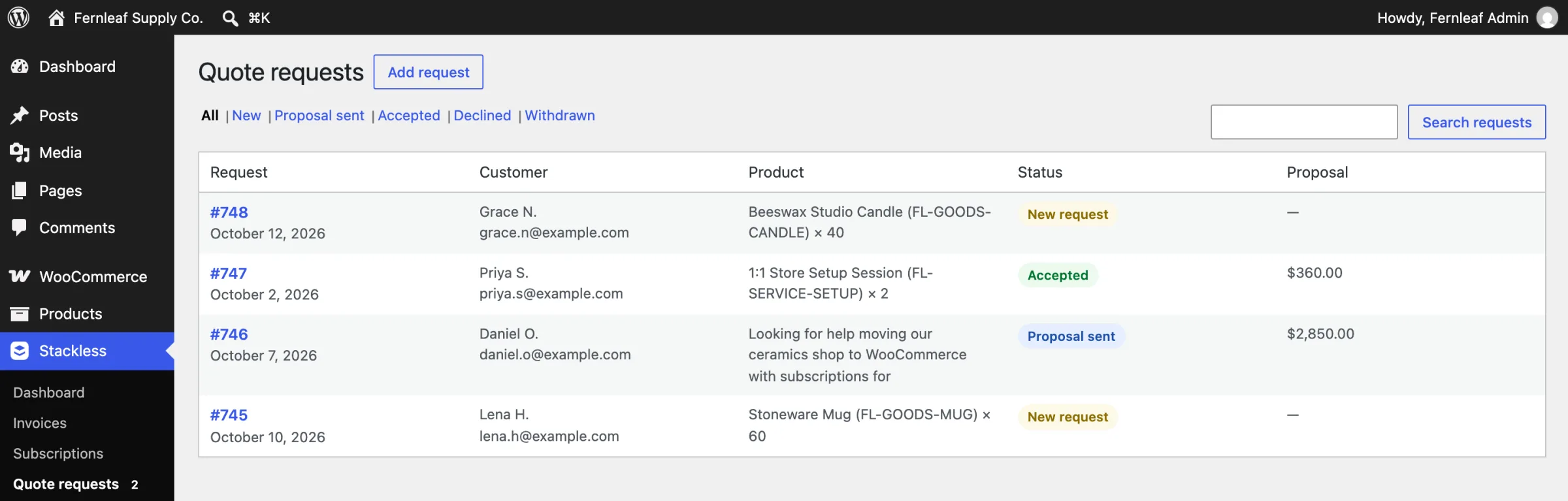
You can filter requests by state: New, Proposal sent, Accepted and more. Requests that came in by phone or email can be added by hand with Add request. Those don’t trigger any emails.
To reply:
- Open the request and click Prepare proposal. This creates a draft invoice with the requested product and quantity. A request without a product gets a “Custom work” line with no price yet.
- Click Edit proposal to set prices, items, discounts or a deposit in the invoice editor.
- Set Proposal valid through. It defaults to Valid for (days) from today, 14 by default.
- Send the proposal from the editor, or with Send proposal on the request.
The customer gets the Quote proposal email with a link to their proposal page.
What the Customer Does
The proposal page shows the items and totals with Accept and Decline buttons.
- Accept issues the invoice and sends the customer to the invoice page to pay. The store gets the Quote proposal decision email.
- Decline takes an optional reason. The store is told, and the reason shows on the request.
- If the proposal includes a deposit, the page explains that accepting asks for the deposit now, and the balance is invoiced after the deposit is paid.
A proposal can’t be accepted when:
- it has expired
- it was withdrawn
- it was edited after sending
If you change a sent proposal, the request shows a warning. Send it again so the customer can accept the new version.
Proposal Reminders and Expiry
Under Proposals:
- Valid for (days): 14 by default, from 1 to 365. The valid-through date can be set from today up to a year ahead.
- Expiry reminder (days before): 2 by default. One reminder email goes out before an open proposal expires. 0 turns it off.
Reminders are sent at 9:00 in your site’s timezone. Withdraw proposal turns off the customer link immediately.
Good to Know
- The form allows 5 submissions per connection every 10 minutes. Developers can change that with the
stackless_request_quotes_rate_limitfilter. - A proposal draft can’t be issued from the invoice editor. The customer issues it by accepting.
- An accepted request stays with its invoice and can’t be trashed.
- The proposal and the quote request must use the same customer email.
- Edit all five quote emails under WooCommerce > Settings > Emails.
- For the invoice side of the flow, see Create and Send Invoices.