
Sell in Multiple Currencies
A buyer in Germany sees your price in dollars, does the conversion in their head, and wonders what their bank will add on top. Some of them leave. Showing euros helps, but a straight conversion leaves odd cents, and you may want a fixed, round price for Europe no matter what the rate does.
Multi-Currency Checkout lets shoppers browse and pay in the currencies you enable. Every cart and order settles in exactly one currency. Prices convert from your store price at manual or automatic exchange rates, with markup and rounding, and you can set exact prices per product or variation that always win.
Turn It On
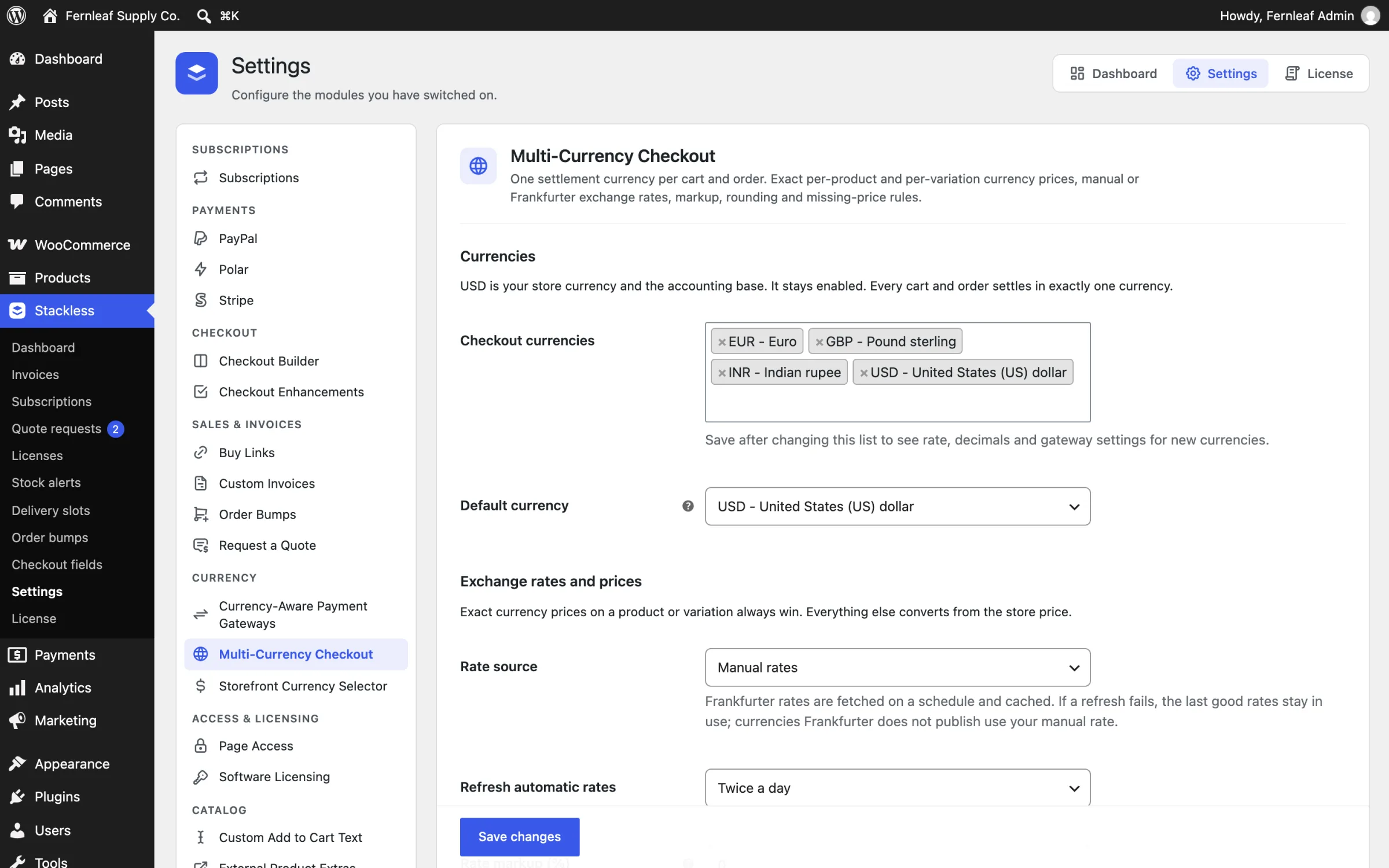
Switch on Multi-Currency Checkout from Stackless > Dashboard, then open Stackless > Settings and choose Multi-Currency Checkout under Currency.
The module pauses itself if another multi-currency plugin is active: WooCommerce Multi-Currency, WooPayments (multi-currency), FOX Currency Switcher, WPML WooCommerce Multilingual & Multicurrency, or Currency Switcher for WooCommerce.
Choose Your Currencies
Under Currencies:
- Checkout currencies: pick every currency you want to sell in. Your WooCommerce store currency is the accounting base and always stays enabled.
- Default currency: used until a shopper picks one, or until geolocation chooses one when the selector module turns that on. It defaults to your store currency.
Save after changing the list. The rate, decimals and gateway settings for new currencies only appear after saving.
Set Exchange Rates
Under Exchange rates and prices:
- Rate source: Manual rates (default) or Frankfurter (European Central Bank reference rates).
- Refresh automatic rates: Every hour, Twice a day (default) or Once a day.
- Rate markup (%): 0 by default, from -100 to 1000. It’s added to every exchange rate to cover conversion fees. Use a negative value for a discount.
Frankfurter rates are fetched on a schedule from https://api.frankfurter.app/latest and cached. If a refresh fails, the last good rates stay in use. Currencies Frankfurter doesn’t publish use your manual rate.
Under Per-currency settings, each extra currency gets two fields:
- A manual rate, labeled like “1 USD = ? EUR”
- Decimals, from 0 to 4. Zero-decimal currencies such as JPY and KRW default to 0.
Below the settings, Rates in use shows each currency’s rate, the rate with markup, and its source, plus the last successful refresh. Use Refresh rates now to fetch immediately. A currency with no rate at all shows “Missing: products convert to no price”.
Round Converted Prices
Round converted prices has four options:
- No extra rounding (currency decimals only), the default
- Up to a price ending in .99
- Up to a price ending in .95
- Nearest whole number
Rounding applies to converted product prices and signup fees. It never touches exact currency prices, shipping, fees or coupons. A price that already ends in .99 stays as it is. In a zero-decimal currency, the .99 and .95 options round up to whole numbers, and prices of 100 or more end in 99 or 95.
Set Exact Prices per Product
On the product edit screen, the General tab gets a Currency prices block with fields for each enabled currency:
EUR regular priceEUR sale priceEUR signup fee, when the Subscriptions module is on
Variations get the same fields. An exact price only counts when its regular price is set, and then it wins over conversion. An empty sale price means no sale in that currency. A currency sale price must be lower than the regular price, or it isn’t saved. The currency sale follows the product’s own sale schedule. An empty signup fee converts the base signup fee.
Decide What Happens Without a Currency Price
Product without a currency price controls products that have no exact price in the shopper’s currency:
- Convert the store price (default)
- Hide the product in that currency
- Show it, but block purchase in that currency
With block, the price reads “Not available in EUR” and checkout stops with a notice to remove the item. If a shopper tries to switch currency with such items in the cart, the switch is refused and the products are named.
Cart, Coupons and Shipping
- Shipping rates, free-shipping thresholds, fixed coupon amounts and coupon spend limits convert to the cart currency.
- Cart fees: on by default. Converts fees added by other plugins from the store currency.
- After a switch, coupons are checked again, because a converted spend limit can make one invalid.
How Orders Are Stored
Each order keeps the currency it was placed in. Stackless also stores the base currency, the rate used with markup, and the rate source on the order. When WooCommerce recalculates an existing order, such as an admin edit or a renewal, conversion is paused, so stored totals are never repriced. The HPOS orders list gets a Filter by currency dropdown.
Admin screens, cron, WP-CLI and webhooks always use your store currency.
Limits
- A shopper’s choice is remembered in the WooCommerce session and a
stackless_currencycookie for 30 days by default. Change this with Remember a choice for (days), from 1 to 365. - Shop pages that vary by currency must not be served from a shared page cache unless the cache varies on the
stackless_currencycookie. - Order bump amounts and other prices you enter stay in your store currency and convert for display.
- To control which gateways take each currency, see Match Payment Gateways to Currencies. To give shoppers a switcher, see Add a Currency Selector.