
How to Sell in INR and USD with a Different Gateway for Each
A buyer in India sees your price in dollars, pays through a gateway that converts it, and their bank adds a foreign transaction fee on top. Some don’t bother. Meanwhile your buyers in the US want PayPal, which doesn’t take rupees at all.
To sell in INR and USD from one WooCommerce store, you enable both currencies and set real rupee prices instead of a raw conversion. Then you tell each currency which gateway it may use. Indian buyers then see and pay rupees through an INR gateway, and everyone else pays dollars with the gateways you already use.
Stackless for WooCommerce is my all-in-one plugin for WooCommerce. Its 3 currency modules cover this whole job: Multi-Currency Checkout, Currency-Aware Payment Gateways and Storefront Currency Selector. The example uses INR and USD, and the same steps work for any 2 currencies.
Before You Start
- Your store currency set under WooCommerce → Settings → General. It’s the accounting base. This guide assumes USD.
- A gateway that takes INR, such as Razorpay, or Stackless Stripe on a Stripe account that can accept rupees.
- No other multi-currency plugin active. Stackless pauses its currency modules while WooPayments multi-currency, WPML Multicurrency or a similar plugin runs.
Enable Both Currencies
- Switch on Multi-Currency Checkout, Currency-Aware Payment Gateways and Storefront Currency Selector under Stackless → Dashboard.
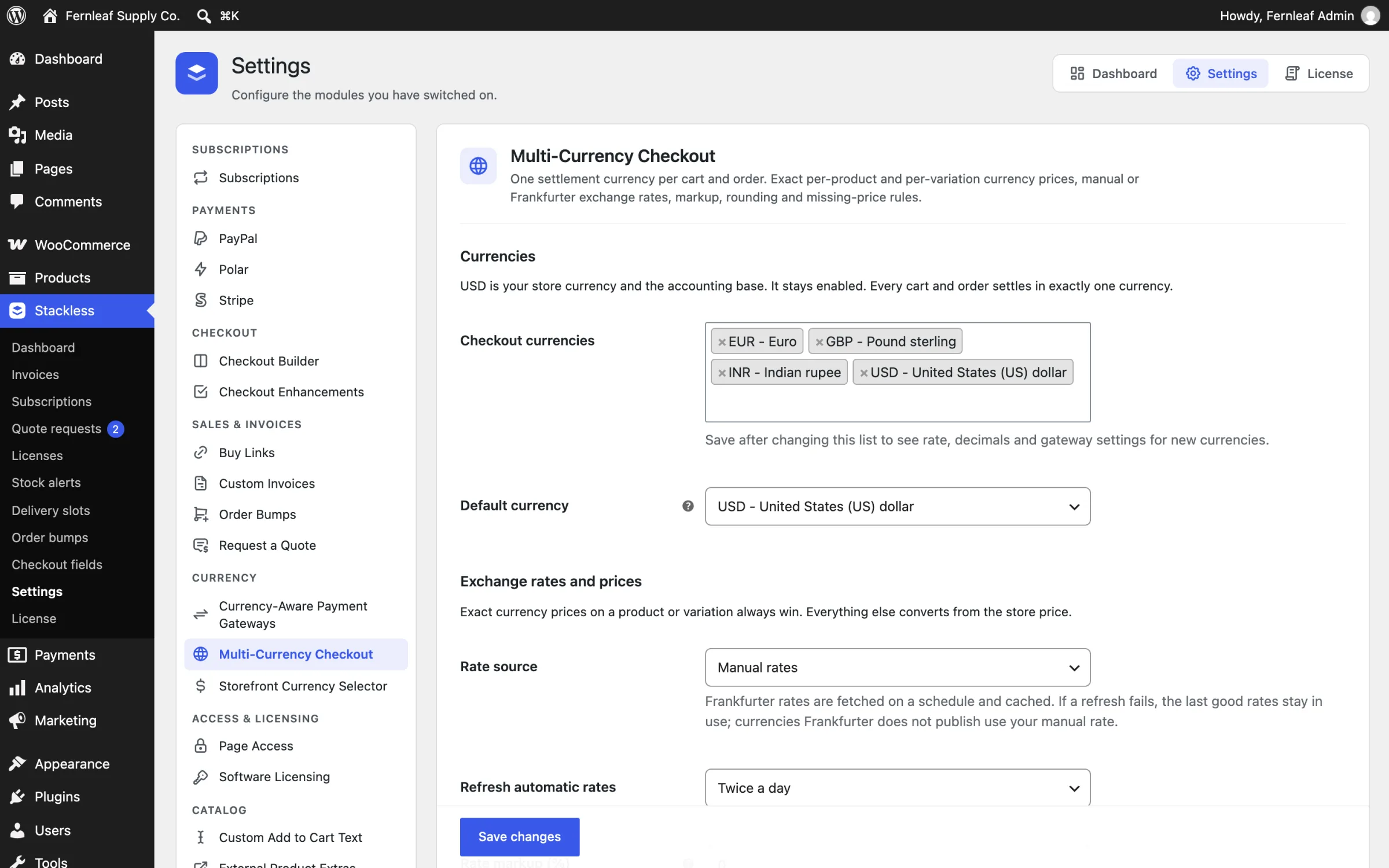
- Go to Stackless → Settings → Multi-Currency Checkout.
- Under Checkout currencies, add INR. USD stays on as the store currency.
- Save, then fill in the manual rate under Per-currency settings, labeled
1 USD = ? INR, or set Rate source to Frankfurter for European Central Bank rates.
Every cart and order settles in one currency, and each order stores the currency, the rate and its source.
Set Real Rupee Prices
A straight conversion gives prices such as ₹2,487.36. Indian buyers expect round prices, often lower than the dollar price converted, because buying power differs.
You have 2 ways to get there:
- Round converted prices to Nearest whole number, or up to a price ending in
.99. It’s quick and covers every product. - Exact prices per product. The product’s General tab gets an INR regular price and INR sale price for each enabled currency, and an exact price always wins over conversion.
I’d set exact INR prices on your best sellers and let rounding cover the rest. A ₹1,999 price reads as a decision someone made for this market. A converted ₹2,487 reads as an afterthought.
Send Each Currency to the Right Gateway
- Go to Stackless → Settings → Currency-Aware Payment Gateways.
- Under INR gateways, pick Razorpay, or Stackless Stripe if your account takes INR.
- Under USD gateways, pick Stripe and PayPal, or leave it empty to allow every gateway that supports USD.
- Set the INR preferred gateway so it’s listed first at checkout.
- Save.
Gateways that can’t take the cart’s currency are removed from checkout and also rejected on the server, so a forced request can’t get through. PayPal isn’t in the rupee list, so it never shows on an INR cart even with an empty list. A saved list wins over these known limits, so only add a gateway to INR after confirming your account accepts rupees.
Let Buyers Pick a Currency
Storefront Currency Selector adds the switcher:
- Checkout placement: on by default, above the payment methods.
- Local currency by location: off by default. Turn it on and a buyer from India gets INR until they choose otherwise. The country comes from their billing address or WooCommerce geolocation.
- The shortcode
[stackless_currency_selector]or the Currency Selector block, for a header or a pricing page.
A link with ?stackless_currency=INR on any store address switches the currency, which is handy for an India-specific campaign.
Watch Your Page Cache
A shop page that shows different prices per currency can’t come from a shared page cache, or one buyer sees another’s currency. Set your cache to vary on the stackless_currency cookie, or exclude the shop and product pages. Skip it, and prices look random to buyers.
Check It Works
- Switch to INR on the storefront and open a product with an exact INR price. It should show that price.
- Add it to the cart and go to checkout. Only the gateways you allowed for INR should show, with the preferred one first.
- Switch to USD and confirm PayPal comes back.
- Place a test order in each currency and check the order screen shows the currency and the stored rate.
What It Won’t Do
- Order bump amounts and other prices you type stay in the store currency, and convert for display.
- Admin screens, WP-CLI and webhooks always use the store currency.
- Renewals keep the subscription’s original currency, and a stored order total is never repriced when WooCommerce recalculates it.
- It doesn’t file GST for you. Tax rules for Indian buyers still follow your WooCommerce tax settings.
Every currency setting is in Sell in Multiple Currencies, and the gateway rules are in Match Payment Gateways to Currencies.