
How to Offer a Free Trial on a Subscription Product
A free trial gets people in the door, but a badly set up one leaks money in 2 ways. Either the trial ends with no saved card, so nothing gets charged, or customers are surprised by the first charge and ask for a refund.
To offer a free trial on a subscription product, you set a trial length on the product and let checkout save a payment method even though nothing is due today. Stackless then emails the customer a few days before the trial ends and charges the saved method on the right day.
Stackless for WooCommerce is my all-in-one plugin for WooCommerce, and Subscriptions is one of its modules. It works on your existing simple products and variations, so there’s no new product type to learn.
Before You Start
- Subscriptions switched on under Stackless → Dashboard.
- A gateway that can renew on its own: Stackless Stripe, PayPal or Polar. Other gateways renew manually by invoice, which works against the point of a trial.
Add the Trial to the Product
- Open the product and tick Subscription next to the product type.
- Set the Regular price, which is the price per billing period.
- Under Subscription schedule, set Bill and Billing period, such as every 1 month.
- Set Free trial length and Trial period, such as 14 day(s).
- Leave Signup fee at 0 for a truly free start.
- Set Renewal mode to Automatic when the gateway supports it, or Automatic only.
- Update the product.
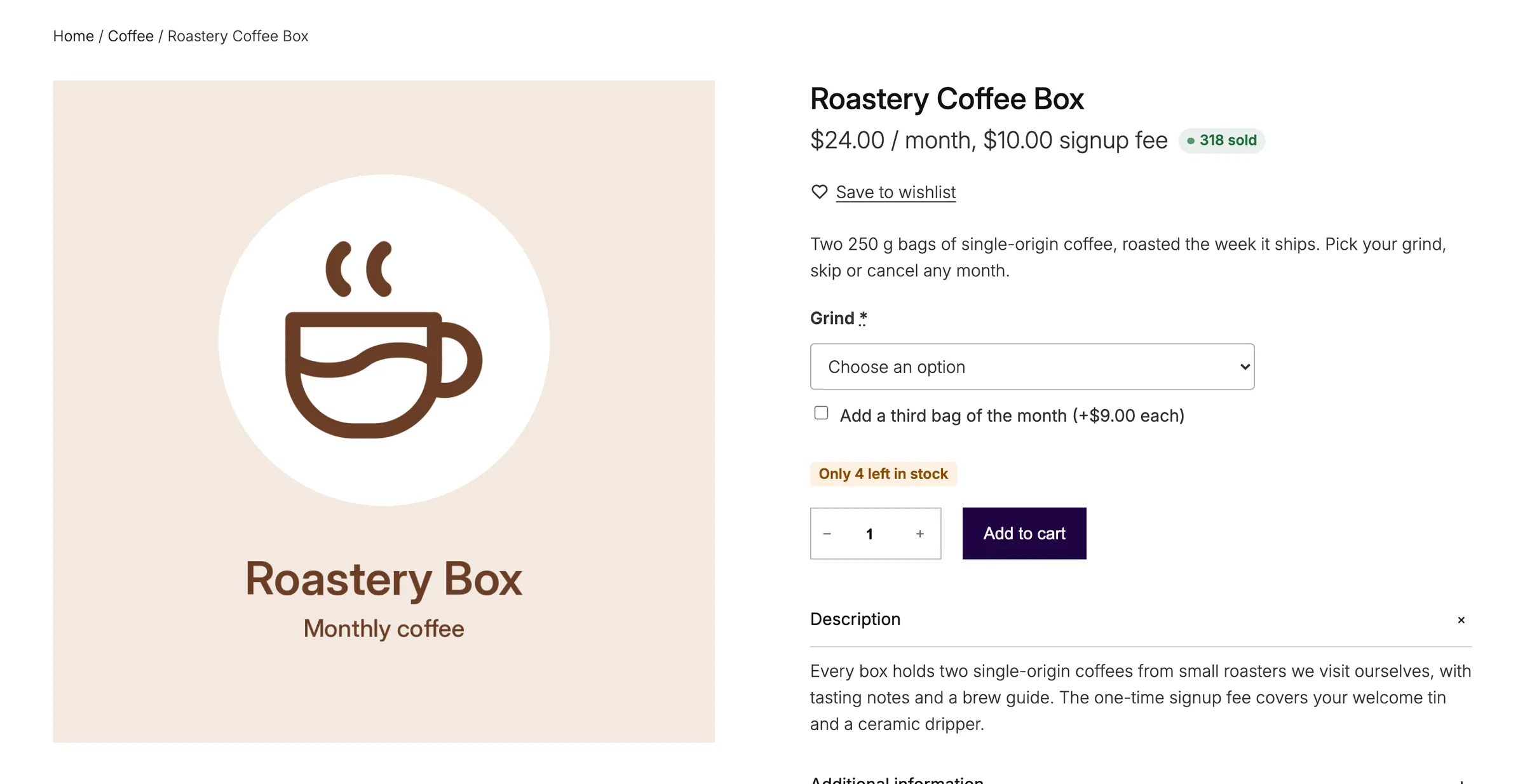
The product page then shows the whole plan in one line, such as “$29 / month, 14-day free trial”. In the cart, a First payment row shows the date the first charge happens.
Make Sure a Card Gets Saved
A trial with nothing due today is where most setups break. Stackless handles it at checkout:
- With Automatic when the gateway supports it, a cart that owes nothing today shows only the gateways that can renew on their own. The customer has to pick one, so a payment method is saved for the first real charge.
- With Automatic only, gateways that can’t renew are always hidden.
A subscription cart also requires an account at checkout, so the customer can manage the subscription from My Account later.
I’d use Automatic only on a trial product. It makes the rule clear for every cart, not only for carts that owe nothing today.
Warn Customers Before the Trial Ends
Go to Stackless → Settings → Subscriptions and check Days before trial ends. It’s 3 by default, and 0 turns the email off.
Keep it on. A customer who gets a friendly “your trial ends on Friday” email isn’t surprised by the first charge, and a surprised customer is the one who asks for a refund. During a trial, the regular renewal reminder is skipped when the trial ending email already covers the first charge, so nobody gets 2 emails.
Decide on a Signup Fee or a Paid Trial
A trial doesn’t have to be free. The Signup fee is a one-time amount on the first order:
| Setup | Charged today | Charged when the trial ends |
|---|---|---|
| Free trial, no signup fee | Nothing | The first period’s price |
| Free trial with a signup fee | The signup fee | The first period’s price |
| No trial | The first period’s price plus any signup fee | The next period’s price, one period later |
A small signup fee filters out people who sign up with no intention of paying, at the cost of fewer signups. That trade depends on your product, so test both if you can.
What Happens When the Trial Ends
- The subscription status moves from Trial to Active.
- A renewal order is created and charged to the saved method.
- If the charge fails, the subscription goes On hold and the retry schedule starts, 1, 3 and 5 days later by default.
How to Recover Failed Subscription Payments covers the retry side.
Check It Works
- Buy the trial product with a test card while the gateway is in test mode.
- Confirm the order total is 0, or the signup fee, and that the subscription shows the Trial status under Stackless → Subscriptions.
- Open the subscription and check the Scheduled actions box for the trial ending email and the first renewal.
What It Won’t Do
- Polar can’t take a signup fee or a discounted first payment, because Polar charges the same amount every cycle. A free trial with no signup fee works on Polar.
- A recurring coupon doesn’t count a free trial as a payment, so “first payment only” applies to the first real charge.
- Changing the trial on the product doesn’t change existing subscriptions. Each subscription keeps the plan it was bought with.
Every schedule field is listed in Create Subscription Products.