
Set Up Wishlists
Plenty of shoppers aren’t ready to buy on the first visit. Without a wishlist, they bookmark the page, forget it, and you lose the sale. Forcing them to create an account just to save a product loses even more.
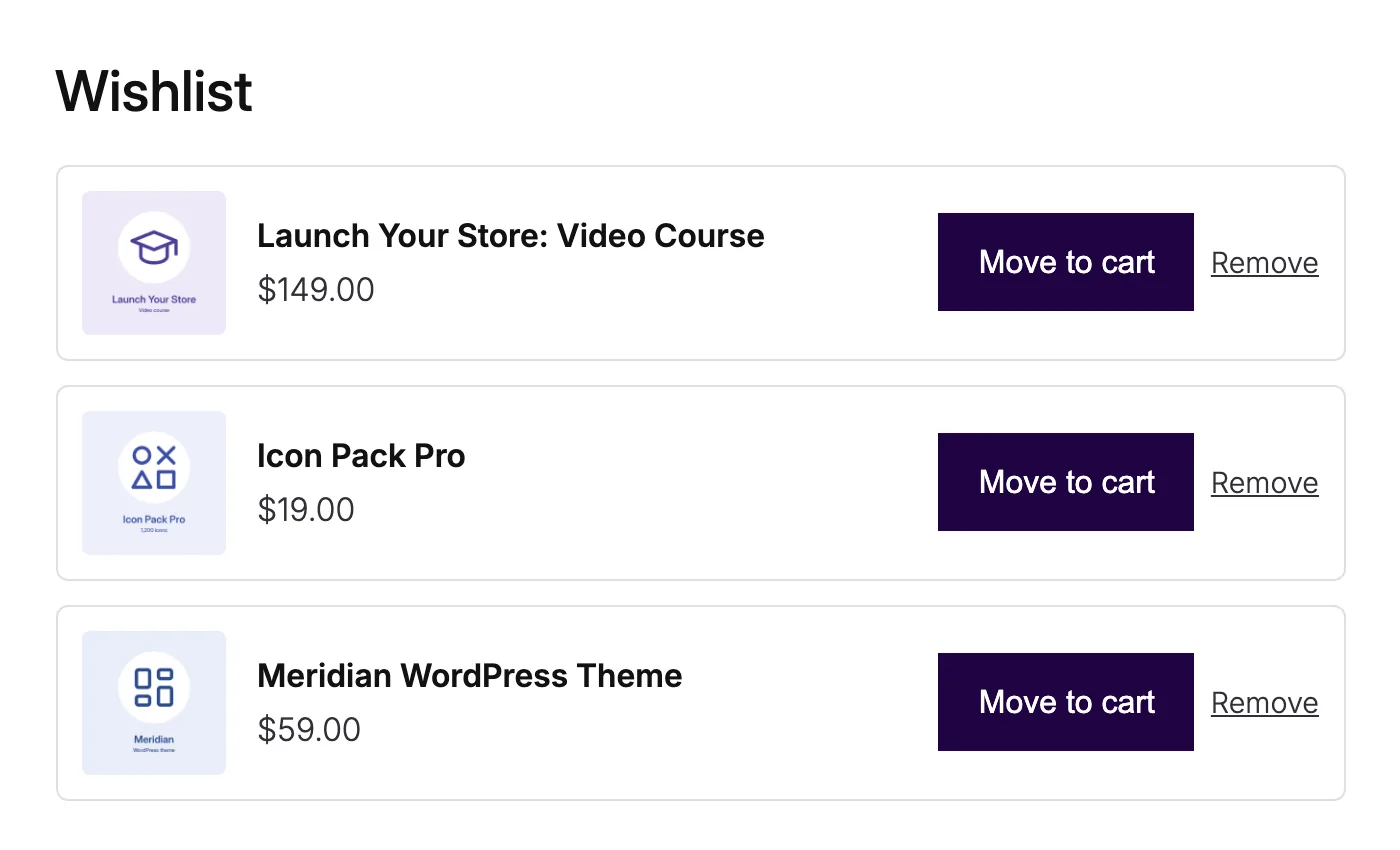
Wishlist gives guests and customers a saved list. Guests can save without an account, and their list merges into their account when they sign in. The list lives on a wishlist page and a My Account tab, can be shared with a link, and has Move to cart buttons.
Create the Wishlist Page
- Create a page, for example “Wishlist”, and add the
[stackless_wishlist]shortcode or the Wishlist block (in the WooCommerce block category). - Publish it.
- Go to Stackless → Settings → Wishlist and pick it under Wishlist page.
The page works without this setting, but share links need it.
Configure the Wishlist
The other settings on the same screen:
- My Account endpoint: the URL slug for the Wishlist tab in My Account. Defaults to
wishlist. Leave it empty to hide the tab. - Shop grids: show the wishlist button on product grids and Product Collection blocks. On by default.
- Product pages: show the wishlist button below the add to cart button. On by default.
- Guest wishlists: let visitors save products without an account. The list is kept in a cookie and merged when they sign in. On by default.
- Keep guest lists for: days since the last change. Defaults to 30, between 1 and 365.
- Maximum products per list: defaults to 100, up to 500.
- Move to cart: remove a product from the wishlist after it’s moved to the cart. On by default.
How the Button Works
The button reads Save to wishlist, and Saved to wishlist once the product is in the list. Clicking it again removes the product. It works on classic templates and block themes, and it still works without JavaScript.
On a variable product page, the button saves the variation the shopper has selected. With no variation selected, it saves the product itself.
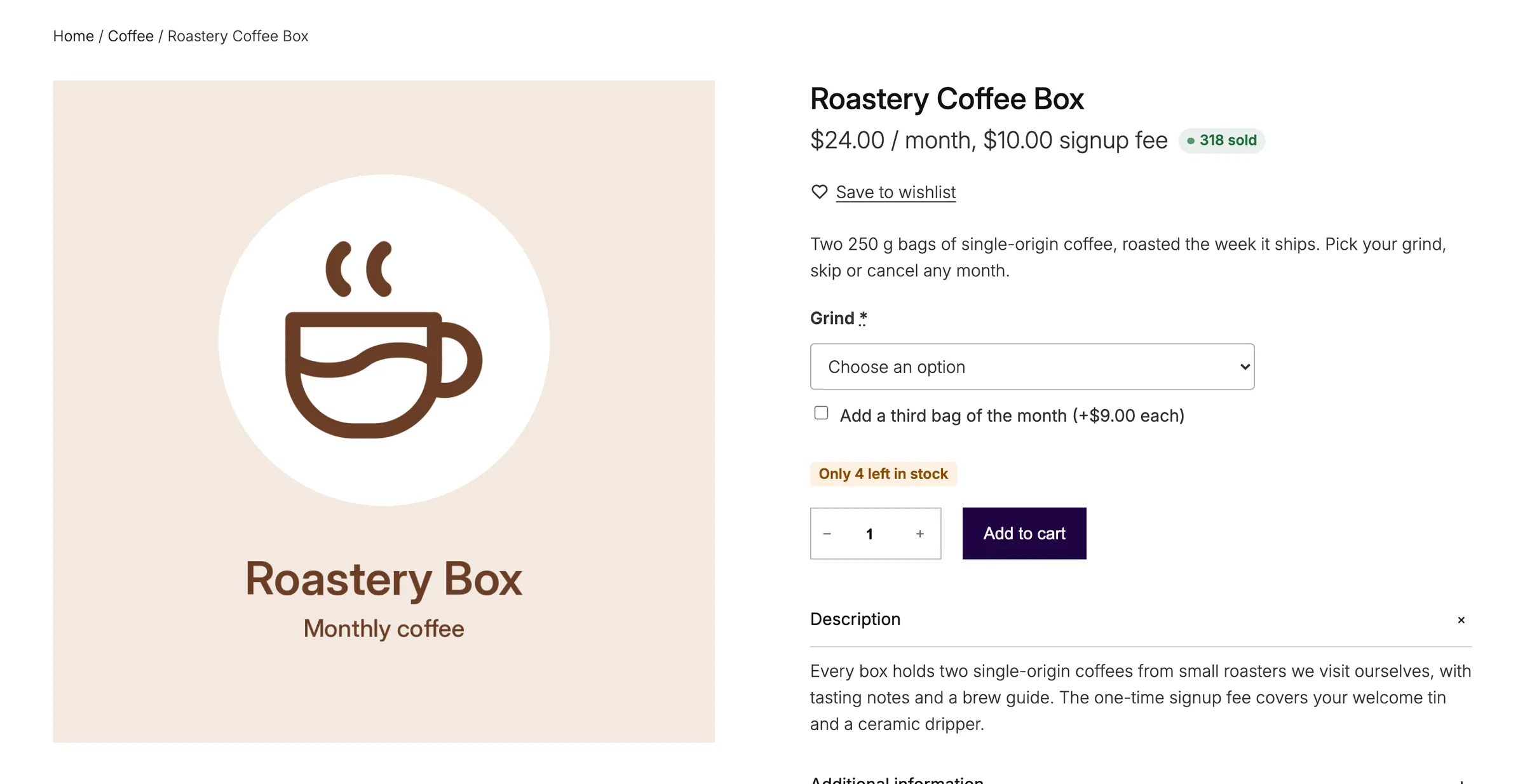
With Guest wishlists off, signed-out visitors don’t see the button.
The Wishlist List
Each saved product shows its image, price and stock status, with these actions:
- Move to cart: adds one to the cart and opens the cart. It’s offered for simple products and variations that can be bought and are in stock.
- View product: shown instead when the product needs options chosen first or can’t be bought right now.
- Remove: takes the product off the list.
Guests see a note that the list is saved on this device, with a link to sign in and keep it in their account.
Share a Wishlist
Signed-in customers with saved products see Share this wishlist on the wishlist page, with a Copy link button. The link opens a read-only copy of the list on your wishlist page, marked as products saved by the customer, and it’s set to noindex.
Create a new link (stops the old one working) replaces the share link if the customer wants to revoke it. Guest lists can’t be shared.
Good to Know
- When a guest signs in, their saved products merge into their account list, up to the Maximum products per list.
- Expired guest lists are removed during WooCommerce’s regular session cleanup.
- Deleting a user deletes their wishlist. Wishlists are included in WordPress’s personal data export and erase tools.
- Wishlist pauses itself while YITH WooCommerce Wishlist, TI WooCommerce Wishlist or WooCommerce Wishlists is active, and its Dashboard card says which plugin caused it.