
How to Replace Your WooCommerce Add-ons with Stackless
A WooCommerce store collects add-ons one problem at a time. You end up with a subscriptions plugin, a Stripe plugin, a currency switcher, a wishlist and a licensing plugin. Each has its own settings screen, update schedule and idea of how the cart should work. When checkout breaks after an update, finding which one did it takes an afternoon.
To replace your WooCommerce add-ons with Stackless, you move one job at a time. You switch on the matching Stackless module, deactivate the old plugin and test checkout before the next one. Stackless pauses a module on its own while the old plugin for the same job is still active, so the two never run side by side.
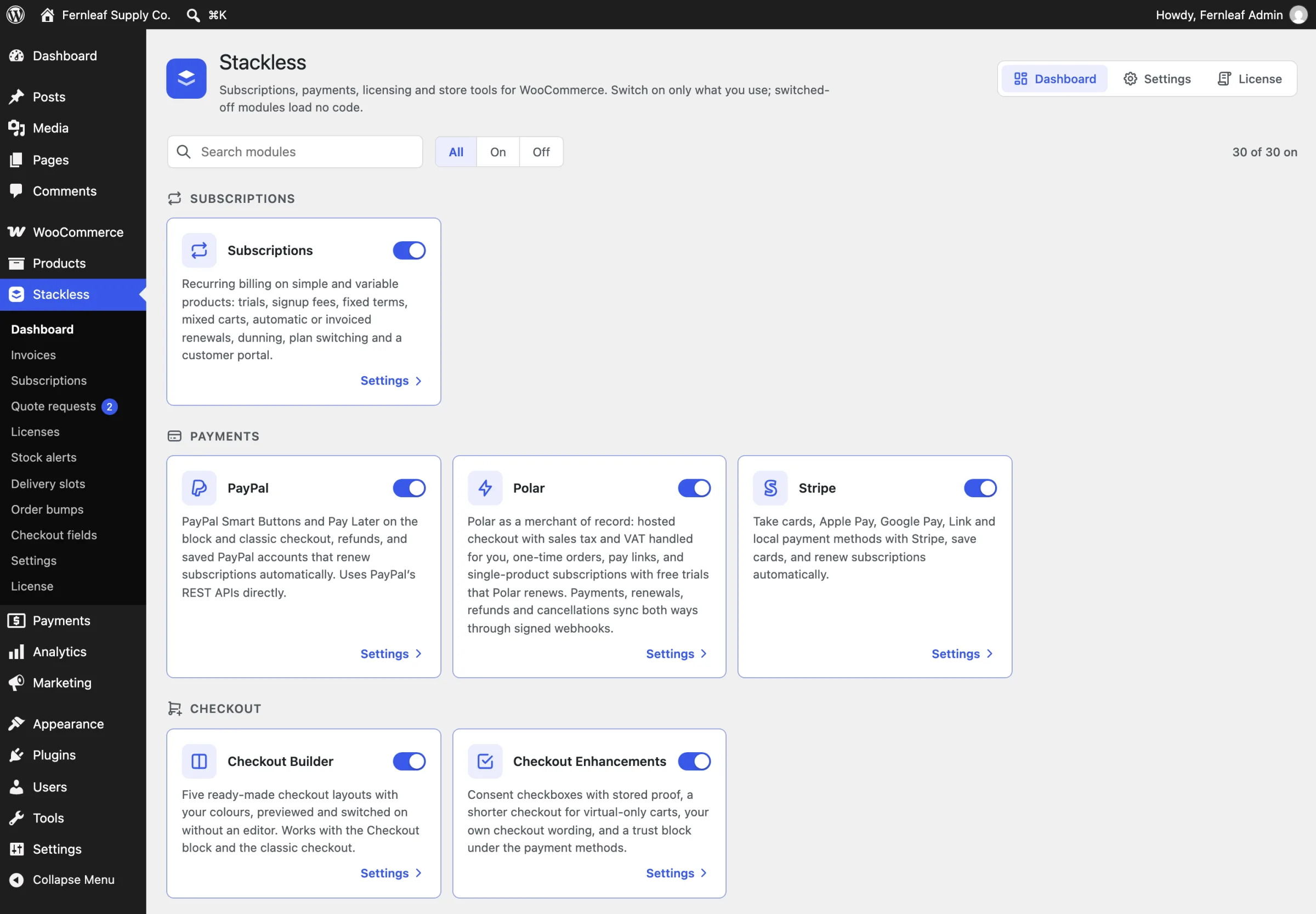
Stackless for WooCommerce is my all-in-one plugin for WooCommerce. Every job is a module you switch on separately, and a module that’s off loads no code at all, so you only carry what you use.
Before You Start
- A full backup of the store, files and database.
- A staging copy if the store takes real orders every hour. Moving add-ons is low risk one at a time, but checkout is the one page you can’t afford to break.
- WooCommerce 9.9 or later. Stackless starts no module on an older version.
Map What You Run Today
List your active WooCommerce plugins next to the Stackless module that does the same job:
| You run | Stackless module |
|---|---|
| A Stripe or PayPal plugin, or WooPayments | Stripe, PayPal |
| A currency switcher | Multi-Currency Checkout, Currency-Aware Payment Gateways, Storefront Currency Selector |
| A licensing plugin | Software Licensing |
| A wishlist plugin | Wishlist |
| A back-in-stock or waitlist plugin | Back-in-stock Alerts |
| A product add-ons plugin | Fields & Paid Add-ons |
| A delivery date plugin | Delivery & Pickup Slots |
| A save-for-later plugin | Saved Carts & Order Again |
| Invoice, quote or order bump plugins | Custom Invoices, Request a Quote, Order Bumps |
Plugins with no match stay. Stackless works alongside any gateway or plugin that doesn’t overlap with a module you’ve switched on.
Leave Subscriptions for Last
Subscriptions is the one job that doesn’t move with a switch. Stackless has no importer from WooCommerce Subscriptions, and existing renewals stay with the gateway that created them.
While WooCommerce Subscriptions is active, the Stackless Subscriptions module stays paused, so the 2 never touch the same renewals. Every other module keeps working. Deactivating WooCommerce Subscriptions also stops its renewals, so plan the move as a fresh start. Decide how current subscribers are handled first, such as letting them finish their terms or asking them to subscribe again. Then switch on Stackless Subscriptions for everyone new.
Move One Job at a Time
Start with jobs that don’t touch payment, such as a wishlist, then work toward checkout and gateways. For each job:
- Switch the module on under Stackless → Dashboard. If the old plugin is still active, the card says “Paused because (plugin name) is active and does the same job.”
- Copy your settings across under Stackless → Settings, using the old plugin’s screen as a reference.
- Deactivate the old plugin, then reload the dashboard. The module starts running.
- Test the job on the storefront, and place a test order if it touches the cart or checkout.
- Delete the old plugin only after a few days of normal orders.
Wishlists, saved carts and add-on fields store their data their own way, so customers’ existing wishlist items from another plugin don’t carry over. Tell your customers if that matters to them.
Swap Payment Gateways Carefully
Gateways are the riskiest move, because saved cards belong to the gateway that saved them. Stackless Stripe can run alongside the official Stripe plugin, because it uses a different gateway ID, its own saved cards and its own webhooks.
That makes a gradual switch possible. Enable Stackless Stripe for new orders, and keep the old plugin active while subscriptions or saved cards still use it. Retire it once nothing depends on it.
Check the Store After Each Move
After every module you switch on, run the same short test:
- Add a product to the cart, apply a coupon and place a test order.
- Check the order screen and the customer’s emails.
- Open Stackless → Dashboard and confirm no card shows “Failed to start”.
Errors go to WooCommerce → Status → Logs, under sources named stackless- followed by the module, such as stackless-multi_currency.
What It Won’t Do
- It won’t import subscriptions from WooCommerce Subscriptions, as covered above.
- It doesn’t migrate data from other plugins, such as old wishlists or waitlist sign-ups.
- Product add-on fields and the Buy now button need the classic add-to-cart form. WooCommerce’s “Add to Cart with Options” block doesn’t show them.
Fewer plugins means fewer update conflicts and one place to look when something breaks. Troubleshooting and Plugin Conflicts lists every plugin that pauses each module.