
How to Sell a WordPress Plugin with License Keys and Automatic Updates
You built a plugin and want to sell it from your own WooCommerce store. Selling the zip is easy. The hard part is everything after: stopping one purchase from running on 50 client sites, and getting new versions to buyers without emailing zip files after every release.
To sell a WordPress plugin with license keys, you turn on licensing for the product in WooCommerce and drop a small client file into your plugin. Every paid order then gets a key with a site limit, and buyers paste the key in wp-admin to get one-click updates, the same way they update plugins from WordPress.org.
Stackless for WooCommerce is my all-in-one plugin for WooCommerce stores, and Software Licensing is one of its modules. It replaces a separate licensing plugin, and it works for themes too.
Before You Start
- WooCommerce with Stackless active, and Software Licensing switched on under Stackless → Dashboard.
- Your plugin as a product, simple or variable, with the zip attached as a downloadable file.
- Access to your plugin’s code, to add the client file.
Set Up the Product
- Open the product and go to Product data → Licensing.
- Tick License keys.
- Set Site limit, such as 1. A value of 0 means unlimited.
- Set Validity: Lifetime, Follows subscription or Number of days.
- Fill in Software slug with your plugin’s folder name, such as
my-plugin, and Current version with the version you’re shipping. - Leave Update package on This product’s downloadable file, then update the product.
The zip must contain the plugin folder, so my-plugin.zip opens to my-plugin/my-plugin.php. Keys are created when an order reaches processing or completed, and a refund revokes them on its own.
Sell Site Tiers
“1 site, 5 sites, unlimited” pricing is one variable product with a variation per tier. Once licensing is saved on the parent, each variation shows License site limit, License validity and License valid for (days). Set the limit per tier and leave the rest empty to use the parent’s settings.
The slug and the release stay on the parent, so every tier gets the same updates. A buyer who upgrades from 1 site to 5 buys the bigger tier. If you’d rather not issue a second key, raise the limit on their existing key under Stackless → Licenses.
Choose Lifetime, Yearly or Subscription Keys
| Validity | What it means | Good fit when |
|---|---|---|
| Lifetime | The key never expires | A one-time price with updates forever |
| Number of days | Updates for a set period, 365 by default | A yearly price paid as a one-time purchase |
| Follows subscription | The key expires with the subscription, plus grace days | A yearly or monthly subscription that renews on its own |
Follows subscription is the one I’d pick for recurring pricing. The key stays active while renewals are paid, goes inactive while a renewal is on hold and comes back the moment the customer pays. Subscription grace days, 3 by default, stop a renewal that’s a day late from switching off a customer’s updates.
Add the Client to Your Plugin
The client is a single PHP file inside Stackless:
wp-content/plugins/stackless/templates/software_licensing/client/class-stackless-license-client.php- Copy it into your plugin, such as
my-plugin/includes/. - Rename the class
STACKLESS_License_Clientto your own name in both places near the top of the file, such asMy_Plugin_License_Client. Two products shipping the same class name would otherwise share one copy. - Load it from your main plugin file and start it when the file loads:
require_once __DIR__ . '/includes/class-my-plugin-license-client.php';

function my_plugin_license() {
    static $client = null;
    if ( null === $client ) {
        $client = new My_Plugin_License_Client( [
            'store_url'   => 'https://yourstore.com',
            'slug'        => 'my-plugin',
            'plugin_file' => __FILE__,
            'version'     => '1.2.0',
            'product_id'  => 123,
            'name'        => 'My Plugin',
        ] );
    }
    return $client;
}
my_plugin_license()->init();- Call
my_plugin_license()->render_form();on your plugin’s settings screen. It prints the license key field and the Activate button.
Add Update URI: https://yourstore.com to your plugin header too. It tells WordPress the plugin doesn’t update from WordPress.org.
Call init() when the file loads, not inside a later hook, because WordPress checks for updates in the background. Add Licensing and Automatic Updates to Your Plugin or Theme has the theme version and every option.
Ship an Update
- Bump the version in your plugin header and in the
versionyou pass to the client. - Build the zip with the plugin folder inside it, and replace the product’s downloadable file.
- On Product data → Licensing, set Current version to the new number and add the release to Changelog.
- Update the product.
Licensed sites see the new version in Dashboard → Updates within 12 hours, when the client’s cached answer expires. “View details” shows your changelog. The download link is signed, expires after 24 hours and never contains the key.
Check It Works
- Buy the product on your store with a test order, and copy the key from the order received page.
- Install your plugin on a test site, paste the key and click Activate. The form shows a green Active label.
- Raise Current version on the product, then visit Dashboard → Updates on the test site. Clearing the client’s cache by deactivating and reactivating the key makes the update show at once.
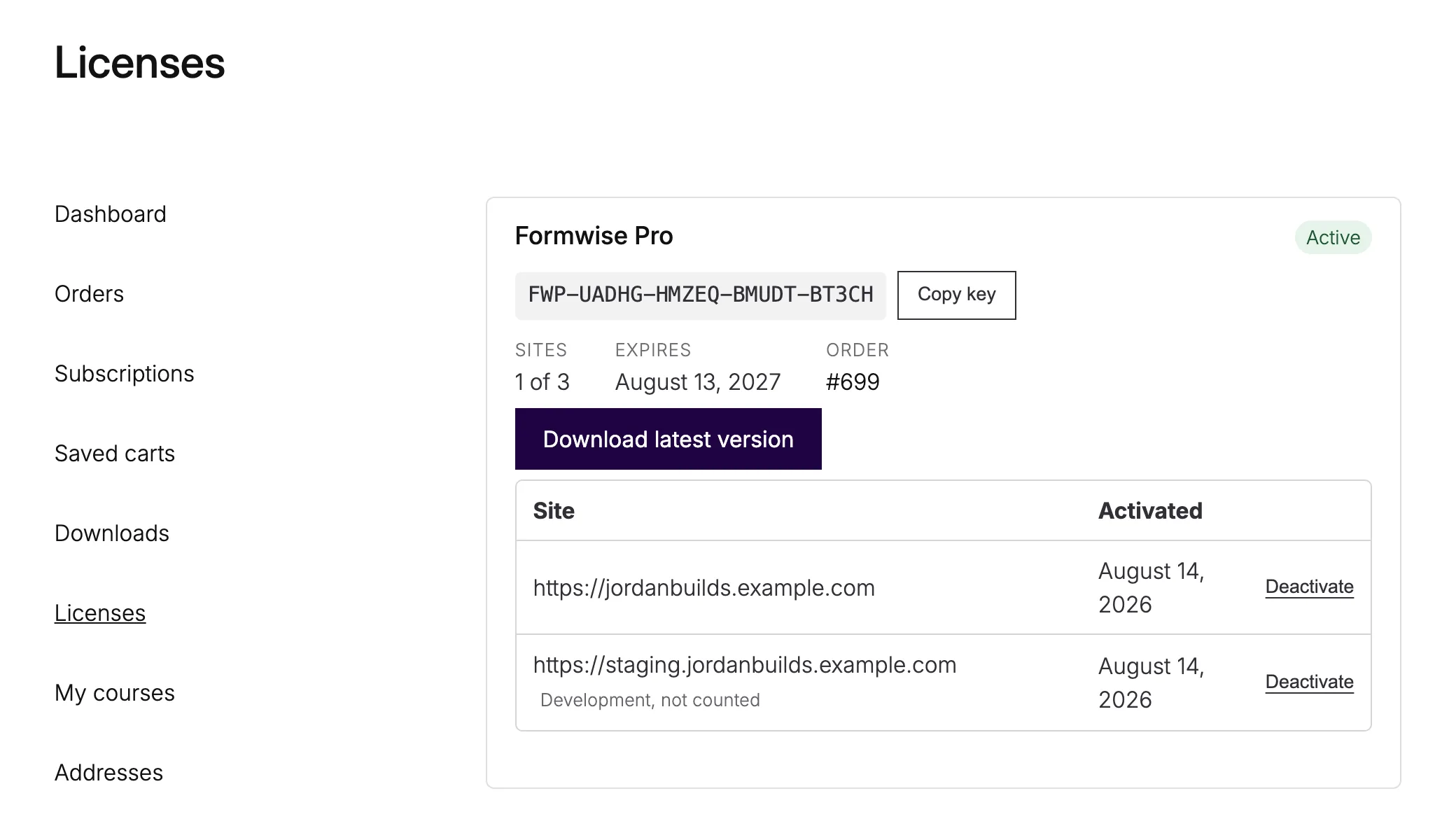
A staging address such as staging.example.com, .local or localhost counts as a development site, so testing doesn’t use up the buyer’s site limit.
What It Won’t Do
- It doesn’t switch your plugin off when a key expires. Buyers keep using the version they have, and updates stop. Check
is_active()in your code if you want features to depend on the license. - It doesn’t create keys for orders paid before licensing was on. Open each order and click Create missing keys.
- Guest purchases don’t show under My Account → Licenses, because keys aren’t matched by email. The key still arrives in the order emails.
- It pauses while WooCommerce Software Add-on or License Manager for WooCommerce is active, so it never fights another licensing plugin.
Keys, sites and expiry dates for every customer live under Stackless → Licenses. Sell Plugins and Themes with License Keys covers that screen in full.