
Product Add-ons and Checkout Fields
Gift wrap, engraving, a rush option, a larger size for a few dollars more. Extras like these lift the order value, but WooCommerce has no way to price them, and a separate variation for every combination gets out of hand fast.
Fields & Paid Add-ons does two jobs. Product add-ons are extras the customer picks on the product page, priced per item or once per line. Checkout fields collect order details or add a paid extra once per order. Prices are always worked out on the server, and both work on the block and classic checkout.
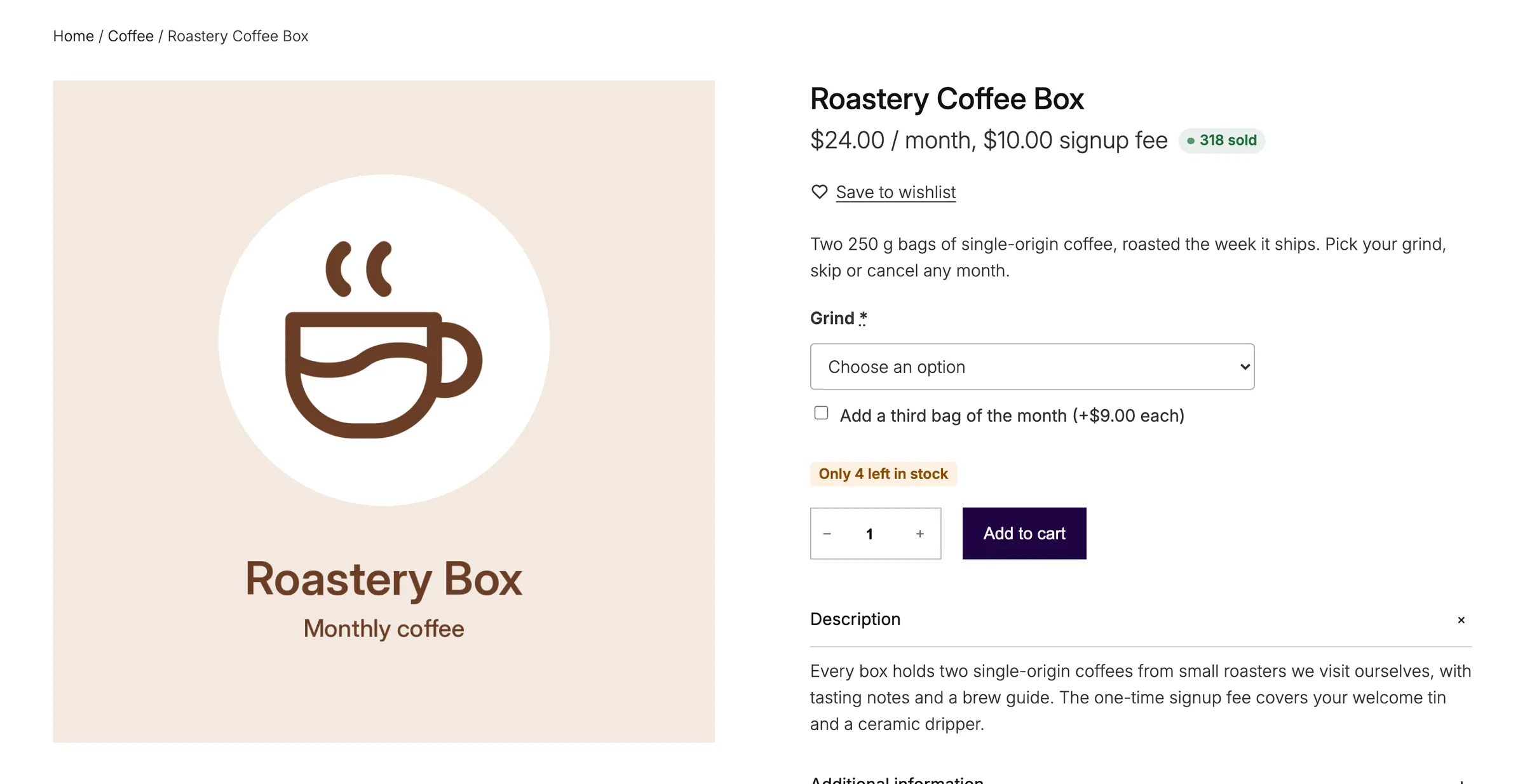
Add Add-ons to a Product
- Edit the product and open Product data → Add-ons. The tab isn’t shown for grouped or external products.
- Click Add an add-on.
- Fill in the add-on and update the product.
Each add-on has:
- Label: the name the customer sees.
- Type: Checkbox, Dropdown, Short text, Long text or Number.
- Choices: for dropdowns, one per line. Add a price after a pipe, such as
Large | 4.50. - Price: in your store currency. For a dropdown, it’s added to every choice. Leave it empty to use only the choice prices.
- Charge: Once per line, Per item (× quantity), or Per unit entered (number only).
- Minimum / maximum: for Number add-ons.
- Help text: shown under the field.
- Required: customers must complete it before adding to cart.
Prices follow your tax settings.
How Add-ons Are Charged
- Once per line: charged once whatever the quantity. It shows as a separate fee called “Options for product name”.
- Per item (× quantity): added to the item’s price, so it multiplies with the quantity.
- Per unit entered (number only): the price times the number the customer typed, added per item. A value of 0 adds nothing.
The product page shows an “Options total” as the customer chooses. In the cart, each add-on appears under the item with its price, for example “Engraving (+$5.00 each)”. Different choices make separate cart lines, and the choices are saved on the order line.
When a product has a required add-on, its shop-grid button changes to Select options and links to the product page instead of adding to cart.
Create Checkout Fields
Go to Stackless → Checkout fields and click Add a field. Each field has:
- Label and Type: Checkbox, Dropdown or Text.
- Choices: for dropdowns, one per line. The field price applies to any choice.
- Price with a Taxable box. A field without a price only collects information. A priced field adds one fee per order when it’s ticked or filled in.
- Show for: Every cart, Carts with items to ship, Carts with nothing to ship, or Carts with a specific product.
- Show only when: another field above this one equals a value. Use 1 for a ticked checkbox. Save first before a new field can be picked as a condition.
- Required.
Click Save fields. The screen’s own examples show the idea: a Gift wrapping checkbox priced at 5.00, and a Gift message text field shown only when Gift wrapping equals 1.
Where Checkout Fields Appear
- Block checkout: under “Additional order information”, through WooCommerce’s own additional checkout fields. Fees update as the customer fills them in, and answers show on the order confirmation.
- Classic checkout: in a section after the order notes. Set its title with Classic checkout heading (default “Customize your order”) under Stackless → Settings → Fields & Paid Add-ons. With Collapsed on (the default), the section starts closed and opens automatically when something is filled in.
Each order gets a “Customer options” note listing the answers.
Limits
- Product add-on fields need the classic add-to-cart form. WooCommerce’s newer Add to Cart with Options block doesn’t show them.
- Up to 30 checkout fields, and up to 50 choices per checkout dropdown.
- Short text add-ons take up to 500 characters, and long text up to 2,000.
- Fields & Paid Add-ons pauses itself while WooCommerce Product Add-Ons or YITH WooCommerce Product Add-ons is active.