
How to Send a Quote and Turn It into a Paid Order
A customer wants 200 units, or custom work, or a project that needs a conversation first. You agree a price by email, then build a manual order, send a payment link and hope the customer finds it among the other emails in the thread.
To send a quote and turn it into a paid order, you let customers request a quote on your store and reply with a priced proposal. They accept it online. Accepting issues the invoice and sends them straight to payment, so the whole deal from request to payment stays in WooCommerce.
Stackless for WooCommerce is my all-in-one plugin for WooCommerce. This job uses 2 of its modules: Request a Quote for the request and the proposal, and Custom Invoices for the invoice and payment.
Before You Start
- Custom Invoices and Request a Quote switched on under Stackless → Dashboard. Request a Quote needs Custom Invoices, because a proposal is a draft invoice.
- A payment gateway that can take the invoice amount.
Put the Quote Form Where Customers Ask
You have 3 ways to show the form:
- A button on product pages: set Product page button under Stackless → Settings → Request a Quote. The default shows it on products you mark.
- The Request a Quote block, or the shortcode
[stackless_request_quote]on a contact or services page. - A product tied to the form:
[stackless_request_quote product="123"]asks for quantity and, for a variable product, the variation.
To mark a product, open Product data → General and tick Request a quote to add the button, or Quote only to hide the price and Add to cart entirely. A quote-only product reads “Price on request” and can’t be bought at checkout.
I’d use Quote only for anything priced by conversation, such as custom work. Showing a price you’ll change anyway only starts the conversation on the wrong number.
Reply with a Proposal
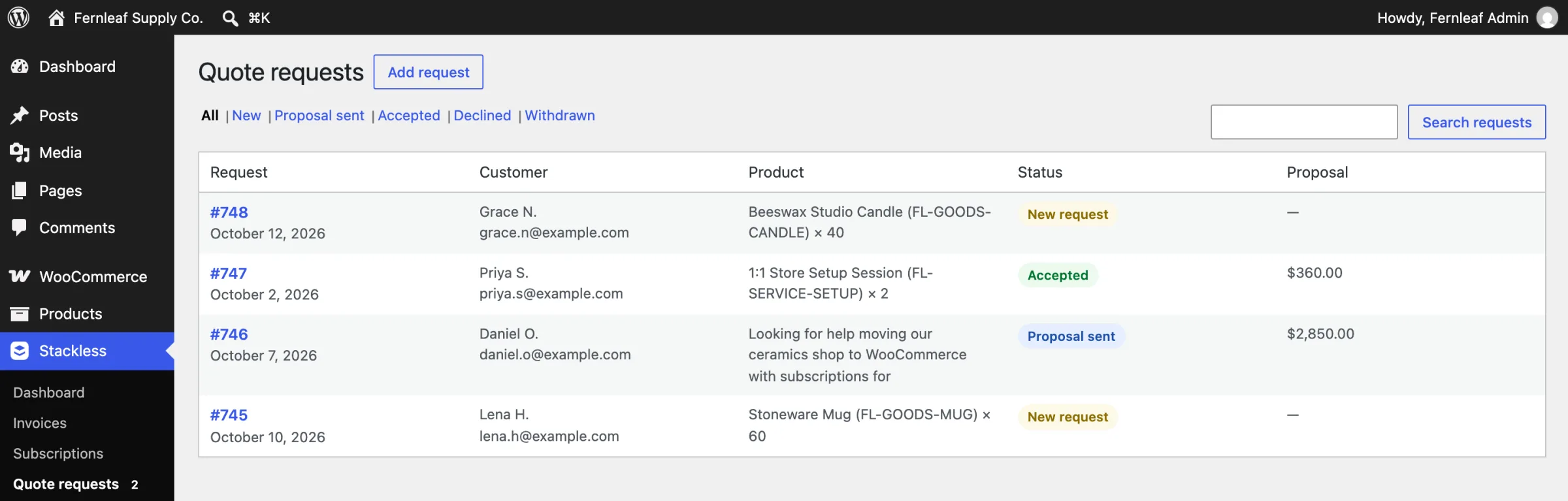
New requests land in Stackless → Quote requests, with a count beside the menu item. You and the customer both get an email.
- Open the request and click Prepare proposal. It creates a draft invoice with the requested product and quantity, or a “Custom work” line with no price.
- Click Edit proposal to set prices, add items or discounts, or ask for a deposit.
- Set Proposal valid through. It defaults to 14 days from today.
- Send the proposal from the editor, or with Send proposal on the request.
The customer gets the Quote proposal email with a link to their proposal page.
Ask for a Deposit on Bigger Jobs
A deposit protects you on work you start before full payment. Add one in the invoice editor while editing the proposal. The proposal page then tells the customer that accepting asks for the deposit now, and the balance is invoiced after the deposit is paid.
What the Customer Does
The proposal page shows the items and totals with Accept and Decline:
- Accept issues the invoice and takes the customer to the invoice page to pay.
- Decline asks for an optional reason, and you see it on the request.
One reminder goes out 2 days before an open proposal expires, at 9:00 in your site’s time zone. You can change it under Expiry reminder (days before), and 0 turns it off.
A proposal can’t be accepted once it has expired, been withdrawn or been edited after sending. If you change a sent proposal, send it again so the customer accepts the new version.
Handle Requests That Came by Phone or Email
Not every request starts on your site. Add request on the Quote requests screen records one by hand, and from there it works like any other request. Requests added by hand don’t trigger emails until you send the proposal.
Check It Works
- Submit a quote request from your store as a customer.
- Prepare and send a proposal with a price.
- Open the proposal link from the customer’s email, click Accept and pay the invoice in test mode.
- Confirm the request shows Accepted and the invoice shows as paid.
What It Won’t Do
- It doesn’t negotiate. A customer can accept or decline, and any back-and-forth on price happens outside the proposal before you send a new version.
- A proposal draft can’t be issued from the invoice editor. The customer issues it by accepting.
- The proposal and the request must use the same customer email.
- The form allows 5 submissions per connection every 10 minutes, which keeps bots from flooding the queue.
The request settings are in Quote Requests and Proposals, and the invoice side, including deposits, is in Create and Send Invoices.